How to Get a Perfect Zoom Meeting Transcript Every Time
In a world of back-to-back video calls, turning those sprawling Zoom discussions into something clear and actionable is a huge win. A solid Zoom meeting transcript is your secret weapon, guaranteeing that no critical decision, bright idea, or to-do list item gets lost after everyone clicks "Leave Meeting." From my experience managing countless projects, I've learned to think of it as our team's single source of truth.
Why Bother With an Accurate Transcript?
We've all felt the Zoom boom. When remote work went mainstream, video conferencing exploded. By April 2020, Zoom's daily meeting participants shot up by a mind-boggling 2,900%, hitting 300 million people—a massive leap from just 10 million a few months earlier. That shift means more important conversations are happening online than ever before.
Trying to remember who said what across all those calls is just asking for trouble. A reliable transcript acts as your team's collective memory. It's a searchable, permanent record you can pull up anytime.
Turning Talk Into Action
Picture this: a project manager needs to confirm the exact scope of work a client agreed to last week. Instead of digging through their own fuzzy notes or asking around, they just search the transcript for "deliverable" or "timeline." In seconds, they have the exact agreement, word-for-word.
That’s the kind of clarity that makes a real difference. It cuts through the "I thought you said..." confusion and gets everyone on the same page about who's doing what.
For a researcher, it means grabbing a precise quote for a study without having to scrub through hours of video. For an HR team, it's about keeping a detailed, compliant record of an interview.
An accurate transcript is more than just a record of a conversation; it's a productivity tool. It transforms spoken words into a real asset that helps your team make better decisions and actually follow through on them.
What a great transcript really gives you is:
- Better Productivity: You can actually participate in the meeting instead of frantically typing notes, knowing you'll have a perfect record later.
- Clear Accountability: It's easy to see who committed to what, so action items have clear owners.
- A Searchable Knowledge Base: All those hours on video calls become a library of insights, decisions, and customer feedback you can tap into.
Once you see the value of having that written record, the next logical step is finding the right tool for the job. Choosing the best meeting transcription software is key to getting the accuracy you need. Let’s dive into the different ways you can get that perfect transcript, from what Zoom offers out of the box to more powerful AI solutions.
Getting Started with Zoom's Own Transcription Feature
Zoom has a pretty handy built-in tool that can whip up a Zoom meeting transcript right inside the app. For a lot of day-to-day stuff—think internal check-ins or quick brainstorming sessions—it often gets the job done. It gives you two things: live transcription during the meeting itself and a separate audio transcript file afterward, as long as you record to the cloud.
Getting it turned on just takes a quick dive into your settings. The nice thing is you have a lot of control over who can use it.
- Account Level: An admin can flip the switch for the entire organization.
- Group Level: Need it just for the marketing team? You can enable it for specific groups.
- User Level: If the admin allows, you can turn it on for just your own meetings.
Once it's good to go, starting the transcript is a breeze. As the host, you’ll find a "Show Captions" button right in your meeting toolbar. Clicking this not only starts the live captions but also gives you the option to save the full transcript.
Setting Expectations for Zoom's Native Tool
While it’s incredibly convenient, it's good to go in with realistic expectations. In my experience, Zoom's native transcription is decent, but it's far from perfect. It can stumble over industry-specific jargon, heavy accents, or when people talk over each other. It’s perfect for a quick memory jog of a team sync, but if you need a precise record of a client call, you'll definitely spot some mistakes.
Another area where it can get a bit wobbly is with speaker identification. It usually does a fair job of labeling who's talking, but every now and then it gets confused and attributes a quote to the wrong person. This just means you should plan on spending a little time cleaning it up afterward.
Here’s a look at the settings panel where an admin would go to turn on the "Automated captions" and "Full transcript" options.
These are the key toggles you need to activate to make the transcription features available in your meetings.
How to Access and Edit Your Transcript
Once you've wrapped up your cloud-recorded meeting, Zoom gets to work processing the audio and creating the transcript. You’ll find the finished product in the "Recordings" section of your Zoom web portal. It's saved as a .vtt file, which is a standard format for captions.
The native VTT file is a solid starting point. You can pop it open in any text editor for quick fixes or use Zoom's own editor on their website. The web editor is great because it syncs the text with the video playback, making proofreading much easier.
For bigger editing jobs, I'd recommend just downloading the file and working on it locally.
While Zoom's built-in tool is a fantastic free option, remember its main goal is accessibility, not creating perfect, court-ready documents. If you need a higher level of accuracy and more powerful features, it's worth learning how to effectively record and transcribe meetings with more specialized services.
When to Use AI for Superior Accuracy
Zoom’s built-in transcription tool is handy for getting a quick, rough draft of a conversation. It's great for casual internal chats or when you just need a general sense of what was said. But let's be honest—for high-stakes client calls, detailed project kickoffs, or any meeting where every single word matters, "good enough" just doesn't cut it.
This is where third-party AI transcription services really shine. They offer a level of precision that can get you incredibly close to human accuracy, saving you from hours of tedious manual corrections.
Platforms like HypeScribe are built for one thing: getting the transcript right. They use sophisticated AI models trained on massive datasets to decipher complex jargon, understand different accents, and untangle conversations with overlapping speakers. The result is a Zoom meeting transcript you can actually trust and use immediately.
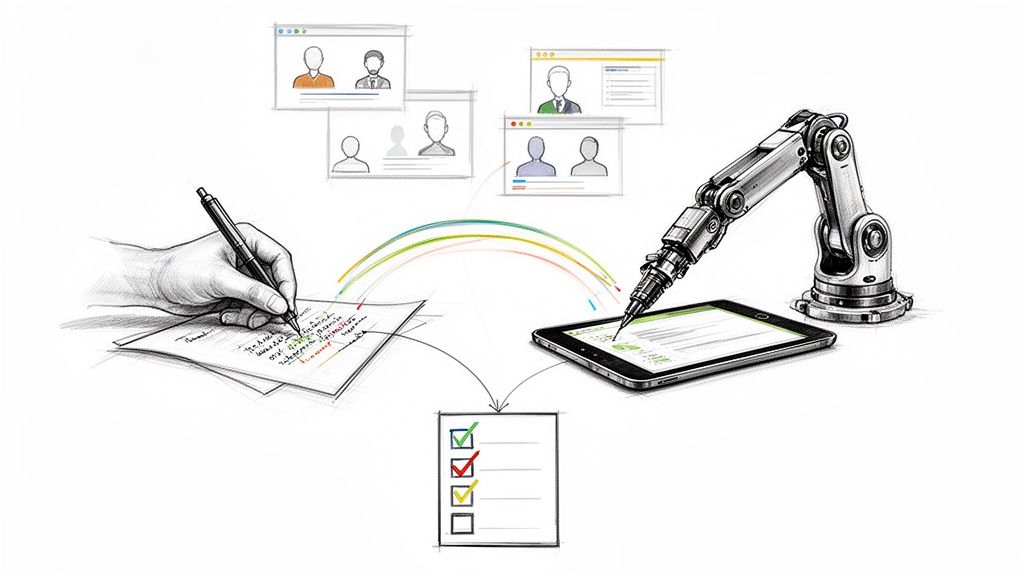
The true benefit here isn't just the raw accuracy; it's what that accuracy makes possible. A powerful AI service can take a dense, hour-long recording and, often in minutes, turn it into a searchable document complete with an executive summary, key takeaways, and a clear list of action items.
From Raw Audio to Actionable Intelligence
Let's imagine a real-world scenario. Your team just wrapped up a critical discovery call with a potential new client. Instead of relying on a jumble of handwritten notes, you simply upload the Zoom recording to an AI service.
Almost instantly, you have a polished transcript. But it gets better. The AI has already identified the client's biggest pain points, pulled out the key deliverables they mentioned, and even suggested action items based on the conversation. This isn't just a transcript anymore; it's a strategic asset.
Your team can now search the document for mentions of "budget," "timeline," or a competitor's name, making sure everyone is on the same page. In today's work environment, this kind of efficiency is vital.
Video conferencing is the backbone of modern business. Zoom alone hosts a staggering 45 billion annual webinar minutes, and with nearly 66% of U.S. internet users regularly joining video calls, the sheer volume of recorded content is enormous. Given that studies show only about 20% of webinar attendees are fully engaged, having accurate summaries and transcripts is crucial for making sure important information doesn't get lost.
Making the Right Transcription Choice
So, when should you stick with Zoom's tool, and when should you bring in a specialist? This flowchart can help you decide.
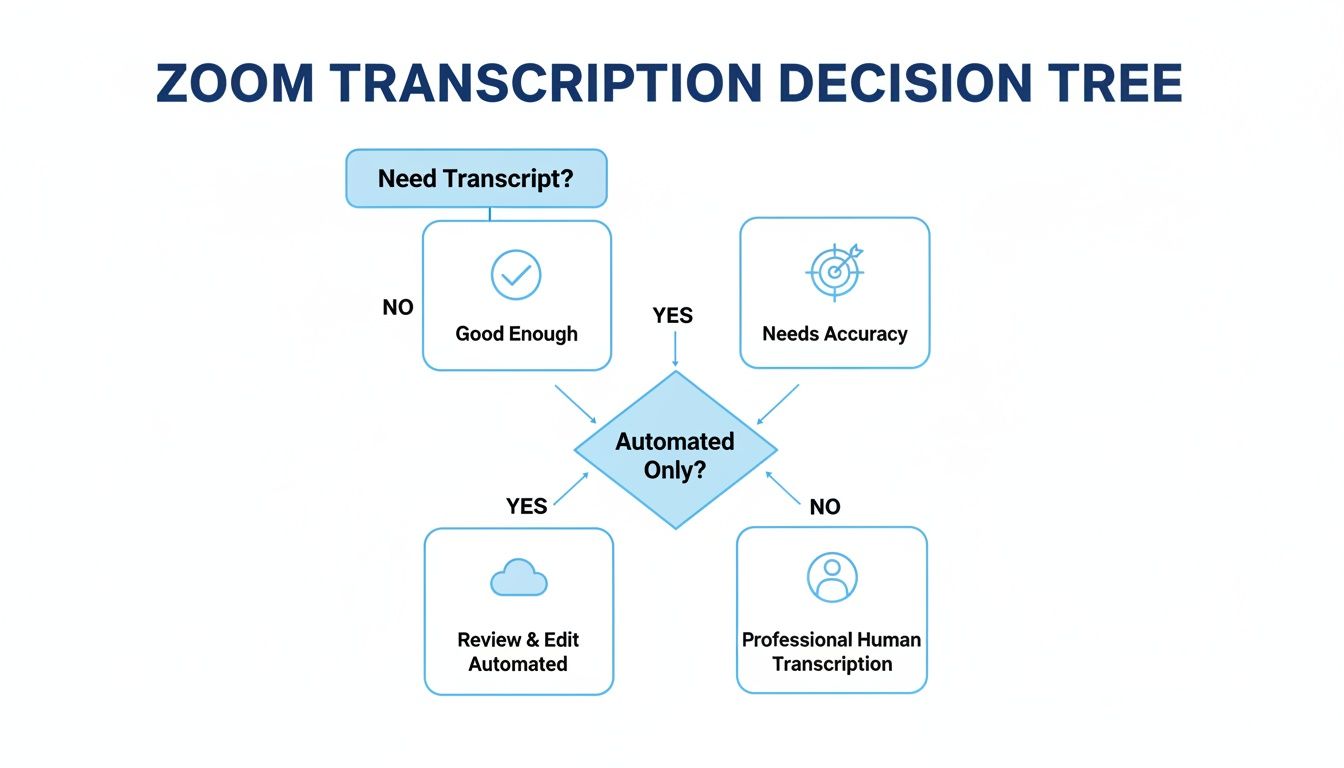
The takeaway is pretty clear: if the accuracy and integrity of your meeting's content are non-negotiable, a dedicated AI service is the way to go.
A Closer Look: Zoom Native Transcription vs HypeScribe AI
To really understand the difference, let's compare Zoom's built-in features with a dedicated AI platform like HypeScribe.
While Zoom provides a baseline service that's included with your plan, a specialized tool is an investment in accuracy and efficiency, turning your conversations into structured, usable data.
Advanced AI platforms also come packed with features that go far beyond a simple text file, such as:
- Live Meeting Note-Takers: An AI assistant can join your Zoom, Google Meet, or Microsoft Teams call to provide real-time transcription and generate summaries as the meeting unfolds.
- Multi-Language Support: Need to transcribe a meeting with international team members? Many services can accurately handle over 100 different languages and dialects.
- Superior Speaker Identification: The AI can distinguish between different voices with remarkable precision, correctly labeling who said what even in fast-paced discussions.
By using a specialized service, you're not just getting a transcript; you're getting a system that extracts value from your conversations automatically.
This mirrors how AI is being used in other business areas. Just as AI sharpens transcription, it can also streamline larger workflows, like using an AI-powered system for content creation. The core principles of boosting accuracy and efficiency are the same. If you're curious about the tech behind these tools, you can learn more about AI-powered transcription software in our article.
Pro Tips for a Crystal Clear Recording
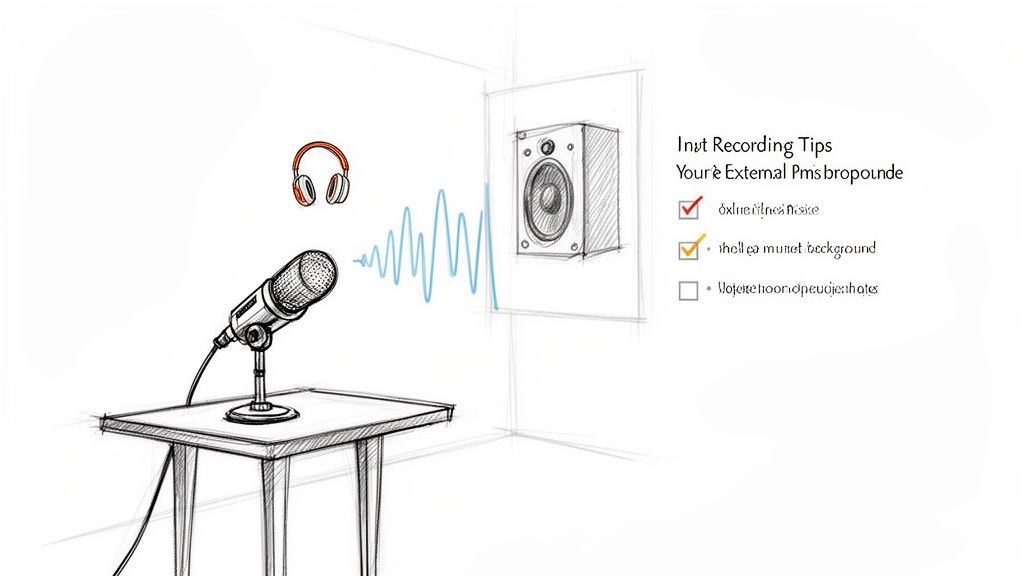
Here’s a secret I’ve learned after dealing with countless transcripts: the real key to an accurate Zoom meeting transcript isn't fancy software. It’s starting with the best possible audio.
No matter how sophisticated the AI is, it can't transcribe what it can't clearly hear. This is a classic case of "garbage in, garbage out." Taking just a few minutes to improve your audio quality before you hit record is the single best thing you can do. It will save you a massive headache and hours of editing later.
Invest in an External Microphone
Let's be honest, your laptop’s built-in microphone just isn't up to the task. It’s designed for convenience, not quality. Because it’s so far from your mouth, it picks up every distracting sound in the room—keyboard clicks, the hum of your AC, and that echo you didn’t even know you had.
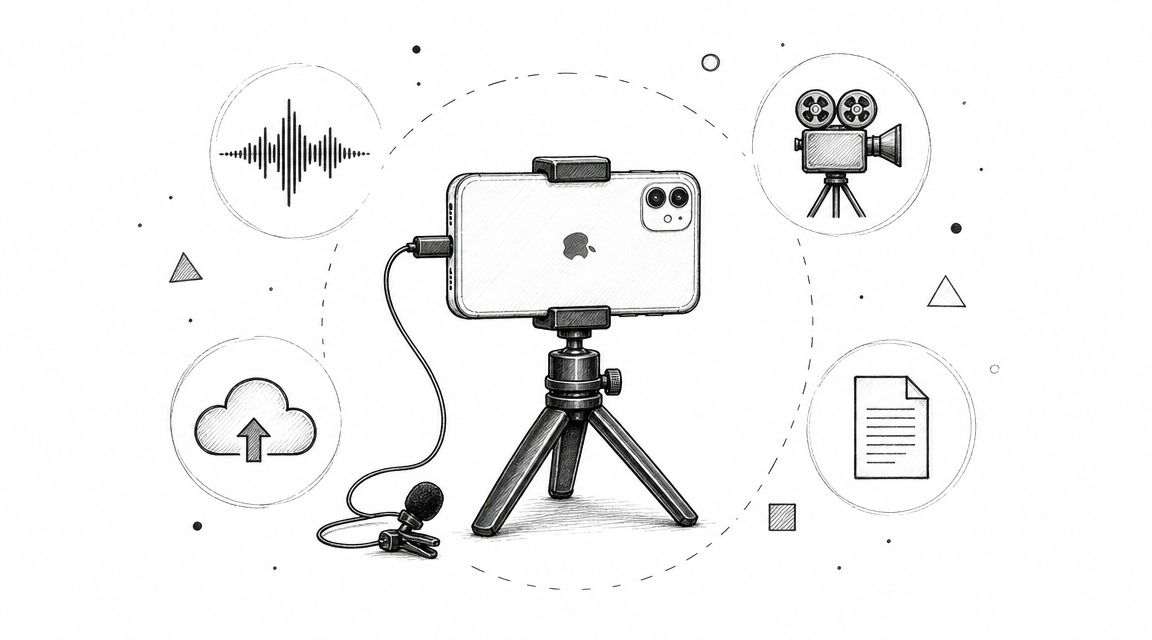
This is where an external USB microphone becomes your best friend. You don't need a high-end, studio-grade setup. Even a basic, affordable model will make a world of difference by capturing your voice clearly and minimizing everything else.
By simply moving the microphone closer to your mouth, you boost your voice and reduce background noise. In my experience, this one change can be the difference between a transcript that's 80% accurate and one that's over 98% accurate.
Getting a pristine recording isn’t just for transcription. It’s also a foundational step for more complex tasks like forensic video analysis software, where audio clarity is non-negotiable.
Control Your Recording Environment
Your surroundings have a much bigger impact on audio quality than you might think. Hard surfaces like bare walls, windows, and hardwood floors bounce sound waves around, creating echo that muddies your recording. Then there’s the obvious stuff—barking dogs, traffic, or nearby conversations that can completely throw off a transcription algorithm.
Luckily, you can get a cleaner sound with a few simple tweaks:
- Find a Quiet Space: A small room with soft furnishings is ideal. Things like carpets, curtains, and even a couch can absorb sound and cut down on echo.
- Kill the Distractions: Before the meeting starts, close the door, shut the windows, and silence notifications on your phone and computer.
- Always Use Headphones: This prevents the audio from other speakers from bleeding into your microphone, which is one of the most common causes of echo on a call.
Guide Your Meeting Participants
As the meeting host, you can set the tone for good audio from the very beginning. It's perfectly fine to establish a few ground rules to ensure a clean recording.
Start the meeting by politely asking everyone to mute themselves when they aren't speaking. This simple action drastically cuts down on cumulative background noise. Also, encourage people to speak one at a time. When people talk over each other, it becomes nearly impossible for any transcription service—whether it’s AI or a human—to make sense of the conversation. A little meeting etiquette goes a long way.
How to Manage and Share Transcripts Securely
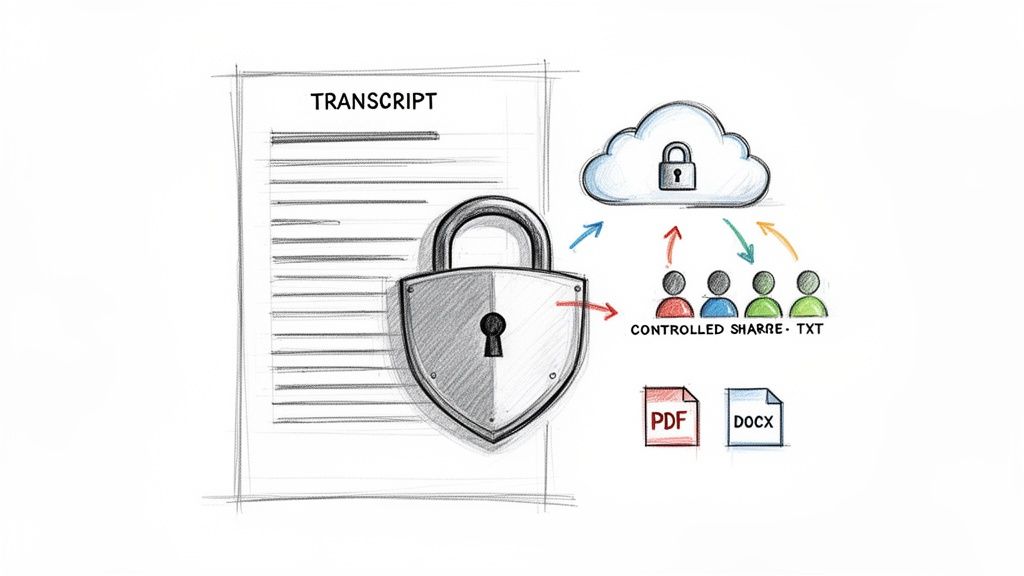
A meeting transcript can be a goldmine of information, but that's exactly what makes it a potential security risk. Think about it: it could contain confidential client strategies, sensitive HR discussions, or unreleased financial projections. Mishandling this data isn't just an "oops" moment; it can be a serious breach of privacy and trust.
That's why figuring out how to manage and share your Zoom meeting transcript securely is just as critical as getting an accurate one in the first place.
When you record to the Zoom Cloud, you get some good foundational controls over who sees what. You can set recordings to be viewable only by authenticated users in your organization or slap a password on them. This is a solid first line of defense for keeping internal discussions private and making sure only the right people have access.
Choosing the Right Security Features
For meetings that demand an even higher level of protection, using a dedicated service like HypeScribe offers some serious advantages. These platforms are often built from the ground up with security as a core feature, giving you peace of mind that goes beyond basic cloud storage settings.
When you're evaluating a service, look for these non-negotiables:
- End-to-End Encryption: This is a must. It means your data is protected both in transit (while uploading) and at rest (when it's just sitting on their servers).
- Secure Data Deletion: You need the power to permanently wipe both the original recording and the finished transcript from the service's servers once you're done with them.
- Compliance Certifications: If you're in a regulated industry like healthcare or finance, certifications like SOC 2 or HIPAA compliance aren't just nice to have—they're essential.
A security-first mindset is key. It allows you to confidently use transcription technology while upholding privacy standards and keeping your data locked down. It’s all about making sure your valuable insights don’t fall into the wrong hands.
Selecting the Best Export Format for Your Needs
Once your transcript is ready and polished, the file format you choose for sharing and archiving also impacts its security and usability. Different scenarios call for different file types, and knowing the trade-offs is a game-changer.
Here’s a quick rundown of the most common options I see people use:
- DOCX (Microsoft Word): This is the go-to for collaboration. It's perfect when you need your team to review the transcript, make edits, or add comments directly into the document.
- PDF (Portable Document Format): When you need a secure, unchangeable copy for official records or legal purposes, PDF is the industry standard. It locks in the formatting and prevents easy alteration.
- TXT (Plain Text): The simplest of the bunch. This format is great for quickly copying and pasting quotes into other apps or for archival systems where you just need the raw text without any fancy formatting.
Picking the right format ensures the transcript actually serves its purpose, whether that's for an interactive team workshop or for long-term, secure archiving.
Answering Your Top Questions About Zoom Transcripts
Even with the best tools, you'll inevitably run into some practical questions once you start working with Zoom meeting transcripts. Let's walk through some of the most common ones I hear from teams and get you some clear, actionable answers.
How Can I Get a Transcript of a Zoom Meeting I Didn't Host?
This is a classic. You were in the meeting, you need the notes, but you weren't the one who hit "record."
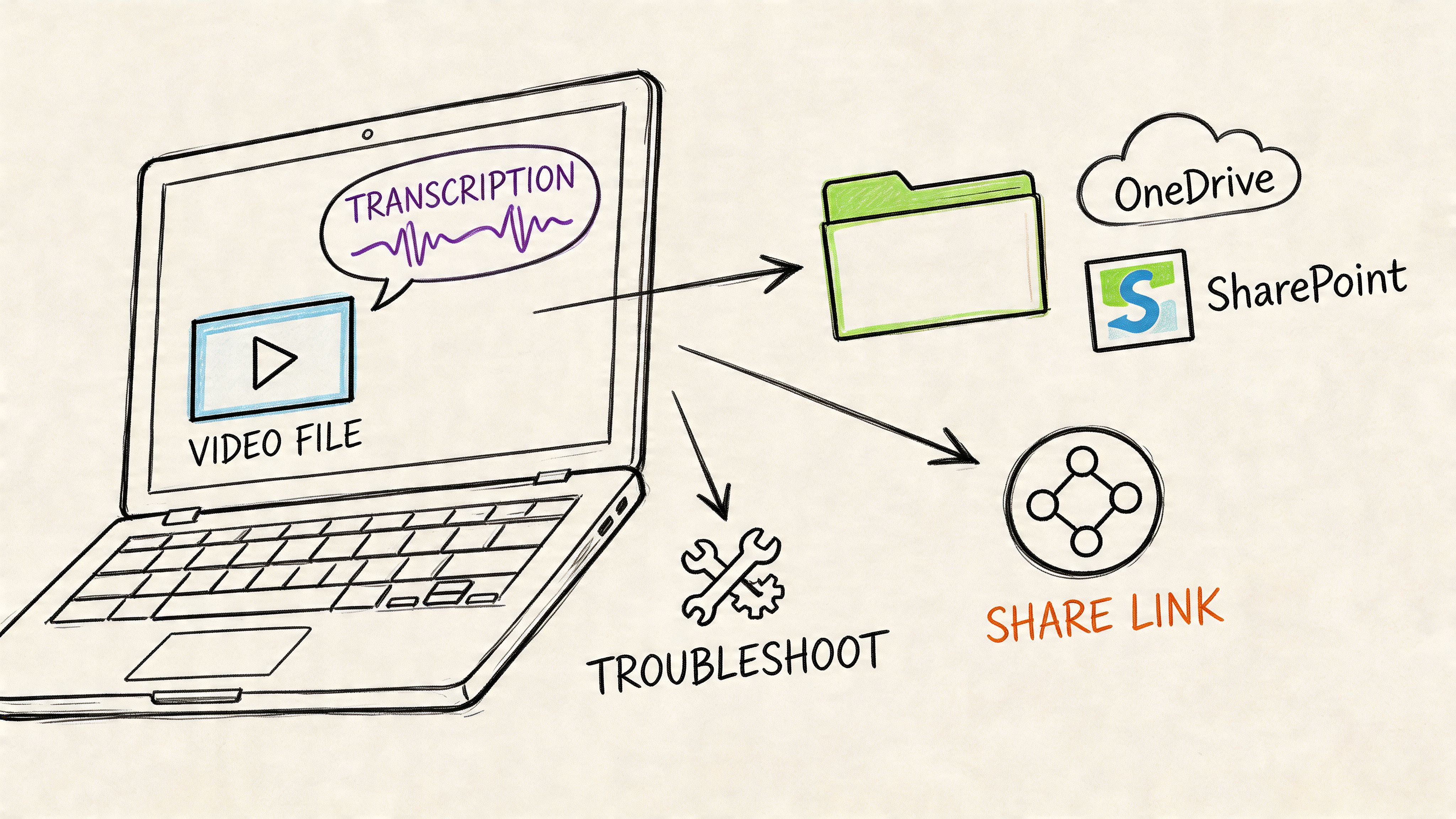
Your first, and simplest, move is to just ask the host. If they recorded the meeting to the cloud and had transcription turned on, they can easily send you a share link. This link usually includes the video player with the transcript right alongside it.
But sometimes, that's not an option. Maybe the host is busy or you can't reach them. In that case, your best bet is to ask for the raw audio or video file (it’ll likely be an MP4 or M4A). Once you have that file, you're back in control. You can upload it directly to a third-party AI transcription service and get a high-quality transcript on your own terms.
Pro Tip: For future meetings you know you won't be hosting, think about using a live AI note-taker. These tools can join a meeting just like any other participant and generate a real-time transcript and summary, no host involvement required.
This little workaround ensures you get the Zoom meeting transcript you need, even when you aren't running the show. It’s a simple way to make sure no important details slip through the cracks.
Can Zoom Transcribe Meetings in Different Languages?
Yes, but it's a bit rigid. Zoom’s built-in transcription supports several major languages, but there’s a crucial catch: you have to select the main language before the meeting begins. If you forget, or if people start switching languages mid-sentence, the accuracy takes a nosedive.
This is where dedicated AI services really shine. A platform like HypeScribe, for example, can automatically and accurately handle content in over 100 languages and dialects.
- No pre-selection needed: The AI is smart enough to detect the language being spoken.
- Handles mixed languages: Advanced systems can keep up with conversations that bounce between languages.
- Recognizes dialects: They can tell the difference between US, UK, and Australian English, which is a huge plus for global teams.
For any meeting with international team members, a specialized AI tool is easily the most reliable way to capture every word correctly, no matter what language is being spoken.
What Is the Best Format to Save My Zoom Transcript In?
The "best" format really just depends on what you need to do with the transcript next. There’s no single right answer, only the right one for your specific task.
Think of it like picking the right tool for a home repair project. A hammer is great for nails, but terrible for screws. Your transcript format should match your goal.
Most professional transcription services give you the option to download in all of these formats, so you have the flexibility to grab the perfect one for whatever you’re working on.
How Do I Fix Incorrect Names or Terms in My Transcript?
Editing is that crucial final polish. For a few small typos, Zoom's own web editor works pretty well. It syncs the text with the video playback, letting you click on a word, hear the audio for it, and type in a quick correction.
But if you're dealing with bigger issues—like a company name or a piece of jargon that's misspelled dozens of times—that method is painfully slow. The absolute fastest way is to download the transcript as a DOCX file. From there, just use the "Find and Replace" function in Microsoft Word or Google Docs. You can fix every single instance of an error in seconds. This is a lifesaver for correcting names, acronyms, and technical terms that the AI might have struggled with.
Ready to turn those conversations into something you can actually use? HypeScribe transforms your Zoom calls into accurate, searchable assets, complete with AI-powered summaries and key takeaways. Stop letting important details get lost and start making your meetings truly productive. Try it today and get your first perfect transcript in minutes. Learn more at https://www.hypescribe.com.