Your Guide to Using a Google Meet Note Taker

A Google Meet note taker is an AI-powered assistant that joins your calls to automatically transcribe the conversation, pull out key summaries, and pinpoint action items. It handles the tedious administrative work, allowing you to stay fully present in the discussion instead of getting lost in typing.
Stop Drowning in Meetings and Start Focusing
We've all been there. You're in a crucial Google Meet call, trying to listen, contribute a valuable point, and somehow type down every important detail at the same time. It's a recipe for burnout and missed information, especially for project managers and team leads who live in back-to-back meetings.
How many times have you left a call and immediately struggled to remember a specific decision or who was supposed to follow up on a critical task?
This is exactly the problem an AI-powered Google Meet note taker solves. Instead of frantically typing, you get to be an active participant. You can ask thoughtful questions, build on your team's ideas, and actually engage with your colleagues. Meanwhile, the tool works silently in the background, turning a free-flowing conversation into a perfectly structured, searchable record.
The True Cost of Manual Note Taking
Taking notes by hand (or keyboard) isn't just a hassle; it quietly drains your team's productivity and muddies the decision-making process. From my experience managing projects, the difference between having an AI assistant and relying on manual notes is night and day.
Let's look at the real-world impact of trying to do it all yourself versus letting an AI handle it.
Manual note-taking often leads to a few common pain points we can all recognize:
- Divided Attention: You simply can't listen with 100% focus when you're also trying to be a court stenographer. Nuances get lost.
- Inconsistent Records: When three people take notes, you end up with three different versions of what was decided, leading to confusion down the line.
- Delayed Follow-ups: The time it takes to manually type up, format, and send out meeting notes is time when your team could already be working on their action items.
An automated tool fixes these problems at the source. The need for this is bigger than ever. With over 300 million monthly active users, Google Meet holds nearly 30% of the global video conferencing market, a figure highlighted by ElectroIQ. This massive adoption makes efficient meeting documentation non-negotiable.
By automating the note-taking process, you shift from being a passive scribe to an active participant. This simple change allows your team to collaborate more freely, confident that every key detail is being captured accurately for future reference.
Ultimately, using a Google Meet note taker is less about the technology itself and more about reclaiming your most valuable asset: your attention. Our guide on how to effectively take meeting notes dives deeper into strategies for maximizing your focus. Automating the busywork is the perfect first step toward making every single meeting more productive.
Getting Your AI Assistant Synced with Google Meet
Setting up your Google Meet note taker is much easier than you might think. Most of the best tools, like our own HypeScribe, are built as Chrome extensions, which means getting started is usually just a matter of a few clicks. You simply go to the Chrome Web Store, find the extension, and click "Add to Chrome."
The one part that can sometimes cause hesitation is the permissions pop-up. The first time you use the tool, it will ask for access to a few things. It can feel a little strange granting access if you're not sure why it's needed, so let's walk through what a typical note-taker asks for and what it's doing with that access.
Why Does a Note Taker Need These Permissions?
Handing over access to parts of your digital workspace requires trust. Any good AI tool will be transparent about what it needs. Here’s a quick rundown of the permissions you’ll likely encounter and the simple reasons behind them:
- Google Calendar Access: This is how the AI knows about your upcoming meetings. It scans your calendar to identify which calls it should join automatically, so you don't have to remember to invite it every time. It’s a huge time-saver.
- Microphone and Camera Access: The main job is to listen and transcribe, so it needs microphone access to hear the conversation. Some tools also request camera access to help identify who is speaking, which makes the final transcript much easier to follow.
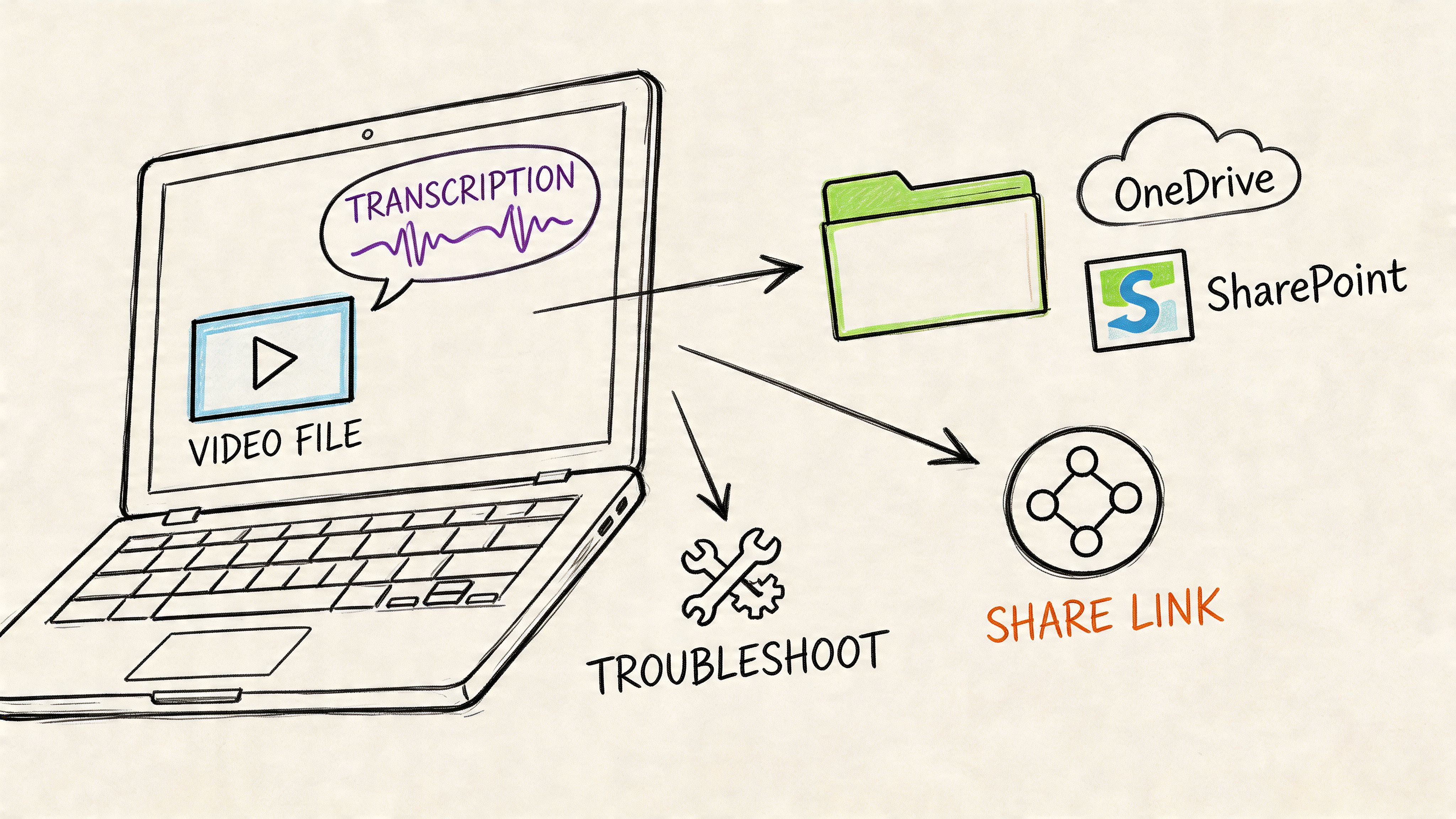
- Google Drive Access: This is purely for storage. The tool creates a new folder in your Google Drive to neatly save all your transcripts, summaries, and action items, keeping everything secure and easy for you to find.
Once you offload the note-taking, you can stop multitasking and actually engage with the people in the meeting. Your focus shifts from just trying to keep up to actively contributing.
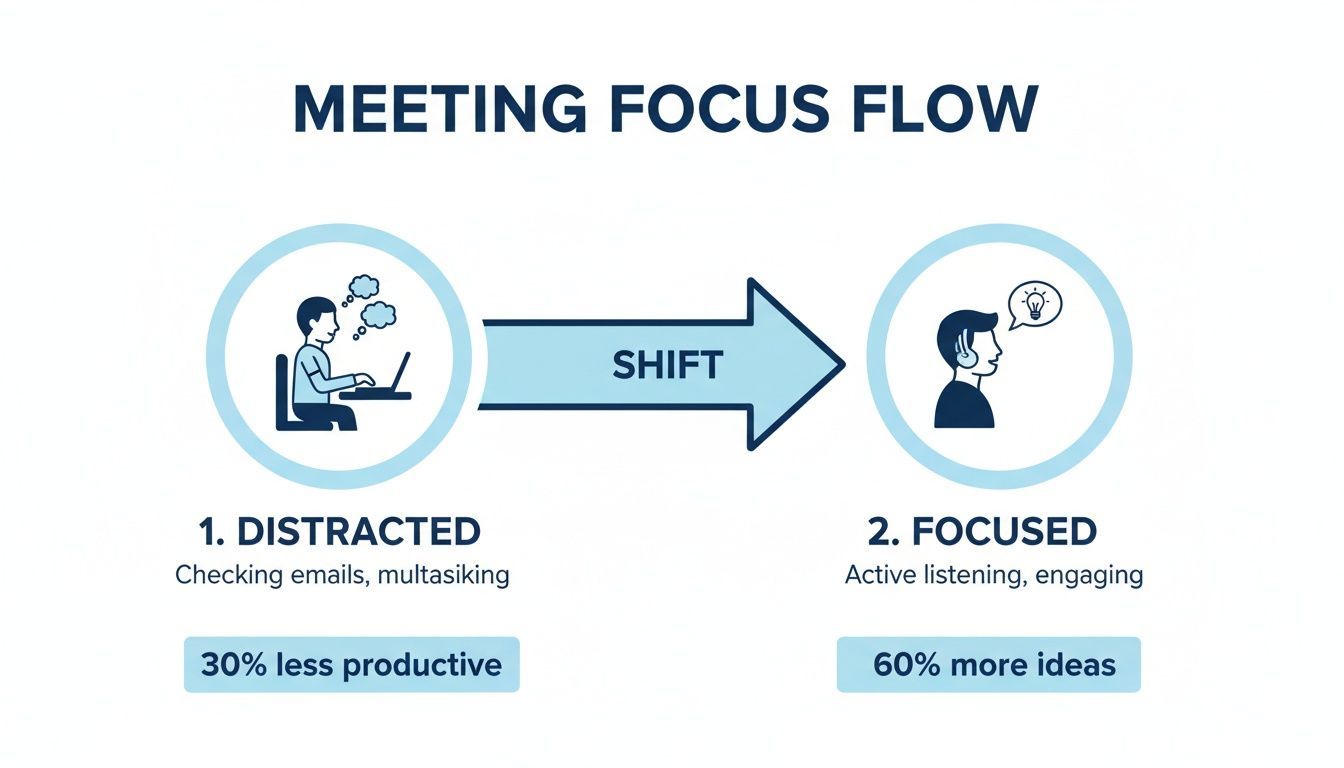
When you let technology handle the busywork, you free up significant mental energy, which often leads to better ideas and more insightful comments during the conversation.
What to Do If the Bot Doesn't Join Your Call
So, you've installed the extension, granted the permissions, and... nothing. The AI bot doesn't show up in your meeting. Don't worry; this is a very common hiccup with a simple fix.
First, just try refreshing your Google Meet tab. More often than not, the browser just needs a quick reset to recognize the new extension.
If that doesn't do the trick, head over to your Chrome extensions page (you can type chrome://extensions/ in your address bar). Find the note-taker, toggle it off, and then toggle it back on. This forces a hard reset and usually solves the issue.
An AI assistant's real power is in how it simplifies complicated tasks, turning messy meeting notes into something genuinely useful. It's similar to how smart tools are changing other fields, like using AI for Social Media Marketing to automate content creation and scheduling. Once it's set up, it should just work.
One last thing to check is for conflicting extensions. If you have another tool that tries to transcribe or add captions to your meetings, it could be getting in the way. Try disabling other similar extensions to see if that resolves the problem.
For a more detailed technical guide, our post on how to record a Google Meet has a few extra troubleshooting tips that can ensure your setup is rock-solid. A few minutes of setup now will make sure your Google Meet note taker is ready to go when you need it.
Making Sense of It All: Using Transcripts and AI Summaries After the Call
Live transcription is great for keeping up in the moment, but the real power of a Google Meet note taker kicks in after the meeting ends. This is where you get your time back. Within minutes, the tool processes the entire conversation and delivers a clear, organized breakdown of what happened.
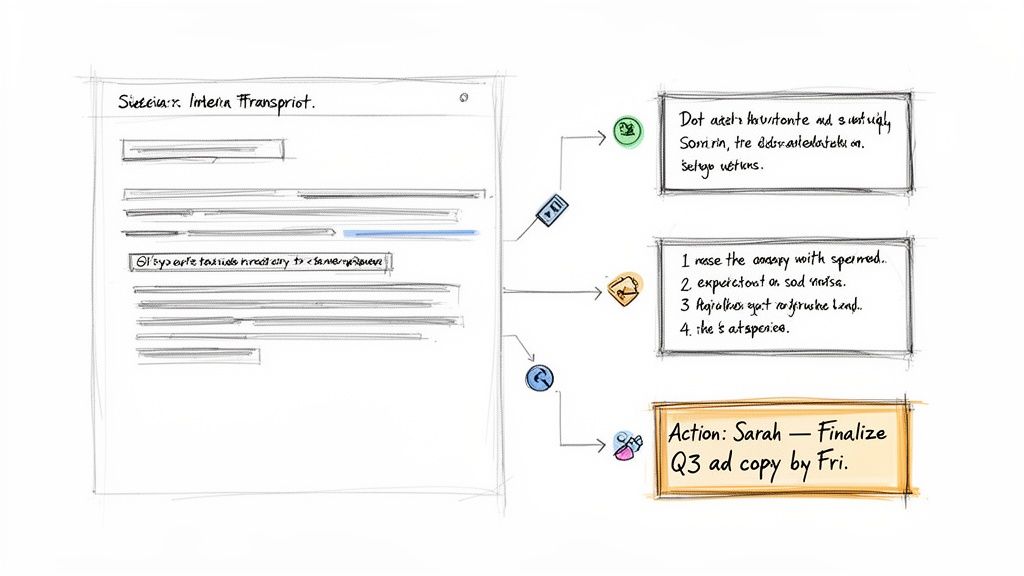
Instead of deciphering your own scribbled notes or trying to remember who agreed to what, you get a clean, time-stamped transcript, a concise AI summary, and a list of key decisions and action items. For any team, this is a night-and-day difference in productivity.
Turning Talk into Actionable Intelligence
The full transcript is your source of truth—a perfect, searchable log of every word. But let's be honest, no one has time to re-read an hour of dialogue. That’s why the AI summary is so incredibly useful. It boils down the entire discussion into a few key paragraphs, hitting the highlights and major decisions.
Here’s a practical example from a typical marketing sync:
- Before AI: The team brainstorms a new campaign. Notes are all over the place. One person has "social media ideas," while another wrote down "Q3 budget?" Follow-up drags because nobody's 100% sure who owns what.
- After AI: The note taker’s summary clearly states, "The team agreed to focus on video ads for the Q3 campaign, with a proposed budget increase of 15%." Even better, it pulls out specific action items.
This simple shift closes the gap between talking about work and actually getting it done. Vague ideas become concrete tasks, and everyone leaves the meeting knowing what's next.
The real win with an AI note taker isn’t just that it captures what was said, but that it understands the intent. It flags commitments and turns them into trackable tasks, baking accountability right into your process.
What to Look For in Your Post-Meeting Report
Your post-meeting report is usually broken down into a few digestible parts. The layout might differ slightly depending on the tool, but any good one will provide these core elements:
- AI Summary: This is the big-picture overview of the meeting's goals, main discussion points, and outcomes. It's essentially the executive summary you never have time to write yourself.
- Key Takeaways: A simple bulleted list of the most critical insights, decisions, and conclusions. This is perfect for looping in stakeholders who just need the highlights.
- Action Items: A checklist of tasks assigned during the call. The AI is smart enough to pick up on phrases like, "Okay, Sarah, can you finalize the ad copy by Friday?" and turn it into a trackable item, often automatically assigning it to the right person.
If you're looking to really master this, our guide on how to record and transcribe meetings dives deeper into turning these raw materials into team intelligence. A Google Meet note taker automates this entire process, ensuring no great idea or important task ever gets lost in the shuffle.
How to Manage and Share Your Meeting Intelligence
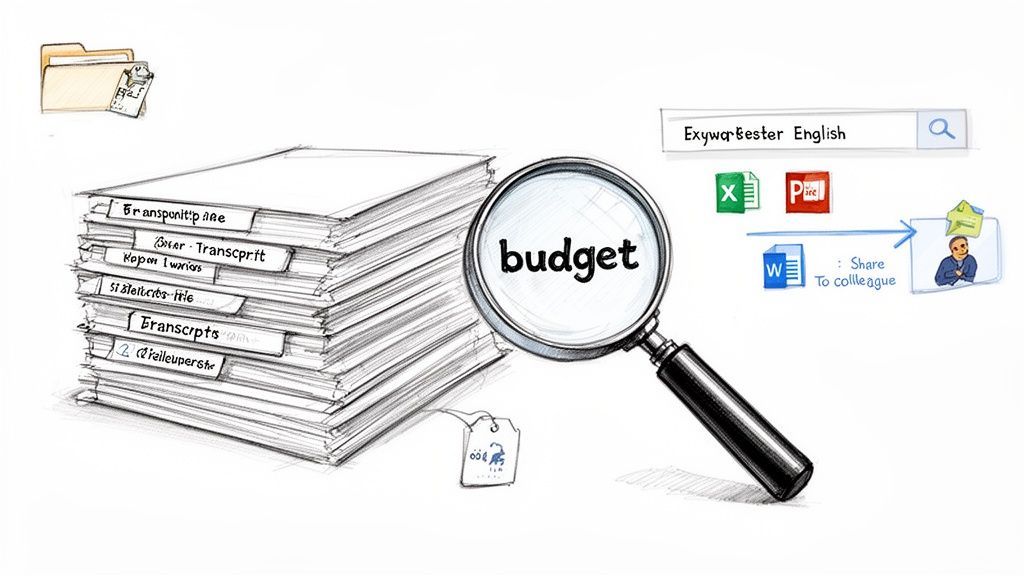
Recording meeting notes is just the first step. The real magic happens when you turn that raw information into a living, searchable knowledge base for your entire team. A great Google Meet note taker doesn't just produce files; it builds an intelligent library of every conversation. This becomes your single source of truth, finally putting an end to the frantic search through old emails and Slack DMs for a decision made weeks ago.
Think about it: instead of a messy folder overflowing with random documents, you have a clean, organized archive. Need to remember the final Q3 budget numbers from that meeting two months back? Just type "Q3 budget" into the search bar. You'll instantly find the exact moment it was discussed, complete with the full context of the conversation.
Exporting and Organizing Your Notes for Different Needs
One size rarely fits all, and the same goes for meeting notes. The best tools give you the flexibility to export your meeting intelligence in whatever format makes sense for the task at hand. This is a game-changer for keeping your communication professional and your workflows smooth.
Here are a few real-world examples of how you might use this:
- For Client Records: After a project kickoff, you need an official, uneditable log of what was agreed upon. Exporting the full transcript to a PDF is perfect. It creates a clean, professional document you can file away for compliance or attach to an invoice.
- For Team Brainstorms: The marketing team just wrapped up a creative session. Sending the notes directly to a Google Doc lets everyone jump in, add comments, and collaboratively build on each other's ideas while the energy is still high.
- For Project Management: You've just finished a sprint planning meeting, and now it's time to get to work. Exporting the action items as a simple text or Markdown file makes it incredibly easy to copy and paste those tasks directly into tools like Asana, Trello, or Jira.
The ability to transform a conversation into various formats on demand is what makes a meeting archive truly powerful. It’s not just about storage; it’s about making the information useful and accessible for any workflow. For a deeper dive into organizing and utilizing all forms of information, explore these advanced knowledge management strategies.
Smart Sharing for Maximum Impact
Getting the right information to the right people is critical. Nobody wants to bury a busy executive under a 10-page transcript just to get a sign-off. Smart, strategic sharing ensures everyone gets exactly what they need without the noise.
A good Google Meet note taker should make this easy with tiered sharing options.
- Share the AI Summary: Perfect for executives or stakeholders who just need the high-level takeaways and key decisions. It's the "give me the bottom line" version.
- Share the Full Transcript: Essential for a team member who missed the call. They can get fully up to speed on every nuance and detail without having to ask for a recap.
- Share a Specific Snippet: Just need to remind someone of their to-do list? Copy and paste the action items directly into a Slack channel or email.
This tailored approach respects everyone's time while making sure information flows where it needs to go. It’s a fundamental shift in how teams manage their collective knowledge. And with the video conferencing market growing from $6.62 billion in 2022 to $7.26 billion in 2023, the demand for smarter meeting tools is only getting stronger. You can learn more about how transcription tools are shaping this market on Fireflies.ai.
Adopting Best Practices for Team Use and Data Privacy
Bringing a Google Meet note taker into your team’s workflow can be a game-changer for productivity, but only if you get the rollout right. Like any new tool, its success hinges on setting clear expectations around etiquette and data security right from the start. This builds trust and ensures everyone is comfortable.
The single most important rule is transparency. Always let participants know at the beginning of a meeting that an AI assistant is transcribing the conversation. A quick, friendly heads-up like, "Just so everyone is aware, we're using an AI note taker to capture this discussion and help with action items," is perfect. It’s a simple courtesy that fosters an open environment and ensures no one feels caught off guard.
How to Keep Your Meeting Data Secure
When you’re recording team brainstorms, sensitive client negotiations, or high-level strategic planning, the privacy of that information is non-negotiable. It’s natural to wonder where that data goes and how it's protected. The good news is that reputable tools are built with security as a core feature, not an afterthought.
Understanding the security measures in place can give you and your team peace of mind. Here’s what you should expect from any top-tier Google Meet note taker:
- End-to-End Encryption: Your data should be encrypted both on its way to the server (in transit) and while it's stored (at rest). This is the gold standard for protecting information.
- User Control Over Data: You should always be in the driver's seat. This means having the ability to permanently delete any transcript or audio file whenever you want. You own your data.
- Compliance with Privacy Standards: Look for tools that comply with major data protection laws like GDPR. This is a clear sign that the company takes its responsibility to handle user data ethically and legally seriously.
For example, HypeScribe is designed to give you complete control. You can wipe source files and transcripts at any time, making sure your private conversations stay that way.
The goal is to get all the powerful benefits of AI without ever compromising on security. A trustworthy tool will have a clear privacy policy and give you the controls you need to manage your team’s data with confidence.
Establishing Clear Team Guidelines
To get the most value from your note taker, everyone on the team needs to be on the same page. Without a shared understanding of how and when to use it, the tool can become underutilized or, even worse, a source of confusion.
Setting a few simple ground rules can make all the difference:
- Define When to Use It: Decide which meetings benefit from transcription. Is it just for client calls? Internal project syncs? Maybe only formal debriefs? Setting clear boundaries prevents tool fatigue.
- Assign a Reviewer: For critical meetings, designate one person to give the AI-generated summary and action items a quick review. A human check for accuracy before sharing the notes widely is always a good practice.
- Standardize Sharing Protocols: Create a simple rule for distributing notes. For instance, summaries could automatically go to all attendees, while the full transcript is only shared upon request with those who couldn't make it.
Following these practices creates consistency and helps the Google Meet note taker fit seamlessly into your team's natural workflow, turning it from a neat gadget into a truly reliable asset.
Answering Your Top Questions About Google Meet Note Takers
Jumping into any new tool, especially one that listens in on your meetings, is bound to bring up a few questions. It’s smart to be skeptical. You're probably wondering about accuracy, security, and of course, the cost. Let's tackle these head-on.
How Accurate Are These AI Note Takers, Really?
This is probably the biggest question people have. After all, if the transcript is a mess, what's the point? The good news is the technology has come a long way. While not flawless, the best tools on the market are surprisingly precise, especially when the audio is clear.
We're seeing leading AI models hit 88-93% accuracy on high-quality audio. But let's be realistic—most team meetings aren't pristine studio recordings. The real test is how they handle multiple people talking at once, which is where advanced speaker identification becomes a must-have feature. If you want to dive deeper into the data, there are some great AI transcription accuracy benchmarks on Superagi.com.
Is My Meeting Data Secure?
This is a non-negotiable, especially if you're discussing sensitive client details or company strategy. Any reputable Google Meet note taker is built with security as a top priority. You shouldn't have to settle for less.
Here’s what to look for to ensure your conversations stay private:
- End-to-end encryption: This protects your data as it travels from your meeting to their servers and while it's stored.
- User-controlled data deletion: You should have the final say. The ability to permanently erase your transcripts and recordings is crucial.
- Compliance with privacy standards: Look for tools that adhere to regulations like GDPR. It’s a strong signal they take data responsibility seriously.
The bottom line is simple: you own your data. The tool is just there to help you process it, not to own it.
Do I Have to Pay for a Good One?
It's a fair question—is this going to be another monthly subscription? You'll be glad to hear that many of the best tools offer really solid free plans. They're not just limited-time trials; they're designed for individuals or small teams to get real work done.
Typically, a free plan will give you a set number of transcription minutes each month, along with core features like AI summaries and action item detection. This is the perfect way to try it out in your own meetings and see the value for yourself, no credit card required. If you find your team is using it constantly, you can always look at paid plans later for things like unlimited minutes or integrations with your CRM.
Ready to stop taking notes and start leading the conversation? HypeScribe provides instant, accurate transcriptions and AI-powered summaries for all your Google Meet calls. Try it for free and see how much time you can save. Get started with HypeScribe today.