
How to Organize Digital Files Without Losing Your Mind

Is your desktop a graveyard of random downloads, meeting transcripts, and a dozen files named "Untitled_document_final_v3.docx"? If so, you know the feeling. The only real way to organize your digital files is to build a unified system—one with a clear folder structure, consistent file naming rules, and a simple maintenance routine.
This isn't just about tidying up; it's about transforming digital chaos into a smooth workflow where everything has a home and is easy to find.
The Real Cost of Digital Chaos
If your digital life feels like a cluttered room you dread entering, you're not alone. That digital mess isn't just an eyesore; it's a silent killer of your productivity, time, and focus. We often brush it off as a minor inconvenience, but the impact of disorganized files adds up every single day. It's the low-grade stress of not finding a critical report minutes before a deadline or the sheer frustration of digging through endless folders for one specific invoice.
Why Digital Clutter Is More Than Just Messy
This disorganization quickly becomes a serious bottleneck, especially for professionals. Foundational studies show workers spend an average of 18 minutes locating each document they need, which is a massive hit to productivity.
Think about a remote team where a key HypeScribe transcript from a project kickoff call is lost in someone's "Downloads" folder. That's not just inefficient; it's a direct roadblock to getting work done.
The problem only gets worse as your digital assets pile up. Every minute you spend searching is a minute you're not spending on creating, analyzing, or collaborating. This guide is designed to give you a clear, actionable system to get that time back.
We'll walk through exactly how to:
- Take stock of what you currently have and where it all lives.
- Design a logical folder structure that can grow with you.
- Create smart naming conventions that make searching a breeze.
- Set up automations to file things for you.
- Establish a quick maintenance routine to keep the clutter from creeping back in.
The goal isn't just to tidy up. It's to build a system so intuitive that finding what you need takes seconds, freeing up your mental energy for the work that actually matters.
Before we get into the step-by-step, here's a quick look at the core principles we're going to cover. Think of this as your blueprint for getting organized.
Your Digital Organization Blueprint
A quick overview of the core principles this guide covers, giving you a scannable roadmap to digital clarity before we dive in.
This blueprint gives you a solid foundation. To see these principles in action, especially for complex projects, looking at specialized guides like this one on how to organize research papers can offer fantastic insights.
By finally facing the true cost of digital chaos, you can commit to building a workflow that brings clarity and focus back to your work. Let's turn your digital space from a source of stress into your most powerful tool.
Build Your Central Digital Hub
Before you can organize anything, you have to stop the chaos. That means putting an end to files scattered across your desktop, downloads folder, and three different cloud services you forgot you signed up for. The foundation of any calm, efficient system is a single source of truth—one central place where everything lives.
Think of it as your digital filing cabinet. This could be a primary folder in Google Drive, Dropbox, OneDrive, or even a dedicated drive on your computer. The goal is to eliminate the guesswork. Instead of wondering if that project file is on your laptop or in the team's shared drive, you bring it all together. When meeting transcripts from a tool like HypeScribe are in the same place as the project briefs they relate to, you can finally find what you need on autopilot.
Digital clutter isn't just messy; it's a productivity killer. It actively works against you, wasting time and mental energy.
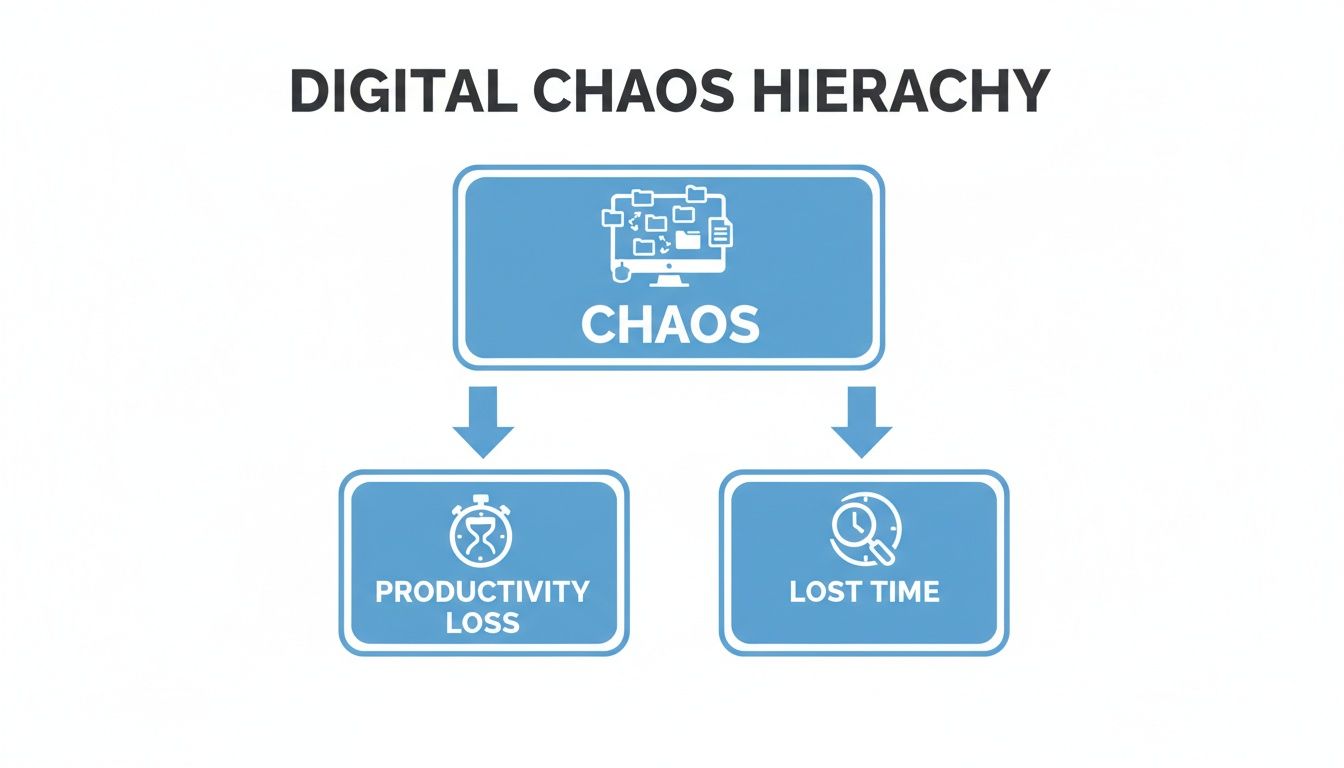
As you can see, the path from digital chaos to lost time and productivity is a straight line. A central system is the first step to breaking that cycle.
Designing Your Master Folder Structure
A good folder structure is like a tree. It starts broad at the trunk and gets more specific as it branches out. This hierarchical approach is what keeps you from just dumping everything into one giant, overwhelming folder.
Start by creating a handful of top-level folders that represent the main areas of your life and work. These are your "big buckets."
- /Work/: For everything related to your job, clients, and professional growth.
- /Personal/: The place for home life, finances, hobbies, and family records.
- /Projects/: For specific, time-bound initiatives that might not fit neatly into "Work" or "Personal."
- /Archive/: A digital attic for old files you don’t need every day but can't bear to delete.
The real power here isn't just tidiness—it's reliability. When you know with 100% certainty that a file has to be within your central hub, you stop wasting mental energy searching random places. This is the first real step toward building a true knowledge management system.
Real-World Folder Structures for Different Roles
The best part about this system is how flexible it is. Your "big buckets" should reflect your world. What works for a student is going to look very different from what a freelance creator needs.
Let's look at a couple of practical examples.
Example for a Freelance Creator:
A freelance video editor juggling multiple clients needs a structure that keeps projects and assets completely separate.
/01_Contracts//02_Assets/(Raw footage, graphics, audio files)/Q3-Product-Launch-Video/
/04_Invoices//Client B - Lifestyle Brand//Portfolio//Social Media Content/
/Accounting//Software & Licenses/
Example for a University Student:
For a student, the focus is on organizing by semester and course, with an eye toward future career prep.
/Lecture Notes//Readings//Assignments/
/CHEM-205 - Organic Chemistry//Spring 2025//Resume & CVs//Internship Applications/
This central-hub approach directly attacks the problem of data silos, which can cripple both teams and individuals. When files are fragmented across different devices and platforms, it can slow productivity by up to 21.3%. People end up drowning in isolated Google Drives and local folders.
Imagine a consultant uploading HypeScribe transcripts from client interviews to one app while another department stores its training videos somewhere else—it's a recipe for disaster. By creating a master hub where all files, summaries, and action items are exported to a single cloud folder, you build a unified, searchable knowledge base. That one change can fundamentally improve how you organize digital files for good.
Create File Names That Tell a Story
If your folder structure gets you to the right neighborhood, a smart file name takes you directly to the front door. Think of it this way: folders are the skeleton, but your naming conventions are the muscles that make the whole system work. A good file name should tell you exactly what's inside without you ever having to open it.
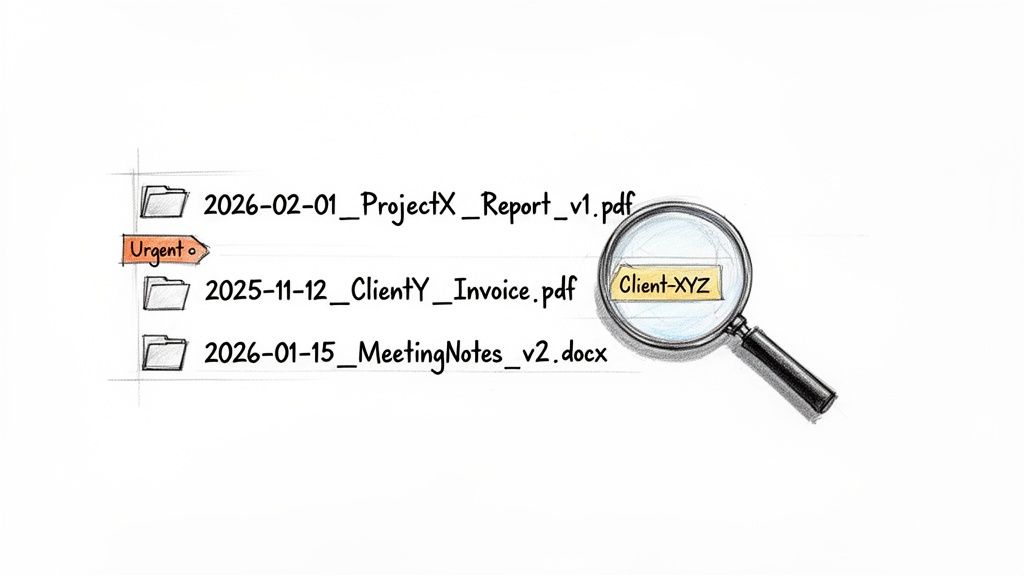
Let's be honest, we've all seen Invoice_12.pdf. What does that even mean? Is it from this year or last? For which client? A simple change to 2024-10-28_AcmeCorp_Q3-Invoice.pdf answers all those questions in a split second. That kind of clarity is the bedrock of an efficient digital filing system, and it saves you countless minutes of guesswork every single day.
A Universal Naming Formula
The real secret to a naming system that actually works is consistency. And the easiest way to stay consistent is to start with a flexible, powerful template you can adapt for anything.
In my experience, this format is incredibly effective in almost any situation:
YYYY-MM-DD_ProjectName_DocumentType_Version.ext
Let's quickly break down why this is so powerful:
YYYY-MM-DD: Starting with the date like this is a game-changer. It automatically sorts your files chronologically, so the most recent version is always at the bottom of the list. No more hunting.ProjectName: This gives the file context. It could be a client's name (AcmeCorp), a campaign (Fall-Promo), or a course (ENG101). It's the "what."DocumentType: This describes the file's purpose. ThinkBrief,Transcript,Mockup,Invoice, orReport.Version: Adding a version number (like v01, v02, vFinal) finally puts an end to the chaos of multiple drafts.
Remember, the goal of a good file name is to be descriptive and predictable. It should act as a mini-summary, allowing you to identify a file's content, context, and timeliness at a single glance.
Naming Conventions in the Real World
That formula isn't rigid; it's a blueprint. The magic is in adapting it to fit your specific workflow. The most important part is just picking a structure and sticking to it religiously.
Here are a few blueprints to show you what this looks like in practice.
File Naming Convention Blueprints
This table shows how different professionals can adapt the core formula to meet their unique needs, making their files instantly understandable.
As you can see, the same logic applies whether you're handling sensitive employee files or organizing interview transcripts from a tool like HypeScribe. The elements change, but the clarity remains.
Go Beyond Names With Tags and Metadata
While a perfect file name is a massive leap forward, modern operating systems give us another powerful tool: tags and metadata. Think of tags as searchable keywords you can attach to any file, no matter which folder it’s in.
This is where you can start cross-referencing files that live in different folders. It's especially useful for categorizing information that doesn't fit neatly into a single project. For example, if you're trying to figure out how to organize research notes effectively, tags can be a lifesaver.
Here are some practical ways I use tags:
- By Status:
Urgent,InProgress,ForReview,Approved - By Client or Project:
Client-XYZ,Project-Phoenix - By Document Type:
Invoice,Contract,Transcript - By Team Member:
Assigned-Mark,Review-Sarah
Most modern systems, from macOS and Windows to cloud services like Google Drive and Dropbox, have built-in tagging features. Start using them, and you effectively turn your file system into a searchable database. You could instantly pull up every single file tagged with Urgent and Client-XYZ, no matter where those files are saved. It's a simple habit that will supercharge your ability to find exactly what you need, right when you need it.
Put Your Filing on Autopilot
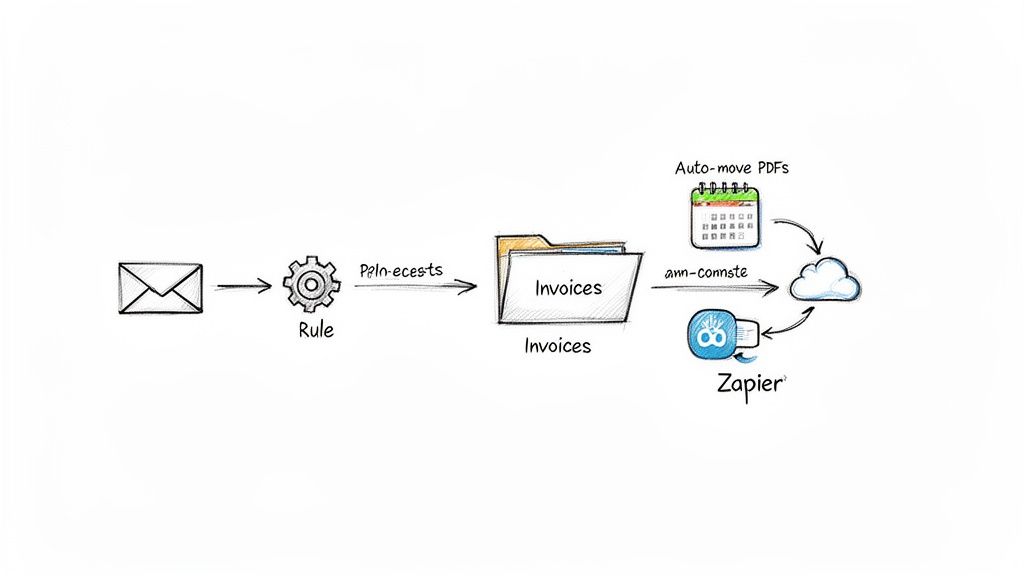
Let’s be honest, even the most perfect manual filing system requires a ton of discipline to maintain. The real endgame is to build a system that pretty much runs itself. This is where automation comes in, transforming all that tedious dragging and dropping into quiet background processes you’ll never have to think about again.
The best part? You don't need to be a tech wizard or buy complicated software to make this happen. Most of the tools you already use have powerful automation features hiding just under the surface. It’s all about spotting your most repetitive filing tasks and setting up a few simple rules to handle them for you.
Start with Your Operating System
Your own computer is the best place to start. Both Windows and macOS have built-in tools that can watch certain folders—like your notoriously messy "Downloads" folder—and automatically sort files based on rules you create. Think of it as your first step toward a self-tidying digital workspace.
We all know the Downloads folder is a chaotic dumping ground for PDFs, images, app installers, and who-knows-what-else. A couple of simple rules can bring immediate order to that chaos.
- Rule 1: Any file ending in
.pdfgets automatically moved to a/Documents/_ToSort-PDFs/folder. - Rule 2: Any file ending in
.jpgor.pngis moved to a/Pictures/_ToSort-Images/folder.
Just like that, you’ve decluttered your main download space. Instead of one giant messy folder to sift through, you now have a couple of pre-sorted holding pens. Your weekly cleanup just got a whole lot faster.
Let Your Cloud Storage Do the Heavy Lifting
Most of the big cloud storage players—Google Drive, Dropbox, OneDrive—have their own automation features built right in. These are fantastic for taming files that come in from different devices or are shared by team members.
For example, imagine you get monthly bank statements emailed as PDFs. You can create a rule that watches for any new file with "Bank Statement" in the name and automatically files it away in your /Personal/Finances/2024/Statements/ folder. That one-time setup ensures your financial records are always where they belong, no effort required.
The secret to automation isn't about complex coding. It’s about creating simple "if-then" recipes for your files. If a file meets a certain condition (its name, type, or where it came from), then the system performs a specific action (moves, renames, or tags it).
Connect Your Apps to Work Together
What happens when you need to automate a workflow that jumps between different apps? That's where tools like Zapier or IFTTT (If This Then That) come in. These services are like universal translators, connecting apps that don't normally talk to each other.
With these tools, you can string together more advanced automated workflows—a must for properly documenting business processes that involve multiple software platforms. As we cover in our guide on how to document business processes, this is how you build a truly cohesive system.
Here are a few real-world examples of what you can do:
- Save Important Attachments: Set up a rule to automatically save any email attachment from a key client (like "AcmeCorp") directly into their dedicated project folder in Dropbox. No more hunting through your inbox.
- Organize Transcripts: When you export a meeting transcript from a tool like HypeScribe, an automation can instantly rename the file using your
YYYY-MM-DD_Project-Name_Meeting-Summary.docxconvention and move it to the correct project folder in Google Drive. - Log Invoices: Create a workflow where any email with "invoice" in the subject line has its PDF attachment saved to a
/Work/Admin/Invoices-To-Pay/folder.
Putting these automations in place might take an hour upfront, but the long-term payoff is huge. It slashes your manual effort, cuts down on human error, and keeps your carefully designed filing system humming along smoothly in the background.
Keep Your Digital Space Clean for Good
You've done the hard work of building a system. Now comes the part where you actually win back your time and sanity for good: maintaining it. The goal isn't just a one-and-done cleanup; it's about making a permanent shift away from digital clutter by building simple habits that stop the chaos before it even starts.
An amazing system is totally useless if it falls apart in a month. Real peace of mind comes from knowing your digital life will stay organized with very little effort. All it takes is a small, consistent investment of your time.
Adopt a Digital Lifecycle Mindset
Files shouldn't get to live in your active workspace forever. Just like physical things, digital assets have a lifecycle: they're created, they're used, and eventually, they need to be retired. Thinking this way is the key to staying organized long-term.
Not every file deserves a permanent spot in your main folders. Just ask one simple question: is this for an active project, or is it just for historical reference? That single question can decide a file's fate.
- Active Files: These are the documents you're working on right now or need to grab often. They belong front and center in your primary project or work folders.
- Archived Files: Think completed projects, last year's tax documents, or notes from a past event. You don't need them daily, but you can't just delete them. Shunt these off to a dedicated "Archive" folder.
- Transient Files: This is the stuff like downloads, temporary screenshots, or quick notes. These files have a very short lifespan and should be deleted as soon as you're done with them.
This lifecycle approach keeps your main folders lean and focused on what matters now. Your "Archive" folder becomes a digital attic—out of the way, but still accessible if you ever need to dig something up.
The Weekly Digital Reset Routine
To stop clutter from creeping back in, you need a quick, routine maintenance session. You don't have to block out hours for this; 15-20 minutes once a week is usually all it takes to keep everything in pristine shape.
I personally like to do my reset on Friday afternoons. It helps me clear the decks before the weekend. The trick is to make it a non-negotiable habit, just like brushing your teeth.
A digital reset isn't about deep cleaning. It's about small, consistent actions that prevent messes from accumulating in the first place, ensuring you always know where your most important information is.
Here’s a simple checklist to run through for your weekly reset:
- Clear Your Desktop: Drag any stray files into their proper homes or just delete them. Your desktop is a workspace, not a junk drawer.
- Process Your Downloads Folder: Go through every single file in your "Downloads" folder and sort it. This is the #1 source of digital clutter for most people.
- Check Your Inbox: Triage your main digital inbox, whether that's your email or a specific "To-File" folder. Get everything put away.
- Confirm Your Backups: Give your backup system a quick look. Did the last backup run successfully? Is everything syncing correctly?
Security Is Part of Organization
A truly organized system has to be a secure one, too. Protecting your meticulously sorted files from being lost or seen by the wrong people is a crucial part of maintenance. Strong passwords and two-factor authentication are the absolute bare minimum.
Beyond the basics, think about who has access to what, especially if you work with a team. Make a habit of reviewing sharing permissions on your cloud storage to make sure old collaborators or former clients can't get into sensitive information. For bigger operations, setting up a solid framework like SharePoint data governance can be essential for keeping things in order for the long haul.
This sustainable approach even has some environmental perks. When you manage files with a clear lifecycle—like sorting HypeScribe transcripts into /Active/ and /Archive/ folders and setting rules to auto-purge old files—you drastically cut down on data duplication. This simple practice can reduce storage waste by 40-50%, which in turn lowers the carbon footprint from data centers.
Common Questions About Digital Organization
Even with a perfect system on paper, real life gets messy. When you're trying to build a new habit, especially one that involves reorganizing years of digital history, you're bound to run into some speed bumps. Think of this as your FAQ for wrangling digital chaos—I've gathered the most common questions that come up and provided some straight-up, practical answers to help you adapt the system to your world.
What’s the Best Folder Structure for Digital Files?
Everyone’s looking for that one magic bullet, but the truth is, there isn't a single "best" structure. The most effective systems are the ones that are deeply intuitive to you.
A solid place to start is by creating high-level folders for the main areas of your life. Think big buckets like Work, Personal, and Projects. Simple, right?
From there, you get more granular. Your /Work/ folder could branch out into subfolders for each client or major project. The real secret sauce here is consistency. Once you land on a system that clicks with how your brain works, stick to it. That way, you’ll never have to waste a second wondering where a file is supposed to go.
How Do I Organize Thousands of Existing Files?
Just reading that question probably makes you want to close this tab. The thought of tackling a digital mountain is what stops most people from ever starting. But here’s the trick: don’t try to do it all at once.
Here’s a simple method I’ve seen work time and time again:
- First, build out your shiny new folder structure. Get your clean "filing cabinet" ready before you touch a single old file.
- Next, create a single new folder and name it
_ToSort. Now, drag every single messy file into it. Just like that, your main workspace is spotless. - Finally, make it a tiny daily habit. Commit to sorting just 10-15 files from that
_ToSortfolder every day. This might take five minutes over your morning coffee, but in a few weeks, you'll have made incredible progress without the overwhelm.
Start with the most recent files you tossed in there; they’re likely the most relevant to what you’re doing now. This small, consistent effort is what builds the habit and clears the backlog without the burnout.
What's the Difference Between Archiving and Backing Up?
This is a big one. People mix these up all the time, and misunderstanding the difference can lead to some serious headaches down the road. They sound similar, but they serve two totally different, equally vital purposes.
Archiving is all about decluttering your active workspace. It’s for files you don’t need day-to-day but have to keep for legal, reference, or sentimental reasons—think completed projects or old tax documents. An archive is for long-term, inactive storage.
A backup, on the other hand, is a complete copy of everything—both your active and archived files. This copy lives somewhere else entirely, like on an external hard drive or in a different cloud service. Its only job is to be your safety net for when disaster strikes. Computer dies? Stolen laptop? Your backup is what saves you.
Should I Organize Files by Date or by Project?
This is a classic dilemma, but you don't have to choose. The most flexible and powerful systems actually do both. A hybrid approach truly gives you the best of both worlds, making your files incredibly easy to find.
Here’s how it works:
- Use a project-based folder structure as your main framework. This lets you navigate logically to the right "place." For instance:
/Clients/AcmeCorp/Website-Redesign/. - Then, inside that folder, use a date-based naming convention for your files. A name like
2024-11-15_HomePageMockup_v02.psdtells you everything at a glance—what it is and when it was made.
This simple trick automatically sorts your files chronologically within each project folder. Finding the latest version of anything becomes completely effortless.
Ready to stop wasting time searching for meeting notes and start turning conversations into action? HypeScribe uses AI to transcribe your audio and video files with up to 99% accuracy, generating smart summaries and action items in seconds. Get your meetings organized and your projects moving forward. Try it for free.


































































































