Article

How to Convert Video to Transcript: A Step-by-Step Guide

December 29, 2025

Converting a video to transcript means turning the spoken audio from your video into written text. From my experience, this isn't just a technical task; it's the key to making your video content searchable, accessible, and ready for all sorts of new uses. This simple process unlocks a ton of value that would otherwise stay trapped inside the recording.

Why Accurate Video Transcripts Are Essential

In a world overflowing with video, the words spoken within them are a goldmine of untapped information. Getting a transcript is no longer just about adding subtitles for accessibility. It's a strategic move I've seen firsthand that makes teams more efficient and fuels business growth.

Think about it. A long Zoom call with your remote team can be instantly transformed into a concrete project plan, complete with action items and assigned owners, all pulled directly from the transcript. Or a marketer could take a single webinar and effortlessly spin it into a dozen SEO-rich blog posts. That's the real, practical power of transcription in action.

Find Your Content and Get Found Online

When your video’s dialogue is in text format, search engines can finally crawl and understand what your content is actually about. This is a massive win for SEO. Every word spoken becomes a keyword you can rank for, turning your video from just a visual piece into a serious driver of organic traffic.

Plus, it makes repurposing your content incredibly easy. A single video can become the source material for:

  • Blog Posts and Articles: Go deeper on the key points you discussed. You can discover more about these powerful content repurposing strategies in our guide.
  • Social Media Snippets: Pull out the most compelling quotes or stats to create posts that grab attention.
  • Email Newsletters: Quickly summarize the main takeaways for your subscribers.
  • Training Materials: Build detailed how-to guides and manuals from your instructional videos.

Tapping Into a Surging Market

The demand for this is exploding. The global online transcription market hit a value of $3.5 billion in 2025 and is expected to grow by 14.5% each year through 2033. This growth is coming from all corners—industries that need precise text for legal compliance, researchers analyzing interviews, and creators building their brands.

The big takeaway here is that professionals need more than just a video file. They need the data inside that video to be easy to find, search, and act on.

This is where tools like HypeScribe come in. By using AI to turn video into a transcript in just a few minutes, it gives you more than just raw text. It also delivers smart summaries and extracts key action items, helping teams get from conversation to execution without skipping a beat.

How to Get a Flawless Transcript from Your Video

Getting a perfect transcript from your video content isn't about luck. It's about having a smart, repeatable process. In my own work, I’ve found that a reliable workflow leads to consistently high-quality text, saving tons of time on frustrating edits. And it all starts before you even hit the "upload" button.

I can't stress this enough: the single most critical factor is the quality of your source audio. Transcription AI is incredibly powerful, but it's not magic. Things like background noise, muffled voices, or people talking over each other will tank your accuracy fast. A few simple tricks before you record can make a world of difference—try to minimize echo with a rug or soft furnishings, use a decent external mic, and politely ask speakers to talk one at a time.

Step 1: Prepare Your Video for Transcription

Once you've got clean audio, a little file prep goes a long way. Most modern transcription tools, including HypeScribe, handle the usual suspects like MP4, MOV, and WMV without any trouble. If you're working with an unusual file type, do yourself a favor and convert it to one of these standards first. It’s a quick step that can prevent annoying upload errors.

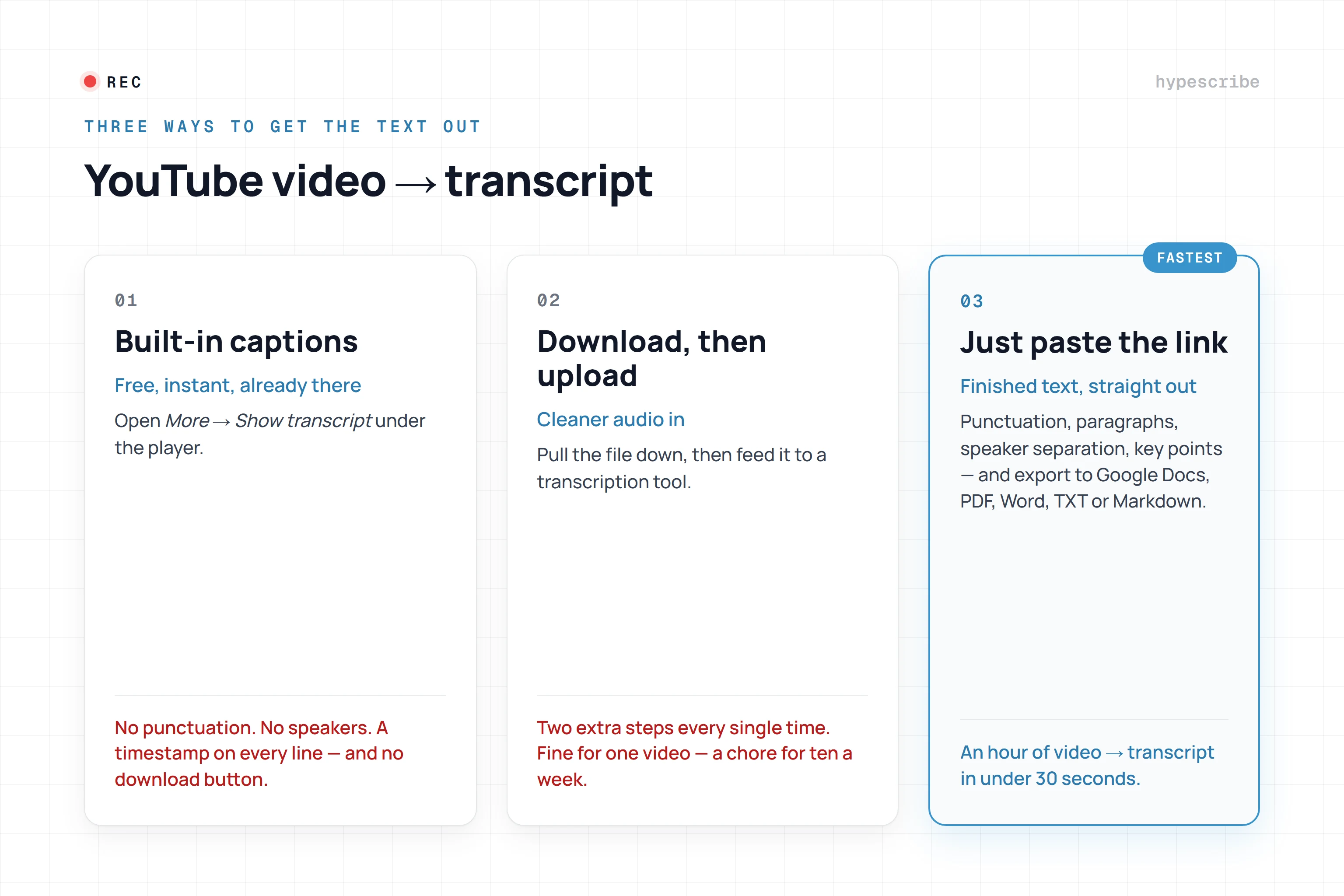
When your file is ready, getting it into the system is usually pretty simple. You can drag and drop a file from your computer, paste a link from YouTube, or connect a cloud drive. If you're often pulling from YouTube, it's worth learning the specifics of how to convert YouTube video to text to see how these principles apply directly.

This simple chart shows exactly how a raw video file gets turned into a searchable, valuable asset.

Flowchart detailing the video content value journey: video leads to transcript, generating accessibility, SEO, and engagement.

As you can see, the transcript is what connects your spoken words to real business value like better SEO and accessibility.

Step 2: Choose the Right Transcription Settings

Uploading is just the first step. The settings you choose right after are what really shape the final transcript's quality and usefulness. For me, these are the absolute non-negotiables:

  • Language Selection: This seems obvious, but it’s an easy mistake to make. Always double-check that you've picked the correct language and dialect. Choosing "English (UK)" for a video with Australian speakers, for example, is going to introduce unnecessary errors.
  • Speaker Diarization: Often called "speaker identification," this feature is a lifesaver for any video with more than one person. It automatically labels who is speaking (e.g., "Speaker 1," "Speaker 2"), which is essential for making sense of interviews, meetings, or panel discussions.
  • Custom Vocabulary: If your content is full of industry jargon, specific product names, or unique acronyms, find the custom vocabulary feature. Adding these terms trains the AI to recognize and spell them correctly from the get-go.

I see people make this mistake all the time: they skip speaker diarization for a multi-person interview. What they get back is a wall of text that’s nearly impossible to follow, completely defeating the purpose of creating a useful transcript in the first place.

If you're just transcribing a solo presentation, you can probably skip the speaker labels. But for a team meeting or a multi-speaker webinar? Turning on diarization is the difference between a coherent script and a chaotic mess. The same logic applies to audio-only files, and you can learn more about how to convert audio to text with this level of precision.

By making this workflow a habit—clean audio, correct format, and precise settings—you build a system you can rely on. This foundation ensures that every video to transcript you create is accurate, properly formatted, and ready to use right away.

How to Edit Your Transcript for a Polished Result

Handwritten document with red corrections transformed into a clean, typed polished version.

Even with the best AI, the first transcript you get back is really just a fantastic first draft. Think of it that way. The real magic happens when you apply a human touch to turn that raw text into a polished, professional document. This is where you iron out the kinks, boost the readability, and get it ready for whatever you plan to do with it.

My own process always starts with a quick once-over. I’m not hunting for every little mistake just yet. Instead, I scan for any obvious blunders—maybe a speaker's name is completely wrong or a key phrase just doesn't make sense. It gives me a quick feel for the overall quality before I get into the weeds.

Fine-Tuning for Clarity and Accuracy

After that initial scan, it's time to dig in and focus on the details. This is where a human eye is absolutely invaluable, especially if your video is full of niche terminology.

Here are a few things I always look for:

  • Industry-Specific Jargon: AI can get tripped up on unique acronyms or technical terms. It might hear "SaaS" and write "sass," for example. A quick "find and replace" for common terms specific to your field is a great first move.
  • Names and Proper Nouns: Getting the spelling of names, companies, and products right is non-negotiable for looking professional. AI often guesses phonetically, so double-checking these is a must.
  • Awkward Phrasing: Sometimes, a sentence is technically correct but just sounds clunky. This is your chance to smooth things out and improve the flow, all without losing the speaker's original intent.

One of my favorite features in most transcription tools is the synchronized timestamp. If a sentence feels off, I just click the timestamp and it takes me right to that spot in the video. I can listen to the original audio myself and fix it confidently in seconds. It’s a huge time-saver.

Trusting the AI transcript blindly is a rookie mistake. One mistranscribed number or name can change the entire meaning of a statement and really hurt your credibility. This editing pass is your quality control.

Cleaning Up the Conversation Flow

The last step is all about prepping the document for your audience. A perfect, word-for-word transcript often includes every "um," "ah," and "you know," which can make it tough to read.

I usually do a light cleanup to remove those repetitive filler words. You still want to keep the speaker's authentic voice, but trimming the fluff makes a massive difference in readability. It's about striking that balance between verbatim accuracy and a clean, easy-to-read document.

Ultimately, the goal is to make the content useful for your team, your audience, or your records. Learning about the different types of auto transcribe software can show you just how powerful these tools are. With these steps, you’re not just getting a transcript; you’re creating a valuable, polished asset.

How to Use Your Transcript in Your Daily Workflow

Workflow diagram: Inputs like TXT, DOC, project boards create a transcript, used for project cards, PDFs, social posts.

A polished transcript isn't the finish line—it's the starting block. The real magic happens when you plug that text back into the tools your team uses every day. That’s how a simple document becomes an active part of your workflow, driving everything from project tasks to new content.

First things first, you need to export your transcript in the right format. This choice seems small, but it's all about what you plan to do next. A basic .TXT file is great for grabbing raw text, while a .DOCX is ready for editing in Word or Google Docs. If you need a clean, uneditable version to send to a client, .PDF is the way to go.

From Meeting Notes to Action Items

Think about your last project kickoff call. You used HypeScribe to get a transcript in minutes. Now what? Don't just let it sit there.

You can pull out every action item and decision made during the call and drop them straight into your project management tools. It’s a simple copy-and-paste job that bridges the gap between talking and doing.

  • In Asana, you can instantly create new tasks for each action item, complete with assignees and due dates.
  • Over in Trello, you can turn those same takeaways into cards on your project board, pasting key context from the transcript directly into the description.
  • For Slack, you can post a quick summary of the decisions in the relevant channel. This keeps everyone in the loop without forcing them to sit through a one-hour recording.

This approach means your team can move from discussion to execution almost immediately. No more wondering, "Wait, who was supposed to handle that?"

A transcript sitting unused is a missed opportunity. The goal is to make the information inside your videos accessible and actionable within the platforms your team uses every single day.

Powering Your Content Marketing Engine

For anyone in marketing, a video transcript is pure gold. There's a reason the AI transcription market is valued at USD 4.5 billion and expected to hit USD 19.2 billion by 2034. It’s because smart teams are using these transcripts to scale their content creation like never before.

Here's how you can turn a single webinar transcript into a week's worth of content:

  • Blog Posts: Pull out the main talking points and expand on them to create in-depth, SEO-friendly articles.
  • Social Media Updates: Grab the best quotes, statistics, or surprising insights for a series of engaging posts on LinkedIn or Twitter.
  • Email Newsletters: Write a quick summary of the webinar's key lessons to give your subscribers a dose of high-value content.

If you’re exploring different tools to make this happen, this in-depth review of Descript, a leading tool for video and audio transcription is a great read. By treating your transcript as the source material, you can multiply the impact of every video you create.

Tailoring Your Transcription Workflow to Your Profession

Let's be honest, not everyone hits "transcribe" for the same reason. A journalist on a tight deadline has a completely different set of needs than a professor crafting study materials for a new semester. The real magic happens when you match your transcription strategy to your specific professional challenges, turning that raw video file into a genuine asset you can use every day.

The right approach can solve some very specific problems. A content creator, for instance, might be digging through a long interview for the perfect, shareable quote. Meanwhile, a project manager just needs to pull out the action items from the last team sync. Each scenario calls for a slightly different playbook.

This is especially true for remote teams. With the massive shift to hybrid work, the market for video conferencing transcription is set to explode, projected to hit $1.23 billion by 2035. Teams are drowning in video content but struggling to remember what was said. In fact, studies show that nearly 60% of remote workers admit to forgetting key details from meetings when there's no solid documentation. You can get the full story by exploring more about these findings on video conferencing transcribing.

For Journalists: Nailing the Quote

In journalism, accuracy and attribution are everything. When you're transcribing a critical interview, you absolutely have to know who said what, and when they said it. This is where a feature like speaker diarization becomes non-negotiable.

With a tool like HypeScribe, you can automatically get each speaker separated and labeled. This gives you a clean, readable dialogue that’s ready for direct quoting. Plus, the timestamps let you jump straight back to that exact moment in the video to double-check the tone or context, making sure your reporting is rock-solid.

For Educators: Creating Accessible Resources, Fast

Educators are often swimming in lecture content. Here, the game is all about efficiency and accessibility. Forget transcribing one video at a time—batch uploading is your best friend. You can upload an entire semester's worth of lectures and let the AI do the heavy lifting.

Once you have the text, you can quickly repurpose it into:

  • Searchable Study Guides: Students can finally search for specific keywords or concepts without scrubbing through hours of video.
  • Accessible Learning Materials: Transcripts are a fantastic alternative for students with different learning needs or preferences.
  • Lesson Plan Outlines: Pull the core structure from your spoken lectures to quickly map out future classes.

For Remote Teams: From Talk to Action

For remote teams, meetings are all about decisions and next steps. A plain transcript just doesn't cut it; you need something that drives action. This is where HypeScribe’s ability to join live meetings on Zoom or Google Meet is a total game-changer.

While the meeting is happening, the tool doesn’t just transcribe. It can actually identify and pull out action items as they’re discussed. This instantly transforms a free-flowing conversation into a clear, documented task list, making sure nothing falls through the cracks. It’s the perfect bridge between conversation and execution.

A content creator sees a transcript as a creative goldmine. The ability to interact with the text using an AI chatbot means you can literally ask, "What are the three most powerful quotes from this interview?" and get instant ammo for your next social media post.

Different jobs have different demands, and your transcription tool should be flexible enough to meet them. The table below breaks down how various professionals can get the most out of their video-to-text workflow.

Transcription Strategies Tailored for Your Profession

ProfessionPrimary ChallengeHypeScribe SolutionKey Feature to Use
JournalistEnsuring perfect quote accuracy and clear attribution in interviews.Generates transcripts with distinct speaker labels and precise timestamps.Speaker Diarization
EducatorManaging and repurposing a high volume of lecture content efficiently.Converts entire lecture series into searchable text for study guides and lesson plans.Batch Uploads
Content CreatorFinding standout moments and shareable quotes from long-form video content.Interacts with the transcript to quickly pull key quotes or summarize sections.AI Chat Interaction
Remote ManagerCapturing action items and decisions from virtual meetings to ensure follow-through.Joins live meetings to transcribe in real-time and identify assigned tasks.Live Meeting Capture


By adapting how you approach transcription, you move beyond just creating a wall of text. You start building a system that actively solves your biggest communication hurdles, making every single word work for you.

Common Questions About Turning Video Into Transcripts

Even when you have a great system in place, you’re bound to run into a few questions when you start turning videos into text. It’s totally normal. Getting a handle on these common hurdles upfront will make you much more confident and efficient.

Let's dive into some of the questions I hear all the time, from dealing with tough audio to making sure your files are secure.

One of the first things people worry about is accuracy, especially when dealing with different accents. Honestly, modern AI transcription has gotten incredibly good at parsing regional dialects and non-native speakers. But here's a pro tip: if your tool lets you specify the exact language and dialect (like "English - Australian" instead of just "English"), always do it. It makes a noticeable difference.

Another big one is poor audio quality. Let's be real: no software can work miracles on a recording filled with background noise or muffled voices. While good AI can filter out some minor humming or static, you'll absolutely want a human to review critical recordings with bad audio. It's the only way to catch what the machine missed.

Handling Files and Keeping Your Content Secure

The nuts and bolts of the process—file formats and data privacy—bring up their own set of questions. Using the right formats from the get-go saves a ton of headaches with upload errors and slow processing.

For the smoothest workflow, I recommend sticking to these standard formats:

  • For uploading your video: MP4, MOV, and WMV are your best bets. They’re widely supported and process quickly.

  • For exporting your transcript: TXT is great for raw text, DOCX is perfect for editing, PDF works well for sharing, and SRT is the standard for video captions.

Security is a huge deal, and it should be. You're often uploading sensitive stuff like client meetings or internal research. Any reputable service, like HypeScribe, will use strong encryption to protect your data both in transit (as it's being uploaded) and at rest (when it's stored on their servers).


My personal rule of thumb is simple: if a service doesn't clearly explain how it protects my data, I won't upload my content. Your privacy is non-negotiable, and the right tool will make that a priority.

Finally, what do you do with videos that have multiple people talking? A giant wall of text with no breaks is pretty much useless. The feature you're looking for is called speaker diarization, or speaker identification. It automatically labels who is speaking ("Speaker 1," "Speaker 2," etc.), turning a confusing mess into a clean, easy-to-follow script. It's a game-changer.



Ready to transform your video content into accurate, actionable text? With HypeScribe, you can transcribe files from your computer, YouTube, or Google Drive with up to 99% accuracy in over 100 languages. Get started for free and see how easy it is to unlock the value in your videos.

Read more