
Top 6 tools: convert audio to text online free in 2026

Converting audio to text for free works well — as long as your file fits inside somebody's free tier. That limit, not accuracy, is what usually decides the tool. Whether you're a student transcribing lectures, a journalist on a deadline, or a creator captioning videos, finding a reliable way to convert audio to text online free can be a real game-changer. Typing out recordings by hand is incredibly tedious, but based on my experience, the right automated tool can deliver accurate transcripts in minutes, freeing you up for more important work.
But with countless options out there, how do you pick the best one? This guide cuts through the noise. I've personally tested and evaluated the top free services, focusing on how they perform in the real world, what their hidden limits are, and who they're best suited for. Instead of just listing features, I’ll provide an honest assessment of what each platform genuinely offers, from transcription accuracy and language support to privacy policies and export options.
Inside, you'll find detailed breakdowns for each tool, complete with screenshots and direct links, to help you make an informed decision quickly. My goal is to show you not just what each tool does, but who it's truly for, whether you're a remote team needing meeting notes or a researcher documenting interviews. This practical resource is designed to help you find the perfect match for your specific transcription needs and get started right away.
1. HypeScribe
HypeScribe positions itself as a premier solution to convert audio to text online free, delivering a powerful, AI-driven platform that excels in both speed and accuracy. From my testing, it stands out by processing up to an hour of audio in less than 30 seconds with a reported accuracy of up to 99%. This efficiency makes it an exceptional choice for professionals and students who need reliable transcripts without delay.
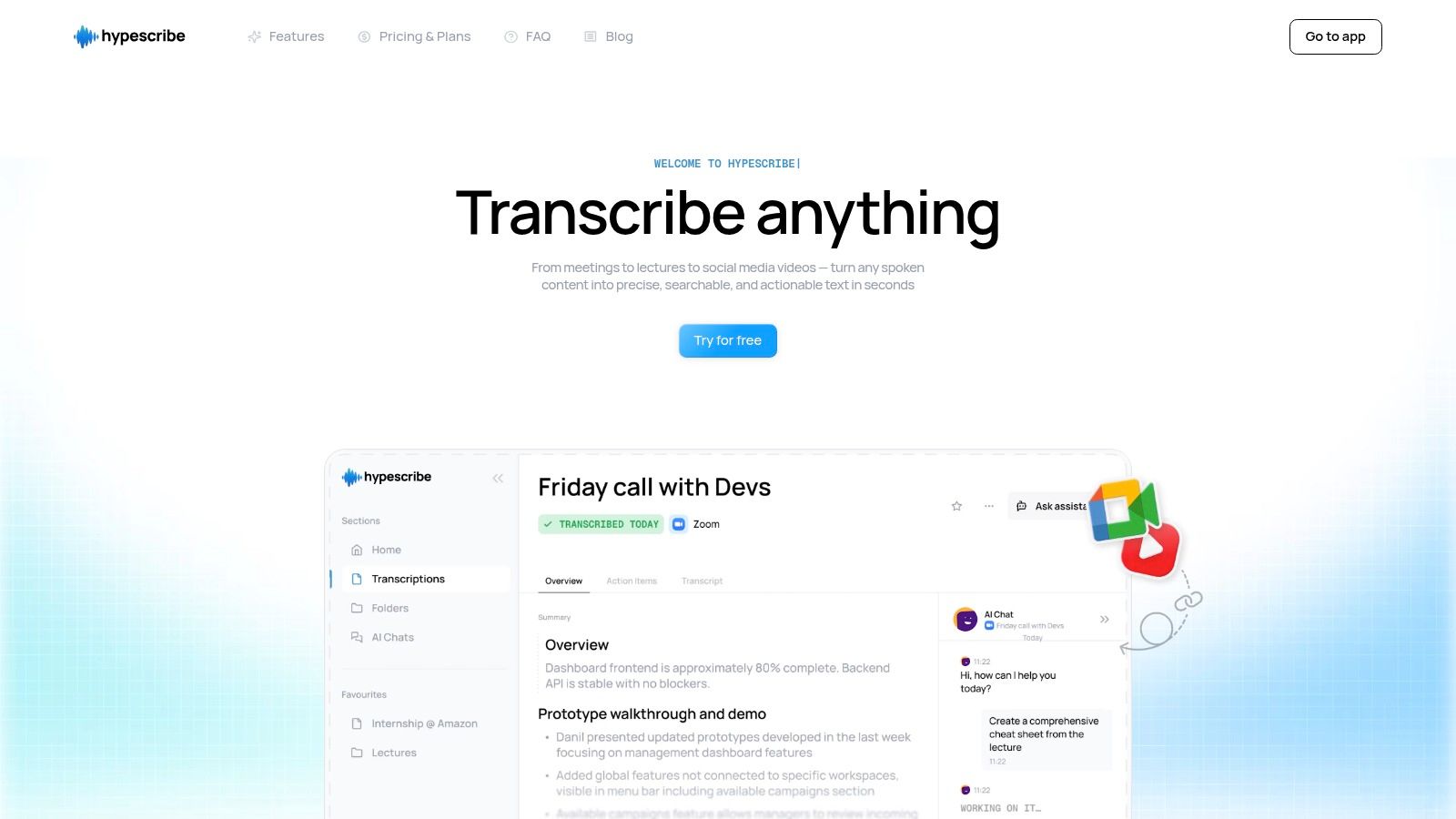
The platform’s unique token-based model (1 token = 1 file) bypasses traditional per-minute billing, making it ideal for transcribing long-form content like lectures, webinars, or in-depth interviews. Beyond simple transcription, HypeScribe transforms raw text into actionable insights by generating automated summaries, key takeaways, and action items. Its real-time AI note-taker for Zoom, Google Meet, and Microsoft Teams streamlines meeting workflows for remote and hybrid teams.
Standout Features
- Versatile Inputs: Accepts file uploads, links from YouTube, Vimeo, Google Drive, and social media, or direct voice recordings.
- Actionable Outputs: Generates smart summaries and action items, moving teams from discussion to execution.
- Interactive Chatbot: A file-aware chatbot allows you to ask questions and instantly retrieve information from your transcripts.
- Privacy-Focused: Features end-to-end encryption, automatic deletion of raw audio files, and user control over transcripts.
Pricing and Access
HypeScribe offers a generous free trial that includes 3 file transcriptions per month, with each file up to one hour long. Paid plans start at $6.99/month for 30 files, providing an affordable and scalable solution for higher-volume needs.
- Best for: Professionals, teams, and academics who require fast, highly accurate transcriptions from long audio files and integrated meeting assistance.
- Website: https://www.hypescribe.com
2. Google Cloud Speech-to-Text
Google Cloud Speech-to-Text offers an incredibly powerful engine for those willing to navigate a more technical setup. It’s not a simple web uploader but a full-fledged API service that provides access to the same technology powering Google's own products. This platform is ideal for developers or tech-savvy users who need high-accuracy transcriptions across numerous languages and dialects.
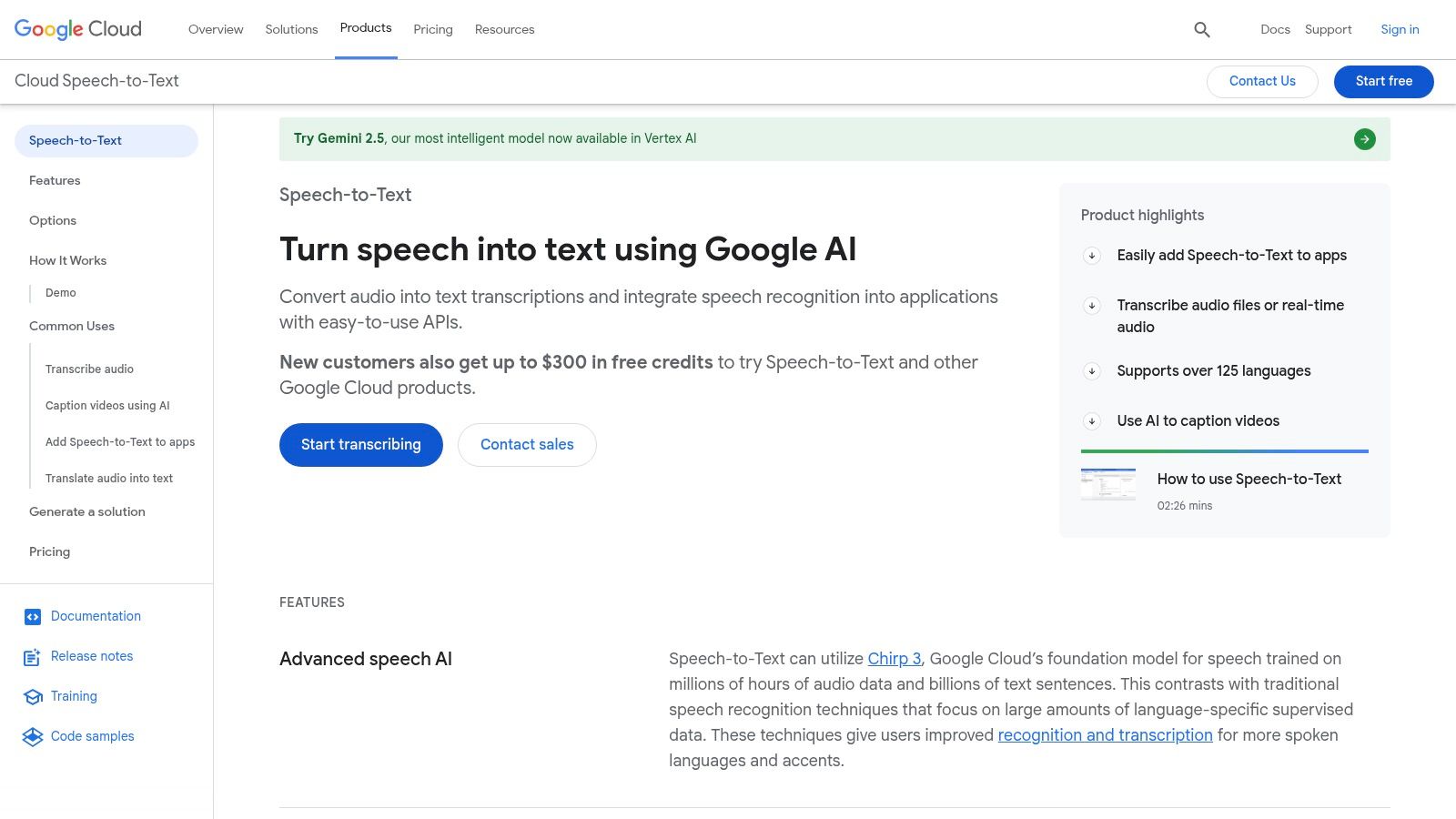
Its major advantage lies in its specialized models tailored for different audio types, like phone calls, video, and medical dictation. It also excels at features like speaker diarization and providing word-level timestamps, which are critical for detailed analysis.
Access and Free Tier
To start, you need a Google Cloud account with billing enabled, but new users get a generous $300 credit. Additionally, there’s a permanent free tier that includes up to 60 minutes of audio processing per month. This makes it a great way to handle transcription for smaller, recurring projects without any cost.
Limitations and Use Cases
- Best For: Users needing programmatic transcription, integrating speech-to-text into applications, or requiring highly accurate, domain-specific models.
- Drawbacks: The API-centric approach presents a steep learning curve for non-developers. Setting up a project and using the API requires more effort than a drag-and-drop tool.
Given its technical nature, many users prefer a more straightforward interface. For a deeper dive into how it compares with other top-tier platforms, you can learn more about its place in the ecosystem of top speech to text software.
Visit Google Cloud Speech-to-Text
3. Microsoft Azure AI Speech (Speech to Text)
Microsoft Azure AI Speech offers a robust, enterprise-grade transcription engine for developers and businesses integrated into the Azure ecosystem. Similar to Google's offering, it's an API-first service rather than a simple online tool, providing powerful features like real-time streaming, batch processing, and the ability to train custom speech models for specific vocabularies or speaking styles.
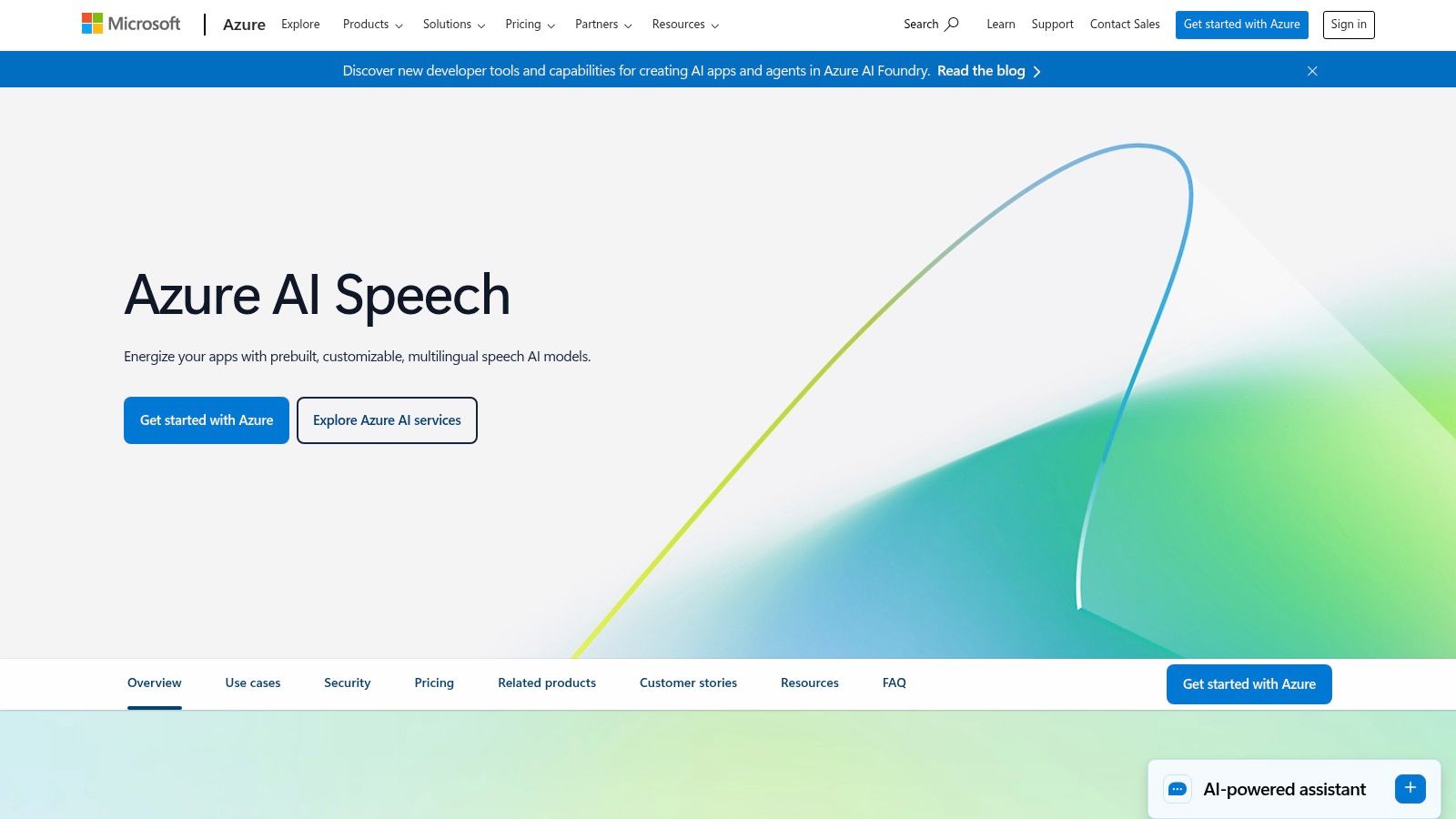
Its key differentiator is its seamless integration with other Azure services and its strong enterprise focus on security and compliance. Features like speaker diarization and word-level timestamps are standard, making it a reliable choice for building sophisticated applications.
Access and Free Tier
To get started, you need an Azure subscription. The "F0" free tier is particularly generous, providing 5 audio hours of Standard transcription per month without expiring. This is a solid option for ongoing development, testing, or small-scale production use cases without worrying about a trial period ending.
Limitations and Use Cases
- Best For: Developers building applications on the Azure platform, enterprises requiring high security and compliance, or users needing a permanent free tier for consistent, low-volume transcription tasks.
- Drawbacks: The setup process requires creating an Azure account and configuring resources, which can be complex for non-technical users. Advanced features and higher usage volumes can incur costs beyond the free tier.
The technical barrier means it isn't a quick solution for one-off transcriptions, but it provides a solid foundation for integrated, long-term projects.
Visit Microsoft Azure AI Speech
4. Amazon Transcribe
Amazon Transcribe is AWS's powerful speech-to-text service, deeply integrated into its cloud ecosystem. It’s not a simple online converter but a comprehensive API-driven tool designed for developers and businesses needing scalable transcription for applications, media workflows, and contact center analysis. This makes it an excellent choice for users already operating within the AWS environment.
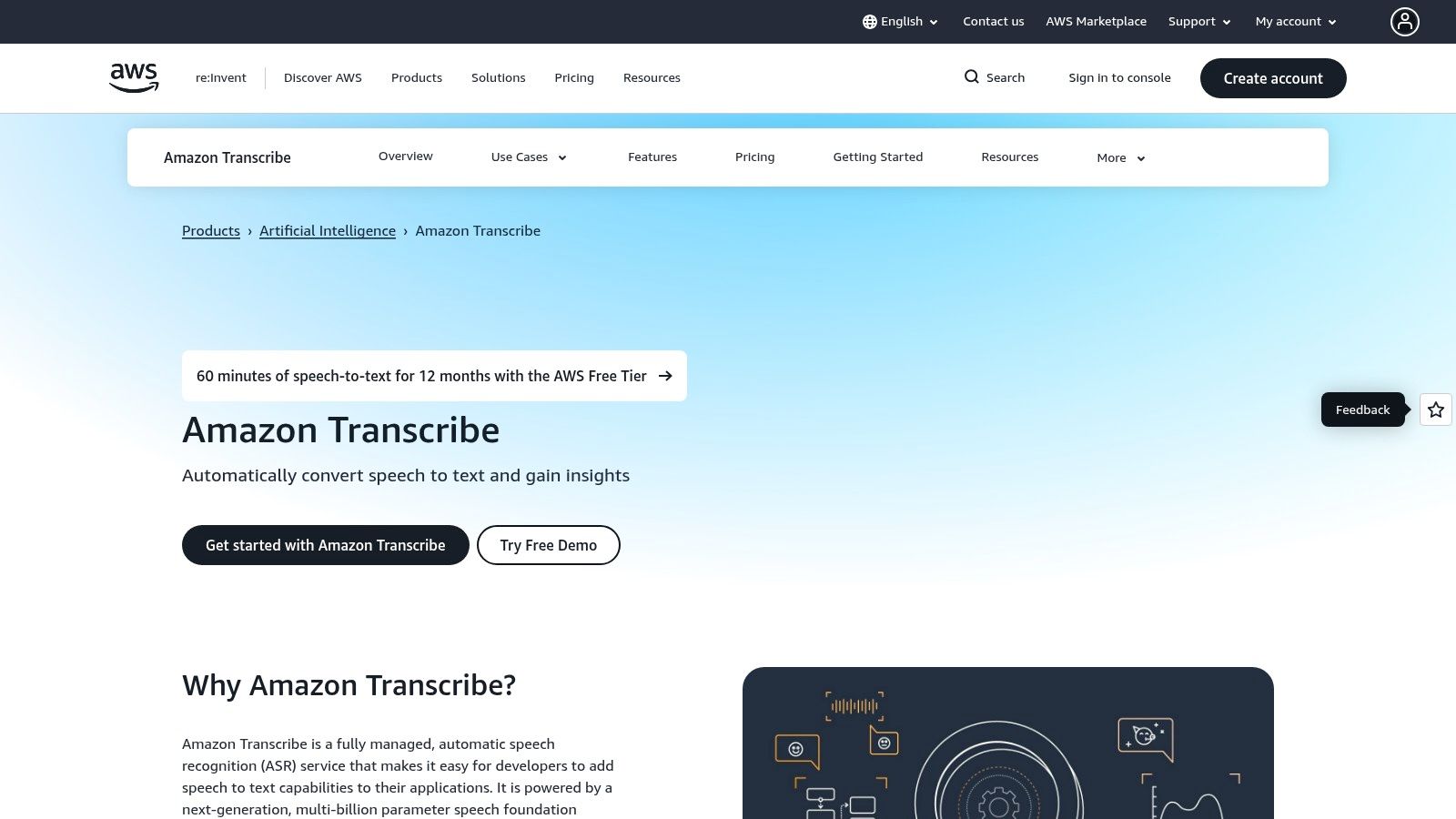
Its key strengths are specialized features like channel identification, PII redaction for sensitive data, and real-time streaming transcription. These capabilities are invaluable for enterprise-level use cases, such as analyzing customer support calls or generating live captions for media content, far exceeding the scope of basic transcription tools.
Access and Free Tier
To use Amazon Transcribe, you need an AWS account. The platform offers a permanent free tier that allows you to transcribe up to 60 minutes per month at no cost. This is ideal for developers testing integrations or for individuals with very small, ongoing transcription needs.
Limitations and Use Cases
- Best For: Developers building applications with transcription features, businesses analyzing contact center audio, and media companies creating workflows within the AWS ecosystem.
- Drawbacks: The interface is console and API-focused, making it complex for casual users. The usage-based pricing model can also be difficult to predict without careful planning.
For those requiring a straightforward, no-code solution, a dedicated web platform is often a better fit.
5. IBM Watson Speech to Text
IBM Watson Speech to Text is another enterprise-grade platform offering powerful transcription capabilities for developers and businesses. Much like Google Cloud, it's not a simple online uploader but a sophisticated API service known for its strong data governance, deployment flexibility, and advanced features. It’s a great choice for organizations that prioritize security and need to deploy transcription services in various environments, including private or on-premise clouds.
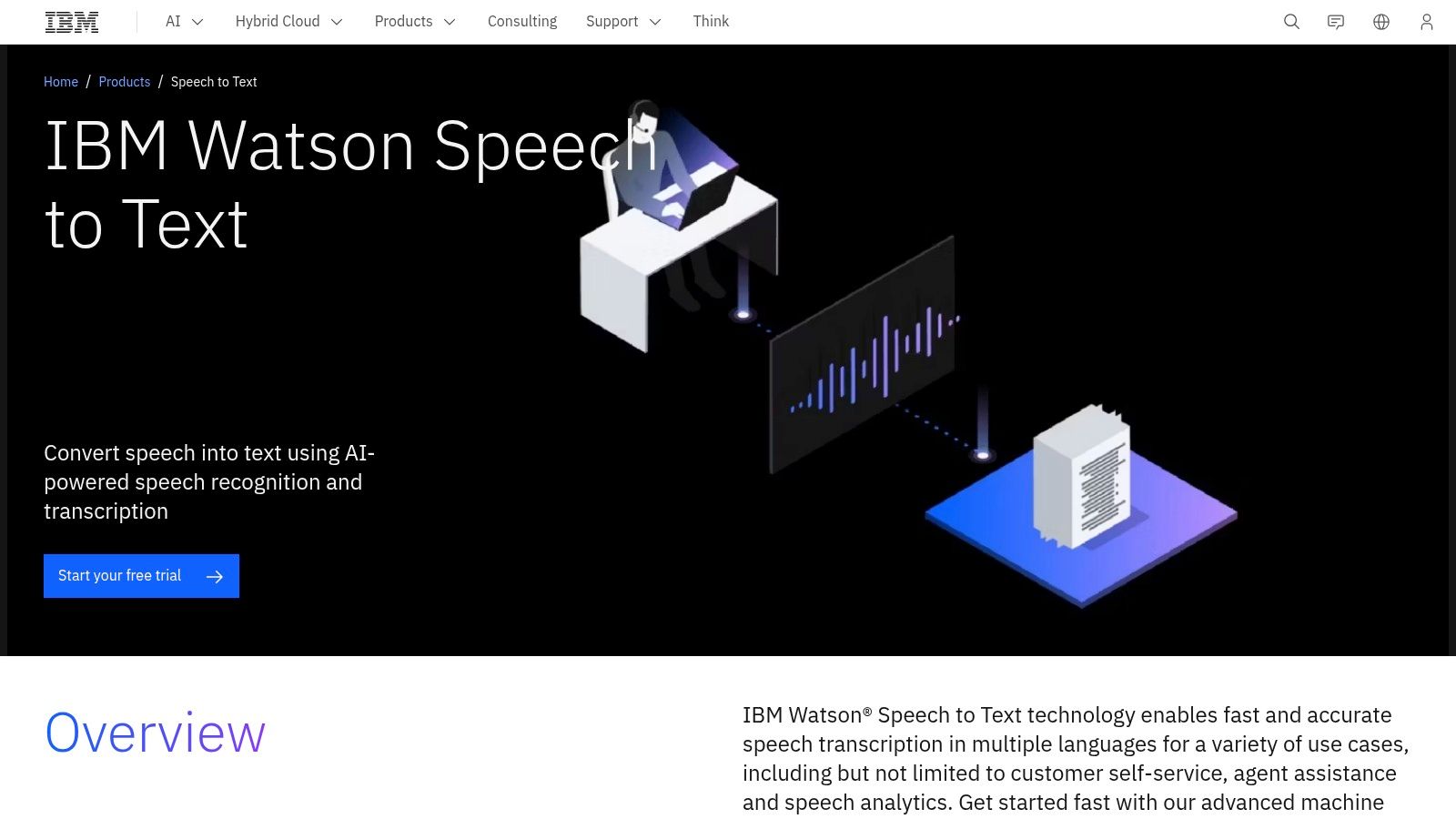
The service shines with features like speaker diarization, real-time transcription, and the ability to build custom language and acoustic models. This customization allows for higher accuracy when dealing with specific industry jargon or unique audio conditions, making it a powerful tool for specialized applications.
Access and Free Tier
To get started, you'll need an IBM Cloud account. IBM provides a "Lite" plan, which includes up to 500 minutes of free audio processing per month at no cost. This generous free tier makes it an excellent way to get audio transcribed for ongoing, smaller-scale projects or for thoroughly evaluating its capabilities before committing to an enterprise plan.
Limitations and Use Cases
- Best For: Developers, enterprises with strict data security needs, and users requiring custom models for specialized terminology.
- Drawbacks: The setup is developer-oriented, requiring API key management and coding knowledge. Moving beyond the Lite plan involves enterprise-level pricing, which is less straightforward than simple pay-as-you-go models.
Visit IBM Watson Speech to Text
6. Deepgram
Deepgram is a specialized speech-to-text provider built for speed and accuracy, primarily targeting developers and businesses. While it's an API-first platform, its generous free credit makes it an excellent choice for tech-savvy users who want to test high-quality transcription models without an initial investment. It’s designed for both pre-recorded (batch) audio and real-time (streaming) transcription.
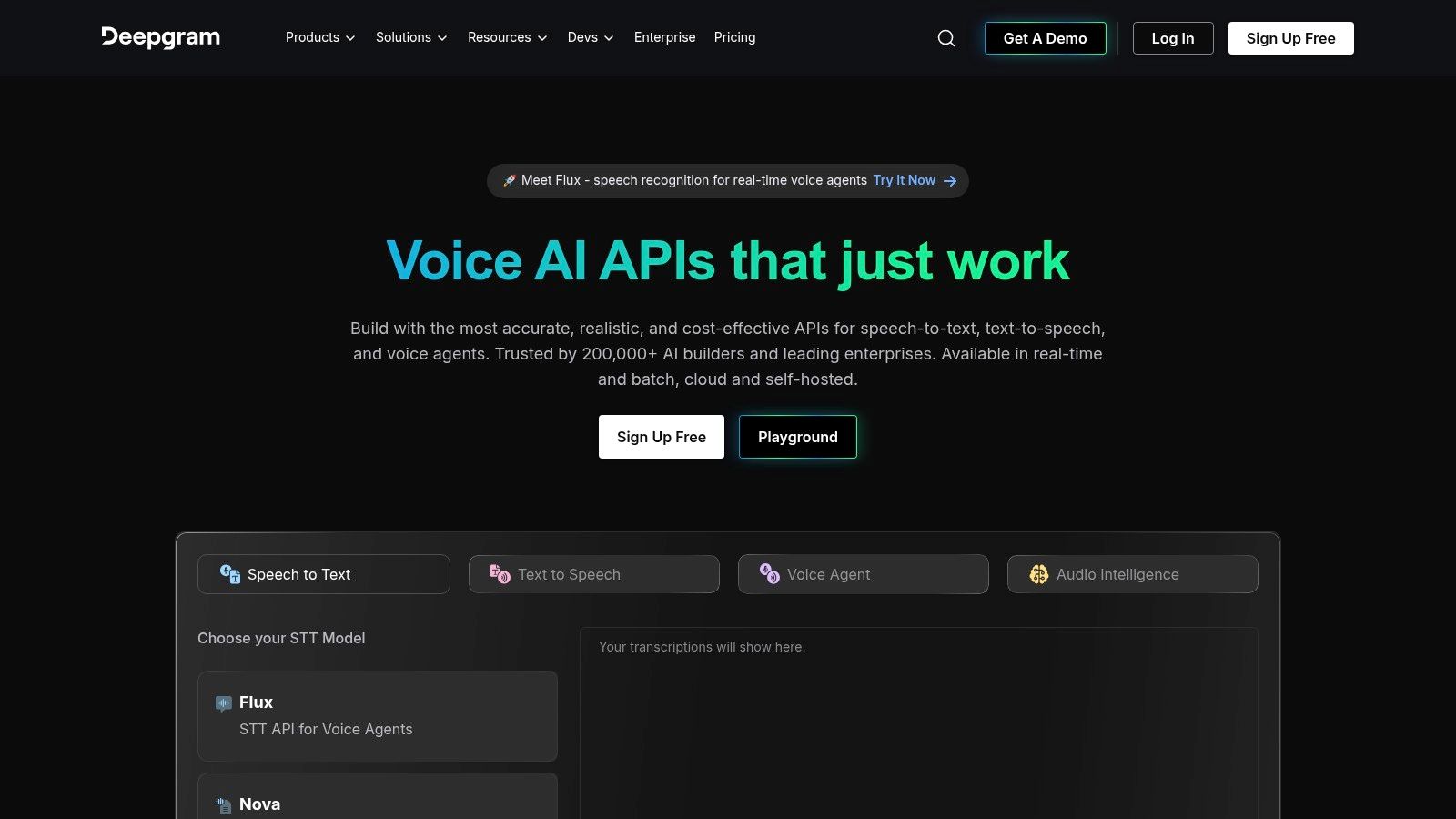
Its main advantage is a strong developer experience, featuring modern SDKs and clear documentation that simplify integration. Deepgram also offers advanced audio intelligence features like topic detection and summarization, providing more than just a raw transcript. The high concurrency limits on the free tier allow for significant testing at scale.
Access and Free Tier
Getting started is easy, as Deepgram offers new users a substantial $200 free credit without requiring a credit card upfront. This credit allows you to extensively test their various models, including their Whisper-compatible offering. After the credits are used, the platform moves to a pay-as-you-go billing model.
Limitations and Use Cases
- Best For: Developers building applications, researchers processing large audio datasets, or users needing to test high-volume transcription workflows for free.
- Drawbacks: The platform is API-driven and lacks a simple consumer-facing web uploader. Once free credits are exhausted, it becomes a purely usage-billed service, which may be costly for ongoing personal use.
7. AssemblyAI
AssemblyAI is a developer-centric platform that goes beyond simple transcription, offering a suite of "Audio Intelligence" features. While it's primarily an API service, its power lies in extras like automatic summarization, topic detection, and content safety moderation. This makes it an excellent choice for businesses and developers looking to build sophisticated applications on top of transcribed audio data.
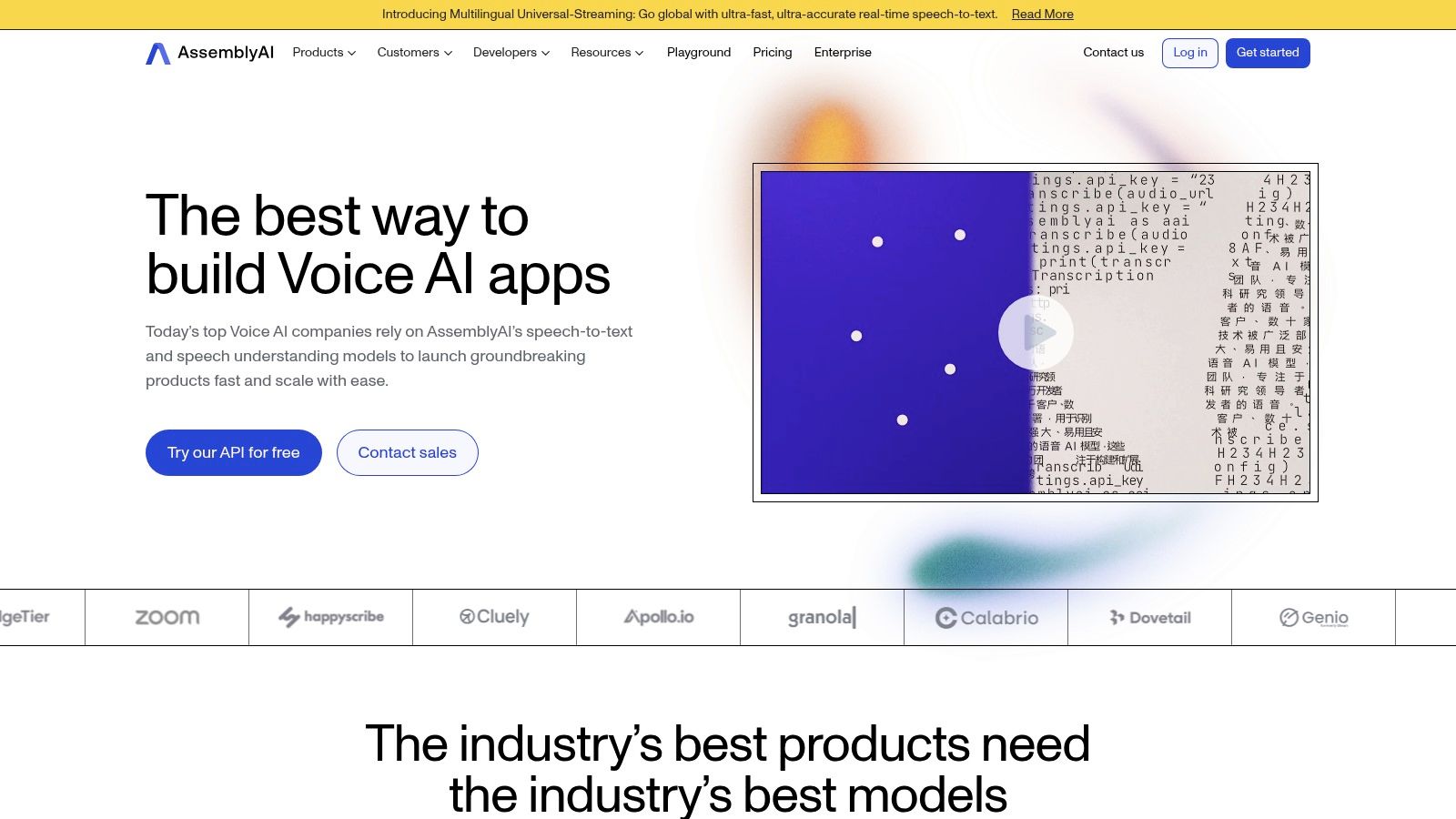
Its major advantage is the combination of high-accuracy transcription with these advanced analytical tools, which can extract meaningful insights without manual review. The platform also provides clear documentation and SDKs, simplifying integration for developers.
Access and Free Tier
AssemblyAI offers a very generous free tier that includes hours of transcription credits each month, making it one of the most accessible APIs for testing and small-scale projects. This allows developers to fully evaluate its performance and features before committing. This makes it a powerful way to test transcription while exploring advanced capabilities.
Limitations and Use Cases
- Best For: Developers building applications, researchers analyzing large audio datasets, and businesses needing features like content moderation or summarization.
- Drawbacks: Like other API-first services, it requires technical knowledge and is not a simple drag-and-drop tool for casual users. Advanced intelligence features can add to the cost at scale.
For those interested in how API-driven tools fit into the broader landscape, you can learn more about its role among other auto-transcribe software.
8. Otter.ai
Otter.ai is one of the most popular tools for real-time meeting transcription, designed with collaboration in mind. It excels at capturing conversations from platforms like Zoom, Google Meet, and Teams, providing not just a transcript but also AI-generated summaries and action items. Its user-friendly web and mobile apps make it incredibly accessible for students, teams, and professionals.
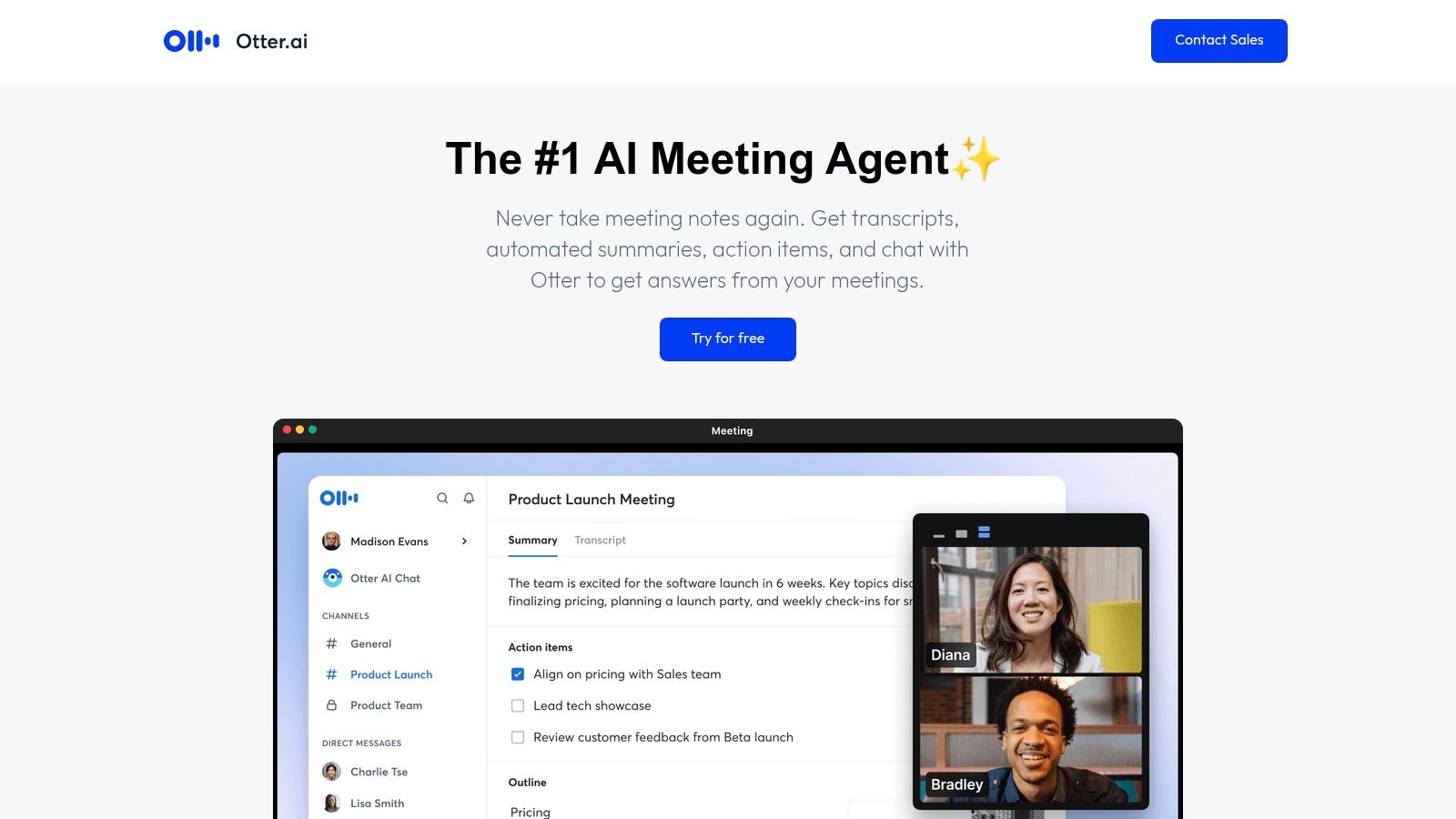
The platform's strength lies in its live transcription and post-meeting features, such as speaker identification and collaborative editing, which allow teams to review and share notes effortlessly. It’s built for immediate, practical use rather than for developers needing an API.
Access and Free Tier
Otter.ai offers a perpetual Basic free plan that is generous for live use. It includes 300 monthly transcription minutes, with a limit of 30 minutes per conversation. This is a great choice for regular meetings or lectures, but be aware of its strict file import limit of three lifetime uploads on the free tier.
Limitations and Use Cases
- Best For: Students, remote teams, and journalists who need live transcription for meetings, interviews, or lectures with collaborative features.
- Drawbacks: The free plan's file import limitation is a significant drawback for users with pre-recorded audio. It is not designed for high-volume, automated transcription workflows.
While excellent for meetings, its file limits may push users with existing audio archives to other platforms. For those exploring different transcription methods, you can learn more about how to transcribe audio to text effectively.
9. Descript
Descript is much more than a simple transcription tool; it's a comprehensive audio and video editor built around a text-based interface. Designed primarily for creators like podcasters and YouTubers, it transcribes your media and allows you to edit the audio or video simply by editing the text transcript. This unique workflow revolutionizes content creation by making it as intuitive as editing a document.
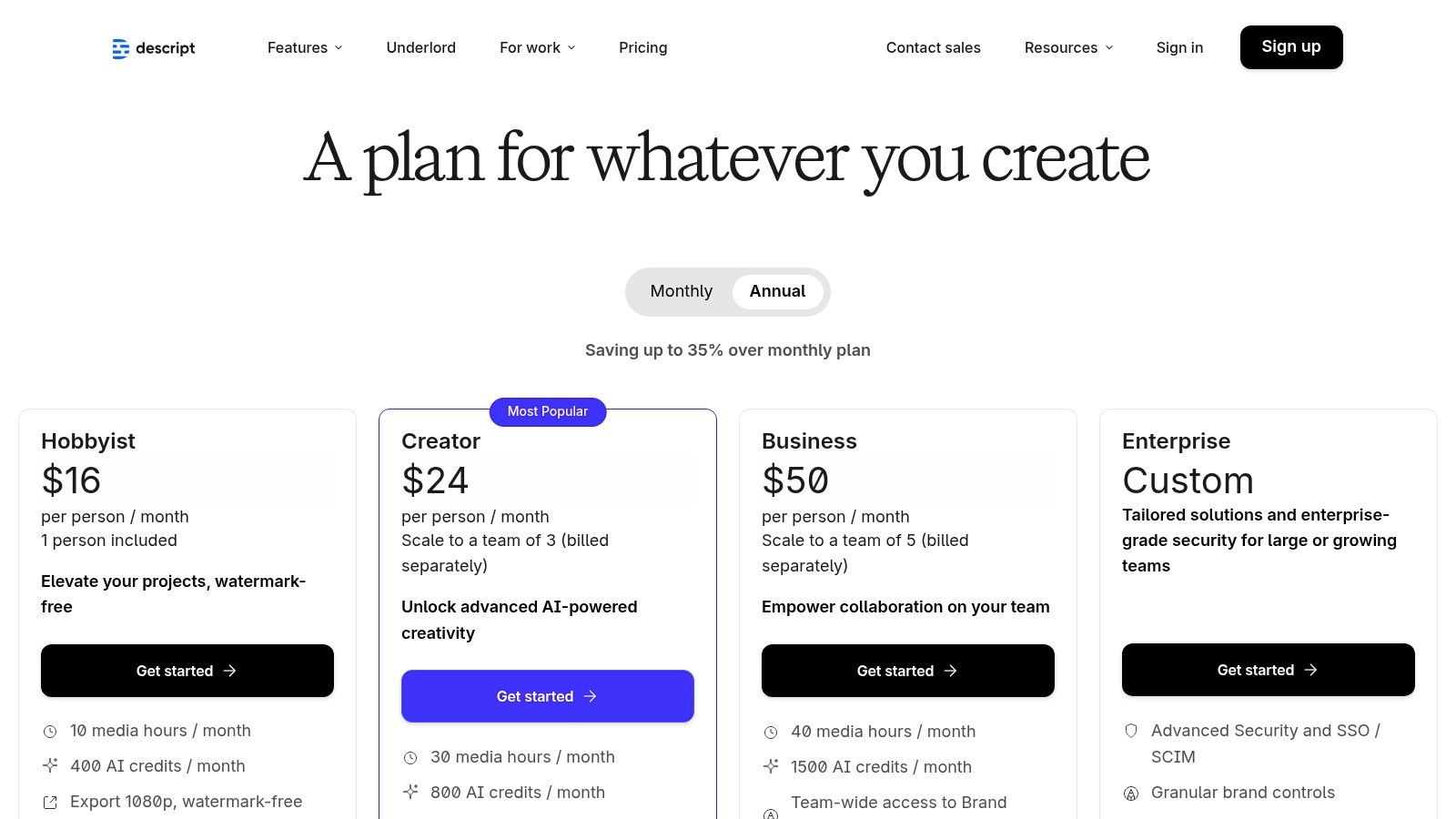
Its standout feature is this “edit by text” functionality, which automatically cuts the corresponding media when you delete words from the transcript. Beyond that, it offers powerful tools like automatic speaker detection, filler word removal ("um," "uh"), and an AI-powered audio enhancement called Studio Sound, which cleans up background noise.
Access and Free Tier
Descript offers a permanent free plan that is perfect for trying out its core features. The free tier typically includes a limited amount of transcription minutes per month, making it a viable option for converting audio into text on smaller projects. For more extensive use, several paid tiers unlock higher limits and advanced features.
Limitations and Use Cases
- Best For: Podcasters, video creators, and anyone who needs to edit their media alongside transcribing it.
- Drawbacks: The application is more robust and has a steeper learning curve than a simple web-based converter. The free plan's limits on transcription and features can be restrictive for frequent users.
10. Sonix
Sonix provides a polished, web-based platform designed for speed and ease of use, making it an excellent choice for users who need quick, automated transcriptions without a technical setup. Its interface is intuitive, allowing you to upload audio or video files and receive a transcript within minutes. The service is particularly strong for those who need to edit and format their text before exporting.
The platform's standout feature is its powerful in-browser editor, which synchronizes the audio with the text. This allows you to click on any word to hear the corresponding audio, making corrections and speaker labeling remarkably simple. It also supports translation into over 40 languages, broadening its utility for global teams.
Access and Free Tier
Sonix offers a free trial that provides 30 minutes of transcription credit upon sign-up. This trial is a great way to test the service's accuracy and workflow firsthand. While some sign-up flows may require a credit card, the trial minutes let you test the full feature set without commitment.
Limitations and Use Cases
- Best For: Journalists, podcasters, and video creators who need a fast turnaround with a user-friendly editor for refining transcripts and creating subtitles (SRT/VTT).
- Drawbacks: The free trial is limited to just 30 minutes, which is only suitable for short files or a brief evaluation. Ongoing use requires a paid subscription.
11. Kapwing
Kapwing is an online creative suite best known for its video editing tools, but it also includes a powerful and user-friendly auto-subtitler. This makes it a fantastic choice for content creators who need to transcribe audio primarily for generating captions for social media videos, short films, or online course materials. Its all-in-one platform allows you to upload, transcribe, and edit subtitles within the same browser-based interface.

The platform's strength lies in its simplicity and integration. You can easily adjust timing, correct text, and even translate subtitles into different languages directly in the editor. This seamless workflow is ideal for quickly preparing content for platforms like Instagram, TikTok, and YouTube where accessible captions are essential for engagement.
Access and Free Tier
Kapwing operates on a freemium model. The free plan provides a monthly allowance for auto-subtitling, which is perfect for users with occasional or small-scale needs. This makes it an effective way to generate subtitles for short-form content. To access more transcription minutes and remove watermarks, a paid subscription is required.
Limitations and Use Cases
- Best For: Social media creators, educators, and marketers who need to quickly generate and style subtitles for video content.
- Drawbacks: The free version places a watermark on exported videos and has limits on file duration and transcription minutes. It is not designed for transcribing long-form, audio-only files like interviews or lectures.
12. Notta.ai
Notta.ai is a user-friendly transcription service designed for individuals and teams who need to capture notes from meetings, lectures, and interviews. It functions seamlessly across its web and mobile apps, offering a polished experience for live transcription or uploading pre-recorded files. The platform is especially useful for those who require a consistent, modest amount of transcription each month without a significant commitment.
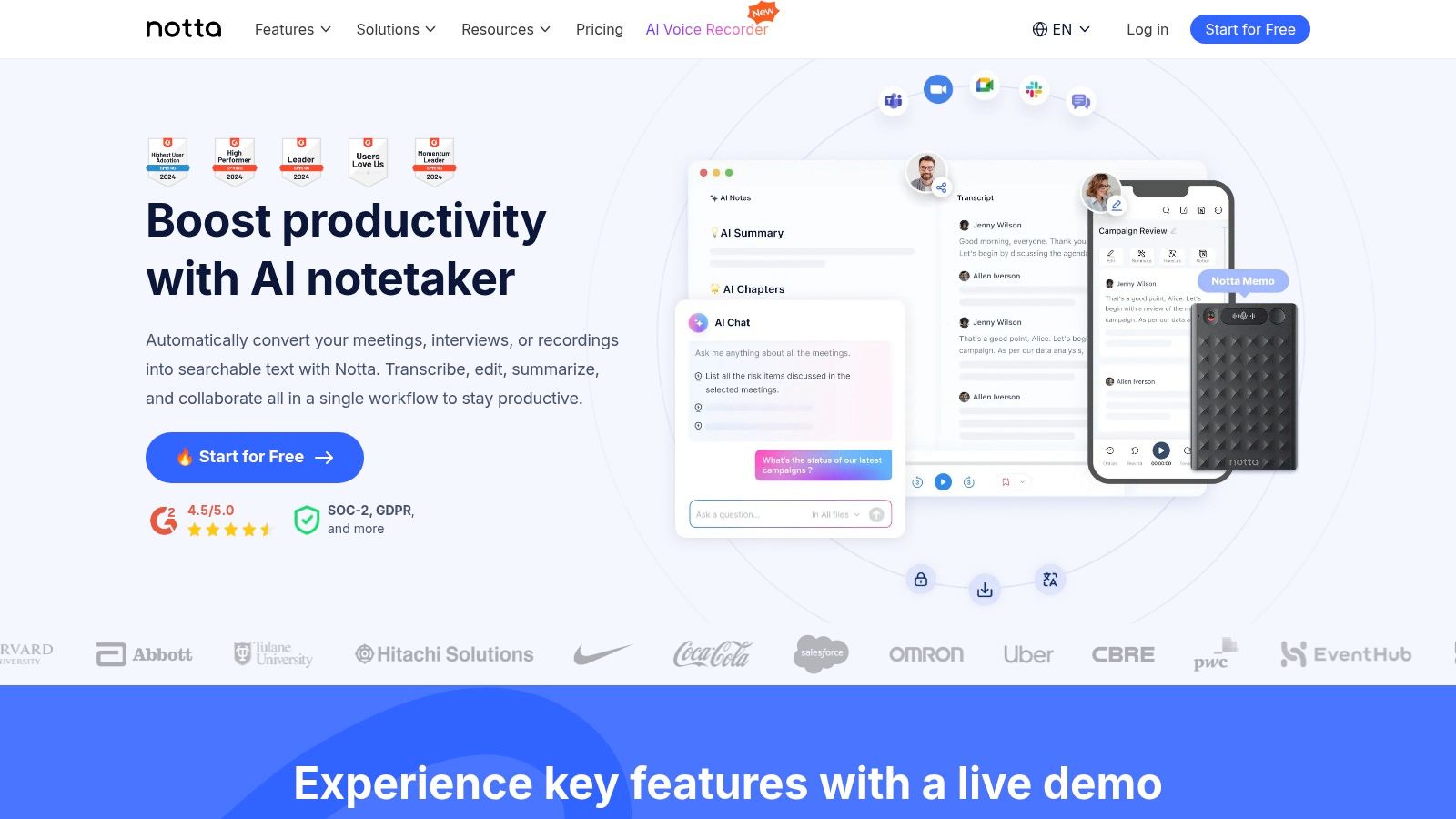
Its standout features include cross-device synchronization and AI-powered summaries, which help distill long recordings into key takeaways. This makes it a practical tool for students, journalists, and professionals who need to quickly review and act on transcribed content. The interface is clean, making it easy to manage and organize all your conversations.
Access and Free Tier
Notta provides a recurring free plan that typically includes up to 120 minutes of transcription per month, making it an excellent way to handle regular but limited needs. The platform also offers short-term trials for its Pro and Business tiers, which temporarily increase the minute allowance and unlock premium features like advanced export options.
Limitations and Use Cases
- Best For: Individuals needing a reliable monthly transcription allowance for meetings or voice notes, and users who value cross-device sync.
- Drawbacks: The free tier has file duration limits (e.g., 3 minutes per file upload). Trials for premium features may require a payment method and must be actively canceled to avoid charges.
For users who don't need the live meeting integration and prefer a more generous, straightforward file uploader without recurring limits, other dedicated tools might be a better fit.
Which Audio Format to Upload
File format rarely affects accuracy, but it does affect whether the upload works at all. Two things are worth knowing before you convert anything.
If a file is rejected for size, convert to mono before anything else. Speech does not need stereo, and it halves the file with no effect on the transcript.
Top 12 Free Online Audio-to-Text Tools Comparison
Making Your Final Choice
Navigating the world of transcription tools reveals a diverse landscape, with options tailored for nearly every imaginable need. After exploring a dozen powerful platforms, it's clear each offers a unique way to turn speech into text. From the developer-centric APIs of giants like Google Cloud and Amazon Transcribe to the user-friendly, feature-rich interfaces of Otter.ai and Descript, the right choice truly hinges on your specific project requirements and workflow.
Your decision-making process should be guided by a clear understanding of your priorities. Are you a student needing to quickly transcribe a single lecture? A simple tool with a generous one-time free minute allowance might be perfect. Are you a developer building an application that requires robust, scalable speech recognition? The powerful, albeit more complex, APIs from Microsoft Azure or Deepgram are your best bet.
Key Factors to Guide Your Selection
When evaluating which free service to try first, consider these critical factors we've discussed:
- Accuracy and Language Support: How crucial is near-perfect accuracy for your task? Does the tool excel with your specific accent, dialect, or industry jargon? Ensure your required languages are fully supported, not just in a beta phase.
- Free Tier Limitations: Be realistic about the constraints. Pay close attention to the monthly minute caps, maximum file upload size, and feature restrictions. A generous free tier for short files is useless if you primarily work with hour-long interviews.
- Use Case Alignment: A journalist needing speaker identification has different needs than a content creator who requires integrated video editing. Match the tool’s core strengths-like live transcription, collaborative editing, or API access-to your primary use case.
- Privacy and Security: Never overlook data privacy. For sensitive content like client meetings or confidential research interviews, carefully review the platform's privacy policy. Understand how your data is stored, processed, and used before you upload anything.
From Raw Text to Actionable Insights
Ultimately, the goal of transcription is not just to have a wall of text; it's to unlock the value within your audio content. This is where a simple transcription service can fall short. Raw transcripts are a starting point, but they often require significant manual effort to distill key points, identify action items, and summarize core themes.
This is the critical gap that HypeScribe was built to fill. While many tools stop at providing the text, HypeScribe takes the next step by integrating AI-powered summaries and insights directly into the workflow. It's designed for professionals who need more than just words; they need understanding, clarity, and speed. By automating the summary process, it transforms a lengthy recording into a concise, actionable document, saving you invaluable time and mental energy.
HypeScribe's free plan takes three files a month at up to an hour each — and returns a summary and key points alongside the transcript, not just raw text. Try it free, no card required.


































































































