What Is Closed Captioning and How Does It Really Work?

Ever found yourself watching a video in a noisy cafe, a quiet library, or late at night with the volume off? If you’ve ever relied on the text at the bottom of the screen to keep up, then you’ve used closed captioning (CC).
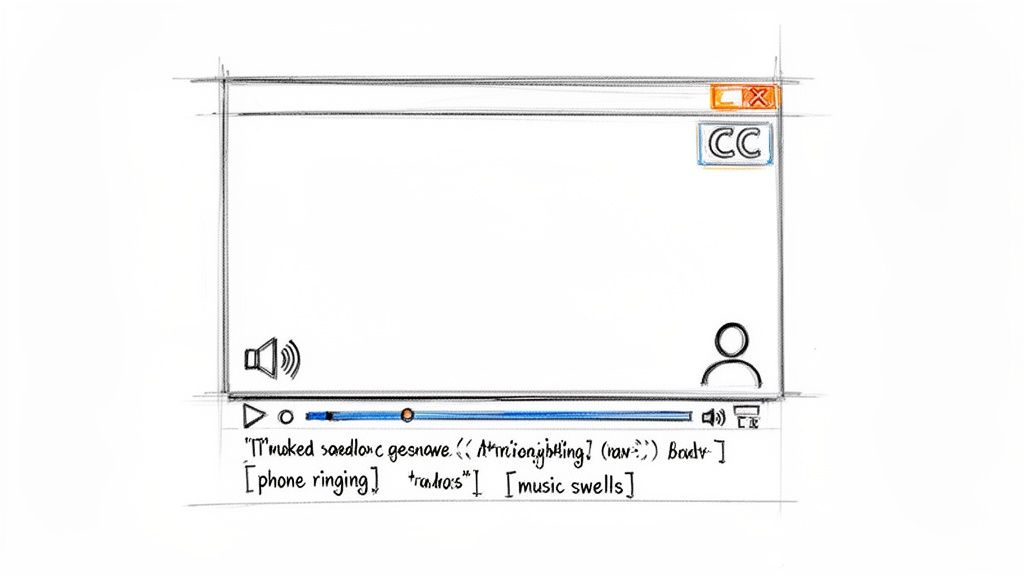
In my experience creating and consuming video content, I've learned that closed captioning is much more than just a text transcript. It’s a text version of a video’s entire audio track. This includes not only the spoken words but also crucial non-speech sounds like [phone ringing] or [dramatic music]. It’s a complete script that viewers can toggle on or off, making content fully understandable for anyone watching without sound.
Your Guide to Understanding Closed Captions
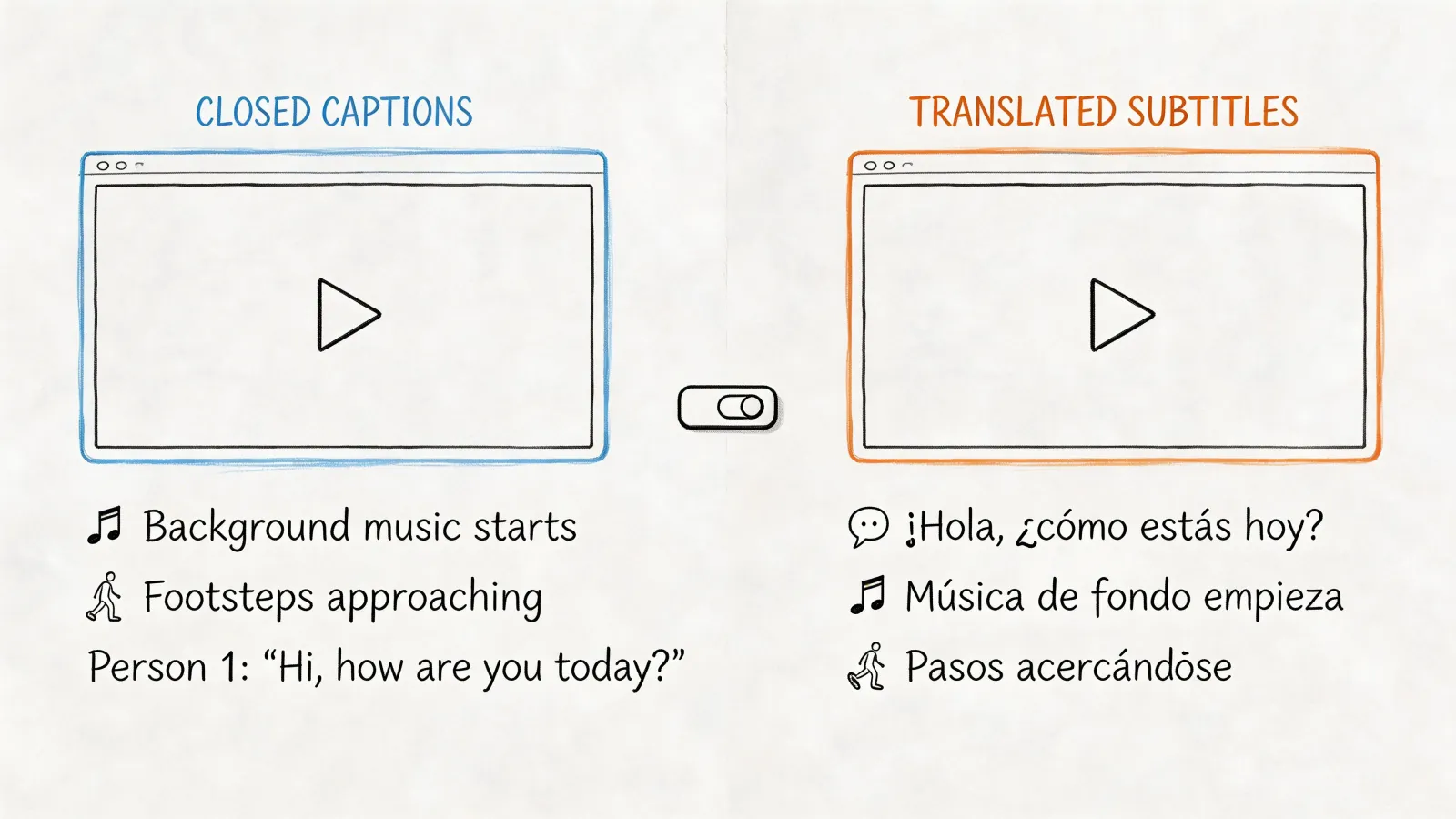
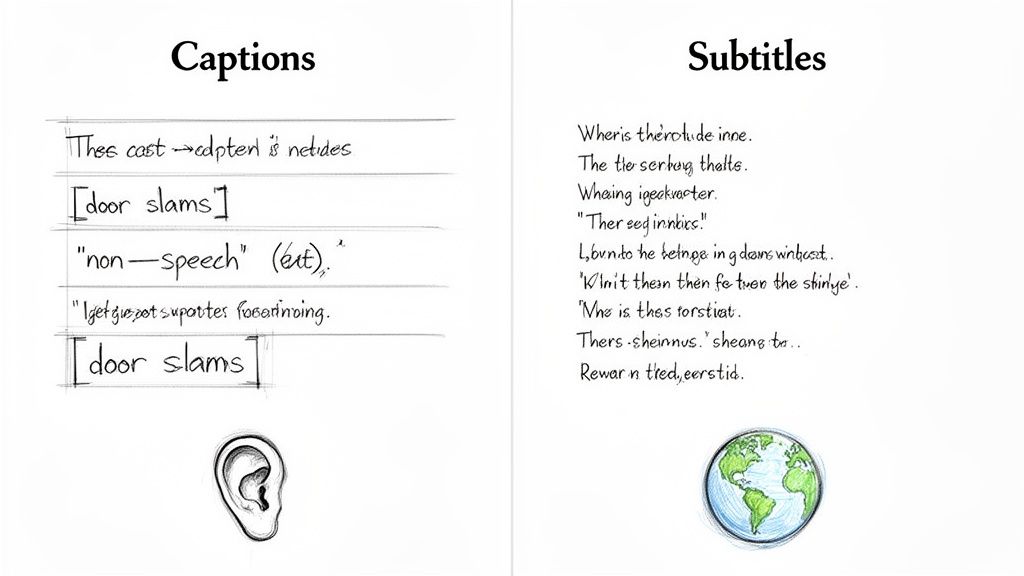
While they might look similar, closed captions are fundamentally different from subtitles. From a content creator's perspective, the distinction is critical: subtitles are designed to translate dialogue for viewers who don't speak the language of the video. Captions, on the other hand, are created for viewers who cannot hear the audio.
This means they have to convey the entire auditory experience, ensuring someone who is deaf or hard of hearing gets the same information and emotional context as a hearing person. For a more detailed definition of closed captions, you can find resources that dive deeper into the technical specifics.
At a Glance: How Captions and Subtitles Differ
It's easy to mix these terms up, but their purpose and content are quite distinct. From my experience helping clients with their video strategy, this is the first thing we clarify. Here’s a quick breakdown to clear up the confusion.
This table makes it clear: captions are built for accessibility, while subtitles are built for language translation.
More Than Just Words on a Screen
The real magic of closed captioning is its ability to paint a full audio picture with text. This includes describing sounds that are crucial for understanding the story, setting the mood, or catching a joke.
Think of it this way: subtitles are the dialogue script, while closed captions are the entire screenplay, complete with sound effects and emotional cues. This distinction is vital for creating truly inclusive content.
This comprehensive approach makes captioning an essential tool for accessibility, but its benefits don't stop there. The ability to turn video into text is key to making your content more discoverable and engaging. If you want to learn more about this process, our guide on converting video to text provides a deeper look.
Why Understanding Captions Matters Today
In a world overflowing with video—from social media feeds to corporate training—closed captioning is no longer an afterthought. It's a standard feature that viewers expect. Done right, captions can dramatically improve your content's performance.
- Accessibility: They open up your content to the 48 million Americans with some degree of hearing loss.
- Viewer Engagement: Captions grab attention when videos auto-play on mute, a common default on platforms like Facebook and Instagram.
- Comprehension: They help everyone, including visual learners and non-native speakers, absorb information more effectively.
- SEO (Search Engine Optimization): Search engines can't watch a video, but they can read a caption file. This makes your content indexable and helps it reach a much wider audience.
As we'll explore, mastering closed captioning isn't just about ticking a compliance box. It’s a strategic move that boosts user experience and amplifies your message, turning passive viewing into an active, inclusive experience for all.
What is the Difference Between Captions and Subtitles?
It’s a common mistake to use the words "captions" and "subtitles" interchangeably. Having worked with both, I can tell you that while they might look similar on screen, they're built for two completely different audiences and serve very different purposes. Getting this right is the first step to truly understanding what closed captioning is and why it's so important for your content.
The real difference boils down to a simple question: who are you creating them for?
Closed captions (CC) are an accessibility tool, designed for viewers who are deaf or hard of hearing. Their job is to paint a complete picture of the audio experience using text. Subtitles, in contrast, are for people who can hear the audio just fine but don't understand the language being spoken. They are purely a translation tool.
Captions Are for Accessibility
Think about everything you hear when you watch a movie—it’s more than just dialogue. Because captions are for viewers who can't rely on sound, they have to communicate all of that crucial audio information.
This means including key non-speech elements like:
- Sound Effects: Things like [door slams] or [phone ringing] are often critical to the plot.
- Musical Cues: A simple note like [tense music builds] completely changes the mood of a scene.
- Speaker Identification: If someone is speaking off-screen, a caption might say (SARAH): Where are you? to keep the viewer from getting lost.
Without these details, a viewer who is deaf or hard of hearing misses out on the story's emotional weight and context. It’s the difference between just knowing the words and actually feeling the scene.
Subtitles Are for Translation
Subtitles work from the assumption that the viewer can hear everything perfectly; they just need a linguistic bridge. As a result, they focus only on providing a text translation of the dialogue.
You won't find things like [footsteps approaching] in subtitles because the viewer is expected to hear those sounds themselves. Their role is to translate what's being said, nothing more.
Here's an easy way to remember it: subtitles are the dialogue script, while closed captions are the full screenplay, complete with sound cues and stage directions.
Open vs. Closed: What’s the Difference?
To add one more layer, you'll also see the terms "open" and "closed" captions. The distinction here is all about user control.
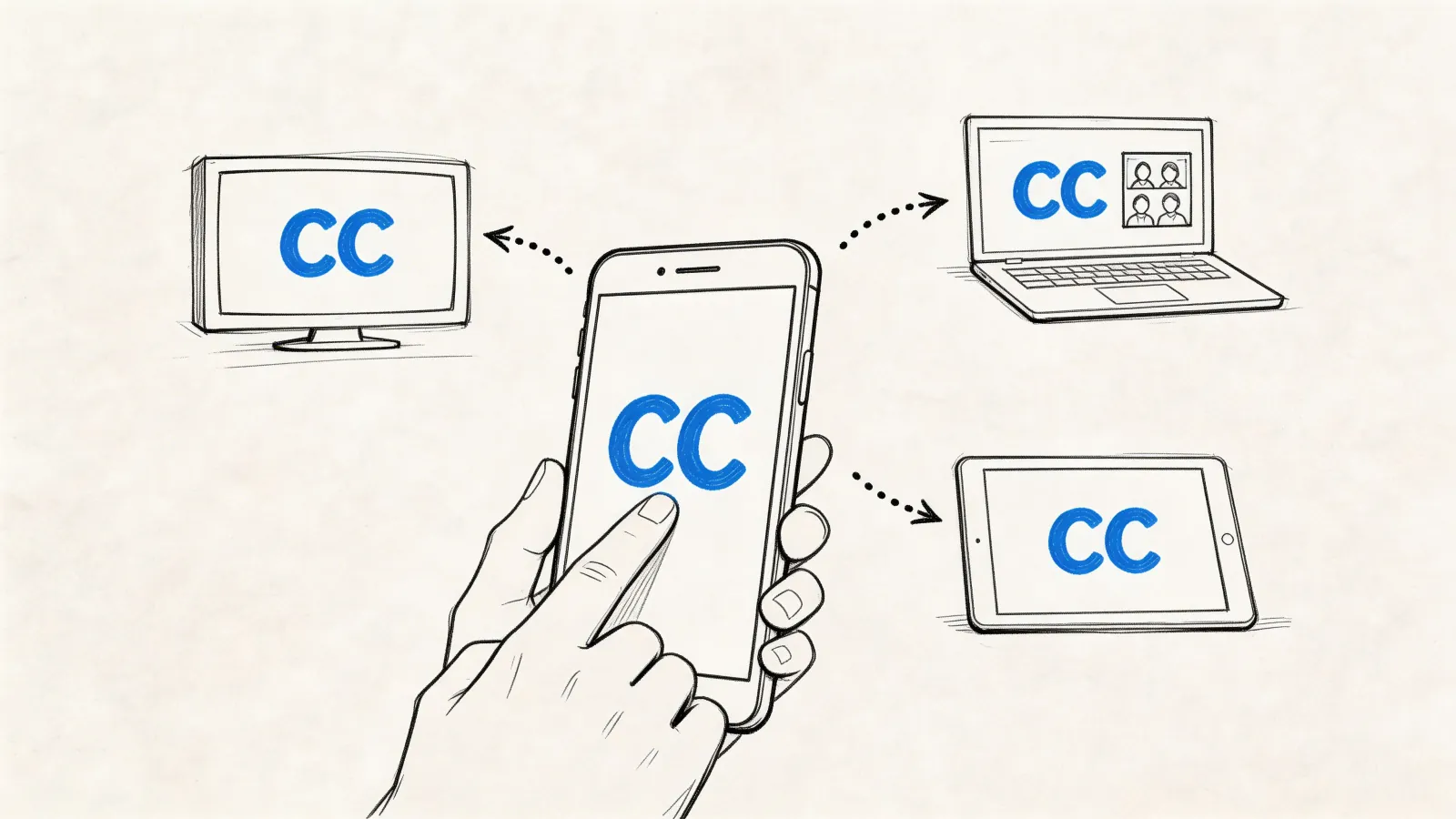
- Closed Captions (CC): This is what most of us are used to. The viewer has the option to turn them on or off using the video player’s controls (usually a "CC" button). This flexibility makes them the standard for most video platforms.
- Open Captions (OC): These are "burned" directly into the video file, meaning they are always visible and can't be turned off. You often see this on social media videos, where designers want to ensure the text is seen even when the video autoplays on mute.
Whether you're a marketer, an educator, or a creator, understanding these nuances is more than just a technicality. It’s about choosing the right tool for the job to make sure your message connects with your entire audience, whether you're aiming for full accessibility or global reach.
Why Do People Watch Videos With Captions?
If you think closed captions are just for people with hearing impairments, you're missing a huge piece of the puzzle. The audience for captions has absolutely exploded. Millions of viewers with perfect hearing now flip them on by default, and it’s changing how we all consume video.
This isn't some random trend. It’s a direct result of how we live our lives now—in shared spaces, always connected, where blasting audio just isn't practical. From a noisy morning commute to scrolling through your feed in a quiet office, sound-off viewing has become the norm.
The Rise of Sound-Off Viewing
Just think about your own habits for a second. How often do you watch videos while waiting in line, sitting in a doctor's office, or relaxing in bed next to a sleeping partner? In moments like these, audio is either a public nuisance or simply not an option.
Closed captions are the perfect solution. They deliver the full story—dialogue, sound effects, everything—without making a sound. That convenience alone has made them essential for how we watch content on the go.
One of the most eye-opening facts is that a staggering 80% of caption users are not deaf or hard of hearing. That statistic signals a massive shift in viewer behavior. The same research found that captioned videos get 80% higher completion rates. Why? Because 50% of viewers said sound-off watching is a must-have, and one in three rely on captions in public. You can dig into more closed captioning insights to see the full picture.
More Than Just Convenience: A Tool for Deeper Engagement
But the appeal of captions goes way beyond just watching in silence. They’re also a powerful tool for comprehension and focus, which is why so many people leave them on even when the volume is cranked up.
- Sharper Focus: In a world overflowing with distractions, on-screen text helps lock your attention on the content and stops your mind from wandering.
- Clarifying Complex Topics: Trying to follow a dense tutorial, a technical lecture, or a video full of jargon? Captions make it much easier to process and understand the information.
- Cutting Through Accents and Mumblecore: Captions guarantee you won't miss a word, even if a speaker has a thick accent, talks too fast, or was recorded in a room with a terrible echo.
This is a game-changer. It means viewers don't just watch more of your video; they actually get more out of it.
For content creators and marketers, this changes everything. Captioning is no longer a simple compliance checkbox. It’s a core strategy for boosting content performance and grabbing your audience's full attention.
The Business Case for Captions
This massive adoption of captions has a direct, measurable impact on the metrics that matter. When you add captions, you’re meeting your audience where they are, and the results are undeniable.
Adding captions can seriously improve:
- Watch Time: People will stick around longer when they can follow along in any environment.
- Video Completion Rates: As mentioned, completion rates can skyrocket because viewers don't have to bail on a video just because they can't turn on the sound.
- Information Recall: Viewers remember more when they both see and read the message, making your content stick.
- Broader Reach: Captioned videos are simply more user-friendly, opening your content up to a much bigger audience than audio-only can.
Ultimately, understanding the why behind caption usage is key. It shifts the entire conversation from a technical requirement to a powerful engagement strategy. By embracing captions, you’re not just making your content accessible—you’re making it better for everyone.
Accessibility Laws and Captioning: What You Need to Know
For a lot of organizations, adding closed captions to video isn't just a nice-to-have feature; it's the law. These rules aren't some obscure corner of the legal code—they're a fundamental part of making sure everyone has the same access to information in our increasingly digital world.
Think of these regulations less as a burden and more as a blueprint for inclusive communication. When you make your content accessible, you’re not just reaching a wider audience; you're also protecting your organization from very real legal risks. It’s a win-win.
The Big Two: Key Laws Driving Captioning Requirements
While there are accessibility laws all over the world, a couple of major ones in the United States really set the tone for digital content. Their influence is massive, impacting everything from primetime TV shows to the online courses you might take.
You’ll most often hear about these two:
- The Americans with Disabilities Act (ADA): This is a sweeping civil rights law that bans discrimination based on disability. Over the years, courts have consistently ruled that the ADA's protections extend to the digital world. This means websites, online stores, and streaming platforms are considered "places of public accommodation" and must be accessible, which includes providing captions for video.
- Federal Communications Commission (FCC) Rules: The FCC is the direct regulator for TV, radio, and now, a lot of online video. Thanks to the 21st Century Communications and Video Accessibility Act (CVAA), the FCC has clear rules requiring captions for most video content that first appears on U.S. television and is later posted online.
These laws have made captions a non-negotiable part of modern media. Since 2014, for example, FCC rules have mandated closed captions on 100% of new English and Spanish TV programming. But there are still gaps; one analysis found that only a startling 9% of TV ads had captions. If you want to dig deeper, you can explore more about these regulatory impacts and how they're shaping the market.
So, Who Actually Needs to Follow These Rules?
It’s easy to assume these regulations only apply to giant corporations or federal agencies, but that's a common mistake. The net is cast much wider than most people think.
You should definitely be thinking about captioning if your organization is one of the following:
- Educational Institutions: Any school or university that gets federal funding falls under Sections 504 and 508 of the Rehabilitation Act. This means all their digital materials, from recorded lectures to promotional videos, have to be accessible.
- Government Agencies: From the federal level all the way down to your local city council, government bodies are required to make sure all their digital communications can be accessed by citizens with disabilities.
- Businesses Open to the Public: The ADA applies to any business that serves the public. In the online world, that means e-commerce sites, news organizations, streaming services, and pretty much any company with a public-facing website.
The bottom line is simple: if your content is made for the public, it needs to be accessible to all of the public. Not having captions isn't a small oversight—it's an obstacle that locks millions of people out.
Ignoring these standards is a risky move. Lawsuits over digital accessibility are becoming more and more common. The cost of fighting a lawsuit or repairing a damaged reputation is almost always far greater than the cost of just doing captions right from the start. Getting ahead of it isn't just about compliance; it's about building a better, more inclusive brand.
How to Create Accurate Closed Captions for Your Videos
Okay, so you understand why captions are non-negotiable. Now, let's get into the how. Moving from theory to practice might sound a bit technical, but creating high-quality captions is more straightforward than you think. The trick is to find a workflow that fits your needs for accuracy, speed, and, of course, budget.
You've really got three main paths to choose from when it comes to captioning your video content. Each one has its own trade-offs, so the "best" choice really depends on what you're working on.
Comparing Your Caption Creation Options
Choosing how to create your captions is a classic balancing act between time, money, and the level of precision you need. Let's lay out the options.
Ultimately, finding the right method ensures your video content is not just engaging but also fully compliant and accessible.
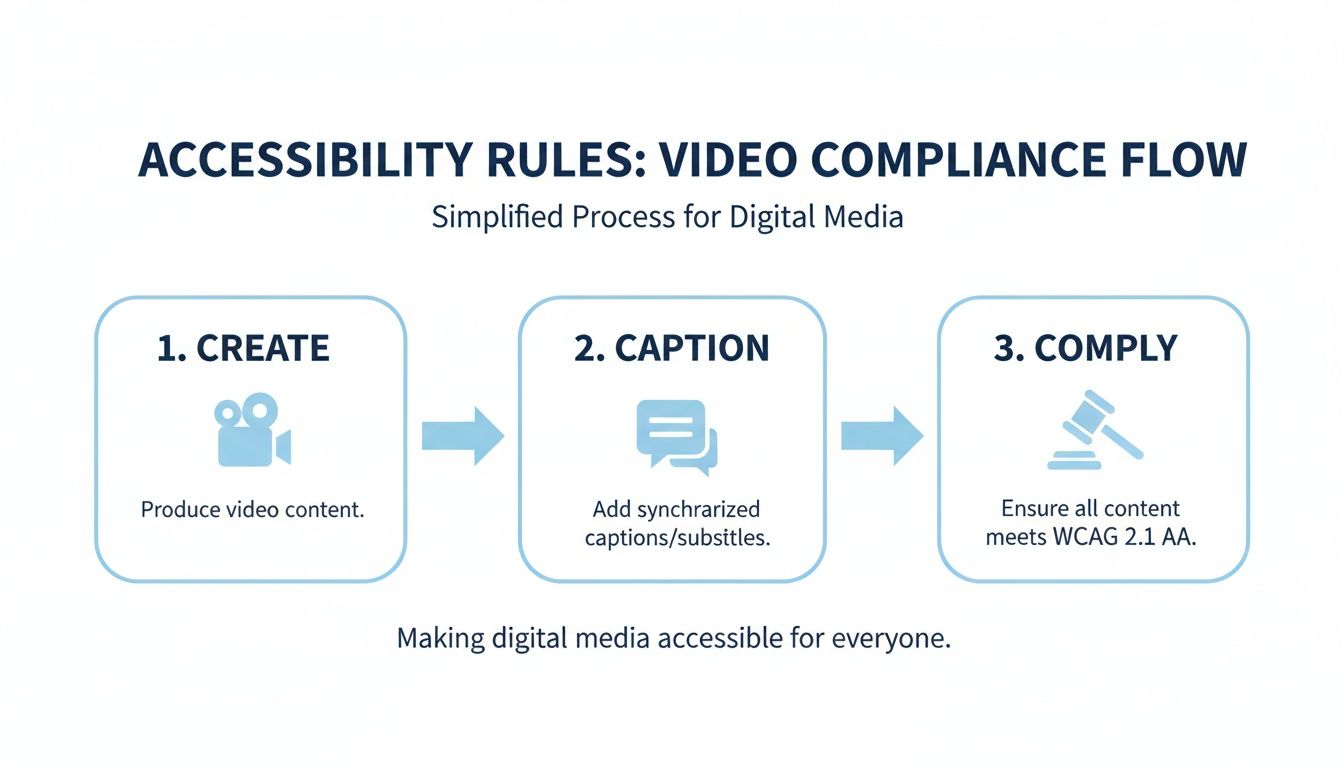
This workflow is pretty universal: you make your video, add the captions, and you're on your way to meeting accessibility standards.
A Closer Look at the Three Captioning Workflows
Let's dig into what each of these methods actually looks like in the real world.
1. The DIY Manual Approach
Going manual gives you absolute, granular control over every word and timestamp. You'll sit down with a text editor or specialized software, listening and typing out the dialogue and sound cues line by line.
This is the path to take for short, mission-critical videos where every single detail has to be flawless. But be warned: a 10-minute video could easily take you an hour or more to caption by hand. If you're up for the challenge, learning how to create SRT files from scratch is a fantastic skill to have in your back pocket.
2. Outsourcing to a Professional Service
When you need guaranteed accuracy and have the budget, hiring a professional service is a great move. These companies have teams of trained human transcribers who are experts at this stuff—they catch every word, identify speakers, and note important sound effects.
They'll typically promise an accuracy rate of 99% or higher, which is the gold standard for broadcast and legal compliance. The only real downside is the cost, which is usually charged per minute of video. That can add up fast if you're producing a lot of content.
3. Leveraging Automated AI Captioning
For the vast majority of creators, AI-powered tools hit the sweet spot. They offer an incredible blend of speed, cost-effectiveness, and quality. Platforms like HypeScribe use advanced speech recognition to generate a full transcript and captions in just minutes.
The real game-changer with AI is pure efficiency. A task that used to eat up hours can now be done in the time it takes to grab a coffee.
While AI can achieve up to 99% accuracy on its own, a quick human review is always a good idea to catch any tricky proper nouns or context-specific errors. This approach makes it genuinely feasible to caption every single video you publish. It’s no surprise that auto transcribe software has become a staple for anyone serious about scaling their video accessibility efforts.
Understanding Common Caption File Formats
Once your captions are ready, they're packaged into a simple text file that video players can read and display. Two formats rule the roost today.
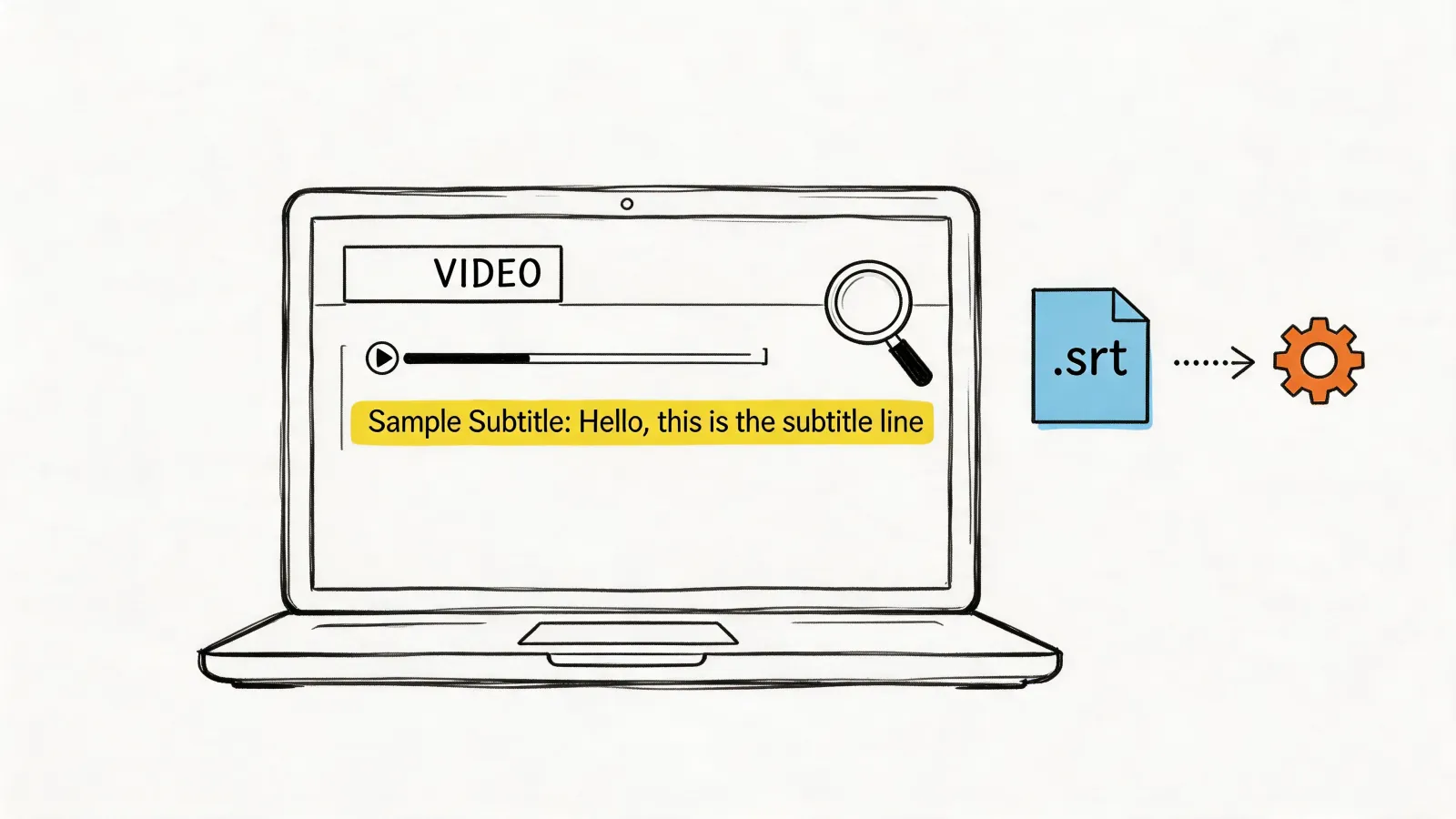
- SRT (.srt): The SubRip Text format is the undisputed king of captions. It’s a basic, no-frills text file that lists numbered captions with their start and end timecodes. Its simplicity is why it's supported nearly everywhere.
- VTT (.vtt): The Web Video Text Tracks format is the modern successor to SRT. It does everything SRT does but adds support for more advanced formatting like bold text, italics, colors, and on-screen positioning. This makes it a favorite for web-based HTML5 video players.
Most major platforms—YouTube, Vimeo, LinkedIn—happily accept both SRT and VTT files. Picking the right one just ensures your captions show up perfectly, making your content accessible and engaging for everyone.
The Future of Captioning and Its Growing Importance
Let’s be clear: closed captioning is no longer a niche feature tacked on for compliance. It’s a core part of how we consume video today. In a world of silent-on-default social media feeds, online courses, and endless Zoom calls, captions have become essential for everyone, not just an afterthought for accessibility.
This shift is more than just a trend; it's a fundamental change in how we create and share content. Viewer habits have evolved, and global accessibility laws are getting stricter. This has lit a fire under the captioning market, turning it from a small service industry into a powerhouse of digital communication.
Market Growth and Tech That Keeps Up
The numbers don't lie. The global closed captioning market is exploding, projected to jump from USD 370 million to a staggering USD 850 million by 2033. That’s a compound annual growth rate (CAGR) of 9.7% kicking off in 2025. You can discover more insights about the closed captioning market to see just how big this is getting.
What’s fueling this rocket ship? Technology. The old-school, painstakingly slow process of a human manually transcribing audio is fading fast. In its place, AI-powered tools are delivering captions that are faster, cheaper, and often just as accurate.
This isn't just about speeding up a workflow. It's about making accessibility available to everyone. A solo YouTuber can now get the same quality captions as a Fortune 500 company, and they can get them in minutes.
This tech leap is removing old limitations. The best tools can now process dozens of languages with incredible accuracy. If you're curious, we’ve put together a guide on the top speech-to-text software that’s leading the charge.
The Future is Automated and Global
Looking down the road, two things are certain: captioning will become even more automated and far more multilingual.
AI is getting smarter every day. Soon, we'll see near-perfect, real-time captions for live streams, webinars, and breaking news without much human help at all. Think about that—instant accessibility for any live event.
At the same time, AI is making it incredibly simple to translate those captions. With just a few clicks, you can take one video and make it perfectly understandable to viewers in Japan, Germany, or Brazil. This is what transforms your content from a local broadcast into a global conversation, proving just what is closed captioning—a key to unlocking a worldwide audience.
Got Questions? We've Got Answers
Even after getting the basics down, you probably still have a few questions about how captions work in the real world. Let's tackle some of the most common ones that pop up.
Can I Change How Captions Look?
You can, but it depends. Most modern streaming platforms and video players give you options to customize the font, size, color, and even the background of closed captions (CC). This lets you dial in the settings for perfect readability.
This flexibility is built into newer standards like CEA-708 captions for digital TV. However, if you're dealing with open captions—the kind that are permanently burned into the video itself—you're stuck with what you see.
What's the Deal with "SDH"?
You've probably seen the "SDH" option on services like Netflix or in your video editing software. SDH stands for "Subtitles for the Deaf and Hard-of-Hearing."
Think of SDH as a hybrid. It has all the descriptive details of captions, like [door creaks] or [tense music], but it's delivered in a subtitle file format. This is incredibly useful on platforms that don't support traditional closed captioning or when you need accessible subtitles for an international audience.
At its core, SDH does the same job as standard captions: it makes sure viewers who can't hear the audio still get the complete picture, including critical sound effects and who is speaking.
This makes SDH a go-to choice for creators who want to make their content accessible to a global audience.
Do I Really Need Captions for Live Videos?
Absolutely. Captioning live events like webinars, breaking news, or a live stream is a must for accessibility. This is where real-time captioning comes in, sometimes called Communication Access Realtime Translation (CART).
There are two main ways to get it done:
- Human Stenographers: A trained professional uses a special keyboard to type what they hear in real time. It's incredibly accurate but can be expensive.
- Automated Speech Recognition (ASR): AI software generates the captions on the fly. ASR has gotten surprisingly good and is a fast, practical solution for most live events.
Do Captions Help with SEO?
They help a ton. Search engines can't watch videos, but they are experts at reading text. Adding a caption file is like handing Google a complete, time-stamped transcript of your video.
This lets search algorithms understand exactly what your video is about, which can boost your ranking for all those juicy keywords. It makes your content more discoverable and can drive a serious amount of organic traffic your way. Simply put, captioning is one of the best things you can do for your video SEO.
Ready to create accurate, engaging captions in seconds? HypeScribe uses advanced AI to turn your video and audio content into precise text, complete with summaries and action items. Stop typing and start creating. Try it for free at https://www.hypescribe.com.