
The 12 Best Freeware Tools to Extract Audio From Video in 2026

Have you ever needed to pull a soundtrack from a movie clip, save an important voice memo from a meeting recording, or repurpose a great speech from a video file? Whether you're a student transcribing a lecture, a journalist pulling quotes from an interview, or a content creator making a podcast from a webinar, the need to separate audio from video is a common and practical task. This process, often called demuxing, can seem technical, but a wide range of powerful and completely free tools make it surprisingly simple.
This guide provides a hands-on look at the best freeware to extract audio from video. We have personally tested and compiled a list of desktop software, online converters, and command-line utilities to fit any workflow or skill level. Instead of just listing features, we'll walk you through how each tool works, who it's best for, and provide direct links to get you started immediately.
We'll cover everything from versatile media players you might already have installed, like VLC, to dedicated audio editors like Audacity and powerful open-source solutions. You will learn not only how to use each tool but also when to choose one over another based on your specific needs, such as file format support, audio quality considerations, and batch processing capabilities. For those who need to go beyond simply separating audio and want to identify the most significant parts of their content, learning how to extract key moments from video can be a powerful next step. By the end of this article, you will have a clear understanding of the top free options and the confidence to choose the perfect one for your project.
1. Audacity
Audacity isn't just a simple audio extractor; it's a complete, open-source digital audio workstation. While its primary function is multitrack audio editing and recording, it excels at pulling audio from video files, provided you perform a one-time installation of the free FFmpeg library. This makes it an ideal choice for users who need to not only separate the audio but also clean it up, trim it, or master it for professional use.
The real power of Audacity lies in its post-extraction capabilities. Once imported, the audio appears as a waveform ready for detailed editing. You can apply noise reduction to remove background hum, use a compressor to even out volume levels, or apply an equalizer to enhance vocal clarity. For podcasters or video creators, this two-in-one workflow is incredibly efficient. After editing, you can export the audio to various formats like MP3, WAV, or Ogg Vorbis.
Key Features & User Experience
Audacity’s interface, while packed with features, can seem technical to beginners. However, its community support is vast, with countless tutorials available. The process is straightforward: File > Open, select your video, and Audacity automatically imports the audio track.
- Platform: Windows, macOS, Linux
- Best For: Users needing to extract and then immediately edit or master the audio.
- Unique Offering: A full suite of professional-grade audio editing tools at no cost.
- Pricing: Completely free and open-source.
If your end goal is a written record of the audio, such as for meeting minutes or interview analysis, you can learn more about how to transcribe audio to text for free for a more streamlined workflow.
Website: https://audacityteam.org
2. VLC Media Player
VLC is renowned as a universal media player, but its capabilities extend far beyond simple playback. This powerful, open-source tool is also a highly effective piece of freeware to extract audio from video. Hidden within its menus is a robust "Convert / Save" feature that can demux the audio track from nearly any video file without needing extra plugins or codecs. This makes it an excellent choice for users who want a quick, reliable extraction without installing dedicated conversion software.
The primary advantage of using VLC is its incredible format compatibility. Thanks to its built-in library of codecs, it can handle files that other programs often struggle with — and if you are unsure which container to export to, our guide to the best video format explains the trade-offs. The conversion process allows you to choose from various audio profiles like MP3, OGG, or FLAC, giving you control over the output format and quality. It's an ideal utility for quickly stripping the audio from a downloaded lecture or a personal video recording for listening on the go.
Key Features & User Experience
While incredibly versatile, VLC’s conversion interface is not as intuitive as dedicated tools and is tucked away in the File > Convert / Save menu. The process involves selecting your file, choosing an audio-only profile, and specifying a destination. Although it requires a few extra clicks, its reliability and the fact that it's likely already installed on many users' computers make it a go-to solution. For content sourced online, you can find a dedicated guide on how to extract audio from YouTube that complements this workflow.
- Platform: Windows, macOS, Linux, Android, iOS
- Best For: Quick, straightforward audio extractions from a wide variety of video formats.
- Unique Offering: A universal media player that doubles as a reliable audio converter at no cost.
- Pricing: Completely free, open-source, and ad-free.
Website: https://www.videolan.org/vlc/
3. FFmpeg
For those who need unparalleled control and efficiency, FFmpeg is the engine behind many popular media tools, offering a powerful command-line solution. It’s not a graphical program but a versatile toolkit that handles virtually any audio or video format you can imagine. Its strength lies in its precision, allowing users to perform complex operations like lossless audio extraction or batch processing multiple files with a single script, making it a favorite among developers and technical users.
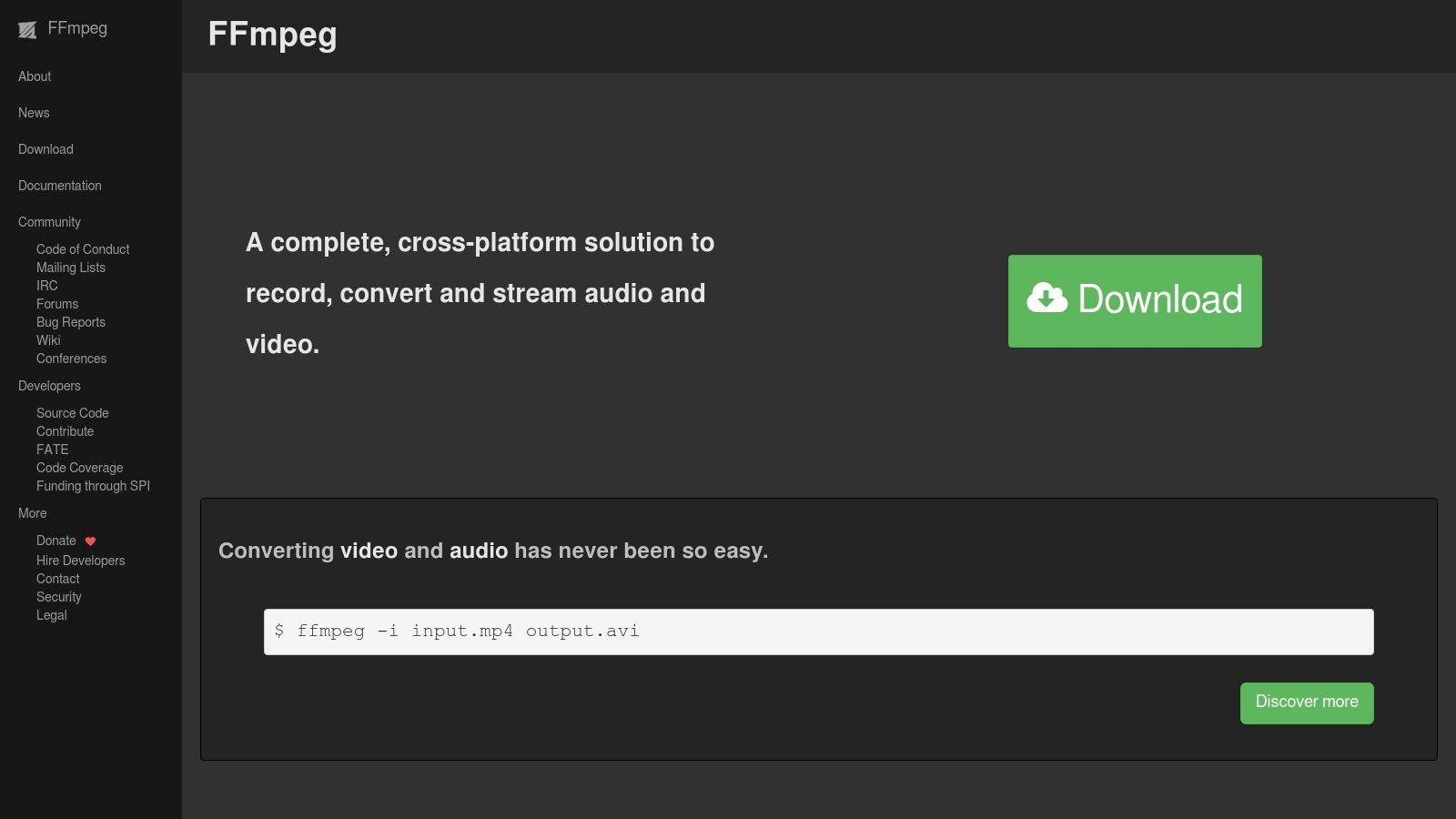
The primary advantage of FFmpeg is its ability to separate audio without re-encoding, preserving the original quality. Using a simple command like -acodec copy, you can pull the audio stream directly from a video container in seconds. This method is incredibly fast and avoids the quality degradation that can occur with transcoding. For users needing to process large libraries of videos or integrate audio extraction into automated workflows, FFmpeg is the definitive professional-grade tool.
Key Features & User Experience
Interacting with FFmpeg happens entirely within the command line (Terminal or Command Prompt), which presents a steep learning curve for beginners. However, once mastered, its speed and scripting capabilities are unmatched. A basic extraction is as simple as ffmpeg -i video.mp4 -vn -acodec copy audio.aac.
- Platform: Windows, macOS, Linux
- Best For: Power users, developers, and anyone needing to batch process files.
- Unique Offering: Lossless audio extraction and complete control over codecs and bitrates via command line.
- Pricing: Completely free and open-source.
Website: https://ffmpeg.org
4. Shotcut
Shotcut is a powerful, free, and open-source video editor that also serves as an effective tool for audio extraction. Unlike dedicated audio converters, Shotcut’s strength lies in its video-first approach. It’s perfect for users who need to trim, cut, or sequence video clips before exporting just the audio track. This workflow is ideal for creating soundbites from longer interviews or pulling a specific song from a music video.
The platform leverages the robust FFmpeg framework, ensuring wide format support for both import and export. The export process is highly customizable, offering simple presets for formats like MP3 and WAV, as well as manual controls for codecs and bitrate for more advanced users. This flexibility allows you to balance file size and quality perfectly for your specific needs, whether for a podcast, a video soundtrack, or an archive.
Key Features & User Experience
While Shotcut is a full-featured video editor, its audio export function is surprisingly straightforward. After loading your video, you simply navigate to the export panel and select an audio-only preset. The interface is cleaner than many professional editors, though newcomers may need a moment to locate the export settings.
- Platform: Windows, macOS, Linux
- Best For: Users who want to perform light video edits before extracting the audio.
- Unique Offering: A balanced, non-linear video editing environment with simple, high-quality audio export presets.
- Pricing: Completely free and open-source with no ads.
Shotcut is one of many excellent resources available; exploring the best tools for content creators can further optimize your production workflow.
Website: https://www.shotcut.org/download/
5. OpenShot
OpenShot is a free, open-source video editor that serves as an excellent tool for extracting audio from video without needing extra plugins. Its intuitive, drag-and-drop interface makes it perfect for users who want to perform basic edits like trimming a video before exporting just the soundtrack. Unlike more complex audio software, OpenShot provides a straightforward path from video import to audio-only export.
The primary advantage of using OpenShot is its simplicity. After dropping your video file onto the timeline, you can easily select an export profile for audio only, choosing formats like MP3 or WAV. This makes it ideal for quickly grabbing a song from a music video or isolating a speaker's dialogue from a presentation recording. While it lacks the advanced audio mastering features of a dedicated digital audio workstation, its strength lies in its speed and ease of use for combined video-and-audio tasks.
Key Features & User Experience
OpenShot’s interface is far more approachable than professional editors, making it a great starting point for beginners. The export process is particularly clear: navigate to File > Export Project, select the Audio Only tab, and choose your format and quality settings.
- Platform: Windows, macOS, Linux
- Best For: Users needing to trim or make simple edits to a video before exporting its audio track.
- Unique Offering: A user-friendly video editing environment that simplifies the audio extraction process.
- Pricing: Completely free and open-source.
Website: https://www.openshot.org/download/
6. MKVToolNix
MKVToolNix is a specialized toolkit designed for handling Matroska (MKV) container files, making it an exceptional choice when you need to extract audio without any loss in quality. Rather than re-encoding the audio, its mkvextract component demultiplexes (demuxes) the original audio stream directly from the MKV container. This process is incredibly fast and preserves the audio in its original, untouched format, which is ideal for archivists or users who need the source audio for further professional work.
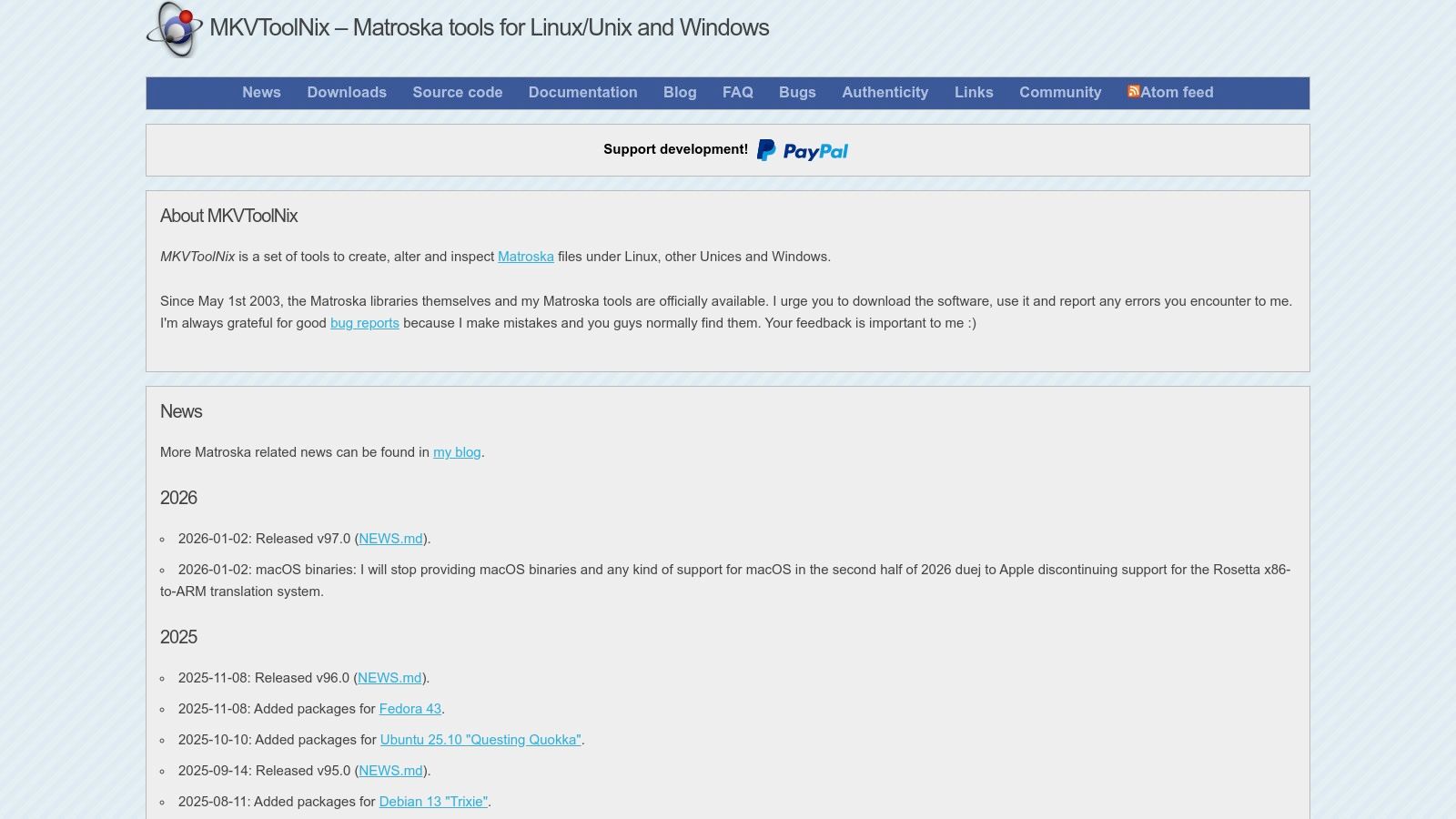
While the suite includes a graphical user interface (GUI), its primary focus is on multiplexing (combining tracks into an MKV). For extraction, users often turn to the command-line tools, which offer precise control but require some technical comfort. This tool is not for converting formats but for cleanly separating existing tracks. If you have a video in a different format, you would first need to remux it into an MKV container, which MKVToolNix can also do, before extracting the desired audio track.
Key Features & User Experience
The user experience can be divided; the GUI is great for muxing, but extraction workflows are more efficient via the command line for power users. This makes it a bit of a niche tool, but for its specific purpose, it is unmatched in speed and quality preservation.
- Platform: Windows, macOS, Linux
- Best For: Technical users needing a lossless, bit-for-bit copy of the audio from an MKV file.
- Unique Offering: The fastest possible extraction by demuxing rather than transcoding, ensuring zero quality loss.
- Pricing: Completely free and open-source.
Website: https://mkvtoolnix.download/
7. LosslessCut
LosslessCut stands out as a unique tool for audio extraction because it prioritizes speed and quality above all else. Built as an open-source, cross-platform video editor, its core function is to perform operations like cutting, trimming, and extracting without re-encoding the files. This lossless approach means it can pull the original, untouched audio stream from a video container in seconds, preserving its pristine quality.
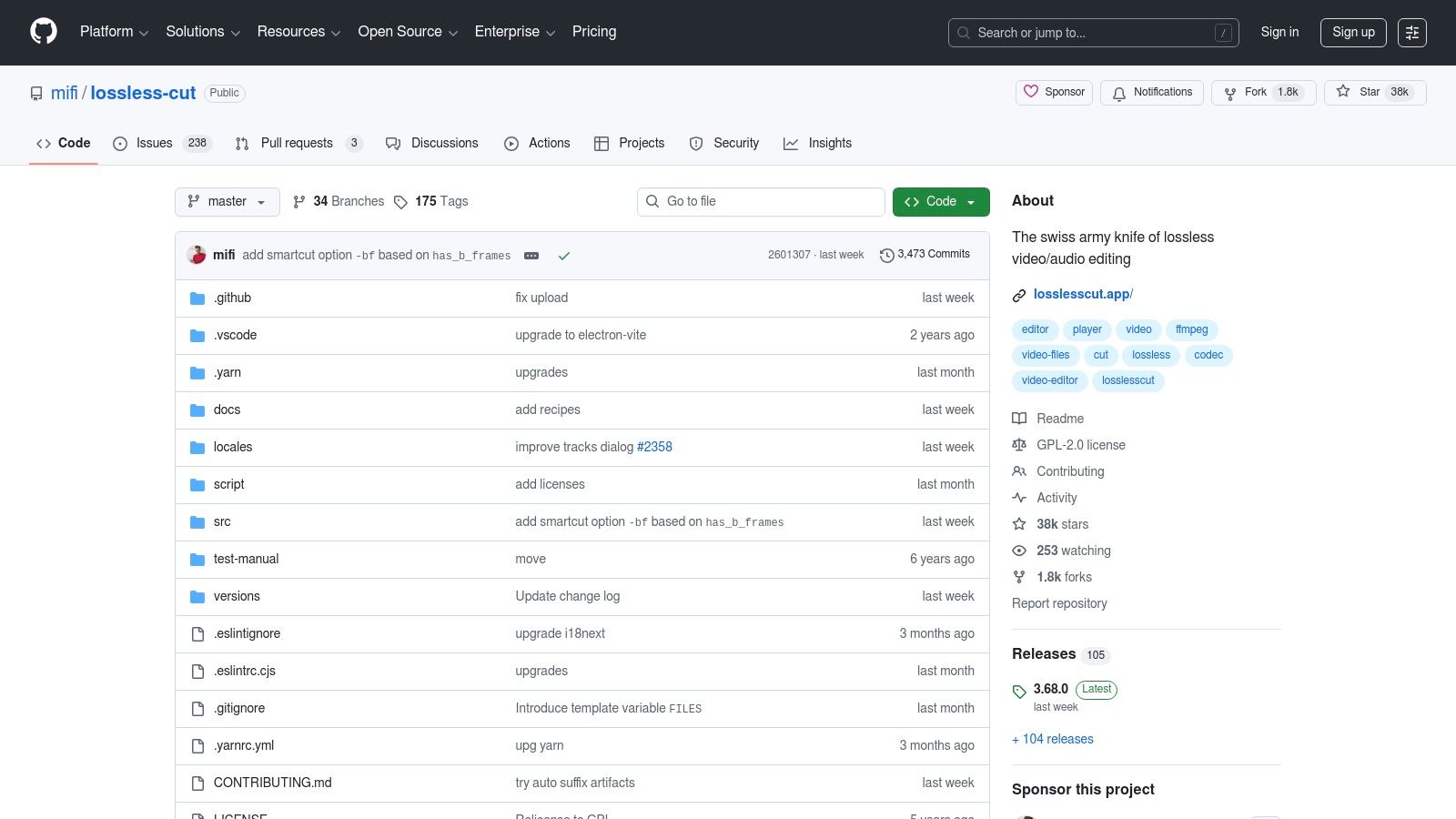
Unlike comprehensive editors, LosslessCut is a specialized utility designed for one primary purpose: quick, quality-preserving operations. After loading a video, you can view all its embedded tracks (video, audio, subtitles) and simply export the desired audio stream. This makes it the perfect tool for archivists, content creators, or anyone who needs the source audio for remixing or further processing in another application without any generational quality loss.
Key Features & User Experience
The interface is minimal and functional, centered around a timeline and track selection panel. While it lacks the creative tools of a full digital audio workstation, its simplicity is its strength for technical tasks. Users can quickly select in-and-out points for trimming and then export just the audio from that segment.
- Platform: Windows, macOS, Linux
- Best For: Users who need the original, highest-quality audio track extracted quickly without any changes.
- Unique Offering: True lossless extraction that avoids re-encoding, ensuring zero quality degradation.
- Pricing: Completely free and open-source.
Website: https://github.com/mifi/lossless-cut
8. 123apps – Audio Extractor
For users seeking a quick, no-installation solution, 123apps – Audio Extractor is a top-tier browser-based tool. Its core strength lies in its simplicity; you visit the website, upload your video file, select an audio format, and download the result. This makes it perfect for one-off tasks, especially on public or work computers where installing new software isn't an option.
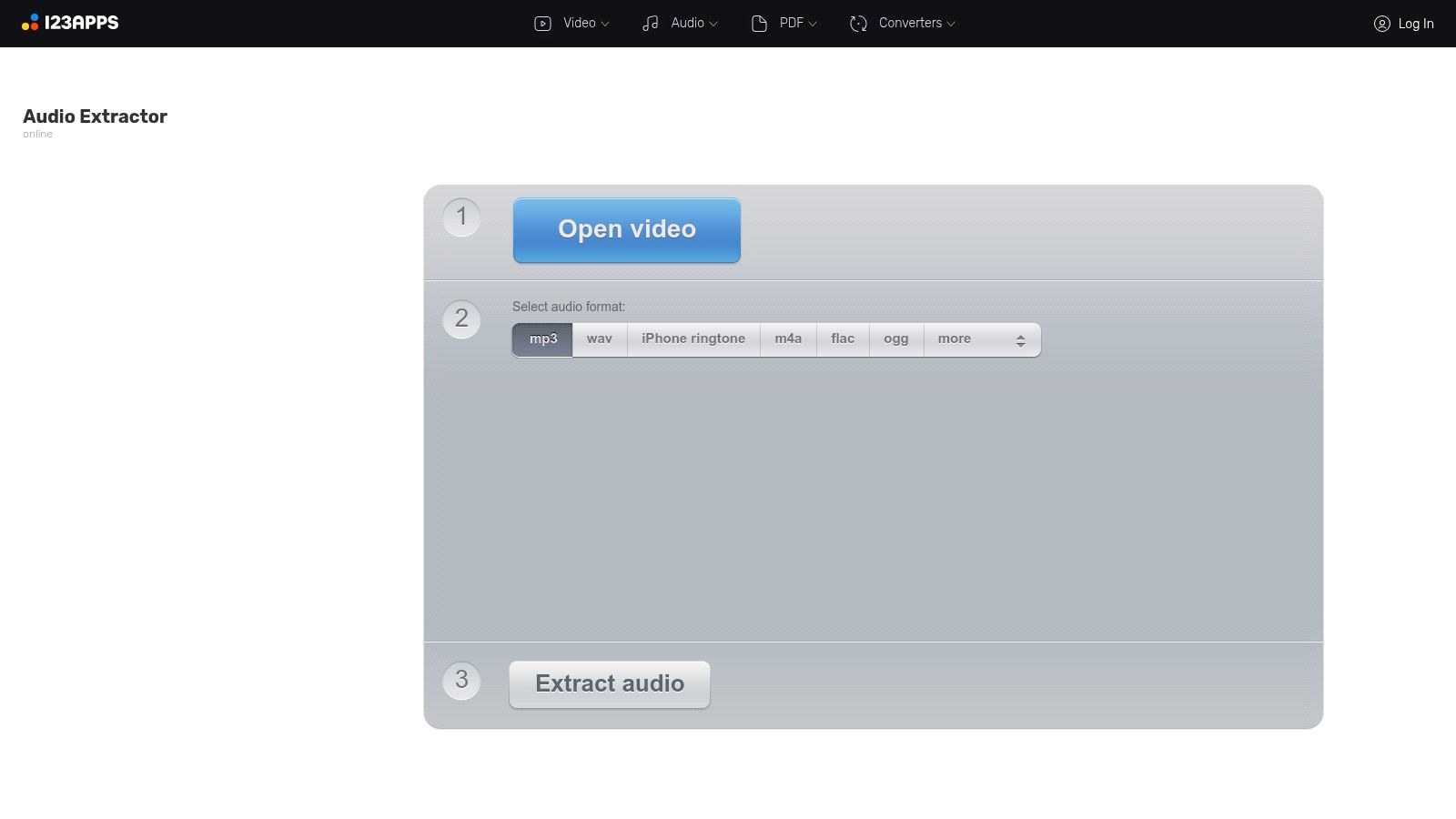
The platform supports direct uploads from your device, Google Drive, or Dropbox, which streamlines the process for cloud-based workflows. After extraction, your files are automatically deleted from their servers after a few hours, offering a degree of privacy. While it lacks the advanced editing features of desktop software, it excels at its primary function: getting the audio out of a video file with minimal fuss and maximum speed.
Key Features & User Experience
The interface is incredibly intuitive, featuring a large "Open file" button that guides you through a simple three-step process. There's no learning curve, making it accessible to everyone regardless of technical skill. The free tier is generous enough for small, infrequent projects, with clear limits and an easy upgrade path for heavy users.
- Platform: Web-based (works on any modern browser)
- Best For: Quick, single-file conversions without software installation.
- Unique Offering: Direct integration with Google Drive and Dropbox for easy file handling.
- Pricing: Free with limitations on file size and daily usage; premium plans available.
Website: https://audio-extractor.net
9. Online Audio Converter (123apps)
Online Audio Converter, part of the 123apps suite, is a powerful browser-based tool for users who need a quick and simple way to extract audio without installing any software. It supports over 300 different file formats, making it highly versatile for converting almost any video file you throw at it. Its direct, no-frills approach is perfect for one-off tasks like grabbing the audio from a YouTube download or a family video clip.
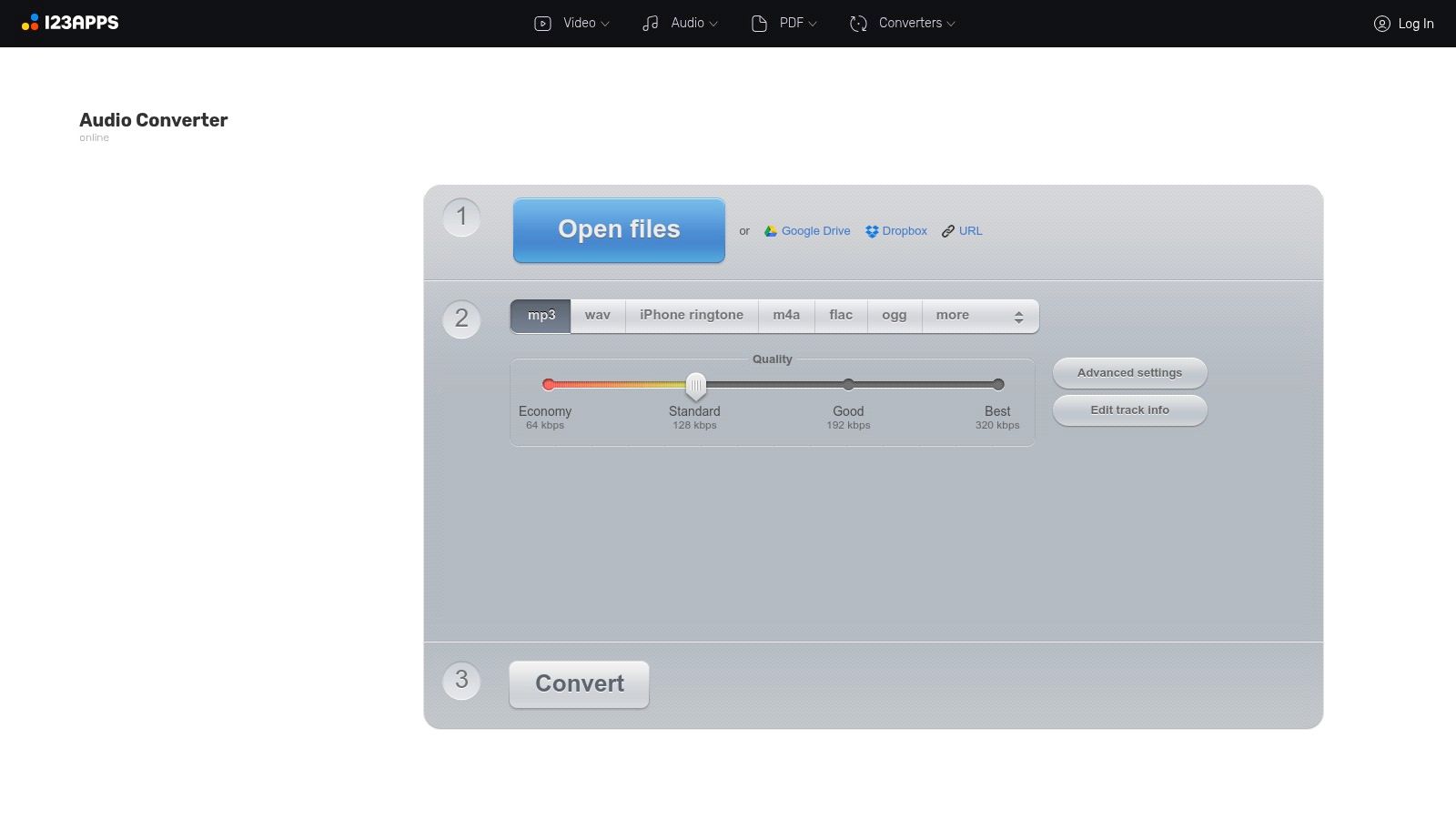
What makes this tool stand out among online options is its balance of simplicity and control. While the primary function is straightforward conversion, the advanced settings allow you to adjust the bitrate, channels, frequency, and even apply fade-in or fade-out effects. You can also edit the track information (tags) directly in the browser before downloading your final MP3, WAV, FLAC, or Ogg file, which is a convenient touch for organizational purposes.
Key Features & User Experience
The user experience is incredibly intuitive: upload your video, select the output format, adjust optional settings, and click convert. The entire process happens in a single browser window. For users with multiple files, the batch conversion feature is a significant time-saver, although free usage has daily limits.
- Platform: Web-based (works on any OS with a browser)
- Best For: Quick, hassle-free audio extraction without software installation.
- Unique Offering: A blend of simple UI with advanced audio quality controls and tag editing.
- Pricing: Free for basic use; Premium plans unlock larger file sizes and unlimited conversions.
Website: https://online-audio-converter.com/
10. CloudConvert
CloudConvert is less of a dedicated tool and more of a universal file conversion Swiss Army knife, which makes it a powerful online option. It supports a staggering number of formats, allowing you to convert nearly any video file (like MP4 or MOV) into a high-quality audio format such as MP3, AAC, M4A, or even lossless FLAC. Its strength lies in its flexibility and automation potential for recurring tasks.
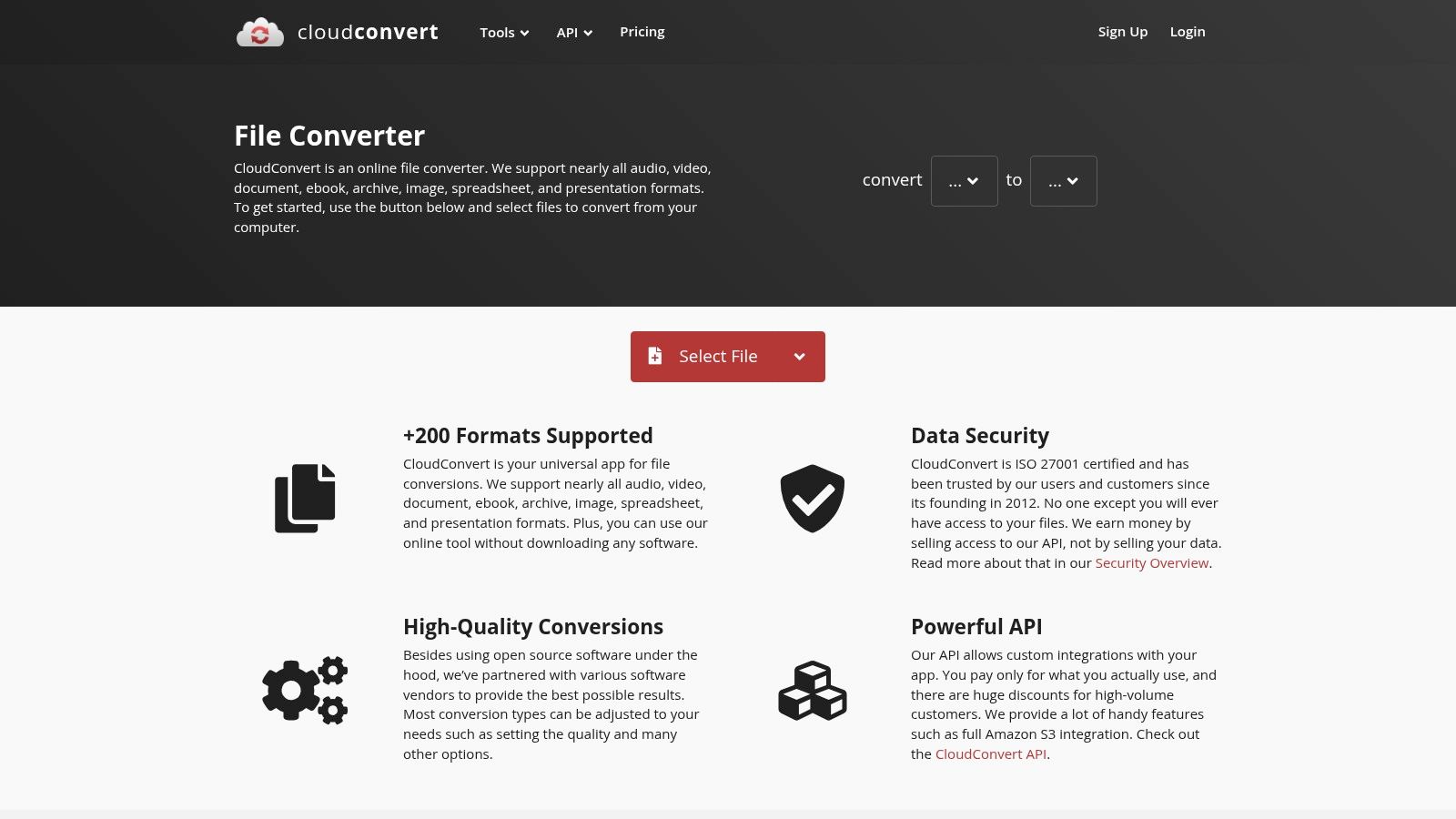
Unlike many simpler online tools, CloudConvert gives you granular control over the output. Before converting, you can access options to adjust the audio bitrate, channels (mono or stereo), and volume. This makes it ideal for users who need a specific audio quality for their project without installing desktop software. Furthermore, its integrations with cloud storage services and a robust API make it a top choice for teams or developers needing to automate conversion workflows.
Key Features & User Experience
The web interface is clean, modern, and guides you through a simple three-step process: upload, select output format and settings, and convert. It’s a very reliable and straightforward experience that emphasizes efficiency over complex features.
- Platform: Web-based (works on any OS)
- Best For: Users needing high-quality conversions with specific output settings and teams looking to automate workflows.
- Unique Offering: Advanced per-file settings (bitrate, channels) and a powerful API for automation.
- Pricing: Free for up to 25 conversions per day (each counts as one "credit").
Website: https://cloudconvert.com
11. Convertio
Convertio is a streamlined, web-based file converter that allows you to extract audio from video without any software installation. Its intuitive drag-and-drop interface makes it incredibly accessible for users who need a quick, no-fuss conversion. You can upload files directly from your computer, or more conveniently, import them from cloud storage services like Google Drive and Dropbox, which is a major time-saver for remote files.
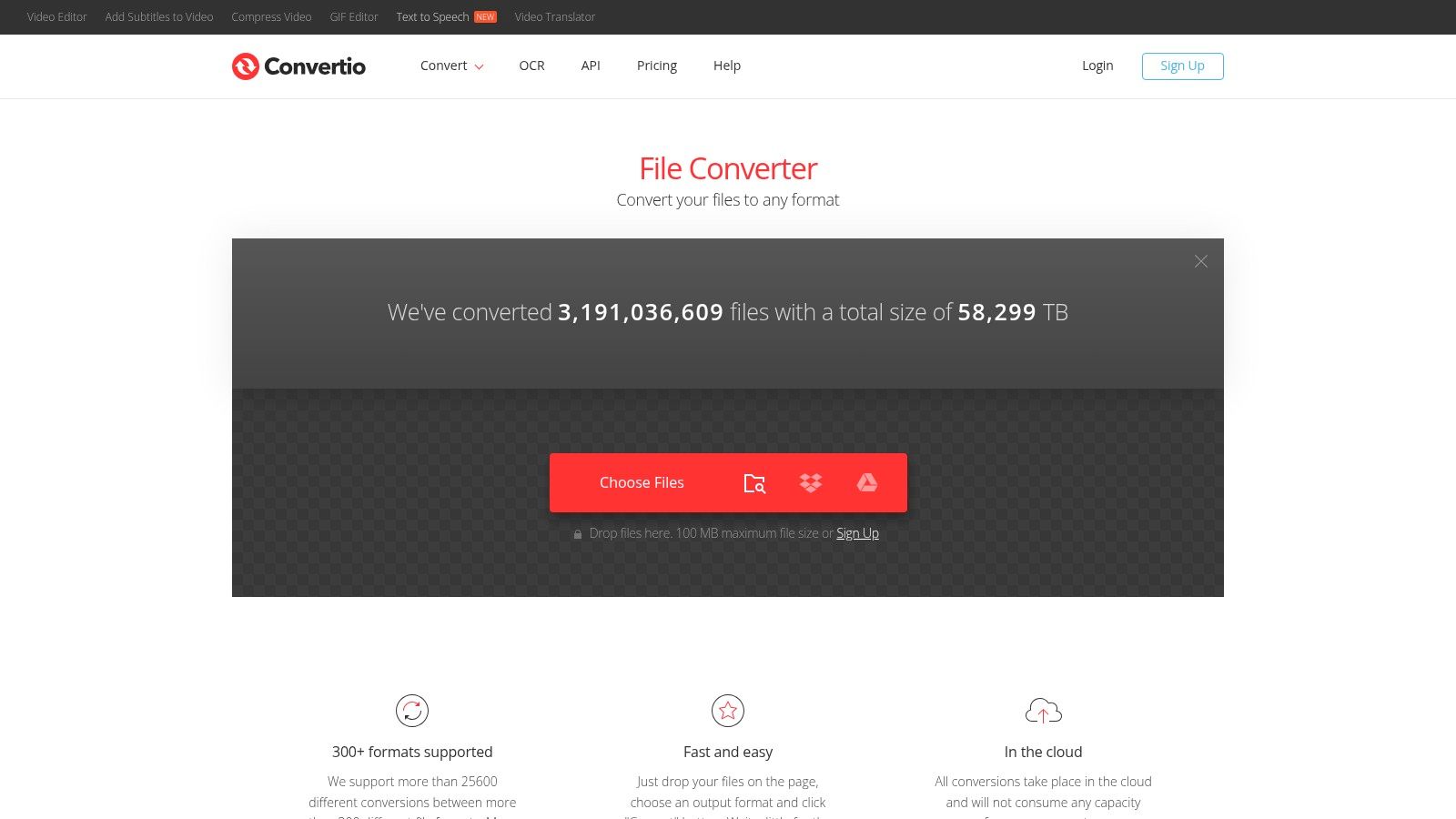
The platform stands out for its simplicity and broad format support, handling common containers like MP4, MOV, and MKV and converting them into audio formats such as MP3, WAV, or OGG. Before converting, users can access settings to adjust audio bitrate, codec, and channels, offering a decent level of control for an online tool. This makes it ideal for quickly repurposing video content audio for podcasts or background tracks without needing a dedicated editing application.
Key Features & User Experience
Convertio’s user experience is designed for speed and efficiency; just choose your file, select the output audio format, and click convert. The process is self-explanatory, even for those with no technical background. A Chrome extension further streamlines the workflow for users who frequently convert files found online.
- Platform: Web-based (works on any OS with a browser)
- Best For: Quick, one-off conversions and users who store their video files in the cloud.
- Unique Offering: Direct integration with Google Drive and Dropbox for seamless cloud-based workflows.
- Pricing: Free for files up to 100 MB; paid plans offer larger file sizes and batch processing.
Website: https://convertio.co
12. XMedia Recode
XMedia Recode stands out as a powerful, do-it-all media converter for Windows that also serves as a highly effective tool for audio extraction. Unlike simpler tools, it provides granular control over the conversion process, allowing users to select specific audio streams, adjust bitrates, and normalize volume. This makes it an excellent choice for those who need more than a basic MP3 conversion and want to fine-tune the output for specific devices or quality requirements.

The software supports a massive range of formats and codecs, and its ability to simply copy the audio stream without re-encoding (if the source and destination formats are compatible) is a major advantage for preserving quality and saving time. Its batch processing queue is another key feature, enabling users to load multiple videos and process them all with the same settings in one go. This workflow is incredibly efficient for anyone needing to process a large library of video files.
Key Features & User Experience
While the interface of XMedia Recode is utilitarian and packed with options, its logic is straightforward once you get the hang of it. You load a file, choose an output profile (or customize settings manually), and add the job to the queue before hitting "Encode". The sheer number of settings can be overwhelming, but device-specific presets help simplify the process for common tasks.
- Platform: Windows
- Best For: Windows users who need detailed control over audio extraction and batch processing capabilities.
- Unique Offering: The ability to copy audio streams directly without re-encoding to maintain pristine quality.
- Pricing: Completely free.
Website: https://www.xmedia-recode.de/en/
Top 12 Free Audio Extraction Tools Comparison
Final Thoughts
Navigating the world of free audio extraction software can feel overwhelming, but as we've explored, a powerful solution exists for nearly every scenario. From the surgical precision of command-line tools like FFmpeg to the user-friendly interfaces of online converters like 123apps, the right tool is simply a matter of matching features to your specific needs. This guide has equipped you with the knowledge to make an informed choice, whether you're a student needing to transcribe a lecture or a professional preparing audio for a larger project.
The journey doesn't end with a simple file conversion. The core takeaway is to think strategically about your workflow. A quick, one-off task might be perfectly suited for a browser-based tool like CloudConvert, which saves you from installing new software. However, for recurring tasks, batch processing, or when you need absolute control over quality and format, investing time to learn a robust desktop application like Audacity or Shotcut will pay significant dividends.
How to Choose the Right Freeware for Your Needs
Selecting the ideal tool comes down to balancing three key factors: convenience, control, and context.
For Maximum Convenience: If your priority is speed and simplicity for a single file, online tools are your best bet. Services like Online Audio Converter and Convertio eliminate the need for software installation and offer a straightforward drag-and-drop process. They are perfect for users who need a quick MP3 from an MP4 without getting bogged down in technical settings.
For Ultimate Control: When you need to specify bitrates, codecs, or perform batch operations on multiple files, desktop applications are superior. FFmpeg offers unparalleled power for those comfortable with the command line, while VLC media player and XMedia Recode provide a graphical interface for more advanced conversion tasks. These tools ensure you get the exact audio format and quality your project demands.
For Specific Contexts: Your end goal should guide your choice. If you're simply archiving audio, a lossless format like FLAC, extracted with a tool like LosslessCut, might be ideal. If the audio is destined for a podcast, you might use Audacity to not only extract but also edit and enhance it in the same session (and once the episode is live, a Spotify podcast transcript makes it searchable and quotable). Beyond personal projects, the ability to extract audio from video is a vital skill for professionals, being an integral part of many advanced filmmaker workflows.
The Next Step: Making Your Audio Actionable
Extracting audio is often just the first step. The true value is frequently unlocked by what you do with it next. For many professionals, students, and teams, the ultimate goal is to convert that spoken content into written text for analysis, documentation, or content creation. While the tools we've covered are excellent for the extraction phase, they don't address the time-consuming process of transcription.
This is where you must consider the purpose of your extracted audio. Is it for listening, or is it for reading and referencing? If your goal is to get accurate notes, identify action items from a meeting, or create searchable documentation from a seminar, manual transcription is a significant bottleneck. This is precisely where modern AI-powered services provide a critical advantage, transforming your freshly extracted audio file into a valuable, usable asset in minutes, not hours.
The landscape of freeware for extracting audio from video is rich and varied, offering a powerful solution for virtually any requirement. By understanding your own priorities, you can confidently select the right tool, streamline your workflow, and turn your video content into high-quality, portable audio ready for its next purpose.
Ready to turn your extracted audio into accurate, searchable text? Stop typing and start analyzing with HypeScribe. Our advanced AI transcription service converts your audio files into precise transcripts in minutes, so you can focus on what truly matters. Try HypeScribe today and discover the power of actionable audio.
Related reading


































































































