
How to Convert Voice Memo to Text: A 2026 Guide

Your phone probably has a graveyard of useful audio in it. Quick ideas recorded while walking. Client follow-ups captured between meetings. Interview snippets you meant to turn into notes. A great reminder to yourself that now requires scrubbing through a waveform to find one sentence.
That's the core problem with voice memos. Recording is easy. Reusing them isn't.
When you convert voice memo to text, the memo stops being a file you have to replay and starts becoming working material. You can search it, pull tasks from it, paste it into a document, send it to a teammate, or store it in a knowledge base where it's still useful next month.
Why Your Voice Memos Deserve to Be Text
Audio is fast for capture, but text is better for execution. A spoken note helps when you're driving, walking, or thinking out loud. Later, though, audio slows you down because it forces you to listen in sequence.
A transcript changes that. You can scan it in seconds, highlight the useful part, and move it into the tool where work happens. That might be Apple Notes, Notion, Google Docs, a project tracker, or a shared folder for your team.
Text turns a memo into a workflow asset
Once a memo is written out, you can use it in practical ways:
- Search for exact ideas: Find a name, date, action item, or phrase without replaying the whole recording.
- Share without friction: A teammate can read a transcript much faster than they can listen to an audio file.
- Reuse content anywhere: Text drops easily into meeting notes, outlines, reports, learning materials, or article drafts.
- Keep a durable record: Spoken ideas fade into a backlog. Written notes stay visible and easier to organize.
Voice transcription became much more practical once modern systems got better at everyday dictation. By 2016, Google reported that its speech engines had reduced word error rates on mobile dictation from roughly 23% in 2009 to under 8% by 2015, which helped make voice-to-text viable for broad consumer use in apps such as Voice Memos with much higher reliability than earlier decades, as summarized in this history of voice memo transcription and dictation accuracy.
Practical rule: If the memo matters enough to keep, it usually matters enough to transcribe.
Where this matters most
The benefit is different depending on the kind of work you do.
| Use case | Why text helps |
|---|---|
| Personal reminders | You can skim and act instead of replaying |
| Team updates | People can copy decisions and tasks into shared systems |
| Interviews | Quotes, themes, and names are easier to review |
| Teaching and research | Notes become searchable and easier to archive |
The big shift isn't technical. It's operational. Text gives your memo a second life.
Free Built-in Methods on Your Phone and Computer
It's advisable to start with the tools you already have. Built-in transcription is often good enough for a short reminder, a shopping list, or a quick thought spoken clearly into your phone. It's the fastest way to test whether converting voice memo to text will help your routine.
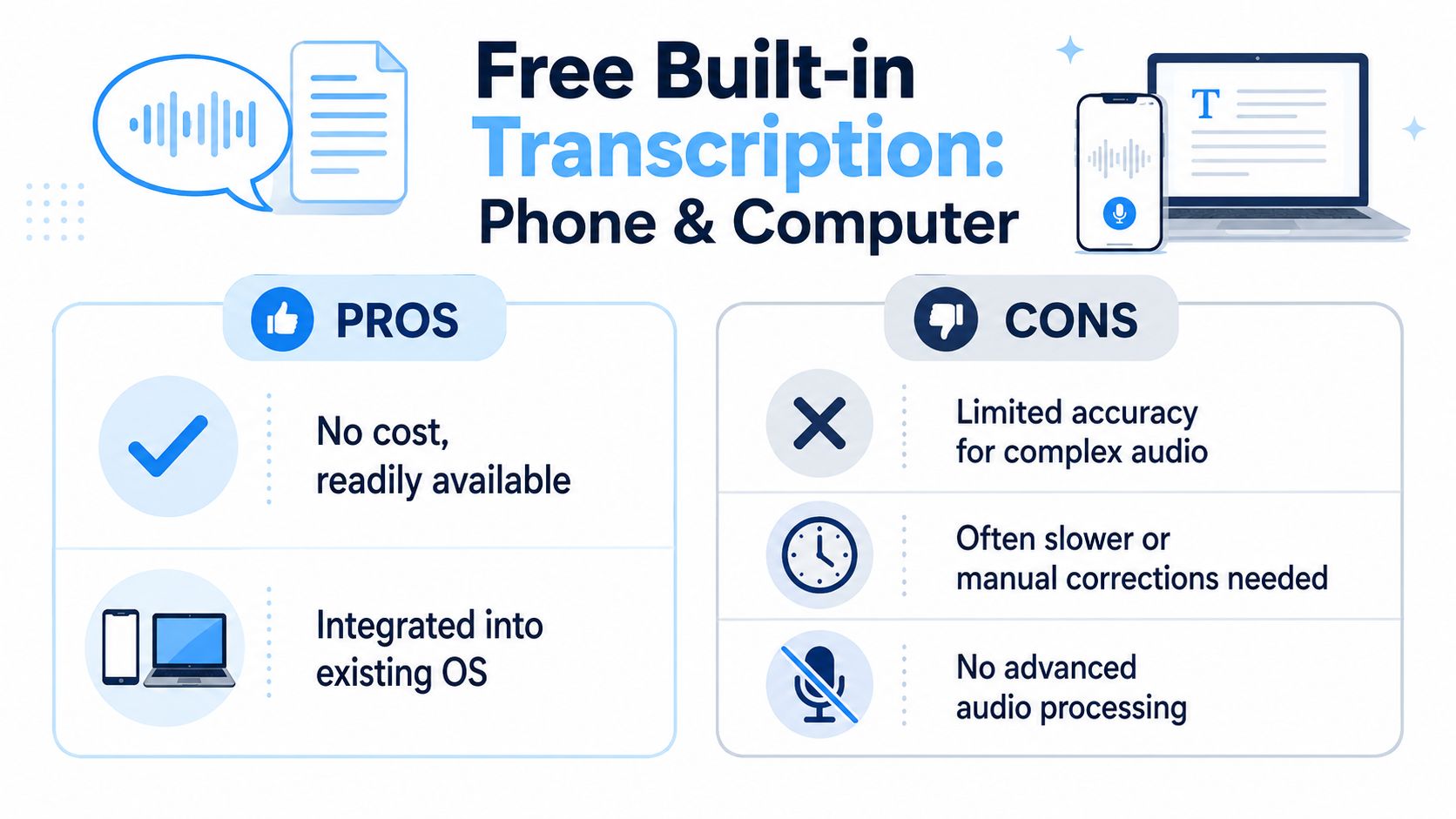
The limits show up when the memo gets longer, the language gets specialized, or the recording includes multiple people. That's where “free” often turns into editing time.
iPhone for quick playback transcripts
Apple lets you view a transcription for supported Voice Memos on iPhone. For a casual user, that's convenient. Open the memo, view the transcript, and copy the text if you need to move it elsewhere.
The weakness is what happens after the transcript appears. Apple's support documentation explains how to view a Voice Memos transcription on iPhone but doesn't cover how to validate accuracy, correct domain-specific terminology, or retain local storage for compliance, which leaves professionals in regulated fields without clear guidance, according to Apple's own Voice Memos transcription support page.
If you mainly use an iPhone, this deeper guide to Apple Voice Memo transcription workflows is useful because it looks at the practical limitations, not just the taps.
Android for fast spoken capture
On Android, people usually rely on Google's tools such as Recorder or Gboard voice typing. These are handy when you want to capture a note immediately and read it back as text. The experience is often smoother for direct dictation than for messy, real-world recordings.
That distinction matters. Speaking a clean note into your phone is different from transcribing a hallway memo, a sales debrief, or an interview recorded in a noisy room. Android's free tools are best when the audio is simple and the stakes are low.
A quick walkthrough helps if you haven't used built-in transcription in a while:
- Use Recorder for spoken notes: Good for solo voice memos captured clearly on the device.
- Use Gboard for direct dictation: Better when you want text immediately inside another app.
- Avoid relying on it for complex audio: Crosstalk, jargon, and uneven recording conditions create cleanup work.
Here's a practical demo for readers who prefer a visual walkthrough before testing native options:
Desktop options work, but they feel document-first
On a computer, Microsoft Word's Transcribe feature is the most visible built-in option for many office users. Microsoft's workflow combines recording and file upload, saves the recording to OneDrive, and processes the transcript asynchronously. The company also notes that users should keep the Transcribe pane open during processing because closing it can interrupt the job, as described in Microsoft's Word Transcribe instructions.
That design tells you exactly what kind of tool it is. It's useful if your end goal is a Word document. It's less elegant if your actual goal is rapid intake and cleanup of many short voice memos.
What free methods do well and where they break
Built-in tools are a solid starting point when all of these are true:
- The memo is short: You won't lose much time if you need to fix a few lines.
- Only one person is speaking: No speaker separation means less confusion.
- The content is ordinary language: Product names, medical terms, and internal jargon often come back wrong.
They become frustrating when the memo is important enough that errors have a cost. If you're transcribing training notes, client recaps, interviews, or leadership updates, the bottleneck isn't getting a transcript. It's fixing one.
The Pro Method for Fast and Accurate Transcription
Professional transcription workflow is less about getting text on screen and more about reducing downstream work. That means fewer corrections, cleaner speaker separation, better exports, and outputs that are usable without rebuilding the note by hand.
The most effective setup I've seen is simple. Upload the memo, get the draft transcript fast, review the risky parts, and export into the system where the note will live.
What a professional workflow should do
A serious tool should handle more than plain transcription. It should help with structure.
Look for these capabilities:
- Direct file upload: Voice memo files should go in without format drama.
- Speaker labeling: Useful for interviews, coaching sessions, and two-person recaps.
- Editable transcript blocks: You need to fix names and terms quickly.
- Summaries and action items: Helpful when the memo is really a rough meeting note.
- Flexible export: The transcript should move cleanly into docs, notes, or internal systems.
One option that fits this workflow is HypeScribe's AI transcription software. It supports uploaded audio and video files, link-based imports from common platforms, built-in recording, transcript editing, summaries, action items, and exports to formats teams already use. In practice, that matters because you're not just converting voice memo to text. You're converting it into something your team can act on.
A practical sequence that saves time
Here's the sequence that tends to work best for business and knowledge work.
Record with intent
Name the memo clearly before it disappears into a pile of generic files. “Client renewal objections” is better than “New Recording 47.”Upload immediately after recording
Don't let voice memos accumulate. Fresh context makes transcript review much faster.Scan the first pass, don't line-edit everything
Focus on names, dates, action items, product terms, and anything that could change the meaning.Use structure before export
If the tool can create a summary, section headings, or next steps, do it before copying text elsewhere.Export to the destination system
Send the final output to Word, Google Docs, Markdown, TXT, or wherever that note will be used.
The fastest transcript isn't the one that appears first. It's the one that needs the least repair before someone can use it.
Why this approach works better on real audio
Modern speech systems can be fast and accurate when they're built on strong multilingual training and production-ready architecture. State-of-the-art open-source models show that systems trained on 10+ languages and tens of thousands of hours of speech can generalize well to real-world office and education recordings, with deployments achieving latency under 30 seconds per hour of audio, according to Cohere's technical overview of modern transcription models.
That doesn't mean every transcript is perfect. It means the baseline is now strong enough that workflow design matters more than novelty. The winning setup isn't “AI versus humans.” It's AI for the first pass, then targeted human review where the note carries risk.
Where professional tools earn their place
The upgrade makes sense when your memos have operational value.
| Scenario | Built-in tool result | Professional workflow result |
|---|---|---|
| Solo brainstorming note | Usually acceptable | Cleaner output, easier export |
| Interview snippet | Manual speaker cleanup | Speaker labels and better editing |
| Manager debrief | Text appears, but needs shaping | Summary and action items can be generated |
| Compliance-sensitive memo | Risky without review | Easier review and controlled handling |
If your transcript still needs heavy rewriting, the software didn't save you much. If it gives you an editable, structured draft that moves straight into the next step, that's where the time comes back.
Best Practices for Crystal-Clear Audio Quality
Even strong transcription software can't rescue a memo that was recorded badly. The quality of the input shapes the quality of the draft. If you want fewer errors, start before you hit record.
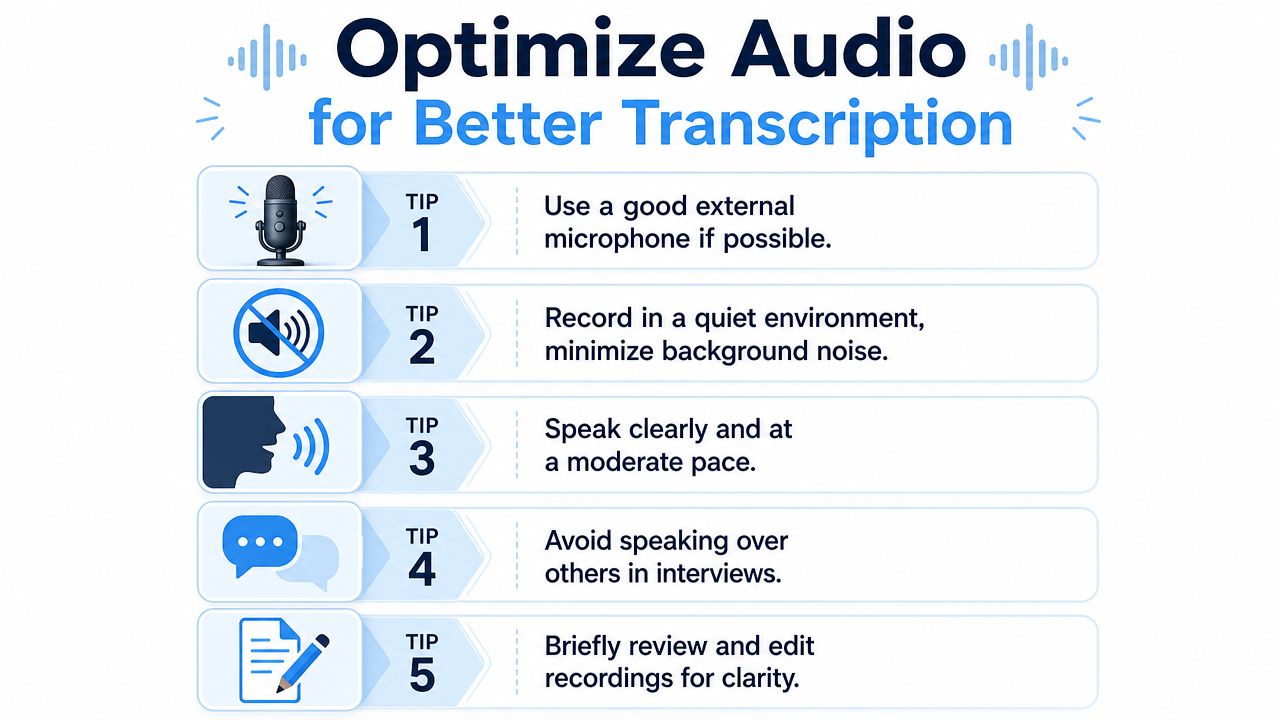
In real use, that means thinking about distance, room noise, and whether more than one person is talking at once. Those aren't small details. They directly affect transcript readability.
What Word Error Rate means in plain English
Word Error Rate, or WER, is a practical way to think about transcription accuracy. Lower is better. Higher means more substitutions, missed words, or extra words the system inserted.
Research on AI-based speech recognition notes that real-world voice memo scenarios often see WERs between 10–30%, depending on background noise, speaker accents, and microphone quality, and that pre-processing steps such as noise reduction can reduce WER by 3–8 percentage points in sub-optimal recordings, based on this review of speech recognition performance in varied conditions.
You don't need to calculate WER yourself to benefit from the idea. Just treat recording quality as an editing cost multiplier.
The habits that improve transcripts fastest
A few habits make an immediate difference:
- Get closer to the microphone: Distance adds room sound and lowers speech clarity.
- Choose a quieter space: Fans, traffic, café noise, and keyboard clatter all compete with speech.
- Speak at a natural pace: Rushing hurts accuracy more than speaking casually.
- Avoid overlap: If two people talk at once, the transcript gets messy fast.
- Review soon after recording: Corrections are easier while names and context are fresh.
If you work with weak recordings often, some form of cleanup can help before transcription. An automatic sound leveler workflow is useful when volume swings make parts of a memo hard to hear.
A quick recording checklist
Use this before important memos:
| Check | What to do |
|---|---|
| Room noise | Pause and move if there's steady background sound |
| Mic position | Keep the phone or mic reasonably close |
| Speaker count | If possible, record one speaker at a time |
| Terms and names | Say them clearly, especially at first mention |
Field note: The easiest way to improve a transcript is often to improve the recording by one small step, not to spend more time fixing text later.
Another practical point comes from hands-on AI transcription guides. They consistently recommend recordings that are clear, close to the microphone, free from heavy background noise, and spoken at a natural pace, while also warning that strong accents, overlapping speech, and specialized terminology still need human review. That guidance is summarized well in this voice memo transcription quality guide.
Exporting Transcripts and Managing Privacy
A transcript isn't finished when the words appear. The final value comes from what you can do with it next, and whether you can handle the source material responsibly.
For a personal memo, that might just mean copying text into your notes app. For HR, legal, journalism, research, or internal operations, the last step matters more. Export format, storage model, and deletion options affect whether the workflow is merely convenient or actually usable.
Choose export format based on the next task
Different formats fit different jobs.
- TXT for portability: Best when you want plain text that opens anywhere and pastes cleanly into other systems.
- DOCX for collaborative editing: Useful when comments, tracked edits, or stakeholder review will happen in Word.
- Markdown for structured notes: Strong fit for knowledge bases, developer notes, publishing drafts, and tools that preserve lightweight formatting.
That export decision sounds minor, but it changes friction. If your team lives in documents, use a document format. If your team lives in note systems and internal wikis, lightweight text usually travels better.
Privacy starts with one question
Ask where the audio goes.
On-device processing gives you tighter control because the file stays local. Cloud transcription can be more flexible for collaboration, file access, and cross-device work, but only if the service handles storage and deletion in a way that fits your standards. Many basic tutorials, however, often stop short. They explain how to get a transcript, not how to manage sensitive recordings.
A related workflow some teams already know from phone systems is Business voicemail to email, where spoken messages become easier to process once they enter a text-friendly or inbox-driven pipeline. The same logic applies to voice memos. Once spoken content becomes manageable, the next priority is controlling who can access it and how long it remains stored.
When human review is still the right call
Some recordings shouldn't rely on AI alone. Compliance-heavy environments, sensitive interviews, and jargon-dense notes often need a second pass by a person.
Professional-grade human transcription services that advertise exceptionally high accuracy often report quality thresholds above 99% for carefully recorded, single-speaker content, which is one reason compliance-sensitive workflows still lean on human-in-the-loop review, as described in this overview of human voice memo transcription services.
That doesn't make AI the wrong choice. It means the right workflow depends on the risk of being wrong. For a quick reminder, speed wins. For a legal statement or sensitive personnel record, review wins.
Choosing Your Best Transcription Workflow
The right way to convert voice memo to text depends on three things. Volume, value, and velocity.
If volume is low, value is low, and you just need text quickly, built-in tools are usually enough. Record the thought, grab the transcript, fix the obvious mistakes, and move on. That covers personal reminders, rough brainstorms, and low-stakes admin notes.
Use a simple decision filter
Ask yourself these questions:
- How often do you do this: Once in a while, or every day?
- How costly is an error: Mild annoyance, or a real business problem?
- How quickly do you need usable output: A draft for later, or something you can share right away?
If you're handling many short memos, the hidden cost is context switching. You don't feel it on memo one. You feel it when memo twelve still needs naming, fixing, copying, and reorganizing.
Match the method to the memo
A few patterns are common.
| Memo type | Best-fit workflow |
|---|---|
| Personal reminder | Native phone transcription |
| Lecture or study note | AI transcript plus light cleanup |
| Interview or team recap | Speaker-aware AI workflow |
| Sensitive or official record | AI draft plus human review |
Sometimes adjacent tools also help around the edges. If your work includes narration, demos, or transformed speech for content production, tools that convert voices easily can support a broader audio workflow even though they solve a different problem from transcription.
A good transcription setup doesn't just produce text. It reduces the number of decisions you have to make after recording.
The choice gets clearer once you stop judging tools by whether they can transcribe at all. Most can. Judge them by whether the output is ready for the next step with minimal repair. That's the difference between a novelty feature and a reliable workflow.
If voice memos keep piling up, HypeScribe is worth trying as a practical way to turn audio into searchable transcripts, summaries, and action-ready notes without rebuilding everything by hand afterward.


































































































