
Converting YouTube Video to MP3: A Complete 2026 Guide

You've probably hit this problem in a very ordinary moment. A lecture is buried inside a long YouTube video. A podcast interview would be easier to hear on a walk. A tutorial has useful spoken explanation, but you don't want the screen on the whole time.
That's why converting youtube video to mp3 keeps coming up. The task sounds simple, but the right method depends on what you care about most: speed, quality, repeatability, or lower risk. Some people only need a one-off file. Others need a cleaner workflow they can trust. And in a lot of professional cases, the smarter move isn't an MP3 at all. It's a transcript you can search, quote, summarize, and reuse.
Why You Might Need an MP3 from YouTube
The common reasons are easy to understand. Students want to replay lectures offline. Researchers want to revisit interviews without reopening a browser tab. Commuters want spoken content in a format that works on older devices, in the car, or during travel.
MP3 also fits habits people already have. It's portable, lightweight, and easy to move between apps and devices. If you already know how to extract audio from video, converting a YouTube source feels like the same kind of job, just with a link instead of a local file.
Three ways people usually do it
Most users end up in one of these camps:
- Online converter users who want the fastest possible workflow. Paste a URL, click convert, download the result.
- Desktop app users who want more control, fewer interruptions, and safer handling.
- Command-line users who need repeatable batch work and don't mind using technical tools.
There's also a fourth path that gets ignored too often. If your real goal is to capture information, not keep an audio file, a transcription workflow may be more useful. That's especially true for lectures, meetings, interviews, and anything you'll need to review later. A practical example is this guide on getting audio from YouTube, which helps frame the task in terms of what you need from the content.
Practical rule: If you plan to listen passively, MP3 makes sense. If you plan to search, quote, study, or summarize, text usually wins.
Start with the use case, not the tool
People often choose the first converter they find, then deal with bad audio, fake download buttons, or a file that isn't useful after all. That's backwards.
Pick the method by answering a few questions first:
| Need | Better fit |
|---|---|
| One quick, low-stakes download | Online converter |
| Cleaner workflow and output control | Desktop app |
| Repeated jobs or playlists | Command line |
| Study, research, or meeting notes | Transcription |
That one decision saves time. It also keeps you from using a risky tool for a job that never needed an MP3 in the first place.
The Quickest Method Online Converters
Online converters became mainstream because the workflow is dead simple. In the 2010s, web tools normalized a basic pattern: paste a YouTube URL, select MP3, and download. That browser-based approach made audio extraction available on almost any device, and MP3 stayed the default because it remains the dominant universally supported compressed audio format according to Listnr's overview of YouTube-to-MP3 workflows.
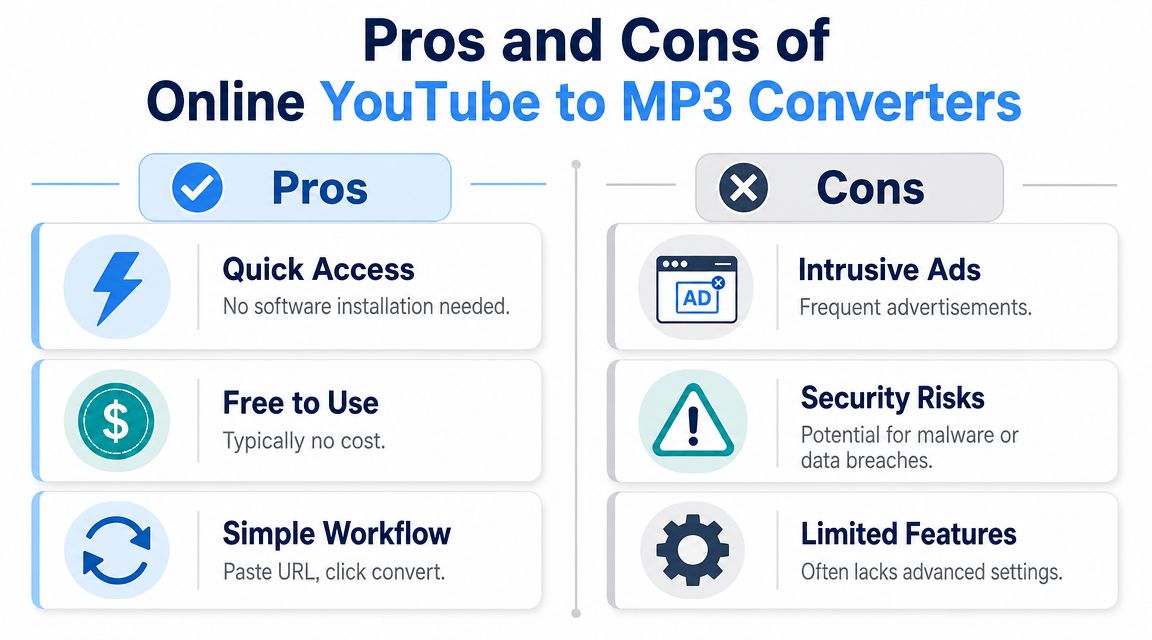
That convenience is real. You don't install anything. You don't learn a new interface. You just paste a link and hope the site behaves.
Why the “easy” route often costs more
The problem isn't that web converters never work. The problem is that they often work in the worst possible environment. Ads crowd the page. Fake buttons imitate the actual download button. Redirects open new tabs. Some sites push browser extensions or background downloads you didn't ask for.
For low-stakes personal use, people tolerate this because the task feels temporary. But the risk isn't temporary if you click the wrong thing.
A few recurring problems show up again and again:
- Misleading buttons that send you somewhere other than the MP3 file
- Thin privacy protections where you don't know what's tracked or stored
- Weak output control with little visibility into bitrate or conversion settings
- Unstable performance when the site is overloaded, blocked, or changed
If you want a broader look at local tools that avoid some of those limitations, this roundup of audio extraction freeware options is a useful comparison point.
When online tools are acceptable
There are situations where a web converter is still the most practical option. If the material is non-sensitive, you only need a single file, and you don't want to install software, the browser route may be fine.
But keep your expectations realistic.
Online converters optimize for speed, not trust, not control, and not consistency.
A decent rule is to treat them as disposable tools for disposable tasks. If you're working with coursework, business material, interview content, or anything you may need to repeat, move to a safer method quickly.
A Safer Approach Desktop Converter Apps
Desktop apps are the point where the process starts feeling controlled instead of improvised. You stop fighting pop-ups and start managing output settings, file handling, and repeatable jobs.
A familiar option for many people is VLC. Others use tools like 4K Video Downloader or Any Video Converter. The core benefit is the same. You're working inside software you installed deliberately, not inside a browser page built to keep you clicking.
A visual reference helps if you haven't used VLC this way before:

How the desktop workflow usually works
The steps are straightforward, but the experience is much better than a web form.
- Copy the video URL or open a local file. Some apps can work from a link. Others work more cleanly with a file you already have.
- Choose MP3 as the target format. Most apps expose output settings instead of hiding them.
- Set destination and quality preferences. Desktop tools pull ahead here.
- Run the conversion and save the file where you want it.
That last step matters more than it sounds. With desktop tools, your files don't vanish into a browser download folder full of unrelated clutter. You can name them consistently, batch them, and keep a stable archive.
Why desktop tools are a better default
For students and professionals, the advantages show up immediately:
- Fewer security headaches because you're not navigating ad-heavy converter pages
- Better quality control through visible audio settings
- Batch handling when you need more than one file
- Cleaner organization for folders, naming, and repeat use
Desktop software also handles longer sessions better. A single MP3 conversion is one thing. A set of lectures, interviews, or tutorials is another. That's where browser tools start to feel brittle.
If you want to see a walkthrough format before trying it yourself, this embedded video gives a practical reference point:
What desktop apps still don't solve
They aren't perfect. Some have extra features you'll never use. Some free versions limit workflows or try to upsell you. And some tasks still get awkward when you need automation, playlists, or repeated extraction from many sources.
That's when command-line tools start to make sense.
A desktop converter is usually the best middle ground. It's safer than a web converter and easier than a terminal.
Typically, that's the sweet spot. You get reliability without needing to become a scripting enthusiast.
For Power Users The Command-Line Method
If you're comfortable in a terminal, this is the method that scales best. It's clean, fast, and easy to repeat once you've set it up properly.
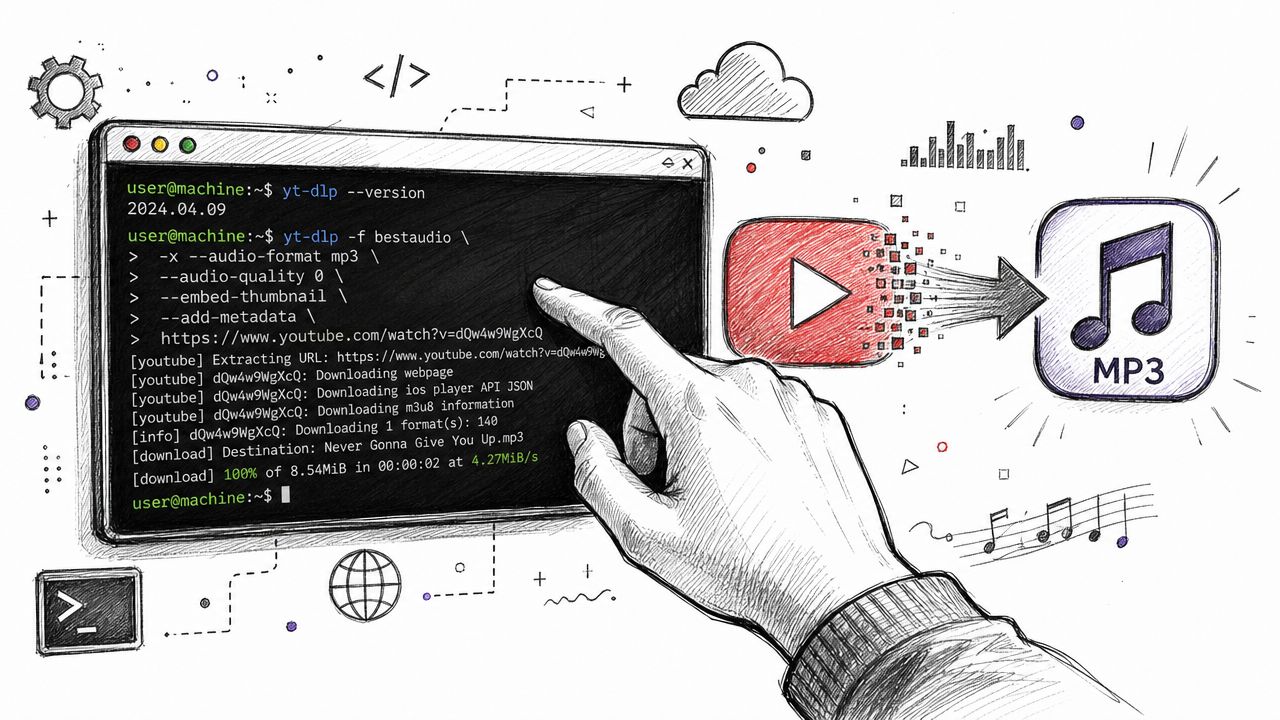
The practical appeal isn't mystery or hacker aesthetics. It's control. The main failure points in YouTube-to-MP3 conversion are workflow-related, and for repeatable batch work, desktop tools or command-line extraction with yt-dlp -x --audio-format mp3 are generally more controllable than web tools with ads, limits, and privacy concerns, as noted in this guide on conversion pitfalls and methods.
The basic command that matters
The standard example is simple:
yt-dlp -x --audio-format mp3 [YouTube_URL]
Here's what that does:
yt-dlpruns the downloader-xtells it to extract audio--audio-format mp3converts the result to MP3[YouTube_URL]is the video link you supply
For technical users, that one line is enough to make the whole process dependable.
Why power users prefer it
The command line is the best fit when the task is repetitive, not casual. Archivists, researchers, and developers often care less about visual interface and more about consistency.
Typical reasons to choose CLI include:
| Requirement | Why CLI helps |
|---|---|
| Repeatable jobs | You can rerun the same command pattern easily |
| Batch work | Scripts handle multiple items cleanly |
| Less friction | No ads, no fake buttons, no browser clutter |
| Better oversight | You see what the tool is doing |
It's also easier to integrate with other workflows. If you already process media files, rename outputs, or organize folders with scripts, yt-dlp fits naturally into that environment.
Where people trip up
The failures are usually practical, not technical in the abstract. Long videos may need trimming before conversion. Local dependencies may be missing. Users sometimes assume terminal tools are magical, then forget they still need a sensible workflow for naming, folders, and source management.
A few habits help:
- Keep commands saved in a note or shell history so you don't rebuild them from memory
- Test on one file first before running a larger batch
- Use CLI only if you'll reuse it because the setup isn't worth it for everyone
If you only convert one file every few months, the terminal may be overkill. If you do it every week, it pays for itself in fewer failures and less friction.
That's the dividing line. The command line isn't better because it's technical. It's better when repetition and control matter more than convenience.
Optimizing Your MP3 Bitrate and Quality Settings
A lot of bad conversions happen even when the tool works perfectly. The user gets a file, but the file sounds thin, bloated, or poorly matched to the content.
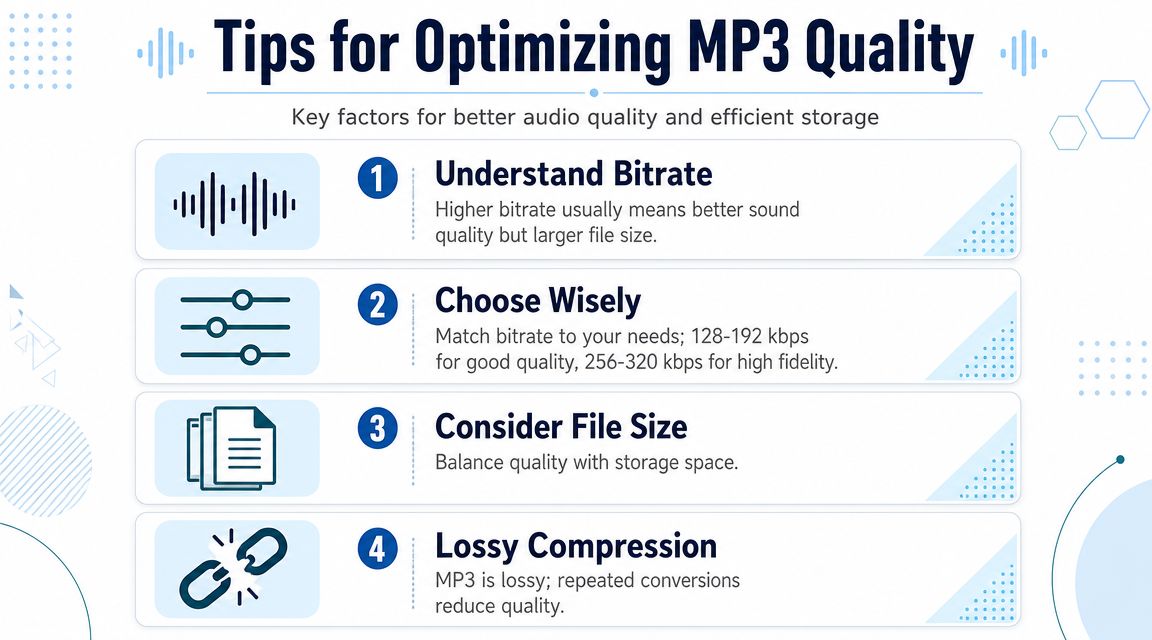
The setting that matters most is bitrate, measured in kbps. Higher bitrate usually means more audio data and better sound. It also means a larger file. That trade-off is worth managing instead of accepting whatever default the converter picked.
What settings make sense for different content
A practical benchmark from RealPlayer's conversion guide shows that raising MP3 bitrate from 128 kbps to 256 kbps when converting a 240 MB MP4 produced a 29 MB MP3 in about 30 seconds, and the same source notes that 128 kbps is often sufficient for spoken-word content while music may justify 192 to 320 kbps.
That lines up with real-world use:
- Lectures, podcasts, interviews: 128 kbps is often enough
- General mixed listening: 192 kbps is a reasonable middle ground
- Music-focused listening: 256 kbps or 320 kbps makes more sense
The mistake is assuming “higher is always better.” If the source audio is mediocre, pushing bitrate higher won't magically restore detail that isn't there.
A simple decision table
| Content type | Good starting point | Why |
|---|---|---|
| Spoken word | 128 kbps | Keeps files smaller without hurting intelligibility |
| Mixed content | 192 kbps | Balanced choice for voice plus music |
| Music | 256 to 320 kbps | Better for preserving more of the listening experience |
If you also work with local formats beyond YouTube workflows, this guide on converting FLAC to MP3 is helpful because it sharpens the same quality-versus-size judgment.
Don't ignore the source
Bitrate is only part of the story. If the original upload has weak audio, clipping, or compression artifacts, your MP3 inherits those limits. Conversion can preserve usable sound, but it can't manufacture clean detail from a poor source.
Better settings improve output. They don't repair bad source audio.
Sampling rate and related options also matter in some tools, but for most users, bitrate is the first setting worth learning. That one choice usually gives the biggest practical improvement.
The Smart Alternative From Video to Actionable Text
A lot of people ask how to convert YouTube to MP3 when the underlying question is different. They don't need another audio file. They need the facts, quotes, arguments, timestamps, or takeaways inside the audio.
That's why the more professional workflow is often transcription. According to NoteAI's discussion of YouTube MP3 conversion and policy risk, most content explains the mechanics of conversion but not the legal risk, YouTube's Terms prohibit downloading unless explicitly permitted, and for businesses the actual need is often searchable text and summaries rather than an MP3 file.
When text is more useful than audio
This shift matters most in work and study settings.
- Students usually need reviewable lecture notes, not just a file to replay.
- Researchers need searchable references and quotable passages.
- Teams need summaries, action items, and records they can pass around.
- Journalists and analysts need fast retrieval of what was said and where.
In those cases, an MP3 is passive. A transcript is active. You can skim it, search it, quote it, and turn it into notes.
A more productive workflow
Instead of ripping audio first and figuring out what to do with it later, start with the end use. If the end use is understanding, documentation, or reuse, transcription fits better.
One practical option is HypeScribe, which can take a YouTube link and turn the spoken content into searchable text, summaries, and action-oriented notes. That approach aligns better with modern work than building folders full of MP3s you may never replay.
There's also a compliance angle here. If a platform's terms are part of the risk, reframing the job from “download this audio” to “capture the information I need” is often the cleaner decision.
The file isn't the goal. The usable information is.
For many readers, that's a common answer for converting youtube video to mp3. Sometimes you should do it. Often you should do something better.
If you usually convert videos because you need notes, quotes, or key takeaways, try HypeScribe instead. Paste a YouTube link, get searchable text, summaries, and action items, and skip the extra step of managing another audio file.


































































































