How Do I Download MP4 from YouTube? A 2026 Guide

You’re usually not asking “how do i download mp4 from youtube” in the abstract. You need a file for something concrete. A lecture for a commute. A training clip for an internal deck. A webinar segment for a research folder. A backup of your own uploaded content before you edit or repurpose it.
That practical need is why so many guides rush straight to a list of downloaders. The problem is that the list alone doesn’t help much. Some methods are officially supported. Some work only until YouTube changes something. Some expose you to malware, bad privacy practices, or a terms violation you didn’t mean to trigger.
The useful question isn’t just how to get an MP4. It’s which route fits your situation, what trade-offs come with it, and whether you even need the video file in the first place.
Why You Might Need to Download a YouTube Video
A lot of download requests start with time pressure. Someone sends a YouTube link an hour before a meeting. The office Wi-Fi is unreliable. You want the file locally so the clip plays when you need it, without buffering, ads, or a dead connection.

Students run into the same issue for different reasons. A lecture may be easier to review offline on a tablet. Journalists often want a local copy of a press event before it changes or disappears. Creators want backups of their own uploads so they can edit, archive, or reuse them elsewhere.
Common situations where an MP4 helps
- Offline viewing: Flights, commutes, weak mobile connections, and restricted networks make local playback simpler.
- Editing and clipping: If you’re cutting a segment into a presentation or internal training, a local file is easier to handle than a live stream.
- Archiving your own work: Channel owners often want a clean copy outside the platform.
- Team workflows: Researchers, teachers, and operations teams sometimes need a stable file for review or recordkeeping.
Most people don’t want “a downloader.” They want reliability, decent quality, and a method that won’t create a legal or security mess later.
That leads to three very different paths. First, YouTube’s official options. Second, third-party tools that can work but come with real trade-offs. Third, a newer workflow where you skip the download entirely and pull out the information you need.
The Official Methods Sanctioned by YouTube
If you want the safest path, start with the options YouTube itself provides. That matters because YouTube Premium launched on December 14, 2018 as the official method to download MP4 videos for offline viewing, and it grew to over 100 million paid subscribers by February 2024 according to this YouTube reference. For creators, that same source notes that YouTube Studio introduced downloading your own uploaded videos in MP4 format in 2018.

Use YouTube Premium for offline viewing
This is the cleanest answer if your goal is only to watch videos offline inside YouTube’s app.
With Premium, the basic flow is simple:
- Open the video in the YouTube app.
- Tap the Download button under the video.
- Choose the available quality if prompted.
- Watch it later from your downloads section inside the app.
This method is built for convenience, not file portability. The video stays in YouTube’s ecosystem for offline playback rather than becoming a freely movable file in your normal downloads folder. That’s an important distinction if you expected a traditional drag-and-drop media file.
Premium also has practical limits. The same verified data states that downloads can be used on up to 10 devices per account, and they expire after 30 days or when the content changes. It’s available in 100+ countries, which is one reason it has become the mainstream legitimate alternative to third-party downloaders.
Practical rule: If you only need to watch offline on your own device, Premium is usually the least painful option.
A quick walkthrough helps if you haven’t used the app before:
Download your own uploads from YouTube Studio
If you’re the channel owner, YouTube gives you a direct way to get your own video back as an MP4.
The path is straightforward:
- Go to YouTube Studio
- Open the Content tab
- Find the video
- Click Options
- Select Download
This is the method I recommend for backups, republishing prep, and grabbing source material for edits. You avoid the quality guessing game and don’t have to rely on scraper tools that may break.
Use Google Takeout for full channel exports
Google Takeout is the broader archival option. It launched in 2011, and the verified data notes that it supports full channel exports including videos. This isn’t the quickest route for grabbing one clip, but it makes sense if you’re preserving a whole body of work or moving data for compliance and backup purposes.
Use it when:
- you want more than one video
- you need a channel archive
- you want comments, metadata, and related account data alongside the media
For single-video needs, Studio is easier. For app-based offline watching, Premium is easier. Takeout is the heavy-duty backup choice.
Navigating Third-Party YouTube Downloaders
Many users turn to this approach after they discover the official methods don’t always match what they want. They don’t want offline playback in an app. They want a file they can store, trim, convert, or drop into another tool.
That’s exactly why third-party downloaders exist. They can be useful, but they’re not all equal. Desktop apps like 4K Video Downloader Plus and ClipGrab operate in a legal gray zone, browser extensions such as Video DownloadHelper depend on compatibility updates, and online converter websites often carry documented security risks including malware exposure according to this YouTube-linked reference on download tool trade-offs.
Desktop applications
Desktop software is usually the most capable category. In practice, these tools are better when you need format control, playlist handling, or a more stable workflow than a random browser-based converter can offer.
Their strengths are familiar:
- More control: You can often pick formats, streams, and output settings.
- Better for repeat use: If you do this often, dedicated software is less frustrating than reusing ad-heavy sites.
- Batch-friendly: Many desktop tools are built for multiple downloads, not one-off clicks.
But the trade-off is obvious. You’re installing software that YouTube hasn’t endorsed for this purpose. Some tools are clean and competent. Some bundle junk. Some work well for months, then fail after a platform change.
Online converter sites
These are the tools people try first because they look easy. Paste a link, click a button, get an MP4. Sometimes that works. Sometimes the page throws fake download buttons, redirects, notification spam, or a file that isn’t what it claimed to be.
I’m cautious with this category for one reason. Convenience hides risk. You don’t need to install anything, but you do need to trust the site, the ads around it, and whatever processing happens behind the scenes.
If your use case is short-form content, a focused guide on how to download YouTube Shorts can be more useful than a generic converter roundup, because Shorts often have different workflow needs than long-form videos.
Browser extensions
Extensions sit in the middle. They’re convenient because they live in the browser you already use, and tools like Video DownloadHelper have been popular for exactly that reason.
The problem is maintenance. When YouTube changes page structure or anti-scraping behavior, extensions can stop working without warning. They’re fine when current and compatible. They’re fragile when they’re not.
For users who don’t need full video and only want the soundtrack, it can be smarter to look at a direct workflow for extracting audio from YouTube instead of forcing a full MP4 download first.
Comparison of Third-Party Download Methods
| Method | Ease of Use | Safety Risk | Best For |
|---|---|---|---|
| Desktop applications | Moderate | Medium | Repeat users who need better control |
| Online converters | High at first | High | One-off attempts, with caution |
| Browser extensions | High when working | Medium | Fast browser-based convenience |
A decent desktop app is usually less chaotic than a free converter site. That doesn’t make it official. It just makes it more manageable.
If you use third-party tools anyway, treat them like a workaround, not a default. Check what you’re downloading, avoid misleading ads, and don’t assume “web-based” means safe.
Troubleshooting Common Download Issues and Errors
The most common complaint isn’t “the tool failed.” It’s “the file downloaded, but it’s the wrong one.” You expected a high-quality MP4 and ended up with a blurry video, missing audio, or a format your editor hates.
The reason is technical. Modern YouTube delivery often relies on fragmented streaming protocols like HLS and DASH, where video arrives in small chunks instead of one neat file. This creates a real obstacle for download tools, and specialized tools such as yt-dlp need to reassemble those pieces correctly as explained in this technical breakdown of YouTube download fragmentation.
Why quality goes wrong
A lot of users assume the download button on a third-party tool automatically grabs the best stream. It often doesn’t.
Common failure points include:
- Wrong format selection: The tool picks a lower-quality stream by default.
- Separate audio and video streams: Higher resolutions may require merging.
- Upscaled output: Some sites label a file as high resolution even when the source stream wasn’t truly that quality.
- Codec mismatch: The video plays fine, but your editing app struggles with the codec.
What to do instead
If you’re using a command-line tool like yt-dlp, a critical first step is running the -F flag to list the available format codes. That helps you see what exists before you choose a stream.
A practical troubleshooting flow looks like this:
- Inspect available formats first: Don’t guess. Check the stream list.
- Choose the exact stream you want: This reduces accidental low-resolution downloads.
- Watch for codec issues: If VP9 creates editing problems, prefer H.264 when available.
- Use FFmpeg when needed: Post-processing can re-encode the file into a more editor-friendly result.
If a converter claims “4K” but gives you a soft-looking file, the issue is often stream selection, not your screen.
When downloads fail completely
Sometimes the site or app isn’t broken. YouTube changed how that video is served, or the tool hasn’t caught up yet. In those cases, users usually have better luck with a maintained desktop utility or a command-line tool than with a random converter page that hasn’t been updated in ages.
Understanding the Legal and Security Risks
This is the part many quick guides underplay. Downloading a YouTube video through an unauthorized method isn’t just a technical shortcut. It can create account, copyright, and security problems.
Downloading MP4s without permission has been explicitly banned under YouTube’s Terms of Service, including Section 5.1, and the platform enforces this through technical measures and legal actions such as more than 500,000 DMCA takedowns annually. The YouTube Data API v3 also strictly prohibits video downloads, according to YouTube’s support documentation.

Legal risks
There are two separate issues people often blend together.
The first is YouTube’s platform rules. Those govern what’s allowed on the service. The second is copyright law, which governs whether you have permission to copy and reuse the content itself. A method can violate platform rules even before you get into copyright questions.
That matters most for:
- Workplace use
- Educational distribution
- Client deliverables
- Re-uploading clips
- Archiving content you don’t own
If you own the video, the official creator tools are the safer route. If you don’t own it, you should assume there’s risk unless you have clear permission or a strong legal basis.
Security risks
The security side is more immediate for most users. Free converter sites often use aggressive advertising patterns, fake buttons, redirect chains, and questionable browser prompts. Desktop installers can also bundle unwanted software if you download from the wrong place.
Typical problems include:
- Malware exposure
- Adware and pop-ups
- Browser hijacking behavior
- Weak privacy practices
- Misleading download files
A suspicious downloader rarely looks suspicious on the first screen. The trouble usually starts on the second click.
That’s why “free” can become expensive fast. If you’re using unofficial tools on a work machine, school device, or managed corporate environment, the downside is bigger than one bad file. You can create a compliance issue, a security incident, or both.
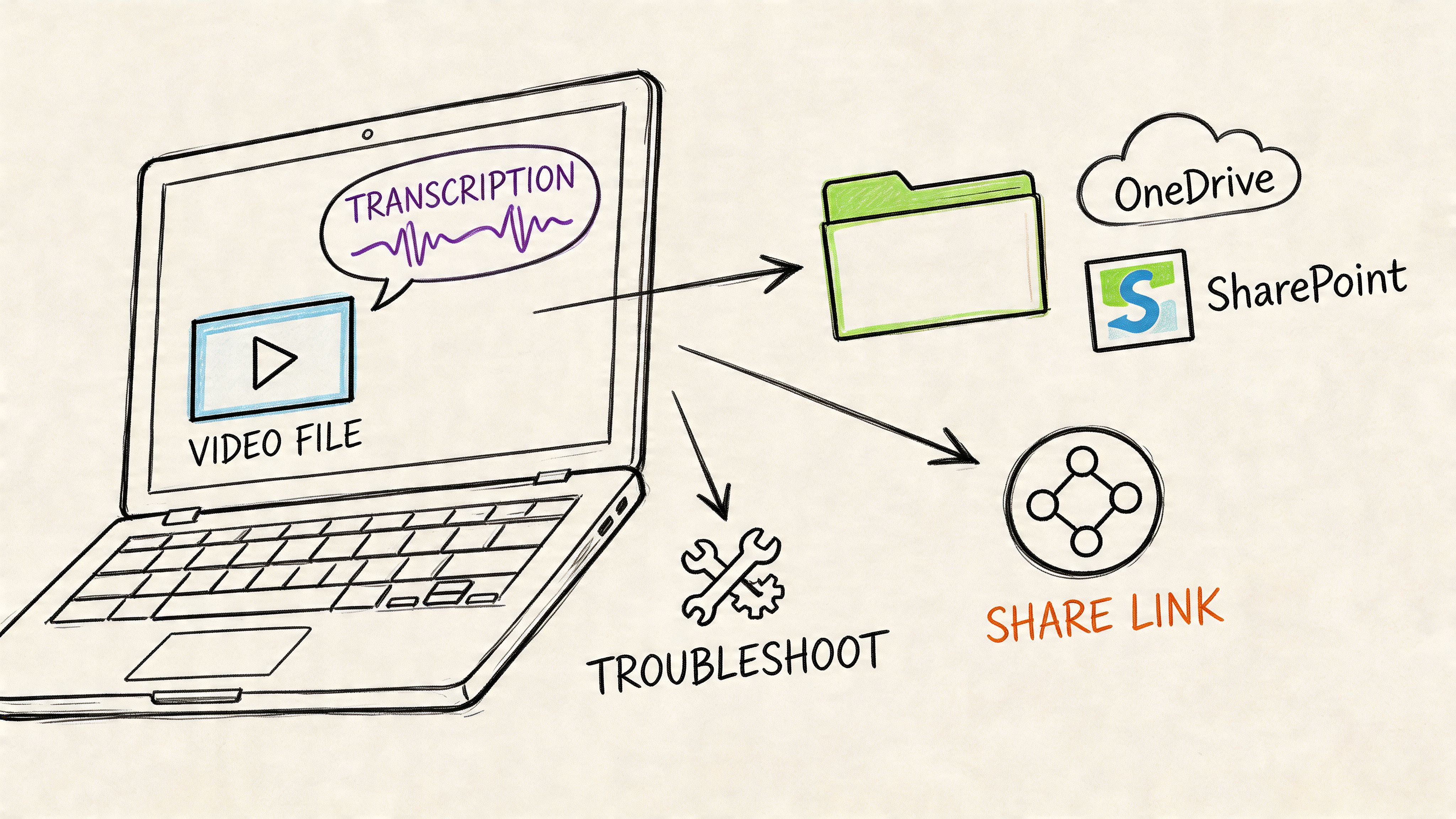
A Smarter Workflow Bypassing Downloads with HypeScribe
A lot of people asking how do i download mp4 from youtube don’t need the MP4. They need the words, the key points, the quote, the action items, or the part of the video they can search and reuse.
That changes the workflow completely.

When the file isn’t the goal
For researchers, students, HR teams, and journalists, the end goal is usually information extraction. The MP4 is just a means to get there. If you can skip the file and still get a transcript, summary, and searchable text, the download step becomes optional.
That’s why the bypass model is compelling. For enterprise or educational users, a key underserved need is legal compliance and risk mitigation, and a contrarian but effective approach is to bypass downloads entirely by pasting YouTube links directly into tools like HypeScribe for legal, instant processing with 99% accuracy transcripts, avoiding storage and liability risks according to this discussion of link-based transcription workflows.
Why this workflow is often better
Instead of collecting local media files, you work from the link itself. That changes several things at once:
- Less storage clutter: No pile of duplicate video files in shared folders.
- Less risk: You avoid the gray areas tied to downloader tools.
- Faster review: Search the transcript instead of scrubbing through the timeline.
- Better collaboration: Share notes, summaries, and extracted insights instead of raw files.
This is especially useful if your fallback has been manual capture. If you’ve ever considered recording your screen because a download failed, compare that with a more purpose-built workflow around screen capture for YouTube videos and then ask whether direct transcription would solve the actual problem faster.
A practical example
Say you’re reviewing a long panel discussion. You don’t need a portable video archive. You need:
- the moment a speaker mentions a policy change
- a clean summary for a meeting note
- a few quoted passages to verify
- action items for your team
In that situation, downloading the full MP4 is often the slow route. You still have to watch, scrub, and type. A link-based transcript workflow gets you closer to the usable output.
The fastest workflow isn’t always “save file first.” It’s “get the content into a searchable form.”
Who benefits most
This approach is strongest when the video is an input to knowledge work, not a media asset you plan to edit.
It fits well for:
- Students reviewing lectures
- Educators pulling discussion points from talks
- Journalists finding quotes in interviews and briefings
- HR and operations teams documenting training or policy content
- Remote teams turning spoken material into summaries and tasks
If a video file is essential for editing, archival control, or offline playback, use one of the methods above. If you need understanding, extraction, and reuse, bypassing the MP4 can be the smarter move.
Making the Right Choice For Your Needs
The best answer depends on what you’re trying to do.
If you want safe offline viewing on your own devices, YouTube Premium is the straightforward choice. If you’re a creator retrieving your own uploads, YouTube Studio is the cleanest path. If you’re using a third-party option because you need a real local file, a desktop application is usually more predictable than a random converter site, though it still carries risk.
If your real goal is analysis, quoting, searching, or note-taking, skip the file and use a workflow built around the content itself. That’s often more efficient than wrestling with formats, codecs, and sketchy download pages.
For anyone working with media across teams, it also helps to understand the downstream file implications. A quick guide to the best video format for practical workflows can save you from downloading a file that turns out to be awkward to edit, share, or archive.
Choose the method that matches your need, not the one that merely looks fastest on the first click.
If your real goal is to turn YouTube videos, meetings, lectures, or interviews into searchable text, summaries, and action items, HypeScribe is a cleaner workflow than collecting MP4 files you may never need. Paste a link, upload media, or capture audio directly, then work from a transcript instead of a download folder.