
MP4 to AVI: Fast, Free & Easy Conversion Guide

You usually end up needing mp4 to avi at the most inconvenient moment. An old capture card only accepts AVI. A legacy editing station opens MP4 but chokes on it. A machine on a production floor plays one format and one format only.
That’s why this conversion still matters. It isn’t about nostalgia. It’s about getting modern files into older systems without wasting a day on trial and error.
The practical part is simple. The trade-offs are not. AVI can be the right target, but only if you choose the right method for the job, know when to re-encode, and account for the things AVI tends to drop, especially subtitles and other embedded metadata.
Why You Still Need to Convert MP4 to AVI in 2026
AVI looks outdated because, for most modern playback, it is. But older workflows don’t care what’s fashionable. They care what opens reliably.
AVI was introduced by Microsoft in 1992 and became the dominant PC video standard by the late 1990s. MP4, standardized in 2003, was built for internet delivery and now works on over 99% of modern devices, while the need to convert often comes from the 15 to 20% of enterprise video libraries still relying on AVI for legacy industrial and broadcast equipment, according to DivX’s AVI vs MP4 format overview.
Two formats from two different eras
AVI belongs to a period when software needed a simple container and computers had less memory to work with. That simplicity still helps in some old systems.
MP4 belongs to a different world. It supports modern compression, multiple tracks, subtitles, and efficient delivery across phones, browsers, and streaming platforms. If you need a quick refresher on how format choice affects compatibility and workflow, this guide to the best video format is useful background.
Practical rule: Convert to AVI only when a real downstream system requires it. Don’t do it just because AVI sounds “more editable.”
Where AVI still earns its keep
In practice, mp4 to avi usually shows up in a few situations:
- Legacy editing setups: Older software often behaves better with AVI than with newer MP4 encodes.
- Industrial and broadcast gear: Some systems were built around AVI-era assumptions and haven’t been replaced.
- Archive access: A department may already have a shelf, server, or workflow built around AVI delivery.
- PC-bound playback: AVI still tends to be more comfortable on older Windows-based setups than on mobile devices.
The key insight is that this is less about video quality than about container expectations. Old tools often expect older rules.
The trade-off you’re accepting
When you convert MP4 to AVI, you’re bridging two generations of video design. That bridge works, but it usually costs you something.
You may get larger files. You may lose chapters, subtitles, or flexible track data. You may also need to swap to a codec that older software prefers, such as Xvid or MPEG-4 ASP, instead of trying to force modern H.264 behavior into a container that wasn’t built for it.
That’s why the best conversion method depends on what happens after the file is created. If the file only needs to open once on an old machine, your path is different from someone converting a hundred lecture videos for an editing archive.
The Quickest Method Online MP4 to AVI Converters
If you need one AVI file fast, browser-based converters are the shortest path. Upload the MP4, choose AVI, wait, download. No install, no setup, no command line.
That convenience is real. So are the limits.
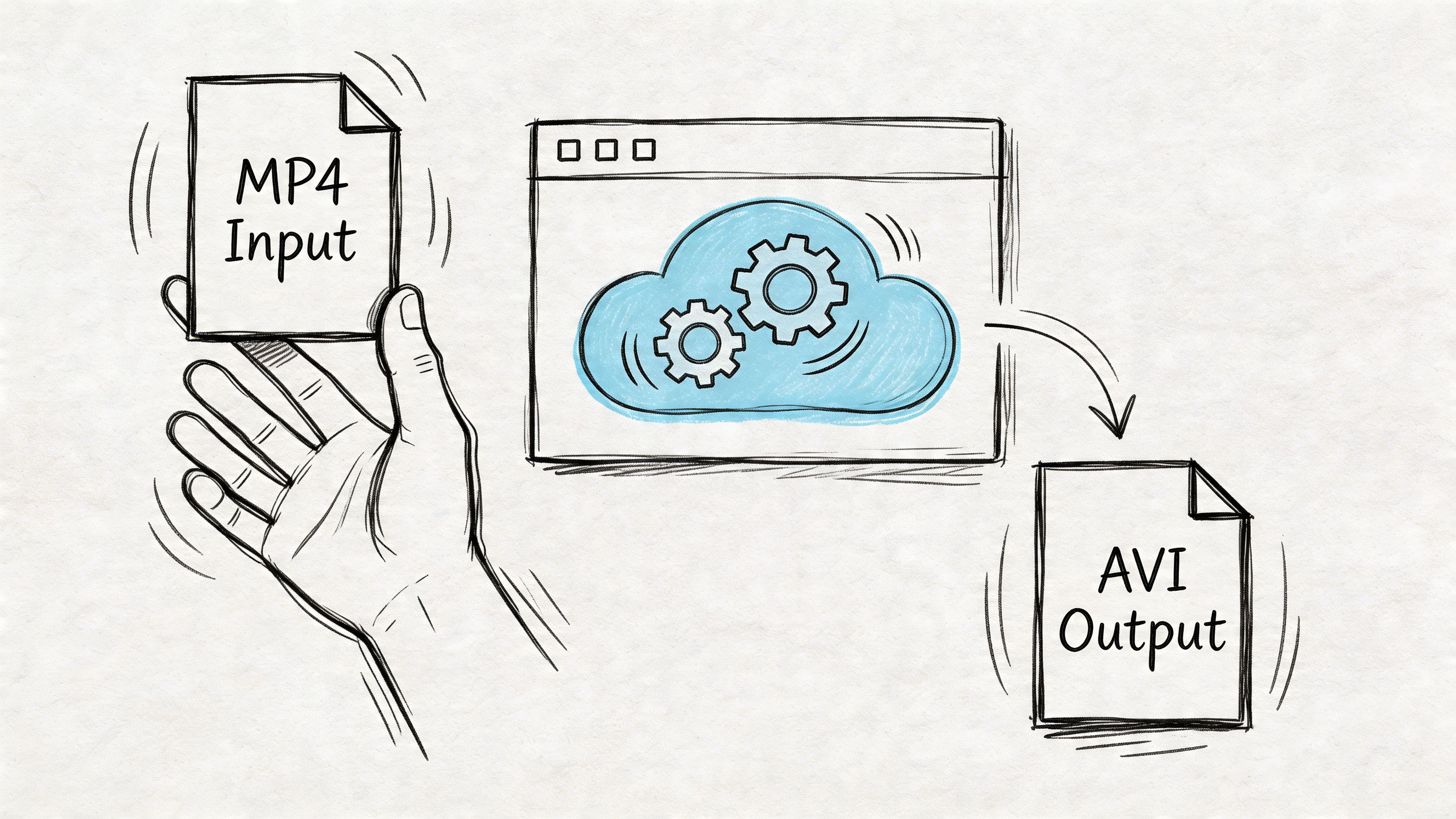
When online converters make sense
I’d use an online converter only for a narrow set of jobs:
- A short clip: Something small, disposable, and not business-sensitive.
- A one-off request: You don’t plan to do this again next week.
- A noncritical output: If the AVI fails, you can try another tool without breaking a workflow.
- A machine without install access: Sometimes the browser is the only tool you have.
For that kind of task, online tools are fine. They remove friction.
What they don’t do well
The problem is control. Most online converters hide the details that matter when AVI compatibility is the whole point.
You usually can’t inspect the source streams first. You often can’t choose the exact video codec or audio format. And if the target system is picky, “AVI” alone isn’t enough. The container may be right while the codec inside is wrong.
Online converters are convenient when convenience is the goal. They’re weak when compatibility is the goal.
There’s also the privacy issue. If the video contains client calls, training material, interviews, or internal meetings, uploading it to a third-party service may be the wrong move even if the conversion works perfectly.
A simple way to decide
Use this quick comparison before you upload anything:
| Situation | Online converter fit |
|---|---|
| Small public clip | Good |
| Confidential meeting video | Bad |
| Large archive job | Bad |
| You need subtitle control | Bad |
| You need a fast one-time result | Good |
That last row is where online tools win. They’re not professional workflow tools. They’re emergency tools.
If the file matters, the next tier is desktop software. You get privacy, better predictability, and at least some say over what ends up inside the AVI.
Using Desktop Software for Reliable Conversions
Desktop conversion is often the ideal middle ground. It’s private, handles larger files better than web tools, and gives you enough control to make a usable AVI without turning the process into a scripting project.
VLC is the first tool I’d point most users toward because it’s already installed on a lot of systems and its conversion feature is more capable than people expect.
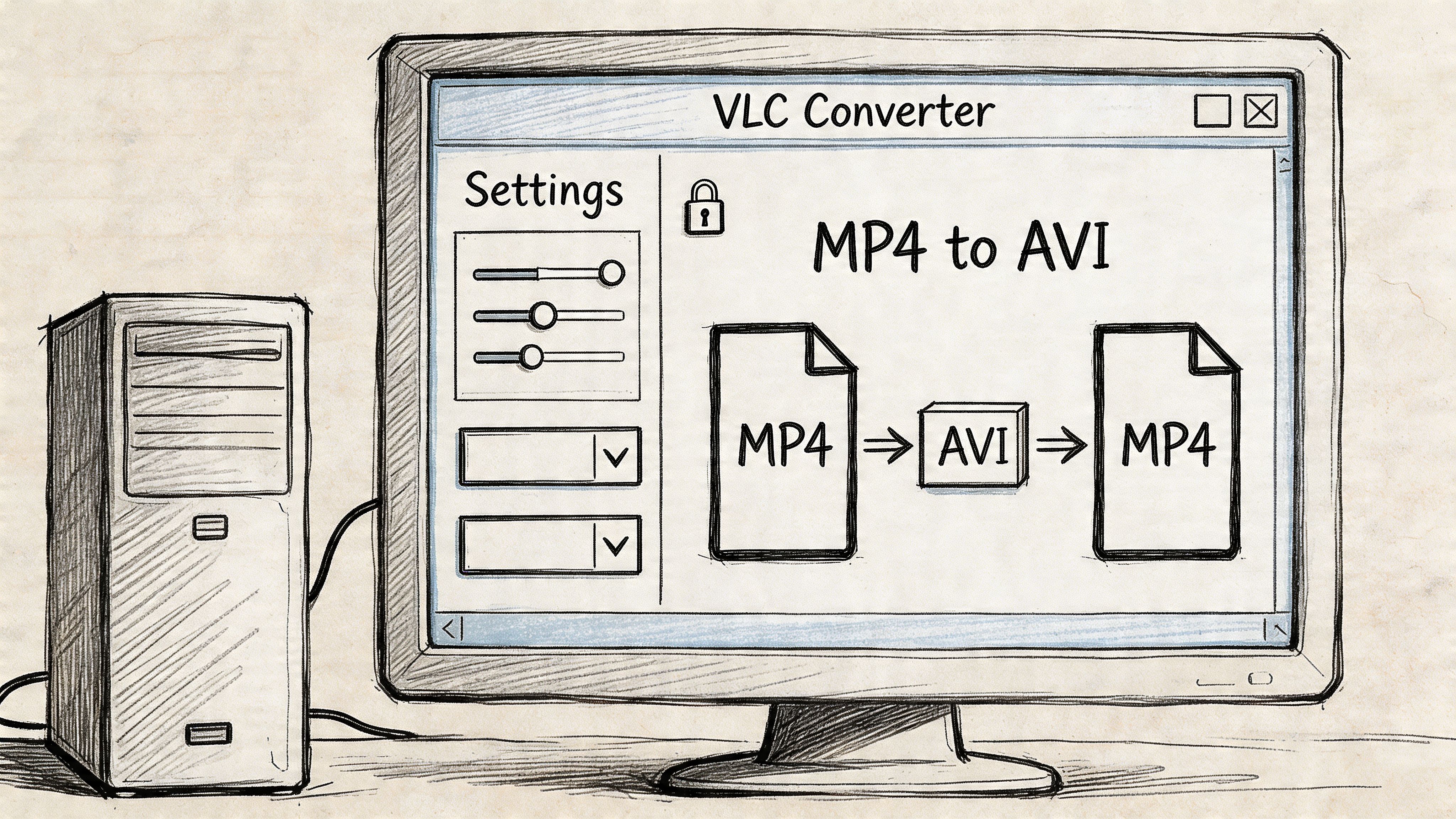
How to convert MP4 to AVI in VLC
Open VLC Media Player and follow this path:
- Click Media
- Choose Convert / Save
- Add your MP4 file
- Click Convert / Save
- In Profile, choose a video profile you can customize
- Open the profile settings with the wrench icon
- Set the encapsulation to AVI
- Choose a video codec such as MPEG-4 or Xvid if available
- Choose an audio codec that your target system supports
- Select the output file name with an
.aviextension - Start the conversion
If your target system is old, be conservative. Fancy settings often create files that are technically valid but practically useless on older software or hardware.
Codec choices that usually work better
What matters most is not the container label. It’s the codec combination inside it.
A practical starting point:
- Video codec: Xvid or MPEG-4 ASP
- Audio codec: PCM for maximum compatibility, or MP3 if you need a smaller file
- Resolution: Keep the source resolution unless the target system is known to struggle
- Frame rate: Match the source when possible
If you’re converting files for editing, uncompressed or lightly compressed audio is safer. If you’re converting for old playback hardware, test one sample first before converting a whole folder.
Why file sizes jump
One of the first surprises with desktop conversion is storage. Converting MP4 to AVI often results in files that are 40 to 70% larger, and 60% of conversion failures using desktop tools stem from metadata loss, because AVI often ignores MP4 chapters and embedded subtitles if you don’t handle them separately, according to SimaLabs’ AVI format internals write-up.
That explains two common user complaints:
- The AVI is much bigger than expected.
- The AVI plays, but pieces of the original file structure are gone.
Bench habit: After conversion, check playback, scrub behavior, audio sync, and whether captions or chapter data survived. Don’t trust a green progress bar.
VLC is good, but not magical
VLC works well for regular jobs, especially when you need a free desktop option and don’t want to upload files anywhere. It’s also a sensible first stop if you already use VLC for playback.
But there are limits. VLC doesn’t give you the same precise stream control as FFmpeg, and it isn’t the best choice when you need repeatable batch jobs or exact subtitle handling.
If you’re also comparing editing tools around a broader video workflow, this roundup of best free video editing software for gaming is useful because many of the same compatibility questions show up once converted clips move into editors.
Mastering Conversion with the FFmpeg Command Line
When I need repeatable results, I stop using point-and-click tools and go straight to FFmpeg. It gives you full control over codec selection, stream handling, verification, and automation. That matters because AVI is picky enough that guessing often fails.
This visual sums up why FFmpeg is the tool power users keep coming back to.
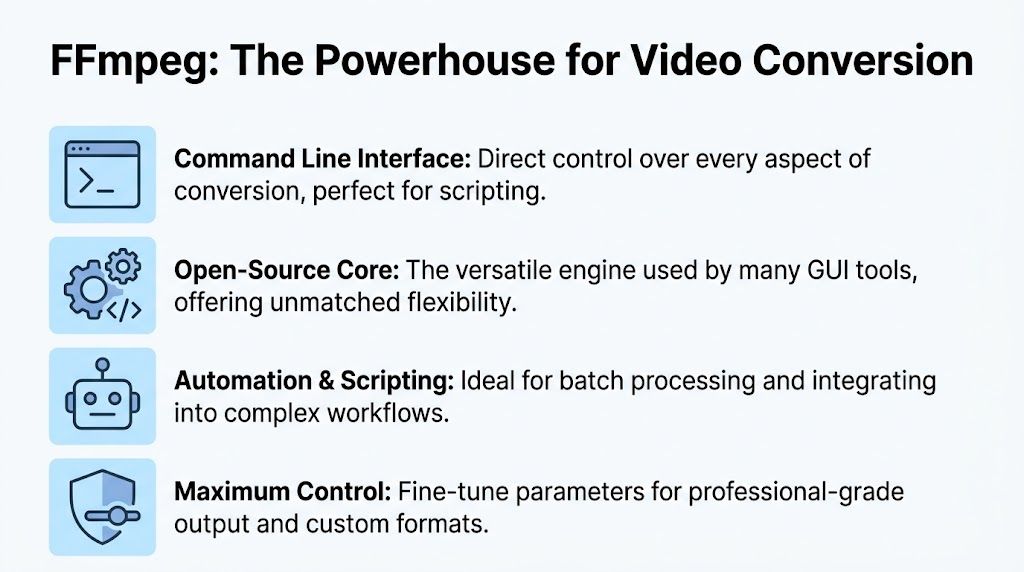
Start by inspecting the source
Before converting, inspect the MP4:
ffprobe input.mp4
That tells you what's inside the file. Check the video codec, audio codec, frame rate, and subtitle tracks. This step avoids a lot of blind troubleshooting.
A common mistake is assuming AVI can just wrap whatever is inside the MP4. It often can’t do that cleanly.
The safest baseline command
If you want a compatibility-first conversion, use:
ffmpeg -i input.mp4 -c:v mpeg4 -q:v 2 -c:a pcm_s16le -ar 44100 output.avi
What this does:
-i input.mp4loads the source-c:v mpeg4re-encodes video to a codec AVI handles more comfortably-q:v 2sets high video quality for the MPEG-4 encoder-c:a pcm_s16leconverts audio to uncompressed PCM-ar 44100sets the audio sample rateoutput.aviwrites an AVI container
This is the command I’d hand to someone who wants the least confusing path to a broadly compatible AVI.
Why tiny broken AVI files happen
In approximately 20 to 30% of user-reported cases on technical forums, basic FFmpeg mp4 to avi conversions fail and produce tiny corrupted files because of codec mismatches. A command like ffmpeg -i input.mp4 -c:v mpeg4 -q:v 2 output.avi fixes that by forcing a compatible re-encode, as discussed in the VideoHelp thread on MP4 to AVI conversion problems.
If you’ve ever seen an AVI output that’s absurdly small and won’t play, that’s usually what happened. The container was written, but the stream combination was wrong for AVI.
If FFmpeg gives you a suspiciously tiny AVI, stop and inspect the streams. Don’t keep rerunning the same command.
When stream copy is worth trying
You can attempt a video stream copy in some cases:
ffmpeg -i input.mp4 -c:v copy -c:a pcm_s16le output.avi
This can preserve quality because the video isn’t re-encoded. But it only works cleanly when the source video is simple enough for AVI’s constraints.
For practical work, I treat stream copy as a test, not the default. If the target machine is old, re-encoding is usually safer.
Verification matters
After conversion, verify the output:
ffprobe output.avi
Look for:
- The video codec you intended
- The audio codec you intended
- Correct duration
- Correct frame rate
- Presence or absence of subtitle streams
This matters most in batch work. One good command can still fail on a weird source file halfway through a folder.
For people building larger automation workflows around media handling, this guide on how to merge multiple MP3 files into one is also a useful reminder that FFmpeg gets much more powerful once you start chaining tasks instead of treating every file as a one-off.
A video walkthrough can help if you prefer seeing the CLI flow before typing commands yourself.
A few command-line habits that save time
- Test one representative file first: Don’t start with the entire folder.
- Name outputs clearly: Add suffixes like
_avi_editor_avi_legacy. - Keep the source untouched: Never overwrite your MP4 master.
- Log your command: If one setting works, save it for the next job.
FFmpeg isn’t harder because it’s command line. It’s harder because it exposes the underlying decisions. Once you know those decisions, it becomes the most dependable way to handle mp4 to avi work.
Solving Advanced Conversion Challenges
Single-file conversion is the easy part. Trouble starts when you have a folder full of files, or when the content contains subtitles and transcript-related data that can’t vanish in the handoff.
That’s where most basic mp4 to avi guides stop short.
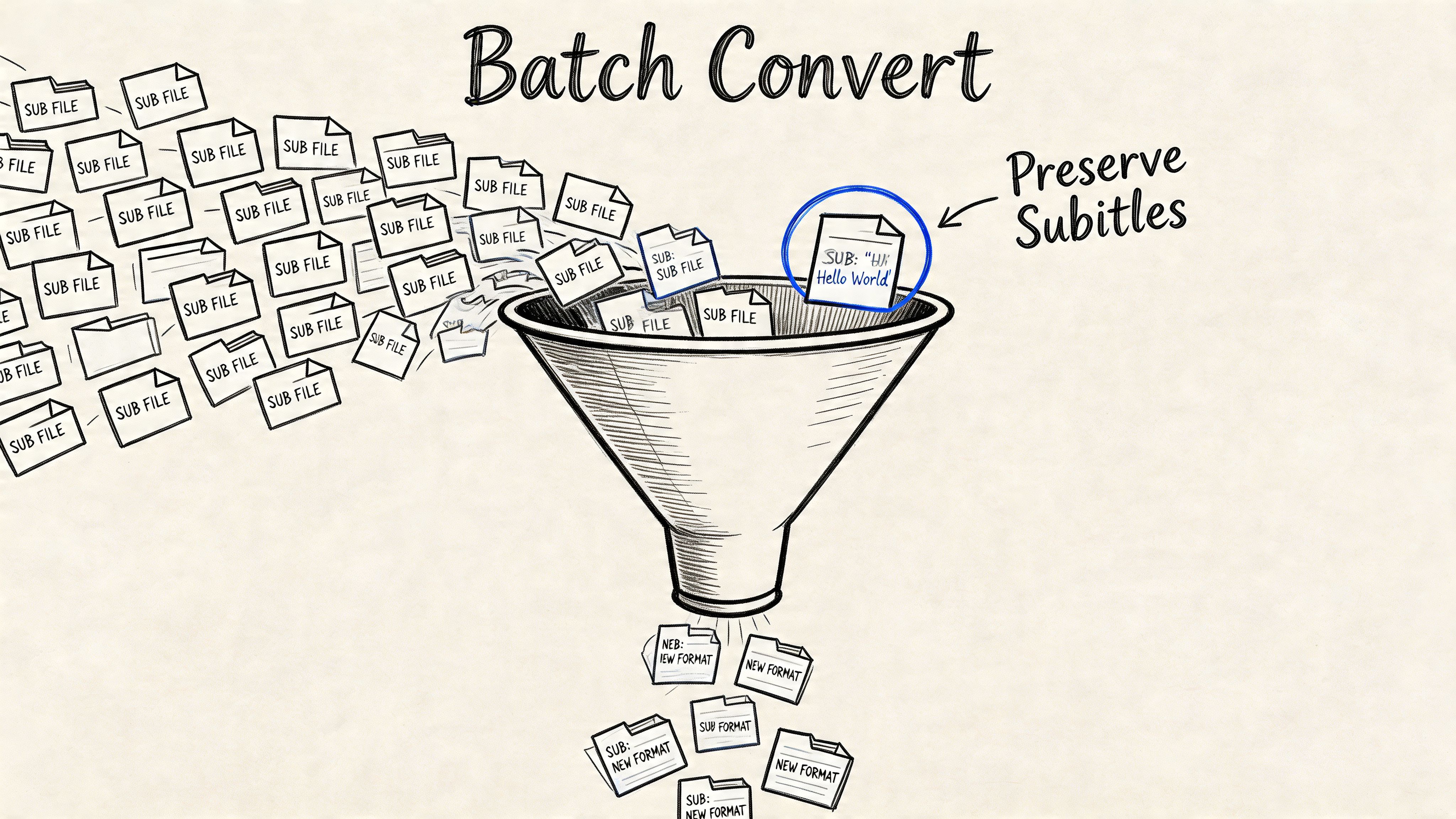
Batch conversion without babysitting every file
For a folder of MP4 files on Windows Command Prompt:
for %f in (*.mp4) do ffmpeg -i "%f" -c:v mpeg4 -q:v 2 -c:a pcm_s16le -ar 44100 "%~nf.avi"
For a batch file, double the percent signs:
for %%f in (*.mp4) do ffmpeg -i "%%f" -c:v mpeg4 -q:v 2 -c:a pcm_s16le -ar 44100 "%%~nf.avi"
On macOS or Linux shell:
for f in *.mp4; do ffmpeg -i "$f" -c:v mpeg4 -q:v 2 -c:a pcm_s16le -ar 44100 "${f%.mp4}.avi"; done
Batch conversion is where FFmpeg pays for itself quickly. You define one known-good recipe and apply it consistently.
Still, consistency isn’t the same as suitability. If your final destination is YouTube or another modern platform, don’t convert to AVI unless some editing or archive step requires it first. In that case, reviewing current YouTube video specifications helps keep your final export aligned with the platform after the legacy step is done.
Subtitle preservation is where many workflows break
This is the blind spot that causes the most cleanup later. An analysis of video editing forums in 2025 found that 40% of users report losing subtitles when converting MP4 to AVI for legacy software, and one fix discussed for handling subtitle data is -c copy -bsf:s mov2textsub, as noted in this subtitle-preservation discussion.
That matters if the file is tied to accessibility, captioning, research notes, or transcription.
Try this pattern when subtitle handling is part of the job:
ffmpeg -i input.mp4 -map 0 -c:v mpeg4 -q:v 2 -c:a pcm_s16le -c:s copy -bsf:s mov2textsub output.avi
The exact result depends on the subtitle format in the source and how the target software reads AVI subtitle data. That’s why you should validate on the final destination, not just in a desktop player.
Workflow warning: “Playable” is not the same as “usable.” A file can open fine and still lose subtitle or transcript-critical data.
A practical transcription-safe workflow
If the video is headed toward editing first and transcription later, preserve text-related assets deliberately.
A clean sequence looks like this:
- Keep the original MP4 as the master.
- Extract or preserve subtitles before conversion if they matter.
- Convert to AVI only for the legacy editor or device that requires it.
- Export the final delivery in a modern format after editing.
- Send the final media for transcript work rather than relying on whatever the AVI retained.
That approach is especially useful when your team needs searchable spoken content after editing. HypeScribe is one option in that kind of workflow because it accepts audio and video uploads for transcription, and keeping track of related media prep steps like extracting audio from video with freeware can simplify handoffs when the video file itself isn’t the best asset to process next.
Conclusion Which MP4 to AVI Method Should You Choose
The right mp4 to avi method depends on what you care about most.
If you need speed and the file doesn’t matter much, use an online converter. It’s fast, disposable, and fine for a short clip that isn’t private.
If you need a dependable everyday option, use VLC or another desktop converter. That’s the best fit for regular one-off jobs, larger files, and situations where privacy matters.
If you need control, repeatability, or batch automation, use FFmpeg. It’s the method that holds up when the target system is picky, when subtitle handling matters, or when you need to process many files without touching each one manually.
The bigger point is simple. Don’t choose a tool by convenience alone. Choose it by the downstream requirement. Ask what has to happen after the conversion. Does an old editor need the file? Does a legacy device only read certain codecs? Do subtitles need to survive? Do you need to convert fifty files tomorrow using the same settings?
Answer those questions first, and the method becomes obvious. That’s how you avoid bloated files, broken outputs, and compatibility surprises.
If your workflow doesn’t require AVI, keep the original MP4 and send it straight to HypeScribe for transcription, searchable notes, summaries, and exports. It’s a cleaner path for meetings, interviews, lectures, and recorded calls, especially when the goal is text output rather than legacy playback.


































































































