
How to Use YouTube Save MP4 Tools in 2026
You've got a YouTube tab open right now, and you need that video as an MP4. Maybe it's a lecture you want on a plane, an interview you need to annotate, or a tutorial you don't trust your connection to stream cleanly later. That's usually when people search youtube save mp4 and land in a swamp of fake buttons, aggressive ads, and sketchy promises.
The useful question isn't just “what tool works?” It's which workflow fits what you're trying to do. A fast one-off download on a phone has different trade-offs than preserving a high-quality file on a laptop, and both are different again from pulling subtitles or prepping a file for transcription and research.
Why You Might Need to Save a YouTube Video
You usually decide to save a YouTube video at the moment streaming becomes a problem. A lecture needs to work on a train with patchy service. An interview needs to stay available in case it gets edited or deleted. A tutorial needs to be clipped, quoted, or dropped into a transcription workflow without keeping a browser tab open all day.
The goal is not always to build a massive media archive. Often it is simpler than that. You need one dependable MP4 that plays anywhere, can be renamed and filed properly, and is ready for whatever comes next.
That "what comes next" matters more than many guides admit. If the file is only for a flight, speed matters. If you plan to quote it in research, quality and timestamps matter. If you are working with sensitive material, privacy matters. And if the video is hard to download cleanly, a screen recording workflow for YouTube videos can be the more practical fallback, even though it trades convenience for more manual work.
Common real-world reasons
- Offline viewing: Local MP4 files are useful on flights, in low-signal areas, or anywhere streaming is unreliable.
- Research and annotation: A saved file is easier to label, revisit, and pair with notes than a tab that may refresh or disappear.
- Version control: Videos can be updated, restricted, muted, or removed. A local copy preserves what you reviewed.
- Transcription prep: Many transcription and analysis tools work better when you upload a clean file directly.
- Clip extraction: Pulling a short segment from a local MP4 is usually faster than reloading the full video each time.
One overlooked use case is comment analysis. If you are studying how a video was received, the MP4 is only half the record. The surrounding discussion often explains which claims sparked pushback, what viewers misunderstood, and which moments got traction. A practical reference on that side of the workflow is Scheduler.social on YouTube comments, especially if you want the media file and audience response together.
A simple rule helps here. Save the file with a purpose in mind first, then pick the method that fits that job. That decision saves time later.
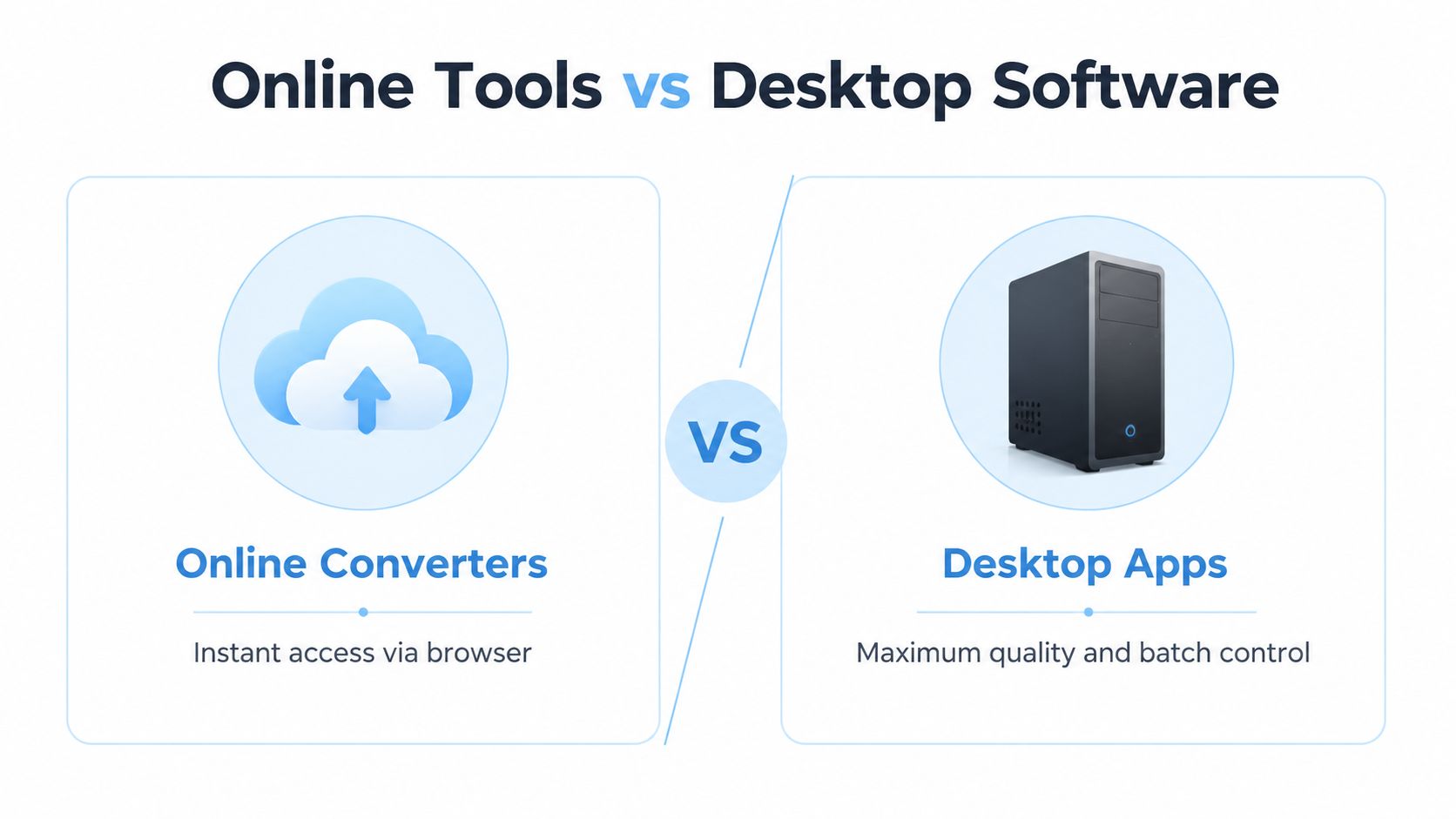
Choosing Your Method Online Tools vs Desktop Software
Most youtube save mp4 workflows fall into four buckets: online converters, desktop apps, browser add-ons, and command-line tools. They all do roughly the same job on the surface. They don't behave the same way when quality, privacy, batch downloading, or reliability starts to matter.
The fast comparison
| Method | Best for | What works well | What usually goes wrong |
|---|---|---|---|
| Online converters | One-off downloads | No install, quick on any device | Ads, fake buttons, privacy concerns, inconsistent quality |
| Desktop apps | Repeat use | Better stability, format choices, playlist handling | Requires install, some apps are bloated |
| Browser extensions | Convenience inside browser | Feels simple when it works | Breaks often, store policies remove many options |
| Command-line tools | Power users and batch jobs | Strong control, scripting, subtitles, automation | Setup scares beginners |
Online converters
These are the default choice because they're frictionless. Paste a URL, pick MP4, click download. If you only do this occasionally, that convenience is hard to beat.
The downside is trust. A lot of these sites are built like ad traps. Some open extra tabs. Some put the actual download button below the fold. Some ask for notifications or push you into browser extensions you didn't want. If your main goal is speed and you're on a device where you can't install software, they're still useful, but you need to stay alert.
Desktop software
Desktop apps are what I recommend when the task matters. They're better when you care about consistent output, cleaner interfaces, and fewer surprises. If you're downloading multiple files, working with longer videos, or want more control over format and subtitles, a local app usually beats a browser-based service.
A screen-capture workflow can also make sense when direct downloads fail or when your end goal is documentation rather than preservation. This guide on screen capture for YouTube videos is useful in those edge cases.
If you're doing this more than once a month, the setup time for a desktop tool usually pays for itself.
Browser extensions
People like extensions because they feel integrated. The ideal version is a small button right on the YouTube page. The problem is durability. Extensions that interact with YouTube downloads tend to disappear, break after UI changes, or rely on workaround scripts.
They're not my first choice unless you already know the extension is maintained and you trust where it came from.
Command-line tools
This is the cleanest path for power users. Tools like yt-dlp give you strong control over file selection, subtitles, playlists, naming, and output behavior. They're less friendly at first, but they're often more dependable than glossy web tools that vanish six months later.
How to choose quickly
- Pick online tools if you need one file right now and can tolerate some friction.
- Pick a desktop app if you want a stable repeatable workflow.
- Pick a browser extension only if you trust it and accept that it may stop working.
- Pick yt-dlp if you want the most control and don't mind a terminal window.
Using Quick and Easy Online MP4 Converters
If you need a file quickly, online converters are the shortest path between a YouTube URL and an MP4 on your device. They're popular for a reason. No install. No setup. Usually no account.
The basic workflow
Copy the YouTube URL
Open the video and copy the full address from your browser or the share sheet.Open the converter site
Paste the link into the site's input field and wait for it to parse the video.Choose MP4 and quality
If the site offers format options, pick MP4. If it offers multiple resolutions, don't blindly choose the largest one.Start the download
Click the actual download button once. If a new tab opens, close it and go back. That's common on ad-heavy sites.Check the file immediately
Open the MP4 before you move on. Make sure it has audio, the duration is correct, and the file isn't something else disguised as a video.
How to spot a bad converter fast
A lot of failures are obvious within seconds.
- Too many buttons: If the page shows three or four “Download” buttons before you've even pasted a URL, that's a warning sign.
- Permission prompts: If a site asks for browser notifications, decline.
- Extension pressure: If the service suddenly says you must install something to continue, back out unless you know exactly what it is.
- Weird file names: If the file downloads as an installer or archive instead of MP4, stop.
What online tools are actually good at
They're best for single videos and time-sensitive grabs. If you're on a borrowed machine, a locked-down work laptop, or a phone where installing software is inconvenient, a browser-based tool is often the only practical option.
They're not great for long-term repeat use. The interface quality swings wildly. Sites change domains. Quality options can be inconsistent. You'll also be handing the video URL to a third party, which isn't ideal for privacy-sensitive work.
Use online converters for convenience, not for trust. The moment a file matters, switch to a local tool.
Small habits that prevent bigger headaches
- Keep another tab closed: Pop-up chains are easier to spot when you're not juggling ten tabs.
- Rename the file right away: Especially if you'll save several clips in one session.
- Store it in a dedicated folder: Don't let it vanish into a generic Downloads pile.
- Avoid logging in anywhere nearby: Mixing downloader tabs with active sessions is asking for trouble.
For occasional use, this method is fine. Just treat it like a quick workaround, not a polished media workflow.
Powerful Desktop and Command-Line Tools for Control
Browser converters are fine until the video actually matters. If you need repeatable results, cleaner files, subtitle options, or a way to handle ten links instead of one, local tools are the better workflow.
Desktop apps and command-line tools solve different problems. GUI apps are better for one-off downloads where you want to see the format menu, choose a folder, and click Save. Command-line tools are better when consistency matters, especially for playlists, research collections, subtitles, and file naming that stays clean across dozens of downloads.
Desktop apps for people who want buttons
A good desktop downloader feels boring in the best way. Paste the URL, choose MP4, pick the resolution, and save the file locally without fighting pop-ups or fake download buttons.
The practical advantages are straightforward:
- Local processing: fewer ad traps and less browser nonsense
- Better handling of long videos: fewer failures on larger files
- Playlist and channel support: useful for courses, interviews, and recurring sources
- Cleaner organization: easier control over folders, filenames, and output format
Desktop tools also make the next step easier. If your real goal is a transcript, quotes, or audio analysis, saving the MP4 locally gives you a clean handoff. If you only need the sound, this guide to extract audio from YouTube is the logical follow-up.
What to look for in a GUI app
Some desktop downloaders are reliable. Some are just adware with a nicer coat of paint.
Check for these signs before installing anything:
- MP4 is clearly listed as an output option
- Subtitle download support is built in if captions matter
- No bundled extras during install
- Custom save location and filename control
- Regular updates from an identifiable developer
Skip any app that hides its real download button, pushes browser extensions, or tries to install unrelated software. Local software is safer than random converter sites only if the installer itself is clean.
Why power users keep landing on yt-dlp
For control, yt-dlp is the tool I keep coming back to. It is fast, actively maintained, script-friendly, and honest about what it is. You paste a URL into a terminal, choose the format you want, and get a file without a bloated interface in the middle.
It also fits actual workflows better than many GUI tools. You can grab a single MP4 today, then reuse the same command later for a playlist, subtitles, metadata, or a whole research set with consistent naming. That repeatability is the primary advantage.
A starter command that gets most people moving
Install yt-dlp and FFmpeg first using your platform's package manager or official install method. Then start with a simple command:
yt-dlp -f mp4 "YOUTUBE_URL"
Replace YOUTUBE_URL with the actual video link.
That command is enough to learn the basic flow. Run it on one video first. Confirm where the file saved. Open the MP4 and make sure the result matches what you expected before you start adding extra options.
Field note: The terminal looks harder than it is. After a few downloads, it is usually faster than hunting through a GUI for the same settings every time.
When command line is the better choice
yt-dlp makes more sense when the job has any repetition in it.
- Batch downloads
- Playlists or channel archives
- Subtitle files
- Predictable filenames
- Research or documentation workflows
- Automation with scripts
If you only save one clip every few months, this may be overkill. If you save media every week, the time savings add up quickly.
A quick visual walkthrough can help if you want to see the idea before trying it:
What trips people up
Two problems come up constantly.
The first is installing an all-in-one downloader suite when a simpler tool would do the job better. Those packages often add updater services, extra prompts, and questionable behavior you did not ask for.
The second is skipping FFmpeg. Many YouTube downloads are delivered as separate video and audio streams. FFmpeg merges them properly. Without it, you can end up with a video-only file, a silent file, or a format mismatch that wastes time later.
A practical decision line
Use a desktop app if you want speed and a visible interface.
Use yt-dlp if you want repeatable output, batch control, and fewer surprises over time.
Use browser tools only for quick, low-stakes grabs where convenience matters more than consistency.
Advanced Tips for Quality Subtitles and Transcription
Getting the MP4 is only half the job. The file you save affects storage, viewing quality, subtitle usefulness, and how well the content works in later analysis.
Pick resolution based on where the file will be used
A common mistake is downloading or exporting at a much higher resolution than the practical viewing context needs. Cloudinary's guidance is straightforward: delivering excessively high resolutions wastes bandwidth and storage, and using a target resolution plus a consistent bitrate multiplier can reduce bandwidth needs by 30-50% without perceptible quality loss in many cases, according to Cloudinary's video handling recommendations.
That matters in plain terms:
- Phone viewing: lower resolutions are often enough
- Desktop review: 720p or 1080p is usually the sensible target
- Archival master: save higher quality only if you know why you need it
If you're preserving a video for re-upload or careful review, bitrate matters too. Frame.io notes that uploading a ProRes HQ file to YouTube can produce better re-compression results than H.264, even when the returned bitrate is identical. It also recommends 16Mbps for 1080p HD, and says YouTube's default 8Mbps recommendation should be avoided for better quality, with YouTube's maximum file size listed as 256GB in that workflow context, per Frame.io's bitrate analysis.
Subtitles are worth grabbing when available
If the tool supports subtitle download, take the extra minute. An .srt file makes a saved video much more useful for:
- Search and review
- Translation workflows
- Quote verification
- Accessibility
Even auto-generated captions can help with navigation, especially in long lectures or interviews.
Better source files help transcription
For transcription work, people often obsess over resolution when the bigger factor is usually audio clarity. Still, a cleaner saved file helps. Avoid low-quality re-encodes if you plan to transcribe later. Compression artifacts and bad source audio make everything downstream worse.
If you want the transcript without messing around with separate downloader and subtitle steps, this walkthrough on downloading a YouTube video transcript is a practical shortcut.
Save the best source file you can justify, but don't confuse “biggest file” with “best workflow.”
The Legal and Ethical Side of Saving YouTube Videos
You need one video for a flight, a class, a research note, or an offline archive. That part feels simple. The part that trips people up is choosing a method that solves the immediate need without creating a copyright, account, or malware problem.

What YouTube allows and what it doesn't
The practical rule is straightforward. YouTube's Terms of Service generally do not allow downloading videos unless YouTube provides a download button, the feature is available through an official product, or you own the content and have rights to it. That puts a lot of third-party "youtube save mp4" workflows into a gray or plainly disallowed category before copyright law even enters the picture.
Copyright is a separate layer. A video can be publicly viewable on YouTube and still be fully protected. Saving a copy for your own legitimate use is one thing. Reposting it, sharing it, clipping it into another project, or distributing it inside a team without permission can create a much bigger problem.
Lower-risk and higher-risk cases
| Situation | Risk level | Why |
|---|---|---|
| Your own uploaded content | Lower | You control the rights |
| Public domain or clearly licensed content | Lower | Permission is built into the content status |
| Random third-party copyrighted videos | Higher | Terms restrictions and copyright issues can both apply |
| Using downloader sites with heavy ads or trackers | Higher | Security risk stacks on top of policy risk |
The part many people underestimate
Security risk is often more immediate than legal risk. I have seen plenty of downloader sites bury the actual download button under fake ones, push browser notifications, or redirect to installer pages that have nothing to do with the file you wanted.
That trade-off matters when picking a workflow. If the job is quick and low-stakes, people reach for a browser converter. If the file matters, or you are downloading multiple items for analysis, local tools are usually safer because they cut out the ad maze and keep the process on your device.
The smartest workflow is the one that solves the problem without creating a second one.
There is also a simpler option that many guides skip. If your actual goal is to quote, search, summarize, or transcribe the video, you may not need the MP4 at all. A transcript-first workflow is often faster, cleaner, and easier to justify.
A plain ethical standard
Use three checks before you save anything:
- Do I own the content or have clear permission to copy it?
- Am I keeping it for a legitimate personal, educational, archival, or research use rather than redistribution?
- Am I using a method that does not ask me to trust a sketchy site with ads, pop-ups, or strange permissions?
If any answer is uncertain, stop and reconsider. The right method is not always the fastest one. Sometimes the better workflow is to use YouTube's official options, save your own uploads, or skip the MP4 and work from captions or notes instead.
Frequently Asked Questions About Saving YouTube Videos
Can I save YouTube videos as MP4 on an iPhone or Android phone
Yes, but mobile is less forgiving than desktop. Browser-based converters are often the easiest route because you don't need to install extra software. On phones, the bigger issue is file handling. You need to know where the download goes and whether your browser saves directly to local storage or a files app.
On iPhone, expect more friction around downloads and file locations. On Android, it's usually easier to manage local files after the download finishes.
Can I save just part of a YouTube video
Yes. There are two practical ways to do it.
One is to download the full MP4 and trim it locally in a video editor or even a basic built-in media app. The other is to use a tool that supports clip selection before download, though those are less common and often less reliable.
If you care about precision, downloading first and trimming second is usually cleaner.
Can I extract only the audio
Yes. Many tools let you choose an audio-only format instead of MP4. That's useful for podcasts, lectures, interviews, and note review.
If your downloader doesn't offer it directly, you can still save the MP4 and convert or extract the audio afterward with a local app.
Why does a video fail to download
The usual reasons are straightforward:
- Private videos: you don't have access
- Age-restricted content: some tools can't process it
- Members-only or protected content: access controls get in the way
- Tool drift: the site or app hasn't kept up with YouTube changes
When one tool fails, it doesn't always mean the video is impossible to save. It can just mean that specific method is outdated.
Is YouTube Premium the same as saving an MP4
No. YouTube's official offline feature is for in-app offline viewing, not for giving you a transferable MP4 file you can move around freely. That distinction matters if you need editing, archiving, clipping, or transcription workflows.
What's the best method for repeat use
For occasional convenience, use a web converter carefully. For repeat work, use a desktop app or yt-dlp. The less you rely on ad-heavy websites, the smoother your workflow gets.
If your real goal isn't just to save a video but to turn it into searchable notes, summaries, and usable text, HypeScribe is the cleaner next step. You can work from spoken content instead of wrestling with downloader clutter, then move straight into transcripts, highlights, and analysis.


































































































