
Merge Multiple MP3 Files Into One Seamlessly

You finish a multi-part interview, export the clips, and end up with a folder full of MP3s named things like final-v2, final-real, and take-3-clean. Or maybe you recorded a lecture in segments because your phone stopped twice. The audio is all there, but it is scattered, awkward to share, and annoying to review.
This is why people search how to merge multiple mp3 files into one. They do not want theory. They want one file that plays in the right order, sounds clean, and does not create extra work later.
The catch is that not all merge methods do the same job. Some are fast and lossless. Some give you visual control. Some are fine for a quick browser task, but poor for anything sensitive or quality-critical. The best method depends on whether you care most about speed, editing control, metadata, or simple convenience.
Why Merge Multiple MP3 Files
Most of the time, separate MP3 files are a byproduct of how audio gets captured, not how anyone wants to use it.
A journalist records several interview chunks in the field. A teacher saves lecture sections separately. A podcast editor gets an intro, main segment, and outro as different exports. A remote team member sends voice notes one by one instead of as a single session. The result is the same. Playback becomes fragmented.
A single merged file solves several practical problems at once.
It makes the audio usable
One file is easier to review, archive, upload, and hand off. It also keeps the intended order intact, which matters when the content is chronological.
If you leave the audio split across many files, someone always has to reconstruct the sequence manually. That is fine once. It is not fine when the file gets passed between editors, producers, or assistants.
It reduces friction in everyday workflows
Merged audio is simpler to:
- Share with clients or teammates: One attachment or one upload beats a folder of clips.
- Prepare for long-form listening: Audiobooks, lectures, and interviews work better as one continuous file.
- Organize archives: A single final asset is easier to label, back up, and retrieve later.
- Clean up before transcription: One ordered recording usually creates a cleaner review process than several disconnected pieces.
A merged file is not just tidier. It removes small workflow errors that show up later, especially when people rename files, miss a segment, or upload them out of order.
The method matters more than most guides admit
Some people need a lossless join with no re-encoding. Others need to trim pauses, fix rough joins, or add small fades between sections. Others just need a quick merge in a browser and do not care about deeper control.
That is why the right answer is not one tool for everyone. It is one tool for the job in front of you.
Choosing Your Method The Right Tool for the Job
If you only remember one thing, remember this. Merging is easy. Merging well depends on the tool.
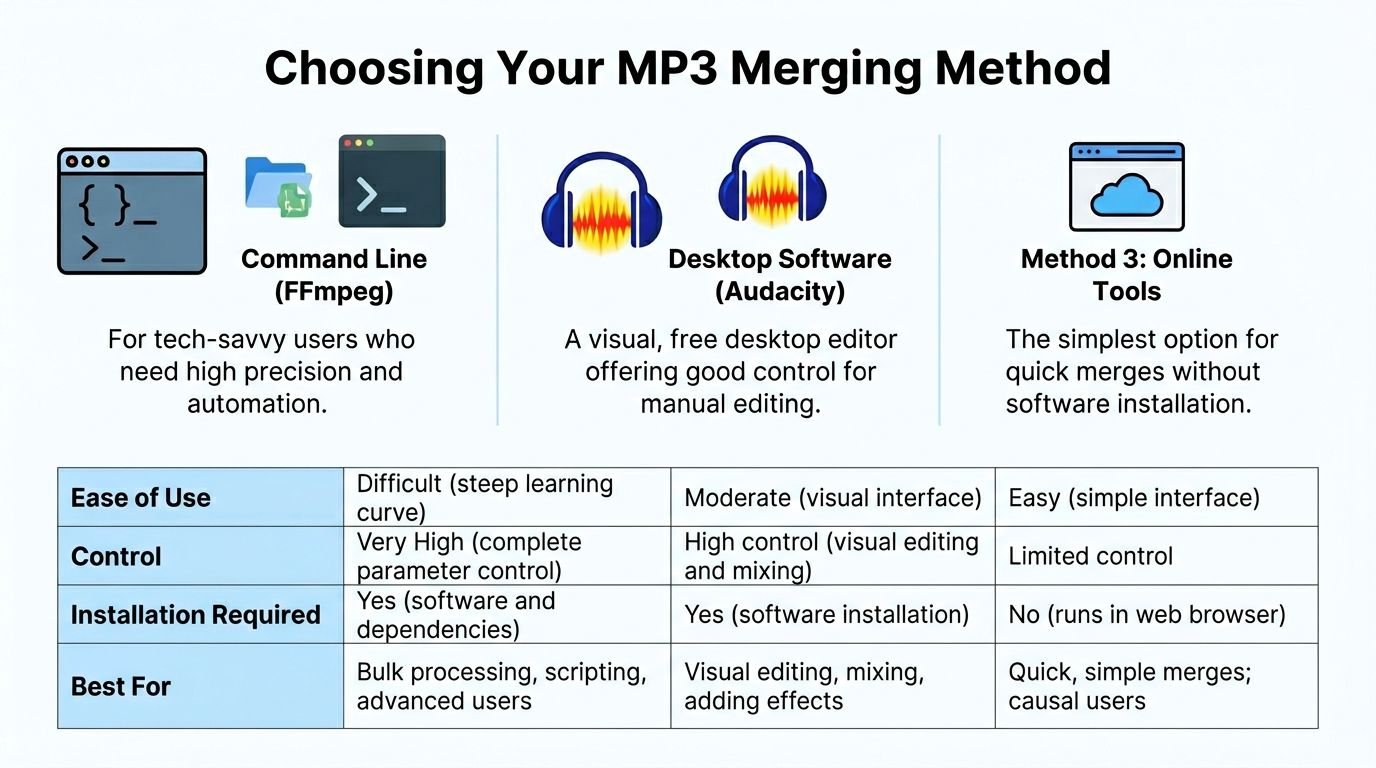
The three common paths are command line tools, desktop editors, and online mergers. Each one solves a different version of the problem.
FFmpeg for speed and clean file joining
FFmpeg is the option for people who want precision, repeatability, and minimal handling. If your files already match and you want them joined in order, FFmpeg is usually the cleanest approach.
It works especially well when you have many files, need to automate the task, or want to avoid quality loss from re-encoding. It is not the friendliest option for first-time users, but it rewards that extra effort fast.
This is the route I would choose for batches, archives, podcast segments that already share the same specs, or any workflow where consistency matters more than visual editing.
Audacity for visual control
Audacity is the practical middle ground.
You can see the waveforms, drag tracks into position, trim rough edges, and decide exactly where one segment meets the next. That makes it better when your files need a little human judgment.
It is also the better fit when you want to fix pacing, remove dead air, or create smoother joins rather than just stitch files together. If your source audio came from different speakers or different recorders, a visual editor often saves time because you can inspect the transitions directly.
If your starting point is a phone recording, this guide on converting a memo into MP3 can help before you move into the merge stage: convert a voice memo to MP3.
Online tools for quick one-off jobs
Browser-based mergers are the convenience option. No install, no terminal, and usually no learning curve beyond upload, arrange, and download.
That makes them useful for low-stakes work. A quick mashup for reference listening, a rough draft for personal use, or a fast combine job on a shared machine can all fit.
The trade-off is control. You usually know less about how the audio is processed, what happens to metadata, and whether the output is being re-encoded.
A simple way to decide
| Method | Best for | Main strength | Main drawback |
|---|---|---|---|
| FFmpeg | Batch work, lossless joining, repeatable workflows | Fast and efficient | Less approachable for beginners |
| Audacity | Manual edits, precise transitions, visual checking | Strong hands-on control | Requires export and re-encoding |
| Online tools | One-off quick tasks | Fastest to access | Least control over privacy and output |
Choose FFmpeg when the files are already right. Choose Audacity when the joins need attention. Choose online tools only when convenience matters more than control.
The Power User Path Merging MP3s with FFmpeg
FFmpeg is the tool I reach for when the job is straightforward and the output needs to stay clean. It is built for this kind of work.
FFmpeg stands out as the expert-recommended command-line tool for merging multiple MP3 files into one without quality loss, leveraging stream copying to avoid re-encoding. Benchmarks show this process can handle 10x 10MB files in under 2 seconds on standard hardware and can be 5 to 10 times faster than GUI tools that decode and re-encode the audio (reference).
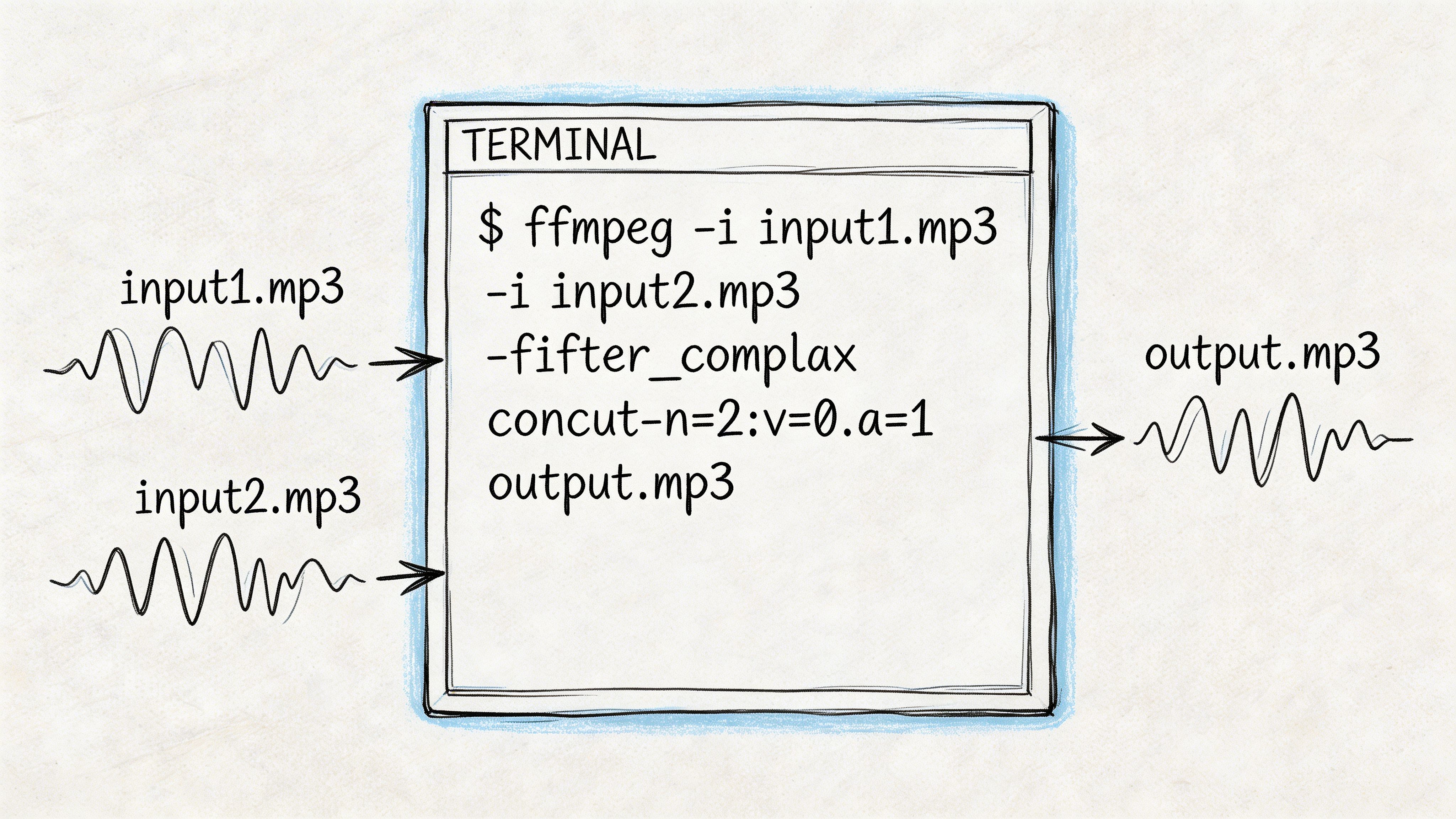
Why FFmpeg works so well
The key flag is -c copy.
That tells FFmpeg to stream copy the audio instead of decoding and re-encoding it. In practice, that means the merge is fast and avoids the quality hit that comes from another MP3 export pass.
This is the ideal workflow when the source files already share compatible encoding settings.
The most reliable method
Create a text file called mylist.txt and list the MP3s in the exact order you want:
file 'file1.mp3'file 'file2.mp3'file 'file3.mp3'If you want to build that list from all MP3 files in a directory, use:
for f in *.mp3; do echo "file '$f'" >> mylist.txt; doneThen run:
ffmpeg -f concat -safe 0 -i mylist.txt -c copy output.mp3Here is what each part does:
-f concattells FFmpeg to use the concat demuxer.-safe 0allows paths that FFmpeg would otherwise reject as non-standard.-i mylist.txtpoints to the ordered file list.-c copycopies the audio stream directly instead of re-encoding.
A shorter direct command
If you only have a few files and want a one-liner, FFmpeg also supports direct concatenation:
ffmpeg -i "concat:file1.mp3|file2.mp3|file3.mp3" -acodec copy output.mp3This can work well for quick jobs, but the file-list method is usually easier to manage and less error-prone once you have more than a couple of inputs.
Where people get tripped up
FFmpeg is strong, but it is not magic. It expects compatible files.
Common failure points include:
- Mismatched encoding specs: If one file differs in bitrate or sample rate, the join may fail or produce bad results.
- Naive binary joins: Simple file concatenation methods can create glitches because MP3 framing and tags are not being handled properly.
- Unexpected metadata behavior: The audio may join correctly while tags and chapter data do not carry over the way you expect.
You can inspect a file before merging with:
ffprobe file.mp3Check that the files match in the ways that matter. If they do, FFmpeg is usually the fastest clean path.
FFmpeg is best when the files are already technically aligned. It is not the tool for fixing rough edits by ear. It is the tool for doing a clean join with minimal damage and minimal waiting.
When FFmpeg is the wrong choice
Use something else if you need to:
- trim breaths or dead space by sight
- fade between clips
- rebalance uneven sections manually
- repair a bad transition by listening through the join
That is where a waveform editor beats a terminal every time.
The Visual Approach Combining Tracks in Audacity
Audacity is what I recommend when the merge is not just a merge. If you need to listen, nudge, trim, and smooth the handoff between clips, a visual editor is the better tool.
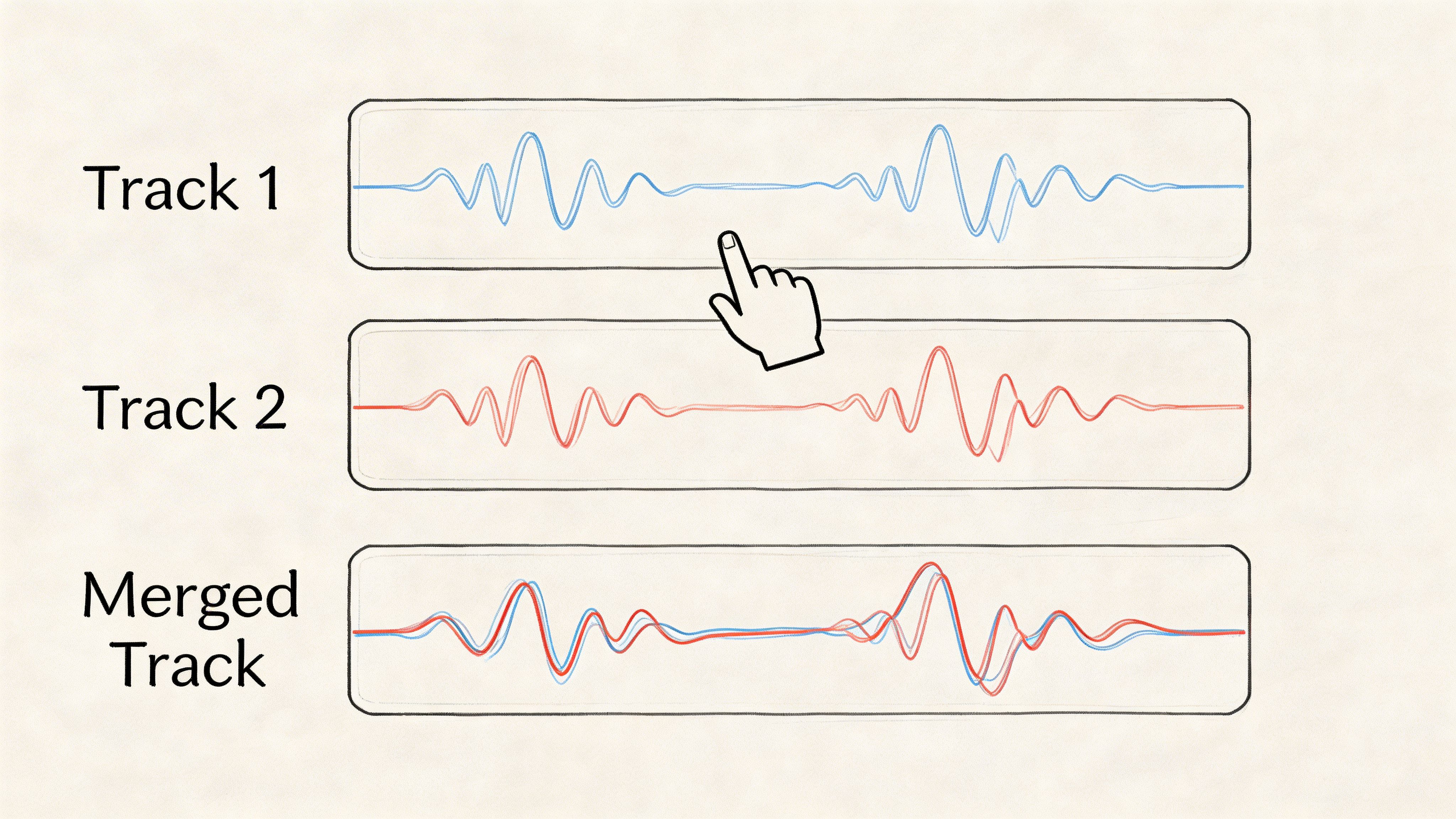
Audacity provides granular manual control for merging MP3s. Its process involves importing files, arranging them on the timeline, and then using Tracks > Mix > Mix and Render. Reported success rates exceed 95% for aligned files under 500MB total, but re-encoding is necessary. A common pitfall reported by 25% of forum users is pops or clicks from misaligned tracks, which can be reduced with a 10 to 50ms crossfade (reference).
How to merge the files in Audacity
The working method is simple:
- Install Audacity: It is free and works across major desktop platforms.
- Import the MP3 files: Use File > Import > Audio and select all the clips you want.
- Arrange them on the timeline: Drag them into the correct order.
- Fine-tune the joins: Zoom in on the waveform where clips meet.
- Render the result: Select all, then use Tracks > Mix > Mix and Render.
- Export as MP3: Choose Export Audio and set the MP3 options to match your source as closely as possible.
If your export setup asks for MP3 support details, make sure the encoder settings are correct. The whole point is to avoid introducing unnecessary degradation at the final step.
Why editors like Audacity still matter
A lot of real-world audio is messy.
One speaker starts talking early. Another clip has room tone at the front. A field recording ends with handling noise. These are not command-line problems. They are editing problems.
Audacity lets you:
- See the waveform: You can spot clipped starts, long silences, and abrupt endings.
- Move clips freely: The timeline makes sequence changes quick.
- Apply small repairs: Trims, fades, and crossfades are easy to audition.
- Listen before exporting: This is the biggest advantage over blind batch merging.
A quick visual walkthrough helps if you prefer to learn by watching:
The two mistakes that hurt most
The first is rushing the transitions.
If you drop one clip hard against another without checking the waveform, clicks are common. Audacity gives you enough control to avoid that, but only if you zoom in and place the join carefully.
The second is exporting carelessly.
Because Audacity re-encodes on export, your final quality depends on those output settings. Match the bitrate mode and general export spec to the source if you want the least disruptive result.
For spoken-word projects, the best use of Audacity is not flashy editing. It is careful housekeeping. Tight joins, short fades, and one clean export.
When Audacity is the better call
Audacity wins when your project needs judgment, not just assembly.
That includes lecture splicing, interview compilations, podcast rough cuts, and any case where the audio segments were recorded under slightly different conditions. If you need to hear and shape the transitions, use the waveform editor.
Quick and Easy Online MP3 Mergers
Online MP3 mergers exist for a reason. Sometimes installing software is overkill.
If you have a few non-sensitive files, need a quick combined output, and do not care about advanced control, a browser tool can get the job done fast. Upload the clips, arrange them, click merge, download the result.
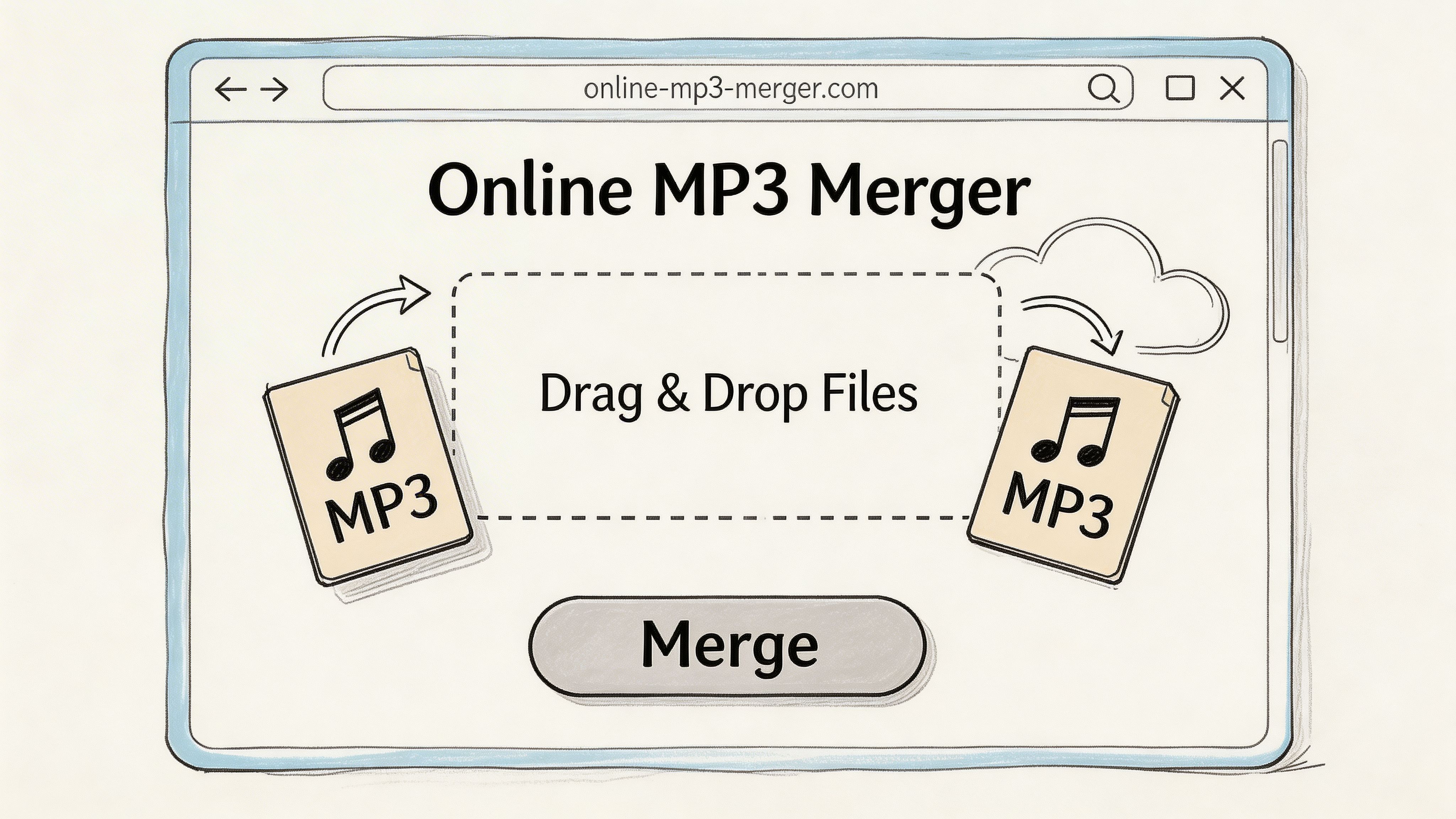
Where online tools make sense
They are useful when:
- You are on a locked-down machine: No admin access, no installs.
- The task is disposable: You just need one combined file for temporary use.
- The material is not sensitive: Public audio or low-risk personal files are safer candidates.
- The clips are simple: No metadata concerns, no precision edits, no batch workflow.
For people pulling audio out of video first, this can pair well with a separate extraction step like this guide on extracting audio from video with freeware.
The trade-offs are real
Convenience comes first with online mergers. Everything else usually comes second.
You often do not know:
- what encoding settings the service will use
- whether the audio is being compressed again
- how long uploads remain on the server
- what happens to tags and other embedded information
That matters less for throwaway tasks. It matters a lot for interviews, internal meetings, legal recordings, or any audio someone should not be uploading casually.
The practical rule
I treat online mergers as utility tools, not production tools.
They are fine for rough combines and low-stakes jobs. I would not use them for final podcast assembly, confidential client audio, or source material that needs to preserve technical integrity.
If the audio would be a problem in the wrong inbox, do not upload it to a browser merger.
The browser option is simple because it removes friction. It also removes control. That trade is acceptable sometimes. It is not automatically acceptable every time.
Pro Tips for a Seamless Final Track
The merge itself is only the first half of the job. The final result depends on what happens around the join.
A major gap in most tutorials is preserving metadata and handling variable bitrates. Most tools strip ID3 tags during a merge, and joining files with different sample rates such as 44.1kHz and 48kHz can introduce pops and glitches. Audio forum analysis highlighted in this overview points to these as common complaints because they affect listening quality and can disrupt automated workflows like AI transcription (reference).
Do not ignore metadata
This is the part many quick guides skip.
If you merge several MP3s into one, you are not just joining sound. You are also potentially discarding information attached to those files, including track names, artist fields, album fields, and chapter-related data.
For podcasts, audiobooks, and long-form spoken content, that matters. A clean audio file with broken or missing metadata can still be annoying to distribute, archive, or identify later.
Practical habit: after the merge, open the final file in a tag editor or media manager and verify what survived. Never assume the tags carried over in a useful way.
Check compatibility before you merge
A lot of rough joins come from mismatched source files.
If one segment came from a phone app and another came from a desktop export, the files may differ in bitrate, sample rate, or overall loudness. Joining them blindly can produce audible jumps or technical glitches.
Use this checklist before you commit to the final output:
- Compare sample rates: If they differ, treat that as a warning sign.
- Check bitrate behavior: Mixed source quality often creates uneven results.
- Listen for room tone changes: Even when the specs match, the ambience may not.
- Watch loudness by ear: Spoken clips from different devices often feel uneven before they measure uneven.
If your project regularly includes inconsistent spoken audio, a tool focused on leveling can help before export. This is one reason workflows sometimes include an auto sound levelizer before the final delivery file is made.
Use crossfades on purpose
A crossfade is not mandatory. It is often helpful.
When one spoken clip ends and another starts in a slightly different acoustic environment, a very short fade can hide the seam. The goal is not to sound edited. The goal is to avoid sounding carelessly assembled.
Good practice is restrained practice:
- Use short fades for speech: Enough to soften the join, not enough to smear consonants.
- Avoid fading across words: Put the fade in pauses or breaths where possible.
- Listen on headphones once: Small clicks often hide on speakers and show up on headphones.
The best merge is the one no listener notices. Clean transitions beat dramatic processing every time.
Think about the downstream use
The right final track depends on where it is going next.
If the file is for archive, preserve organization and labeling. If it is for a client, check playback start to finish. If it is headed into transcription or search, remove obvious glitches and keep the sequence exact.
That last point matters more than many people realize. A merge with pops, mismatched levels, or out-of-order segments can create avoidable cleanup work later.
A polished final file is not about perfectionism. It is about not creating new problems after you solved the first one.
If you need to turn a merged recording into searchable text, summaries, and action items, HypeScribe is a practical next step. It helps teams, students, journalists, and creators move from raw audio to usable transcripts quickly, especially when you already have one clean, well-ordered file ready to upload.

































































































