
What Is a Corrupted File: Causes and Fixes
You double-click a file you need right now. It might be a client meeting recording, a lecture capture, a draft contract, or the final transcript you promised to send in ten minutes. Instead of opening, it throws an error. Or worse, it opens halfway. The audio cuts out, the video freezes, the document shows gibberish, or the transcript is missing chunks that were definitely there before.
That moment feels random, but it usually isn't. In plain language, a corrupted file is a file that no longer makes sense to the app trying to read it. Something in the file changed when it shouldn't have, and now the software can't follow the structure it expects.
For people who work with media, this gets especially painful. A damaged spreadsheet is bad. A damaged recording is often worse because it can break everything that depends on it: transcription, summaries, searchable notes, action items, and compliance records. If your team records meetings, interviews, training sessions, or podcasts, understanding what is a corrupted file isn't just technical trivia. It's part of protecting your actual work.
That Dreaded 'File Cannot Be Opened' Error
A corrupted file often shows up at the worst possible time. A student opens last night's lecture recording before an exam review. A project manager tries to pull up a meeting transcript before a client call. A journalist clicks an interview file and gets silence, static, or an app crash.
The first reaction is usually, "Did I delete it?" Often, the answer is no. The file is still there. Its name is still there. Its size may even look normal. The problem is that the contents inside the file have been altered enough that the app can't read them properly anymore.
Consider a printed manual with pages in the wrong order, a few torn corners, and one page replaced by nonsense symbols. The manual still exists. You can hold it. But using it becomes difficult or impossible because the instructions no longer line up.
Practical rule: If a file exists but behaves strangely, don't keep resaving it over and over. Make a copy first and troubleshoot the copy.
This matters even more with recordings and transcripts. A team might assume, "We still have the video file, so we're safe." Not always. If the video container is damaged, the transcript tool may fail to process it. If the audio stream is incomplete, the transcript may miss names, decisions, or action items. If file system metadata is damaged, the file may appear missing even when parts of the content are still present on the drive.
Corruption sounds dramatic, but it doesn't always mean total loss. Sometimes the file won't open at all. Sometimes only part of it is damaged. Sometimes the document opens with missing content or the media plays without sound. The important thing is to treat the issue carefully and avoid making it worse through rushed fixes.
What Exactly Is a Corrupted File?
At the technical level, a corrupted file is a file whose contents have been unintentionally altered so the system or application can no longer read it correctly, as described in Wikipedia's data corruption overview. That alteration might happen while the file is being saved, moved, downloaded, stored, or opened.
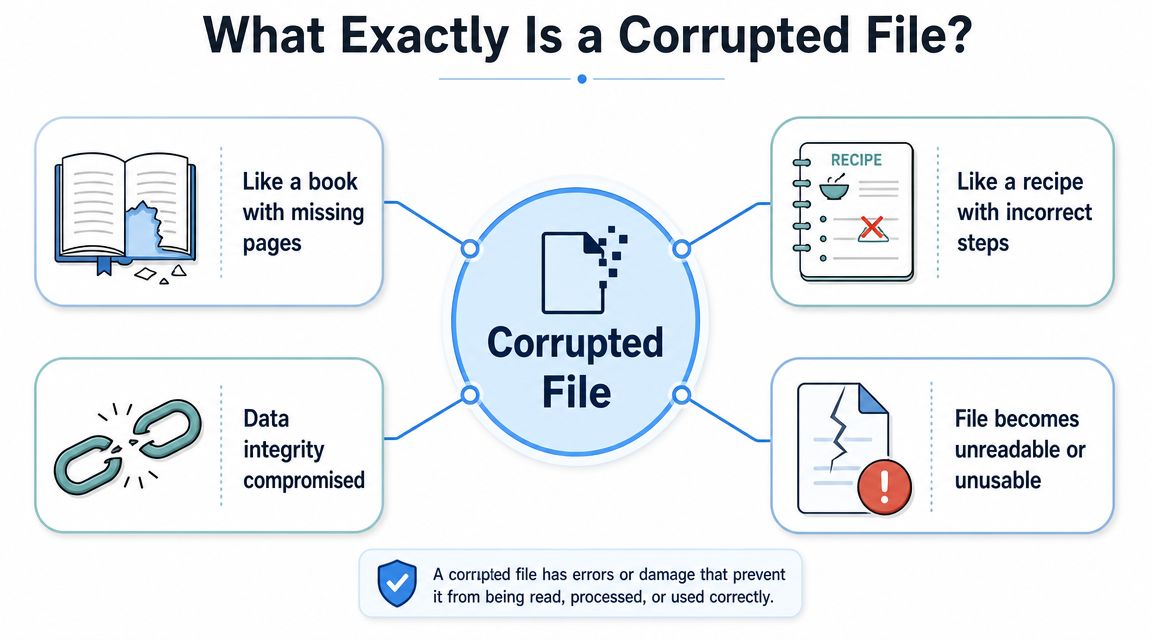
A simple analogy helps. A normal file is like a recipe card written in the exact format a cook expects. The title is at the top. Ingredients are listed clearly. Steps are in order. If someone smudges parts of the card, deletes half a line, or swaps step 2 with random letters, the cook can't follow it. The information may still be partly there, but it's no longer reliable.
Files work the same way. Programs expect a specific internal structure. A Word document has one structure. An MP4 recording has another. A PDF, WAV, ZIP, and spreadsheet all have their own rules. When the internal bytes no longer match those rules, the software responds with errors, crashes, missing content, or strange behavior.
Logical corruption and physical corruption
There are two broad ways this happens.
Logical corruption means the storage device may be physically fine, but the file's contents were written incorrectly. A software bug, crash, interrupted save, malware event, or broken transfer can do this. The drive still works, but the file's structure is wrong.
Physical corruption means the problem starts lower down in the storage layer. The disk, flash storage, controller, or another hardware component is failing. In that case, the file may become unreadable because the system can't reliably retrieve the original data.
A technical summary from this plain-language breakdown of corrupted files explains the result well: apps may fail header checks, checksum checks may not match, or the file may open with scrambled or missing content.
Why users get confused
People often expect corruption to look dramatic. Sometimes it does. But often it looks ordinary at first:
- The icon looks normal
- The file name hasn't changed
- The size still appears plausible
- The file opens, but only partly
- The app crashes only when that one file is loaded
That's why corruption can be hard to spot. In large systems, some corruption is also silent. Wikipedia's summary notes a CERN-based study in which roughly 128 megabytes became permanently corrupted over six months across about 97 petabytes of data in the path between network and disk. That's a useful reminder that file integrity problems can exist even when users don't notice them right away.
For everyday users, the simplest definition is still the best one: a corrupted file is a file whose inside parts no longer line up the way the app expects.
The Most Common Causes of File Corruption
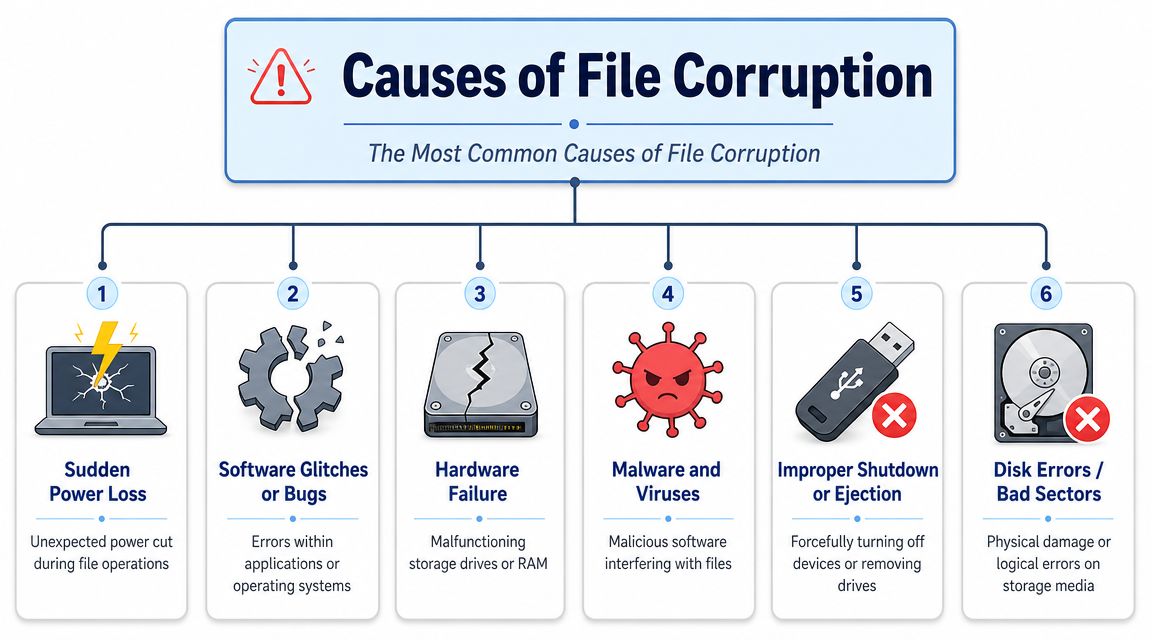
Most corrupted files don't come from one mysterious event. They come from ordinary interruptions. Saving, syncing, downloading, uploading, ejecting, and shutting down all depend on a chain of steps happening in the right order. Break that chain, and the file may be left incomplete or internally inconsistent.
One industry summary says around 70% of reported "files corrupted" cases are caused by programming flaws or software failures, with the remaining 30% tied to physical hardware problems like bad sectors, according to DataCore's glossary entry on data corruption. You don't need to memorize the split. The useful takeaway is that corruption often starts with software behavior, not just broken drives.
The everyday triggers
Here are the causes users run into most often.
- Power loss during a save: If your computer loses power while writing a file, the save may stop halfway. The result can be a file with missing sections or damaged metadata.
- App crashes and software bugs: A recording app that freezes during export or a document editor that crashes while autosaving can leave behind invalid file contents.
- Improper shutdowns: Holding the power button, closing a laptop mid-write, or pulling power from a workstation can damage not just the file, but also the file system information that tracks where data lives.
- Unsafe ejection of external drives: Pulling a USB drive without using eject can interrupt pending writes. The file may look copied, but the transfer may not be complete.
- Storage failure: Hard drives, SSDs, memory cards, and USB drives can all fail. Sometimes the failure is obvious. Sometimes one area of the device starts returning unreliable data.
- Interrupted transfers: A weak Wi-Fi connection, unstable network share, or broken download can leave you with a file that finished "successfully" in name only.
- Malware: Some malicious software damages files directly. Other threats interfere with the apps and systems that create or open them. If your files often arrive through email, this guide on preventing dangerous email file infections is a useful companion read.
If the corruption happened during transfer, you may still have a good original file somewhere else. If it happened during saving, the source file itself may be damaged.
Why media files get hit so often
Audio and video files are especially vulnerable because they're large, often moved between tools, and commonly uploaded over networks. Teams record in Zoom, export from Teams, trim in an editor, upload to cloud storage, then send the file to a transcription workflow. Each handoff creates another chance for something to go wrong.
Format choice can also affect resilience and compatibility. If your team works with recordings every day, this guide to choosing the best video format is worth reviewing before problems start.
Media files also depend on layers. The container holds the streams. The codec encodes the audio or video data. The file system tracks where the file lives. Trouble in any one of those layers can make the whole recording appear broken.
How to Know If Your File Is Corrupted
Corruption doesn't always announce itself with a clear message. Sometimes you get "file cannot be opened." Sometimes the app says nothing useful at all. It just freezes, crashes, or shows content that obviously isn't right.
The easiest way to think about diagnosis is this: if one file behaves badly while similar files open normally in the same app, that specific file is a strong suspect.
Symptoms by file type
| File Type | Common Symptoms |
|---|---|
| Document files | Won't open, garbled text, missing formatting, blank pages, strange characters, partial content |
| Audio files | Won't play, skips, static, distorted sound, sudden silence, incorrect duration |
| Video files | Black screen, frozen frames, no audio, playback stops midway, export fails, thumbnail won't generate |
| Image files | Only part of the image appears, colored blocks, wrong colors, file won't preview |
| Archive files | Extraction errors, missing items after unzip, "invalid archive" messages |
| Transcript or subtitle files | Missing sections, broken timestamps, odd character encoding, import failures |
What that looks like in real life
A corrupted document often opens just enough to confuse you. You may see the first page, then gibberish. Or the file opens but your tables, comments, or images are gone.
Corrupted media is more deceptive. A recording may still show its file name and duration, yet freeze at a specific point. A meeting video might play the picture but lose the audio stream. A transcript import may fail because the source recording's structure is damaged, even though the file still sits neatly in the folder.
Quick checks before you assume corruption
Try these simple tests first:
- Open the file in a different app. A media player like VLC may read a file that another player rejects.
- Copy the file to a different drive. If the copy fails or behaves differently, the storage device may be involved.
- Compare with a recent version. If yesterday's export opens and today's doesn't, the problem likely happened during save or transfer.
- Check whether similar files work. If every MP4 fails, the app may be the issue. If only one MP4 fails, the file itself is more likely damaged.
- Look for unusual file behavior. Unexpected file-size changes, app crashes, missing files, or failed backups are all warning signs described in operational summaries of corruption causes and symptoms.
A file can be corrupted even if it still opens. "Opens" and "healthy" aren't the same thing.
Clues that point to media-specific damage
Teams working with recordings should watch for a few patterns:
- Playback stops at the same timestamp every time
- The file imports into storage but not into editing or transcription tools
- Waveform preview doesn't generate
- Only the video or only the audio appears
- Automatic transcription fails on one file while others process normally
When those symptoms show up, the issue may be inside the file's container, codec data, or storage path rather than in the transcription tool itself.
Your Step-by-Step Guide to File Repair and Recovery
When a file is corrupted, speed matters. So does restraint. The wrong move, like repeatedly saving over the damaged file or running random repair tools on the only copy, can shrink your recovery options.

Start with the safest move
Before anything else, duplicate the file if you can. Work on the copy. Keep the original untouched.
Then check the simplest recovery paths first:
- Restore from backup: Cloud version history, external drive backups, and synced team folders are often the fastest fix.
- Look for autosaves or temporary files: Microsoft Word, Google Drive sync folders, and editing apps may have recoverable versions.
- Try a different app: Word has Open and Repair. VLC can sometimes open damaged video more gracefully than default players.
If the file lives on an external drive, memory card, or failing disk, stop heavy use of that device. More writes can overwrite recoverable data.
Use built-in repair tools
Operating systems and major apps include repair options for common problems.
On Windows, CHKDSK can identify disk and file system errors. On macOS, Disk Utility's First Aid checks and repairs storage issues. Microsoft Office apps can sometimes recover readable parts of a damaged document through built-in open and repair functions.
These tools are most useful when the problem is file system inconsistency, interrupted writes, or minor structural damage. They're less magical than people hope, but they're a sensible next step.
For a visual walkthrough of recovery basics, this video gives a practical overview:
Recovering audio, video, and transcripts
Media recovery needs a different mindset. A recording file has layers, and the best fix depends on which layer broke. Microsoft's support context is useful here because it highlights that repair depends on the nature of the damage, and in media workflows that often means the container, codec data, or file system rather than one generic "bad file" problem.
For teams relying on transcripts, that distinction matters a lot. A corrupted recording can stop downstream work entirely. The transcript may fail not because the spoken content is gone, but because the app can't reliably parse the source file.
Here are the practical paths:
- Container issue: The audio or video stream may still exist, but the wrapper around it is damaged. Some tools can rewrap or remux the streams into a new file.
- Codec issue: The app may not decode the media properly. Another player or editor may recover more than your default tool.
- File system issue: The recording may be intact but inaccessible because the storage index is damaged.
- Partial save: If recording stopped mid-write, you may only recover part of the content.
If you regularly work with meeting captures, this guide to handling Microsoft Teams recordings can help you build safer workflows before a failure happens.
Recovery mindset: Save the original, test copies, and identify whether the problem is the app, the file, or the storage device.
When to escalate
If the device is making unusual noises, disconnecting, failing to mount, or changing file behavior from one minute to the next, don't keep experimenting. At that point, professional recovery may be the smarter call.
If you need a plain-language overview of when specialist help makes sense, these hard drive data recovery solutions give a useful decision framework.
A good stopping point is when you notice one of these signs:
- The drive itself seems unstable
- Simple copies fail repeatedly
- Repair attempts make the file worse
- The file is business-critical or legally important
- You only have one remaining copy
How to Prevent File Corruption in the First Place
Prevention usually beats recovery. That's not just because recovery is inconvenient. It's because some corruption damages the exact part of the file you care about most, and no tool can recreate missing content perfectly.

The strongest habits are surprisingly ordinary. CaseGuard's overview of file corruption roots and prevention points to practical controls such as power protection with a UPS, safe-eject procedures, and integrity checks like hash verification after transfers. Those are especially useful for teams moving large recordings between laptops, cloud folders, editors, and transcription tools.
A prevention checklist that works
- Back up important files regularly: Keep more than one copy, and don't rely on a single laptop or external drive.
- Shut devices down properly: Forced shutdowns are a common way to interrupt writes.
- Eject storage safely: USB drives and SD cards often fail at the exact moment people are in a hurry.
- Verify important transfers: For high-value recordings, hash checks can confirm that the copied file matches the original.
- Protect against unstable power: A UPS is far cheaper than losing an irreplaceable interview or board meeting recording.
- Watch storage health: If one drive starts causing odd file behavior, move data off it early.
For teams handling recordings every day
Recording-heavy teams need a tighter workflow than casual users. Standardize file naming, avoid editing the only original copy, and confirm that key recordings play before archiving them. A well-organized library also helps you spot bad files faster. This guide on how to organize digital files is a practical place to start.
The goal isn't perfection. It's reducing the number of ways a good file can become a bad one.
If your work depends on recordings, transcripts, summaries, and searchable meeting notes, HypeScribe gives your team a faster way to turn spoken content into usable text while keeping your workflow organized. Upload files, capture meetings, generate summaries, and move from raw audio to action items without the usual manual mess.


































































































