VLC Subtitles: How to Add, Sync and Customize (2026)

You open a video, hit play, and the voices start before the text. Or the subtitles never appear at all. Or they look tiny on your TV and huge on your laptop. If you've been wrestling with vlc media player subtitles, you're not doing anything wrong. VLC is powerful, but some of its best subtitle tools are tucked away in places users often overlook.
The good news is that VLC can handle far more than basic subtitle playback. You can load subtitle files automatically, switch between embedded tracks, fix timing problems, change fonts and colors, and even burn subtitles into a video so they work on almost any device. VideoLAN's VLC has also passed 6 billion downloads worldwide and supports subtitles by default across a wide range of formats, which helps explain why so many people rely on it for everyday viewing and accessibility needs.
Effortlessly Load Subtitles in VLC
Most subtitle problems start before playback. The subtitle file exists, but VLC doesn't pick it up. In many cases, the issue is most often the filename.
Start with the easiest method
VLC can auto-detect a subtitle file when it has the same base filename as the video and sits in the same folder. That approach works with a 90% success rate, and when filenames don't match, manual loading becomes necessary in cases that account for up to 40% of initial loading failures, according to GoTranscript's VLC subtitle guide.
A simple example:
| Video file | Subtitle file | Result |
|---|---|---|
| movie.mkv | movie.srt | VLC usually loads it automatically |
| movie.mkv | movie-english.srt | You may need to load it manually |
| lecture.mp4 | subtitles.srt | Auto-load often fails |
If you're not sure what an SRT file is, this quick explainer on what SRT stands for clears up the format and why it's so common.
Practical rule: Match the filename exactly before you try anything more advanced. It's the fastest fix for subtitles that seem to "mysteriously" disappear.
When auto-load doesn't work
Manual loading in VLC is straightforward once you know where to look. Open the video first, then go to Subtitles > Add Subtitle File and choose the subtitle file from your computer.
You can also drag a subtitle file directly onto the VLC playback window on many systems. That's handy when you're testing several subtitle versions for the same movie or lecture recording.
Use this short checklist if subtitles still don't appear:
- Check the folder first: Keep the subtitle file beside the video, not buried in another folder.
- Confirm the extension: VLC works well with common subtitle formats such as SRT, ASS, SSA, SUB, IDX, and SMI.
- Reload the video: If VLC was already open before you renamed the file, close the video and open it again.
Choosing among embedded subtitle tracks
Some files, especially MKV videos, already contain subtitle tracks inside the video container. In that case, you don't need an external subtitle file at all.
Open the video, then go to Subtitles Track. You'll often see language choices or labels like English, Spanish, commentary, or SDH. If one track looks wrong, switch to another. That's common with downloaded videos and discs that include multiple subtitle options.
A lot of confusion comes from not knowing whether a subtitle is external or embedded. External subtitles are separate files like .srt. Embedded subtitles live inside the video file itself. VLC handles both, but the way you select them is different.
Customize Subtitle Appearance for Perfect Readability
Once subtitles are loading correctly, the next question is whether you can read them comfortably. VLC provides more control than users might initially expect, especially in Tools > Preferences > Subtitles/OSD.

The settings that matter most
If you're watching on a laptop, default subtitles may look fine. On a TV across the room, they can become hard to read fast. That's where font size and position matter.
Inside Subtitles/OSD, focus on these options:
- Font choice: Pick a clean font with broad character support if you watch multilingual content.
- Font size: Increase it when you're farther from the screen or watching on a TV.
- Color and opacity: White text with strong contrast is usually the safest choice.
- Position: Move subtitles slightly upward if they cover lower-third graphics or on-screen captions.
One useful habit is to change only one setting at a time. If you adjust font, size, color, and position all at once, it's harder to tell which change improved readability.
Match the subtitle style to the screen
A good subtitle setup depends on where and how you watch. Here are common viewing situations:
| Viewing setup | Best adjustment to try first | Why it helps |
|---|---|---|
| Small laptop screen | Slightly smaller font, lower position | Keeps text visible without covering the image |
| Large TV across the room | Bigger font and stronger contrast | Makes reading easier at a distance |
| Bright room | High-contrast color choice | Prevents subtitles from fading into the picture |
| Videos with lower-third graphics | Raise subtitle position | Avoids overlap with names, charts, or captions |
Subtitles should help you follow the content, not compete with it.
Fixing annoying readability problems
If subtitles look too thin, too dim, or misplaced, don't assume the file is bad. Often the display settings are the actual issue.
Try these practical tweaks:
- Increase font size first if you're squinting.
- Use a high-contrast color if scenes are dark or visually busy.
- Adjust the vertical position when subtitles cover important information.
- Set the encoding properly if letters with accents or non-Latin characters display incorrectly. More on that in the next section.
VLC also lets you set default subtitle behavior. That's worth doing if you regularly watch lectures, interviews, or foreign-language films and want the same look every time.
If multiple people use the same computer, keep in mind that changing VLC preferences affects future playback too. If subtitles suddenly look odd later, someone may have changed the defaults.
Fix Out-of-Sync Subtitles and Encoding Errors
Bad timing is the subtitle problem people notice instantly. The dialogue lands, then the text appears late. Or the subtitle arrives first and spoils the line before anyone speaks. VLC has a quick fix for simple cases and a deeper tool for harder ones.

Fix a constant delay with keyboard shortcuts
If the subtitle is consistently early or late from beginning to end, use the keyboard:
- Press G to move subtitles earlier
- Press H to move subtitles later
VLC adjusts the subtitle delay in 50ms increments, and for finer work you can open the synchronization controls for more precise timing, as described in TechCrunch's report on VLC's subtitle features and CES 2025 preview.
That small adjustment size matters. It lets you correct the timing without making giant jumps that overshoot the fix.
When the subtitle drifts over time
Some subtitle files don't have a simple fixed delay. They start close enough, then slowly drift out of sync as the video continues. This often happens when the subtitle was made for a different release of the same film or episode.
For that, open Tools > Track Synchronization. Look for the subtitle delay controls and preview changes while the video plays. If the mismatch gets worse as the video progresses, you're likely dealing with a timing drift problem rather than a single offset.
Use this quick diagnosis table:
| What you notice | Likely problem | Best VLC tool |
|---|---|---|
| Every subtitle is late by about the same amount | Constant delay | G and H keys |
| Every subtitle is early by the same amount | Constant delay | G and H keys |
| Subtitle starts okay but gets worse later | Drift or speed mismatch | Track Synchronization |
| Text displays as strange symbols | Wrong character encoding | Subtitle encoding setting |
Small fix first: If you're unsure whether the problem is delay or drift, test with the G and H keys before opening deeper settings.
This walkthrough helps if you want to watch the process in action:
Repair gibberish text and broken characters
If subtitles show nonsense characters, question marks, or mangled accents, the subtitle timing may be fine. The primary issue is usually encoding.
Open Tools > Preferences > Subtitles/OSD and look for the subtitle text encoding option. UTF-8 is a safe default for many modern subtitle files. If an older file still looks broken, try another encoding option that matches the subtitle's original language and source.
This matters a lot with imported subtitles, fan-made translations, and older archives. The subtitle file may contain the right words, but VLC needs the correct character map to display them properly.
A good testing habit is to jump to a line with accented characters, non-English punctuation, or names. If those display correctly, you've probably found the right encoding.
Automatically Download or Create Custom Subtitles
Sometimes the perfect subtitle file is already online. Other times, it doesn't exist yet because the video is your own lecture, interview, meeting recording, or training session. Those are two very different workflows, and VLC users benefit from knowing both.
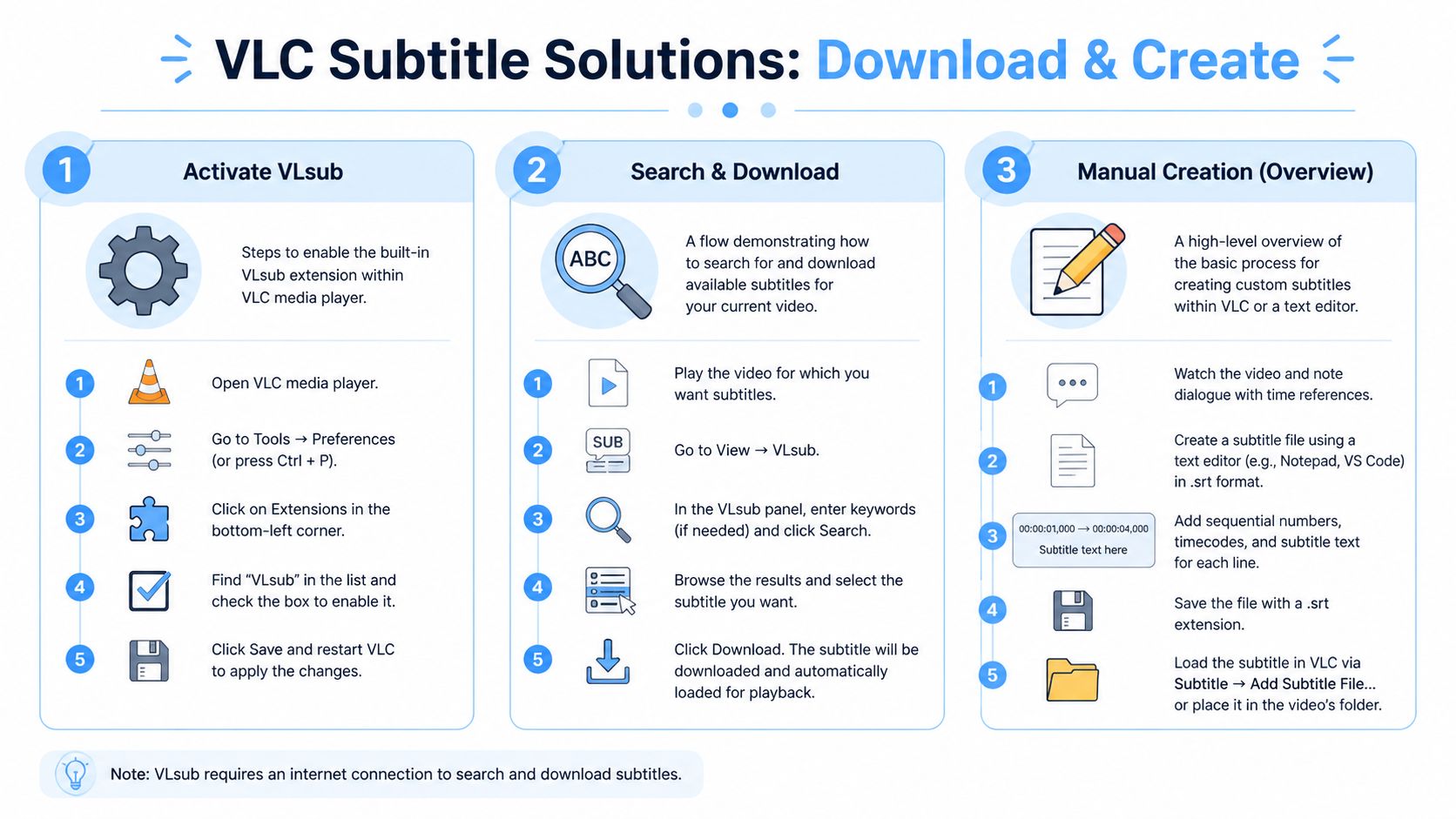
Use VLsub when you need a quick subtitle match
VLC's add-on ecosystem includes VLsub, a subtitle downloader that can search for matching subtitles without forcing you to leave the player. If you're watching a common movie or show, it's often the quickest place to start.
The basic idea is simple:
- Open your video in VLC.
- Launch VLsub from the View menu if it's installed and enabled.
- Search by file hash or title.
- Download a subtitle result and test it.
Search by file hash usually gives a better match because it identifies the video more specifically than a title alone. If title results look messy, that doesn't always mean VLC is failing. It may just mean the available subtitle files were made for different releases.
VLsub is convenient, but it has limits. It depends on what other people have uploaded, how well those files were labeled, and whether they match your exact version. That's why downloaded subtitles often need timing fixes, especially for TV rips, alternate cuts, and lecture videos.
Create your own subtitle file when accuracy matters
If you're working with original content, downloading random subtitle files doesn't make sense. You need a subtitle file made from the actual audio in your video.
That includes situations like:
- Recorded lectures: A professor uploads a class recording and wants students to follow along.
- Team meetings: A remote team needs searchable captions from a Zoom recording.
- Interviews and podcasts: A journalist wants clean subtitles for clips and archives.
- Training videos: An operations team needs captions that match internal terminology.
In those cases, the better workflow is to generate a transcript, export it as an SRT, and then load that file into VLC like any other subtitle.
Why AI subtitle creation matters more now
VideoLAN previewed an AI-powered subtitle generation system at CES 2025 that runs locally and aims to support 100+ languages, a sign that subtitle creation is moving closer to on-demand workflows for educators, teams, and creators, as covered in this report on AI-powered transcription software.
That shift matters because subtitles are no longer only something viewers download after the fact. Increasingly, people create them as part of the content process itself.
If you make the video, subtitle creation isn't an optional extra. It's part of publishing.
A practical end-to-end workflow looks like this:
| Need | Best approach |
|---|---|
| Popular film or show | Try VLsub first |
| Webinar recording | Generate a transcript, export SRT, load in VLC |
| Classroom lecture | Create subtitles from the original audio |
| Social clip for sharing | Create subtitles, review timing, then consider burning them in |
A smarter workflow for educators and teams
This is the gap most VLC guides miss. Playback and subtitle creation aren't separate worlds anymore. They connect.
If you create or manage spoken content, the workflow often goes like this:
- Record the video or meeting.
- Generate a transcript from the original audio.
- Edit names, terms, and punctuation.
- Export an SRT file.
- Test it in VLC.
- Fix any timing issues.
- Share the video with either soft subtitles or hardcoded captions.
That process gives you far more control than hunting for a subtitle file someone else made. It also helps with accessibility, review, translation prep, and searchable archives.
VLC stays valuable in this workflow because it's the easiest place to test how your subtitles behave in real playback. You can spot delays, odd line breaks, and readability problems before sending the file anywhere else.
Permanently Embed Subtitles for Universal Playback
Some devices handle external subtitle files well. Others ignore them. If you need subtitles to appear everywhere, the safest option is to burn them into the video so the text becomes part of the image itself.

When hardcoding makes sense
Hardcoded subtitles are useful when you're sharing a video with people who may watch on phones, smart TVs, legacy players, or apps that don't reliably load separate subtitle files.
This is especially helpful for:
- Training clips sent to mixed devices
- Classroom videos played from USB drives
- Social media exports where subtitle support is inconsistent
- Client review copies where you don't want setup friction
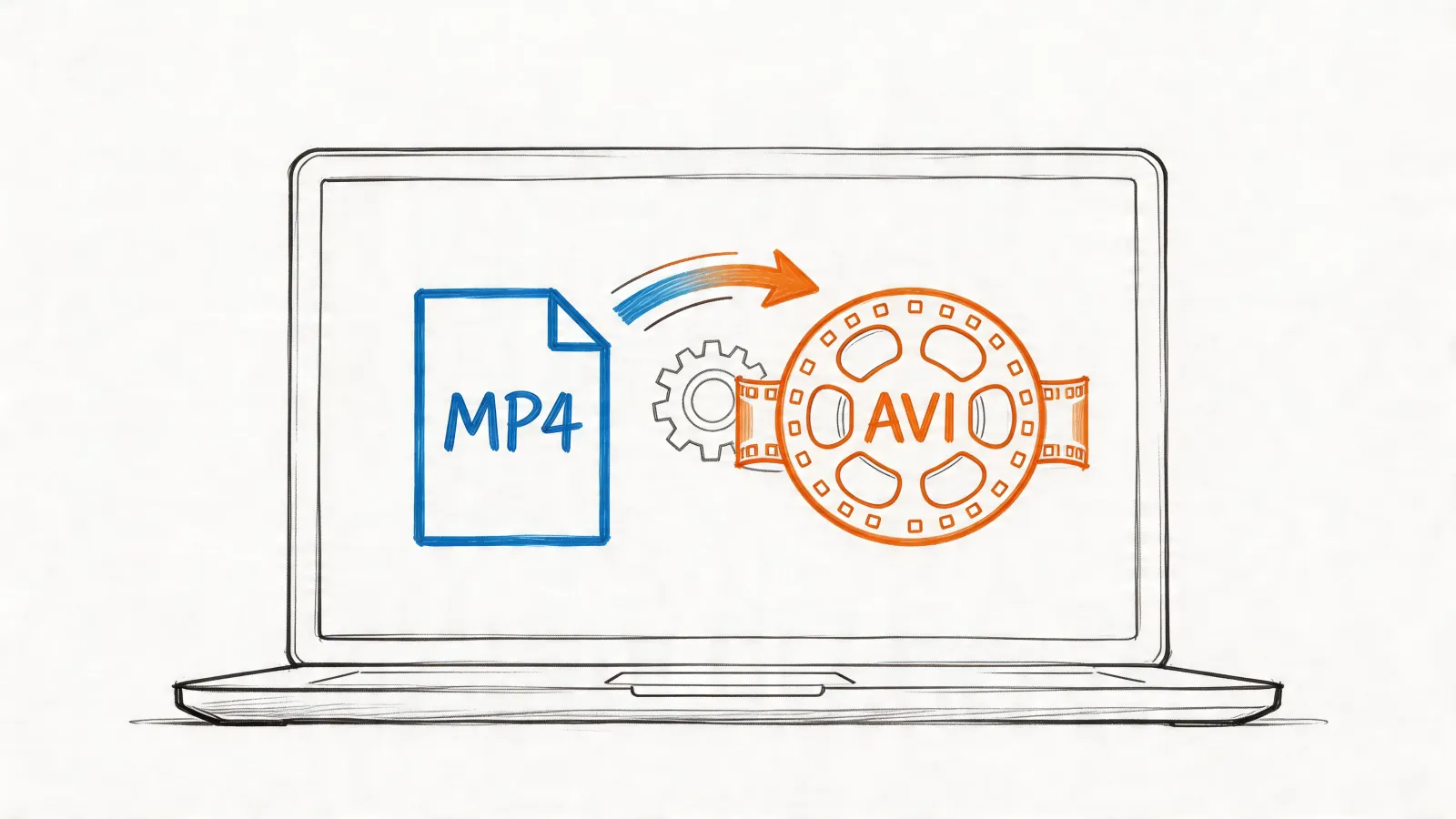
If you need broad format compatibility beyond your original export, this guide to MP4 to AVI conversion can help you think through file format tradeoffs before final delivery.
The VLC method that most people miss
VLC can burn subtitles into a video through its streaming and transcoding tools. According to the VLC user documentation on subtitles and burn-in, the key steps are:
- Open Media > Stream.
- Add your video file.
- Check Use a subtitle file and select your subtitle file.
- Click Stream.
- Enable Activate Transcoding.
- Choose a profile such as Video - H.264 + MP3 (MP4).
- Edit the profile and open the Subtitles tab.
- Check both Subtitles and Overlay subtitles on the video.
- Choose the destination file and start the process.
The critical checkbox is Overlay subtitles on the video. If you miss that, VLC may process the file without burning the subtitles into the final output.
Pick the right output for sharing
Generally, MP4 is the easiest final format because it plays well across many devices and platforms. If you're unsure, test the exported file on one desktop player and one mobile device before sending it out widely.
Burned-in subtitles trade flexibility for certainty. People can't turn them off, but they also can't miss them.
That's the right tradeoff when accessibility and compatibility matter more than user choice.
Troubleshooting Common VLC Subtitle Glitches
A few VLC subtitle problems don't show up until you're using a specific device or streaming method. These are the ones that frustrate people because local playback looks fine, but the moment they cast or go fullscreen on unusual hardware, subtitles break.
Chromecast issues that seem random but aren't
Subtitle failures during Chromecast streaming can affect up to 20-30% of casting attempts, with the main causes being mismatched filenames and unsupported subtitle encoding, according to this Chromecast subtitle troubleshooting guide for VLC.
If subtitles appear on your computer but vanish on the TV, check these first:
- Exact filename match:
movie.mkvandmovie.srtshould share the same base name. - Subtitle track selection: Make sure the subtitle track is enabled before you start casting.
- Encoding choice: If the subtitle file uses an awkward encoding, the cast target may fail to render it even when local playback works.
If casting still fails, the practical workaround is to burn subtitles into the video before streaming.
Fullscreen subtitle bugs on low-powered devices
On smaller Linux systems and embedded setups, fullscreen subtitle placement can go wrong. Text may shift partly off-screen or sit in the wrong position. That often points to a rendering issue rather than a subtitle file problem.
Try these fixes in order:
- Disable hardware acceleration in VLC video settings.
- Switch video output modules and test again.
- Use windowed mode to confirm whether fullscreen is the trigger.
- Reset VLC preferences if the issue appeared after a settings change.
This kind of glitch is common enough on Raspberry Pi style setups that it's worth testing subtitles on the target device early, not just on your main computer.
If you create lectures, meetings, interviews, or training videos and want subtitle files that are ready to test in VLC, HypeScribe is a practical way to turn spoken content into searchable transcripts and exportable captions. It fits the workflow many people use now. Record first, generate text, clean it up, export an SRT, then use VLC to review, sync, style, or embed the final subtitles.