7 Best Minutes Example Templates to Streamline Your Meetings

Ineffective meeting notes are a silent productivity killer. We've all been there: deciphering cryptic scribbles, chasing down colleagues for forgotten action items, and struggling to recall key decisions made just days ago. Without a consistent structure, vital information gets lost, accountability falters, and valuable time is wasted trying to piece everything back together. This disorganization isn't just frustrating; it directly impacts project momentum and team alignment, turning what should be a record of progress into a source of confusion.
The solution is simpler than you think: adopting the right framework. Using proven minutes example templates provides the structure needed to capture information clearly and consistently. A good template acts as your blueprint, ensuring every critical component—from attendees and agenda items to decisions and action owners—is documented correctly every single time. It transforms the chaotic process of note-taking into a streamlined, repeatable workflow. Think of it like a solid foundational plan; just as a detailed sample software requirements document template ensures a project is built correctly, a minutes template guarantees your meeting's outcomes are built to last.
In this guide, I'll walk you through the best sources for a wide variety of minutes templates, catering to every need from formal board meetings to agile team stand-ups. Based on my experience documenting countless meetings, we'll explore practical examples from platforms like Microsoft Word, Google Docs, Notion, and Smartsheet, with direct links and screenshots for each. You’ll also learn how modern tools like HypeScribe can automate the most tedious part of the process—transcribing your conversations into an accurate first draft that you can instantly format using any of these templates.
1. HypeScribe
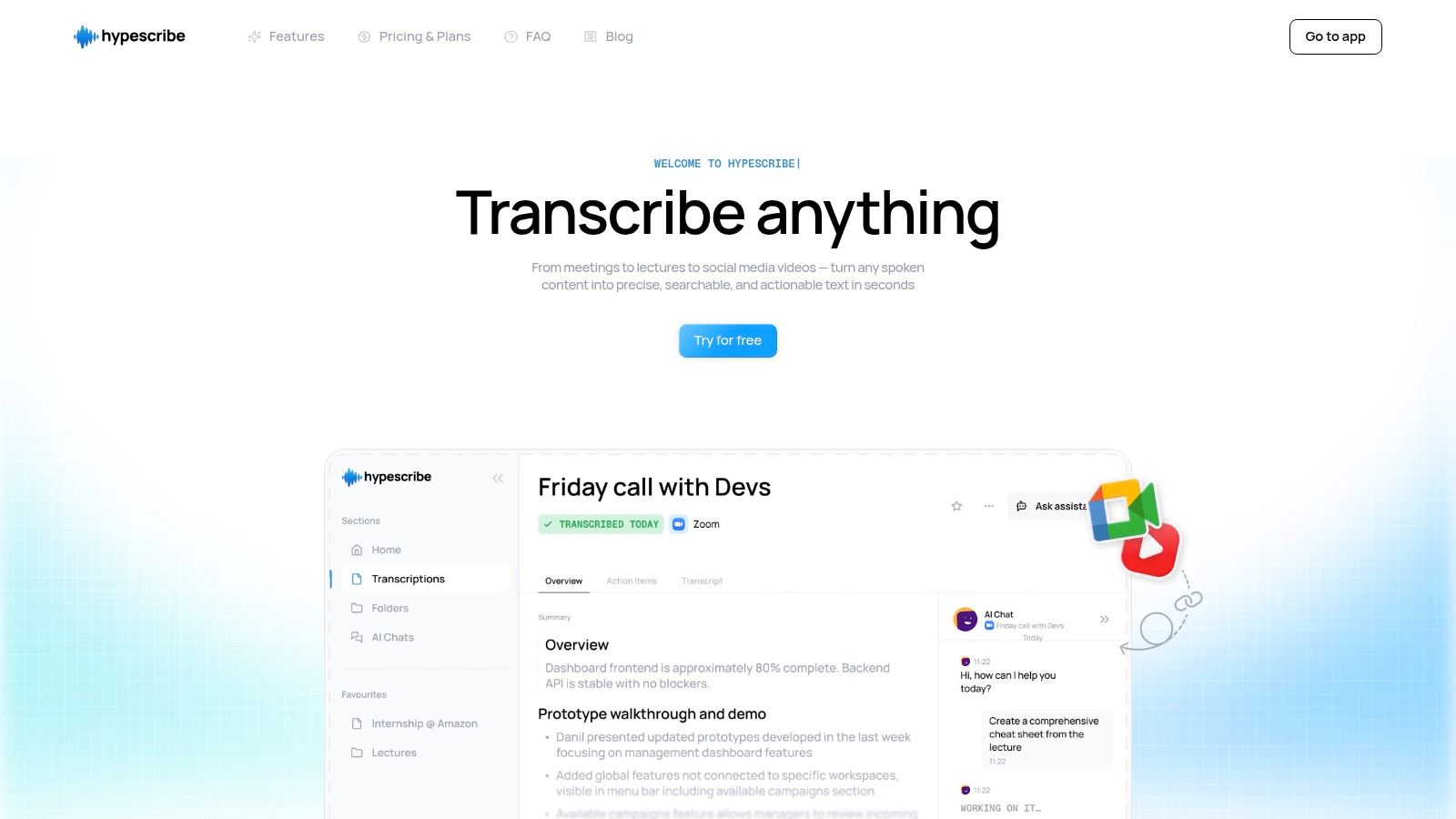
Before you can fill out a template, you need an accurate record of what was actually said. HypeScribe excels at this foundational stage, positioning itself as an essential tool for generating flawless meeting documentation. Instead of offering static templates, it provides the intelligent engine to create, summarize, and populate any minutes example templates you use. Its AI-powered transcription service is engineered for speed, precision, and seamless integration into modern workflows.
From my experience, the biggest challenge in taking minutes is trying to listen, type, and participate all at once. HypeScribe solves this by turning spoken dialogue from any source—live meetings, uploaded audio/video files, or even social media links—into highly accurate text in seconds. This core function is the bedrock of effective minute-taking, ensuring no detail, decision, or action item is lost. For teams, students, and professionals, this means you can focus entirely on the meeting's substance, confident that a complete record is being generated automatically.
Why HypeScribe Stands Out
HypeScribe distinguishes itself through an exceptional combination of speed, accuracy, and accessibility. It can process a one-hour meeting recording in under 30 seconds, delivering a transcript with up to 99% accuracy across over 100 languages. This level of performance is a significant advantage for fast-paced environments where quick turnaround is crucial.
The platform's token-based pricing model is another key differentiator. Instead of restrictive minute-based caps, users get a set number of file credits (tokens). Since one token covers one entire file regardless of its length, it’s ideal for transcribing long-form content like board meetings, lectures, or in-depth interviews without worrying about overages. Unused tokens also roll over, adding substantial value and flexibility.
Key Features I Found Most Useful
HypeScribe's feature set is designed to streamline the entire documentation lifecycle, from initial recording to final export.
- Integrated Meeting Assistant: The platform's note-taker joins your Zoom, Google Meet, or Microsoft Teams calls to provide real-time transcription. After the meeting, it automatically generates a concise summary, key takeaways, and a list of action items—the core components of any effective minutes template.
- Flexible Input and Output: You can upload files directly, paste links from platforms like YouTube and Google Drive, or use the built-in recorder. Once processed, the content can be exported into multiple formats, including Google Docs, Word, PDF, and Markdown, making it simple to transfer the information into your organization's preferred minutes format.
- AI-Powered Intelligence: Beyond simple transcription, HypeScribe includes a file-aware chatbot. This lets you "ask" your meeting transcripts questions, like "What were the Q4 budget decisions?" or "Who was assigned the marketing followup?" It provides instant answers with references, saving hours of manual review. For a deeper look into how this technology streamlines documentation, you can explore their guide on using AI for meeting minutes.
- Security and Data Management: HypeScribe prioritizes data security with encryption in transit and at rest. Raw source files are automatically deleted post-transcription, and users have full control to manually delete transcripts, ensuring confidential information is handled responsibly.
Feature ComparisonHypeScribeTraditional Manual MethodsSpeed1 hour of audio in < 30 seconds4-6 hours of manual workAccuracyUp to 99%Prone to human error & omissionKey OutputsTranscript, Summary, Action ItemsManually written notesSearchabilityInstant via AI chatbotManual skimming of documents
Practical Applications & Actionable Takeaways
For Project Managers:
Use the integrated meeting assistant for daily stand-ups and project kickoffs. Export the auto-generated action items directly into your project management software to ensure immediate task assignment and accountability.
For Students and Researchers:
Record lectures and interviews, then use the AI chatbot to quickly find key concepts or specific quotes for your notes and papers. The high accuracy across languages makes it invaluable for international research.
For Corporate Teams:
Leverage HypeScribe for board meetings and compliance training. The searchable, accurate transcripts provide a verifiable record, and the secure data handling aligns with corporate governance standards.
Website: https://www.hypescribe.com
2. Microsoft Word (Microsoft Create/Word templates)
For teams deeply embedded in the Microsoft 365 ecosystem, turning to Word for meeting minutes is a natural and highly efficient choice. Microsoft offers a range of pre-formatted minutes example templates directly through its Microsoft Create portal and within the Word application itself. This eliminates the need to build a structure from scratch, providing a professional foundation that can be quickly adapted for any meeting type.
The primary advantage is familiarity. Since most professionals use Word regularly, there is virtually no learning curve. Users can immediately leverage powerful formatting tools to align the minutes with corporate branding, including logos, specific fonts, and color schemes. This makes it an ideal solution for formal contexts like board meetings or client-facing project updates where brand consistency is key.
Key Features for Meeting Documentation
Microsoft’s offering goes beyond static templates, integrating collaborative and AI-powered features that streamline the entire documentation process. The platform is designed to keep the workflow within a single, secure environment.
- Collaborative Editing: Word for the web enables real-time co-authoring. Multiple team members can simultaneously access the document to add notes, make corrections, or assign action items using comments and @-mentions, which directly notify colleagues via email.
- AI-Assisted Drafting: For organizations with the appropriate licensing, Copilot for Microsoft 365 can transform meeting recordings or transcripts from Microsoft Teams into a structured first draft of the minutes. This significantly reduces manual effort, allowing the note-taker to focus on refining and verifying the content.
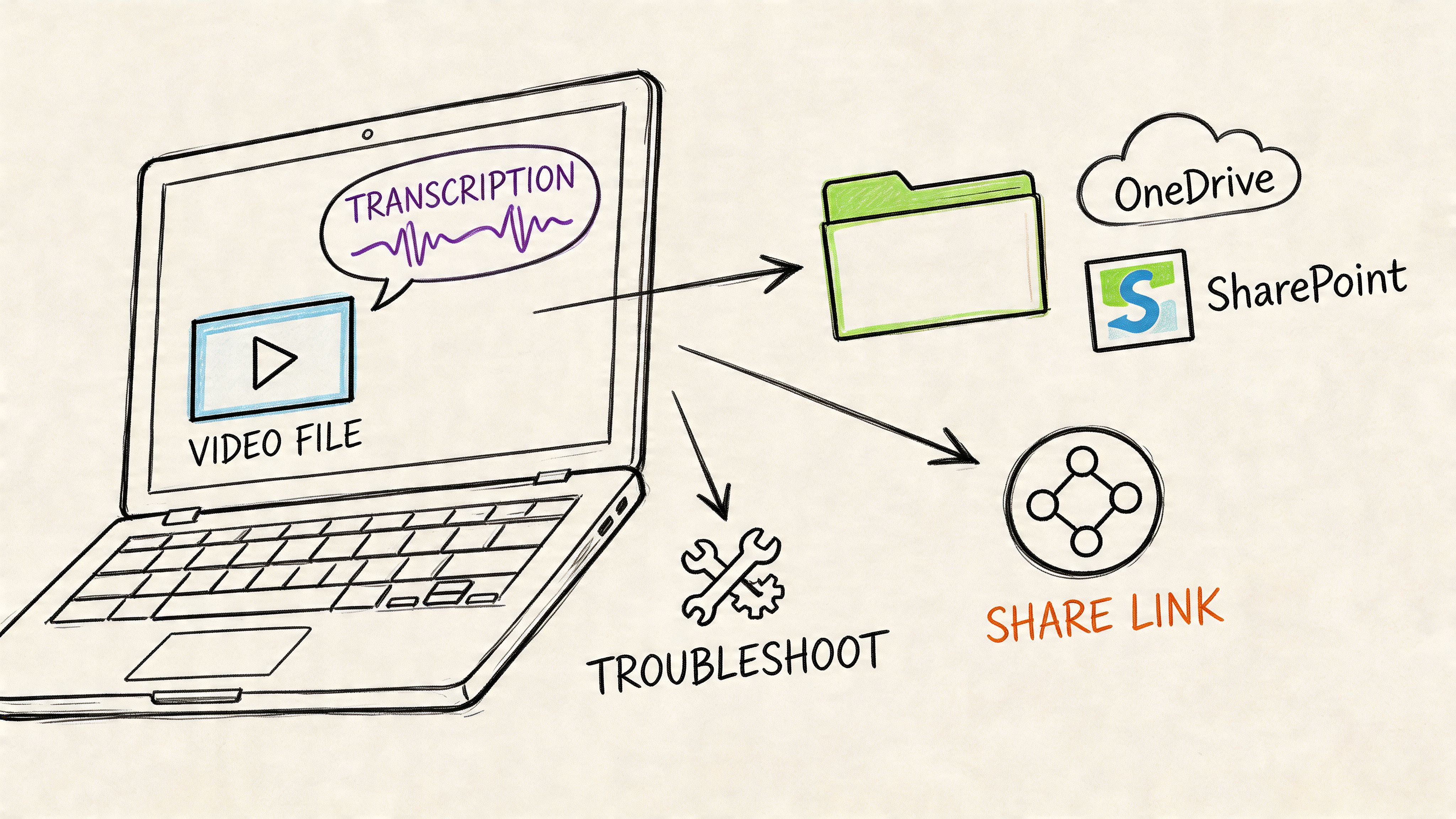
- Seamless Integration: The templates are part of a connected ecosystem. You can save minutes directly to OneDrive or a SharePoint site, share them via Outlook, and link them to tasks in Microsoft Planner or To Do.
Access and Pricing
Accessing the basic templates is straightforward and often free.
FeatureAccess RequirementBasic TemplatesFree with a Microsoft account (web or desktop)Real-Time CollaborationIncluded with a Microsoft 365 subscriptionCopilot AI FeaturesRequires a Copilot for Microsoft 365 add-on licenseSharing & StorageOneDrive (free tier available), SharePoint (M35)
This tiered accessibility makes it a flexible option. Teams can start with free templates and scale up to more advanced collaborative and AI features as their needs evolve.
Actionable Takeaways
To maximize the effectiveness of Word's minutes templates, here are some tactics I've found useful:
- Create a Master Template: Customize one of Microsoft’s base templates with your company’s logo, header, and standard sections (e.g., Attendees, Agenda, Action Items). Save it as a custom template (
.dotxfile) on a shared SharePoint drive for team-wide access and consistency. - Leverage @-Mentions for Accountability: When recording action items, use the
@-mentionfeature in a comment or directly in the text to tag the responsible team member. This sends them a notification and links the task to their Microsoft 365 profile, ensuring nothing falls through the cracks. - Use the HypeScribe to Copilot Workflow: Generate a clean, accurate transcript of your meeting using HypeScribe. Then, feed that text directly into Copilot in Word with a prompt like, "Summarize this transcript into formal meeting minutes, identifying key decisions and action items." This combines HypeScribe’s transcription accuracy with Copilot’s drafting capabilities for a highly efficient workflow.
Website: https://word.cloud.microsoft/create/en/meeting-minutes/
3. Google Docs (Meeting notes building block)
For organizations living within the Google Workspace ecosystem, Google Docs provides a deeply integrated and lightning-fast way to generate meeting minutes. Instead of traditional static templates, its key feature is the dynamic "meeting notes" building block, which connects directly to Google Calendar events to streamline the documentation process from the very start. This makes it an incredibly efficient choice for agile teams who prioritize speed and seamless collaboration.
The core advantage of this system is its immediacy. By simply typing @meeting in a Google Doc, I can select a calendar event, and the platform automatically populates the date, title, and attendee list. This removes the initial friction of setting up a document and ensures all key metadata is captured accurately, making it perfect for high-volume meeting environments like daily stand-ups or weekly project check-ins.
Key Features for Fast Note-Taking
Google's approach centers on creating an interconnected workflow that minimizes context switching and keeps teams moving. The features are designed to facilitate rapid creation, collaboration, and distribution of meeting notes without ever leaving the Google ecosystem.
- Calendar-Linked Building Blocks: The
@meetingsmart chip is the central feature. It instantly imports meeting details and creates checkboxes for attendees, providing a live-look at who was present. It also auto-generates sections for notes and action items. - One-Click Sharing and Distribution: Once notes are complete, a single click can share the document with all meeting attendees or even attach it directly to the corresponding Google Calendar event. An option also exists to draft an email in Gmail with the minutes already included.
- Real-Time Collaborative Environment: True to Google Docs' core strength, multiple users can edit the document simultaneously. This allows for a designated note-taker while other participants can add their own points, correct details, or assign themselves action items in real-time.
Access and Pricing
Google has integrated this functionality directly into its core Workspace products, making it widely accessible.
FeatureAccess RequirementMeeting Notes Building BlockFree with a personal Google account or any Google Workspace planReal-Time CollaborationIncluded with all Google accountsAttach to Calendar EventIncluded with all Google accountsEmail Meeting NotesIncluded with all Google accounts
The feature is available at no extra cost, making it a powerful, built-in solution for any individual or organization using Google's suite of tools. This contrasts with platforms where advanced template features might be locked behind a subscription.
Actionable Takeaways
To get the most out of Google Docs for your meeting minutes, implement these strategies:
- Establish a Naming Convention: Before the meeting, create a new Google Doc in a shared team folder with a clear, consistent name (e.g., "YYYY-MM-DD - Project Phoenix Sync"). Then, use the
@meetingbuilding block. This keeps your shared drive organized and makes minutes easily searchable. - Use Action Item Smart Chips: When assigning a task, type
@followed by a team member’s name to tag them. Then, use the "Tasks" smart chip by typing@taskto create a Google Task directly from the minutes, assigning it a due date and owner right in the document. - Combine with HypeScribe for Accuracy: Record your meeting and generate a transcript using HypeScribe to ensure no detail is missed. Paste the transcript into your Google Doc below the meeting notes block, then use it as a reference to write a concise summary of decisions and craft precise meeting notes and action items for maximum clarity and accountability.
Website: https://docs.google.com/
4. Canva (Meeting minutes templates)
For teams who prioritize visually compelling and highly branded documentation, Canva is a standout choice for creating meeting minutes. It moves beyond the traditional text-based approach, offering a vast library of professionally designed minutes example templates that are easily customized using a drag-and-drop editor. This makes it ideal for creative agencies, marketing teams, or any organization that wants its internal and external documents to reflect a strong visual identity.
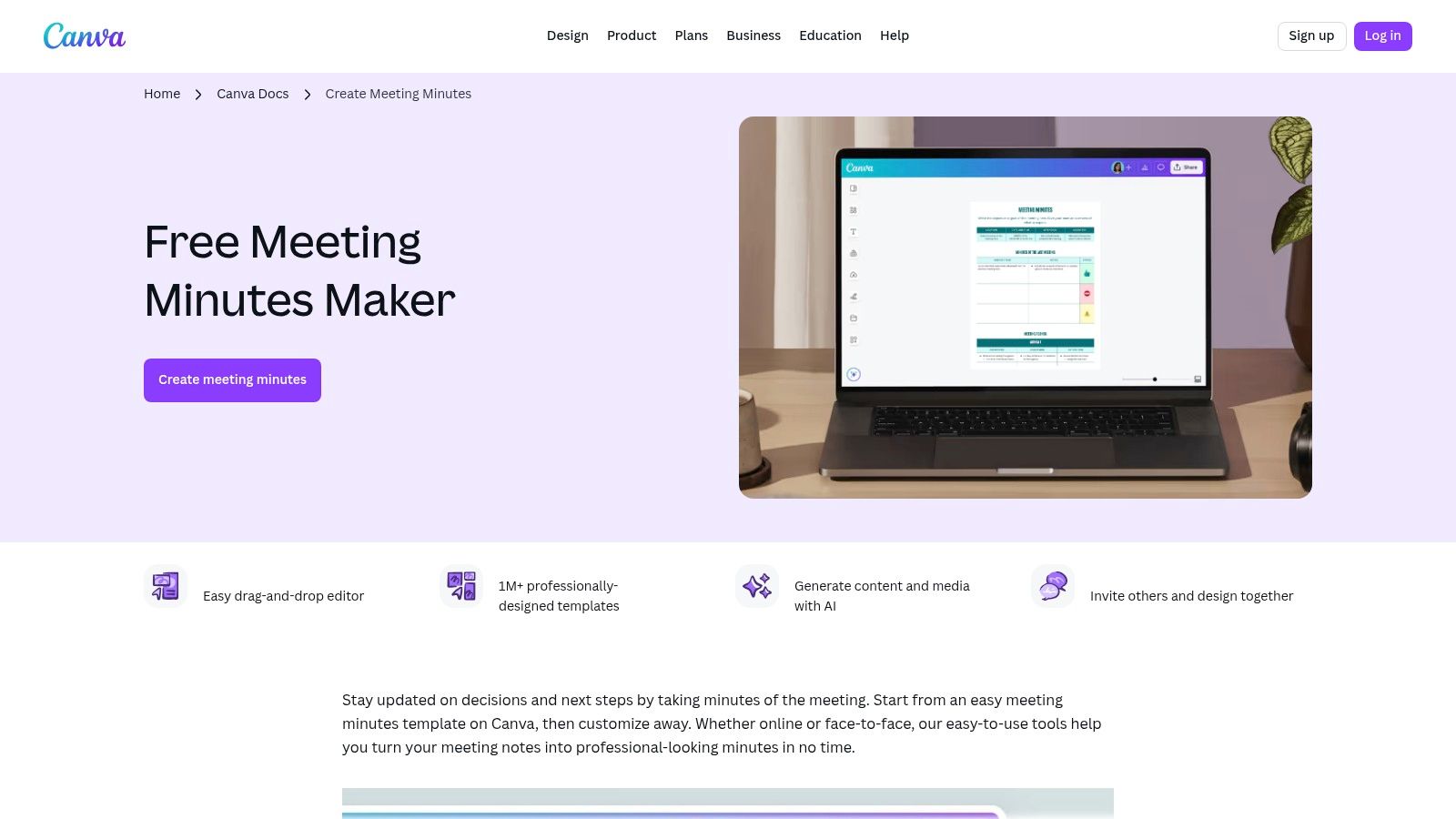
The core advantage of Canva is its accessibility and speed. Users with no graphic design experience can produce polished, print-ready minutes in minutes. The platform simplifies the process of incorporating logos, brand colors, and custom fonts, ensuring every document is perfectly aligned with company branding. This is particularly useful for minutes that will be shared with clients, stakeholders, or new team members, as it presents information in a clean, engaging, and professional format.
Key Features for Visual Documentation
Canva’s platform is built for visual communication and streamlined collaboration, making it more than just a template repository. It combines powerful design tools with team-focused features to create a seamless workflow from drafting to distribution.
- Vast Template Library: Access thousands of templates ranging from minimalist and corporate to creative and colorful. Style and keyword filters allow you to quickly find a layout that fits the tone of your meeting, whether it's a formal board review or a casual team brainstorm.
- Real-Time Collaboration: Much like a Google Doc, Canva allows multiple team members to edit a design simultaneously. You can leave comments, assign tasks, and see changes as they happen, which is perfect for collaborative note-taking or getting quick approval on a final draft.
- Brand Kit Integration: Canva Pro and Teams users can upload brand assets like logos, color palettes, and fonts into a "Brand Kit." This allows anyone on the team to apply consistent branding to any minutes template with a single click.
- Flexible Export Options: Once complete, minutes can be downloaded in various formats, including high-quality PDF for printing or emailing, PNG for presentations, or shared directly via a view-only link.
Access and Pricing
Canva offers a robust free tier, with more advanced features reserved for its paid plans.
FeatureAccess RequirementBasic TemplatesFree with a Canva accountReal-Time EditingIncluded in the free planBrand Kit & PremiumRequires a Canva Pro or Canva for Teams planSharing & ExportingFree for most formats (PDF, PNG, JPG)
This structure allows individuals and small teams to get significant value from the free version, while larger organizations can invest in paid plans for advanced branding and collaboration tools.
Actionable Takeaways
To get the most out of Canva for your meeting minutes, implement these strategies:
- Develop a Set of Branded Templates: Don't just use a different template every time. Customize 2-3 core templates (e.g., one for internal team meetings, one for formal client meetings) with your Brand Kit. Save them in a shared team folder in Canva for easy access and unwavering consistency.
- Use Visuals to Clarify Key Points: Take advantage of Canva's design tools. Embed a small bar chart to show progress on a KPI, use icons to denote action items versus decisions, or add team member photos next to their assigned tasks. This visual approach can improve comprehension and retention.
- Create a HypeScribe to Canva Workflow: After your meeting, use HypeScribe to generate a clean transcript and an AI-powered summary of key decisions and action items. Copy this polished text and paste it directly into your pre-designed Canva template. This separates the task of accurate content capture from visual design, allowing you to produce beautiful and precise minutes in record time.
Website: https://www.canva.com/create/meeting-minutes/
5. Smartsheet (Downloadable minutes templates)
For professionals who need a straightforward, no-fuss solution, Smartsheet offers a curated collection of free minutes example templates that can be downloaded and used immediately. This resource is perfect for individuals or teams who want a professionally structured document without committing to a new software platform. The templates are provided in multiple familiar formats, catering to different workflow preferences.
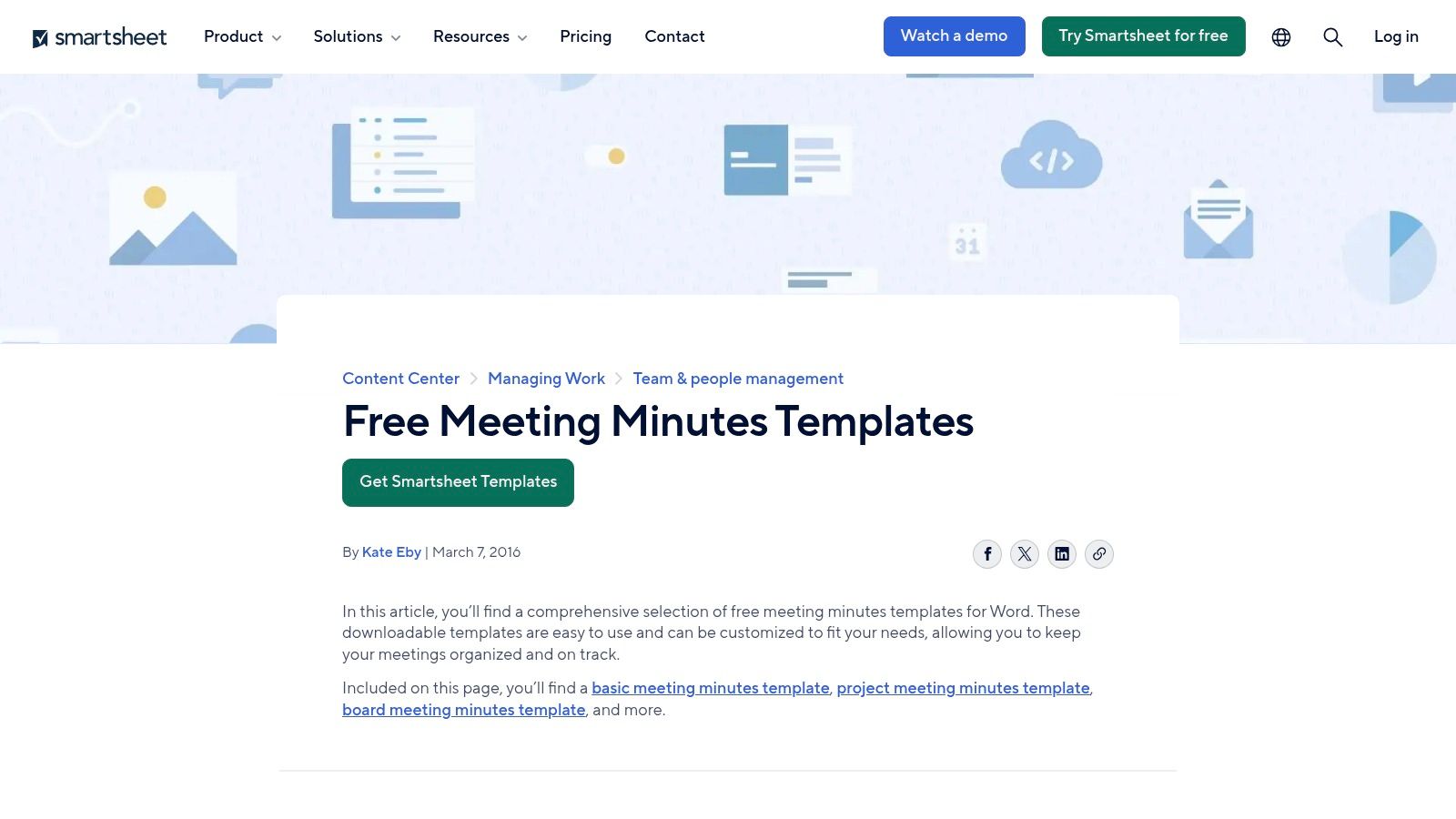
The primary advantage of Smartsheet’s offering is its accessibility and practicality. Unlike platforms that gate their best resources behind a subscription, Smartsheet provides high-quality, specialized templates completely free. This makes it an invaluable resource for first-time minute-takers, small businesses, or anyone needing a quick, reliable format for a specific meeting type, from a formal board meeting to a daily staff check-in.
Key Features for Practical Use
Smartsheet’s value lies in its direct approach: providing versatile, static files designed for immediate use. The platform supports this with clear guidance, ensuring users can not only download a template but also understand how to use it effectively.
- Multiple Downloadable Formats: Each template is available in Microsoft Word, Google Sheets, Microsoft Excel, and Adobe PDF. This flexibility allows users to choose the format that best integrates with their existing tools and comfort level.
- Specialized and Practical Layouts: The collection includes templates tailored for different contexts, such as board meetings, project status updates, and simple staff meetings. Each layout is thoughtfully designed with relevant sections, such as action item tracking or voting records.
- Clear Instructional Content: The templates are accompanied by helpful articles and guidance on the best practices for taking minutes. This educational component adds significant value, especially for those new to the role of a meeting secretary.
Access and Pricing
The core offering is entirely free, with a clear path to upgrade for those who want to integrate the templates into Smartsheet’s work management ecosystem.
FeatureAccess RequirementTemplate DownloadsFree, no account requiredFormat OptionsWord, Excel, Google Sheets, PDFSmartsheet PlatformRequires a paid Smartsheet subscription for full integrationGuidance ArticlesFree to access on the Smartsheet website
This approach allows users to gain value upfront without any commitment, while showcasing the structured thinking that underpins the main Smartsheet product.
Actionable Takeaways
To get the most out of Smartsheet's free resources, focus on customization and creating a streamlined workflow.
- Select and Standardize: Download the Word or Google Sheets template that most closely matches your most common meeting type. Customize it with your company logo and standard meeting details, then save it as your team’s official master template on a shared drive.
- Establish an "Action Item" Protocol: Use the action-oriented templates to create a clear process. Designate a column or section in the template specifically for the owner and due date. This makes it easy to scan the document post-meeting and transfer tasks to a project management tool.
- Combine with HypeScribe for Speed: After your meeting, generate a transcript with HypeScribe. Use HypeScribe's AI summary feature to pull out the key decisions and action items. Copy this summarized text and paste it directly into the relevant sections of your downloaded Smartsheet template for a fast, accurate, and well-formatted record.
Website: https://www.smartsheet.com/free-meeting-minutes-templates-microsoft-word
6. Notion Template Gallery (Meeting minutes/notes databases)
For teams that prioritize interconnected knowledge management, Notion offers a dynamic and database-driven approach to meeting minutes. The platform's template gallery is rich with free, user-generated minutes example templates that transform documentation from static files into powerful, integrated records. This system is ideal for organizations wanting structured, repeatable minutes that link directly to broader project documentation and task management systems.
The key advantage of Notion is its relational database functionality. Unlike a standalone document, a meeting note in Notion can be an entry in a central database, automatically linking attendees, related projects, decisions, and action items. This creates a single source of truth where information is highly organized and easily searchable, preventing important details from getting lost in isolated documents or folders.
Key Features for Integrated Workflows
Notion’s flexibility allows teams to build a completely customized minutes system that fits their exact workflow. The templates provide a strong starting point, but the true power lies in adapting them to connect all related work within the platform.
- Database Integration: Templates are often built as databases where each meeting is a new entry. You can use "relations" and "roll-ups" to link minutes to project dashboards, automatically update task lists with action items, and create views to see all meetings related to a specific client or initiative.
- Real-Time Collaboration: Like other modern platforms, Notion supports real-time co-editing. Multiple users can add notes simultaneously, while comments and @-mentions facilitate discussions and assign ownership directly within the minutes page.
- Highly Customizable Templates: Users can modify any template by adding or removing properties (like "Meeting Type" or "Decision Status"), creating filtered views, and embedding other content like Figma designs, Loom videos, or Google Docs. For those specifically looking for meeting minutes solutions, exploring specialized Notion Templates can provide structured frameworks for effective documentation.
Access and Pricing
Notion’s templates are largely free to install, but advanced team features are tied to its subscription plans.
FeatureAccess RequirementTemplate GalleryFree with a Notion accountReal-Time EditingIncluded in Free, Plus, and Business plansAdvanced PermissionsBusiness and Enterprise plansDatabase AutomationsIncluded in all plans (with usage limits)
This model allows individuals and small teams to start for free, with the option to upgrade as collaborative needs become more complex.
Actionable Takeaways
To get the most out of Notion for meeting minutes, focus on building an integrated system:
- Create a Central Meetings Database: Instead of creating one-off pages, use a template to establish a single "Meetings" database. Add properties like
Date,Attendees(Person property),Project(Relation property), andStatus. This structure allows you to filter and sort all your meetings in one place. - Automate Action Item Tracking: Within your minutes template, create a simple checklist for action items. Then, use Notion’s "Synced Block" feature to copy this checklist to a central team "Tasks" database. This ensures action items from the meeting appear alongside all other project tasks.
- Use HypeScribe to Populate Templates: After your meeting, generate a clean and structured transcript with HypeScribe. Copy the transcript and key takeaways directly into your Notion template. Use a prompt like, "Format this transcript into sections for a Notion page: Agenda, Discussion Summary, Key Decisions, and Action Items with owners." This pre-structures the content for a quick copy-paste into your database.
Website: https://www.notion.so/templates/minutes-of-meeting
7. Etsy (Marketplace for printable and editable minutes templates)
For those seeking a more aesthetic or highly specialized layout without the constraints of a subscription service, Etsy offers a vast marketplace of minutes example templates created by independent designers. It serves as a one-stop shop for purchasing instant-download files that prioritize visual appeal, unique structures, or comprehensive meeting bundles that go beyond a simple minutes page.
The core advantage of Etsy is choice and creativity. Instead of standard corporate designs, you can find templates that match a specific brand identity, project theme, or personal preference. These are often sold as affordable, one-time purchases in popular formats like Word, Google Docs, Canva, and fillable PDFs, making them accessible to anyone regardless of their software ecosystem.
Key Features for Unique Designs
Etsy’s platform is built around empowering individual creators, which results in a diverse and user-vetted selection. The value comes from the combination of design quality and the simplicity of the transaction.
- Wide Variety and Bundles: Sellers offer everything from minimalist single-page templates to multi-page "Meeting Essentials" kits that include an agenda, minutes, action item tracker, and project planner all in one cohesive design.
- Multiple Editable Formats: Most listings provide files for several platforms (e.g., a Canva link and a Word .docx file), giving you the flexibility to work in your preferred application.
- Seller Ratings and Previews: The marketplace model provides transparency. Buyers can view detailed image previews, read customer reviews, and check seller ratings to gauge the quality and usability of a template before purchasing.
- Immediate Access: Once purchased, files are available for instant download, allowing you to prepare for a meeting with just a few clicks.
Access and Pricing
Etsy’s model is based on simple, one-time transactions rather than recurring subscriptions.
FeatureAccess RequirementTemplate PurchaseOne-time payment per listing (prices vary)File FormatsWord, Google Docs, Canva, PDF (varies by seller)CollaborationDependent on the file format (e.g., via Google Docs)Seller SupportDirect messaging with the template creator on Etsy
This straightforward pricing makes it an excellent option for individuals, small businesses, or teams needing a high-quality template for a specific project without committing to another software subscription.
Actionable Takeaways
To make the most of the templates available on Etsy, follow these best practices:
- Read the Fine Print: Before buying, carefully read the item description to confirm the included file formats (e.g., A4 vs. US Letter size, Canva vs. Word) and check the seller's licensing terms to ensure it meets your usage needs (personal vs. commercial).
- Filter for "Bestsellers": To quickly find high-quality, proven templates, use Etsy’s search filters to sort by "Bestseller." These listings have a strong track record of positive reviews and customer satisfaction.
- Use HypeScribe to Populate Your Template: After transcribing your meeting with HypeScribe, use its summary or key points feature. Then, copy and paste this structured output directly into the corresponding sections of your newly purchased Etsy template for a beautifully designed and accurately documented record.
Website: https://www.etsy.com/market/meeting_minutes_template
Top 7 Meeting Minutes Templates Comparison
From Template to Action: Your Next Steps for Flawless Minutes
We've explored a comprehensive collection of minutes example templates, from the professional structures in Microsoft Word and Google Docs to the collaborative databases in Notion and the visual appeal of Canva. Each tool offers a unique approach, whether you need the formal rigidity for a board meeting, the agile flexibility for a daily stand-up, or a creative layout for a brainstorming session. The key takeaway is that a template is more than just a document; it's a framework that brings clarity, accountability, and momentum to your team's discussions.
The right template enforces consistency, ensuring that every meeting's output is predictable and easy to parse. It transforms a chaotic conversation into a structured record of decisions, action items, and key takeaways. By adopting a template that fits your meeting's purpose, you are actively combating ambiguity and setting a clear path forward for your entire team.
From Raw Data to Polished Record: A Strategic Workflow
The biggest challenge isn't finding a template, but populating it accurately and efficiently. This is where a strategic workflow, powered by AI, transforms a tedious task into a streamlined process. Manually taking notes while trying to participate in a discussion is a recipe for missed details and divided attention.
Instead, I recommend this simple yet powerful three-step process to leverage automation:
- Capture and Transcribe with AI: Use a tool like HypeScribe to record your meeting audio and generate a precise, time-stamped transcript. This frees all participants to focus completely on the conversation, knowing every word is being captured.
- Generate the First Draft Instantly: Leverage AI-powered summaries to automatically extract the most critical information. HypeScribe can instantly identify key decisions, action items with assigned owners, and concise overviews, creating a structured first draft of your minutes in seconds.
- Populate, Refine, and Distribute: Copy the AI-generated content and paste it directly into your chosen minutes example templates from Notion, Smartsheet, or Google Docs. Your role shifts from frantic note-taker to strategic editor, allowing you to refine the details, add context, and distribute a polished, professional document in a fraction of the time.
Choosing Your Toolkit for Success
Your ideal solution depends on your specific operational needs. For teams deeply embedded in the Google or Microsoft ecosystems, the native templates offer seamless integration. If your organization values high-level project management and data integration, Smartsheet's powerful templates are a clear winner.
Conversely, for teams that thrive on customization and visual organization, Notion and Canva provide unparalleled flexibility. The crucial factor is to align your choice with your team's existing workflows to ensure high adoption and consistent use. By pairing these powerful templates with an AI transcription tool, you create an end-to-end system that guarantees no action item is ever lost and every decision is clearly documented. This strategic combination doesn't just improve your meeting documentation; it elevates your team's overall productivity and accountability.
Ready to stop manually typing minutes and start automating your workflow? HypeScribe transcribes your meetings with stunning accuracy and uses AI to generate summaries and action items, which you can plug directly into any of the minutes example templates discussed in this guide. Try HypeScribe for free and discover how effortless perfect meeting minutes can be.