Article

How to Download a YouTube Video Transcript: A Step-by-Step Guide

December 10, 2025

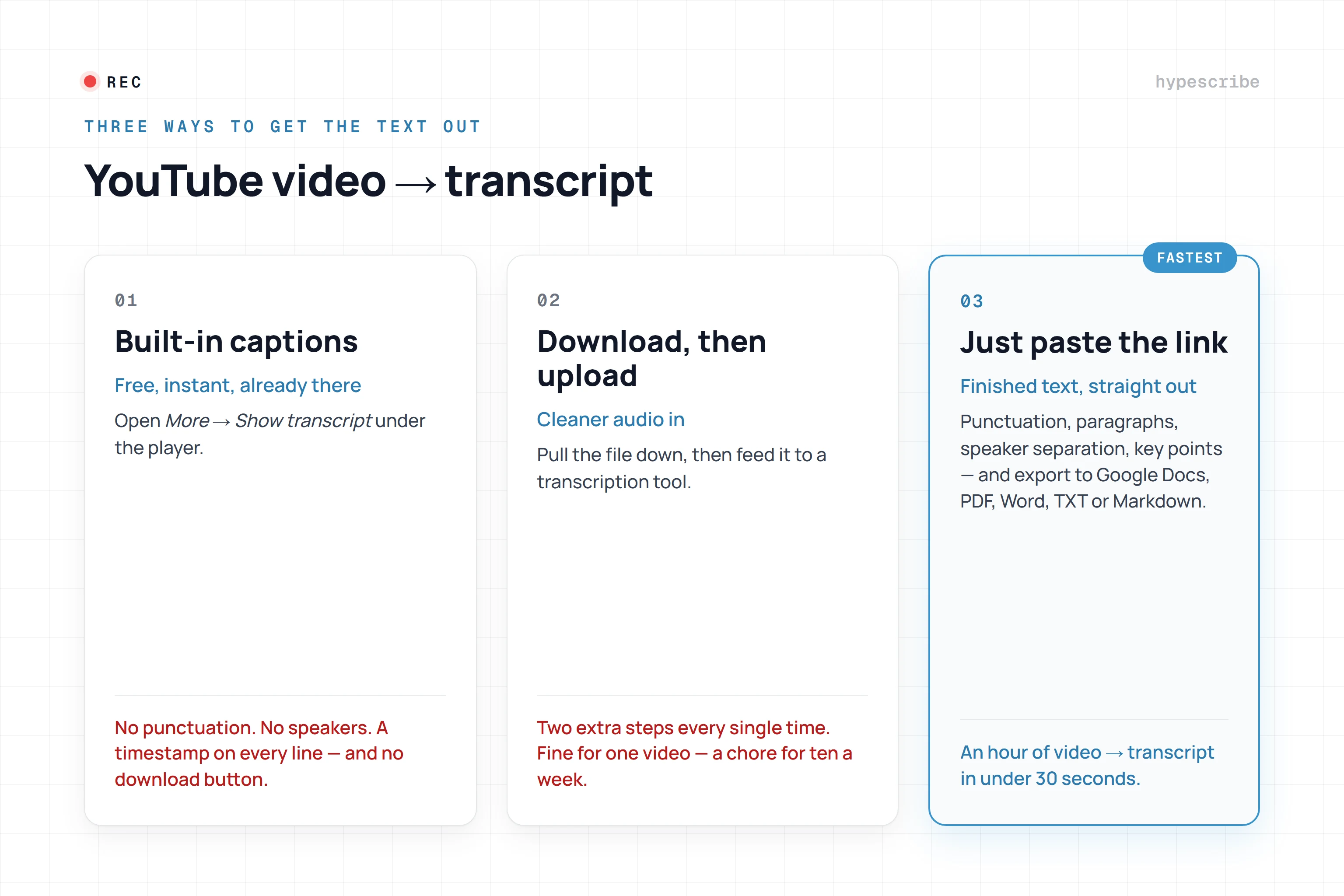
Need a YouTube video transcript quickly? You can often get it right from the video page. Just click the "..." (More) button below the video, choose "Show transcript," and copy the text. It's a simple trick that works well for grabbing a few quotes. But what if you need more, like a downloadable file or a transcript for a video that doesn't have one? For that, you'll want to use a dedicated tool.

This guide will walk you through both methods, drawing from my own experience as a content creator who relies on transcripts every day. We'll cover when to use YouTube's built-in feature and when it's time to bring in a more powerful tool for the job.

Why Downloading YouTube Transcripts is a Game-Changer

A diagram with a central YouTube icon, an incoming arrow from an envelope, and outgoing arrows to various content icons.

Before we jump into the "how," let's talk about why a transcript is such a valuable asset. It's not just a block of text; it's the raw material for creating more content. A single video can become the foundation for a dozen other pieces of content, turning a one-time recording into an evergreen resource.

For anyone creating content, this is a massive time-saver. That hour-long interview or detailed tutorial doesn't have to live only as a video. Once you have the text, you can instantly transform spoken words into valuable written material.

Unlocking Content Repurposing Opportunities

The biggest benefit of having a transcript is the ability to repurpose your video content. With the text in hand, you have the raw material to create new assets that can expand your reach and engagement without starting from scratch.

Here are a few ways I’ve personally used transcripts:

  • Blog Posts and Articles: I often clean up a transcript, add some headings, and turn it into a detailed blog post. This caters to people who prefer reading over watching.

  • Social Media Content: I'll pull out the best quotes, key statistics, or memorable one-liners to schedule a week's worth of posts for LinkedIn and Twitter.
  • Email Newsletters: Summarizing a video's key takeaways in a newsletter is a great way to deliver value directly to my subscribers' inboxes.
  • Lead Magnets: By bundling a few related video transcripts, I can create a downloadable eBook or guide to build my email list.

Using these simple content repurposing strategies, you can get much more mileage out of every video you produce. This approach doesn't just save time; it ensures your core message connects with a wider audience across different platforms.

Improving Accessibility and SEO

Beyond creating new content, transcripts are essential for making your videos more accessible and discoverable. A text version opens up your content to people who are deaf or hard of hearing. It also helps non-native speakers follow along, especially if they rely on translation tools.

Pro Tip: A good transcript is naturally full of relevant keywords. Search engines can crawl and index this text, which directly boosts your video's SEO. This helps you rank higher not just on YouTube, but in Google search results, too.

The demand for this functionality is clear. Today, third-party transcript generators serve over 1.7 million users worldwide, highlighting their value. The best tools are now achieving accuracy rates between 98% and 99%, making them a reliable choice for professional work.

How to Get a Transcript Directly from YouTube

The fastest way to get a video's text doesn't require any special tools. YouTube has a built-in feature that lets you view a transcript right on the video page. This is my go-to method when I just need to quickly grab a few quotes or scan the content in text form.

Finding it is simple. Go to the YouTube video you need, and look just below the video player. You’ll see the description box, and right underneath it, you'll find a button with three dots (...) labeled "More." Click it, and a menu will appear. From there, select Show transcript. A full transcript will then appear in a panel right next to the video.

To Timestamp or Not to Timestamp

When the transcript panel opens, the text is broken down line-by-line, each with a clickable timestamp. This is incredibly helpful for certain tasks. If you're a video editor, those timestamps let you jump to the exact moment a phrase is spoken. Researchers and students also find them useful for creating precise citations.

But sometimes, those timestamps are just clutter. If your goal is to repurpose the content for a blog post or social media, you'll want a clean block of text. YouTube makes this easy:

  • In the transcript panel, click the three vertical dots at the top.
  • Select Toggle timestamps.
  • The timestamps will disappear, leaving you with pure, uninterrupted text.

From there, you can highlight everything, copy it, and paste it directly into a Google Doc, Microsoft Word, or any other editor. It's a surprisingly effective, free method that works well for many everyday tasks.

My Experience: When I'm drafting an article based on a video interview, I always toggle the timestamps off. It saves me at least ten minutes of manual deletion, letting me dive straight into editing the content for clarity and flow.

Understanding the Limitations

As handy as this built-in tool is, you need to be aware of its limits. The transcript's quality depends entirely on YouTube's auto-captioning system, which can be inconsistent. If the video has poor audio, strong accents, or people talking over each other, you should expect to find some errors.



This method also doesn't provide any direct export options like an SRT or TXT file. You're limited to copy-and-paste. For anything more advanced, like creating perfectly synced subtitles, you'll need to look at other tools. For a deep dive into more robust options, this guide on how to download video with subtitles from YouTube is a great resource. Think of the native feature as a fantastic starting point, but not always the final solution.

When You Need More Than Copy-and-Paste: Using a Third-Party Tool

YouTube’s built-in transcript feature is great for a quick grab, but if you've ever used it for a serious project, you know its limitations. For more demanding tasks—like creating subtitles, repurposing content for a blog, or analyzing an interview—you’ll quickly want a more powerful solution.

This is where third-party services come in. These tools are designed to overcome the shortcomings of YouTube's native function. Think of them as a professional-grade upgrade for anyone who needs clean, accurate text without the manual hassle. They’re perfect for situations where the creator has disabled captions or when you need a perfectly timed subtitle file for your video editing software.

Why Bother With a Dedicated Tool?

The real advantage of a specialized service lies in its features. Tools like HypeScribe don't just pull raw text; they often run the audio through advanced AI, resulting in a much more accurate transcript, especially if the original audio isn't perfect.

Professionals rely on these platforms because they offer functionality you can't get otherwise:

  • Flexible Export Options: You’re no longer stuck with plain text. You can download files as SRT or VTT for subtitles, or even as a formatted Word document.
  • Speaker Labeling: This is a huge time-saver. Many tools can automatically identify and label who is speaking and when, which is invaluable for interviews or panel discussions.
  • Smart Formatting: Good services will automatically add punctuation and break the text into easy-to-read paragraphs, saving you a ton of editing time.

One of the first decisions you'll make is whether to include timestamps. This choice has a big impact on how you can use the final text.

YouTube feature: a branching diagram showing options to keep or remove timestamps from videos.

As you can see, keeping timestamps is essential for video editing, while a clean, timestamp-free version is better for creating articles or show notes.

Transcript Download Method Comparison

To help you decide which approach is right for your project, here’s a quick comparison of the main methods for getting a transcript from a YouTube video.

MethodEase of UseExport FormatsCostBest For
YouTube's Built-in FeatureVery EasyPlain Text (copy/paste)FreeQuick text grabs, personal notes, finding specific quotes.
Browser Developer ToolsModerateJSON (requires conversion)FreeTech-savvy users who need the raw data for custom scripts.
Third-Party ServicesEasySRT, VTT, TXT, Word, etc.Varies (Free/Paid)Professionals needing accuracy, multiple formats, and advanced features.

Ultimately, while the free methods work in a pinch, third-party services provide a much smoother and more reliable workflow for any recurring or professional task.

Putting a Third-Party Tool into Action

Getting started is usually straightforward. From my own experience with tools like HypeScribe, the process is incredibly intuitive. You find the YouTube video you want a transcript for, copy its URL from your browser's address bar, and paste it into the tool.

In just a few moments, the platform analyzes the video and provides a full, editable transcript. It's a massive time-saver for content creators, marketers, or anyone who works with video. To see just how fast this is, we have a complete walkthrough on using a YouTube video to text converter.

The biggest win here is the level of control you get. You can scan the generated text, quickly fix any small errors the AI might have made, and then export it in the exact format your project requires.

If you’re working with subtitle files, getting them perfect is key. A good guide on how to edit SRT files is an amazing resource for nailing the timing and formatting. These tools turn a simple transcript into a truly valuable, professional-quality asset.

Understanding Different Transcript Formats

Three folders illustrate TXT, SRT, and VTT subtitle file formats with handwritten examples.

Getting a transcript is one thing, but knowing which file format to choose is another. This decision is important because picking the wrong one can lead to compatibility issues and extra work.

Think of formats like TXT, SRT, and VTT as different tools for different jobs. Understanding what each one does best is key to a smooth workflow and will save you a lot of frustration.

The Power of Plain Text: TXT Files

Let's start with the most basic option: the plain text file, or .txt. This is the raw, unformatted script of your video. It's just the words, with no timestamps or styling.

This is my go-to format whenever I'm repurposing video content. Because it's just clean text, you can easily drop it into a document and start creating:

  • Blog posts or articles: It’s the perfect foundation for a well-structured written piece.
  • Social media content: Pulling out impactful quotes is simple when you don't have to delete timestamps.
  • Podcast show notes: A TXT file makes creating summaries and outlines incredibly easy.

The bottom line: if your goal is to read, analyze, or rewrite the spoken material from a video, a TXT file is almost always the best choice.

SRT: The Gold Standard for Subtitles

If you need captions that sync up with your video, you need the SubRip Subtitle file, or .srt. This is the industry standard for a good reason. Unlike a basic TXT file, an SRT is a structured file containing essential timing data.

Every line of dialogue in an SRT file is marked with a precise start and end timestamp. This tells the video player exactly when to show a specific caption and when to remove it. This perfect synchronization makes SRT the format of choice for video editors and platforms like Vimeo.

Key Takeaway: If you're bringing your transcript into video editing software like Adobe Premiere Pro or Final Cut Pro, an SRT file is non-negotiable. It ensures your captions line up perfectly without any tedious manual adjustments.

For anyone who works with video files from various sources, knowing how to transcribe MP4 to text is another crucial skill that can seriously speed up your entire production process.

VTT and Other Niche Formats

While TXT and SRT will handle about 99% of your needs, you might occasionally encounter .vtt (WebVTT). Think of VTT as a modern successor to SRT, built specifically for web-based video players using HTML5. Its main advantage is that it supports more advanced styling, like adding bold or italic text and controlling where captions appear on the screen.

Ultimately, the format you choose comes down to one question: What are you trying to accomplish? For anything text-based, stick with TXT. For synchronized video captions, SRT is your most reliable bet.

Navigating Copyright and Common Troubleshooting

While the technical steps for getting a transcript are straightforward, it's important to consider the legal and ethical side. Just because you can download a transcript doesn't automatically mean you have the right to use it however you want.

A transcript is a direct copy of the creator’s spoken words—it's their intellectual property. If you're using it for personal study, research, or private notes, you're generally covered under fair use. For example, a student transcribing a lecture to study for an exam is a clear case of fair use.

However, things get more complicated if you plan to republish the content or use it for commercial purposes. Copying a full transcript and posting it on your own blog or using it as the basis for a product could be copyright infringement. When in doubt, the safest approach is always to reach out and ask the creator for permission.

Solving Common Transcript Problems

Aside from legal considerations, you might run into a few technical snags. Don't worry, these issues are usually easy to fix once you know the cause. Here are a couple of the most common problems you might encounter.

What to Do When the "Show Transcript" Button Is Missing

You've clicked the three dots, but the "Show transcript" option isn't there. This usually happens for one of two reasons:

  • The creator disabled captions. Some channels turn off auto-generated captions and haven't provided their own.
  • The video is a live stream. Transcripts are only generated after a video has finished processing, so they aren't available while it's live.

In this situation, YouTube's built-in tool won't work. Your best solution is to use a third-party service like HypeScribe. These tools can often process the video’s audio directly from its URL and generate a new transcript, even when one doesn't exist on the YouTube page.

My Experience: I once needed the transcript from a private company webinar where captions were turned off. A third-party tool was a total game-changer. It analyzed the audio and handed me a full transcript in minutes, something YouTube simply couldn't do.

How to Handle Inaccurate Auto-Generated Transcripts

So you got a transcript, but it's full of errors. This is a common problem with videos that have background noise, strong accents, overlapping speakers, or specialized jargon. YouTube's AI does its best, but it's not perfect.

You could spend hours manually correcting a messy transcript, but there’s a more efficient way. Using a more advanced transcription tool is the best fix. These services typically use superior AI models that deliver higher accuracy and provide easy-to-use editors for cleaning up any remaining mistakes. It turns a frustrating editing task into a quick five-minute review.

Your Top Transcript Questions Answered

Even with the steps laid out, a few practical questions often come up. It’s one thing to know how to download a transcript, but another to handle the real-world situations you'll encounter. Let's tackle some of the most common questions people ask.

Can I Download a Transcript for Any YouTube Video?

Unfortunately, the answer is no—at least not directly from YouTube. Whether you see the "Show transcript" button depends on the video's creator. They need to have either uploaded a caption file themselves or enabled YouTube's automatic captioning feature.

If you don't see the option, you've hit a dead end on YouTube's side. That’s when you should turn to a third-party tool. Services like HypeScribe can generate a fresh transcript from the audio using just the video’s URL, even if the creator never enabled captions. It’s a reliable workaround for most videos.

How Accurate Are YouTube's Auto-Generated Transcripts?

The accuracy of YouTube’s automatic captions can vary widely. The quality depends on several factors:

  • Audio Clarity: Clear audio with no background noise produces a much better result. Think of the difference between a professional podcast and a vlog filmed on a windy day.
  • Speaker's Diction: Someone who speaks clearly at a steady pace is easier for the AI to understand. Strong accents, fast talking, or mumbling will cause errors.
  • Overlapping Speech: When people start talking over each other, the AI often gets confused, and the transcript can become a jumbled mess.

For a polished tutorial or a formal lecture, the accuracy can be quite good. But for more casual content, you should always proofread the text for errors before using it for anything important.

Expert Insight: I've found that YouTube's auto-captions are great for grabbing quick personal notes. But if I'm repurposing that content for an article or social media, I always run it through a dedicated transcription tool. The time saved on editing is more than worth it.

What Is the Best Transcript Format for Video Editing?

For anyone doing video editing, the SRT (SubRip Subtitle) format is the undisputed gold standard. This isn't just a suggestion; it's the only practical choice for creating captions that sync perfectly with your video.

An SRT file contains more than just text. It includes the exact start and end timestamps for every line of dialogue. This timing data allows editing software like Adobe Premiere Pro, Final Cut Pro, or DaVinci Resolve to align the words on the screen with the speaker perfectly. A plain TXT file, which has no timing information, is useless for creating subtitles.


Ready to move beyond copy-and-paste and get perfectly formatted, highly accurate transcripts in seconds? HypeScribe uses advanced AI to turn any YouTube video into actionable text, complete with summaries and speaker labels. Try HypeScribe for free and see how easy it can be.

Read more