How to Transcribe a YouTube Video for Free (The Right Way)
Yes, you can absolutely transcribe a YouTube video for free. From my experience, there are a handful of reliable methods, ranging from YouTube’s own built-in feature to some clever workarounds with tools you already use. My goal here is to walk you through exactly how to turn spoken video content into text you can use for captions, blog posts, or making your video easier for people to find—all without spending a dime.
Why a Good Transcript Is a Game-Changer for Your Content
Before we dive into the "how," let's quickly cover the "why." Getting a transcript of your YouTube video isn't just about creating a text file; it's a strategic move that can unlock your content's potential, making it more accessible, searchable, and versatile.


Think of it this way: a single video can become a powerful asset that works for you in multiple ways. This isn't just a minor tweak; it fundamentally changes who can find and engage with your work.
Expanding Your Reach and Accessibility

First and foremost, a transcript opens your content up to a much wider audience. For the 1.5 billion people worldwide living with some degree of hearing loss, captions are an absolute necessity, not just a nice-to-have feature.


Relying solely on YouTube's auto-generated captions is a gamble. From what I’ve seen, they often hover around just 61.92% accuracy, which can lead to more confusion than clarity. It’s no surprise, then, that 80% of Americans say they're more likely to watch a video if it has accurate captions. Getting it right can boost engagement by as much as 7.32%.

This isn't just about people with hearing impairments, either. How often do you scroll through videos in a quiet office or on public transit? Accurate captions make it possible for anyone to watch with the sound off.
Boosting Your Video's SEO Power
Search engines like Google are text-based. They're brilliant at indexing written content, but they can't actually "watch" a video to figure out what it's about. A transcript is like handing Google a detailed roadmap of your content.
The text is rich with keywords and context, allowing search engine crawlers to understand your video's content deeply. This dramatically improves your chances of ranking for relevant searches, pulling in more organic traffic.
A clean transcript makes every word spoken in your video fully indexable, which is a massive, often-overlooked boost for discoverability.
Of course, the quality of your transcription depends heavily on the quality of your audio. For a deep dive into cleaning up your sound, check out these expert tips on how to remove background noise from video for flawless audio.
Unlocking Content Repurposing Opportunities
Ever feel like you're on a content creation hamster wheel? A good transcript is your ticket off. It’s the perfect raw material for multiplying your content without starting from scratch.
Just think of the possibilities:
- Blog Posts: Polish the transcript into a comprehensive, SEO-friendly article.
- Social Media Content: Pull out snappy quotes, key stats, or actionable tips for posts on Twitter, LinkedIn, and Instagram.
- Email Newsletters: Create a summary of the video's highlights to share with your subscribers.
- Guides and eBooks: Bundle transcripts from a related series of videos to create a valuable, long-form resource.
This approach is a massive time-saver and ensures your message connects with different audiences across various platforms. If you want to explore this further, we have a whole guide on effective content repurposing strategies.
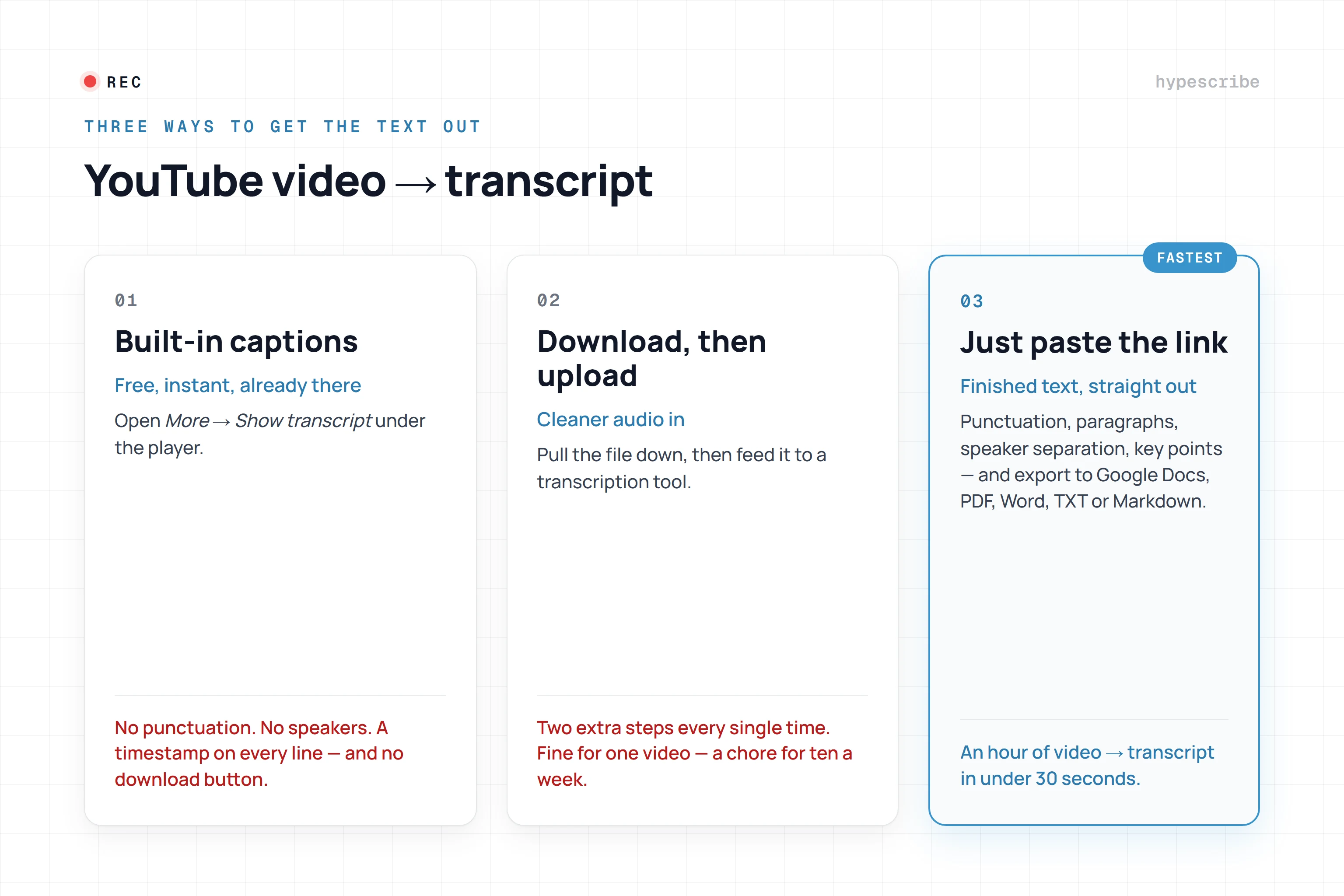
Method 1: Use YouTube's Built-In Transcription Feature
Sometimes the easiest solution is the one staring you right in the face. The most direct way to get a transcript is to use the tool YouTube already provides. For a huge number of videos on the platform, YouTube automatically generates a transcript, making it the quickest, no-fuss method to get a text version of the audio.
This built-in feature should always be your first stop when you need to transcribe a YouTube video for free. Getting to it is a breeze. While a video is playing, just find the three-dot menu right below the video player, give it a click, and select "Show transcript." Just like that, a full, time-stamped transcript pops up right next to the video.
Finding and Cleaning Up the Transcript
With the transcript panel open, you have a couple of handy options. The text is automatically synced to the video playback, which is fantastic for following along or jumping to a specific part of the conversation.
You can also turn the timestamps off. Click the three-dot menu inside the transcript panel and hit "Toggle timestamps." This is a game-changer. Removing them gives you a clean, readable block of text that's much easier to copy and paste into a document for editing.
Pro Tip: When you copy and paste this text, it often brings weird line breaks along with it. My go-to move is to paste it into a basic text editor (like Notepad on Windows or TextEdit on Mac) first to strip out the wonky formatting. Then, I move the clean text to Google Docs or Word.
The Honest Truth About YouTube's Auto-Transcription
While this method is incredibly convenient, you have to be realistic about its accuracy. YouTube's automated transcription is a decent starting point, but it falls short in a few key areas.
From my experience, it really struggles with:
- Complex Language: Expect frequent mistakes with technical jargon, industry acronyms, and scientific terms. The AI just doesn't have the context.
- Accents and Dialects: Speakers with strong regional accents often get their words jumbled into complete nonsense.
- Multiple Speakers: The system makes no effort to tell you who is speaking. If a video has two or more people talking, their dialogue gets merged into one continuous block of text.
- Background Noise: Music, coffee shop chatter, or just bad audio quality will tank the accuracy of the final transcript.
Because of these issues, the native transcript is best for personal notes or just getting the general idea of what a video is about. If you need a polished, professional transcript for a blog post, accurate subtitles, or a client project, you’ll absolutely need to do a thorough manual edit.
To see how this step fits into a larger content strategy, check out our complete guide on how to download a YouTube video transcript and get it ready for real-world use. It’s a crucial skill for anyone serious about repurposing video.
Method 2: Explore Free Online Tools and Browser Extensions
So, you've tried YouTube's built-in transcript, but it's just not cutting it. Maybe it's full of errors, or perhaps the video you're watching doesn't have one available. Don't worry, this is a common roadblock. The good news is there's a whole world of free websites and browser extensions out there designed to solve this exact problem.
These tools are often built to be incredibly straightforward. Most of the time, you just grab the YouTube video URL, paste it into a box on the website, and let it do its thing. In a few minutes, you usually get a clean text file, and some even give you format options like TXT or SRT (the standard for subtitles).
This quick decision guide can help you figure out if a dedicated tool is your next best move.

As you can see, when the native YouTube option fails, a free third-party tool is the logical next step.
What Makes a Good Free Transcription Tool?
Not all free tools are built the same, and I've tried my fair share. When I'm testing a new one, I'm really looking at a few practical things that separate the genuinely useful from the frustrating.
Here's what I always check for:
- Ease of Use: The interface has to be intuitive. I don’t want to hunt for the paste button or read a manual. A simple copy-paste-download workflow is what you should look for.
- Export Options: A tool that only lets you copy-paste text is fine, but one that offers different download formats is way better. A .srt file is a lifesaver for creating captions, while a plain .txt is perfect for turning a video into a blog post.
- Processing Speed: How long does it take? Most tools handle short clips quickly, but for a lengthy podcast or lecture, the processing time can really drag on with some services.
- Privacy Policy: This is a big one for me. You're handing over data to a third-party service. It's always smart to take a quick look at their privacy policy to see how they handle your content, especially if it’s sensitive.
While free auto-captions from YouTube often hover around 61.92% accuracy, the best paid tools can hit up to 99%. That massive difference matters, especially for the 1.5 billion people globally with hearing loss. Plus, accurate captions can boost video engagement by a surprising 7.32%.
Comparing Free Transcription Methods
With so many options, which one is right for you? This table breaks down the methods we've discussed so far to give you a quick snapshot of their strengths and weaknesses.
Ultimately, the "best" method really depends on your specific needs. If you just need a rough draft from a popular video, YouTube's own feature is fine. If you need a subtitle file or better accuracy, a dedicated online tool is the way to go.
A Few Top Options to Consider
While there are dozens of tools out there, a few have proven to be reliable standouts. Some are simple web-based tools where you just plug in a URL. Others are handy browser extensions that add a "download transcript" button right onto the YouTube page, which is great for one-click access.
For creators looking at how AI is shaping video content beyond just transcription, it's worth it to explore Shortgenius and see how similar technologies are being used to create clips and summaries.
Just a heads-up: "free" usually comes with a catch. You might run into limits on video length, a cap on how many videos you can transcribe per day, or see some ads. For a no-cost service, I find these trade-offs are generally pretty fair.
Method 3: The Google Docs Voice Typing Workaround
Here’s a creative approach I’ve used to get a free YouTube transcription: leveraging a tool you probably already have open. Google Docs has a surprisingly powerful Voice typing feature that you can rig up to transcribe audio in real-time. It’s definitely a bit of a hack, but the result is a live transcript you can edit as it's being created.
The trick is to make your computer feed its own audio output directly into Google Docs as if it were a microphone. Instead of listening to you speak, Docs will listen to the YouTube video and type out everything it hears. It takes a little one-time setup, but it’s a fantastic option, especially for videos with clear audio and a single speaker.

Setting Up Your Audio for Transcription
To pull this off, you need to reroute your computer's internal audio. The specific steps vary between operating systems, but the goal is the same: make your system audio the input source.
For Windows Users:
- Right-click the speaker icon on your taskbar and open Sound settings.
- Head to the Input section to manage your microphones.
- Look for an option called "Stereo Mix" (or something similar). You'll need to enable it and set it as your default input device. This tells your computer to "listen" to its own sound output.
For Mac Users:
- Natively, Macs can't do this, so you’ll need a little help from a free tool. I recommend BlackHole.
- Once it's installed, open the Audio MIDI Setup app.
- Create a Multi-Output Device and check the boxes for both BlackHole and your regular speakers or headphones. This is key because it lets you hear the video while also sending the audio to the virtual microphone.
- Finally, pop over to System Settings > Sound and change your input device to BlackHole.
With your audio rerouted, just open a new Google Doc, navigate to Tools > Voice typing, and click the microphone icon to start. Play your YouTube video, and you should see the text magically appear in your document.
Pros and Cons of This Method
This is a clever workaround, but it isn't the right fit for every project. It's smart to weigh the good against the bad before you start transcribing a lengthy video.
My biggest takeaway from using this method is its surprising accuracy for straightforward content like lectures or monologues. Because you can pause the video and correct typos as they happen, the final transcript is often cleaner than what you get from a fully automated tool.
The biggest drawback, however, is time. The transcription happens in real-time, which means you have to play the entire video. A two-hour podcast will take you two hours to transcribe. It also gets tripped up by multiple speakers, background music, or any significant noise—pretty much the same weaknesses as any other automated system.
Still, for a quick, accurate, and completely free transcript of a clear video, this Google Docs trick is an excellent tool to have in your back pocket.
When to Move Beyond Free Tools: Using an AI Transcription Service
Let's be honest: free transcription tools have their limits. At some point, the time you spend fixing all the mistakes, weird punctuation, and jumbled sentences just isn't worth it anymore. If you've ever hit that wall, you know it's a sign you need something more powerful.
This is exactly where a dedicated AI tool like HypeScribe comes in. It’s built for those times when "good enough" isn't good enough. Instead of wrestling with a messy, machine-generated text file, you just hand it a YouTube link and get a polished transcript back in seconds.

Why Accuracy Is Worth It
Think about the sheer scale of YouTube—2 billion users are watching Shorts every single month. But here’s the kicker: an incredible 69% of people watch videos on mute when they're in public. That means your captions aren't just an accessibility feature; they're the main event.
The problem is, YouTube's own auto-generated captions often hover around a dismal 61.92% accuracy rate. That's a lot of room for error and misunderstanding, which can really damage your credibility.
HypeScribe was created to close that gap, consistently hitting up to 99% accuracy in over 100 languages. For anyone creating educational content, marketing videos, or professional tutorials, that level of precision is non-negotiable.
More Than Just a Transcript
The real magic of a sophisticated tool isn't just getting the words right. It's about what you can do with those words afterward. A great transcription tool should make your content more useful, not just create another document you have to deal with.
HypeScribe gets this. It doesn't just give you a wall of text; it pulls out valuable assets automatically:
- Smart Summaries: You get a clean, concise summary of the entire video. I use these all the time for show notes, email newsletters, and social media captions.
- Key Takeaways: The AI identifies the most critical points and pulls them into a neat list, so you don't have to re-watch the video to find the highlights.
- Actionable Items: For tutorials or team meetings, this is a lifesaver. It automatically lists out any tasks or next steps mentioned in the video.
This is what separates the pros from the amateurs. It turns a simple transcript into a productivity machine.
I've personally found the automated summaries to be a game-changer for repurposing content. It used to take me at least an hour to review a video and pull out key points for a blog post. Now, it takes about 30 seconds to get an outline straight from the AI's output.
Try It Before You Commit
Jumping from free tools to a paid service can feel like a big decision, so you should always be able to test the waters first. HypeScribe uses a token-based system with a generous free trial, so you can transcribe a YouTube video for free and see the difference for yourself.
This is your chance to run your own content through the system—whether it’s a short clip or a long-form interview—and judge the speed and accuracy firsthand. The free tokens give you full access, letting you explore the entire workflow and see how much time the advanced features can save you.
Common Questions About Transcribing YouTube Videos
Once you start transcribing YouTube videos, you’ll probably run into a few common questions. From legal gray areas to frustrating accuracy issues, knowing the answers ahead of time can save you a ton of hassle.
Let's walk through some of the most frequent questions I get asked. Think of this as a quick guide to navigating the finer points of turning video speech into text.
Is It Legal to Transcribe Any YouTube Video?
This is a big one, and the answer is: it depends on what you do with the transcript.
For your own private use—like taking notes for school, pulling quotes for a research paper, or just studying the content—you’re almost always in the clear. This generally falls under "fair use." You're not trying to pass the work off as your own or profit from it.
But things get serious if you plan to go public.
If you want to post the transcript on your blog, include it in an ebook, or use it for any commercial purpose, you absolutely need permission from the video's creator. Using it without their consent could land you in hot water for copyright infringement.
As a rule of thumb, always credit the original creator and link back to their video, even if it's just for a personal project. It’s good etiquette and shows respect for their work.
How Can I Improve the Accuracy of a Free Transcription?
Let's be real: free transcription tools are rarely perfect. But you can definitely take steps to get a much cleaner result. The most critical factor is the audio quality of the original video. If the speaker is clear and there's no background noise, the automated transcript will be worlds better.
No matter how good the AI is, a quick manual edit is non-negotiable. This is where you can catch the mistakes the machines miss.
Here’s my go-to checklist for a manual cleanup:
- Fix Proper Nouns: AI constantly messes up names of people, brands, and unique places.
- Correct Industry Jargon: Specialized or technical terms are another common tripwire for automated systems.
- Add Punctuation: Most free tools spit out a giant wall of text. Adding commas, periods, and line breaks is essential for readability.
- Label the Speakers: If more than one person is talking, add simple labels like "Host:" and "Guest:" to make the conversation easy to follow.
Honestly, if accuracy is super important for your project, a professional service is far less time-consuming than spending hours cleaning up a messy, machine-generated script.
What Is the Fastest Free Way to Transcribe a Long Video?
When you’re dealing with long videos, "free" and "fast" are often at odds.
The quickest way to get a draft is to use YouTube's built-in transcript feature. It's instant. The catch? You'll likely spend all that saved time on the backend, painstakingly editing the often-inaccurate text.
Free online tools are a mixed bag. Many have upload limits that won't work for long videos, or they'll stick you in a slow processing queue. The Google Docs voice typing method is easily the slowest, since you have to play the entire video in real-time.
For genuine speed on a longer video, your best bet is often the free trial of a professional service. These platforms are built to process an hour-long video in minutes, giving you a high-quality transcript that needs very little editing.
Are There Privacy Risks with Free Online Tools?
Yes, and you should definitely be mindful of them. Any time you paste a link or upload a file to a free third-party website, you’re handing your data over to their servers.
Before you use any free tool, take two minutes to check out its privacy policy. You want to see clear language about how they store or use your data. If you’re transcribing anything sensitive—like a private interview, an internal company meeting, or unreleased content—using a random free website is a huge risk.
For confidential material, always opt for a secure, professional service that offers transparent privacy guarantees. It’s just not worth the risk.
Ready to skip the hassle and get transcripts you can trust? HypeScribe delivers up to 99% accuracy in seconds, complete with smart summaries and key takeaways. Try it for free and see the difference a professional tool makes.