How to Record a Google Meet: A Step-by-Step Guide
To record a Google Meet effectively, you need to be the meeting host and have a compatible Google Workspace plan. Once you have the right permissions, you can start the recording right from the meeting’s "Activities" menu. The video then saves automatically to your Google Drive, creating a permanent record for anyone who missed the call or for you to review later.
Why Recording Google Meet Is Your Secret Productivity Weapon

Recording your meetings does more than just help absentees catch up; it can completely change how your team operates. It stops being about who was in the room and starts being about creating a single, reliable source of truth for everyone.
It's no secret that virtual meetings are here to stay. Google Meet is a titan in this space, with 300 million monthly users and a 29.39% global market share, making it the top choice in 28 countries. With 83% of workers preferring a hybrid model, recording these calls is the key to turning hours of conversation into something genuinely useful.
Building a Searchable Knowledge Base
Think about all the important information that gets shared in a typical week—in all-hands meetings, client calls, or training sessions. When you record these conversations, you're not just saving a video file. You're building an internal knowledge base, piece by piece.
- For Hybrid Teams: A recording ends any "he said, she said" debates about what was decided. It's the undisputed record of commitments and key talking points.
- For Consultants: Being able to replay client feedback with perfect recall is a game-changer. You'll catch subtle cues and details you might have missed in the moment.
- For New Hires: Giving new team members an archive of past meetings is like a crash course in company history. It helps them get up to speed on past decisions and ongoing discussions.
This simple practice turns fleeting conversations into permanent, valuable assets. Instead of relying on hazy memories or scattered notes, your team gets a searchable library of every important discussion.
By making recordings a standard practice, you create a culture of accountability and transparency. Every decision, action item, and key insight is captured, ensuring nothing falls through the cracks.
Of course, just hitting "record" is only the first step. Truly mastering your meeting planner workflow can amplify the value of every Google Meet. But the real magic happens when you make that recorded content easy to access and use. This is where a tool that acts as an AI meeting note taker can transform your process, turning hours of video into searchable summaries and clear action items. Every conversation becomes a lasting asset for your organization.
Using Google Meet's Built-In Recording Feature
The simplest way to record a Google Meet is, without a doubt, using the tool baked right into the platform. It's clean and integrated, but there's a catch: it’s not available for everyone. Before you can hit record, you need to have the right Google Workspace plan and the correct permissions.
It’s a common point of confusion, but your standard, free Gmail account won't have this feature. Recording is a premium perk reserved for specific paid Google Workspace tiers geared toward businesses and educational institutions.
Do You Have the Right Plan and Permissions?
First things first, you need to be on a supported plan. This is where many people get stuck. If your organization has the right subscription but you still can't see the record button, it’s likely your Workspace administrator has the feature disabled for some or all users.
An admin can flip the switch by heading into the Google Admin console, then navigating to Apps > Google Workspace > Google Meet. Inside the Meet video settings, there's a simple toggle for "Let people record their meetings." It's a quick fix if the permissions are the only thing holding you back.

My Go-To Trick: The fastest way to check if you're ready to record is to just start a dummy meeting by yourself. Click the Activities icon (the one with the triangle, square, and circle). If you see "Recording" in that menu, you're all set.

So, which plans actually include recording? It can be a little confusing, so here’s a quick breakdown.
Google Workspace Plans with Recording Features

This table is a quick reference guide to see if your current Google Workspace subscription includes the native ability to record Google Meet sessions.
As you can see, recording isn't a universal feature. It’s primarily aimed at users on the mid-to-upper-tier business and education plans who rely on meeting documentation.
How to Start and Stop Your Recording

Let's walk through a real-world scenario. You're a project manager about to kick off a critical sprint planning session with your remote team. Capturing every decision and discussion point is non-negotiable.


Once you’re in the meeting and ready to go, the process is straightforward:

- Find the Activities icon in the bottom-right corner of your screen (it looks like a triangle, square, and circle).
- Click it, and then select Recording from the pop-up menu.
- A window will pop up. Click Start recording to confirm.
The moment you start, everyone in the meeting gets a clear notification that the session is being recorded. It’s a great built-in way to ensure transparency.
When you're ready to wrap up, just head back to that same menu (Activities > Recording) and click Stop recording. Don’t worry if you forget—the recording stops automatically once the last person leaves the meeting.
Finding and Sharing Your Finished Recording
So, the meeting’s over. What now? Google handles the heavy lifting for you. Once the recording is processed (which can take a few minutes for short calls or longer for marathon sessions), the file is automatically distributed.
Here’s where it ends up:
- Your Inbox: The meeting organizer (and the person who hit record) will get an email with a direct link to the video.
- Your Google Drive: The MP4 file is automatically saved into a "Meet Recordings" folder inside the organizer's "My Drive." If that folder doesn't exist, Google creates it for you.
- The Calendar Invite: In a really handy move, Google also attaches a link to the recording directly to the original Google Calendar event. This is often the easiest way for attendees from your company to find it later.
Need to share the recording with someone outside your organization? Just find the file in your Google Drive and use the standard sharing options. You can send a link and grant view access, ensuring everyone who needs the information can get it securely.
How to Record When You Aren't the Host
We've all been there. You're in a crucial Google Meet, a brainstorming session or a client brief, and you desperately need to save the conversation for later. But you’re not the host, so the "Record" button is completely grayed out—or not there at all.
Asking the host to hit record isn't always an option, especially in large calls or when you don't want to interrupt the flow. So, what can you do?
The good news is you're not stuck. You have legitimate and ethical ways to capture the meeting without needing official host privileges. The most common route people take is using a third-party screen recorder.
These tools do exactly what the name implies: they record everything that happens on your screen, capturing the Google Meet window along with your computer's audio. You can find everything from simple browser extensions to full-blown desktop apps. But this method comes with some serious baggage.
The Screen Recorder Dilemma
While screen recorders get the job done, the process is often clunky. You usually end up with massive video files that eat up your hard drive and are a pain to share.
Plus, the audio quality can be a mixed bag, often picking up every cough and keystroke from your end. At the end of it all, you’re just left with a raw video file that you still have to sit through to pull out the important bits.
This handy decision tree shows why the native recording feature has such specific requirements, making it clear why so many of us need a workaround.
As you can see, being the host with the right plan is non-negotiable for the built-in feature, which is precisely why finding an alternative is key.
A Smarter Alternative: AI Meeting Assistants
Instead of just capturing the pixels on your screen, there’s a much more intelligent way to approach this: using an AI meeting assistant like HypeScribe. This kind of tool flips the script by focusing on the substance of the conversation, not just the video.
It works like this: the AI assistant joins the meeting as its own participant. Its entire job is to listen, transcribe the conversation in real-time, and pull out the most important information.
The real value isn't in having a massive video file; it's in having a usable, searchable record of what was said, what was decided, and who needs to do what. An AI assistant delivers just that, turning an hour-long chat into concise, actionable notes.
This approach offers some huge advantages over a basic screen recording:
- No Bulky Files: Forget gigabytes of video. You get a lightweight text transcript and summary.
- Actionable Output: The AI automatically flags action items, decisions, and key takeaways for you.
- Searchable Content: Need to find that one specific comment? Just search the transcript. No more scrubbing through a video timeline.
By using an intelligent tool, you're not just recording a meeting—you're creating a valuable, reusable asset. If you're looking to get started, you can find a great app for recording meetings that handles all the heavy lifting for you.
But remember, no matter which method you pick, one rule is absolute: you must get consent. Before you hit record on a screen recorder or invite an AI bot, let everyone in the meeting know they are being recorded. Transparency is the only way to build trust and respect everyone's privacy.
Navigating the Legal and Ethical Rules of Recording

Before you even think about hitting that record button, we need to talk about something more important than the technology itself: trust, transparency, and your legal responsibilities. It’s easy to get caught up in the "how," but overlooking the "why" and "if" can seriously damage relationships with your team and clients. In some cases, it can even land you in legal hot water.
The absolute cornerstone of ethical recording is consent. This isn't a box to check; it's about getting clear, upfront permission from every single person in the meeting. While Google Meet does pop up an automatic notification when its built-in recording starts, you can't just rely on that. If you're using a third-party tool, that notification won't be there at all. Announcing your plan to record is always the first, non-negotiable step.
Understanding Consent Laws
The legal landscape for recording conversations is a patchwork, and it all depends on where your participants are physically located. In the U.S., for instance, the laws generally split into two camps.
- One-Party Consent: In these states, you only need permission from one person in the conversation to legally hit record. Since you’re part of the call, you’re covered.
- Two-Party (or All-Party) Consent: This is the stricter standard. In these states, you need explicit permission from everyone on the call. Recording without getting everyone’s approval is illegal here.
Think about it—your team or clients are likely spread across different states, or even different countries. The only sane and safe approach is to always follow the strictest rule: all-party consent. Just get a clear "yes" from everyone, every time.
Always assume you need everyone's permission to record. This simple rule protects you legally and fosters a culture of respect and transparency. It's better to over-communicate than to make a costly assumption.
Simple Scripts for Announcing a Recording
Making the announcement doesn't have to be some formal, awkward procedure. A quick, friendly heads-up at the start of the meeting is all it takes to set expectations and give people a chance to voice any concerns.
Here are a few phrases I use all the time:
- For Team Meetings: "Hey everyone, just a heads-up that I'll be recording this session so we can share it with team members who couldn't make it. Is everyone okay with that?"
- For Client Calls: "To make sure I capture all your feedback accurately, I'd like to record this call for my notes. I'll be the only one with access. Is that alright with you?"
- For Training or Workshops: "Welcome, everyone! We'll be recording today's workshop to create a resource for future reference. Please let me know now if you have any concerns about that."
Handling Data Privacy and Storage
Your job isn't over when the recording stops. You're now the guardian of that data, and you have to treat it with care. You need a plan for who can access it, where it will be stored, and how long you'll keep it.
This is especially critical if a meeting covers sensitive information—think financial data, confidential employee details, or your company's secret sauce. These recordings should live in a secure, access-controlled folder, not on your personal desktop. Be crystal clear about who on the team can view the recording and have a policy for deleting old files once they're no longer needed. A little bit of planning ensures you're not just creating a useful asset but also protecting everyone’s privacy.
Turn Your Recordings into Actionable Intelligence
Let's be honest, a raw video file just sitting in your Google Drive isn't doing anyone any good. After you record a Google Meet, the real work begins. The goal is to turn that passive hour of video into something dynamic and searchable—something your team can actually use. This is where you close the gap between just talking about work and actually getting it done.
A simple workflow can make all the difference, transforming a long discussion into clear, usable information. Instead of forcing someone to scrub through a video to find that one key decision, a dedicated platform can process it for you, pulling out the information that matters most.
This diagram shows exactly what I'm talking about. A tool like HypeScribe can take that raw recording and break it down into organized, actionable insights.

As you can see, a single video file gets broken down into its most valuable parts: a complete transcript, searchable topic tags, and specific action items assigned to the right people. It’s a complete game-changer.
From Raw Video to Smart Summary
The first step is to get your recording out of Drive and into an intelligent system. With a tool like HypeScribe, you can either upload the video file directly or just paste the link from Google Drive. That simple action kicks off a process that goes way beyond simple playback.
The AI then gets to work, transcribing the entire conversation with an accuracy that often hits 99%. An hour-long meeting becomes a full, readable transcript in just a few minutes—seriously, it's often done before you can even make a fresh cup of coffee. This transcript is the bedrock for everything else.
The point isn't just to have the words written down. It's about creating a structured, searchable document that makes every spoken word as easy to find as a phrase in an email. This is how you start building a real knowledge base from your conversations.
With the full transcript ready, the system adds another layer of analysis. It doesn't just give you a wall of text; it identifies who said what and when, automatically distinguishing between speakers so the conversation is easy to follow.
Extracting Key Points and Action Items
This is where the process really shines. Instead of you having to manually read through pages of dialogue, the platform automatically finds and extracts the most important parts of the conversation for you.
- Smart Summaries: You get a quick, high-level overview of the entire meeting. This is a lifesaver for executives or team members who just need the essential takeaways without getting bogged down in the details.
- Key Discussion Points: The AI flags the most important topics and decisions, presenting them in a clean, easy-to-scan format. No more hunting for that one critical decision.
- Clear Action Items: This is probably the most valuable output. The system is smart enough to recognize when someone agrees to a task—phrases like "I'll handle that" or "We need to finish X by Friday"—and turns them into a checklist of action items, often assigning them to the correct person.
If you need a fast way to review discussions or generate meeting minutes, you can use services that automatically transcribe your meeting recordings. This kind of automation is a massive time-saver and eliminates the inevitable human error that comes with manual note-taking.
By building this workflow, you're doing more than just hitting record a Google Meet; you're creating a system that drives clarity and accountability. For a closer look at this process, our guide on how to record and transcribe meetings offers an even deeper dive. This approach ensures every meeting actually leads to something tangible, keeping projects moving and everyone on the same page.
Got Questions About Recording a Google Meet?
Even when you know the ropes, recording a Google Meet can sometimes throw you a curveball. If you’ve ever found yourself wondering why the record button is missing or where on earth the file went, you're not alone. Let's clear up some of the most common snags.
Why Can’t I See the Record Button?
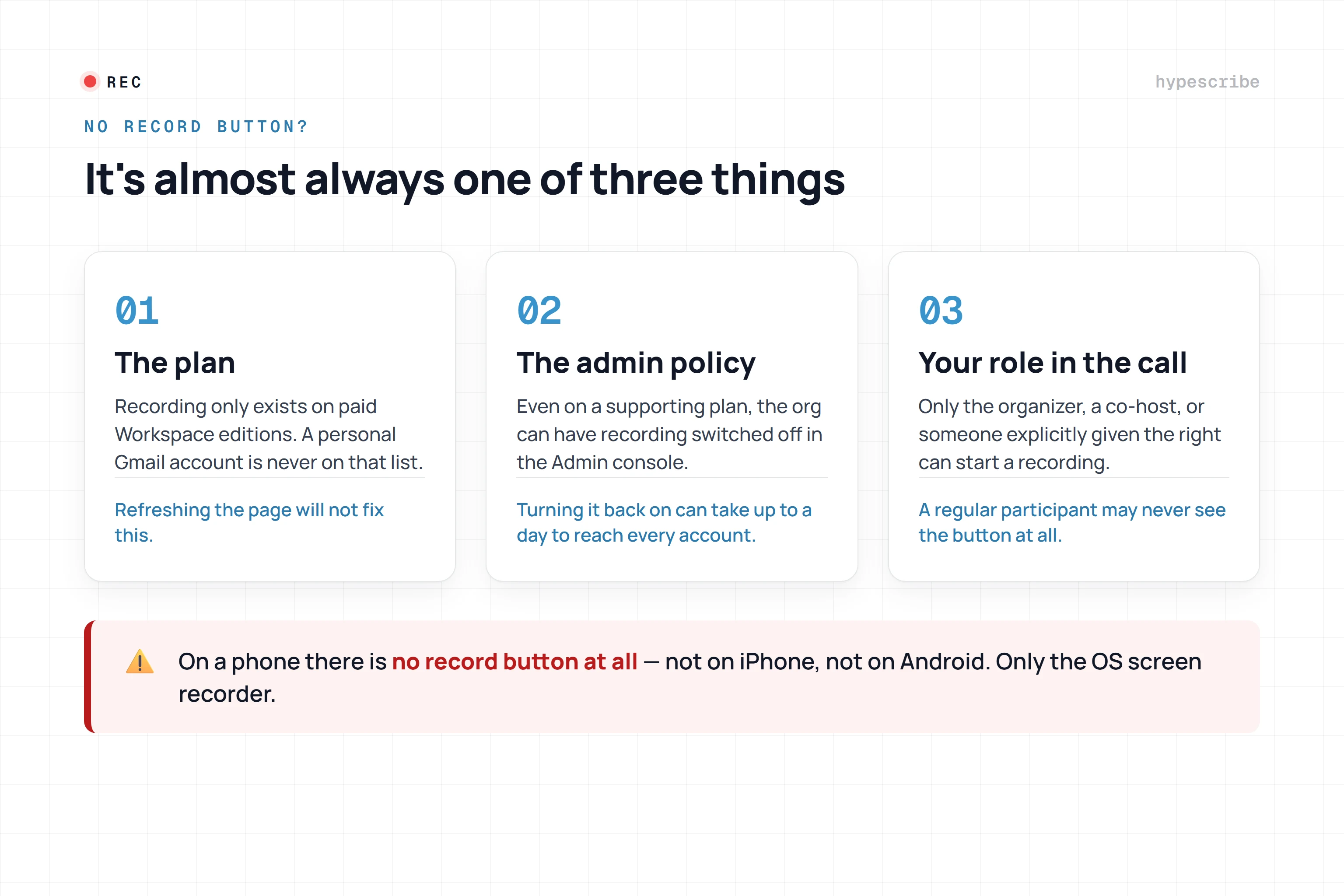
It’s a common frustration: you’re ready to start, but the record button is grayed out or just plain gone. Nine times out of ten, it’s one of three things.
- Your Account Type: The recording feature is a premium perk. It’s not available on standard, free personal Google accounts. You’ll need a specific Google Workspace plan (like Business, Enterprise, or Education tiers) to see it.
- Admin Settings: Even if you have the right plan, your company’s Google Workspace admin holds the keys. They might have turned off recording for security or compliance reasons.
- Your Role in the Meeting: You have to be the meeting host or a co-host from the same organization. If you're just an attendee or a guest from outside the company, you won't have the option to record.
Where Do Google Meet Recordings Go?
Once you hit "stop recording," Google takes over. The video file gets processed and then neatly tucked away in the meeting organizer's Google Drive.
Look for a special folder called "Meet Recordings." It’s created automatically. The organizer and anyone who started the recording also get an email with a direct link to the video as soon as it's ready. Even better, the link is automatically added to the original Google Calendar invite, so everyone who was invited can find it easily.
Pro Tip: If you can't find the email notification, your "Meet Recordings" folder in Google Drive is the most reliable place to look. It’s your personal archive of every session you’ve recorded.
How Long Can I Record a Google Meet Session?
You’ve got a pretty generous window. A single Google Meet recording can run continuously for up to 8 hours.
After that 8-hour mark, the recording stops automatically. This is usually more than enough for even the longest workshops or training events. But if you're planning an epic marathon session, just be mindful that you'll need to stop and start a new meeting to keep recording beyond that limit.
Can I Record From My Phone?
Unfortunately, no. Starting, pausing, or stopping a recording has to be done from a computer. The native recording controls are only available on the desktop version of Google Meet.
That said, if someone else starts the recording from their computer, anything you contribute from your phone or tablet—your video, your audio, any screen sharing—will be captured perfectly. You can fully participate from a mobile device, you just can't be the one in the driver's seat for the recording itself.
Turn every conversation into a clear, searchable, and actionable asset. With HypeScribe, you can automatically transcribe your Google Meet recordings, generate smart summaries, and pull out key action items in seconds. Stop wasting time re-watching meetings and start turning them into results. Try HypeScribe today and discover a smarter way to work.