Mastering Zoom AI Transcription From Setup to Workflow
I’ve been there—frantically trying to type notes during a critical client call, only to realize I missed a key detail while my head was down. With Zoom AI transcription, that chaos is over. It turns every spoken word into a searchable, actionable record, giving your team's productivity a serious boost. This guide is based on my experience helping teams move from messy manual notes to automated, intelligent workflows.
Why Zoom AI Transcription Is a Must-Have for Productivity

Let's be honest: taking notes manually during a meeting is a broken system. You’re forced to split your attention between listening, participating, and typing, which means you’re not doing any of them particularly well. I once managed a project where our manual notes led to missed action items simply because the note-taker was too busy scribbling to ask for clarification on a critical decision.
This is exactly why using an AI for transcription has moved from a "nice-to-have" to an essential part of my team's workflow. It immediately solves a few major headaches.
First, your team can actually focus on the conversation. When everyone knows a perfect record is being created automatically, they can engage, ask better questions, and contribute more meaningful ideas. The AI also ensures accuracy, capturing every word without the risk of human error or someone mishearing a detail.
And maybe most importantly, it makes meetings accessible. Anyone who missed the live call can catch up in minutes, and the entire conversation becomes a searchable knowledge base. It’s the key to bridging the gap between live discussions and effective synchronous vs asynchronous communication.
Native Features vs. Advanced Tools
While Zoom’s built-in transcription is a solid starting point, it’s worth understanding the difference between that and a more advanced, dedicated tool. From my experience, Zoom's native feature gives you a raw text file. A tool like HypeScribe, on the other hand, delivers an intelligent, structured document complete with summaries, speaker labels, and clear action items.
To help you decide what’s right for your team, here’s a quick breakdown of how they stack up based on what I've seen.
Zoom Transcription Options at a Glance
As you can see, while Zoom’s built-in tool is great for basic needs, a dedicated AI assistant unlocks a new level of productivity by doing the heavy lifting for you after the meeting ends.
The financial impact of these advanced features is undeniable. Zoom's own reports show enterprise revenue climbed 7.1% year-over-year to $757 million, largely driven by customer adoption of paid AI features. This trend highlights a clear demand for smarter, more integrated meeting solutions.
My Experience: The real win isn’t just getting a transcript; it’s the time I get back after the meeting. Using HypeScribe, I can turn an hour-long project call into a five-minute summary with assigned tasks ready to go. That same process used to take me at least 30 minutes of painstakingly reviewing a recording.
Getting Started: Enabling Transcription in Your Zoom Account
Before you can get valuable transcripts from your meetings, you first need to tell Zoom to start listening. This all happens within your account settings, and it’s a quick one-time setup once you know exactly where to click.
First, you'll need to log into the Zoom web portal. This is a common trip-up; these settings aren't in the desktop app. Once you’re in, find the Settings option in the navigation menu on the left, then click on the Recording tab.
You’ll have to scroll down a bit to find the Cloud recording section. Make sure the main toggle for this feature is on. Right below it, you'll see an option for Audio transcript. Go ahead and check that box. This simple action tells Zoom to generate a text file of the conversation every time you record a meeting to the cloud.
Live Captions vs. Full Transcripts: What's the Difference?
It’s easy to get these two features confused, but they serve different purposes. You'll find them under the In Meeting (Advanced) section of your settings.
Automated Captions: Think of this as real-time subtitles for your meeting. It’s a fantastic accessibility tool, helping participants who are in a loud space or are hard of hearing follow the conversation as it happens.
Full Transcript: This creates the complete, word-for-word text file after the meeting ends. When you enable this, a "View Full Transcript" button appears in the meeting controls, opening a side panel where everyone can see a running log of the conversation.
For the best results with Zoom AI transcription, especially when using a tool like HypeScribe, you really want to enable both. Having the live captions helps with engagement during the call, and the full transcript provides the rich data you need for post-meeting summaries and analysis.

The screenshot below shows exactly what you’re looking for in your settings panel.
By turning both on, you’re covered for live accessibility and post-meeting records.
What to Do If the Settings Are Locked
If you navigate to these settings and find them grayed out with a "Locked by admin" message, don't panic. This is actually pretty common, especially in larger companies where the IT team manages Zoom permissions for everyone.
Pro Tip: Your best bet is to reach out directly to your Zoom administrator or IT help desk. Just send them a quick email explaining that you need "Automated captions" and "Full transcript" turned on for your account. Framing it as a way to improve meeting accessibility and create better records usually gets it approved quickly.
Getting these features enabled for your whole team is a smart move. It ensures everyone has the tools they need to make meetings more productive and accessible. If you want to explore this topic further, you can learn more about how to transcribe a Zoom meeting in our in-depth guide.
Integrating HypeScribe for Advanced AI Capabilities
While Zoom’s built-in transcription is a great starting point, the real magic happens when you bring in a specialized tool designed to pull structured, usable data out of your conversations. That’s where a tool like HypeScribe comes in. It gives you two powerful ways to capture and analyze your meetings: live during the call or by uploading the recording afterward.
Both workflows are fantastic, but they serve different purposes based on my experience. One is all about real-time action, while the other is geared toward deep, post-meeting review.
Real-Time Transcription with the HypeScribe Bot
Picture this: you're in a meeting, and an AI assistant is right there with you, silently capturing every word. That's exactly what the HypeScribe bot does. You just invite it to your Zoom meeting like any other person, and it starts working instantly.
This live approach is a game-changer for teams that need to move fast. As the discussion unfolds, the bot isn't just transcribing; it's also starting to generate summaries and flag potential action items in real time.
- Catch Up Instantly: If someone joins late, they can quickly scan the running transcript to get up to speed without interrupting the flow.
- Keep Everyone Engaged: With the bot handling notes, your entire team can focus on the conversation instead of being distracted by typing.
- Confirm Alignment on the Spot: The bot’s ability to summarize topics as they’re discussed helps make sure everyone is on the same page before you move on.
Essentially, it turns a standard Zoom call into a living document where work is happening as you speak.
Post-Meeting Uploads for Deeper Analysis
The second option is perfect for when you need a polished, comprehensive record after a meeting has wrapped up. Just take the cloud recording file from Zoom and upload it directly into HypeScribe. In my experience, within a few minutes, that hour-long video call becomes a fully processed, intelligent document.
The process couldn't be simpler. The platform chews through the audio, identifies who was speaking, and produces a clean, time-stamped transcript. But it goes further by creating a high-level summary, pulling out key takeaways, and organizing all the decisions and action items into a neat list.
Here's how I use this: As a project manager, I rely on this feature after every stakeholder update. I upload the recording, and HypeScribe gives me a summary and a list of action items almost immediately. I can then draft a perfect follow-up email in less than five minutes, which keeps everyone aligned and holds them accountable.
To get those recordings ready for upload, you first need to enable the basic transcription features in your Zoom account. The steps are pretty straightforward.

Activating this feature is the foundation for everything else. The demand for this technology is exploding—in 2024, the AI transcription market in North America alone hit $1.58 billion, which is 35.2% of the entire global market. This growth is a direct result of remote work and our constant need to turn endless Zoom meetings into something valuable. With accuracy rates now consistently hitting 90-99%, the output is more reliable than ever.
If you’re curious about the technology that makes this all possible, getting a better understanding AI capabilities can provide some valuable context. By experimenting with both the live bot and post-meeting uploads, you’ll quickly find the right workflow for your team.
Ready to see how it can fit into your process? Check out https://www.hypescribe.com to get started.
How to Maximize Transcription Accuracy and Security
Getting a basic transcript is easy, but getting one you can actually rely on takes a bit more finesse. The truth is, the quality of any Zoom AI transcription comes down to one simple thing: the quality of your audio. I've seen it a hundred times—it's a classic "garbage in, garbage out" situation. If the AI can't make out what people are saying, the transcript it spits out will be a mess.
From my own experience, the biggest killer of accuracy is poor audio. A muffled laptop mic in a loud coffee shop will give you a transcript riddled with errors and "inaudible" markers. The fix is simple, but you have to be intentional about it. You need good gear and a quiet space.
Best Practices for High-Accuracy Transcripts
You don't need a professional recording studio to see a massive jump in quality. A few small tweaks are usually all it takes.
- Get a Decent Microphone: Your laptop's built-in mic just won't cut it for important meetings. A dedicated USB microphone or even the mic on a good headset will isolate your voice and cut down on room echo.
- Speak Clearly: AI models are trained on natural conversation. Try not to mumble or rush your words, and it helps to ask everyone else in the meeting to do the same.
- Kill the Background Noise: This one’s huge. Shut the door, silence your phone notifications, and find a spot away from any chatter or noise. The fewer sounds the AI has to compete with, the cleaner your transcript will be.
Another thing that often gets overlooked is setting the correct language. Both Zoom and an external tool like HypeScribe need to be told what language to listen for. If your team is speaking Spanish but the AI is set to English, the transcript will be complete gibberish. Always double-check this before you hit record, especially if you work in a multilingual team.

Keeping Your Transcripts Secure
For many teams—especially in HR, legal, and finance—the conversations happening in meetings are highly sensitive. Here, security isn't just a nice-to-have; it's a non-negotiable. This is where a dedicated service like HypeScribe really earns its keep by giving you peace of mind.
Real-World Scenario: I once worked with an HR department that used Zoom for confidential exit interviews. They needed perfect records of these conversations but were understandably worried about that sensitive data just sitting on a server somewhere. With HypeScribe, they could get their transcript and then immediately trigger the auto-delete source file option.
That feature is a game-changer for security. As soon as the transcription is done, HypeScribe lets you permanently wipe the original audio or video file from its system. This simple step dramatically reduces your data footprint and ensures the raw recording doesn't stick around.
On top of that, platforms like HypeScribe use end-to-end encryption for everything—both when your file is uploading (in transit) and when it's stored on their servers (at rest). This means your conversations are locked down and protected from prying eyes at every single step. For any team that deals with confidential information, these security layers provide the perfect combination of the accuracy you need and the security you can't live without.
Turning Transcripts into an Actionable Workflow
So, you've got the meeting transcript. Now what? Let’s be honest, a text file gathering digital dust in a folder doesn’t help anyone. The real value of Zoom AI transcription comes alive when you plug that transcript into your team's daily rhythm, turning an hour of conversation into tangible results.
This is where you stop just recording what was said and start acting on it.

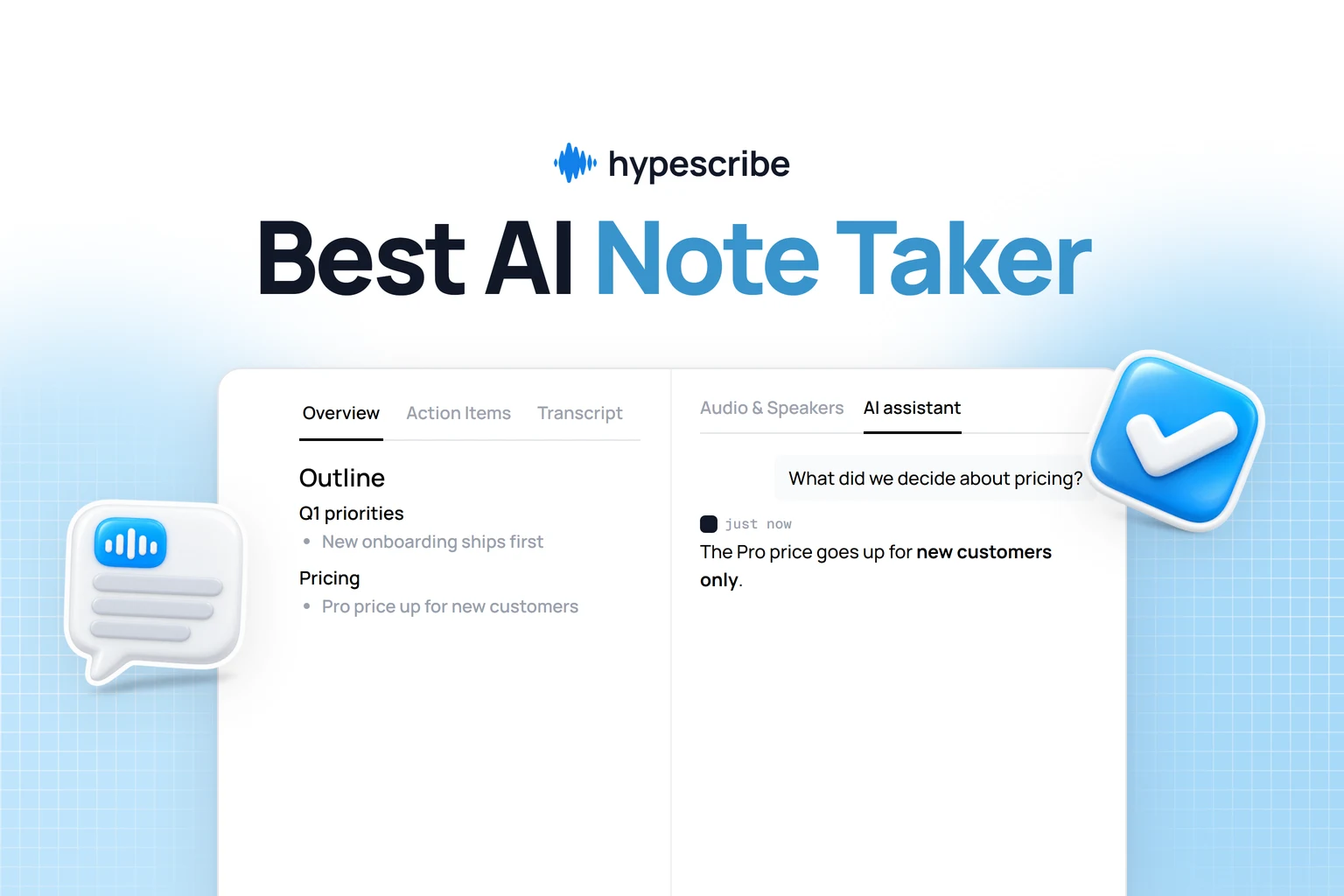
When you use a tool like HypeScribe, you’re not just getting a wall of text. It automatically pulls out summaries, key points, and action items. This isn't just a convenience—it's the fuel that powers your entire post-meeting workflow, helping you move from discussion to decision without missing a beat.
From Summary to Action
Think about your team’s last big brainstorming session. Afterward, someone probably had the painful job of sifting through pages of scribbled notes to figure out what to do next. An AI-driven workflow completely changes that picture.
Once the meeting ends, HypeScribe's summary and takeaways give you the perfect starting point for a follow-up email, getting everyone on the same page instantly. From there, you can grab the automatically detected action items and drop them right into your project management tools.
- Asana & Trello: That task—"Kevin to research competitor ad campaigns for Q3"—can be copied from the AI-generated list and pasted into Asana as a new task, assigned and dated in seconds.
- Slack & Teams: You can share the crucial decisions in the relevant project channel on Slack, keeping team members who missed the call informed without them having to read the whole transcript.
- Notion & Confluence: For bigger projects, the full transcript and summary can be exported and embedded in your Notion or Confluence space. This builds a searchable history of every decision, discussion, and deadline.
This is how you close the loop between talking about the work and getting it done. If you want to get better at this, check out our guide on creating an action item list that actually gets results.
Choosing the Right Export Format
HypeScribe gives you a few different export options, and knowing which one to use makes your workflow that much smoother. It’s all about getting the information where it needs to go in the right package.
By picking the right format from the get-go, you ensure the transcript flows effortlessly into the next step. No reformatting, no fuss.
A transcript’s real job is to eliminate ambiguity. By using AI to pull out summaries and tasks, you create a single source of truth that the entire team can rally around, ending the "who was supposed to do what?" confusion for good.
Query Your Meeting History on Demand
Here’s where things get really powerful for the long haul: the ability to search your entire meeting history. With HypeScribe's chatbot feature, you can stop digging through old folders and files forever.
Instead, you just ask questions in plain English.
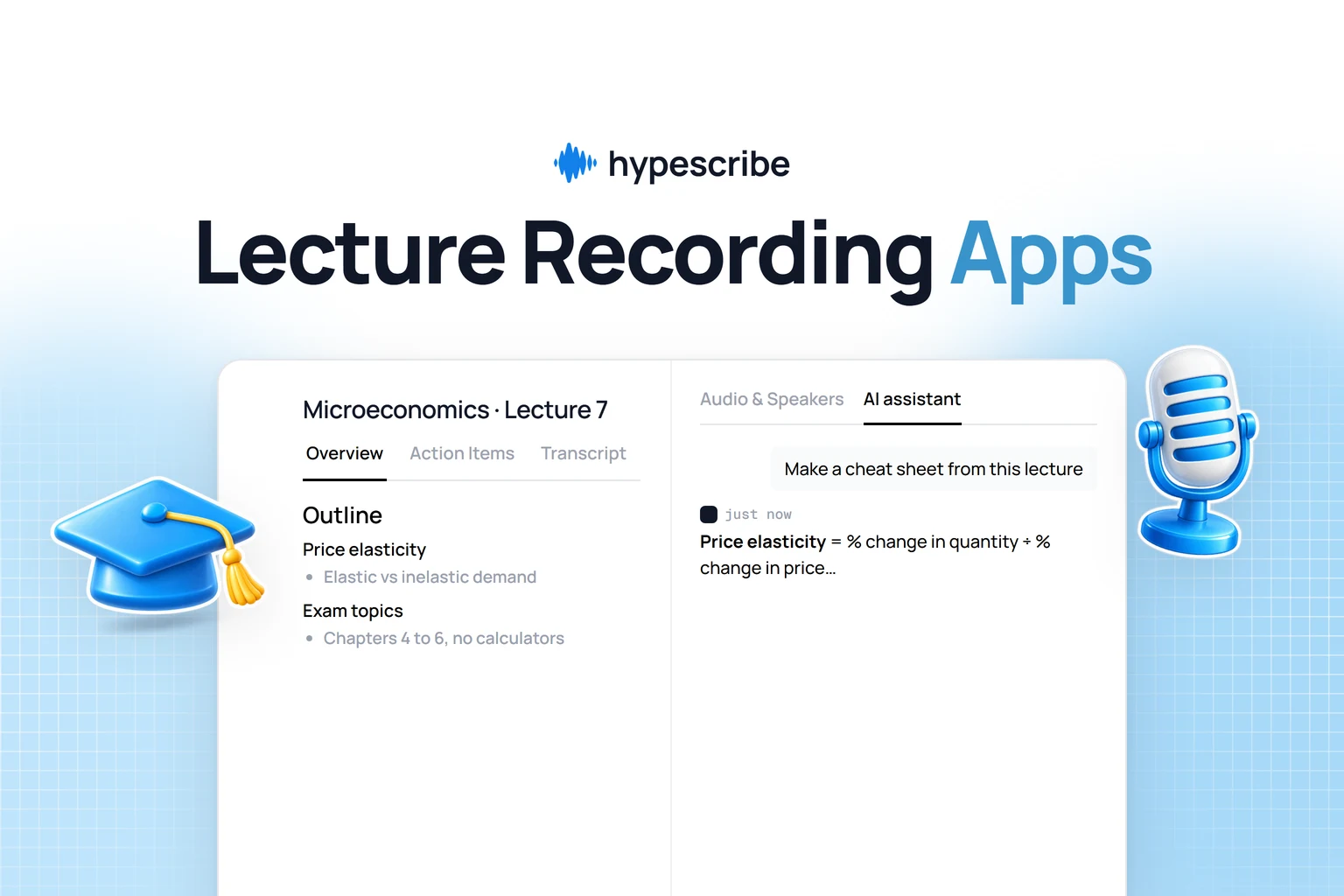
- "What were the final decisions on the Q3 budget from last month's meeting?"
- "Show me all action items assigned to Sarah in the last two weeks."
- "Summarize the client feedback from our call with XYZ Corp."
The AI instantly scans your repository of transcripts and gives you a direct, context-aware answer. This is how your past conversations become an active, intelligent knowledge base you can tap into any time you need it.
Common Questions About Zoom AI Transcription
Once you start using AI to transcribe your Zoom meetings, you’re bound to have a few questions. I’ve been through this with countless teams and clients, so I've gathered the most common ones I hear and put together some straight-up answers based on real-world experience. Let's clear up any confusion.
How Accurate Is Zoom's Native AI Transcription?
Out of the box, Zoom's own transcription is pretty decent, usually hitting about 80-90% accuracy. That's a solid starting point for general discussions. But factors like strong accents, people talking over each other, or a bad microphone can drag that number down fast.
For conversations where every detail is critical, a dedicated tool like HypeScribe uses more advanced AI models that can really dial in the accuracy, often pushing it up to 99%.
My Advice: The biggest single thing you can do to improve accuracy is to use a quality microphone. Seriously. After that, make sure you set the correct meeting language before you start. For the absolute best results, process a high-quality audio recording after the meeting is over.
Can I Get a Transcript If I'm Not the Meeting Host?
I get this question all the time. Officially, the host has to be the one to enable live transcription or cloud recording. But there's a fantastic workaround I use whenever I'm not running the show.
You can just record the meeting audio directly on your own computer. Most PCs and Macs have a built-in audio or screen recorder (like the Game Bar on Windows or QuickTime on a Mac), or you can grab a free tool like OBS. When the meeting ends, just upload that audio file to HypeScribe. It will churn out a perfect transcript and summary, no host permissions needed.
Is My Data Secure with a Third-Party Transcription Tool?
It’s smart to think about security, especially when you're discussing sensitive information. Any reputable service like HypeScribe is built with security as a priority, using things like end-to-end encryption to protect your data when you upload it and while it's stored.
The most important security feature, though, is the control you have. Always look for a tool that lets you permanently delete your files—both the original audio and the finished transcript—from their servers. This is crucial for things like confidential HR reviews or client strategy sessions, guaranteeing your data stays yours and yours alone.
What Is the Difference Between Live Captions and a Full Transcript?
It's easy to get these two confused. Think of automated captions (which Zoom calls "live transcription") as real-time subtitles. They pop up on the screen while people are talking, which is a huge help for accessibility or if you're in a noisy spot.
A full transcript is a different beast entirely. It’s the complete, time-stamped text file of the entire conversation that gets generated when the host enables the feature. This is the document you save, search through, and analyze later. Advanced tools like HypeScribe then take that raw text and turn it into something genuinely useful, adding speaker names, chapter summaries, and action items.
Ready to stop taking notes and start focusing on the conversation? HypeScribe turns your meetings into clear summaries and actionable tasks in seconds. Try it for free and see how much time you save.