How to Import a Google Calendar to Outlook (All Methods)

You open Outlook and your workday looks under control. Then your phone buzzes with a Google Calendar reminder for something that never made it into Outlook. A client call overlaps with an internal review. Someone gets a rushed apology. You promise yourself you'll fix the calendar mess later.
That “later” usually arrives after a missed meeting or a double booking.
If you need to import a Google Calendar to Outlook, the hard part isn't clicking the buttons. It's choosing the right method before you start. Some options give you a live view that updates. Some create a static copy. Some are built for managed business environments. If you pick the wrong one, Outlook will appear to “work,” but not in the way you expected.
Unifying Your Digital Life Starts Here
Most calendar problems aren't technical at first. They start as split attention.
Your personal appointments might live in Google Calendar because that's where you've always managed life outside work. Your company may run on Outlook because that's what Microsoft 365 standardizes. Then both calendars become important at the same time. Dentist appointments, school pickups, customer demos, team check-ins, travel holds. None of them care which platform they were created in.
The result is familiar. You glance at Outlook and think a time slot is open. It isn't. Or you add a deadline to Google Calendar and forget your coworkers only ever look in Outlook. That's how people end up maintaining two systems badly instead of one system well.
Practical rule: The best setup is the one that matches how often the calendar changes. A living calendar needs a living connection. A finished schedule can live as a file.
That's why the right answer depends on your goal. Maybe you only want to see your Google events inside Outlook so you stop booking over them. Maybe you need a one-time import for a fixed schedule such as a conference calendar or a completed project timeline. Or maybe you're in a company using Google Workspace and Outlook together, where a deeper sync approach makes more sense.
If your digital work is already spread across apps, folders, meetings, and personal systems, calendar cleanup usually goes hand in hand with broader organization habits. This guide pairs well with a practical look at how to organize digital files, because scattered information tends to create scattered schedules.
Choosing Your Calendar Sync Method
Before you import anything, decide what “success” looks like. Do you want Outlook to show future changes made in Google Calendar, or do you only need a copy of the calendar as it exists right now?
That single question prevents most frustration.
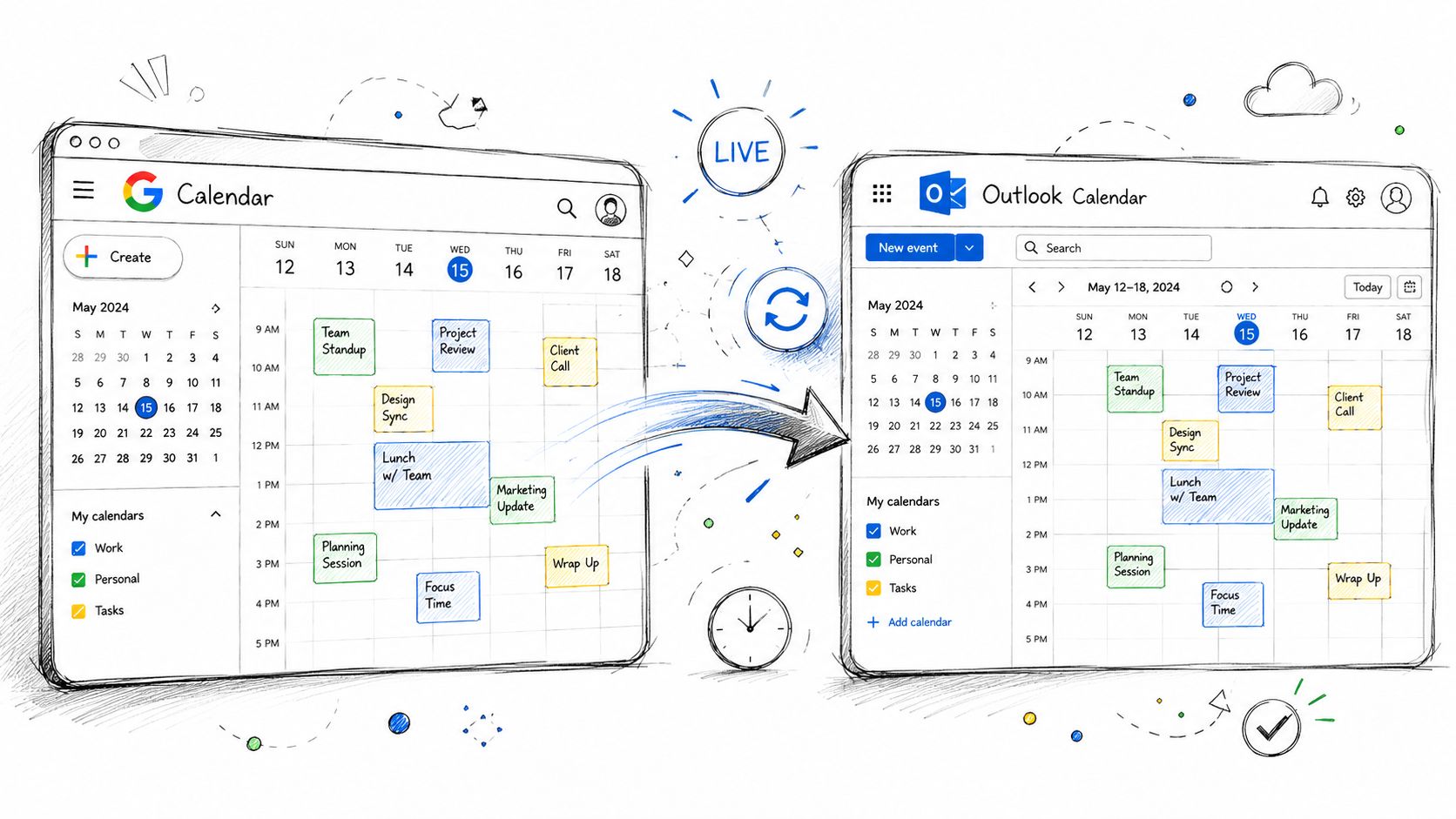
Microsoft documents two distinct ways to bring Google Calendar into Outlook: a live subscription in new Outlook and a one-time file import in classic Outlook. In the subscription flow, you copy the Google Calendar address in iCal format and paste it into Outlook's Subscribe from web option. In the import flow, Google Calendar exports a ZIP file that contains an .ics file, which Outlook imports into a selected calendar. Microsoft also notes that the imported version does not automatically stay in sync, which makes subscription the better fit for ongoing updates, as described in Microsoft's Google Calendar in Outlook guidance.

Pick live subscription if the calendar keeps changing
A live subscription is best when the Google Calendar is still active. You add the calendar's iCal address to Outlook, and Outlook displays it as a subscribed calendar.
That works well for situations like these:
- Personal visibility at work: You want Outlook to show your personal appointments so you don't book over them.
- Shared planning: A team maintains a Google Calendar, and Outlook users need to reference it without constant manual updates.
- Low-maintenance setup: You want to set it once and stop thinking about exports and re-imports.
What it doesn't do is magically turn both platforms into one universal calendar. In practice, treat it as a live view inside Outlook.
Pick one-time import if the schedule is fixed
A static import works when you want a snapshot. Think of it as copying the calendar at one moment and storing that copy in Outlook.
It makes sense for cases like:
- Archived events: You want to preserve a finished project calendar.
- Temporary schedules: You received a calendar for a conference, training series, or event season.
- Reference-only use: You don't care if future changes in Google never appear in Outlook.
It's the wrong choice for an active primary calendar. That's where people get tripped up. They import once, see events in Outlook, then assume the setup will keep updating on its own. It won't.
A simple decision table
| Need | Best method | Why |
|---|---|---|
| Ongoing updates from Google Calendar | Live subscription | Outlook keeps a subscribed view of the calendar |
| One-time copy for recordkeeping | Static import | Fast and fine for finished or fixed schedules |
| Managed business migration with Google Workspace | Full sync tool | Better for deeper Outlook integration in work environments |
If your broader goal is reducing repetitive manual work, this choice mirrors the same logic behind workflow automation basics. Don't automate a snapshot if what you really need is a live feed.
The Live Subscription Method for Real-Time Updates
If your calendar changes regularly, this is the method I'd use first. It's the cleanest answer when you want Outlook to reflect what's happening in Google Calendar without exporting files every time plans shift.
Find the Google Calendar iCal address
The first snag encountered is finding the correct calendar link in Google Calendar. You don't want the page URL from your browser. You need the calendar address in iCal format.
Use this sequence in Google Calendar:
- Open Google Calendar in your browser.
- In the left sidebar, find My calendars.
- Hover over the calendar you want in Outlook and open its options.
- Go into that calendar's Settings.
- Find the section that contains the iCal format calendar address.
- Copy that address carefully.
Be deliberate here. If you copy the wrong sharing link or an incomplete address, Outlook won't know what to do with it.
A subscription link behaves more like a feed than a file. That's why copying the exact iCal address matters.
Add the calendar in new Outlook
In new Outlook, you're looking for the option to subscribe from the web.
The flow is straightforward:
- Open Outlook
- Go to the Calendar view
- Choose Add calendar
- Select Subscribe from web
- Paste the iCal address from Google Calendar
- Confirm and Subscribe
After that, Outlook should add the Google Calendar as a separate calendar that you can show or hide in your calendar list. That separation is useful. It lets you overlay schedules visually instead of dumping everything into one mixed calendar.
Add the calendar in Outlook on the web
If you use Outlook.com or Outlook through the browser, the wording may vary slightly, but the process is similar. You're still adding a calendar from a web address, not importing a local file.
Look for the same general path:
- Open the calendar area
- Choose to add a calendar
- Select the web subscription option
- Paste the iCal URL
- Save
The main benefit is the same. You get a readable, current view of the Google calendar inside your Outlook environment.
What to expect after subscribing
This method is best for visibility, not for forcing both systems into perfect lockstep behavior. It's ideal when your real question is, “How do I stop missing what's already in Google Calendar when I live in Outlook all day?”
Some practical expectations help:
- Treat it as read-only in Outlook: Your source calendar still lives in Google.
- Allow some refresh time: Updates may not appear instantly.
- Keep calendars separate: Overlay them instead of merging if you want cleaner troubleshooting later.
A quick walkthrough can help if you prefer to see the flow before trying it yourself:
When this method works best
This approach shines in day-to-day scheduling. If you manage your personal life in Google Calendar but spend your workday in Outlook, it gives you one visual command center without forcing a full migration.
I also recommend it when someone says, “I don't need to move everything. I just need to stop double-booking myself.” That's exactly the kind of problem live subscription solves.
Common mistake to avoid
Don't use live subscription if your expectation is deep two-way editing from either side with no platform differences. That's asking more from the setup than it's built to do.
If your environment needs deeper Outlook integration across business data, the advanced options later in this guide are a better fit.
The One-Time Import for Static Calendar Snapshots
Some calendars don't need to stay live. They just need to exist in Outlook as a record or reference. That's where a one-time import makes sense.
Think of this method like taking a photo of your Google Calendar. Outlook receives the events that exist at the moment of export. If you later add, cancel, or move events in Google Calendar, Outlook won't update that imported copy for you.

Good reasons to use a static import
This method is often the better choice when change is no longer the main concern.
Use it for scenarios like:
- Conference agendas: You want an event schedule inside Outlook for reference.
- Past project records: You're preserving milestones from a finished engagement.
- Temporary handoff calendars: Someone sent you a Google-based schedule, and you only need a local Outlook version.
Use caution if this is your main personal or work calendar. Active calendars drift quickly, and a snapshot becomes misleading faster than anticipated.
Export from Google Calendar
In Google Calendar, you'll export the calendar rather than subscribe to it.
The process usually looks like this:
- Open Google Calendar
- Go to the settings for the specific calendar
- Choose the Export option
- Download the export package
Google Calendar exports as a ZIP file. Inside that ZIP, you'll find the .ics file that Outlook can read. Don't try to import the ZIP directly if Outlook expects the calendar file itself. Extract it first.
Import into classic Outlook
This method is associated with classic Outlook rather than the web subscription workflow used in newer interfaces.
In Outlook desktop, the path is typically along these lines:
- Open File
- Go to Open & Export
- Choose Import/Export
- Select the option to import an iCalendar or vCalendar file
- Browse to the extracted .ics file
- Choose the target calendar
You'll usually get a choice to import into an existing calendar or create/use a separate one. In most cases, I prefer keeping imported schedules separate. It makes cleanup easier if you later decide the import is no longer useful.
Field advice: If the calendar is still active, stop and switch methods. Re-importing every time something changes becomes busywork fast.
Where people get confused
The import succeeds, events appear, and everything looks fine. Then a meeting gets moved in Google Calendar and Outlook still shows the old time. That isn't a failure. It's the design of the method.
So if your real goal is to import a Google Calendar to Outlook and keep it current, don't use this route for your main calendar. Use it when a still image is enough.
Advanced Syncing for Business and Power Users
Some setups need more than visibility or snapshots. If you're working inside a company that uses Google Workspace and Microsoft Outlook together, the conversation changes from “How do I view this calendar?” to “How do I make Outlook behave like a working client for my Google Workspace data?”
That's where Google Workspace Sync for Microsoft Outlook, often shortened to GWSMO, enters the picture.
Zapier's guide describes GWSMO as the enterprise-grade option for Google Workspace users and notes that it must be installed on a PC because it does not work on Mac. The workflow starts by closing Outlook, downloading the .exe installer, signing in to Google, and selecting the new Google Workspace profile in Outlook so syncing can begin, as outlined in Zapier's guide to syncing Google Calendar with Outlook.
When GWSMO is the right tool
GWSMO makes sense when Outlook isn't just a viewing surface. It's part of how a business user works day to day.
That usually applies when:
- Your company runs on Google Workspace: You need Outlook to connect with that managed account setup.
- You want broader data integration: Calendar isn't the only thing involved. Mail and contacts matter too.
- IT needs a supported workflow: A business environment usually cares about repeatable setup more than hacks.
This is different from consumer-style calendar interoperability. It's closer to profile-level Outlook integration.
When to skip it
Don't reach for GWSMO just because you want to see your personal Google Calendar in Outlook. It's overkill for that.
Also skip it if you're on a Mac. The PC-only requirement matters in mixed-device environments, especially for remote teams. If half the company uses Macs, that limitation affects rollout decisions immediately.
What power users should think about next
If your real need is true process coordination around meetings, not just calendar visibility, the best answer might involve your scheduling workflow as much as your sync method. For example, if Outlook is where you handle follow-up changes after events land, this guide on rescheduling sales meetings in Outlook is useful context for keeping the operational side clean.
There's also a broader productivity question underneath this. Teams that juggle Outlook, Google Workspace, meetings, and remote collaboration usually benefit from reviewing their full stack of remote work productivity tools, not just the calendar layer.
The practical takeaway
Many users only need one of three things:
- A live subscribed view
- A static imported copy
- A managed business sync path
If you identify which one you need before you touch Outlook, setup gets easier and cleanup gets rarer.
Troubleshooting Common Calendar Import Issues
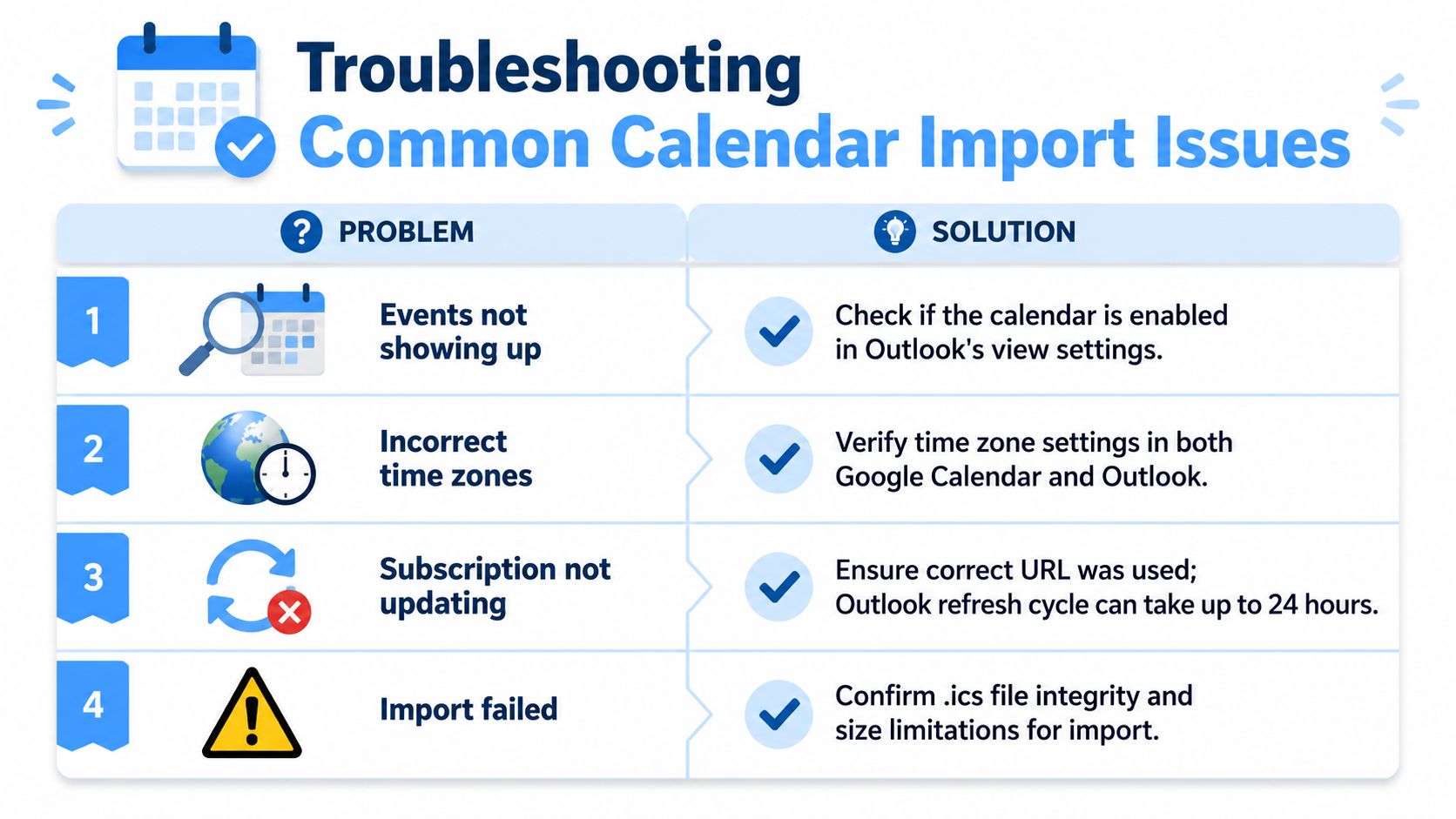
Even when you pick the right method, a few issues show up again and again. Most of them come down to visibility, timing, or using the wrong input for the method you chose.
Events aren't showing up
First, check whether the calendar is enabled in Outlook's calendar list. This sounds obvious, but subscribed and imported calendars often get added successfully while remaining unchecked in the sidebar.
Then confirm you added the correct calendar. If you manage multiple Google calendars, it's easy to subscribe to or export the wrong one.
- Check visibility: Make sure the calendar is selected in Outlook.
- Check the source calendar: Verify you used the intended Google Calendar, not a different personal or shared calendar.
- Check the destination: Imported events may have landed in a calendar you weren't currently viewing.
The subscription isn't updating
This is the most common complaint with subscriptions. Outlook may not refresh instantly, so a change made in Google Calendar might not appear right away.
The other common cause is a bad link. If you pasted the wrong URL, Outlook may add something, but not a working subscribed feed.
Outlook subscriptions can take time to refresh. If the setup is correct, patience is sometimes part of the fix.
A simple checklist helps:
- Re-copy the iCal address: Don't reuse a suspiciously shortened or altered link.
- Remove and re-add the subscription: This often fixes setup mistakes cleanly.
- Wait before assuming failure: Immediate updates aren't guaranteed.
Time zones look wrong
When events appear at the wrong hour, don't start over with a new import right away. Compare the time zone settings in both Google Calendar and Outlook first.
This issue usually comes from mismatch, not corruption. If one platform thinks you're in a different time zone, your events may look shifted even though the underlying data is intact.
You're seeing duplicate events
Duplicates often happen when people import a calendar and later subscribe to the same one, or import the same .ics file more than once.
The cleanest fix is usually removal, not editing each event manually.
- Remove the imported calendar copy: Especially if it was only meant as a test.
- Keep one method per calendar: Subscription for live viewing, import for snapshots.
- Start fresh if needed: It's often faster than chasing duplicates one by one.
The import fails
If Outlook won't accept the file, inspect the basics first. Make sure you extracted the .ics file from the ZIP package and didn't try to use the compressed file directly.
If the file still won't import, export it again from Google Calendar. A fresh export often clears up file-handling issues without deeper troubleshooting.
If your team spends a lot of time capturing meeting details, follow-ups, and action items after calendar events are created, HypeScribe is worth a look. It helps turn recorded meetings, uploaded audio and video, or live calls into searchable transcripts, summaries, and action items so your schedule doesn't just hold meetings, it leads to usable outcomes.