YouTube Transcription Tool: A Complete 2026 Guide
You've got a long YouTube interview open in one tab, a blank document in another, and a deadline that doesn't care how messy the source material is. You need a quote, a summary, maybe subtitles, maybe a blog post, and definitely something more usable than scrubbing back and forth through a video player for an hour.
That's where a good YouTube transcription tool stops being a convenience and starts being part of the workflow. The primary job usually isn't “turn audio into text.” It's “get the spoken content out of the video fast enough that you can search it, clean it up, and reuse it without wasting half the day.”
Why You Need a Dedicated YouTube Transcription Tool
YouTube does offer a built-in path. Open the video, click Show transcript, then copy and paste the text. The catch is simple. If the creator has disabled transcripts, that button won't appear at all, which makes transcript access a creator-side limitation rather than something you can count on for every video, as explained in TechSmith's guide to getting a transcript of a YouTube video.
That built-in option is fine for quick reference. It's much less helpful when you need to do real work with the result.
What breaks in the manual workflow
If you've ever used the native transcript panel for research, you already know the friction points:
- Availability is inconsistent. Some videos expose transcripts, some don't.
- Editing is clumsy. You're usually copying raw text into another tool before any serious cleanup starts.
- Reuse takes extra steps. If you need notes, subtitles, highlights, or a draft article, you're building that process yourself.
A dedicated YouTube transcription tool solves those problems by treating transcription as the start of a pipeline, not the end of one.
Practical rule: If you need anything beyond a quick skim, use a tool that lets you search, edit, and export immediately.
For creators, researchers, and marketers, that matters because transcripts are now tied to larger publishing systems. If you also want to automate YouTube video production, transcript handling becomes part of scripting, repurposing, and asset management, not just accessibility.
When a dedicated tool earns its keep
A specialized tool makes sense when you need to:
| Situation | Why built-in transcript falls short | What a dedicated tool helps with |
|---|---|---|
| Long lectures or interviews | Hard to scan and extract clean notes | Searchable, editable text |
| Multilingual videos | Language handling varies | Better control over processing |
| Repurposing content | No structured export workflow | TXT, subtitle, and document outputs |
| Team use | Copy-paste creates version chaos | Shared, reusable transcript assets |
The biggest shift is mental. Stop thinking of transcripts as a side feature. Treat them as source material you can turn into notes, subtitles, articles, internal documentation, or searchable knowledge.
The Core Transcription Process from Link to Text
Most modern tools now work the same way in practice. You paste a public YouTube link, let the system pull the speech, then export the result in the format you need. The market has converged around speed, automation, and reusable outputs. Tactiq's overview of YouTube transcript workflows notes that third-party tools built around YouTube's caption pathway often report results in seconds, over 95% accuracy, and one-click export to TXT, SRT, or VTT.
Here's the basic flow at a glance.
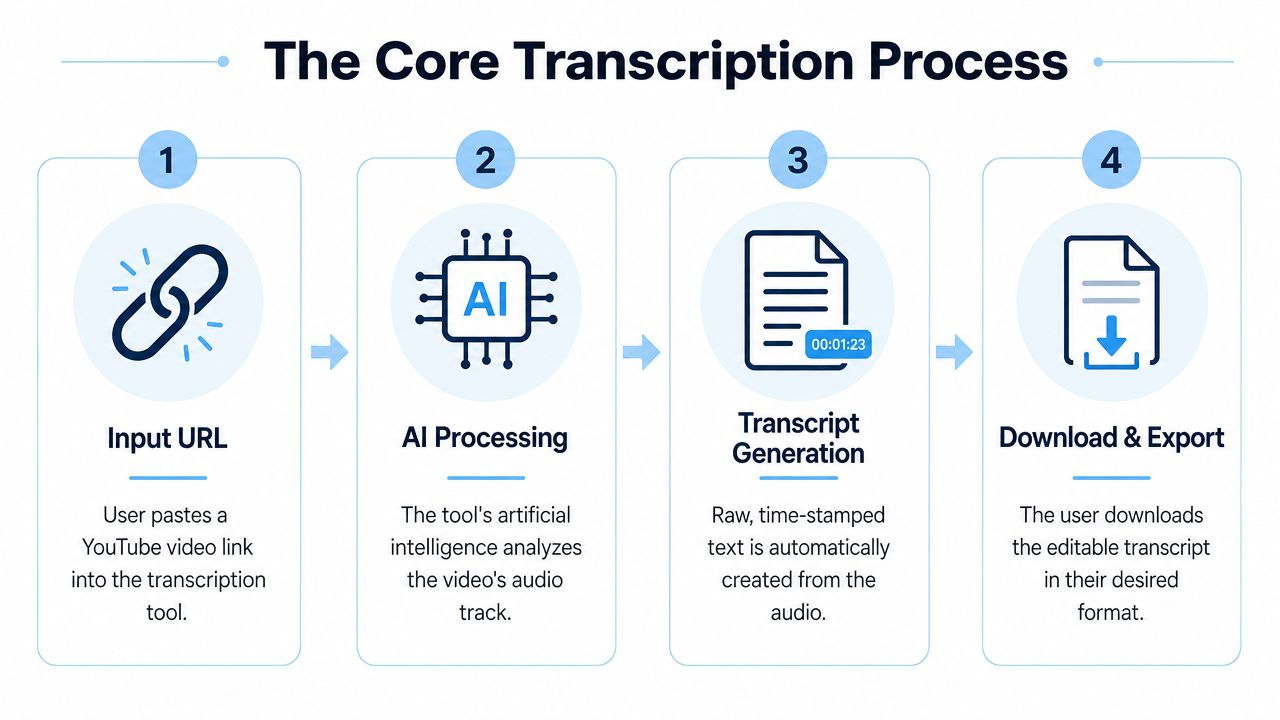
Step 1 starts with the URL
You copy the YouTube link and paste it into the transcription tool. That's the user-facing part. Under the hood, the tool is typically pulling the audio or transcript stream, identifying speech segments, and preparing it for conversion into text.
If you want to see how this fits into a broader conversion workflow, this guide to a YouTube video to text converter is a useful reference point.
Step 2 is where the tool earns its value
A weak tool gives you a rough block of text. A better one gives you structure.
That usually means some mix of:
- Timestamps so you can jump back to the exact moment in the video
- Speaker separation when the source is an interview, panel, or podcast
- Export choices so the transcript can move into editing, captioning, or publishing
HypeScribe is one example of a tool that accepts YouTube links and turns spoken content into searchable text, which is the kind of setup that makes sense when transcript extraction is part of a larger notes or publishing workflow.
A quick visual walkthrough helps if you want to see that process in motion.
The simplest working workflow
When I need a transcript fast, the process is usually this short:
- Paste the public video link
- Check the language setting if the content isn't straightforward English
- Generate the transcript
- Skim the first section for obvious recognition issues
- Export in the format that matches the next task
That last step matters more than people think.
If you're writing notes, plain text might be enough. If you're publishing captions, you need SRT or VTT. If you're turning the video into an article, timestamps and paragraph breaks become much more useful than a raw dump of every spoken word.
A transcript becomes valuable when it's easy to move into the next tool without rework.
The fastest tools reduce that handoff friction. That's why “paste link, get text” isn't the whole story. “Paste link, get usable text” is the standard to judge against.
How to Edit and Refine Your AI-Generated Transcript
An AI transcript is a draft, not a finished document. Even when the speech recognition is strong, the output still needs a human pass if you care about readability, quoting accuracy, or clean publishing.
That editing pass is where most of the quality difference shows up.
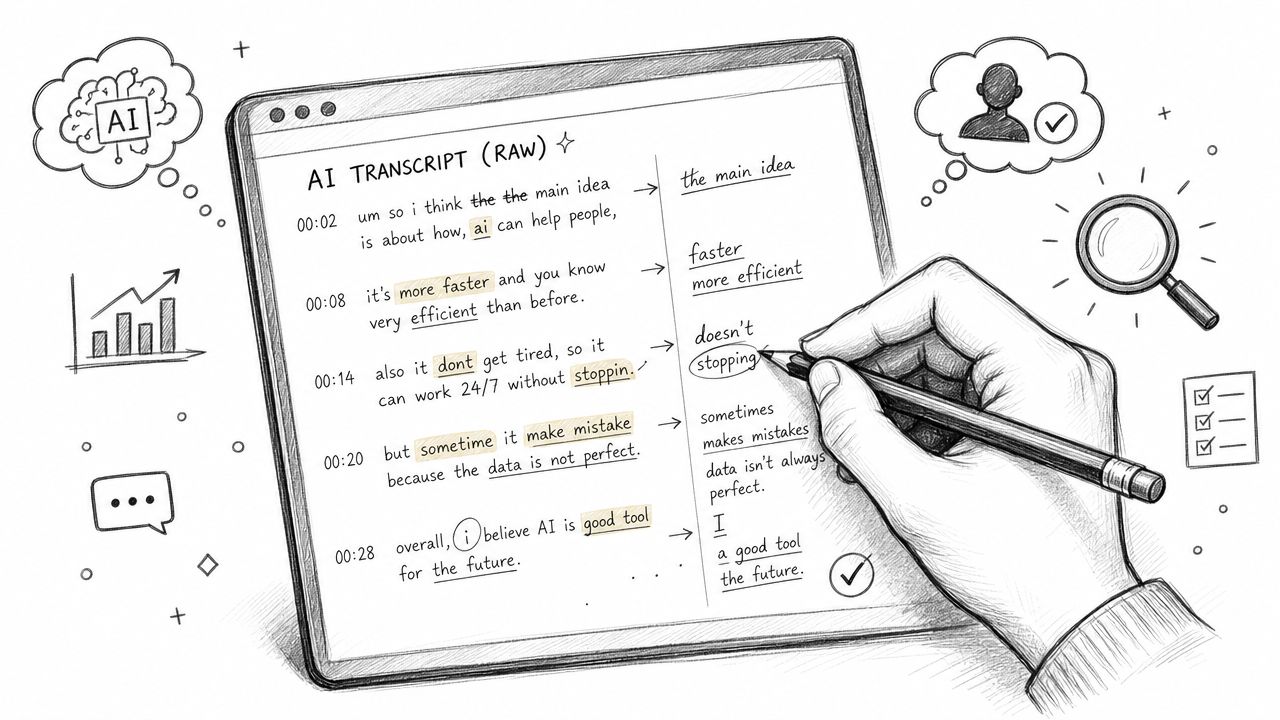
Fix the words that matter most
Don't start by proofreading every line from top to bottom. Start with the highest-risk errors.
That usually includes:
- Names and brands because AI often mangles unusual spellings
- Technical terms especially in lectures, software demos, and medical or legal content
- Numbers spoken aloud because “fifteen” and “fifty” can create expensive mistakes
- Quoted material if you're pulling lines for an article or report
A practical trick is to search the transcript for terms you already expect to appear. Product names, guest names, company names, or field-specific vocabulary are often where hidden errors cluster.
Clean structure before you polish style
Raw transcripts usually look dense because spoken language doesn't arrive in neat paragraphs. If you leave it untouched, readers get a wall of text that's accurate enough but painful to use.
Here's the order that works better:
- Break long passages into short paragraphs
- Add speaker labels where needed
- Remove filler words only if the transcript is meant for reading, not verbatim record
- Keep timestamps only where they help navigation or citation
If you're dealing with rough formatting, an AI text formatter for writers can help turn copied transcript text into cleaner paragraphs before you do a final review.
The fastest edit is not a line edit. It's a structural edit that makes the transcript readable in one pass.
Decide whether you need verbatim or readable
This is the choice that trips people up. A transcript can serve two very different jobs.
| Transcript type | Best use | Editing approach |
|---|---|---|
| Verbatim | Research, interviews, legal review, precise quoting | Keep spoken wording, preserve pauses and interruptions if relevant |
| Readable | Blog drafts, study notes, internal summaries | Remove repetition, tighten phrasing, improve flow |
If you blur those two purposes, the output gets awkward. You either over-edit a source record or under-edit a document meant for readers.
Timestamps and speaker labels deserve a second look
Speaker attribution is one of the first things to break in panel discussions, podcasts, and reaction videos. Fix that early if multiple people are talking. It's much easier to understand and repurpose the text once each person's contribution is clear.
Timestamps need the same judgment. Keep them when you need to reference the original video, create subtitles, or jump to exact moments. Strip most of them out when you're turning the transcript into a draft article or internal memo.
The polished version should feel intentional. Not like exported machine output with a few typos removed.
Tips to Maximize Transcription Accuracy
People often treat transcript quality as fixed. It isn't. You control more of the result than you think.
Independent benchmarks and vendor documentation summarized by Opus indicate that AI YouTube transcription tools typically reach 95%+ accuracy for clear English audio, while accuracy drops when the audio is noisy or the language or accent is misidentified. That's why source quality and language selection matter so much in practice, as outlined in Opus's guide to YouTube video transcript tools.
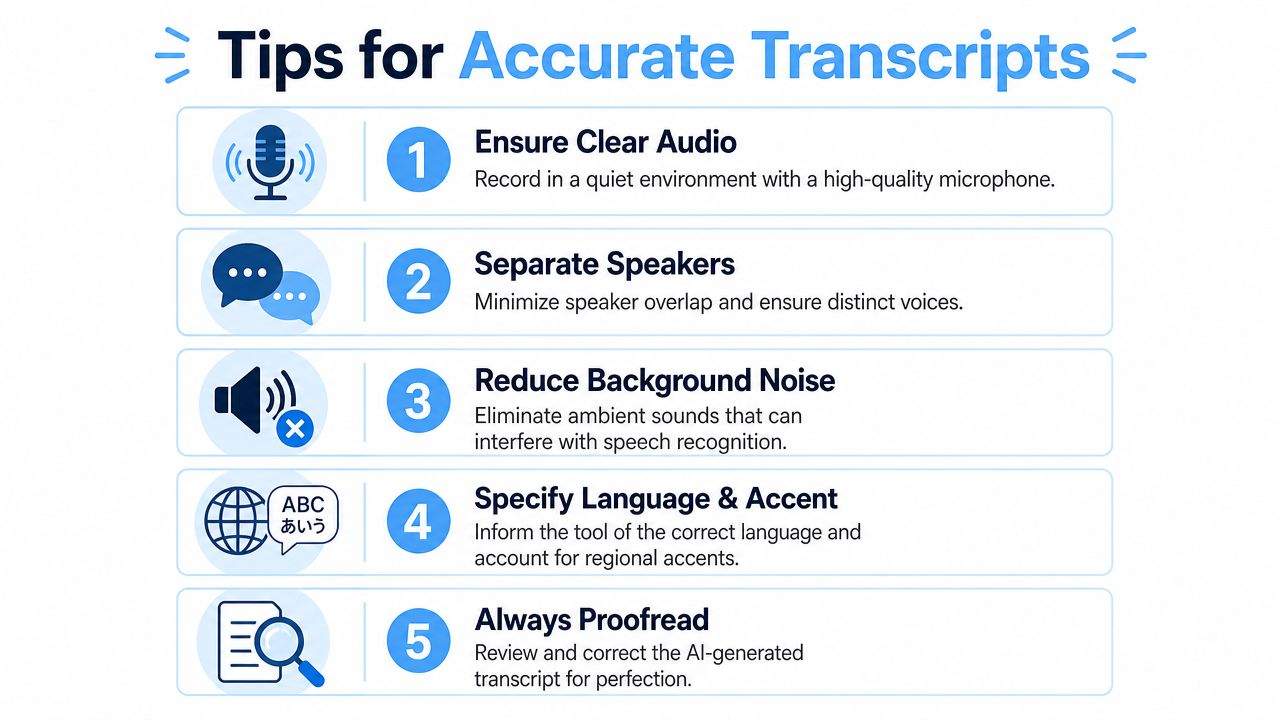
Accuracy starts before transcription
If you're choosing between multiple uploads of the same talk or interview, don't pick the one with the best thumbnail. Pick the one with the cleanest sound.
A few habits make a visible difference:
- Prefer the clearest source upload. Studio audio beats livestream audio almost every time.
- Avoid heavy music beds. Background tracks create recognition errors in places that are tedious to fix later.
- Watch for overlapping speech. Crosstalk hurts readability even when the words are mostly correct.
If you're working from your own recordings as well as YouTube links, this guide on how to convert audio to text covers the same core input-quality issues from the file side.
Language selection is not optional
Multilingual content can be tricky. If the tool guesses the wrong language, or treats mixed-language speech as single-language audio, the transcript can drift fast.
Use manual language selection when:
- the speaker has a strong regional accent
- the video switches between languages
- proper nouns come from multiple languages
- auto-detection keeps producing odd substitutions
Field note: A language support claim tells you what a tool can attempt. It doesn't tell you how well it handles code-switching or accent-heavy speech.
Proofread strategically, not evenly
Don't spend equal time on every section. Put your effort where transcription systems usually struggle.
Check these first:
| High-risk segment | Why it causes errors |
|---|---|
| Introductions with names | Unfamiliar names and organizations |
| Fast explanation segments | Compressed speech and fewer pauses |
| Q&A sections | Variable microphone quality |
| Multilingual moments | Language switching and borrowed words |
That approach saves time because you're not treating every line as equally fragile.
What works best in practice
The best transcript results come from a simple combination: clean source audio, the right language setting, and a short human review focused on names, terminology, and transitions. People who skip one of those steps usually blame the tool. Often the problem starts with the input.
From Text to Action Turning Transcripts into Assets
The transcript itself is rarely the finish line. What people want is the next asset.
Recent industry guides point to that shift clearly. Users increasingly want subtitles, summaries, and searchable notes because the practical job isn't “get text.” It's “turn video into reusable knowledge or publishing assets,” as described in Podsqueeze's review of YouTube transcription tools.
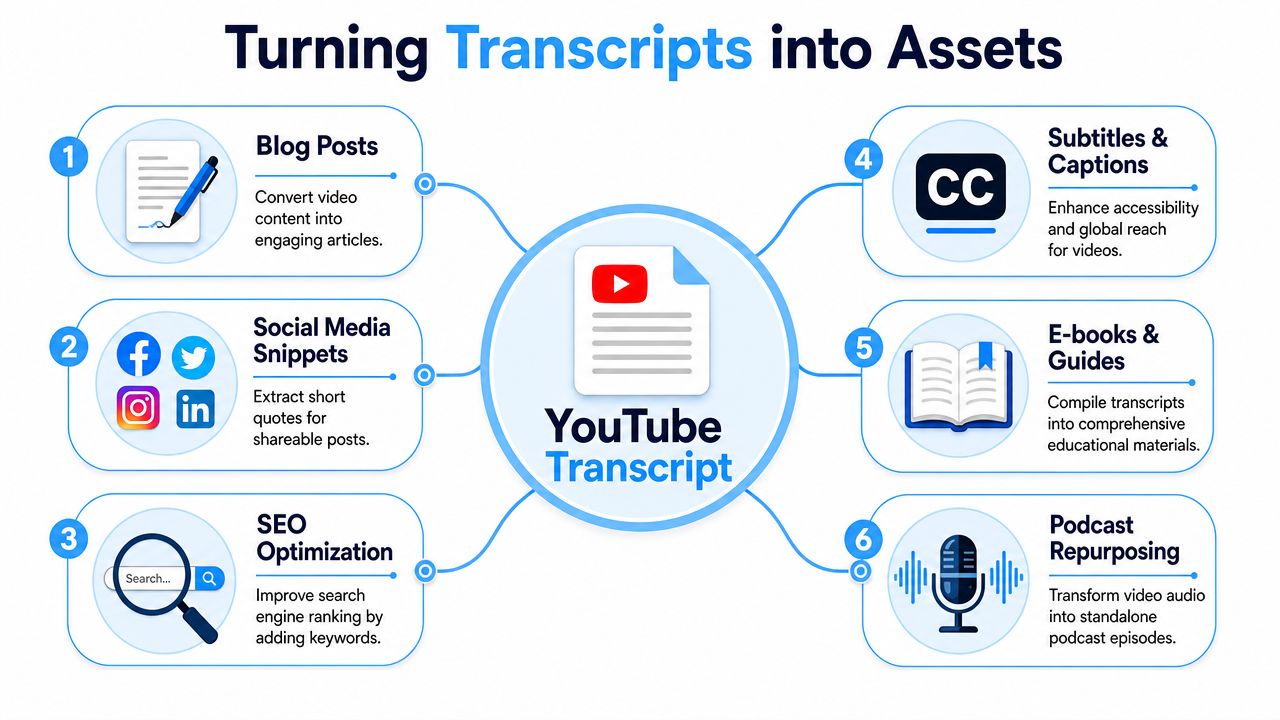
Three real workflow patterns
A researcher downloads a transcript from a long interview, highlights the strongest quotes, and turns the rest into searchable notes. That transcript isn't just text. It becomes a reference document that can be cited, skimmed, and revisited without reopening the video.
A creator pulls a transcript from a tutorial, cuts the best sections into social clips, then converts the spoken structure into a blog post. The same source can also become subtitles, FAQ copy, and email content if the transcript has clean timestamps and readable formatting.
A student transcribes a lecture, strips out filler, groups the content by topic, and creates a study guide. Search beats rewatching when exam prep starts.
The most useful outputs after transcription
The strongest tools help you move in several directions from one transcript:
- Subtitles and captions for accessibility and video publishing
- Summaries for quick review and internal sharing
- Searchable notes for research, classes, and interviews
- Draft articles built from the spoken structure of the source
- Content snippets for social posts, pull quotes, and highlights
That's also where distribution comes into play. If your transcript becomes a blog post, video companion article, or media asset, it helps to understand how those pieces support broader visibility. A PR team or solo creator can borrow ideas from this PR professional's video backlink guide when deciding where repurposed video-based assets should live.
A transcript has the most value when it reduces repeat work. One source in, several assets out.
A simple repurposing map
| Starting point | Immediate asset | Next practical use |
|---|---|---|
| Interview transcript | Quote bank | Article or report draft |
| Lecture transcript | Topic summary | Study guide or notes |
| Tutorial transcript | Clean blog draft | SEO page and captions |
| Team recording transcript | Action notes | Internal documentation |
The important shift is operational. Don't ask whether a YouTube transcription tool can produce text. Ask whether the transcript comes out in a shape you can effectively use.
Choosing a Secure and Private Transcription Tool
Security used to feel secondary in transcription. It isn't anymore. AI-based YouTube transcription expanded quickly in the 2020s, and by 2024 commercial tools were advertising infrastructure for over 100 languages, which pushed transcription beyond simple utility into content and knowledge management systems where security matters, as discussed in Interlude One's piece on YouTube caption summaries and AI workflows.
If you're processing private interviews, client recordings, internal training, or unpublished video, review the tool like you would any other data-handling service.
What to check before you upload
- Data handling clarity. The provider should explain what happens to source files and transcripts.
- Deletion controls. You should be able to remove uploaded material when the work is done.
- Fit for sensitive content. Private research, HR interviews, and internal meetings need more caution than public videos.
Legal context matters too, especially when recordings include other people. This overview of whether it is legal to record a conversation without consent is worth reading before you build transcription into a workflow that touches interviews, meetings, or client calls.
A useful rule is simple. If a transcript could expose confidential information, privacy features are not a bonus feature. They're part of the tool requirement.
If you need a YouTube transcription workflow that also supports searchable transcripts, summaries, and practical exports for real work, HypeScribe is worth a look. It handles spoken content from links and files, then helps turn the result into notes and reusable text instead of leaving you with a raw transcript dump.