
Writing Notes on iPad: A Practical Guide for 2026

You bought the iPad, paired the Pencil, opened a notes app, and expected instant clarity. Instead, you got choices. Handwriting or typing. Apple Notes or Goodnotes. Folders or tags. Record the meeting or stay present and trust memory. The struggle with writing notes on iPad isn't typically because the device is weak. It arises from the attempt to pick a single perfect method for every situation.
That's the wrong goal.
A solid iPad note-taking system works like a workflow, not like a notebook. You capture information in the fastest useful form. You clean it up before it decays. You store it where you can find it. Then you turn it into decisions, tasks, drafts, or study material. The iPad is good at all four stages, but only if you stop treating handwriting as the whole story.
I use an iPad daily for client work, research, reading, and meetings, and the biggest shift wasn't finding a magical app. It was deciding that different inputs serve different jobs. Handwriting is for thinking and annotating. Typing is for speed and structure. Audio is for moments when attention matters more than perfect notes. Once that clicks, writing notes on iPad stops feeling experimental and starts feeling dependable.
Your Journey to Paperless Productivity
The first week with an iPad usually looks the same. You test a few pen styles, download several note apps, write a page that looks worse than your paper notebook, and start wondering whether this was all just an expensive detour. That reaction is normal. The iPad can be a focused work device, but out of the box it's also a blank canvas with too many directions.
The fix isn't more tinkering. It's a clearer system.
Note-takers often try to fit into one category: the neat handwritten-notes person, the fast-typing professional, or the all-in knowledge-management nerd. In practice, the best iPad setups are mixed. Apple's own Notes app has matured into a much broader workspace. With iPadOS 15, Apple added Quick Note in 2021, which lets you create notes from anywhere and link them to apps like Safari and Maps. Apple also expanded Notes with checklists, tables, headings, collapsible sections, scanned documents, handwritten notes, and sketches, which pushed it beyond a simple scratchpad and into general-purpose note work, as shown in Apple's iPad Notes documentation.
Working rule: If your note system only helps you capture information, it's unfinished.
That matters because the core challenge isn't writing a note. It's keeping the note useful three days later. A lecture note needs review. A meeting note needs action items. A research note needs a home inside a broader project. The iPad can support all of that, but only when you treat note-taking as a chain: capture, refine, organize, use.
Paperless productivity gets easier once you stop asking, “What's the best app?” and start asking, “What's the fastest reliable path from idea to action?”
Choosing Your Note-Taking Toolkit
The toolkit matters, but not in the way most buyers think. You don't need the most complex setup. You need the setup that reduces friction when you're busy, tired, or switching between work modes.
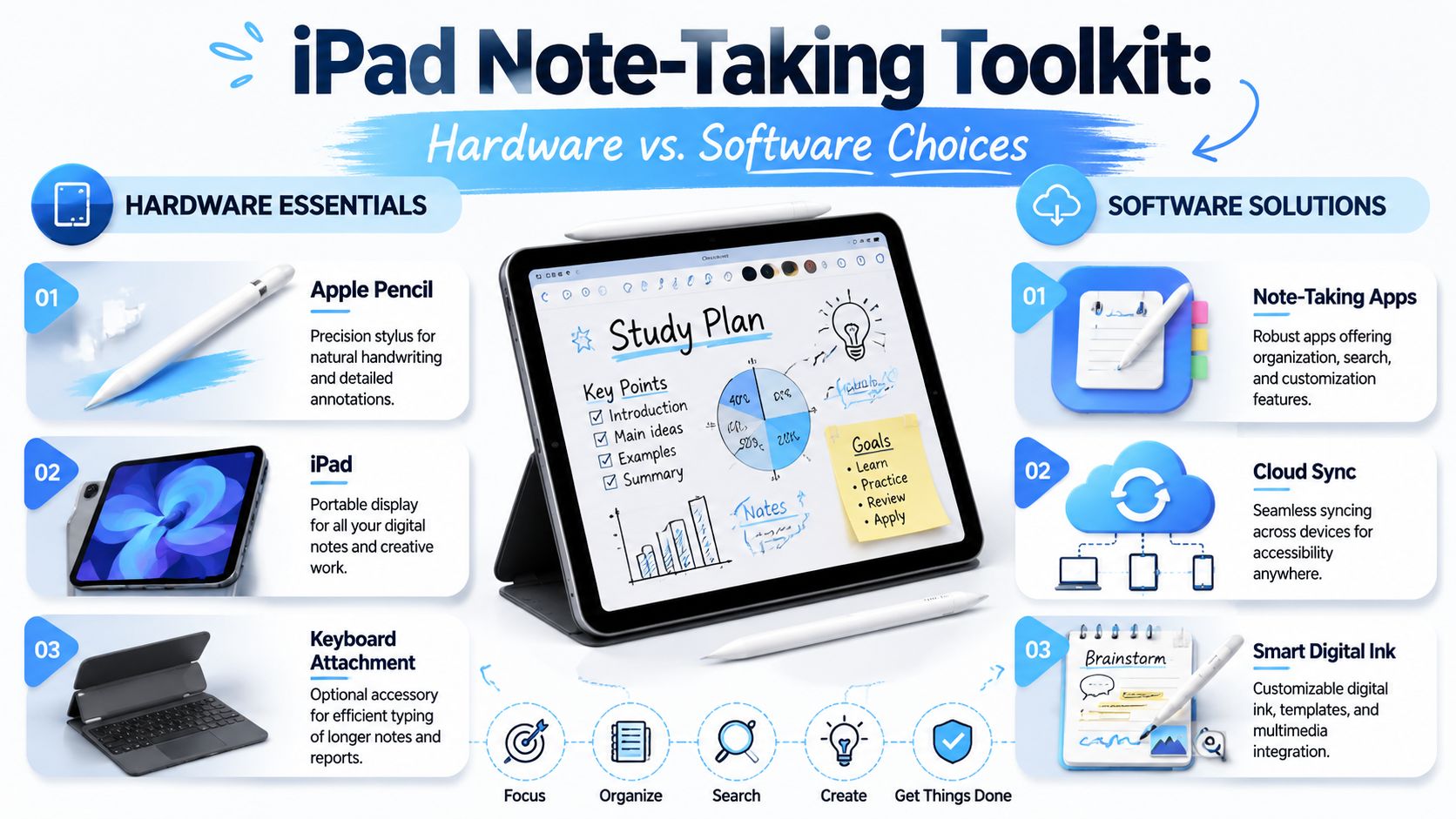
Hardware that matches how you think
For writing notes on iPad, the first decision is input method.
Apple Pencil works best when you need spatial freedom. It's ideal for margin notes, diagrams, equations, rough outlines, and active reading. Handwriting also slows you down just enough to process information rather than dumping every word onto the screen.
Keyboard input wins when volume matters. If you're taking detailed meeting notes, drafting a report, or collecting structured research, typing is faster and easier to search, rearrange, and export later.
A lot of people try to force one tool to do both jobs. That's where frustration starts. Pencil-only users get tired during long sessions and struggle when they need clean, shareable text. Keyboard-only users miss the flexibility of quick sketches, document markup, and handwritten thinking.
If you're still deciding on accessories, it helps to compare different styles of stylus for iPad before locking yourself into one workflow. Comfort and grip affect whether you'll keep handwriting for more than a few minutes.
Software categories that stay useful
The app question gets easier when you stop comparing brands and start comparing app archetypes.
| App Archetype | Best For | Key Feature | Pricing Model |
|---|---|---|---|
| Built-in notes app | General daily capture, quick notes, personal organization | Deep OS integration and fast access | Usually included with the device ecosystem |
| Handwriting-first app | Students, annotators, visual note-takers | Better pen tools, templates, and PDF markup | Often subscription or one-time purchase, depending on the app |
| Linked-note or knowledge app | Researchers, writers, complex project work | Cross-linking ideas and structured archives | Varies by app |
Apple Notes is stronger than many people realize. It handles quick capture, formatted text, and mixed media well. Dedicated handwriting apps usually feel better for long handwritten sessions and document annotation. Linked-note tools suit people building a long-term knowledge base, but they can become overhead if all you need is class notes and meeting summaries.
A practical setup for most users looks like this:
- Apple Notes for speed: Use it for inbox notes, quick captures, and anything you need on all Apple devices without setup friction.
- A handwriting-focused app for deep annotation: Lecture notes, PDFs, and handwritten review sessions typically fit better within such an app.
- A knowledge app only if your work requires linking ideas over time: Researchers and heavy writers benefit most. Many others don't need the extra complexity.
Don't choose the app with the most features. Choose the one you'll still trust when you're late to a meeting.
If AI-assisted note workflows matter to you, this guide to the best AI note-taking app is useful because it evaluates note tools through the lens that matters now: capture is only half the job.
Effective Handwriting and Annotation Techniques
Good digital handwriting isn't about making your notes look like calligraphy. It's about making them readable, fast, and easy to review. That's a different target.
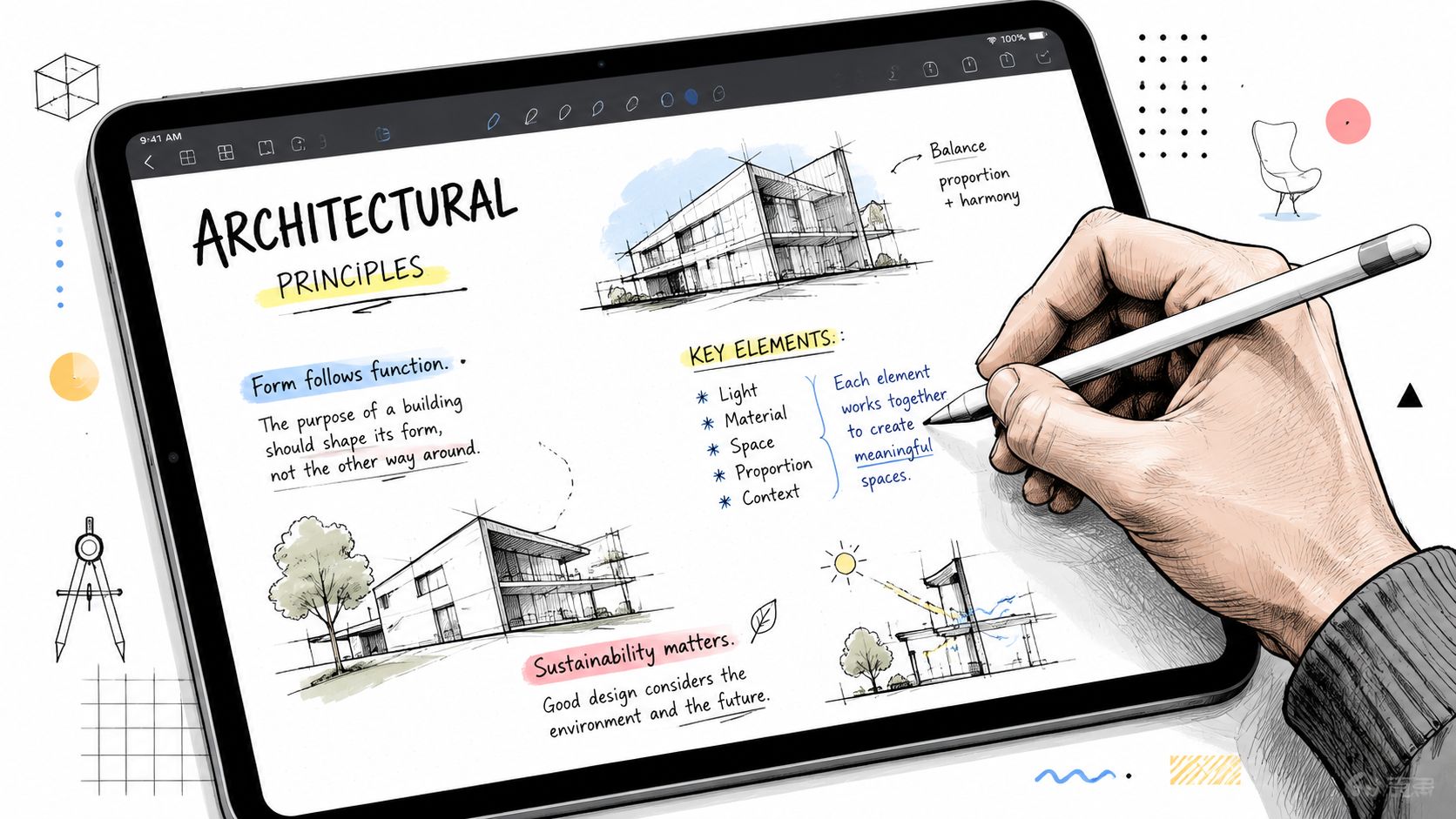
Make handwriting more usable
Most advice about writing notes on iPad gets stuck on neatness. That's too narrow. Apple's current handwriting tools point toward a hybrid workflow instead. In Notes on iPad, you can refine handwriting, straighten it, convert it to text, and even paste typed text in handwriting style, as described in Apple's handwriting tools guide for iPad. The practical question isn't just how to write more neatly. It's when handwriting should stay handwriting, and when it should become text.
That shift changes how you work. Use handwriting when speed of thought matters more than perfect structure. Convert to text when the note becomes reference material, a draft, or something you need to share.
A few techniques make a real difference:
- Use zoom or tighter writing areas: Smaller controlled sections improve legibility, especially for dense notes.
- Create a minimal pen palette: Keep one dark writing pen, one highlight color, and one annotation color. Too many choices slow you down.
- Use shape recognition for diagrams: Boxes, arrows, and quick process maps become much easier to review later.
- Write larger than you think you need: Tiny digital handwriting often looks clean in the moment and unreadable during review.
Handwrite for thinking, annotate for understanding
The iPad becomes more valuable when you stop treating it like a blank page and start treating it like a markup surface. PDFs, web clippings, slides, contracts, and research articles all benefit from direct annotation.
My default rule is simple. If I'm trying to understand something, I annotate. If I'm trying to document something, I type. That one decision removes a lot of note-taking confusion.
Useful annotation habits include:
- Mark the argument, not every sentence. Highlight claims, definitions, and decisions.
- Write margin reactions. Questions and objections are often more useful than copied content.
- End each document with a short summary. A few lines at the bottom save a lot of rereading later.
A quick demonstration helps if you're still adjusting your writing posture and pen control:
Handwriting is best when it helps you think. It's wasteful when it becomes decorative transcription.
That's the hidden advantage of the iPad. It lets handwritten notes evolve. A messy brainstorm can become clean text. A marked-up PDF can produce a summary. A rough sketch can turn into an action plan.
Organizing Your Digital Knowledge Base
Bad organization doesn't fail immediately. It fails later, when you know you wrote something useful and can't find it under pressure.
That's why digital note systems break down. People create notes quickly, then organize them like paper notebooks. One folder per class. One notebook per project. One giant archive labeled “random.” It works for a while, then turns into a junk drawer.
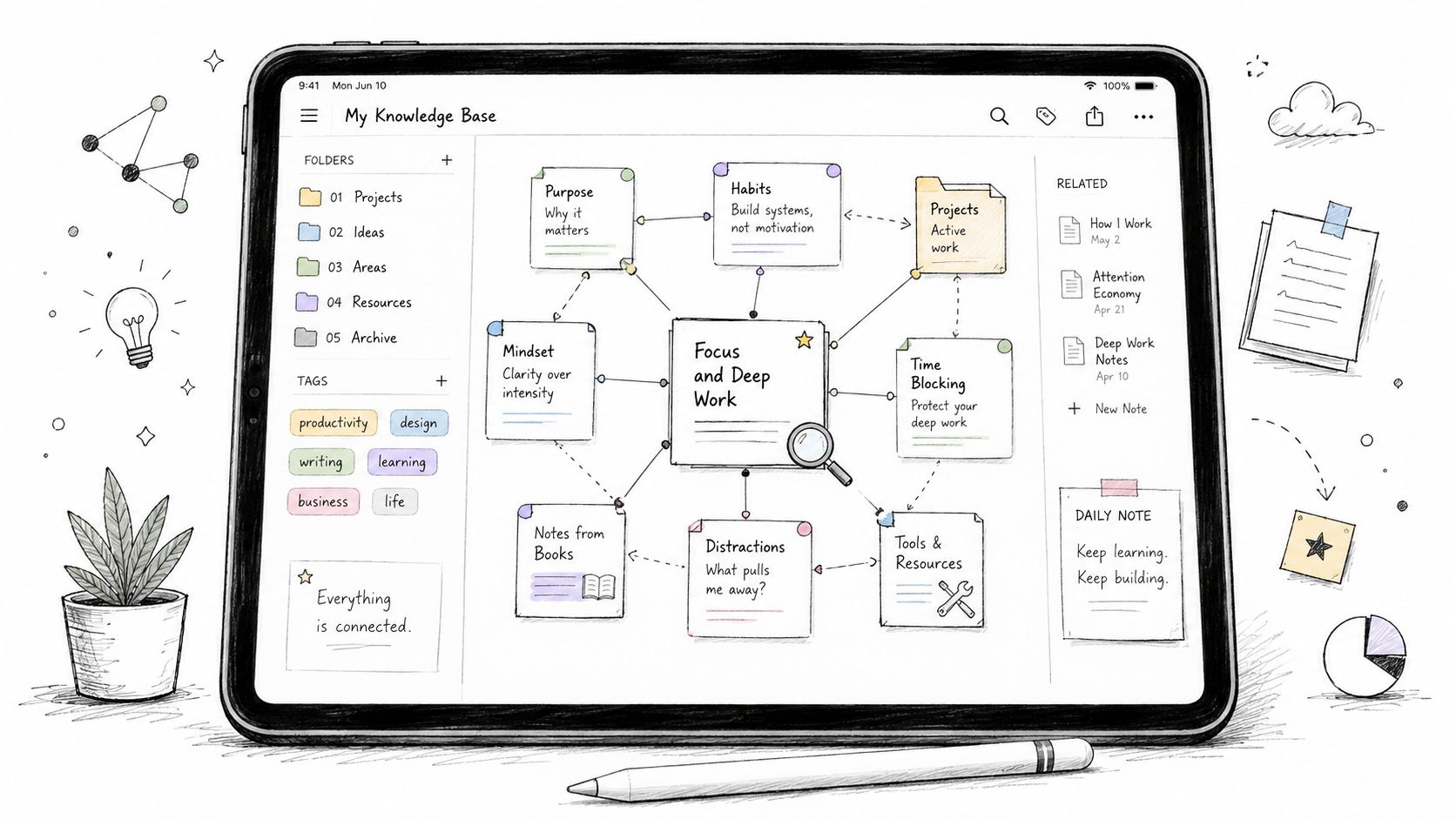
Use folders for ownership and tags for retrieval
A durable system needs two layers.
Folders answer: where does this belong?
Tags answer: how might I want to find this later?
Here's a practical structure I recommend:
- Top-level folders by role or responsibility: Work, Study, Personal, Admin
- Subfolders by active project or course: Client A, Thesis, Certification, Travel Planning
- Tags by note type or status: #meeting, #idea, #reading, #waiting, #review, #draft
That split keeps the folder tree from becoming too deep while still giving you flexible search later. A meeting note for one client can live in the client folder and still carry tags like #meeting and #followup.
Build one note that acts like a dashboard
Many individuals don't need a complicated second-brain system. They need a reliable front door.
For each active project, create one dashboard note. Put the essentials there:
- Purpose: A short line stating what the project is for
- Current priorities: The next actions or open questions
- Linked material: Meeting notes, research notes, scans, or summaries
- Decision log: Major choices and why they were made
That dashboard saves time because it reduces browsing. Instead of hunting through scattered notes, you open one page and orient yourself fast.
Practical rule: Organize for retrieval, not for aesthetics.
A consultant's client project is a good example. Put every meeting note, proposal draft, voice memo summary, and research clipping inside the client folder. Then tag by function. When you need all pending items across clients, search the tag. When you need the full history of one engagement, open the folder.
If you handle a lot of source material, this guide on how to organize research notes is a useful companion because it focuses on turning raw material into a system you can work from.
Keep the archive from swallowing the active work
A simple habit prevents digital clutter. Separate active notes from reference notes.
Active notes are current. You revisit them often. Reference notes are done, but still worth keeping. Move finished material out of your daily workspace so current projects stay visible.
Color coding can help, but only if you use it sparingly. One color for urgent, one for in progress, one for archived is enough. More than that and you'll spend more time maintaining the system than using it.
Turning Audio into Actionable Notes with AI
There are situations where handwritten or typed notes are the wrong primary tool. Fast meetings, interviews, dense lectures, and brainstorming sessions often move too quickly. You can either listen well or write everything down. Trying to do both usually gives you mediocre attention and incomplete notes.
That's where audio changes the workflow.
A clear shift in iPad note-taking has been the move from manual capture toward audio-assisted notes and automated synthesis. By 2024–2025, Apple Notes and apps like Notability prominently supported audio recording synced to notes, reflecting a broader move from static notes to searchable records, as noted in Zapier's review of the best note-taking apps for iPad and iPhone.
Record first, summarize second
The strongest modern workflow looks like this:
- Capture audio during the session
- Add lightweight notes while listening
- Transcribe after the fact
- Extract summary, key points, and actions
- Store the final output with the related project notes
This works because it separates presence from processing. During the live conversation, you don't need perfect notes. You only need markers: important timestamps, decisions, names, questions, and anything nonverbal you want to remember.
Later, the transcript becomes the source of truth.
Where AI actually helps
Manual relistening is where note systems stall. You record a full discussion, promise yourself you'll revisit it, then never do. AI tools matter because they shorten the gap between recording and usable output.
One practical option is AI transcribe audio to text, especially when your iPad is already your capture device and you want the result in searchable text instead of another buried file. HypeScribe can take uploaded audio or video, generate transcripts, and produce summaries, key takeaways, and action items. In a real workflow, that means your meeting recording stops being an archive and starts becoming working material.
That's the point where audio notes become useful rather than aspirational.
A few cautions matter here:
- Check names and specialist terms: AI output is useful, but review proper nouns and domain language.
- Keep your own meeting markers: A transcript is better when you've already flagged decisions and questions during the call.
- Don't save everything forever: If a recording has served its purpose, archive or remove it based on your policy and needs.
If you want the output to live in a broader local system rather than scattered across cloud tools, this piece on building an offline AI knowledge base on Mac is a smart next read.
The value of audio isn't the recording itself. It's the ability to turn spoken information into something searchable, usable, and easy to act on.
For students, that can mean turning a lecture into a study summary. For consultants, it means converting client calls into decision logs. For researchers, it means making interviews quotable and searchable. The iPad is excellent at capture. AI makes that capture operational.
Productivity Tips for Power Users
Once your system works, small refinements matter more than big changes. With these refinements, writing notes on iPad starts to feel professional instead of improvised.
Protect the notes and make them portable
Sync is convenience. Backup is insurance. Treat them as separate things.
If a note matters, make sure it exists in the app's sync system and in an export format you can still open later. PDF is good for preserving layout. Plain text or Markdown is better for longevity and reuse. For collaborative work, a shared document or exported file is usually cleaner than inviting everyone into your entire note app.
A simple routine works well:
- Export finished notes: Meeting summaries, study guides, and finalized research notes should leave the capture app when they become reference material.
- Standardize file names: Use date plus subject so search stays reliable.
- Choose one collaboration format per context: Teams get messy when one person sends screenshots, another sends PDFs, and a third shares editable docs.
If your note workflow feeds into writing, summaries, or repurposed material, it helps to understand the broader scope of tools for AI content creation. The overlap between notes and draft production is getting tighter.
Reduce strain before fatigue changes your habits
Ergonomics gets ignored until your hand, wrist, or neck starts complaining. Existing advice often repeats the same ideas about grips and matte screen protectors, but the bigger issue is long-session strain, especially for people using iPads through repeated lecture days or meeting-heavy work, as highlighted in this discussion of iPad note-taking ergonomics.
A few practical adjustments help:
- Change angle often: Flat for annotation, slightly raised for writing, upright for reading and review.
- Alternate input methods: Don't handwrite for hours if typed text will do the job better.
- Use shorter handwriting bursts: Handwrite to think, then type to expand.
- Mind your left-hand or right-hand setup: Palm position and screen angle matter more than most app settings.
Know when to stop polishing notes
Power users often overprocess. They rewrite everything, recolor everything, and create beautiful archives they rarely use. That's wasted energy.
A note is finished when it's findable and useful. Not when it's pretty.
The best systems keep a clean distinction between capture notes and output notes. Capture notes can stay rough. Output notes are the ones worth formatting, sharing, or storing as long-term reference.
If your current iPad workflow captures plenty of information but still leaves you with recordings you never revisit, HypeScribe is worth considering as the step between raw audio and usable notes. It turns spoken content into searchable transcripts, summaries, key takeaways, and action items, which fits neatly into a capture-to-synthesis system instead of leaving your ideas stuck in a voice memo folder.


































































































