Teams Meeting Transcription: A Complete How-To Guide

You're probably here because someone asked a question that should have been easy to answer.
Who agreed to the deadline?
Did the client approve that change?
Was the action item assigned to Ops or Product?
A week later, nobody is fully sure. One person remembers the conversation one way, someone else remembers it differently, and the meeting notes are either incomplete or trapped in one person's notebook. That's the moment when Teams meeting transcription stops being a nice feature and starts being basic operational hygiene.
Microsoft Teams gives you a native way to turn live meeting speech into a searchable record. Done well, it helps with follow-up, handoffs, recap, and accountability. Done poorly, it creates a different kind of confusion, usually because users can't find the button, the transcript wasn't started early enough, or nobody knows where the file ended up after the meeting.
I've seen the same pattern across internal project meetings, manager one-on-ones, training sessions, and client calls. The challenge often isn't “how do I click Start transcription?” It's understanding the chain behind it. Admin policy controls availability, meeting roles affect who can start it, storage location changes by meeting type, and retention matters if your organization treats transcripts as records.
Teams handles a lot of this well, but it helps to know where the edges are. If you just need live capture and a transcript you can review later, the native workflow is often enough. If you need more structured outputs or broader transcription workflows, that's where specialized tools start to make sense.
From Meeting Chaos to Clear Records
The most common meeting failure isn't bad intent. It's bad recall.
A product review ends with five decisions, two open questions, and one “let's circle back tomorrow.” By the next morning, the chat thread is active, but people are already interpreting the same conversation differently. Someone writes a summary from memory. Another person adds corrections. A third person stays quiet because they weren't taking notes and don't want to guess.
That's where Teams transcription changes the dynamic. Instead of relying on memory, you get a durable text record of the meeting. That matters more than is commonly understood. Once the conversation exists as text, people can review it, search it, and use it for follow-up without asking one person to serve as the official historian.
Practical rule: If a meeting is likely to produce decisions, risks, or assigned work, it's worth capturing the conversation in text while it happens.
Microsoft's approach to transcription inside Teams is useful because it sits inside the meeting flow rather than forcing users into a separate note-taking process. The transcript becomes part of the meeting artifact itself, not an afterthought. That changes behavior. Teams stop saying “who took notes?” and start asking “can someone check the transcript?”
Three kinds of meetings benefit most:
- Decision meetings: People can verify exactly what was agreed.
- Operational meetings: Action items are easier to trace back to the original discussion.
- Knowledge-heavy meetings: New joiners can review what happened without replaying the entire meeting.
There's still judgment involved. Transcripts aren't perfect, and they don't replace good facilitation. Cross-talk, poor microphones, and vague speaking habits still create messy output. But even with those limits, a live transcript is usually better than reconstructing a meeting from fragments.
The practical value of Teams meeting transcription isn't that it makes meetings smarter. It makes them recoverable.
Permissions and Admin Settings You Need to Know
If the Start transcription option is missing, the problem usually isn't user error. It's policy.
Microsoft notes that Teams transcription works best when the meeting organizer enables it at the start of the meeting, because participants then see live text with speaker names and timestamps, and the completed transcript is available in meeting chat. Microsoft also notes that if transcription isn't visible, tenant policy may need to allow it in the admin center in its Teams transcription workflow overview.
Why users can't always see the option
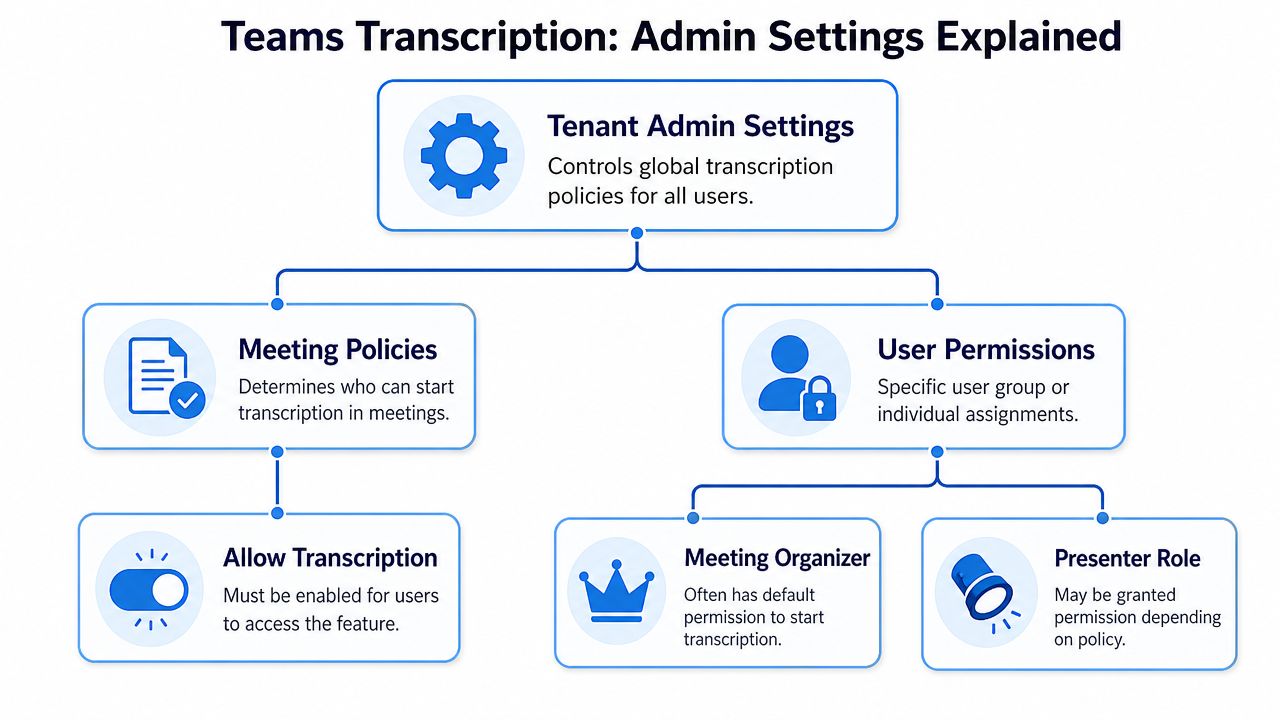
A lot of end-user guides make it sound as if transcription is a personal preference. It isn't. In most organizations, transcription availability depends on tenant-level and meeting policy settings. That means a user can have the right desktop app, be in the right meeting, and still not see the option because IT has disabled or restricted it.
That restriction is often deliberate. Some organizations want to control where transcripts are stored, how long they're retained, or who can create records of sensitive discussions. Others are still working through compliance rules and choose to disable transcription until policy catches up.
If you're an end user, the right question to ask IT isn't “Why is Teams broken?” It's this:
“Is transcription enabled in our Teams meeting policy for my account or group?”
That question gets you to the core issue faster.
What admins should check
From the admin side, think in layers:
- Tenant settings: Confirm transcription is allowed as part of your organization's Teams configuration.
- Meeting policies: Check whether the assigned policy allows transcription for the users who need it.
- Role behavior: In practice, the organizer is usually the safest person to start transcription, especially at the beginning of the meeting.
- User assignment: If your org uses multiple policies, verify the right users or groups received the right one.
A lot of rollout issues happen because admins enable a feature in one place and assume that's enough. It usually isn't. Teams is policy-driven, and feature exposure follows those assignments.
What works in real deployments
The cleanest rollout is to enable transcription first for a defined group, test a few private and channel meetings, and confirm users understand both availability and limits. If your team also records meetings, it helps to align those settings so people aren't surprised by what appears after the meeting ends.
If your users also need the recording side of the workflow, this guide on how to record a Teams meeting pairs well with the transcription setup because the two often get confused.
A missing transcription button usually has a simple explanation. It just lives in the admin layer, not the meeting window.
How to Use Live Transcription in Your Meetings
Once policy is in place, the user workflow is straightforward. The key is to start transcription early enough that the meeting record is useful from the beginning.

Microsoft documents that participants can start transcription in a Teams meeting by going to More actions > Record and transcribe > Start transcription. The transcript then appears live with speaker names and timestamps, and after the meeting it can be downloaded as DOCX or VTT in Microsoft's live transcript support documentation.
Starting the transcript cleanly
If you're the organizer or the person expected to manage the meeting, start the transcript before the main discussion begins. Don't wait until the first decision point. Late starts create partial records, and partial records cause the exact debates transcription is supposed to prevent.
Use this sequence:
- Join the meeting and confirm audio is stable.
- Open More actions.
- Choose Record and transcribe.
- Select Start transcription.
- Pause briefly so participants can see the notification and understand the meeting is being transcribed.
That pause matters. Teams transcription is visible, not hidden. Participants should know when the meeting is being captured.
What you'll see during the meeting
Once it's running, the transcript appears in a side panel. You'll see text populate live as people speak. Teams also attempts to attribute speech to the right speaker and attaches timestamps to entries, which makes later review much easier than scanning a plain block of text.
That changes how you can run the meeting. Instead of asking someone to manually note every decision, you can focus on discussion quality and use the transcript for verification later.
Start it before introductions end. If you wait until the “important part,” the transcript will miss context, names, and the setup that makes later comments understandable.
A short walkthrough helps if you're using it for the first time:
What to expect from the live experience
The live panel is useful, but it's not magic. It works best when speakers take turns, microphones are decent, and people avoid talking over one another. If three people jump in at once, the transcript becomes much harder to trust line by line.
That doesn't mean the feature failed. It means the meeting behavior overwhelmed the capture.
Here's where Teams transcription works well in practice:
- Status meetings with clear speakers
- Project calls with structured agenda flow
- Training sessions where one person speaks for longer stretches
Here's where it gets weaker:
- Fast debates with interruptions
- Meetings with poor room audio
- Calls where people join from noisy locations
Stopping the transcript
At the end of the meeting, stop the transcript from the same control area if needed. In many teams, the organizer handles this so the output is complete and consistent. If you leave transcript management ambiguous, people assume someone else took care of it.
The best habit is simple. Start transcription at the beginning, run the meeting normally, and stop it only after the final decisions and next steps are spoken aloud.
Accessing and Managing Your Transcripts After the Meeting
The meeting is finished, but the transcript only becomes useful if people can find it.
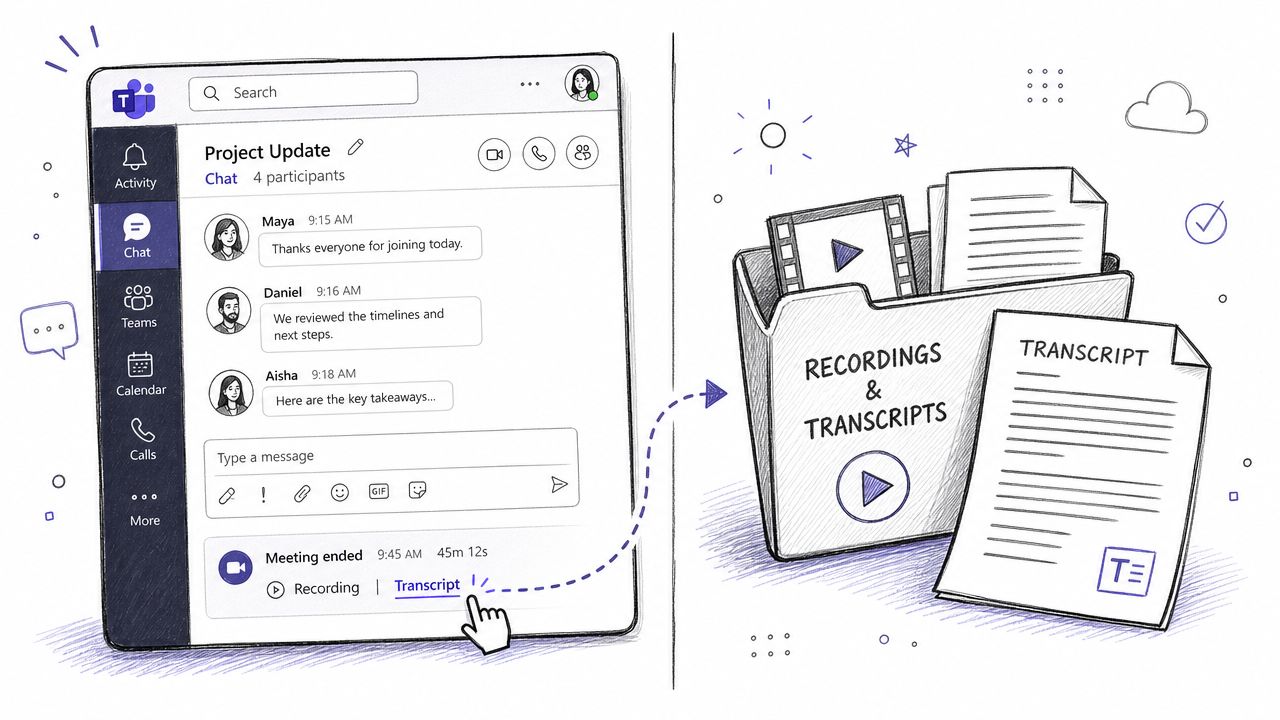
For most users, the first place to check is the meeting chat. That's usually where participants expect post-meeting artifacts to appear, and it's the fastest way to confirm the transcript exists. In many cases, the meeting details area also includes a Recordings & Transcripts view, which is where users often go when they need to review or export the file.
Where the file lives
Many teams encounter difficulty: Microsoft's documented storage model depends on meeting type, not just the fact that a transcript exists.
For governance, Microsoft recommends treating transcripts as governed records. For private meetings, transcripts are stored in the organizer's OneDrive. For channel meetings, transcripts are stored in the team's SharePoint site. Microsoft also recommends managing lifecycle with Purview retention labels and policies so recordings and transcripts can be retained or deleted together in its recording and transcription overview.
That distinction matters for access and cleanup. Teams often assume there's one central archive for all transcripts. There usually isn't.
How to work with the transcript after the call
Once you locate it, the transcript can support several common tasks:
- Reviewing decisions: Search for names, deliverables, or terms discussed in the meeting.
- Sharing context: Send participants back to the transcript instead of rewriting the whole discussion in chat.
- Exporting the file: Download the transcript when you need an offline copy or want to edit and circulate a cleaner summary.
The most practical post-meeting habit is to review the transcript shortly after the call, not days later. That's when gaps or misattributions are easiest to spot and fix in your working notes.
DOCX and VTT serve different jobs
The export format matters more than people think.
| Format | Best use |
|---|---|
| DOCX | Editing meeting notes, cleaning up language, circulating a readable version internally |
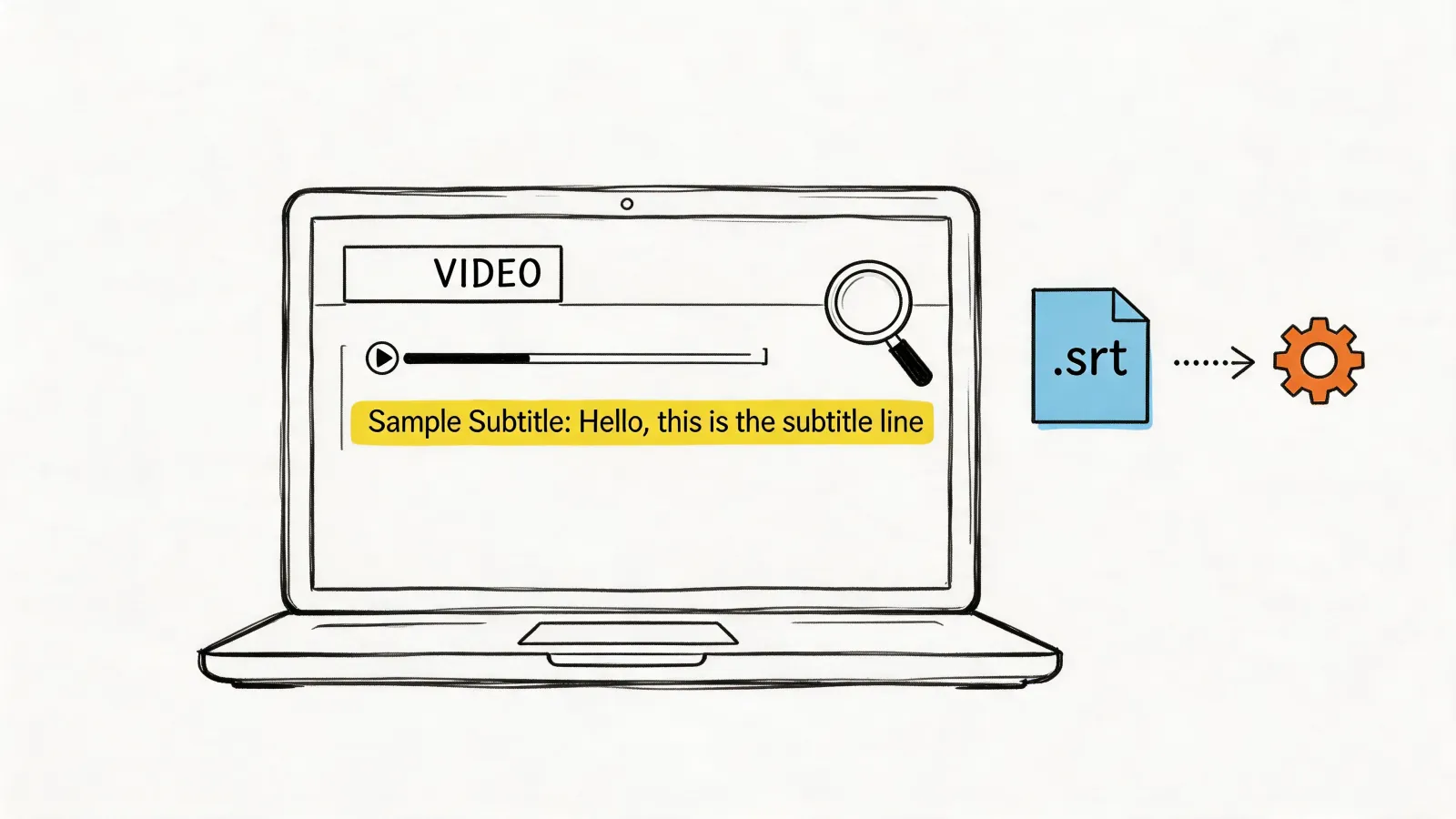
| VTT | Caption-related workflows and systems that expect timed text |
If your goal is a manager recap or project follow-up, DOCX is usually the friendlier file. If you're pairing transcript output with video content, VTT is the more useful format.
A transcript isn't automatically a record-management success. It becomes one when your team knows where it's stored, who can access it, and how long it should stay there.
If recordings are part of your broader workflow too, this overview of Microsoft Teams recordings is useful because recordings and transcripts often need to be retained or deleted together.
The back-end storage model is easy to ignore until someone asks for an old transcript and nobody knows whether to look in OneDrive or SharePoint. That's why it's worth settling this early.
Troubleshooting and Improving Transcription Accuracy
Most transcription problems fall into one of two buckets. Either the feature won't start, or it starts but the output is messy.
The first bucket is usually technical or policy-related. If transcription won't appear or won't start, check the basics first. Is the meeting policy set correctly for the organizer? Is the user in the expected role? Did the meeting begin normally, or was it launched from a workflow that changes permissions?
When the feature behaves oddly
A short troubleshooting pass usually saves time:
- Check role first: If the organizer can start transcription but another participant can't, the issue may be role-related rather than a broken feature.
- Restart the meeting client: Teams glitches do happen, especially around controls that depend on live meeting state.
- Confirm policy with IT: If the option is absent entirely, ask about the assigned meeting policy rather than trying random client fixes.
- Start earlier next time: Some “it didn't capture the meeting” complaints come from starting transcription after the core discussion had already begun.
Once the transcript is running, the second bucket becomes more important. Output quality depends heavily on how people speak and what their audio sounds like.
How to get better transcript quality
Teams transcription does better when humans make it easier to succeed.
- Use reliable microphones: A cheap built-in mic in a noisy room will hurt every transcript, no matter the software.
- Reduce side conversations: Cross-talk is one of the fastest ways to make speaker attribution less useful.
- Have speakers identify themselves when needed: This helps in larger meetings and in calls with people who join late.
- Speak in complete thoughts: Fast fragments, interruptions, and half-finished sentences are harder to review later.
- Keep background noise under control: Keyboard clatter, room echo, and speakerphone bleed all degrade clarity.
A useful meeting habit is to ask interviewers, moderators, or facilitators to model clean turn-taking. That's especially true in hiring panels or structured interviews. If your team runs those often, these AI interview preparation tips are worth reviewing because they reinforce better speaking patterns and clearer interview structure, which also improves transcript quality.
Cleaner meetings produce cleaner transcripts. The software matters, but speaker behavior matters just as much.
Native Teams transcription is good at capturing a clear conversation. It's less forgiving when the meeting itself is chaotic. If you want better output, fix the room, the mic, and the turn-taking before you blame the transcript.
When to Upgrade Beyond Native Teams Transcription
Teams covers the core use case well. You can capture speech live, review it afterward, and keep it within your Microsoft 365 environment. For many internal meetings, that's enough.
Microsoft has also pushed transcription beyond plain text. Its developer documentation shows that transcript and recording data can feed downstream workflows through APIs, and that Teams Premium can add AI-generated notes and tasks while Copilot can help late joiners catch up. Microsoft also states that customer transcript content is not used to train its foundation LLMs for general model improvement outside the tenant in its meeting transcripts platform overview.

Where the native option starts to strain
The limits usually show up in real-world edge cases:
- Messy audio: Multiple speakers, overlap, bad acoustics, or inconsistent mic quality.
- Higher output expectations: You need not just a transcript, but structured summaries, takeaways, and action items.
- Broader workflow needs: Your team works across Teams, Zoom, uploaded files, and social or recorded media.
- Content reuse: You want transcripts to feed documentation, content production, research notes, or searchable archives.
This isn't a knock on Teams. Native tools are usually built for the common path. Once you move beyond the common path, a dedicated transcription tool often fits better.
A practical comparison
| Need | Native Teams transcription | Dedicated transcription tool |
|---|---|---|
| Live meeting capture in Teams | Strong | Strong |
| Policy and governance inside Microsoft 365 | Strong | Depends on tool and setup |
| Cross-platform meeting and media workflows | Limited to Microsoft ecosystem use cases | Usually broader |
| Structured outputs beyond raw transcript | Available through some Microsoft add-ons and workflows | Often more direct and purpose-built |
For teams that need broader transcription workflows, meeting transcription software becomes the right category to evaluate.
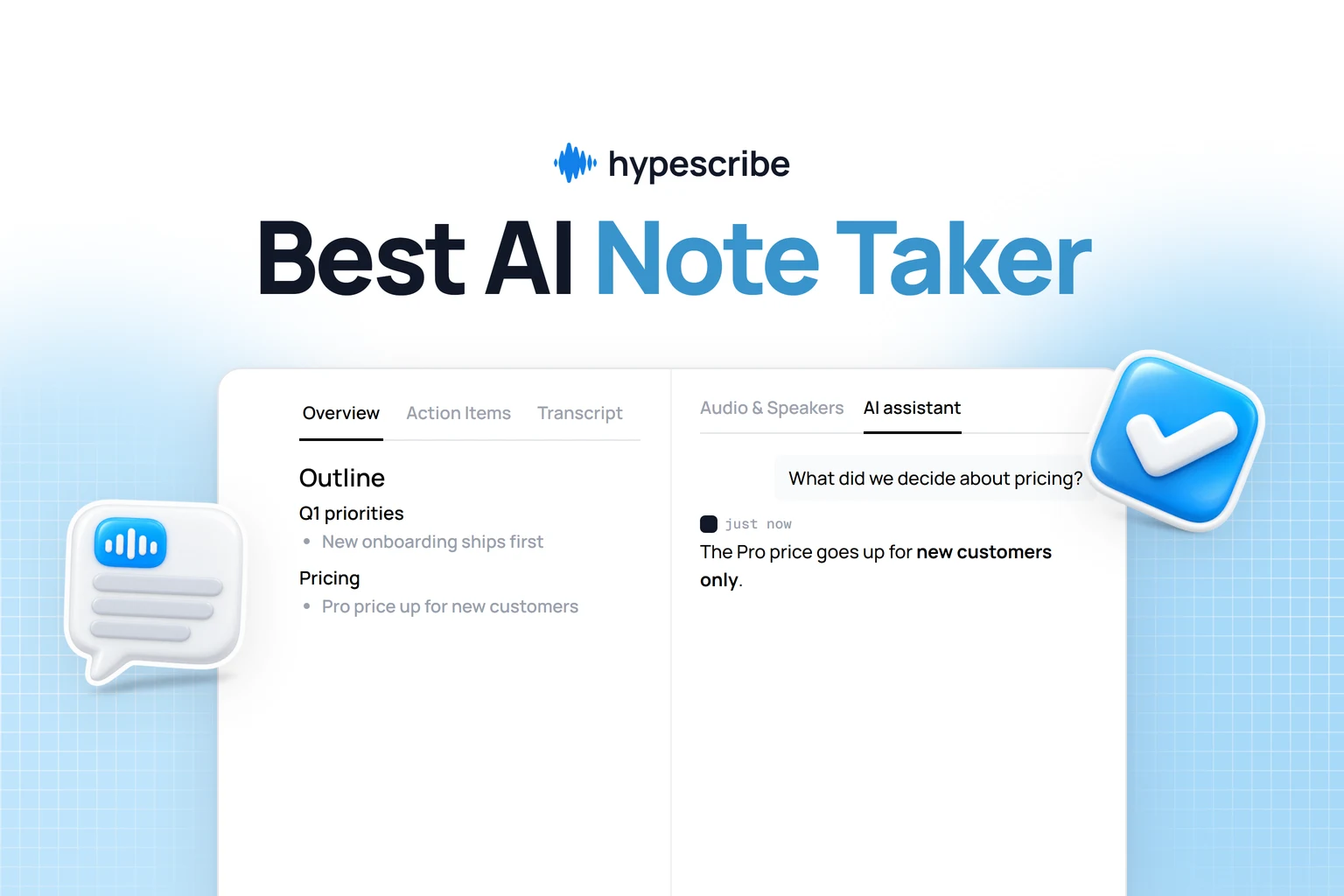
One example is HypeScribe, which supports transcription for meetings and uploaded media, generates summaries, key takeaways, and action items, and works beyond a Teams-only workflow. That makes it more suitable when the transcript is just the starting point and the team needs a work product afterward, not only a record.
The right decision usually comes down to this question: do you need a transcript of the meeting, or do you need a system built around what happens after the meeting?
If your answer is the first one, native Teams transcription may be enough. If it's the second, that's when a specialized tool earns its place.
If your team has outgrown basic meeting capture and needs searchable transcripts, summaries, action items, and support for meetings and media beyond Microsoft Teams, HypeScribe is worth a look. It fits teams that want to turn conversation into usable documentation without building that workflow by hand.