YT to MP4 Download: A Practical Guide for 2026

You're probably here because you need a YouTube video as a file, not as a tab. Maybe you're about to board a flight, maybe the Wi-Fi where you work drops every few minutes, or maybe you need a clean clip for a presentation, edit, or research archive.
That's where most YT to MP4 download guides fall short. They treat every user the same. In practice, your best method depends on what you need. Fast and disposable is one path. Highest quality and repeatable reliability is another. And in a lot of cases, downloading the video at all isn't the smartest move.
Why You Might Need to Download a YouTube Video
The need is ordinary. The tooling is what gets messy.
YouTube is huge enough that download behavior is almost inevitable. The platform has over 2.5 billion monthly active users, people watch more than 1 billion hours of video every day, and over 500 hours of video are uploaded every minute, according to YouTube usage statistics collected here. When that much material lives on one platform, people will want offline access, local copies, and portable files.
Common reasons people want an MP4
Some needs are about convenience. Others are about workflow.
- Offline viewing: You want a documentary, lecture, or tutorial on a plane, train, or weak connection.
- Presentation prep: You need a clip to play smoothly during a meeting without betting on venue Wi-Fi.
- Editing and repurposing: You want to pull a scene into Premiere Pro, Final Cut, or a simple editor.
- Research and reference: You need to archive a source, tag it, trim it, or review it later.
- Device compatibility: You want one file that opens on a laptop, phone, tablet, or media player.
Practical rule: Don't start by asking “What's the best downloader?” Start by asking “Do I need speed, quality, or just the information inside the video?”
That answer changes everything.
What usually goes wrong
Many users initially try an online converter because it feels instant. Paste URL, click button, save file. Sometimes that works. Sometimes you get a low-quality file, no audio, a weird format that won't open in your editor, or a site that looks one click away from installing junk.
The better approach is to choose your path based on stakes:
| Need | Best fit |
|---|---|
| One quick file, low stakes | Online converter |
| Best quality, repeatable workflow | yt-dlp with FFmpeg |
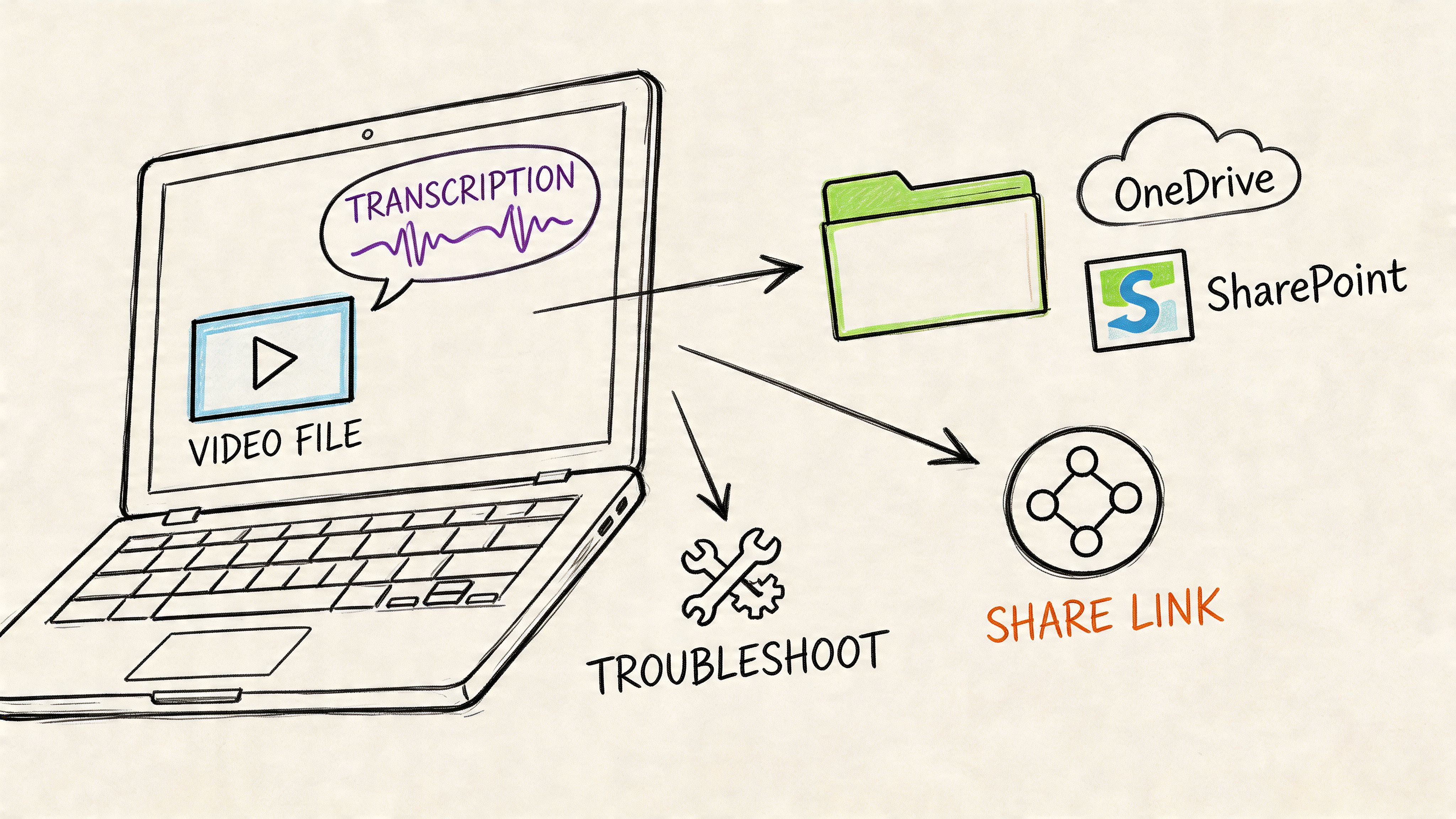
| Only need quotes, notes, or ideas | Transcription workflow |
If you only need a rough offline copy, convenience may matter more than polish. If you care about source quality or codec control, the quick web tools usually stop being good enough.
Quickest YT to MP4 Download Using Online Converters
Online converters are often the initial choice because they remove friction. No install. No terminal. No setup. You copy the YouTube link, paste it into a web form, pick MP4, and download.

That simplicity is real. So are the trade-offs.
When online converters make sense
They're useful when the download is casual and disposable. If you just need a temporary local copy and don't want to install anything, they can be the fastest route.
A basic flow looks like this:
- Open the YouTube video and copy the URL.
- Paste it into an online converter.
- Choose MP4 if the site gives format options.
- Download the file and test playback immediately.
If you want a broader look at the category, this overview of a free YouTube converter workflow shows the typical web-based pattern users start with.
What these sites usually get wrong
The problem isn't that every online converter is fake. It's that the category is unstable.
Common issues include:
- Aggressive ads: Fake download buttons are everywhere.
- Redirect chains: One click can open several tabs.
- Quality limits: Some sites offer an MP4, but not the best available stream.
- Format confusion: The file says MP4, but playback or editing still fails.
- Privacy concerns: You're sending video URLs through a third-party service you don't control.
If a converter page has multiple flashing buttons, asks for browser notifications, or starts a download before you chose a format, close it.
Those are practical warning signs, not theoretical ones.
A quick safety checklist
Before using any converter, look for these red flags:
- Notification prompts: A site that pushes browser notifications before conversion is usually not worth trusting.
- Forced extensions: If the page says you need a helper app or extension, stop there.
- Strange filenames: Randomly named downloads are worth checking before you open them.
- Missing preview or format details: If you can't tell what you're getting, expect surprises.
A short demo helps if you've never used this kind of tool before:
The honest verdict
Web converters are fine for low-stakes use. They are not my first choice for anything you care about keeping, editing, or sharing with other people. They can work, but they're brittle, inconsistent, and often careless about user experience.
If your reaction after trying one is “why is this so messy,” that's normal. The next method is what most serious users switch to once they get tired of guesswork.
The Most Reliable Method Using yt-dlp
If you want a YT to MP4 download method that holds up over time, use yt-dlp.
It's a command-line tool, which scares some people off for no good reason. In exchange for one short command, you get better reliability, better control, and a much better chance of ending up with the file you intended to get.

Why yt-dlp works better
A lot of people assume downloading a video means grabbing one single file. That's often not how YouTube serves media. A practical guide to yt-dlp notes that an optimal workflow is to fetch separate adaptive streams and merge them with FFmpeg using yt-dlp -f bestvideo+bestaudio --merge-output-format mp4 [URL], because YouTube commonly delivers video and audio separately and FFmpeg can mux them into a single MP4 without re-encoding, preserving source quality. That guidance is outlined in this yt-dlp and FFmpeg workflow reference.
That detail matters. It explains why many browser converters fail where yt-dlp succeeds.
The command most people should start with
Use this:
yt-dlp -f bestvideo+bestaudio --merge-output-format mp4 [URL]
Replace [URL] with the YouTube link.
What this does:
bestvideo+bestaudiotells yt-dlp to fetch the best separate streams available.--merge-output-format mp4tells it to combine them into an MP4 container.- FFmpeg handles the merge step cleanly.
If you skip the merge logic and force MP4 too early, you can end up with broken results or separate tracks.
A first-time setup that doesn't feel painful
On Windows or macOS, the basic path is simple:
- Install yt-dlp.
- Install FFmpeg.
- Open Terminal on macOS or a command shell on Windows.
- Paste the command with your video URL.
- Wait for the download and merge to finish.
- Open the resulting MP4 and check both picture and audio.
That's enough for many users.
The learning curve is front-loaded. Once yt-dlp is installed, future downloads are usually faster and less frustrating than hunting for a converter site that still works.
What makes it better for serious use
It is in this aspect that yt-dlp separates itself from casual tools.
| If you care about... | yt-dlp advantage |
|---|---|
| Best available quality | Pulls separate high-quality streams |
| Consistency | Repeatable commands instead of changing websites |
| Editing later | Cleaner source handling |
| Large batches | Better suited to repeated use |
| Fewer surprises | More explicit control over format selection |
There's also a more advanced workflow behind it. Reverse-engineering analysis of YouTube delivery shows that downloads can be handled in ranged chunks, then recombined, and that FFmpeg can either copy streams losslessly with -c copy or transcode to compatibility-friendly codecs when needed. That same analysis also points to batch mode with yt-dlp -a links.txt as a practical higher-throughput option for multiple URLs, which you can read in this deep dive on YouTube stream retrieval and recombination.
If you hate the terminal
You still have options. Some graphical apps use yt-dlp underneath. That gives you much of the same downloading logic with buttons instead of commands. I'd still recommend learning the core command at least once, because it helps you understand what the tool is doing and why it's more reliable.
If your downloads matter, yt-dlp is the method worth keeping.
Choosing Quality Settings and Avoiding Common Issues
The file that finishes downloading is not always the file you need.
A common point of confusion is treating “MP4” as if it guarantees compatibility. It does not. MP4 is a container. The codec inside that container decides whether an older phone, a picky video editor, or a shared team workflow will handle the file cleanly.

MP4 isn't the whole story
One of the clearest examples comes from yt-dlp's own issue tracker. A user asked for videos “in mp4 format,” and the discussion quickly narrowed to what they actually needed: broadly compatible H.264 video with AAC audio, not just any file ending in .mp4. You can see that distinction in this yt-dlp issue about MP4 versus codec compatibility.
That trade-off matters in real use. If the goal is editing, sharing, or playing the file on older hardware, codec compatibility usually matters more than preserving the most exotic source format available.
What to prioritize
Use these defaults if you want fewer playback and import problems:
- H.264 video for broad device and editor support
- AAC audio for fewer audio import issues
- A standard resolution that matches your actual use case, instead of grabbing the largest file by default
Archive-focused users may choose the highest-quality source and deal with conversion later. Everyone else usually gets better results by choosing a format that works everywhere first.
The extension helps a little. The codec pair matters more.
Common issues and practical fixes
| Problem | Likely cause | Practical fix |
|---|---|---|
| Video has no audio | Video and audio arrived as separate streams | Merge properly with yt-dlp and FFmpeg |
| File opens in one player but not another | Unsupported codec | Choose H.264 video and AAC audio |
| Editor rejects the file or stutters on import | High-efficiency codec or odd source format | Re-encode to an editor-friendly MP4 |
| File size is much larger than needed | Downloaded the highest source quality without a reason | Pick a lower resolution or trim it after download |
A lot of frustration comes from choosing for the file extension instead of the job.
If you need to post a clip in chat, drop it into a slide deck, or make a quick cut for review, a smaller compatible file is usually the better choice. If you plan to edit heavily, keeping a higher-quality source can make sense, but expect larger files and more codec quirks. For cleanup after download, this guide on how to trim an MP4 video is useful when the primary problem is shaping the file into something usable.
Subtitles are worth saving too when available. They make quoting, searching, and repurposing much easier.
That last point is easy to miss. Many users searching for a YT to MP4 download do not really need a polished video asset. They need the words, the takeaways, or a short extract. In those cases, the better workflow may be text first, which is why this founder's guide to video transcription is worth reading before you spend time collecting and managing media files.
A Smarter Workflow Transcribe Instead of Downloading
Many people searching for a YT to MP4 download do not want video. They want access to the content inside the video.
That's a different job.

When the file is the wrong output
If you're a student, researcher, journalist, marketer, or manager, the end goal often isn't “save this as MP4.” It's usually one of these:
- Find the key quote
- Pull the main points
- Turn spoken content into notes
- Share takeaways with a team
- Search the material later without rewatching it
An MP4 is heavy, awkward to scan, and bad at answering questions. Text is better for all of those tasks.
Why transcription changes the workflow
Instead of downloading a large file, storing it, opening it, scrubbing through it, and typing notes manually, you can use a transcript-first process. Paste the link, get text, search what was said, and move straight into summarizing or extracting action items.
That shift matters because it changes the unit of work from media handling to knowledge handling.
For a broader explanation of why this is useful in business, education, and content operations, ProdShort's founder's guide to video transcription is a good read. It frames transcription as a practical production tool, not just an accessibility add-on.
If your real task is “understand this video” rather than “watch this video offline,” downloading is often a detour.
Better fit for research and repurposing
This is especially true when the video is long and your needs are selective. You may only care about a few sections, a quote, a list of tasks, or a short summary to send to someone else.
A transcript-based workflow tends to be better when you need:
- Fast review: Search keywords instead of dragging a playhead.
- Written outputs: Summaries, briefs, quotes, meeting notes, study notes.
- Team sharing: Send text snippets instead of large media files.
- Repurposing: Turn spoken content into articles, captions, clips, or internal docs.
If that's your use case, a YouTube transcript workflow is often more efficient than a converter workflow. This guide on how to get a transcript from a YouTube video is a better starting point than another list of download sites.
The smarter question to ask
Before you download anything, ask this: do you need the video itself, or do you need what was said in it?
If the answer is information, transcript-first usually wins. It's faster to search, easier to quote, easier to summarize, and easier to turn into something useful.
Answering Your Questions About YouTube Downloads
You usually hit this section after trying one tool, getting a weird popup, and wondering whether the whole idea is a bad one. Fair question. The right answer depends less on the converter itself and more on what you need from the video.
Is downloading YouTube videos legal
There is no one-line answer.
YouTube's terms generally limit downloading to approved features, but copyright risk depends on the video, the purpose, and what happens after the file is saved. A clip kept for private reference is a different situation from reuploading someone else's work or using it in a commercial project.
The risk is often assumed to be low for personal use, internal review, commentary, or research. That assumption is not the same as permission. If the stakes are real, such as client work, publishing, or anything commercial, get advice based on your jurisdiction.
Are online converters safe
Some are usable. Some are junk.
I treat browser converters as low-trust tools because the business model often pushes ads, redirects, or fake download flows harder than the actual conversion. That does not make every site malicious, but it does mean caution is part of the process.
Avoid anything that asks for browser notifications, opens extra tabs, pushes a helper app, or disguises the legitimate download button. If the job matters, use a more reliable method. If the job is just grabbing a quick throwaway file, accept that convenience usually comes with more risk.
What about downloading on iPhone or Android
Mobile is where this gets awkward fast.
Browsers on phones handle downloads less predictably, file locations are harder to track, and app store rules make dedicated downloader apps appear and disappear. A method that feels tolerable on desktop can be frustrating on a phone.
If you only need one quote, one section, or a short reference clip, downloading the full MP4 may be the wrong target. As noted earlier, partial-save workflows exist, and for many mobile users the smarter move is to reduce the task. In practice, that often means saving less, or skipping video download entirely and pulling the transcript or notes you need.
What's the best method overall
Pick the method that matches the job.
- Use an online converter for speed and convenience, when the file is not important and you can tolerate some friction.
- Use yt-dlp when you care about quality, format control, subtitles, repeatability, or downloading more than once.
- Use transcription instead when your real goal is finding information, capturing quotes, making notes, or repurposing spoken content.
That last case covers more situations than many users expect.
If you do not need another MP4 sitting in your Downloads folder, try HypeScribe. Paste a YouTube link and turn spoken content into searchable text, summaries, key takeaways, and action items in seconds. It is a cleaner workflow for research, meetings, lectures, interviews, and any job where the information matters more than the file.