Zoom Meeting Notes AI: A Practical Guide for 2026
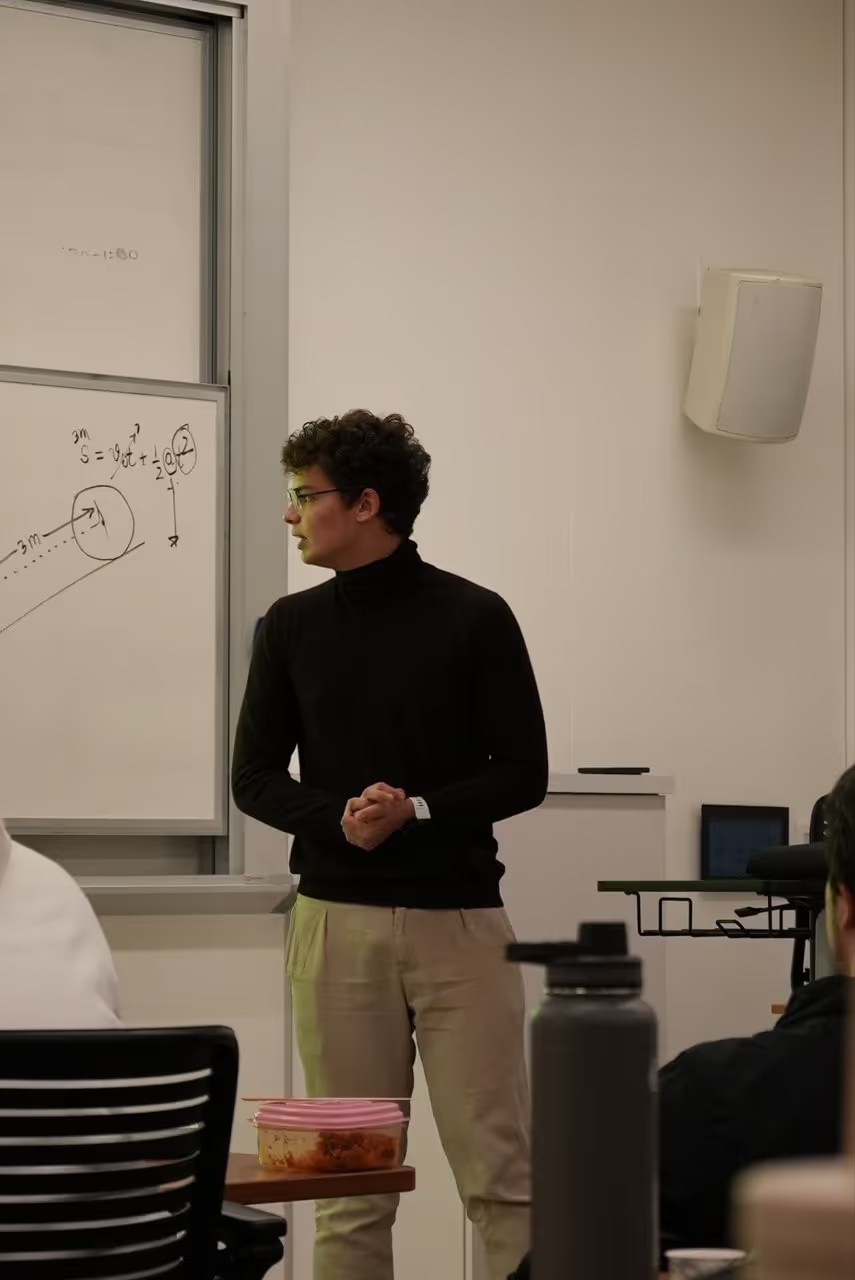
By late afternoon, many teams aren't struggling with meetings. They're struggling with the debris left behind. A few bullets in a notebook, a half-finished recap in Slack, one person who remembers the decision differently, and action items that never quite become tasks.
That's why Zoom meeting notes AI has become so useful. It doesn't just capture what was said. In the right setup, it helps teams leave a call with a draft summary, next steps, and enough structure to keep work moving.
The catch is that turning it on isn't the hard part. The hard part is getting reliable notes from messy conversations, then handling those notes like working documents instead of unquestioned truth. If you're comparing options before committing to a workflow, this overview of an AI meeting note taker is a useful companion read.
The End of Scrambled Meeting Notes
Teams usually adopt Zoom meeting notes AI after the same kind of week. Too many calls. Too many people taking notes inconsistently. Too many follow-ups starting with, “Can someone remind me what we decided?”
That pain is real because manual note-taking creates two problems at once. The notes are often incomplete, and the person taking them stops participating fully in the discussion. In client meetings, hiring interviews, project standups, and internal planning sessions, that trade-off gets expensive fast.
Zoom's current AI stack shows how far the category has moved beyond plain transcription. Zoom documents features including Meeting Summary, Smart Recording, Voice Recorder, Webinar Summary, Message, doc, and thread summary, and Call summary in its support materials, which makes one thing clear: meeting-note AI now sits across the wider workspace, not just inside a single recorded call (Zoom support documentation on AI Companion features).
Practical rule: AI notes work best when you treat them as a draft created at the speed of conversation, not as a perfect record.
That distinction matters. A strong summary can save a meeting. A sloppy one can spread confusion faster than no summary at all.
The teams that get the most value from Zoom meeting notes AI tend to do three things well. They configure the feature before the call, they run cleaner meetings while it's listening, and they review the output before sharing it broadly.
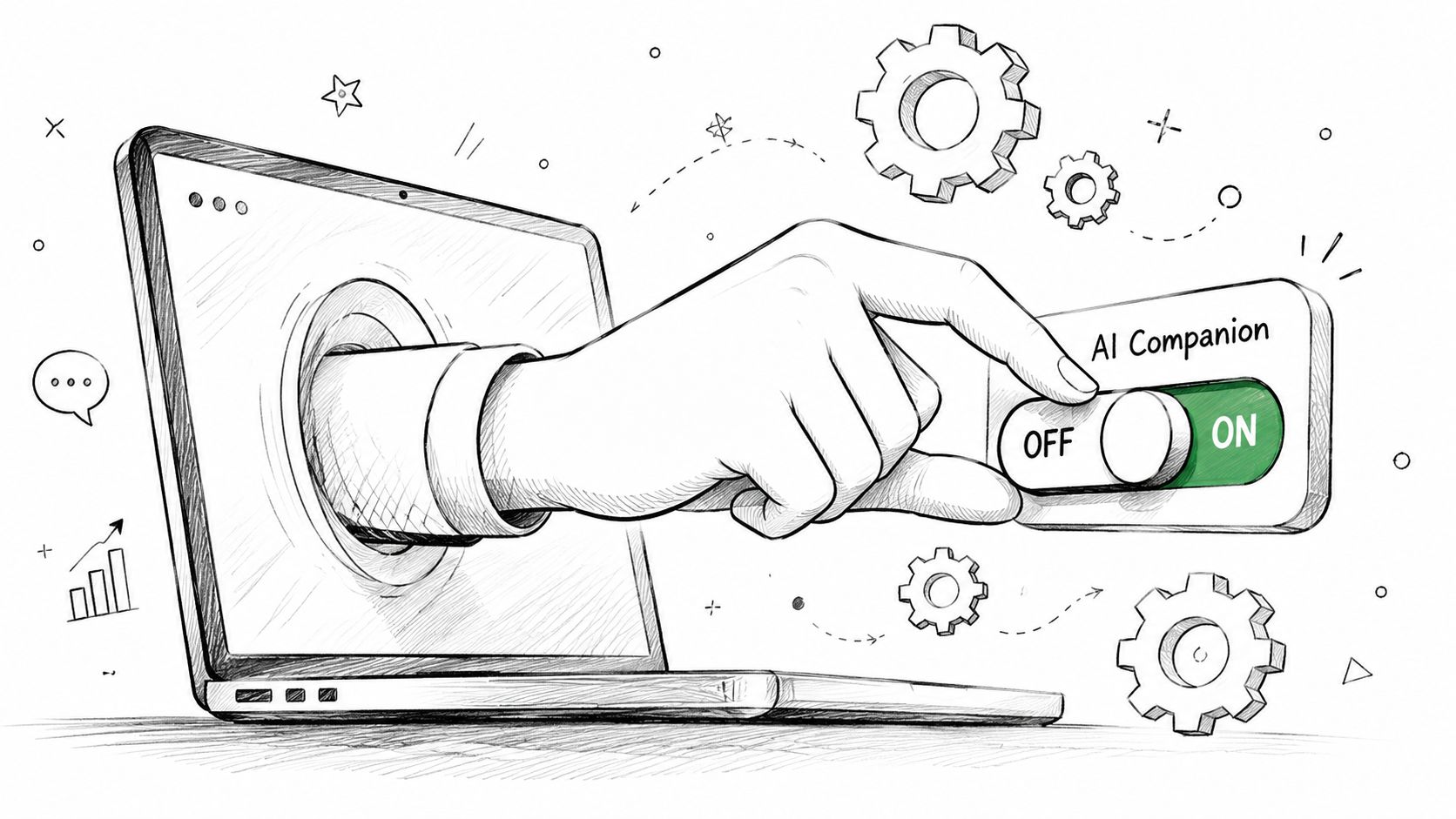
Enabling and Configuring Your Zoom AI Companion
A common rollout failure happens before the first real test meeting. An admin enables AI features at the account level, one team assumes summaries will appear automatically, another host never sees the option, and the first client call becomes the experiment. That is avoidable.
Start with the right feature
Meeting Summary often serves as the right starting point. It gives a usable recap of the discussion and usually captures next steps well enough for internal meetings. Smart Recording is better for meetings you expect to revisit, especially training, project reviews, and decision-heavy calls where chapters, highlights, and searchable context matter later.
Use this rule:
| Need | Better fit |
|---|---|
| Fast recap after a live meeting | Meeting Summary |
| Richer review of recorded meetings | Smart Recording |
| Webinar follow-up | Webinar Summary |
| Summaries outside meetings | Other Zoom workspace summaries |
The trade-off is simple. Meeting Summary is lighter and easier to roll out. Smart Recording gives more context, but it also creates more content to store, review, and govern.
If you're still comparing note workflows, it also helps to understand where Zoom AI transcription fits versus summary-focused tools.
Configure the right admin level
This is the setting choice that causes the most confusion.
Zoom can usually be configured at the account, group, or user level. Each level solves a different problem, and picking the wrong one creates messy adoption.
- Account level works best when the organization wants one default policy.
- Group level works best when teams need different rules. HR, legal, and client-facing groups often do.
- User level is fine for testing, but weak for rollout because coverage becomes inconsistent across recurring meetings.
I usually recommend this approach: test at the user level, standardize at the group level, and move to account-wide defaults only after privacy, notification, and sharing rules are clear.
Decide what should happen by default
Turning the feature on is only part of setup. Teams also need to decide who can start it, which meetings should use it, and who receives the output.
Those choices matter more than they seem. A broad default can save hosts from forgetting to enable summaries, but it can also create summaries for sensitive meetings that should never have them. A narrow default protects privacy better, but it increases the chance that a useful meeting ends with no notes because the host missed one setting.
A practical checklist:
- Confirm access. Verify that your Zoom plan and admin settings allow AI Companion features.
- Choose the output. Decide whether you want only Meeting Summary or also Smart Recording.
- Assign ownership. Pick the person or role responsible for recurring meeting setup.
- Set delivery rules. Decide who gets the summary and who reviews it before wider sharing.
- Test on low-risk meetings. Internal syncs are a safer place to catch setup mistakes than client, hiring, or employee-relations calls.
Turn it on before the meeting, and test the host workflow
AI note settings often fail in ordinary ways. The wrong person is listed as host. A recurring meeting was cloned from an old template. A department admin changed a policy and nobody told the team leads.
Run one dry test as the host, in the meeting template, with the same permissions you plan to use later. Check whether the summary starts as expected, whether participants see the right notices, and where the output lands afterward. Five minutes of testing prevents a lot of awkward cleanup.
This walkthrough is useful if you'd rather see the interface before changing settings:
Treat configuration as an operating policy
The best setups answer four questions before anyone joins the call: Which meetings use AI notes, who is allowed to enable them, who checks the summary, and where the final version belongs.
That is what separates a feature toggle from a working system. If nobody owns review and distribution, summaries pile up in inboxes and trust drops fast. If ownership is clear, Zoom AI Companion becomes a reliable part of meeting operations instead of another tool people half-use.
Optimizing In-Meeting Habits for AI Accuracy
The meeting starts on time, six people join, two are on laptop speakers, one is dialing in from a train, and the main decision gets made in a fast back-and-forth at minute 23. The AI summary arrives later with the wrong owner, a vague action item, and no clear record of why the team changed course.
That is usually a meeting habit problem, not a software problem.
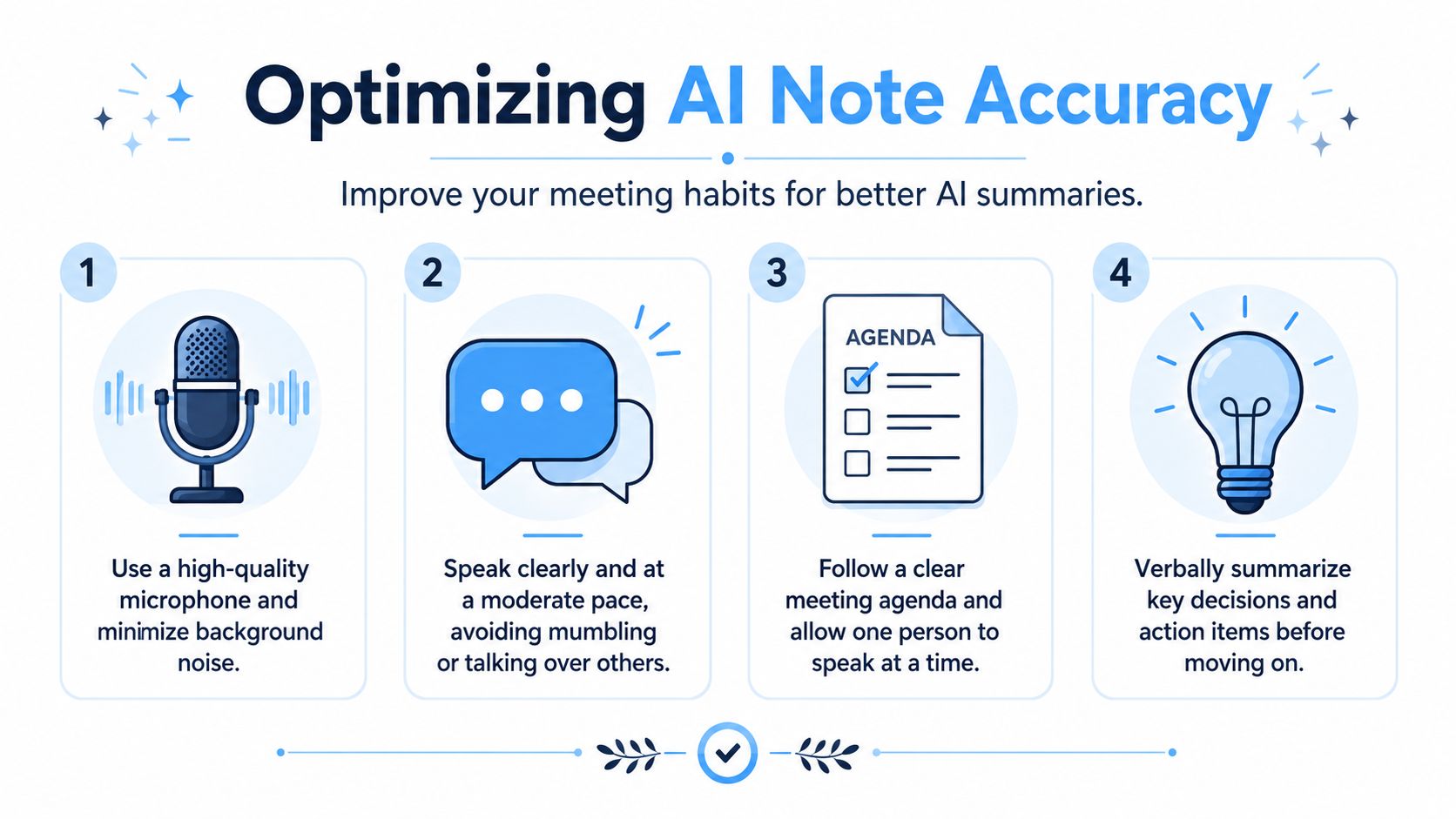
Teams get better notes when they treat the call like a source document. The AI can summarize only what it can hear, separate, and attribute. If the conversation is muddy, the notes will be muddy too.
Use verbal structure, not just written agendas
A written agenda helps attendees prepare. A spoken agenda helps the transcript form clean sections.
Open the meeting by stating the purpose out loud, then name the topics in plain language. During the call, mark transitions clearly. “We've finished pricing. Next is rollout timing.” That single sentence often improves summaries more than another tool setting.
I recommend one more habit that teams skip. Restate the decision after the discussion ends, even if everyone seems aligned already. AI notes handle explicit conclusions far better than implied agreement.
Make action items easy to capture
If ownership stays vague in the meeting, the summary will stay vague too.
Use a simple pattern:
- Owner: “Maria owns this.”
- Task: “She'll send the revised onboarding draft.”
- Timing: “Due Thursday.”
- Decision: “We are delaying the launch until legal approves the language.”
This sounds mechanical at first. It works. Clear phrasing gives the model fewer chances to guess, and it gives participants fewer chances to leave with different interpretations.
If your team needs a tighter format for turning discussions into usable recaps, this guide on how to summarize a meeting clearly and consistently is a practical reference.
Reduce the errors the model cannot fix
Poor audio still breaks good summaries. So does constant interruption.
The biggest gains usually come from basic discipline:
- Use a decent microphone: Built-in laptop audio is often good enough in a quiet room, but echo and fan noise still hurt speaker attribution.
- Avoid stacked talk: When people talk over each other, the transcript often drops names or merges opinions into one statement.
- Expand jargon once: Say the full product name or acronym near the start so later references make sense.
- Pause after key decisions: A short pause creates cleaner boundaries in both the transcript and the summary.
- Say names before assignments: “Jordan, please handle the vendor follow-up” is easier to capture than “Can you take that?”
There is a trade-off here. Fast, energetic discussions can be productive for the people in the room, but they often produce weak AI notes. Teams that depend on summaries for accountability need to speak a little more deliberately than feels natural.
Run meetings in short topic blocks
Long wandering calls are hard to summarize well. Short topic blocks produce better notes because each segment has a clear purpose.
A simple rhythm works:
| Meeting moment | Helpful habit |
|---|---|
| Opening | State purpose and priorities aloud |
| Mid-discussion | Mark topic changes clearly |
| Decision point | Restate the decision in one sentence |
| Closing | Read back owners and next steps |
This structure also makes review easier afterward. If you are comparing workflows across the best AI meeting summary tools, this is one of the key differentiators. The tools matter, but the meeting behavior behind them matters just as much.
One final point deserves candor. AI notes are not neutral records. They reflect what was audible, explicit, and easy to attribute. In sensitive meetings, that should change how people speak, what they confirm aloud, and what they choose to document at all.
Managing Post-Meeting Summaries and Workflows
The summary arriving after a meeting isn't the end of the process. It's the first draft of the work that follows.
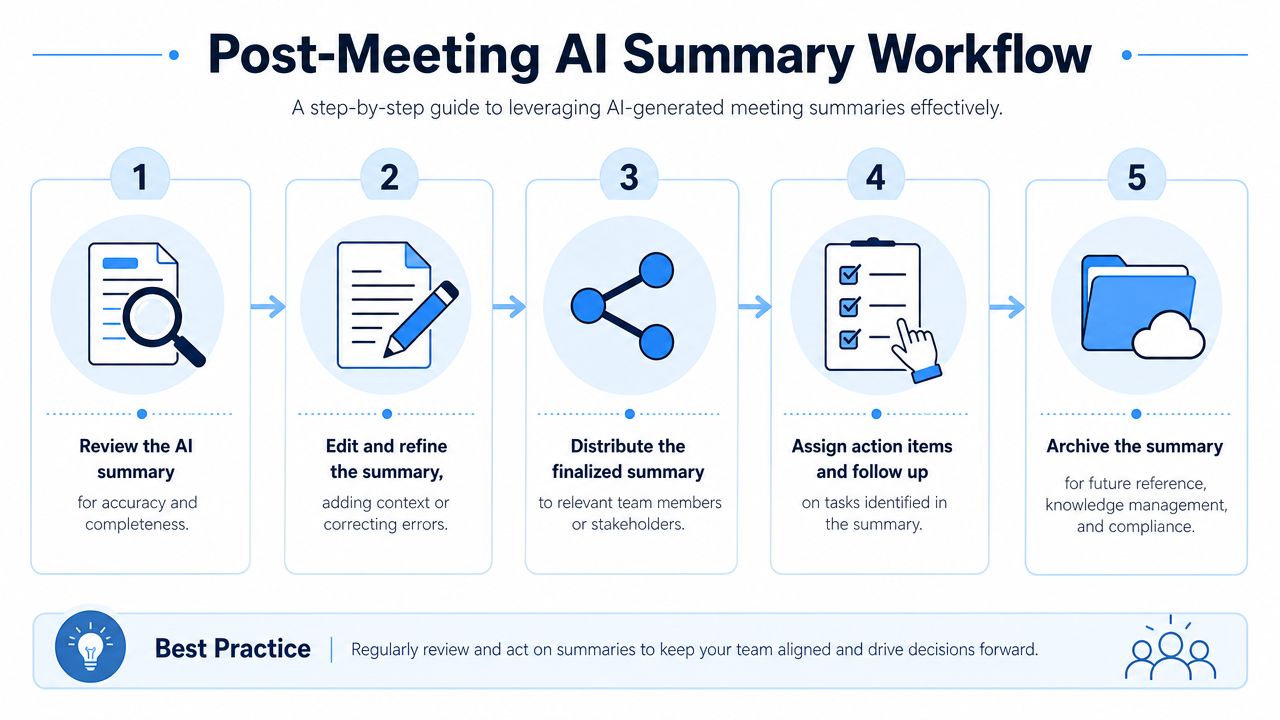
That mindset matters because Zoom's post-meeting flow is intentionally built around review. When Meeting Summary is enabled, participants can receive the summary after the meeting ends, and Zoom says the host initially receives the AI-generated content and should review it before sharing. The summary can be distributed by email or posted to the meeting's dedicated group chat if continuous meeting chat is enabled, and Zoom also notes that Meeting Summary uses speech-to-text data and may optionally include screen-shared content via OCR and in-meeting chat messages (Zoom support on Meeting Summary sharing and review).
Review first, share second
At this stage, many teams get lazy. They forward the AI summary immediately, then spend the next day correcting names, clarifying decisions, and explaining what the model misunderstood.
A better workflow looks like this:
- Check accuracy fast: Scan names, decisions, owners, and deadlines.
- Edit for context: Add one or two lines the AI couldn't know, such as why a decision changed.
- Separate notes from commitments: Convert vague “follow up” language into assigned tasks.
- Share the cleaned version: Email it or post it to the right Zoom chat.
- Store it where work continues: Put the final output in the project system, team doc, or knowledge base.
Turn summaries into operational artifacts
The strongest use of Zoom meeting notes AI isn't archival. It's conversion.
A meeting summary should feed other systems. That might mean creating tickets, updating a client record, attaching the notes to a project brief, or dropping the cleaned recap into a team wiki. If you're reviewing broader options for this stage of the workflow, this roundup of best AI meeting summary tools is helpful because different tools handle post-meeting actions differently.
For teams that document heavily, a guide on how to summarize a meeting can help standardize the human review layer that sits on top of AI output.
Field note: The biggest productivity gain rarely comes from “automatic notes.” It comes from shortening the gap between meeting end and task creation.
Build a lightweight handoff pattern
You don't need a complicated operating manual. You need a repeatable handoff.
Consider this simple comparison:
| If you do this | You get this |
|---|---|
| Share the raw AI summary immediately | Faster distribution, more cleanup later |
| Edit before sharing | Slower by a few minutes, clearer downstream execution |
| Archive only in email | Harder retrieval later |
| Move final notes into your work system | Better continuity and accountability |
A lot of teams over-focus on note generation and under-focus on note placement. But placement is what determines whether the summary becomes institutional memory or inbox clutter.
Navigating Privacy and Consent for AI Notes
Privacy is where many Zoom meeting notes AI rollouts get shaky. Not because the feature is obscure, but because teams treat consent like a one-time popup instead of an operating practice.
That approach doesn't hold up in sensitive environments. The University of Minnesota warns that Zoom AI Companion is an opt-in suite and explicitly highlights third-party AI note tools as a risk area. UCLA's rollout also reflects a controlled deployment approach. Together, those institutional signals show that privacy, consent, and tool governance are being handled carefully rather than casually in regulated settings (University of Minnesota guidance on Zoom AI Companion and third-party AI risks).
Consent needs to be operational
A notification inside Zoom is useful, but it isn't enough for many teams. If you're discussing employee matters, client strategy, legal issues, healthcare information, or student records, you need a clear internal rule about when AI summaries are allowed and when they're not.
A workable policy usually answers these questions:
- Which meetings qualify: Internal standups may be fine. Performance reviews may not.
- Who decides: Hosts need clear authority, not guesswork.
- How consent is handled: Some teams confirm verbally at the start of sensitive calls.
- Where summaries are stored: Approved systems matter.
- Who can access the output: Limit access to people who need it.
Keep governance boring and explicit
The best privacy policies are not clever. They're simple enough that every host can follow them under pressure.
Use a short pre-meeting script when needed. Something like: “We're using Zoom AI meeting summary for this session. The host will review the draft before sharing. If anyone has concerns, raise them now.” That won't solve every compliance issue, but it makes consent visible and normal.
Trust drops fast when people think an AI note-taker is capturing sensitive discussion without a clear rule for access and review.
Third-party tools change the risk profile
Teams often assume all AI note-takers create the same privacy exposure. They don't. One major governance question is whether the notes remain inside your organization's approved environment or move into a separate vendor workflow.
That distinction is why universities and other regulated environments often treat deployment as controlled and opt-in. Before you approve any workflow, answer the unglamorous questions first: who can see transcripts, who can edit summaries, how long they persist, and what gets shared outside the meeting platform.
If your team can't answer those questions in plain language, it isn't ready to scale AI notes responsibly.
Troubleshooting and Advanced Productivity Tips
Even a well-configured setup breaks in predictable ways. Most Zoom meeting notes AI issues come down to settings, access, audio quality, or unrealistic expectations about what the model can infer.
Common problems and fast fixes
| Problem | Likely cause | Practical fix |
|---|---|---|
| No summary arrived | Meeting Summary wasn't enabled, or the wrong host settings were used | Check who hosted the meeting and verify AI Companion settings before the next session |
| Summary exists but people can't access it | Sharing expectations didn't match actual permissions | Decide in advance who reviews and who receives the final version |
| Action items are weak | Discussion never named owners clearly | Restate owner, task, and timing aloud before ending the topic |
| Transcript quality is rough | Poor audio, overlap, jargon, unstable internet | Improve mic quality, reduce cross-talk, and define specialized terms early |
If the transcript quality drops unpredictably, don't only blame the AI. Network quality can degrade audio in ways that make every downstream feature worse. For remote teams in low-coverage areas, general guides that help diagnose rural internet connectivity issues can be surprisingly relevant.
Advanced habits that save time
Power users get more from Zoom's native tools by changing how they run recurring meetings.
- Standardize recurring agendas: Repeated structure makes summaries easier to scan week after week.
- Use AI queries during the meeting when appropriate: If your setup includes Ask AI Companion, use it for clarification, not as a replacement for facilitation.
- Create a post-call owner: One person should always be accountable for validating and placing the summary.
- Watch for jargon drift: New acronyms and internal shorthand often degrade summary quality over time.
When to use another tool
Zoom's built-in workflow is convenient because it's inside the platform your team already uses. But some teams need more than native Zoom notes can provide.
If your workflow depends on handling recordings from multiple platforms, supporting broader language coverage, or searching across uploaded audio and video beyond live meetings, a dedicated transcription app may fit better. HypeScribe is one example. It can transcribe meetings and media files, generate summaries and action items, and work across Zoom, Google Meet, and Microsoft Teams.
Choose based on your operating environment, not on feature checklists alone. Convenience matters. Accuracy matters. Governance matters more than both if your meetings contain sensitive material.
If your team wants searchable transcripts, AI summaries, and action items from meetings and uploaded media in one place, HypeScribe is worth a look. It fits teams that need a practical layer on top of meeting conversations without building a complicated workflow around every call.