Prime Video Subtitles: How to Turn On, Customize & Fix

You start a movie, turn the volume up, rewind a line, and still miss what was said. Then a second problem shows up. Someone switches languages for a key scene, and the screen gives you nothing.
That’s why subtitles on amazon prime have stopped being a niche setting. They’re part of how people watch now. Viewers use them to cut through muddy mixes, keep up in loud homes, follow accents, and catch details they’d otherwise lose. Creators and editors rely on them too, because the same subtitle track that helps a viewer tonight often becomes source material for transcripts, clips, notes, and searchable archives tomorrow.
Why Subtitles Are No Longer Just an Option
The old assumption was simple. Subtitles were for viewers with hearing loss, language learners, or the rare foreign film night. That’s no longer how streaming works.
A 2023 Preply survey on subtitle habits found that 62% of Americans use subtitles more frequently on streaming services like Amazon Prime Video than on regular TV, with 50% watching with subtitles most of the time. That tracks with what many viewers already know from experience. Modern streaming audio can be polished and still hard to follow.
Dialogue gets buried for a few common reasons:
- Dense sound design that favors atmosphere over clean speech
- Inconsistent home setups like laptop speakers, TV defaults, and thin soundbars
- Shared environments where someone is sleeping, talking, or unloading the dishwasher
- Accent and pacing differences that matter more when a plot turns on one line
That shift matters beyond entertainment. The same expectations shaping subtitles on streaming also show up in broader website accessibility decisions, where readable text and accessible media aren’t optional polish. They’re part of basic usability.
One practical distinction also helps here. If you’ve ever wondered why some text includes sound cues and speaker labels while other text only translates spoken dialogue, this guide on closed caption vs subtitle differences is worth a read.
Practical rule: If you’re turning subtitles on more than occasionally, that’s not a workaround. That’s your preferred viewing setup.
How to Turn On Subtitles on Amazon Prime for Any Device
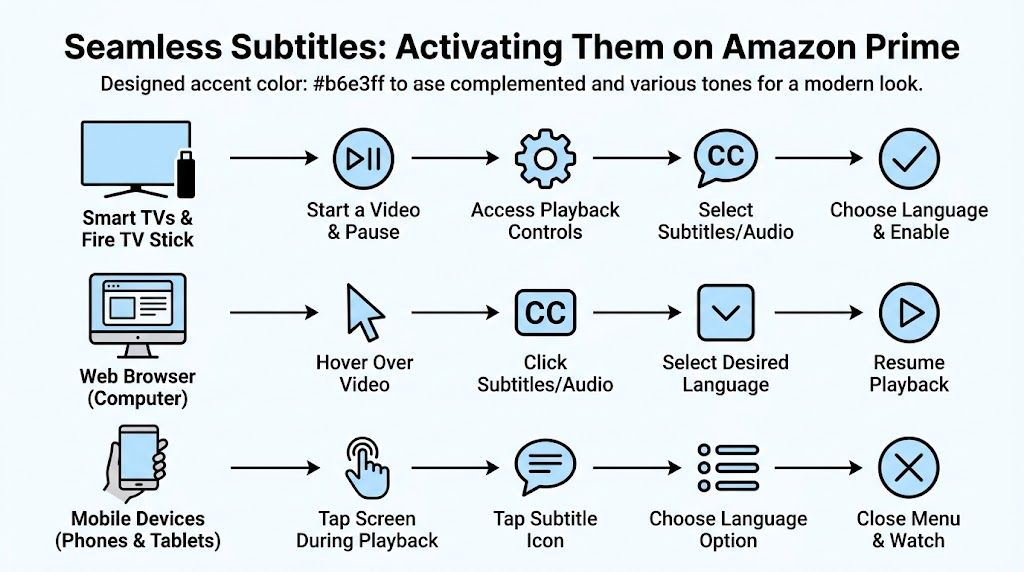
Amazon Prime keeps subtitle controls in roughly the same place across platforms, but the path changes just enough to trip people up. The fastest way to think about it is this. Start playback, reveal the player controls, then look for the speech bubble, subtitles, or CC icon.
Web browsers
On a computer, Prime Video usually gives you the cleanest subtitle menu.
Open the title you want to watch and start playback. Move your mouse over the video so the controls appear. Click the Subtitles and Audio icon, then choose the subtitle language you want. If the title supports multiple subtitle tracks, they’ll appear in that menu.
A few browser-specific notes help:
- Chrome and Firefox usually expose the subtitle menu clearly during playback.
- Fullscreen mode can hide controls until you move the cursor.
- Ad blockers or privacy extensions can occasionally interfere with overlays, so if the icon doesn’t respond, test the title in a clean tab or another browser.
If you don’t see subtitles listed at all, it usually means one of three things. The title doesn’t offer them in your region, the track hasn’t loaded correctly, or you’re watching through a channel add-on with different subtitle handling than the main Prime catalog.
Mobile and tablet apps
On iPhone, iPad, and Android, the process is simpler but easier to miss because the controls disappear fast.
Tap the screen while the video is playing. That brings up the playback controls. Tap the speech bubble or subtitle icon, pick your subtitle language, and close the menu. Playback continues with the new setting.
What usually causes confusion on mobile isn’t turning subtitles on. It’s keeping the menu visible long enough to make the change. If the controls vanish before you finish, tap the screen again and pause briefly before selecting.
A few mobile habits make life easier:
- Pause first if you’re switching subtitle languages mid-scene.
- Rotate the phone if the player feels cramped in portrait mode.
- Update the app if subtitle controls appear but won’t apply your selection.
Smart TVs and streaming devices
The experience varies most across platforms. Fire TV, Roku, Apple TV, and built-in smart TV apps all support subtitles, but not with identical menus.
The usual flow is still the same. Start your video, use the remote to reveal playback controls, open Subtitles or Audio & Subtitles, then choose the subtitle track.
Here’s a quick comparison:
| Device type | What to look for | Common friction point |
|---|---|---|
| Fire TV | Playback controls and subtitle icon | Menu can feel buried until playback is paused |
| Roku | Subtitle option in player overlay | Remote shortcuts differ by app version |
| Apple TV | Subtitle selection during playback | Fewer style controls than browser-based viewing |
| Smart TV apps | Audio/subtitle settings in overlay | Older app builds may lag or fail to save changes |
Some practical differences matter more than brand labels. Fire TV often behaves best when you pause first. Roku users sometimes expect a universal system caption menu, but Prime still depends heavily on the in-app overlay. Apple TV usually works smoothly for enabling subtitles, though style customization can be more limited than people expect.
If subtitle changes don’t stick on a TV app, back out of the title completely and restart playback. That often works faster than digging through account settings.
Game consoles
Prime Video on PlayStation and Xbox follows the same basic pattern as smart TVs. Start playback, bring up the on-screen controls with your controller, and open the subtitle or audio menu.
The main issue on consoles is input timing. A tiny stick movement or button tap can dismiss the overlay before you finish selecting the subtitle track. If that happens, pause the video first. That keeps the interface stable while you change settings.
Console users should also check for two things if subtitles seem broken:
- System software updates, because media app rendering can break after OS-level changes
- Prime Video app updates, especially if one title behaves differently from another
When a title still won’t show subtitles
At that point, don’t keep repeating the same click path. Check the title itself.
Look at the title details page and playback menu. If subtitles are available, Prime usually lists the language options there. If it doesn’t, the issue may be title-specific rather than device-specific. That’s common with licensed content, add-on channels, or older catalog items.
Try this order:
- Test another title to see whether the problem is global or isolated
- Switch devices if you have both phone and browser access
- Restart the app or device before assuming the subtitle file is missing
- Check account region or channel source if availability looks inconsistent
A lot of subtitle problems feel like setting errors when they’re really content-delivery differences. That distinction saves time. If subtitles work on one show but not another, your device probably isn’t the problem.
Customizing Subtitle Appearance for Readability and Access
Turning subtitles on is only half the job. The default style often isn’t good enough, especially if you watch for long stretches, deal with low vision, or need stronger contrast to read quickly.
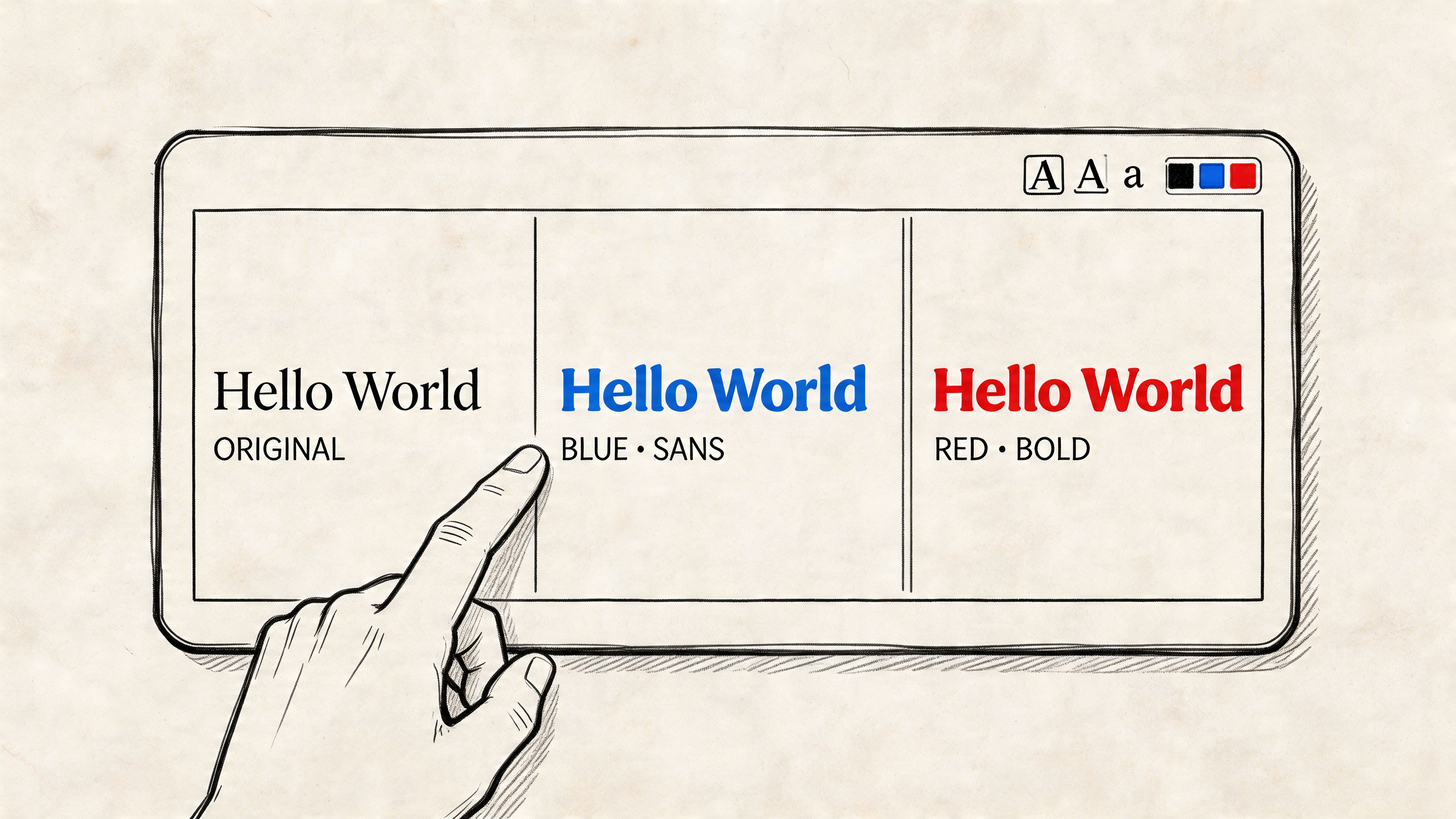
A common frustration is that customization options change by device. An overview of Amazon caption and subtitle requirements notes an emerging accessibility gap around advanced styling, especially because Smart TVs and Apple TV often offer fewer color and font choices than viewers need.
What to change first
A frequent initial step is to adjust text size. That helps, but it’s not always the best first fix.
These settings usually matter more in practice:
- Font size when you’re sitting far from the screen
- Text color and contrast when white subtitles wash out against bright scenes
- Background or text edge when fast cuts make words disappear into the image
- Opacity when you want readability without covering too much of the frame
A semi-transparent background is often the sweet spot. It keeps text readable over snow, sky, and bright interiors without turning the lower third of the image into a solid black bar.
Where the settings live
On web browsers, subtitle styling is often the most flexible. Prime may offer style controls directly in the player, depending on the interface version. If not, browser-level accessibility settings can sometimes help, though they won’t always override the in-player subtitle renderer.
On Fire TV and other streaming devices, subtitle appearance may be tied partly to device accessibility settings rather than the Prime app alone. That means the control exists, but not always where you expect it.
A simple rule helps:
| Platform | Usually best for | Main limitation |
|---|---|---|
| Web browser | Fine-tuning visibility | Settings may not match app behavior |
| Fire TV | Larger-screen readability | Some style controls live outside Prime |
| Apple TV | Clean playback experience | Fewer customization options |
| Smart TV app | Convenience | Least flexible subtitle styling |
Accessibility over aesthetics
Subtitle styling isn’t cosmetic. It changes whether text is readable at speed.
If you struggle with subtitles on amazon prime, try this order instead of random tweaking:
- Increase size one level at a time so you don’t cover too much of the picture
- Add contrast next, either with a darker background or clearer text edge
- Change color only if needed, because some alternative colors reduce readability on mixed backgrounds
- Test on an actual scene, not just the menu preview
Better subtitle styling means less squinting, less rewinding, and fewer moments where your eyes work harder than the story should require.
If you create subtitles for your own video work, the same readability logic applies in editing tools. This practical guide to Premiere Pro subtitle workflows is useful if you want your exported captions to stay legible across phones, TVs, and laptops.
Solving Common Amazon Prime Subtitle Problems
Subtitle problems usually fall into four buckets. They’re out of sync, they disappear, they load in the wrong language, or they’re missing for the exact moment you need them.
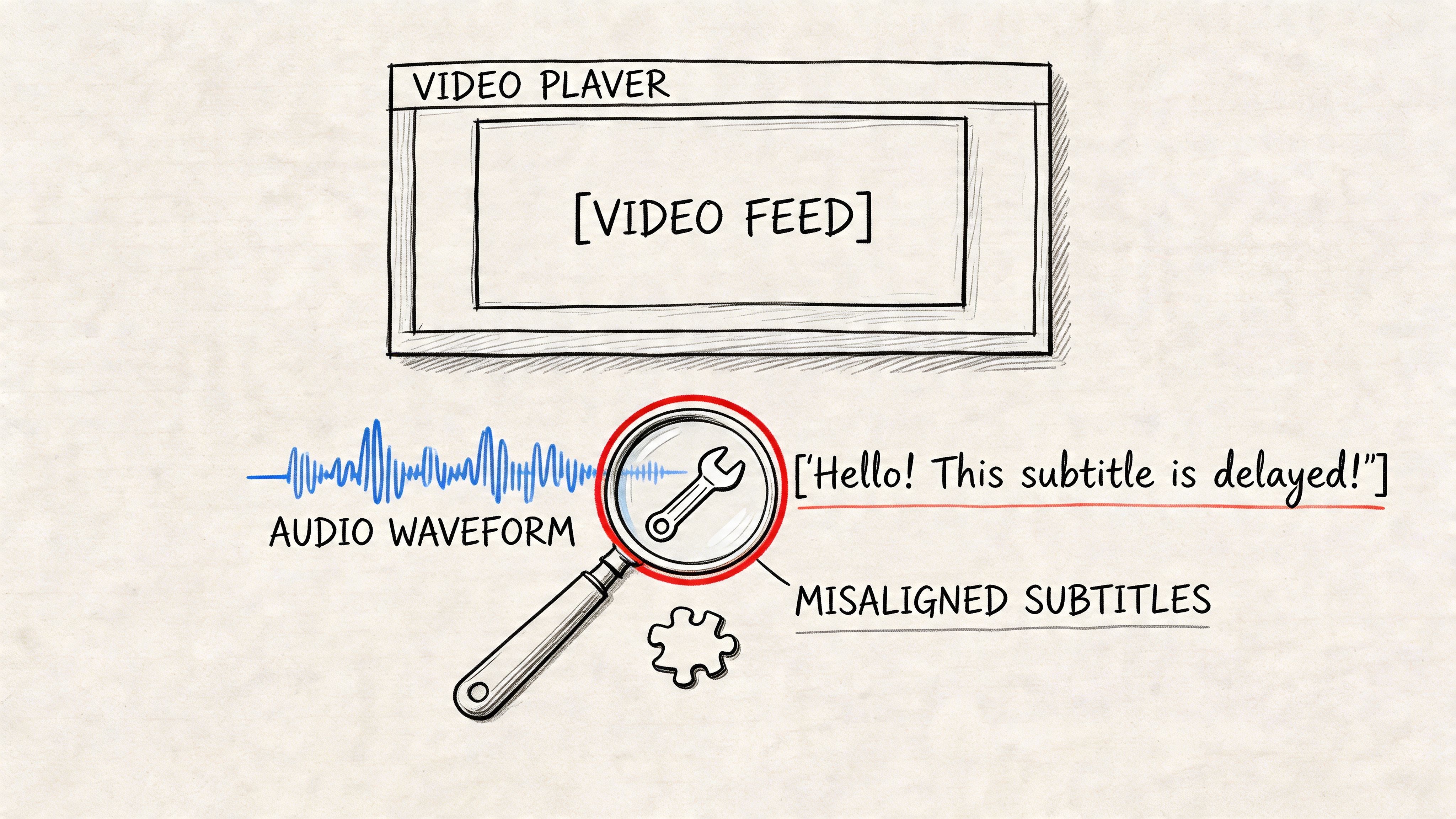
The fix depends on which bucket you’re in. Repeating the same restart for every problem wastes time.
When subtitles are out of sync
This is the most distracting issue because the text is present, just late or early enough to make scenes feel broken.
Start with the simple checks:
- Exit the title and reopen it
- Restart the Prime Video app
- Reboot the device, especially on streaming sticks and smart TVs
- Switch to another title to confirm whether the issue is global or title-specific
If the mismatch only happens on one device, the problem is often local playback. If it happens on one title across several devices, the subtitle track itself may be the issue.
A practical test helps. Jump backward in the video, then forward again. If the offset changes after seeking, the player may be mishandling the subtitle buffer rather than loading a permanently bad subtitle file.
When subtitles vanish or won’t stay on
This often feels random, but a few causes show up repeatedly.
The subtitle track may fail to load when playback starts too quickly after you open a title. App state can also get stuck, especially after long sleep cycles on smart TVs, tablets, and streaming devices. In other cases, Prime saves your choice for one session but doesn’t apply it consistently when you move to another title.
Try this sequence:
- Pause the video and reopen the subtitle menu
- Toggle subtitles off, then back on
- Return to the title page and restart playback
- Force-close the app if the menu selection doesn’t stick
If you’re on a browser, test another browser before assuming the title has no subtitle support. On a TV app, a full device restart is often faster than menu diving.
When the language is wrong
Sometimes Prime defaults to a subtitle language based on account history, device settings, or a previous title. That can leave you with the wrong track even though the right one exists.
Look for Audio & Subtitles rather than changing only the subtitle line. On some titles, the subtitle list and audio list interact in ways that make the wrong combination seem like a bug.
A short checklist:
| Problem | Best first move |
|---|---|
| Wrong subtitle language | Reopen Audio & Subtitles and manually pick the track |
| Wrong audio with correct subtitles | Change audio and subtitles separately, then restart the title |
| Language resets between titles | Check device-level language preferences and app session state |
When foreign dialogue has no subtitles
This catches people all the time because it’s different from “subtitles are off.” You may have English subtitles enabled and still get no translation for a short scene in another language.
A long-running Amazon forum discussion about missing foreign-language subtitles reflects a common complaint. In some English-language movies, incidental foreign dialogue appears without the studio-provided translation viewers expect.
That usually means one of these things:
- The title’s forced subtitle track isn’t loading
- The distributor version on Prime differs from another release
- A channel add-on carries a version missing expected burned-in translations
- The scene was authored to rely on a subtitle element that isn’t available in that playback version
Missing foreign-language subtitles are often a title-version issue, not a setting issue. If the scene should be translated and nothing appears, your menu choices may already be correct.
This short walkthrough can help if you want to compare your setup with another viewer flow before contacting support.
If an important scene is still untranslated, test the same title on another device and check whether a different edition is available through Prime, purchase, or a separate channel listing. When the issue follows the title everywhere, there may be no immediate viewer-side fix.
Beyond Viewing How to Transcribe and Repurpose Subtitles
Subtitles aren’t only for watching. They’re raw material.
Students turn them into notes. Journalists turn them into quotes to verify. Researchers search them for themes. Marketing teams use them to build clips, highlights, and social posts. Support and training teams use them to document product demos or internal walkthroughs.
That’s where the difference between “visible on screen” and “usable in a workflow” matters.

Why screen scraping usually disappoints
People often try the fastest hack first. Pause the video, copy what they can, or run OCR on screenshots. That works for a sentence or two. It breaks down fast when you need a clean transcript, timestamps, speaker separation, or exportable text.
Amazon’s caption delivery standards are stricter than the playback experience makes visible. A technical overview of Amazon Prime Video caption standards and formats describes separate caption-file delivery, UTF-8 encoding requirements, and supported formats including DFXP/TTML, iTT, and SRT. It also outlines a real production workflow: draft with ASR, then review manually for compliance, timing, and SDH detail.
That matters because subtitle text on screen is only the final render. It’s not a reliable extraction format by itself.
What creators and teams actually need
A usable transcript usually needs more than visible dialogue.
In practice, good downstream use depends on things like:
- Searchability, so you can find a line without replaying the whole video
- Timestamps, for clip-making, review, and editorial notes
- Export options, so the text can move into docs, spreadsheets, scripts, or research files
- Cleaner structure, because subtitle line breaks are written for screen display, not for reading in paragraph form
One useful distinction is between subtitle text and transcript text. Subtitles are timed for display in bursts. Transcripts are organized for review and reuse. If you’ve ever opened an SRT and wondered why the reading experience feels choppy, that’s why. This explainer on what SRT stands for and how subtitle files work is a good primer.
A workable professional flow
For teams that repurpose video regularly, the most reliable process is straightforward.
First, confirm whether the subtitle track in Prime is accurate enough for your purpose. Streaming subtitles can be good enough for viewing and still be awkward for quoting, summarizing, or publishing. Short display windows, broken sentence fragments, and missing non-dialogue context all become more obvious when you move from watching to documentation.
A practical workflow looks like this:
| Need | Better approach |
|---|---|
| Quote checking | Review transcript-style text, not only on-screen subtitle bursts |
| Content clipping | Use timestamps and searchable text together |
| Research review | Export to a document you can annotate |
| Team collaboration | Store transcript text somewhere searchable and shareable |
What works and what doesn’t
What works is using subtitle content as a starting layer, then converting it into a format made for people to read and work with.
What doesn’t work is treating every on-screen subtitle as if it were already a finished transcript. It usually isn’t. Subtitle timing has to respect display length, scene cuts, and reading speed. That means a line may be split in odd places or condensed in ways that make perfect sense on a TV and poor sense in a meeting document.
Field note: If the end goal is analysis, publishing, or collaboration, optimize for a transcript first and subtitle formatting second.
For creators, this changes editing decisions. For educators, it improves lecture review. For remote teams, it cuts the friction of turning spoken material into something searchable and actionable.
Frequently Asked Questions About Prime Video Subtitles
Are all movies and shows on Amazon Prime subtitled
No. Availability varies by title, region, and how the content is distributed. Amazon Originals generally have the strongest subtitle support, while licensed content and channel add-ons can be less consistent. If a title page or playback menu doesn’t show subtitle options, that title may not offer them in your version.
Can subtitles help with language learning
Yes, especially when you use them intentionally. They help you catch unfamiliar phrasing, track fast speech, and compare what you hear with what’s written. They’re also useful for reviewing repeated patterns in dialogue. Just remember that subtitle tracks are optimized for viewing, so they may simplify or segment speech in ways that differ from a full transcript.
Do subtitle settings sync across devices
Sometimes, but not reliably enough to count on. One device may remember your last choice while another falls back to its own app or system behavior. Styling choices are even less consistent because TVs, browsers, and streaming boxes expose different controls.
Why do subtitles work on one title but not another
That usually points to the title, not your account. Different distributors, regional rights, and playback versions can all affect subtitle availability. If one show works perfectly and another doesn’t, test the second title on a different device before spending time changing every setting in your home.
What’s the difference between subtitles and captions on Prime Video
Subtitles usually focus on spoken dialogue. Captions can include extra context such as speaker IDs or sound cues. In everyday Prime Video menus, the distinction isn’t always explained clearly, so the available text track may behave a little differently from title to title.
If you need more than on-screen text, HypeScribe helps turn spoken content into precise, searchable transcripts you can use. You can upload files, paste supported video links, generate summaries and action items, and export the results into formats your team can share, edit, and archive without fighting subtitle timing on a player screen.