
How to Download a Zoom Recording (Cloud, Local & Shared)
The meeting ends, everyone drops off, and then the essential question hits: where is the recording, and how do you download it? If you've ever clicked through Zoom looking for a file that should be there, you already know the answer depends on one thing first. Was it saved to the cloud, or to someone's computer?
That split matters more than most guides admit. Cloud recordings live in the Zoom web portal and usually involve permissions, processing time, and separate downloadable files. Local recordings sit on the computer that recorded the meeting, which makes them simpler to access but harder to share. If you're trying to figure out how to download a Zoom recording, the fastest path changes based on whether you're the host, an admin, or just someone with a shared link.
The other thing that trips people up is role. Hosts can usually pull files directly. Participants often can't, unless the host has allowed it. Mobile adds another layer of friction because Zoom's app doesn't make downloading easy.
Your Guide to Accessing Zoom Recordings
The practical way to approach Zoom recordings is to treat them as three different situations, not one.
- You're the host downloading a cloud recording from the Zoom web portal.
- You're a participant using a shared link and hoping the host allowed downloads.
- You're looking for a local recording saved directly on a Windows PC or Mac.
Those paths look similar on the surface, but they fail for different reasons. Cloud recordings often disappear because they're still processing, saved under another host, or hidden behind account permissions. Shared links fail because the host didn't enable viewer downloads. Local recordings are usually the easiest to retrieve, but only if you're on the machine that created them.
What Zoom actually gives you
A Zoom recording is rarely just one file. Depending on how it was recorded, you may see:
- MP4 video for the full meeting video
- M4A audio if Zoom created an audio-only version
- VTT captions for subtitle files
- TXT chat logs if chat was saved with the meeting
That matters because many people download the MP4 and miss the files that are more useful later, especially the audio and transcript-related files.
Practical rule: Before you click download, decide what you actually need. If you're sending a meeting to someone who only wants the discussion, the audio file is often easier to handle than the full video.
Zoom also separates access by role. Account owners and admins can work from broader recording dashboards, while individual users usually only see their own recordings in the Recordings & Transcripts area of Zoom's support flow, including search options by meeting ID, topic, keyword, and transcript text through Zoom's cloud recording management documentation.
How Hosts Can Download Cloud Recordings
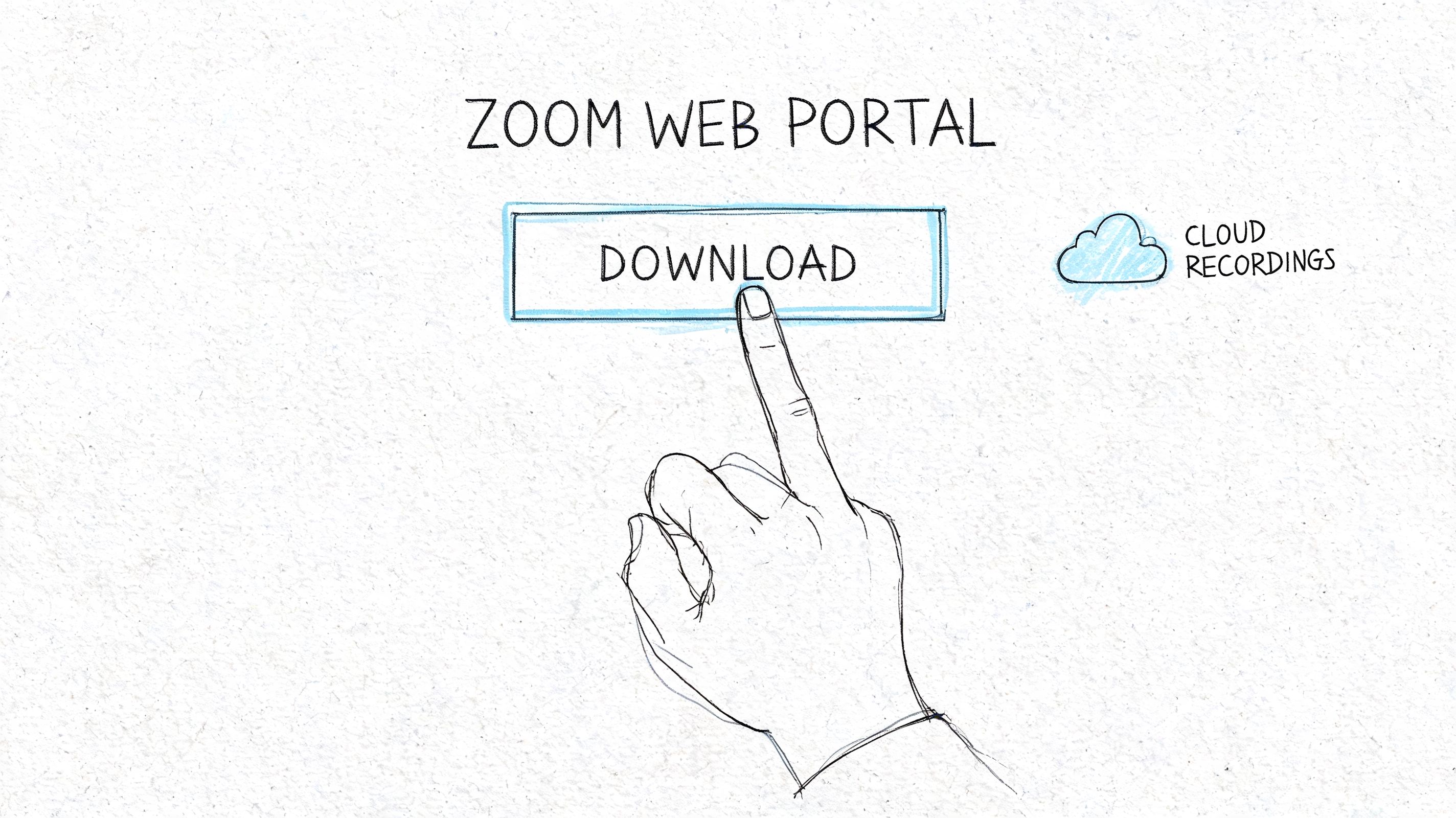
If you're the host, this is the cleanest route. Open Zoom in a desktop browser, sign in, go to your recording area, find the meeting, and download the files you need.
The quickest host workflow
Use this sequence when the meeting was recorded to the cloud:
- Sign in at Zoom in a desktop browser.
- Open Recordings or Recordings & Transcripts in the left sidebar.
- Search for the meeting by topic, date, or meeting ID.
- Open the meeting entry.
- Use More and then Download on the file you want.
For hosts, downloading from the Zoom web portal has a 98% success rate for licensed Pro/Business accounts, and a typical one-hour HD recording averages 1 to 2GB while producing separate MP4, M4A, and VTT files, according to UW's Zoom download guidance.
What you should download
Don't assume the video file is the only useful asset.
| File type | What it's for | When to grab it |
|---|---|---|
| MP4 | Full video playback | Training, reviews, rewatching the meeting |
| M4A | Audio-only version | Podcasts, note review, transcription workflows |
| VTT | Caption file | Accessibility and subtitle use |
| TXT | Chat transcript, if available | Shared links, follow-up resources, decisions |
If you're using the recording for notes or searchable meeting content, the next move is usually transcription rather than another full replay. A guide on Zoom AI transcription workflows can help if your team wants text, summaries, and action items instead of another video archive.
Why host downloads fail
Most host-side failures aren't random. They're usually one of two things: the wrong person is trying to download, or the connection is unstable.
40% of download failures stem from permission mismatches or slow internet, based on the same UW Zoom instructions. In practice, that usually means an alternative host expects to see a recording that only the actual host owns, or someone starts a large download on weak Wi-Fi and assumes Zoom broke.
If the file isn't there, check whether the recording is still processing before you start troubleshooting anything else.
A final host-side detail that saves time: Zoom only shows finished processed cloud recordings in the web portal. If the meeting just ended, wait until processing completes. If a co-host started the recording, look in the host's list, not the co-host's.
Downloading from a Shared Zoom Link
This stage often causes confusion. You have a link. You can watch the recording. However, there is no obvious way to save it.
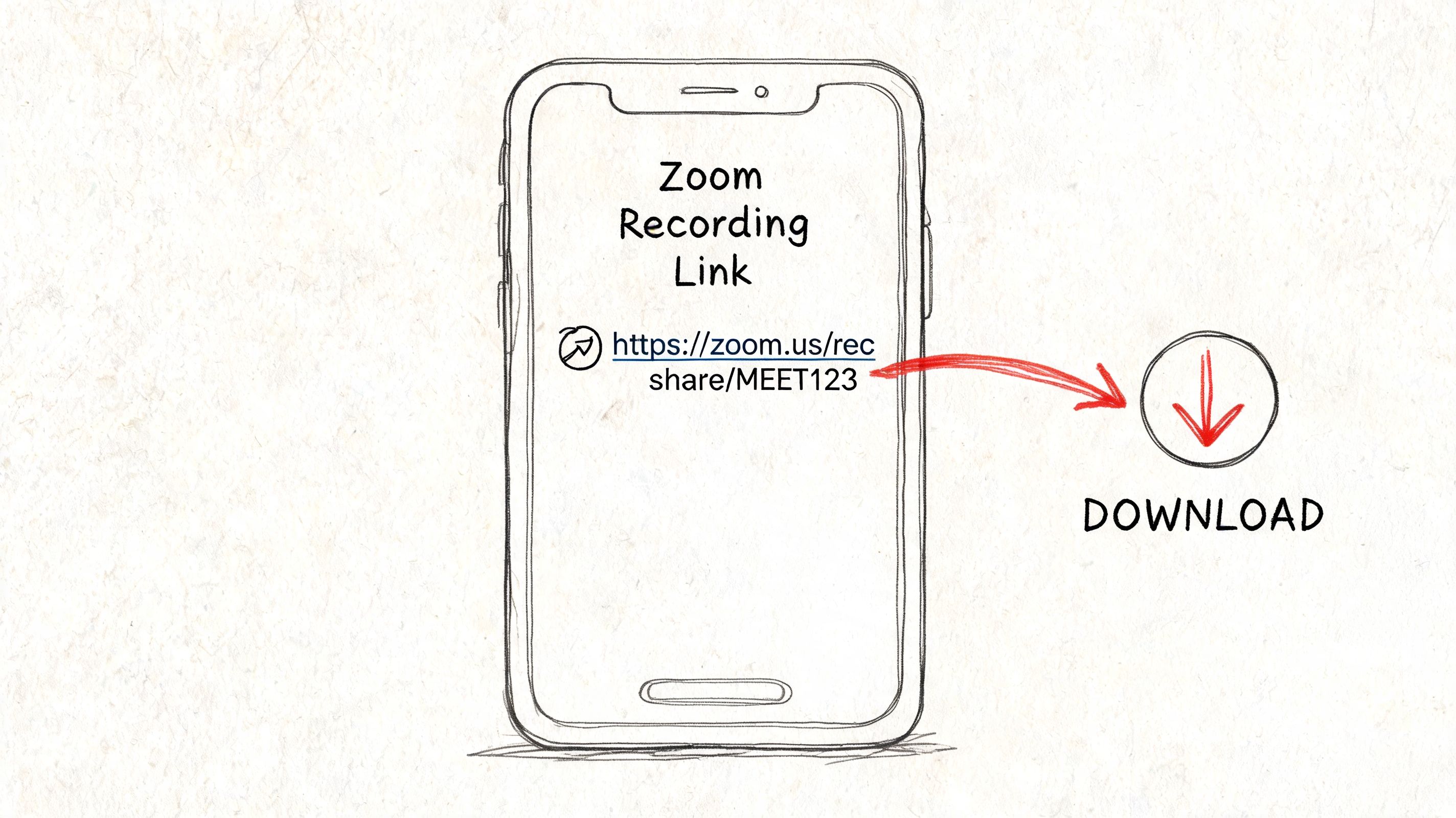
The key fact is simple: the host decides whether you can download it. On a shared cloud recording page, the Download button only appears if the host enabled Viewers can download.
For participants, that single setting controls everything. When it's disabled, 60% of users fail to get the file, according to this guide on downloading Zoom recordings from shared links.
What to look for on desktop
Open the shared recording in Chrome or another desktop browser. If the host enabled downloads, you'll usually see a Download option under the player.
If you don't see it, don't waste time refreshing the page over and over. The issue is usually permissions, not your browser.
Send the host this plain request:
“Can you enable viewer downloads for the recording link? I can open the recording, but there's no Download button on my side.”
That wording gets better results than saying the link is broken.
Mobile workaround that actually helps
On iPhone or Android, the Zoom app isn't the best place to try this. Open the shared link in Safari or Chrome instead, then use the browser's Save to Files option if it appears.
A mobile browser workaround using Safari or Chrome's Save to Files feature has an 85% success rate, though older devices can produce corrupted files, based on the same shared-link workflow guide.
This video shows the kind of shared-link flow many users run into:
What usually blocks participant downloads
Shared-link problems tend to fall into a few buckets:
- Host disabled downloads. This is the most common reason.
- Passcode required. You need the password before anything else works.
- Expired link. Some shared recordings stop working after the host's sharing window ends.
- Mobile app limitation. The link opens, but downloading is awkward or unavailable inside the app.
If you're a participant, the fastest approach is to confirm permissions first. If you're the host responding to these requests, turning on viewer downloads usually solves the issue faster than sending the same link again.
Managing Your Local Zoom Recordings
Local recordings are less glamorous but often less annoying. They don't depend on cloud processing, and they're available on the computer that recorded the meeting once Zoom finishes saving the files.
Where Zoom saves local files
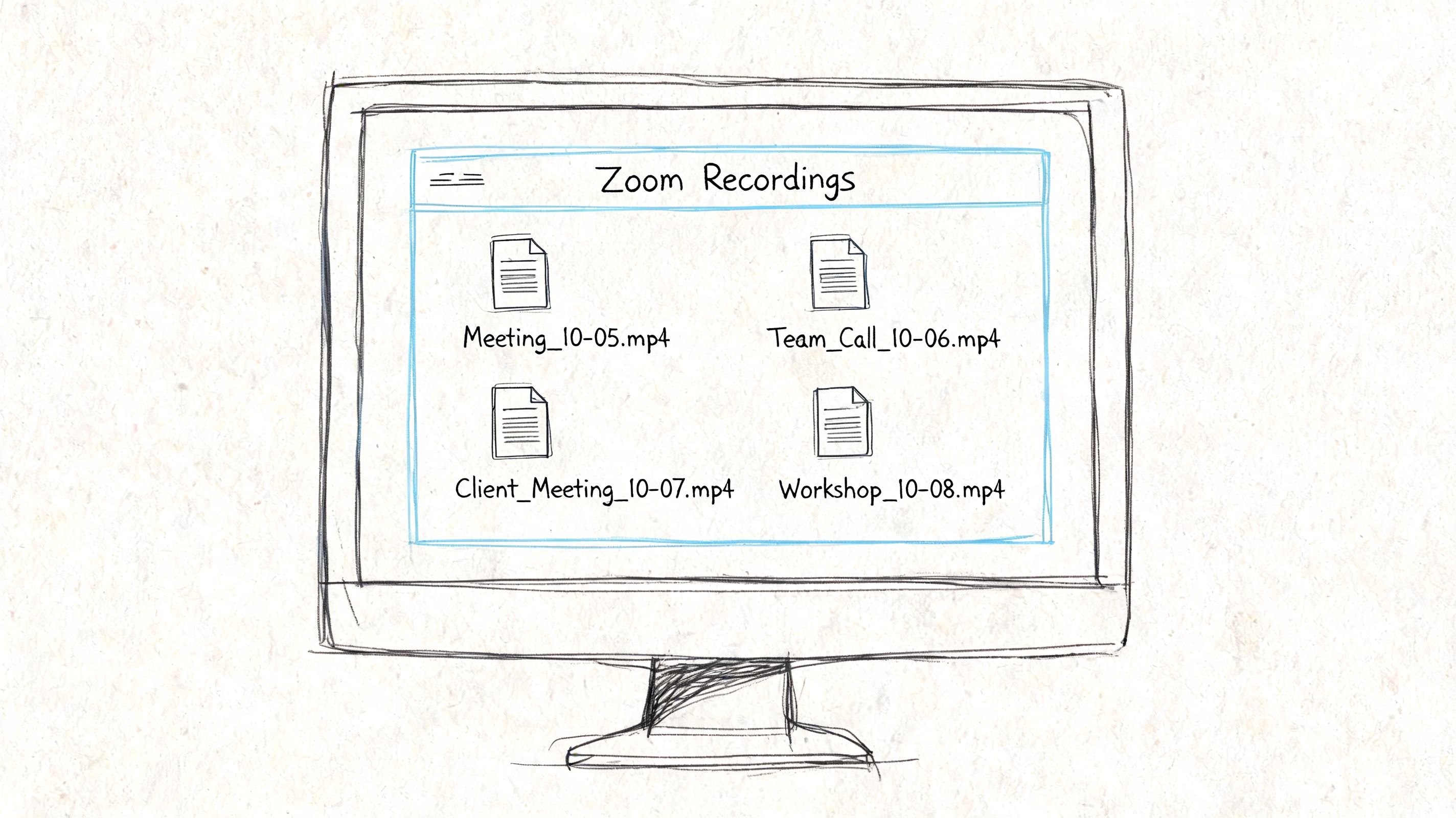
If the host recorded to the computer instead of the cloud, check these default folders:
- Windows:
C:\Users\[Username]\Documents\Zoom - Mac:
/Users/[Username]/Documents/Zoom
A local host can also open the Zoom desktop client, go to the recorded meetings area, and use the folder shortcut to jump straight to the saved files.
What you'll find inside the folder
Local Zoom recordings usually include a video file and a separate audio file. They're easier to move around than cloud recordings because there's no portal step, but the trade-off is that only the person with that computer has direct access at first.
That's why local recordings work well for private interviews, rough internal captures, or meetings where you don't want to wait for cloud processing. They work less well when several people need access right away.
Keep local recordings in a dedicated folder structure by project or date. Zoom's default folder names get messy fast if you record often.
A better way to manage them
If you record locally a lot, change the save location in the Zoom desktop client so files land somewhere intentional. A project folder, external drive, or team sync folder makes later retrieval much easier.
Once you have the MP4, basic cleanup is often the next step. If you need to cut dead time from the start or end before sharing, this practical guide on how to trim an MP4 video is a useful next move.
The biggest local-recording mistake isn't losing the file. It's leaving it in the default Zoom folder with a vague name and then trying to find it three weeks later.
Fixing Common Zoom Download Issues
The frustrating part of Zoom downloads is that the error often looks vague even when the cause is predictable. The fix usually gets easier once you stop treating every failed download as the same problem.
When the file gets stuck preparing
This is the one that annoys people most. You click download, Zoom says it's preparing the file, and then nothing meaningful happens.
User forums reveal that 40% of download complaints involve large files over 5GB that get stuck preparing or fail due to browser timeouts, and Zoom offers no native way to resume interrupted downloads, which contributes to a 25% abandonment rate for long-meeting downloads, according to Zoom support material referenced in this issue summary.
That tells you two things right away:
- Large files are the risk zone. Long meetings create the most failures.
- A broken download often means starting over. Zoom doesn't give you a native resume path.
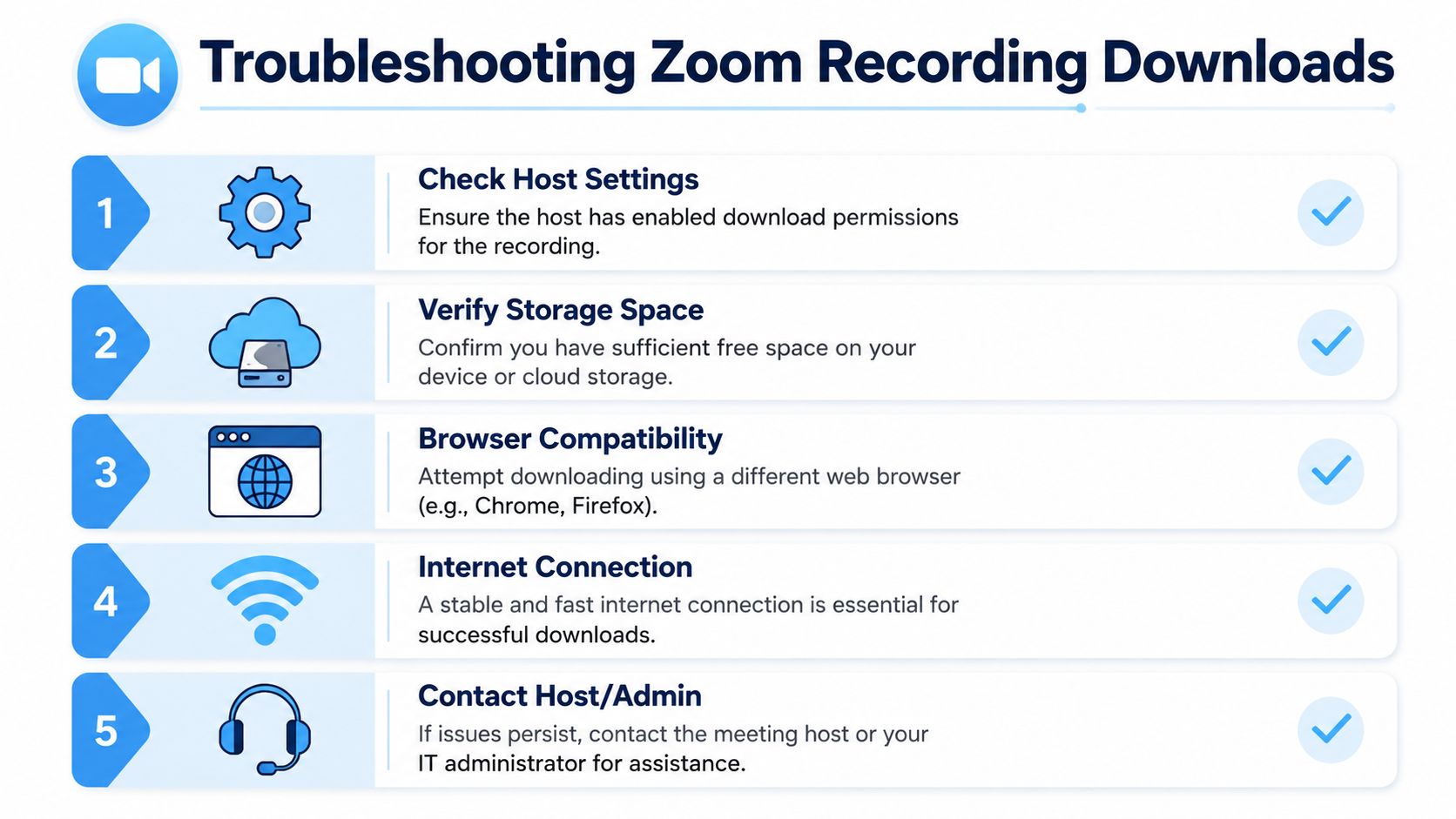
If you're dealing with a huge recording, use a stable desktop connection, avoid spotty Wi-Fi, and don't start the download when your browser already has a dozen tabs fighting for memory.
Quick diagnosis by symptom
| Problem | Most likely cause | First thing to do |
|---|---|---|
| No Download button | Host permission issue | Ask host to enable viewer downloads |
| Recording missing | Still processing, wrong host, or deleted access | Check the correct account and wait for processing |
| Preparing to download never finishes | File too large or browser timeout | Retry on desktop with a stable connection |
| Link opens but won't save on phone | Mobile app or browser limitation | Open in Safari or Chrome and try Save to Files |
What works better than random retries
A few habits solve most cases faster than repeated clicking:
- Switch devices deliberately. If mobile is failing, move to desktop instead of trying the app again.
- Use another browser. Chrome is often the safer default for Zoom's web flow.
- Check available storage. Large recordings fail without notification when the destination device is almost full.
- Confirm role and ownership. Hosts, co-hosts, admins, and viewers don't all see the same thing.
Start with permissions, then processing status, then connection quality. That's the order that saves the most time.
If the recording is business-critical and still won't download, contact the host or account admin with the meeting topic and meeting date. That's far more useful than saying only that Zoom "isn't working."
From Download to Actionable Insights
Downloading the recording is only half the job. A raw MP4 sitting in a folder isn't very usable when someone needs a decision, quote, task, or key moment from a long call.
That gap gets worse at volume. Zoom doesn't provide a native bulk download feature, so users have to process files individually through the web portal, which is why many teams move toward systems that automate capture and processing, as outlined in this analysis of Zoom bulk recording download limits.
Why the file alone isn't enough
Video is hard to scan. Audio is even harder. If someone asks, "What did we decide about pricing?" or "Did the client approve the timeline?" nobody wants to scrub through a long recording manually.
The usual next steps are:
- Trim the file if the beginning and end are dead space
- Transcribe the conversation so people can search it
- Pull action items into something the team can use
If you only need to cut out filler before sending a clip, an online video cutter is a practical option for shortening a Zoom MP4 without opening full editing software.
A more useful workflow after download
For teams that hold lots of meetings, the better workflow is usually: capture, convert to text, summarize, then distribute. That turns a recording into something searchable and easier to revisit later.
One option is HypeScribe, which can transcribe uploaded Zoom MP4 files and generate summaries and action items. If your next step is turning recordings into searchable notes, this guide on how to transcribe a Zoom meeting lays out the practical workflow.
The point isn't to keep more recordings. It's to make the meeting usable after it ends.
If your team spends too much time downloading recordings, searching through long videos, and rewriting notes by hand, HypeScribe gives you a cleaner workflow. Upload the Zoom file, or capture meetings directly, then turn the conversation into transcripts, summaries, and action items you can work from.

































































































