
Master Speech to Text Google Docs: A Practical Guide for 2026

If you've ever wondered how to type with your voice in Google Docs, you're in the right place. The short answer is yes, you can absolutely use speech to text in Google Docs. It has a fantastic built-in feature called Voice Typing that lets you dictate directly into your document, and it's a real game-changer for getting thoughts down on paper quickly.
Based on my experience using it daily, this feature is more than just a novelty; it's a legitimate productivity tool. By embracing a "speak first, edit later" mindset, you can often sidestep the usual friction of writing and just let your ideas flow. It’s my go-to trick for beating writer's block.
The technology powering this has improved dramatically over the years. Deep learning advancements have significantly slashed the Word Error Rate (WER), making the tool you're using today miles ahead of what we had just a few years ago.
How Can Voice Typing in Google Docs Help Me?
So, why should you even bother with this feature? From my experience, it boils down to two key benefits: boosting productivity and making writing more accessible.
Boost Your Productivity
Honestly, most of us can talk much faster than we can type. This simple fact opens up a lot of possibilities for getting work done more efficiently.
Here are a few real-world scenarios where I find it invaluable:
- Brain-dumping ideas: When I'm outlining a big report or starting a new article, I can just talk, capturing that stream of consciousness without pausing to type.
- Effortless multitasking: If I need to reply to an email while tidying up my workspace, I can just dictate it.
- Making writing accessible: It’s an essential tool for anyone with physical limitations or writing barriers, allowing them to express themselves just as easily as anyone else.
The clean, simple interface of Google Docs means the Voice Typing tool feels right at home, letting you focus completely on your words.
When Should I Use It?
The speech to text Google Docs feature is designed for one primary purpose: live, real-time dictation. It's built for a single person speaking directly into a document. While I find it most powerful on a desktop, it works surprisingly well on mobile devices, too.
To give you a quick overview, here's a breakdown of how the feature works across devices.
Google Docs Voice Typing Quick Start
| Feature | Desktop (Chrome) | Mobile (Gboard/Voice Input) |
|---|---|---|
| Activation | Tools > Voice typing | Tap microphone icon on the keyboard |
| Best For | Long-form drafting, hands-free writing | Quick notes, adding to docs on the go |
| Microphone | Uses computer's built-in or external mic | Uses phone's built-in microphone |
| Commands | Supports punctuation ("period," "new paragraph") | Basic punctuation; varies by OS |
| Requirement | Google Chrome browser | Google Docs app, Gboard or voice input |
This table should help you decide which method fits your immediate need, whether you're at your desk or out and about.
The core benefit is raw speed and convenience. By speaking at a natural pace, you can produce content two to three times faster than the average typist, saving you valuable time on every document you create.
For example, you can use your phone’s built-in mic to quickly add notes to a shared project file while walking to a meeting. If you’re an Apple user, it’s also worth exploring the different options for dictation on an iPhone to see how they compare.
But for a seamless experience inside the Google ecosystem, the native Voice Typing tool is the perfect place to start.
How to Use Voice Typing in Google Docs (Step-by-Step)
Alright, let's move beyond just knowing the Voice Typing feature exists and dive into how to use it effectively. The real trick isn't just turning it on; it's about learning to "speak" the language of your document so you can draft and format without ever touching the keyboard. I use this all the time for first drafts, and it's a massive time-saver once you get the hang of it.
First things first, you have to activate the tool. You'll find it tucked away in the menu bar under Tools > Voice typing. A little microphone icon will pop up on your screen.
Give that microphone a click. The first time you do, your browser will ask for permission to use your mic—just hit "Allow," and you're good to go. The icon will turn red, which means it's live and listening.
Speaking Punctuation and Formatting Commands
This is where the magic happens. The real power of Voice Typing comes from dictating your punctuation and formatting on the fly. It feels a bit strange at first, almost like you're a pilot running through a checklist, but it quickly becomes second nature.
You can speak most of your basic needs directly into the doc.
- For punctuation: Just say "period," "comma," or "question mark" as you finish a thought.
- For line breaks: Use "new line" for a single line break or "new paragraph" to create a proper paragraph space.
This is what separates a messy wall of text from a structured first draft. You can even dictate headings and simple formatting commands to start building out your document's structure right away.
The full list of commands is pretty extensive and covers everything from basic punctuation to selecting text and applying styles.
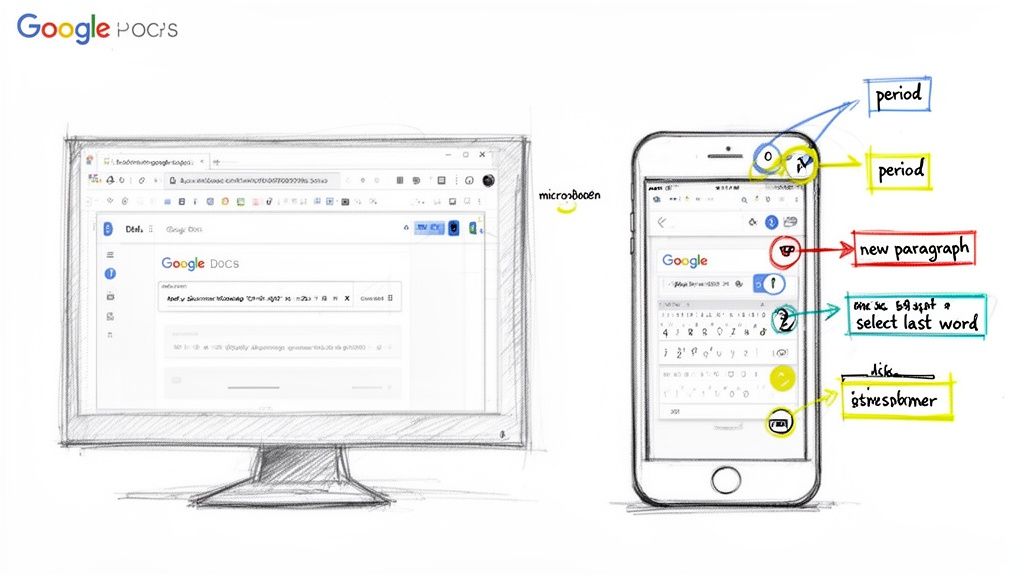
Getting these commands right is the key to a truly hands-free workflow, allowing you to focus on your ideas instead of the mechanics of typing.
My Biggest Tip: When you give a command, pause for a beat before and after. For example: "This is the end of the sentence period (pause) New paragraph (pause) Now I'm starting the next thought." That little gap helps the tool recognize you're giving an instruction, not just saying the words "new paragraph."
Putting It All Together: A Real-World Example
So, what does this look like in practice? Imagine you need to bang out a quick business proposal. Instead of staring at a blank screen, you could just start talking.
You might say something like this:
"Proposal for New Marketing Initiative (pause) new paragraph Here is the executive summary for the project we discussed period Our goal is to increase brand awareness by 25% over the next fiscal quarter period (pause) new paragraph Key Objectives (pause) new line create bulleted list Drive a higher volume of website traffic period (pause) new line Increase engagement on social channels period (pause) new line Generate more qualified inbound leads period (pause) stop list"
Just like that, you have a structured outline without touching your keyboard.
This is what I call the "brain dump" phase. Get all your thoughts out using voice commands for structure. From there, you can make quick verbal edits like "select last two words" or "delete that" before jumping on the keyboard for the final polish. This hybrid workflow—dictate first, edit second—is so much faster than typing from a cold start.
On your phone, it's even simpler. The built-in keyboard microphone in the Google Docs app is perfect for adding quick notes or ideas to a document when you're away from your desk.
How to Improve Your Speech to Text Accuracy
We’ve all been there. You dictate a perfectly crafted sentence, only to see a mess of garbled words pop up on the screen. It's frustrating. The secret to making speech to text in Google Docs actually work for you isn't just about speaking clearly—it's about setting the stage for the tool to listen properly.
From my own trial and error, the biggest mistake people make is relying on their laptop's built-in microphone. It’s convenient, sure, but it’s also the number one cause of transcription errors. It picks up everything: the whir of your computer's fan, your keyboard clicks, and every little echo in the room.
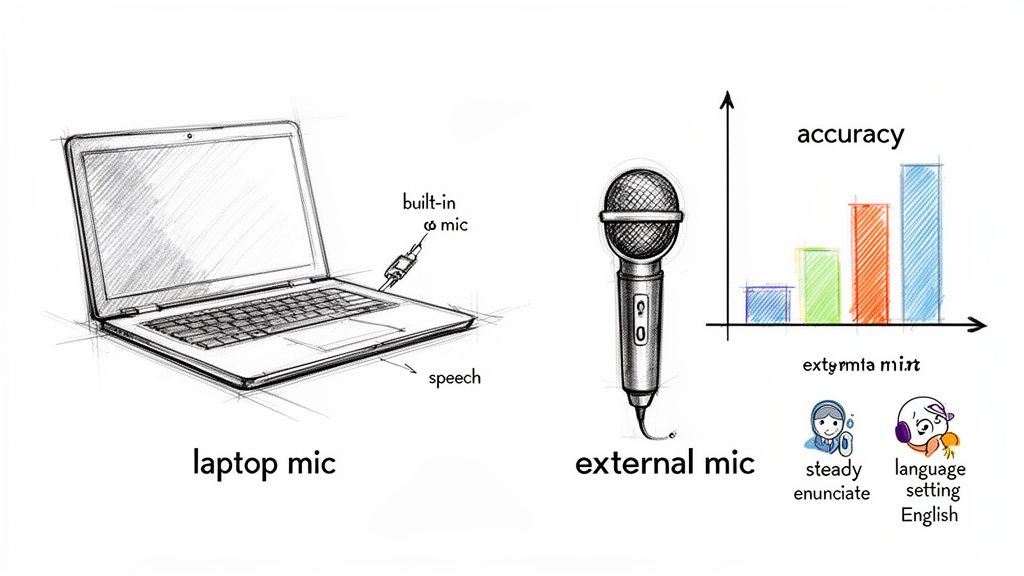
The simplest fix is to use an external microphone. You don't need a professional studio setup; even an inexpensive USB mic or a basic headset can make a world of difference. This one change alone can boost your accuracy tremendously because it isolates your voice from all that background noise.
Find Your Dictation Rhythm
Once your microphone is sorted, it's time to focus on your delivery. I like to call this finding your "dictation cadence." This isn't about talking like a robot or slowing down to a crawl. It's about being consistent.
Here are a few things that have worked for me:
- Keep a steady pace. Try not to rush your words or leave long, awkward silences in the middle of a thought.
- Enunciate your words. You don't have to over-pronounce everything, but pay special attention to the ends of your words. Don't let them trail off.
- Pause where you naturally would. The AI uses those small breaks after a phrase or at the end of a sentence to process what you just said.
This rhythm gives the software clean audio to work with, which means fewer mistakes for you to fix later. It feels a little weird at first, but it becomes second nature pretty quickly.
Pro Tip: The Correction Pass Workflow. My biggest piece of advice is to avoid breaking your flow by stopping to fix every typo as it happens. Just get all your ideas down. Once you're done dictating, go back for a dedicated editing pass to clean everything up. It’s still so much faster than typing everything from scratch.
Dial in Your Language Settings
This next tip is one of the most powerful yet commonly overlooked settings. Make sure you've selected your specific language and dialect. Google Docs has a massive list of options, and choosing the right one can be a game-changer, especially if you have a regional accent.
For example, if you're in the UK, switching from the default "English (US)" to “English (United Kingdom)” will help the tool recognize your specific pronunciation and vocabulary. You can find this setting right on the little microphone pop-up. It's a tiny adjustment that pays off in a big way.
While these tips are great for live dictation, many of us also need to transcribe existing audio or video files. For that, you'll need a different set of tools. You can learn more about those in our guide to AI-powered transcription software.
Can Google Docs Transcribe an Audio File?
So, you’ve been happily dictating your own thoughts into Google Docs, and it’s been working great. But then you run into a new challenge: you have an audio or video file—like a recorded meeting or interview—that you need to turn into text.
This is a common moment of frustration. When you look for an "upload audio" button in Google Docs, you'll quickly discover it doesn't exist. Google's Voice Typing feature cannot transcribe audio or video files. It is designed for live, single-speaker dictation only.
The Limits You’ll Hit Quickly
Trying to cheat the system by playing your recording out loud for Google Docs to "hear" is an exercise in futility. I've tried it, and the result is usually a jumbled, inaccurate mess.
Beyond the inability to upload files, you'll run into other deal-breakers:
- It Can't Handle Multiple Speakers: The tool can't tell different people apart. A conversation between two or more people gets mashed into one confusing paragraph.
- No Speaker Labels: Forget about seeing who said what. It won't label speakers as "Speaker 1" or "Jane Doe," making it almost impossible to follow a meeting transcript.
- Background Noise Is a Major Problem: The voice typing feature needs a clean, quiet environment. It doesn't have the sophisticated noise cancellation that dedicated services do, so a barking dog or a nearby siren can throw it off completely.
These aren't bugs; it's just not what the tool was built for. When your needs grow beyond simple dictation, it's time to look at a dedicated workflow for transcribing audio to text.
The Solution: A Dedicated Transcription Service
This is where a purpose-built AI transcription service like HypeScribe completely changes the game. It’s not a small feature inside a word processor; it's a powerful engine designed specifically to turn audio and video into accurate, usable text.
The process is incredibly simple. Instead of looking for a button in Google Docs, you go to a service like HypeScribe. There, you can drag and drop your media files or even paste a link from a site like YouTube.
You just upload your file—whether it's a raw podcast recording, a client call, or a video from a conference—and let the AI work. In minutes, you get back a transcript that’s not only highly accurate but also includes timestamps and speaker labels.
The real game-changer is what comes with the transcript. HypeScribe can automatically generate summaries, pull out key highlights, and even create a list of action items. It turns a one-hour conversation into a document you can understand in five minutes.
This kind of power is why the speech-to-text market is booming. It's projected to soar from $4.66 billion in 2025 to an incredible $25.28 billion by 2034. Professionals in every field, from marketers analyzing customer feedback to researchers coding interviews, need to get information out of audio files. The demand is massive. You can read more about this market's explosive growth and the technology behind it.
Once HypeScribe has done the heavy lifting, you can export the polished transcript—summaries, action items, and all—right into a Google Doc. This gives you the best of both worlds: a world-class transcription engine paired with the familiar, collaborative editing environment of Google Docs.
Which Is Best: Google Docs Voice Typing vs. HypeScribe?
So you've got two tools in front of you. When should you use the free, built-in Google Docs feature, and when is it time to bring in a specialist tool like HypeScribe? Based on my experience, knowing which tool to grab from your digital toolbox is half the battle.
The answer really comes down to what you’re trying to accomplish. There’s no single “best” tool, only the right tool for the job at hand.
For many day-to-day tasks, Google's Voice Typing is honestly fantastic. It's my go-to when I'm brainstorming a first draft, talking through a quick email, or just trying to get a stream of consciousness out of my head and onto the page. It's fast, it’s free, and it’s already there. No friction, no fuss.
But the moment your needs get a little more complex—say, you have a recording of a meeting or an interview with multiple people—you’ll find that Google's tool hits a brick wall. It simply wasn't designed for that.
I've put together a little decision-making flowchart to help you figure out which path to take. It’s the same mental checklist I run through myself.
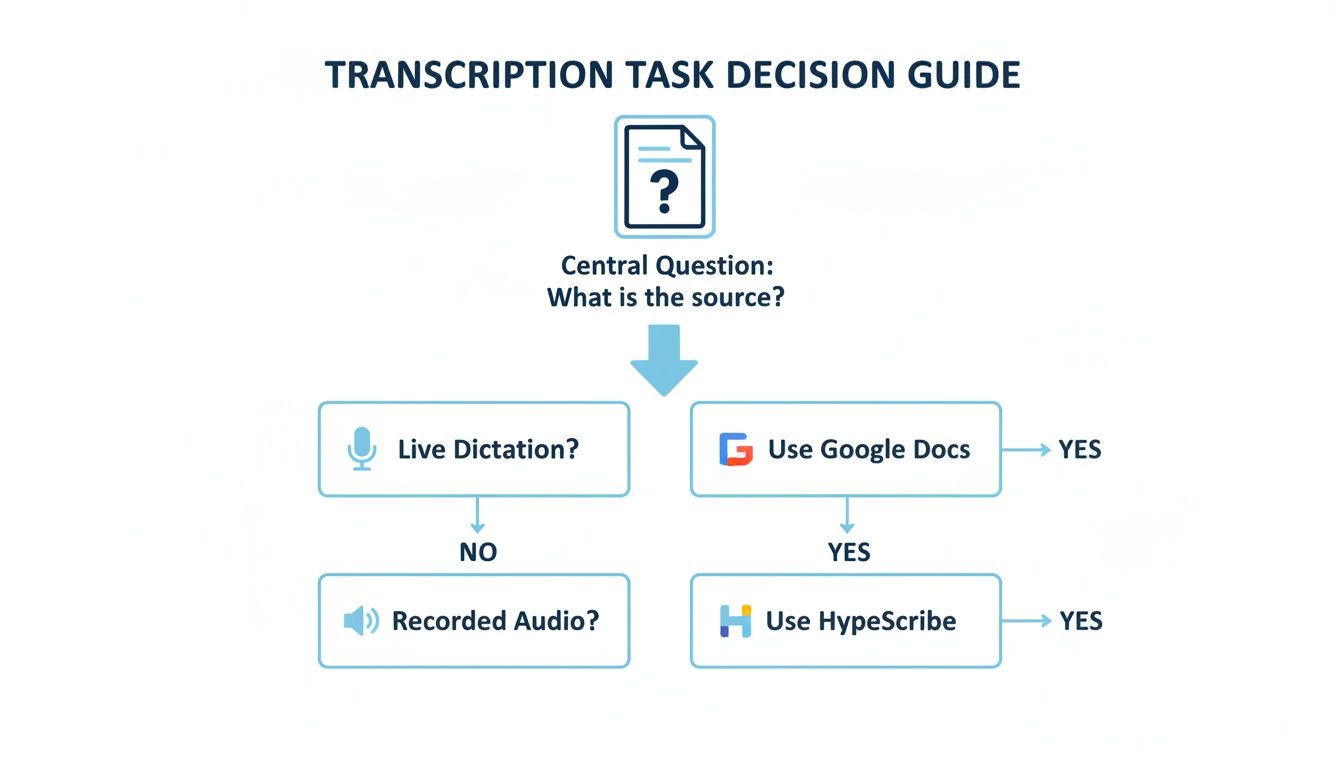
As you can see, the fork in the road is simple: are you talking live, or are you working with a recording? For anything beyond personal, real-time dictation, you’re going to save yourself a massive headache by using a dedicated transcription service.
HypeScribe vs. Google Docs: A Head-to-Head Comparison
To make it even clearer, let's put them side-by-side. Think of it like having a trusty multi-tool in one pocket and a specialized power drill in your workshop. Both are incredibly useful, but you wouldn't use one for the other's job.
Here’s a breakdown of how Google Docs Voice Typing and HypeScribe stack up on the features that matter most for transcription.
Google Docs Voice Typing vs HypeScribe: A Feature Breakdown
| Feature | Google Docs Voice Typing | HypeScribe |
|---|---|---|
| Transcription Source | Live dictation only (what you say right now) | Audio/video files, web links, and live meetings |
| Speaker Identification | Not supported; assumes a single speaker | Automatically identifies and labels different speakers |
| Accuracy | Good in a quiet room with one clear voice | High accuracy, even with background noise and accents |
| Advanced Features | Basic punctuation commands (e.g., "period") | Generates AI summaries, action items, and key takeaways |
| Timestamps | No timestamps | Word-level timestamps for easy audio navigation |
| Best For... | Solo brainstorming, drafting personal notes, simple dictation | Transcribing meetings, interviews, lectures, and podcasts |
The table makes the distinction pretty stark. Your choice really does hinge entirely on the source and complexity of your audio.
For instance, imagine trying to make sense of a 90-minute project kickoff call with three team members. With HypeScribe, you upload the file and get back a clean, speaker-labeled transcript with a summary of decisions. Trying to do that by playing and pausing the audio for Google’s live dictation would be an exercise in frustration.
Your Workflow Should Dictate Your Tool
Ultimately, it’s about matching the tool to your workflow.
If your process involves turning recorded conversations—client calls, team meetings, university lectures—into organized, usable documents, then a dedicated service is a non-negotiable part of your toolkit. The productivity boost from uploading a file and getting a structured, summarized transcript is something a simple dictation tool just can't offer.
On the other hand, for those spontaneous moments of inspiration, nothing beats the instant accessibility of Google’s Voice Typing.
HypeScribe is built from the ground up to solve the complex transcription challenges that teams and professionals run into every day. If you're ready to turn your messy audio and video files into organized, actionable insights, see what HypeScribe can do for your workflow.
Your Top Questions About Google Docs Voice Typing, Answered
Even the most straightforward tools come with their own set of quirks. As you start using voice typing more, you'll inevitably run into a few questions. Let's tackle some of the most common ones I hear from people, from privacy concerns to those little glitches that can bring your workflow to a halt.
Is My Voice Data Secure When Using Google's Tool?
Let’s get the big one out of the way first: privacy. When you speak into your microphone for Google's Voice Typing, that audio gets sent directly to Google's servers for transcription. This is pretty standard for cloud-based speech recognition—it's how the system's AI is trained to get better over time.
Security is a valid concern, especially as speech technology becomes more integrated into our digital lives. You can dig deeper into speech recognition statistics and trends on aistratagems.com if you're curious about the industry at large.
My personal take: for everyday tasks and non-sensitive brainstorming, the convenience of built-in voice typing is fantastic. But if I were dictating something highly confidential—like legal strategies or unannounced product details—I'd always use a service that gives me explicit control over deleting my data after transcription. It's just the safer bet.
Troubleshooting: Why Isn't Voice Typing Working?
Okay, beyond privacy, let's talk about the practical hitches that can stop you in your tracks. Here are the quick fixes for the most common problems you're likely to face.
"The Voice Typing icon is grayed out or missing."
I get this question a lot, and the answer is almost always the browser. Google’s Voice Typing is built to work exclusively within the Google Chrome browser.
- If you’re on Safari, Firefox, or Edge: The tool just won't show up. You'll need to open your document in Chrome to use it.
- If you're in Chrome and it's still gray: Check your file format. This usually happens when you're editing a Microsoft Word file (
.docx) directly in Google Docs without converting it first. The feature is disabled for non-native formats. To fix it, go toFile > Save as Google Docs.
"How do I dictate tricky punctuation?"
While Voice Typing is great with basics like "period" and "comma," it can trip over anything more complex. My best advice? Don't fight with it.
From experience, it's much faster to focus on getting your words down using simple punctuation commands. Then, go back and add things like parentheses, em dashes, or semicolons during a quick editing pass with the keyboard. Trying to dictate them perfectly often takes more time than it saves.
Once you know these few limitations and have these workarounds in your back pocket, you can use Google's speech-to-text with confidence. You'll know exactly when it’s the right tool for the job and what to do when you hit a snag.
If your transcription needs have grown beyond simple dictation—say, you're now recording meetings, interviews, or lectures—it’s probably time to look at a dedicated tool. HypeScribe is an AI-powered transcription service that turns your audio and video files into accurate, speaker-labeled text, complete with smart summaries and action items. See how easy professional transcription can be and try HypeScribe today.


































































































