Apple TV Subtitles: Turn On, Fix and Customize (tvOS Guide)

You’re halfway through a movie, the room is quiet, and you still miss a key line because the dialogue is buried under music and effects. So you grab the Siri Remote, swipe around, overshoot the menu, back out, and lose the scene. That’s usually the moment people decide subtitles on apple tv matter more than they thought.
After enough late-night fiddling, one thing becomes obvious. Subtitles aren’t just an accessibility feature anymore. They’re part of a better viewing setup. They help with hushed performances, crowded mixes, regional accents, and the simple reality that not every show is mixed for a living room with perfect speakers.
Why Mastering Subtitles Transforms Your Viewing Experience
A lot of viewers start using subtitles because something sounds off in a single show. Then they leave them on for everything.
That shift makes sense. Netflix reports that nearly half of all viewing hours in the U.S. happen with subtitles or captions on. That’s a mainstream viewing habit, not a niche one. Apple clearly noticed the same pattern, because tvOS 18 added a shortcut where pressing Back can automatically show subtitles while you replay a missed moment.
Subtitles fix more than hearing problems
The practical benefit is comprehension. You catch names, whispered lines, jokes delivered under background noise, and dialogue that would otherwise disappear into a cinematic mix.
They also reduce mental effort. Instead of constantly adjusting volume for every scene, you let the text carry some of the load. That matters even if you hear perfectly well.
Subtitles often work like a second audio track for your eyes. Once they’re set up properly, you stop thinking about them and just follow the story better.
There’s another point people miss. Captions and subtitles aren’t the same thing. If you want the full distinction, this guide on closed caption vs subtitle is a useful refresher. In daily use, though, the short version is simple: standard subtitles usually focus on dialogue, while closed captions and SDH include extra audio cues such as speaker identification or sound effects.
Apple TV is good at the basics, but only if you configure it
Out of the box, Apple TV gives you solid subtitle controls. The problem is that many people never go past the default settings. They don’t set system-wide preferences, they don’t adjust appearance, and they assume every app behaves the same way.
It doesn’t.
Some apps respect Apple’s accessibility settings nicely. Some expose their own subtitle menus. Some are inconsistent. And some, like BBC iPlayer in certain Apple TV experiences, have been a source of frustration for viewers who expect subtitle support to be there and discover it isn’t.
That’s why mastering subtitles on apple tv is worth the effort. Once you know the fast toggle methods, the global defaults, the styling controls, and the app-specific workarounds, the whole box feels less like a black box and more like a tool you control.
The Fast Way to Enable Subtitles and Captions on Apple TV
The best subtitle setup starts with knowing two paths. One is for the show you’re watching right now. The other is for every app and every future viewing session.
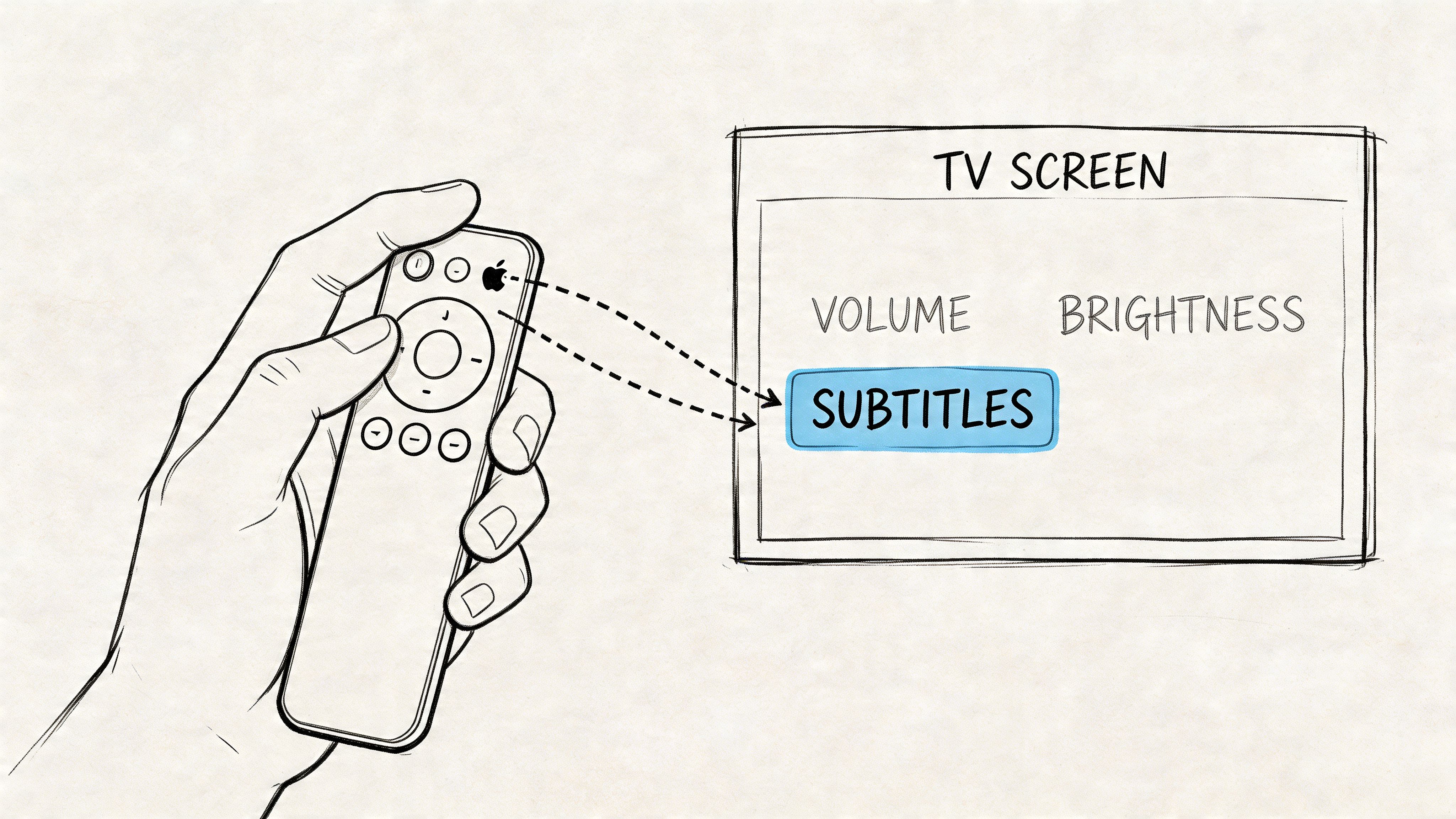
Turn subtitles on during playback
If you’re already in a movie or series episode, this is the fastest method.
- Start playback in the Apple TV app or another streaming app.
- Open the playback controls using the Siri Remote.
- Look for the subtitle or speech bubble control.
- Choose the subtitle track you want, such as standard English subtitles or English SDH.
On many Apple TV setups, you can also use the newer shortcut behavior that Apple added around subtitle access. Apple TV also introduced Automatic Subtitles in the Apple TV app profile menu, where it dynamically shows text based on audio detection. That feature builds on the quicker subtitle access Apple has been adding to recent tvOS versions.
If you want a simpler walkthrough of the general process across devices, this guide on how to turn on closed captioning is handy.
Set subtitles as your default
If you use subtitles often, don’t keep toggling them one video at a time. Set a global default.
Go to:
Settings > Accessibility > Subtitles and Captioning
Then turn on:
Closed Captions + SDH
That tells Apple TV to prefer captions where supported. It’s the most reliable way to make subtitle behavior consistent across apps that honor system accessibility settings.
Know what you’re selecting
A lot of confusion comes from the labels. Apple TV surfaces several options, and each one serves a different purpose.
In real use, I usually tell people this: if you just want to catch spoken lines, start with standard subtitles. If you want speaker names, music cues, and sound information, choose CC or SDH.
Practical rule: If the screen feels cluttered, switch from CC or SDH to standard subtitles before you decide subtitles “aren’t for you.”
Use Automatic Subtitles carefully
Automatic Subtitles are a valuable feature if you only want text when speech gets hard to parse. It’s available in the Apple TV app by tapping the profile icon and finding the setting there.
That said, I treat it as a convenience feature, not a replacement for manual control. For movie nights, it can feel smart. For precise, consistent viewing, especially when comparing subtitle tracks or testing app behavior, manual selection is still more predictable.
A visual walkthrough helps if you want to see the menus in action.
The best setup for most people
If you want the least friction, this combination works well:
- Enable Closed Captions + SDH globally so subtitles are available by default.
- Switch per title during playback when a cleaner dialogue-only subtitle track is available.
- Use Automatic Subtitles selectively in the Apple TV app, not as your only method.
- Check app-specific settings if one service ignores your system preference.
That mix gives you speed and control. You’re not stuck diving into Settings every time, and you’re not relying on one app’s idea of what subtitle behavior should be.
Customizing Subtitle Appearance for Perfect Readability
Default subtitles are usually serviceable, not ideal. Apple TV gets much better once you stop treating subtitle styling as an afterthought.
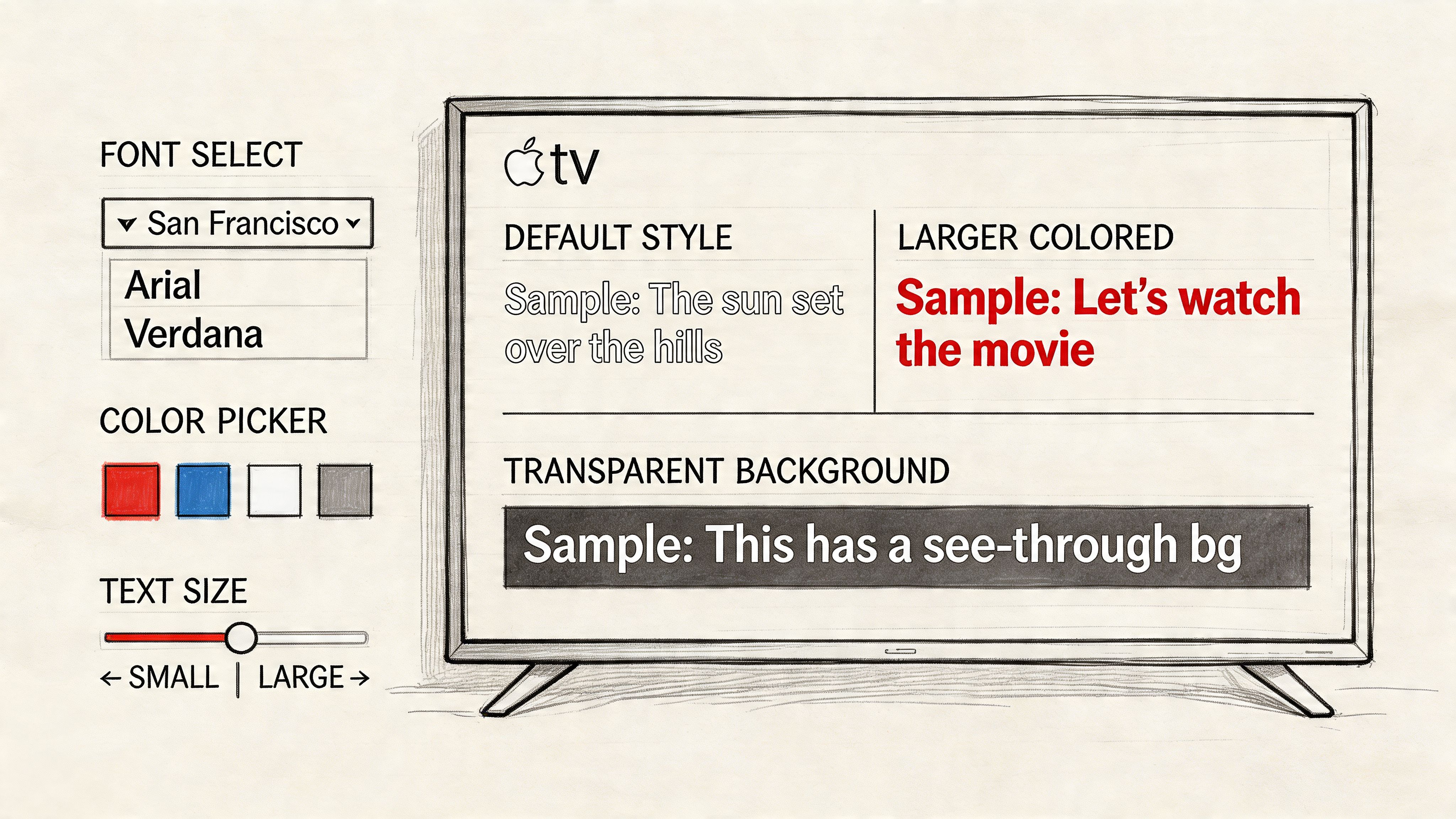
Apple gives you a surprisingly flexible styling panel. Within Apple TV accessibility settings, you can choose from 17 font options, scale size up to 200%, and adjust colors, opacity, and edge styles, with tvOS handling rendering for supported content. That’s enough control to solve most readability problems without touching your TV picture settings.
Where to change subtitle style
Open:
Settings > Accessibility > Subtitles and Captioning > Style
From there, you can edit an existing style or create your own. Doing so makes subtitle use stop feeling generic and start fitting your room, your screen size, and your eyesight.
The big choices are font, text size, color, background, and edge treatment. None of them exists in isolation. The right combination matters more than any single setting.
What each setting actually changes
Font choice affects legibility more than people expect. Clean sans-serif options usually read best from a couch. Decorative fonts may look interesting in the preview pane and become tiring during a two-hour film.
Size should match your viewing distance, not just your preference. If you sit far from a large TV, small subtitles force constant eye strain. If you sit close, giant subtitles can dominate the frame.
Color changes contrast. White is common, but it’s not always best. On bright scenes, white can disappear into the image. Yellow often holds its edge better without feeling harsh.
Background and opacity determine whether subtitles float cleanly over the picture or get swallowed by it. A semi-transparent dark background is usually the safest middle ground.
Edge styles like outlines or drop shadows can rescue readability when the image itself is busy.
My preferred combinations
I don’t use the same subtitle style for every room.
For a bright living room:
- Use yellow or off-white text because it separates better from sunlight-washed screens.
- Add a subtle dark background instead of relying only on shadow.
- Keep size moderate so subtitles don’t feel oversized during daytime viewing.
For a dark home theater:
- White text works well if you add an outline or soft shadow.
- Reduce background opacity slightly so the box doesn’t feel heavy against black bars.
- Avoid extreme size settings because large text becomes distracting in a dim room.
For older TVs or softer panels:
- Favor bold, simple fonts
- Use stronger edge definition
- Increase text size before increasing brightness
If subtitles look ugly, they’re usually not too big. They’re too low-contrast or poorly styled for the screen they’re sitting on.
A good baseline style
If you want one dependable setup, this is a strong starting point:
SettingRecommended baselineFontA clean sans-serif optionSizeMedium to slightly largeText colorYellow or off-whiteBackgroundSemi-transparent blackEdge styleSoft outline or drop shadow
That baseline is forgiving across films, streaming apps, and lighting conditions.
What not to do
Some subtitle styles look fine in Settings and fall apart during real playback.
- Pure white text with no edge treatment can vanish on snowy, bright, or overexposed scenes.
- Fully opaque backgrounds can block too much of the image and feel like lower-third graphics.
- Tiny text is the most common mistake in big rooms.
- Highly stylized fonts make long dialogue scenes more tiring than they need to be.
The nice part about Apple TV is that once you build a subtitle style you like, you generally don’t need to revisit it often. You may still switch tracks between standard subtitles and SDH, but your visual foundation stays steady.
Troubleshooting When Apple TV Subtitles Go Wrong
Apple’s own setup steps are fine for turning subtitles on. They’re much less helpful when subtitles exist but don’t behave.
That gap matters because subtitle problems on Apple TV are rarely one thing. Sometimes the track is missing. Sometimes the app ignores your system settings. Sometimes the subtitle timing slips enough to make every scene irritating.

Forum data from 2025 indicates that 35% of Apple TV subtitle queries involve synchronization errors, with captions lagging by 2 to 5 seconds. The same discussion highlights a frustrating reality. Apple doesn’t offer official troubleshooting for many network-induced delays or app-specific subtitle bugs.
Start with the simple checks
Before blaming the whole box, run through the basics in order.
- Restart the app first. If a single service is acting up, force quit it and reopen it.
- Restart Apple TV next. Temporary playback glitches often clear after a reboot.
- Confirm the subtitle track exists. Some titles offer only a limited set of language and caption options.
- Check the audio track too. Subtitle availability can change depending on which audio language you selected.
These are boring steps, but they solve a surprising number of subtitle failures.
When subtitles don’t appear at all
Here, people often waste time in the wrong menu.
If subtitles are missing entirely, check these in this order:
- Playback menu inside the app
- Global Apple TV accessibility settings
- The title’s details page, which may show CC or SDH availability
- App-specific subtitle controls, if the app has its own interface
Third-party apps are the wild card. Some honor Apple’s settings exactly. Some use their own subtitle toggles during playback. Paramount+ style behavior is a common example of where viewers think Apple TV is broken when the app merely expects a separate in-player action.
BBC iPlayer has also been a pain point for Apple TV users in some scenarios. If one app consistently lacks subtitle support while others work normally, that’s usually an app limitation, not a system-wide Apple TV failure.
Don’t troubleshoot the entire device until you’ve tested the same subtitle settings in at least one other app.
Fixing subtitle sync issues
Sync drift is the most annoying subtitle problem because everything technically “works,” just badly.
If captions lag behind speech, try this sequence:
- Pause and resume playback. Minor timing drift sometimes resets immediately.
- Back out of the video and restart the stream.
- Switch subtitle tracks off and back on.
- Change networks if possible, especially if Wi-Fi is unstable.
- Prefer wired Ethernet when subtitle timing goes wrong repeatedly on the same network.
Live streams and lower-quality app implementations are more prone to sync issues than polished on-demand playback. If the same movie is out of sync in one app but fine elsewhere, that points to the service, not your Apple TV hardware.
A better troubleshooting hierarchy
Users often jump randomly between menus. A cleaner method is faster.
ProblemMost likely causeBest first actionNo subtitle option shownTitle or app limitationCheck another title in the same appSubtitles available but won’t enableApp-specific control conflictUse the in-app playback menuSubtitles lag behind speechStream or app timing issueRestart playback and test network stabilityOnly one service has the problemService-side implementationCompare behavior in another appStyle settings don’t applyApp overrides tvOS renderingTest in the Apple TV app
The fixes that work less often than people hope
A few common instincts aren’t as useful as they sound.
Blindly changing subtitle style won’t solve timing issues. It only changes presentation.
Toggling accessibility settings repeatedly can help with stuck states, but it won’t fix a bad subtitle file delivered by the app.
Assuming all apps support the same controls leads to dead ends. Apple TV is a platform. Subtitle behavior still depends heavily on the app developer.
When subtitles on apple tv fail, the fastest route is methodical isolation. Check whether the issue follows the title, the app, the network, or the device. Once you know which layer is failing, the solution usually becomes obvious.
Advanced Subtitles for AirPlay, Live Sports, and Third-Party Apps
Once the basics are dialed in, the tricky part begins. Subtitle behavior changes when you leave the Apple TV app and start mixing in AirPlay, sports streams, and third-party players.

Experienced users stop expecting perfect consistency. You can still get a great result, but you need to know which layer is in charge. Sometimes it’s tvOS. Sometimes it’s the app. Sometimes it’s the device you’re sending from.
AirPlay changes the rules
AirPlay is convenient, but subtitles can behave differently depending on what you’re casting and from where.
If you AirPlay video from an iPhone or iPad, subtitle control may stay tied to the source device instead of feeling native on the Apple TV. That means:
- Subtitle styling may look different from your Apple TV default style
- Track selection might need to happen on the phone
- Some apps pass subtitle data cleanly, others don’t
If a subtitle track disappears during AirPlay, the first thing I do is stop casting and play the same content directly on the Apple TV app version. If subtitles return there, the issue is usually the AirPlay path, not the title itself.
Third-party apps all have their own personality
Netflix, Prime Video, VLC, Infuse, BBC iPlayer, and other apps don’t behave as one unified system.
A few practical patterns show up again and again:
- Netflix is usually strong on subtitle selection and offers cleaner choices in many cases.
- Prime Video often works, but subtitle menus can feel less predictable.
- BBC iPlayer has had subtitle complaints from Apple TV users, so test before assuming support.
- VLC and Infuse are better bets for personal media libraries and custom subtitle control than many mainstream streaming apps.
The key lesson is simple. If subtitles matter for a specific workflow, choose the playback app based on subtitle reliability, not just interface.
The best Apple TV subtitle setup often involves two apps. One for mainstream streaming, another for personal media and custom files.
Live sports are still a weak spot
Apple TV looks polished with on-demand content. Live events are another story.
A major gap remains in real-time subtitles for live sports and events. As of Q1 2026, real-time captions were available for about 40% of non-US markets for live MLS streams, and tvOS 19 beta user data showed a 28% failure rate in heavy-accent content. Those figures are useful because they confirm what many viewers already notice. Live captioning is still uneven, especially outside the most polished language and market combinations.
That means you shouldn’t assume a live event will offer the same subtitle quality as a scripted drama. Sports commentary, crowd noise, and rapid speaker changes are hard on any caption system.
Importing custom SRT files for full control
If you play your own media through apps like VLC or Infuse, custom SRT subtitle files are the best way to regain control.
The usual workflow looks like this:
- Store the video in a library the Apple TV app can access through your player of choice.
- Match the subtitle filename to the video filename so the app can associate them cleanly.
- Load the subtitle track manually in the player if automatic matching fails.
- Check sync inside the player because local media apps often offer better subtitle offset tools than streaming apps.
This is also the best answer when a movie file has no usable embedded subtitles or when the included track is poorly timed.
What works best by use case
Use caseBest approachMainstream streaming appsUse native app subtitle controls firstAirPlay from iPhone or iPadConfigure subtitles on the source deviceLive sportsExpect inconsistent real-time caption qualityPersonal mediaUse VLC or Infuse with external SRT filesProblem app with poor subtitle supportTest the same content via a different playback path
Advanced subtitle use on Apple TV isn’t about one hidden setting. It’s about knowing when to trust Apple’s global controls and when to switch to an app or workflow that gives you more authority over the text on screen.
How to Create Your Own Subtitles for Any Video with AI
Sometimes there’s no subtitle track to fix because there’s no subtitle track at all. That happens with lecture recordings, interviews, downloaded clips, family videos, and older files in personal libraries.
In those cases, the cleanest solution is to create your own subtitles, export them as an SRT file, and use a player on Apple TV that supports external subtitle tracks.
A practical workflow that works
The easiest method is to use an AI transcription tool that can generate time-coded text from audio or video. If you’re comparing options, this roundup of AI tools for content creation is useful because it gives you a broader sense of the current tool environment, not just subtitle-focused platforms.
The process itself is straightforward:
- Upload your video or audio file to a transcription tool.
- Review the transcript for names, jargon, and punctuation.
- Export the file as SRT.
- Move the SRT file alongside the video in your media library.
- Open the video in VLC or Infuse on Apple TV and select the subtitle track.
If you need software specifically built for this sort of workflow, this guide to closed captioning software is a good starting point.
Where custom subtitles help most
Custom subtitle files are especially useful for content that streaming platforms don’t manage for you.
- Recorded lectures where the speaker uses specialized vocabulary
- Team training videos that need searchable text and consistent wording
- Interviews and documentary footage with multiple speakers
- Personal media libraries where embedded subtitles are missing or inaccurate
- Foreign-language clips that need your own translation layer
Tips for cleaner results
AI-generated subtitles are fast, but they still benefit from a quick pass before you watch them on a TV.
Check these items before export:
- Speaker names and technical terms
- Sentence breaks, so subtitles don’t split in awkward places
- Timing around pauses, especially in interviews
- Non-speech cues, if you want a more caption-like result rather than dialogue-only subtitles
A short review on a laptop saves a lot of irritation once the subtitles hit a big screen.
A subtitle file doesn’t need to be perfect to be useful. It does need to be readable, timed well enough to follow, and named correctly so your player can find it.
Why this matters on Apple TV
Apple TV is excellent for playback, but it can’t invent subtitles that a file or service doesn’t provide. External SRT support through capable media apps fills that gap.
That turns subtitles from a passive feature into something you control. If a video lacks accessibility support, you don’t have to accept that limitation. You can generate a subtitle track yourself, load it into the right app, and make the content far easier to watch.
Taking Full Control of Your Viewing Experience
Once you get past the default toggle, subtitles on apple tv become a full system, not a single setting. You can choose the right track type, style it for your room, diagnose sync issues, work around weak third-party app behavior, and even add your own subtitle files when a video has none.
That control matters because Apple TV is only part of the chain. The app, the stream, the file, and the playback method all shape what you see on screen. When you know where each of those layers can fail, you stop guessing and start fixing.
If you’re also trying to simplify subtitle behavior across other streaming platforms in your home, this guide on how to turn subtitles off on Disney Plus for any device is a useful companion for cross-platform cleanup.
The goal isn’t to keep subtitles on all the time. The goal is to make them available, readable, and reliable whenever you need them.
If you need to generate accurate transcripts or subtitle-ready text from meetings, lectures, interviews, or uploaded video, HypeScribe is worth a look. It helps turn spoken content into searchable text fast, which is useful when you want material you can review, edit, and export into caption or subtitle workflows.