
What's the Best Video Format? MP4 vs MOV vs WebM by Use Case

There is no single best video format, only the right one for what you are about to do with the file. A format built for streaming on YouTube will choke your editing software, and the one editors love is far too heavy to upload anywhere.
For most people, most of the time, MP4 (H.264) is the clear winner. It plays on effectively every device made in the last decade, at a file size that does not embarrass itself.
Choosing the Best Video Format: A Quick Guide
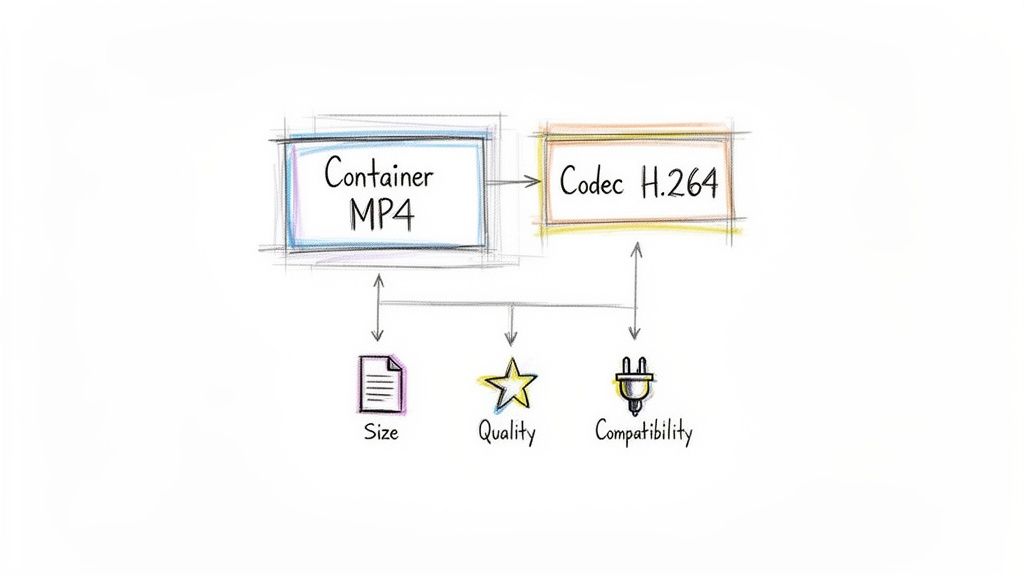
Before you can confidently pick the right format, you have to understand that every video file is made of two distinct parts. I've found it helps to think of it like a shipping package.
- The container is the box itself—the file you see with an extension like .mp4, .mov, or .mkv. It holds all the different pieces together: the video stream, the audio stream, subtitles, and other metadata.
- The codec is the method used to pack everything inside that box. It's the technology that compresses your video to a manageable size and then decompresses it for playback. Common examples include H.264, ProRes, and VP9.
This container-and-codec pairing is what ultimately defines your video's file size, visual fidelity, and where it can be played. An MP4 container, for instance, can use several different codecs, each producing a very different result. Getting this right from the start is key to avoiding headaches later.
Quick-Reference Format Guide
To make things easier, here’s a quick rundown of the most common formats and where they shine. Think of this as your cheat sheet for making the right call in most situations.
| Format (Container) | Best Use Case | Why It Works |
|---|---|---|
| MP4 (H.264) | Web, Social Media & General Sharing | Universal compatibility and great compression. The go-to for almost everything. |
| MOV (ProRes) | Professional Video Editing | High-quality, minimally compressed video that is easy for editing software to process. |
| WebM (VP9/AV1) | Modern Web Streaming | Open-source and highly efficient for delivering high-quality video with low bandwidth. |
| MKV | Archiving & Media Playback | Extremely flexible, supports multiple audio/subtitle tracks in a single file. |
Choosing the right format from the start saves time and preserves quality. For instance, editing in a high-quality format like MOV and exporting to a universally compatible MP4 is a standard professional workflow I use all the time.
Understanding Video Containers and Codecs
Container and codec get used interchangeably, and they are not the same thing. Sorting that out first is what prevents export errors, files ten times bigger than they should be, and video that looks worse than the source.
Think of a video file as a package.
- The container is the shipping box. It’s what you see as the file extension—like
.mp4,.mov, or.mkv. This box doesn't just hold the video; it also holds the audio tracks, subtitles, and metadata all bundled together. - The codec is how you compress and arrange the contents inside that box. It’s a piece of software (a COmpressor/DECompressor) that shrinks your massive raw video and audio files into something manageable. Common codecs include H.264, HEVC (H.265), and ProRes.
So, while you might have two files both ending in .mp4, they can have wildly different quality and file sizes. It all comes down to the codec used to pack the video data inside that MP4 container.
Why This Distinction Matters
Knowing the difference is what lets you move from guessing your export settings to making deliberate, professional choices. It explains, for instance, why a .mov file is the go-to format in professional editing circles—it's because the MOV container can hold high-quality, lightly compressed codecs like ProRes, which are designed for smooth editing.
A container is just the wrapper; the codec inside defines the quality and file size. An MP4 container using the efficient H.264 codec is perfect for web streaming, while that same MP4 container packed with an old, inefficient codec could give you a huge, blocky file.
This is why a newer codec like H.265/HEVC is so impressive. It can deliver stunning 4K video in a file that's 30-50% smaller than one encoded with its predecessor, H.264. The catch? The device playing it back has to know how to "unpack" or decode it. The catch is only that both sides need to support it.
How Codecs Impact Different Use Cases
Your choice of codec has very real consequences depending on where your video is headed.
- Social Media: You need small files that upload fast and play on everything from a new iPhone to an old Android. The H.264 codec is the undisputed champion here, offering great compression and universal compatibility.
- Professional Editing: When I'm editing, I need my software to scrub through the timeline without lag. This is where "intermediate" codecs like Apple ProRes shine. They use minimal compression, preserving more image data and making the footage far less demanding on my computer's processor.
- AI Transcription: If you're sending a video to a tool like HypeScribe for transcription, the audio codec suddenly becomes just as important as the video one. A clean, well-compressed audio stream (like AAC, commonly found in
.mp4and.movfiles) is crucial for accuracy. Heavy audio compression can create artifacts that confuse the AI, resulting in a transcript full of errors.
By picking the right container-codec pair from the very beginning, you set your video up for success, ensuring it looks great and works perfectly wherever you send it.
A Detailed Comparison of Common Video Formats
Now to how the pieces fit together in practice. Picking a format is not about finding the best file type — it is about matching the file to the job in front of you.
The format that saves bandwidth on a social post will bring your editing software to a halt. Below is why certain container-codec pairs became standards, and when to use each.
To really nail down this concept, here’s a simple visual breakdown of how a video file is constructed.
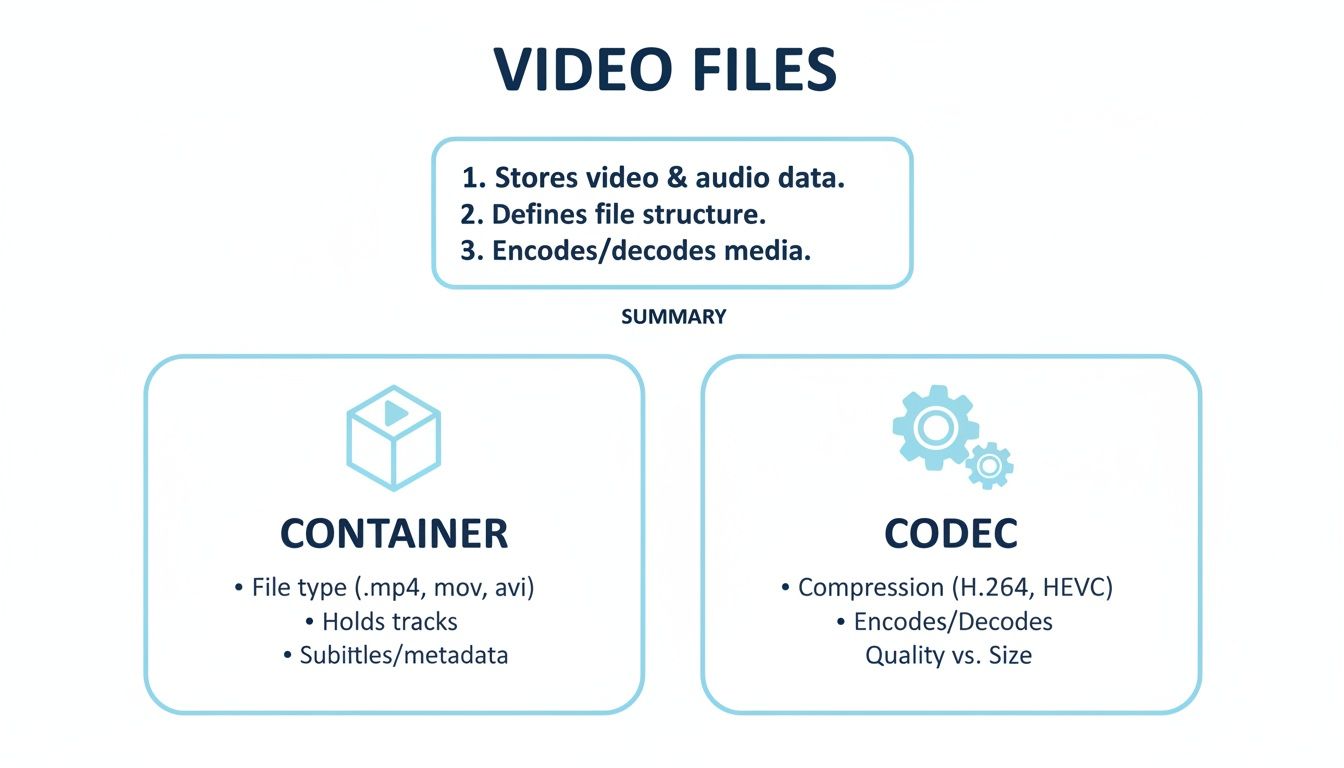
Think of it just like that: the container is the box, and the codec is the specific way everything is compressed and arranged inside.
MP4 (H.264): The Universal Translator
When you need a video to just work everywhere, without any fuss, you go with MP4. It’s the undisputed champion of compatibility, and its strength comes from pairing the MP4 container with the H.264 (AVC) codec.
This combination strikes a near-perfect balance between decent quality, small file sizes, and universal playback support. Whether you're uploading to YouTube, posting to Instagram, or embedding a video on your website, MP4 is your safest bet for a smooth user experience.
Key Takeaway: If you're sending a video to someone and have no idea what device they'll use, send an MP4. It’s the closest thing we have to a guaranteed-to-play format. It’s the default for social media, web, and general sharing.
The only real trade-off is that H.264 is a "lossy" codec designed for final delivery. It uses heavy compression, which is fantastic for streaming but makes it a poor choice for editing. Your computer has to work overtime to decompress those files, leading to choppy playback in your timeline.
MOV (ProRes): The Editor's Gold Standard
If MP4 is for delivery, MOV is for creation. Developed by Apple, the MOV container is the backbone of professional video production, mainly because it’s the native wrapper for the Apple ProRes family of codecs.
ProRes codecs are known as "intermediate" codecs, built specifically for the demands of editing. They use very light compression to preserve as much image data and color information as possible. The files are massive compared to MP4s, but the payoff is an editing timeline that never stutters.
Because the video isn't heavily compressed, your CPU doesn't have to struggle to unpack each frame as you scrub through the timeline. This means responsive, real-time playback, even with multiple 4K video layers and heavy effects.
This is why pros edit with high-quality MOV (ProRes) files and then export a lightweight MP4 (H.264) file for the final delivery. It’s the best of both worlds.
WebM (VP9 & AV1): The Future of Web Video
WebM is Google’s open-source answer to efficient video on the modern web. This format almost always pairs the WebM container with either the VP9 codec or its incredible successor, AV1. The entire purpose of WebM is to stream high-quality video using as little bandwidth as possible.
For years, WebM was just "the other guy" next to MP4, but that has changed. Major platforms like YouTube now rely heavily on WebM (AV1) to deliver 4K and 8K content without constant buffering. In fact, AV1 can achieve up to 30% better compression than its rival, HEVC (H.265), at the same visual quality.
The catch has always been hardware support. Older devices can't always decode AV1 smoothly, but that’s quickly becoming a non-issue as new browsers, smart TVs, and mobile chips add native support.
MKV: The Ultimate Archival Toolbox
Think of the Matroska Video format, or MKV, as a digital Swiss Army knife. It’s an incredibly flexible container that can hold virtually anything you throw at it. A single MKV file can contain multiple video tracks, several different language audio streams, an unlimited number of subtitle tracks, and even chapter markers.
This unmatched versatility makes it the perfect format for archiving. You could, for example, save a movie as an MKV that includes the 4K video, a 5.1 surround sound track, a stereo track, a director's commentary track, and subtitles in ten languages—all in one file.
The trade-off for all that power is compatibility. MKV isn't natively supported by most editing software or web browsers, so you’ll often have to convert it to something like MP4 for editing or sharing. It’s a fantastic format for media nerds and data hoarders but not for everyday delivery.
Speaking of subtitles, including them is non-negotiable for accessibility. To get a better grasp on their importance, you can read more about what closed captioning means and how it makes your content available to everyone.
Video Format Deep Dive Comparison
| Format (Container) | Common Codecs | Key Strengths | Potential Downsides | Best For |
|---|---|---|---|---|
| MP4 | H.264 (AVC), H.265 (HEVC) | Universal compatibility, great for web & mobile | Heavy compression, not ideal for professional editing | Social media, web video, sharing with clients, final delivery |
| MOV | ProRes, H.264 | Excellent for editing, preserves image quality | Very large file sizes, less universal than MP4 | Professional video editing, color grading, storing master files |
| WebM | VP9, AV1 | Superior compression for high-quality streaming | Limited support on older hardware and some software | Streaming 4K/8K on websites (like YouTube), situations where bandwidth efficiency is critical |
| AVI | DivX, XviD (legacy) | Was once a standard, still has broad support | Outdated technology, inefficient compression | Playing old video files; generally not recommended for new projects |
| MKV | Virtually any | Extremely flexible, can hold multiple tracks | Poor support in editing software and browsers | Archiving media (e.g., Blu-ray rips with multiple audio/subtitle tracks), personal media collections |
Ultimately, choosing the best video format is a strategic decision, not a technical one. By understanding these real-world strengths and weaknesses, you can confidently pick the right tool for every stage of your project, from the first edit to the final upload. For instance, for AI transcription, a clean audio track is paramount. A standard MP4 with AAC audio is perfect for ensuring services like HypeScribe can generate the most accurate transcript possible.
Optimizing Video Formats for Specific Use Cases
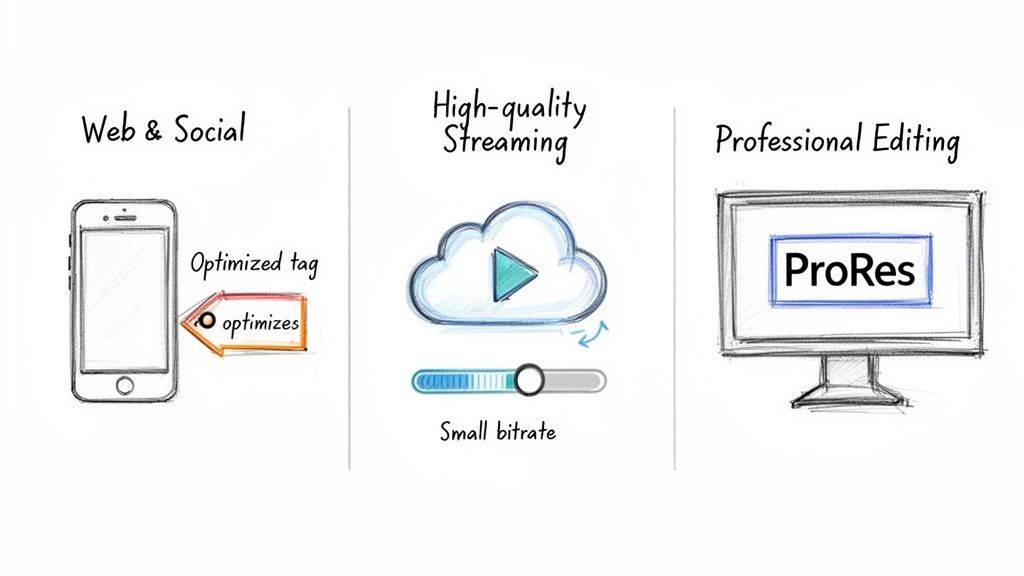
The export dialog is where all of this either pays off or does not. Below are the settings worth using for each destination.
Four common destinations, and the settings each one actually wants.
Web and social media
When you’re exporting for YouTube, Instagram, TikTok, or just a standard website, it's all about balancing quality and file size. You need something that looks sharp on a phone but doesn’t take forever to upload or buffer. Hands down, the best choice is MP4 (H.264).
But simply selecting "MP4" from a dropdown menu isn't enough. Your export settings are what truly make or break the final product. In practice that usually means converting your MOV master to MP4 at the export step.
Here are the export settings I use for almost all social media content:
- Container: MP4
- Codec: H.264 (AVC)
- Resolution: 1080p (1920x1080) is the sweet spot. 4K is great for YouTube but complete overkill for Instagram or TikTok.
- Frame Rate: Always match your source footage, which is usually 24, 25, or 30 fps.
- Bitrate: For 1080p, a variable bitrate (VBR) between 8-15 Mbps is perfect. This lets the encoder assign more data to complex, high-motion scenes and save it on simpler, static shots.
A quick pro tip: don't just crank the bitrate to the max. Every platform, from YouTube to Instagram, re-compresses your video anyway. Giving them a clean, reasonably-sized file almost always produces a better result than uploading a massive file that their algorithms will just crush aggressively.
High-Quality Streaming Services
For premium streaming — Netflix, Hulu, or your own video-on-demand platform — the rules change. Viewers expect a flawless, buffer-free picture, whether they’re on a 4K TV with a fiber connection or a tablet with spotty hotel Wi-Fi. This is where adaptive bitrate streaming becomes essential.
Instead of one giant file, the server holds several different versions of your video, each at a different resolution and bitrate. The video player on the viewer's device intelligently picks the best version their connection can handle at that exact moment.
This is all powered by modern formats like MPEG-DASH (Dynamic Adaptive Streaming over HTTP). The demand here is huge; the number of Subscription Video on Demand (SVOD) users is projected to hit a staggering 1.6 billion by 2026. This growth is built on formats like MPEG-DASH, which already makes up 40.3% of preferred video consumption methods today.
Professional Editing And Archiving
In a professional editing or archiving workflow, your priorities completely flip. File size is no longer the main concern—pristine quality and smooth editing performance are everything. In this arena, MOV (ProRes) is the industry-wide, non-negotiable standard.
ProRes codecs are "intra-frame," which means every single frame is compressed independently. This makes them incredibly easy for your computer's CPU to handle during editing. You get instant timeline scrubbing and real-time playback, even when you're stacking multiple layers of 4K effects and color grades.
Recommended Archival and Editing Formats:
- Apple ProRes 422 HQ: This is the workhorse. It's a fantastic, high-quality codec for most professional projects, delivering visually lossless results.
- Apple ProRes 4444: Reach for this when you need to preserve alpha channels (transparency) or are doing heavy-duty color grading that requires the absolute maximum color information.
The workflow is straightforward: edit with a high-bitrate MOV (ProRes) file to keep every bit of quality, then export a lightweight MP4 (H.264) for final delivery to the web or social media.
Optimizing For AI Transcription Services
When you're preparing a video for an AI transcription service like HypeScribe, the audio track is just as important as the video—maybe even more so. Your goal is to give the AI the cleanest audio signal possible to get the most accurate transcript. Garbled audio will only result in a garbled, error-filled text file.
The best video format here is one that combines crystal-clear audio with universal compatibility. A standard MP4 container with an AAC (Advanced Audio Coding) audio codec is your best bet. AAC is a modern codec that delivers fantastic audio quality at very efficient bitrates.
Key Settings for AI Transcription Uploads:
- Container: MP4
- Video Codec: H.264 (video quality itself is less critical here)
- Audio Codec: AAC
- Audio Bitrate: Set this to 192 kbps or higher to ensure the dialogue is crisp and clear.
- Audio Channels: Stereo or Mono is perfect. Just avoid complex surround sound mixes.
For interviews, lectures, or meetings, clean audio is everything. Try to minimize background music and make sure the speakers' voices are front and center. Taking a few moments to get this right can make a world of difference in the accuracy you get from any automated tool. If you need more specifics, check out our guide on how to transcribe MP4 files to text.
Future-Proofing Your Video with Next-Gen Codecs
H.264 is the workhorse of today, but a new generation of codecs is already shipping, promising the same quality at smaller sizes.
Two contenders are lining up to replace it: AV1 and VVC (H.266). Here is what each means for the files you are exporting today.
The Rise of AV1: The Royalty-Free Powerhouse
At the forefront is AV1, an open-source and royalty-free codec. It was developed by the Alliance for Open Media, a powerhouse consortium including Google, Netflix, Amazon, and Apple. Its biggest selling point is efficiency; AV1 can deliver the same video quality as its predecessor, VP9, while being roughly 30% more compressed.
In practice that means 4K and 8K streams at noticeably lower bandwidth, which is why the platforms care about it as much as creators do. Giants like YouTube and Netflix are already using AV1 to serve their highest-quality streams. As hardware support becomes standard in new devices, AV1 is on track to become the new default for web video.
Why this matters for you: Encoding your high-resolution videos in AV1 is like future-proofing them. It ensures your content is ready for a world where viewers expect flawless 4K/8K streaming without buffering, even on slower connections.
VVC (H.266): The Official Successor
On the other side of the ring is Versatile Video Coding (VVC), also known as H.266. As the official successor to HEVC (H.265), it comes with its own incredible performance claims. The goal of VVC is to slash the data rate by about 50% compared to HEVC while maintaining the exact same visual quality.
While that level of compression is undeniably impressive, VVC has a major obstacle to overcome: licensing. Much like its predecessors H.264 and H.265, VVC is tangled in a complex and potentially expensive royalty structure. This has historically been a major brake on adoption, as hardware and software developers are often reluctant to build support for formats that come with a price tag.
The Practical Impact on Your Content Strategy
This clash between a royalty-free standard and a licensed one has a direct impact on your workflow. The video streaming market, projected to hit an incredible USD 885.95 billion by 2036, is built entirely on the ability to deliver high-quality video efficiently. You can learn more about the trends shaping this market here.
Here’s what I expect to see in the next few years:
- AV1 will likely dominate web video. Its royalty-free model and heavyweight backing make it the clear favorite for platforms like YouTube, Vimeo, and general web use.
- VVC may find its niche in broadcast and professional gear. Industries like traditional broadcasting might adopt VVC for its sheer efficiency, especially where licensing costs are just part of the budget.
- We're in for a transition period. Don't ditch your old formats just yet. For the foreseeable future, H.264 and HEVC will remain essential for ensuring your videos play on the billions of devices already out there.
For now, stick with MP4 (H.264) for maximum compatibility and use HEVC when you need to deliver 4K. But it’s a good idea to start experimenting with AV1 exports for your most valuable content. That way, your video archive will be ready for the next generation of video consumption.
So, What's the Best Video Format?
So which format wins? None of them outright — but the decision is simpler than it looks.
For over 90% of all use cases—think web uploads, social media, and just about any general playback scenario—the answer is MP4 (H.264). It’s the closest thing we have to a universal format. Its fantastic balance of great quality and small file sizes means it just works, everywhere. When in doubt, this is your safest bet.
But "good enough for everything" isn't always good enough for a specific job.
When to Choose Something Else
While MP4 is the workhorse, certain tasks demand a more specialized tool. For professionals who need the absolute best result for a specific purpose, deviating from the standard is the right move.
Here’s when I look beyond MP4:
- For Professional Editing: If you're an editor who needs every last bit of quality and a timeline that keeps up, MOV (ProRes) is your go-to. The huge file sizes are a trade-off, but the flexibility you gain in post-production is well worth it.
- For Next-Gen Web Streaming: When you’re streaming in 4K or pushing the boundaries with 8K on the web, WebM (AV1) is the future. Its compression is so good that it delivers stunning quality without the buffering, and it’s quickly becoming the new favorite for major streaming platforms.
- For Archiving Media: And for the archivists out there—if you need to pack multiple audio tracks and subtitles into a single master file, nothing beats the flexibility of MKV. It’s like a digital Swiss Army knife for your media collection.
Ultimately, your final decision should be guided by your end goal. Don't just choose a format; choose a workflow. Edit in high quality with MOV, deliver universally with MP4, and stream efficiently with WebM.
Pick the workflow, not the format: edit in MOV, deliver in MP4, stream in WebM.
Common Questions About Video Formats
A few questions come up every time, so here are the short answers.
Does Converting a Video Format Reduce Quality?
Yes, almost every time. Think of it like making a photocopy of a photocopy. Each time you convert a video—a process called transcoding—you are re-compressing the data. This is a "lossy" process, meaning a little bit of information gets discarded with each pass.
You might not notice it after one conversion, but do it enough times and you'll start to see digital artifacts like blockiness or color banding. The best way to preserve quality is to export directly to your final format from your original editing project. This keeps conversions to an absolute minimum.
What Is the Best Video Format for Emailing?
When you absolutely have to attach a video to an email, your priorities are file size and compatibility. For this, nothing beats an MP4 file with the H.264 codec. It's the universal standard for a reason, offering the best balance between small file size and decent visual quality.
Keep in mind that most email services have attachment limits, often around 25MB. If your video is larger than that, don't even try to attach it. The better move is to upload it to a service like Google Drive or Dropbox and just share the link.
Why Do Platforms like YouTube Re-Encode Videos?
When you upload a video to a platform like YouTube or Vimeo, they immediately re-encode it. This isn't because they don't like your file; it's to create multiple versions of it for adaptive bitrate streaming.
This process generates copies of your video at various resolutions (4K, 1080p, 720p, etc.) and bitrates. The platform can then automatically serve the best possible version to each viewer based on their internet connection and device, ensuring smooth playback for everyone. That's why you should always upload the highest quality source file you can—it gives their encoders better material to work with, resulting in a cleaner final product for your audience.
Should I Use MP4 or MOV for Editing?
For a smooth, professional editing experience, MOV is almost always the better choice, especially when it’s paired with an editing-friendly codec like Apple ProRes. These codecs are designed for performance, using far less compression. This makes it much easier for your editing software to scrub through the timeline, so playback stays smooth without taxing your computer.
You can edit with MP4s, but their highly compressed nature forces your computer to decompress them on the fly, which can cause frustrating lag and choppy playback. A great professional workflow is to edit in a high-quality format like MOV (ProRes) and then export your final master to MP4 for delivery. As you finalize your edit, you might also be adding subtitles; you can learn more about how they work in our guide on what an SRT file stands for.
Whatever format you end up exporting, HypeScribe will read it: upload the file or paste a link, and get a transcript with a summary and action items back in seconds. One token per file, any length. Try it free — 3 files a month, no card required.


































































































