Screen Capture YouTube Videos: A 2026 Guide
You’re usually trying to do one of four things when you screen capture YouTube videos. Save a short proof clip for a presentation, grab a teaching segment before it disappears behind a login wall, record a product demo for internal analysis, or turn spoken content into notes you can use.
The capture itself is the easy part. The part that separates a throwaway recording from a professional asset is everything around it: choosing the right tool, capturing clean system audio, avoiding sync drift, staying inside copyright boundaries, and prepping the file so someone else can search, quote, or summarize it later.
Desktop Methods for Capturing YouTube Videos
A common desktop scenario looks like this: a webinar replay is on YouTube, your team meeting starts in an hour, and you only need a clean two-minute segment with readable text and usable audio. That’s where tool choice matters. The wrong recorder gets the job done badly. The right one saves editing time immediately.

When built in tools are enough
Windows and macOS both give you fast native options. On Windows, Game Bar is fine for quick captures when you don’t need scene layouts, separate tracks, or much control. On macOS, the Screenshot toolbar works well for one-off recordings, especially if you’re capturing a browser window and trimming the result immediately after.
Use native tools when:
- You need speed: Open the utility, select the window, record, trim, send.
- You don’t need layered audio: If you’re only grabbing the YouTube playback and not adding narration, simple is better.
- You’re capturing for internal use: Team review, rough notes, or a temporary reference clip.
Skip native tools when the recording needs to survive beyond one meeting. They’re less forgiving when you need system audio routing, webcam overlay, callouts, or repeatable settings.
Practical rule: If you’ll record the same kind of clip more than once a month, use a dedicated recorder instead of starting from scratch every time.
OBS Studio for control
OBS Studio is still the best desktop choice when quality and control matter more than convenience. It asks more from you up front, but it gives you scene control, source management, audio meters, and stable output once the setup is done properly.
A reliable OBS setup for YouTube capture looks like this:
- Create a scene for browser capture or display capture.
- Add system audio so the YouTube video itself is recorded.
- Add microphone input only if you’re narrating analysis or commentary.
- Set output resolution to match your intended use, usually 1080p unless the source demands more.
- Run a short test clip before the actual recording. Check readability, audio levels, and sync.
OBS is excellent when you’re making tutorials, competitor teardowns, course materials, or research clips with voiceover. It’s less ideal if you hate setup menus or need lightweight editing right after capture.
ScreenPal and Loom for faster production
If OBS feels like too much machinery, use a recorder with a smoother path from capture to edit. ScreenPal and Loom are good examples. They lower the setup burden and speed up the handoff from recording to trimmed clip.
A practical workflow with these tools usually looks like this:
| Tool | Best for | Trade off |
|---|---|---|
| ScreenPal | Screen capture plus quick trimming, captions, and export | Less flexible than OBS for custom scenes |
| Loom | Fast async sharing and commentary | Not ideal for heavily polished final assets |
| OBS Studio | Maximum control over sources and audio | More setup and a steeper learning curve |
One reason ScreenPal-style tools work well is that they let you clean up the recording without opening a second editor. According to this screen recording workflow guide, capturing internal computer audio through tools like VB-Audio or BlackHole on Mac helps avoid echo, and muting the browser tab while monitoring through the recorder improves the odds of getting clean audio. The same guide notes that trimming silences can reduce file size by 20-30%, and adding burned-in captions improves accessibility.
Audio routing matters more than most people think
Most bad desktop captures fail on audio, not video. The screen looks acceptable, but the recording includes room echo, doubled playback, or a microphone that overwhelms the source video.
This setup avoids most of those problems:
- System audio first: Record the YouTube playback directly instead of relying on speaker output into a room mic.
- Microphone second: Add your mic only if your commentary adds context.
- Muted monitoring path: Mute the browser tab if your routing setup would otherwise duplicate playback.
- Noise suppression only when needed: Too much filtering can make narration sound thin.
If you’re working on a Chromebook, the capture flow is different enough that it helps to follow a Chromebook-specific process instead of forcing a Windows or Mac setup. This guide on how to record on Chromebook is useful for that edge case.
Which desktop method actually works best
There isn’t one best method. There’s a best method for the job in front of you.
Choose native tools if the clip is short, disposable, and internal. Choose Loom if speed and sharing matter more than polish. Choose ScreenPal if you want a simpler recorder with useful post-capture editing. Choose OBS if you care about consistency, control, and repeatable output.
A clean desktop capture usually comes from boring discipline: fixed scene layout, tested audio route, and a short trial recording before you hit play on the real clip.
That discipline saves more time than any editing trick later.
How to Screen Record on Mobile Devices
A lot of YouTube viewing now happens on phones. Mobile devices account for 70% of YouTube views globally, and average user watch time reached 28 hours per month in 2022, according to the YouTube Watch Stats Chrome listing. That’s why mobile capture isn’t a side skill anymore. For many people, it’s the main workflow.

iPhone workflow that stays clean
On iPhone, the built-in screen recorder is usually enough for capturing a clip, lecture segment, or app-based demonstration. The difference between a usable file and a messy one comes down to prep.
Before recording:
- Enable Do Not Disturb: Notifications ruin otherwise perfect captures.
- Set screen brightness manually: Auto-brightness shifts are distracting in playback.
- Close extra apps: It reduces interruptions and keeps the phone cooler.
Then record like this:
- Open Control Center.
- Long-press the screen record control if you need microphone options.
- Decide whether to include your mic.
- Start recording and switch to the YouTube app or browser.
- Stop the recording from the status indicator when the clip ends.
The biggest decision on iPhone is whether you need commentary. If you don’t, leave the mic off. If you do, record in a quiet room and keep your voice short and intentional.
Android recording depends on the device
Android is less standardized. Many devices now include a built-in screen recorder, but the settings and labels vary by manufacturer. The good news is that most current devices handle basic screen recording well enough for reference clips, quick team shares, and educational excerpts.
On Android, check these before recording:
- Internal audio option: Some phones let you record device audio directly. Others combine it with mic input.
- Resolution choice: Use the highest available setting that doesn’t cause stutter.
- Touch indicators: Turn them off unless you’re making a tutorial.
If you regularly capture lectures from your phone or tablet, a workflow built around note-taking and later transcription is more useful than just stockpiling videos. This roundup of apps for recording lectures is a solid place to compare that approach.
Here’s a walkthrough worth watching if you want a visual reference before trying it yourself:
Mobile mistakes that waste the recording
Mobile capture breaks for predictable reasons. Notifications appear. The phone rotates mid-recording. Internal audio isn’t enabled. Battery-saving mode throttles the device and the clip starts dropping frames.
The fix is mostly routine:
- Lock orientation before opening YouTube.
- Charge first if the session will run long.
- Use headphones only if your workflow requires them, because some phones change audio routing when accessories connect.
- Do a ten-second test whenever you’re using a new device.
Mobile recording is best for speed and convenience. It isn’t the best place to build a polished final asset unless you’re disciplined about setup.
For quick capture on the go, though, native mobile tools are hard to beat.
Optimizing Your Audio and Video Quality
Users often blame their recorder when a capture looks soft or sounds messy. Usually the recorder isn’t the issue. The problem is mismatched settings, weak audio routing, or a machine that’s being pushed too hard while the browser, recorder, and background apps all compete for resources.
Match the capture to the job
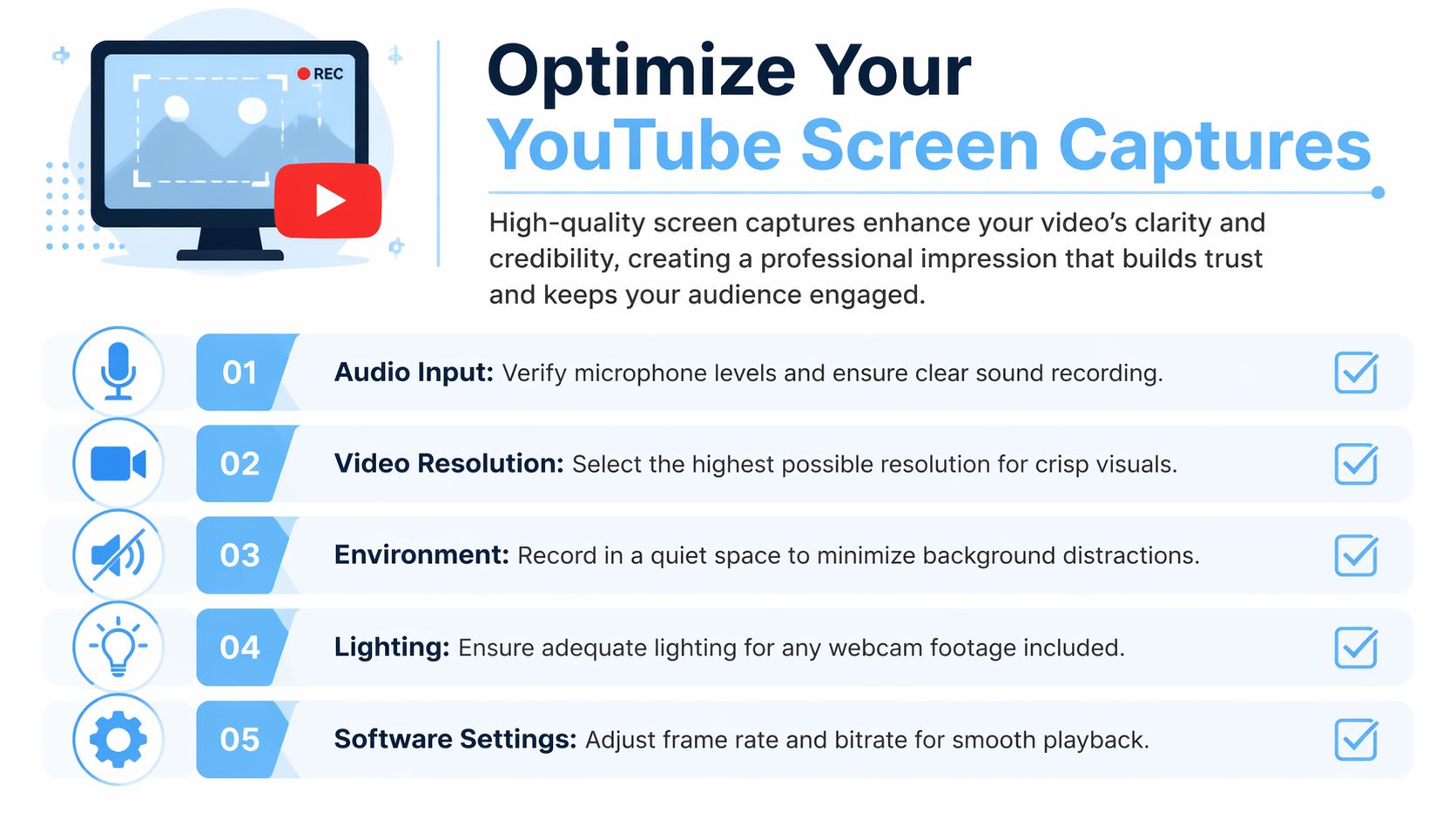
If the clip is going into a slide deck, team memo, or internal transcript workflow, 1080p is usually the safest baseline. It keeps text readable without creating oversized files. If the source video includes small interface details, code, or dense charts, capture at a higher resolution only if your computer can sustain it.
Frame rate matters less than people think for talk-to-camera videos. It matters more for motion-heavy tutorials, app demos, and sports footage. For most YouTube capture work, smooth and stable is better than chasing a higher setting your machine can’t hold.
A good rule is simple:
- Use higher resolution for detail-heavy visuals
- Use stable frame rate for motion
- Use moderate file size for easier editing and sharing
Audio quality decides whether the file is useful
A slightly soft image is survivable. Bad audio usually isn’t. That matters even more if the capture will be summarized, quoted, or transcribed later.
According to this capture optimization guide, using hardware acceleration such as NVIDIA NVENC can keep CPU usage under 5% at 4K/60FPS, and capturing audio at 48kHz/24-bit can improve Automatic Speech Recognition accuracy by up to 15% in transcription workflows. The same guide notes a 30% failure rate on laptops without high-end processors when overheating becomes an issue.
That lines up with what works in practice. If your laptop gets hot, quality falls apart fast. Audio drifts. Frames skip. The file may still export, but it won’t be dependable.
Field note: If you care about transcript quality later, prioritize clean direct audio over visual perfection every time.
Solve common quality problems before recording
A short checklist catches most failures before they happen:
- Echo in playback: You’re recording system audio and also re-recording it through the mic. Mute one path.
- Audio ahead or behind video: Your machine is under load. Close extra apps and test again.
- Blurry browser text: The capture resolution is lower than the source display, or the browser isn’t at a readable zoom level.
- Choppy motion: The device can’t sustain the selected settings.
- Noisy narration: Your room is doing more damage than your microphone.
Settings that usually hold up well
This isn’t about maxing every value. It’s about creating a file that stays clean through editing, sharing, and possible transcription.
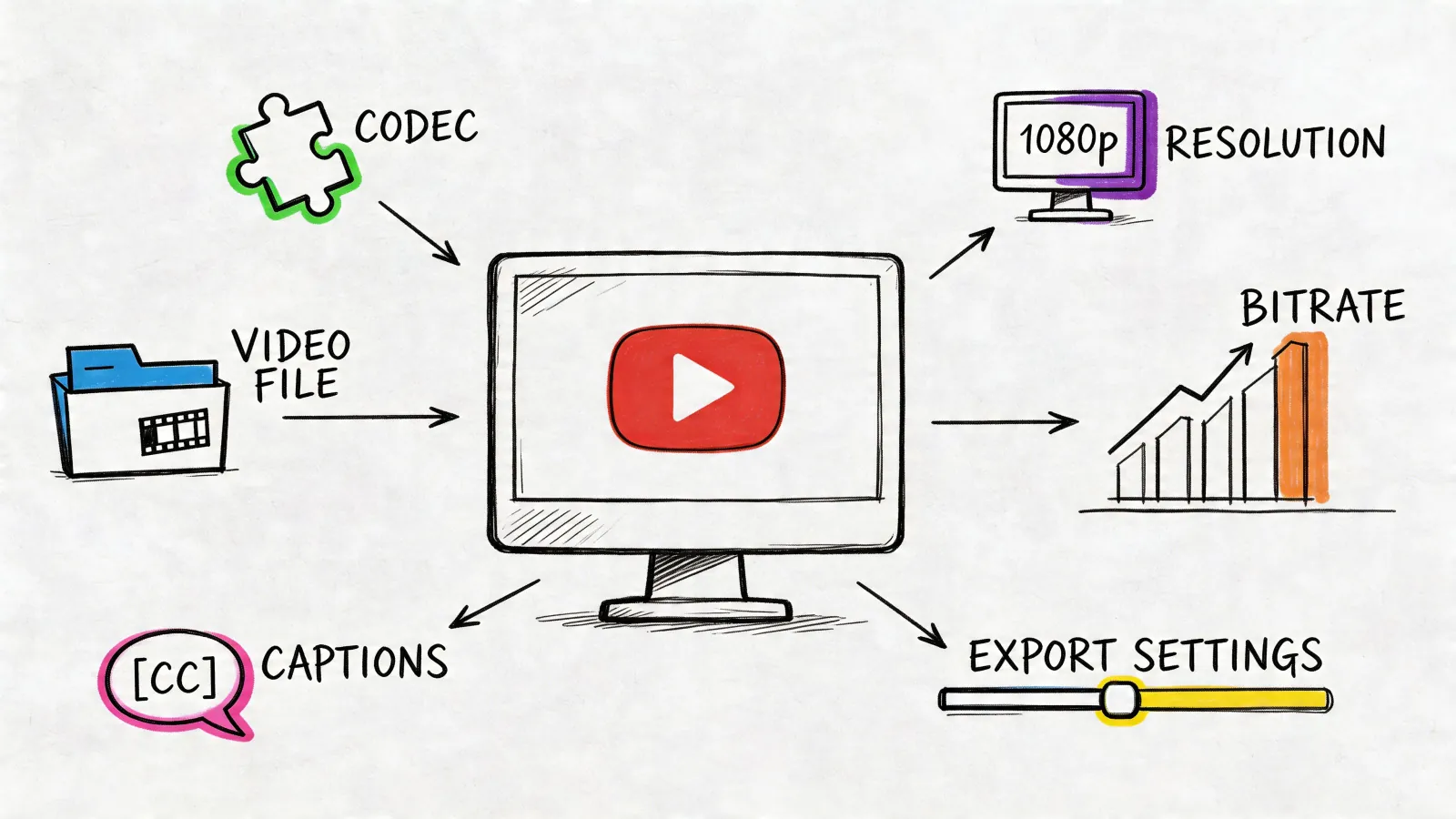
| Element | Safer choice | Why it works |
|---|---|---|
| Resolution | 1080p minimum for most desktop captures | Keeps text readable |
| Aspect ratio | 16:9 | Matches standard YouTube playback |
| Audio source | Direct system audio for source video | Avoids room echo |
| Mic use | Only when commentary adds value | Reduces noise and clutter |
| Hardware acceleration | Enable if your recorder supports it | Reduces load on the machine |
If you need a quick reference on export standards after the capture is done, this article on YouTube video format basics is a helpful companion.
The best captures don’t look “highly produced.” They look stable, readable, and intentional. That’s what makes them useful.
Understanding Copyright and Fair Use
The biggest mistake people make with screen capture YouTube videos isn’t technical. It’s assuming that because they can record something, they’re free to reuse it however they want.
That assumption gets expensive fast. A screen capture can be legal, risky, adapted for new uses, internal-only, or clearly infringing depending on what you recorded, why you recorded it, and how you use it afterward.

What should make you stop before recording
Start with the obvious boundary. If the video is premium content, private content, or restricted in a way that signals limited access, don’t treat screen recording as a workaround. That’s where “I’m just capturing it” turns into a compliance problem.
A copyright and screenshot policy discussion states that YouTube’s 2025 policy updates prohibit unauthorized captures of premium content, and Google issued 1.2 million takedown notices in Q4 2025, a 35% increase from 2024. The same source says 68% of educators accidentally violate fair use by capturing full videos without commentary, which can lead to channel strikes.
Even if you never publish the clip, bad habits here spill into team workflows. Someone records a full paid lecture, shares it around internally, then someone else uploads it to a course portal. That chain starts with a capture that never should’ve happened.
What fair use usually looks like in practice
Fair use arguments are stronger when your use involves adding commentary, criticism, analysis, comparison, instruction, or reporting. You’re not just substituting your copy for the original.
Three examples make the difference clearer:
- Stronger case: A trainer captures a short segment from a marketing ad and pauses throughout to explain the persuasion techniques.
- Weaker case: A trainer uploads the entire ad compilation with no commentary and calls it educational.
- Stronger case: A researcher cites a brief excerpt from an expert lecture and discusses the claim in context.
- Weaker case: A researcher reposts the entire lecture because “students need access.”
The more your clip replaces the original viewing experience, the weaker your position gets.
Internal review is safer than public republishing
Teams often capture competitor ads, product launches, interviews, and conference clips for internal analysis. That’s still not a free pass, but it’s different from republishing to a public channel.
A safer workflow looks like this:
- Capture only what you need
- Add analysis, annotation, or commentary when the clip leaves private review
- Keep source attribution in your notes
- Don’t strip context from the original speaker
- Avoid premium or access-controlled material
If you create original content and care about the other side of this issue, it helps to understand how rights holders maximize their YouTube Content ID royalties. That perspective makes the compliance question less abstract. You’re not just avoiding a strike. You’re respecting how creators get paid.
The safest question to ask
Don’t ask, “Can I technically record this?”
Ask, “If the creator saw exactly how I’m using this clip, would the use look like commentary, documentation, or substitution?”
That question catches a lot of bad decisions before they become takedowns.
Your Post-Capture Workflow with HypeScribe
You finish a capture, drop the MP4 into a folder, and tell yourself you will come back to it later. Three weeks pass. Nobody remembers the exact quote, the one objection from the product demo, or the timestamp where the speaker finally answered the question that mattered.
That is the main bottleneck after screen capture. Recording the video is mechanical. Turning that recording into something a team can search, review, cite, and act on takes a separate workflow.
Prep the file before it enters your archive
A messy capture creates messy transcripts. Before you upload anything or save it to your shared drive, do a quick cleanup pass.
Keep it simple:
- Trim dead air at the start and end
- Cut obvious mistakes or off-topic sections if they will confuse later review
- Rename the file clearly so another person can identify it without opening it
- Keep the source context in your notes such as channel name, video title, and capture date
For files I expect to revisit, I use a naming format like: speaker-topic-purpose-date-version. It is boring, but boring names are easy to sort and easy to find later.
Choose the right input for transcription
Do not assume the captured file is always the best thing to process. Sometimes the original link is cleaner. Sometimes the capture is the only version that preserves what you need.
Use the original link when the goal is to transcribe the source video as published. Use the captured file when your recording includes annotations, cursor movement, zooms, pauses, or spoken commentary layered on top.
Here is the practical split:
| Situation | Better input |
|---|---|
| You need the original spoken content only | Original YouTube link |
| Your recording includes analysis or commentary | Captured video file |
| You clipped only the relevant segment | Captured video file |
| You want the fastest route to plain transcript text | Original link when available |
That choice affects accuracy, review speed, and storage. It also affects legal exposure. A short captured excerpt with your own commentary often fits internal analysis better than archiving a full-length screen recording you do not need.
What HypeScribe should produce after capture
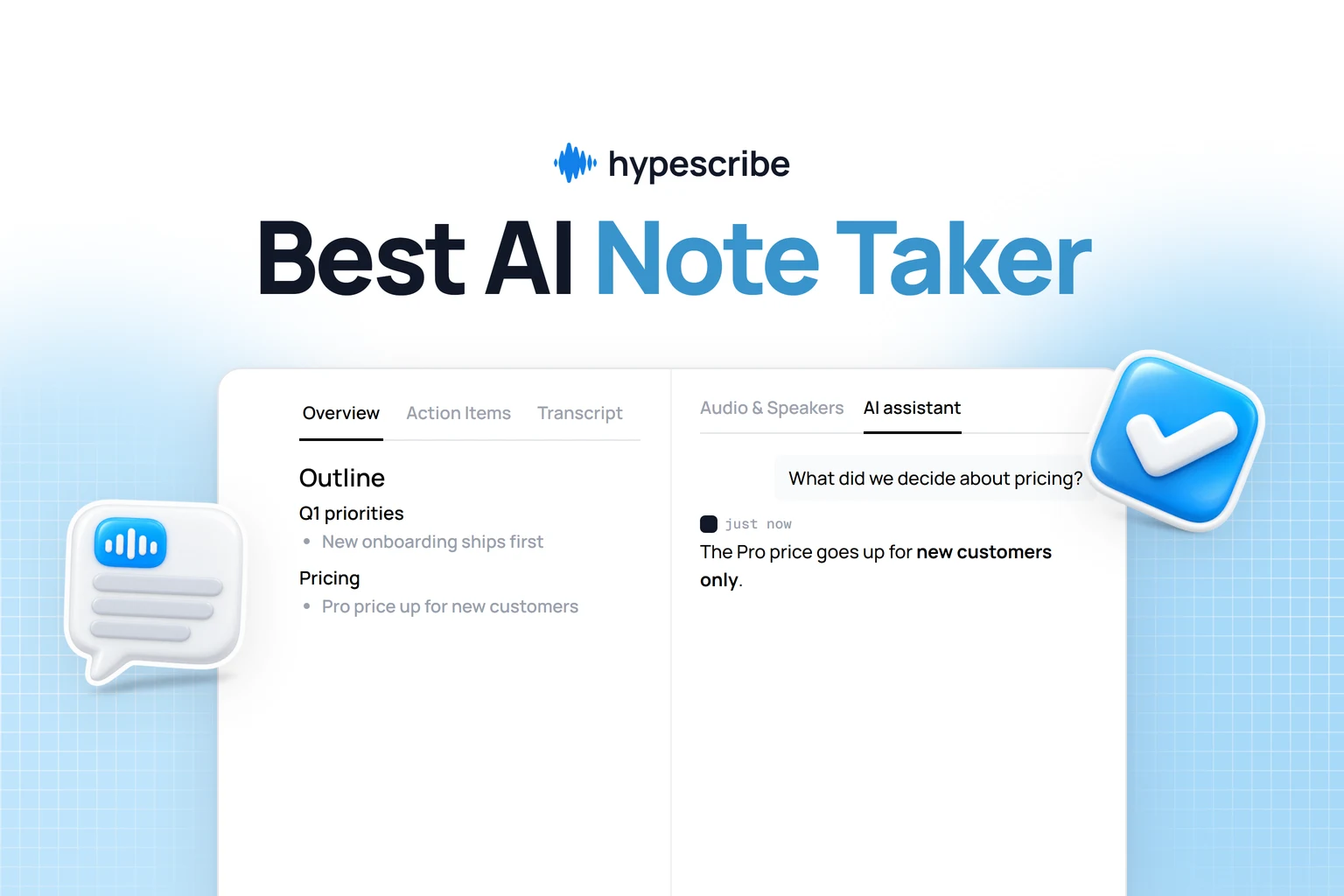
A transcript alone is rarely enough for a working team. Editors need pull quotes. Researchers need searchable claims. Training leads need action items. If all you have is a video file and a wall of text, people still end up rewatching the whole thing.
A usable HypeScribe workflow should give you:
- Searchable transcript text for names, terms, and quotes
- A short summary for fast handoff
- Key takeaways separated from filler
- Action items if the clip includes instructions, decisions, or next steps
That matters even more when the capture came from a rough source. Screen recordings often include clicks, pauses, system sounds, or quick rewinds. Good post-capture processing turns that raw material into something your team can work with.
Build a review trail, not just a media folder
This is the step many creators skip. Store the transcript with the file, keep a short note on why the clip was captured, and record whether the file is for internal review, commentary, or publication planning.
That small layer of documentation saves time later. It also helps with the legal gray areas covered earlier. If someone asks why a clip was recorded, what portion was used, and whether commentary was added, your workflow should answer that without guesswork.
A practical handoff looks like this:
- Record the needed segment.
- Trim obvious waste.
- Process the link or file in HypeScribe.
- Save the transcript, summary, and source notes together.
- Share the written output first, then the video only when someone needs full context.
Good captures become useful assets when they are easy to search, easy to quote, and easy to review. That is the difference between a folder full of recordings and a working video research system.
Frequently Asked Questions About YouTube Capture
Why do some YouTube captures turn into a black screen
Usually because of protected playback paths, browser behavior, or app-level restrictions. Some videos are harder to capture cleanly because the playback environment resists ordinary screen recording.
Try these fixes first:
- Switch browsers
- Try window capture instead of display capture, or the reverse
- Disable unnecessary overlays
- Test with another recorder
If the content is access-controlled, treat that as a warning sign instead of something to bypass.
Can you screen capture YouTube Live
Yes, but only in real time. You’re recording the stream as it happens, so your biggest risks are notifications, bandwidth hiccups, and running out of storage.
For live capture, keep the setup boring and stable:
- Use wired internet if possible
- Record a little early
- Monitor audio levels
- Avoid changing scenes or settings midstream
Is screen recording better than using a downloader
They solve different problems. Downloaders aim to get the source file. Screen recording captures what appears on your screen, including your annotations, cursor movement, pauses, zooms, and commentary.
Use screen recording when you need:
- Commentary over the clip
- A short excerpt instead of the full video
- A record of how something appeared in context
- A workflow that doesn’t depend on third-party download behavior
Use caution with any method that tries to replace access controls or platform rules.
What about age restricted or private videos
If a video is private, restricted, or limited to a specific audience, don’t assume screen capture gives you broader rights to copy or distribute it. Access permissions still matter.
The safest approach is straightforward. If you need the material for work, training, or research, get permission or use a source that explicitly allows that use.
Should you record full videos or just clips
Just clips, unless there’s a strong reason to keep the full session for internal documentation. Shorter captures are easier to review, easier to store, and less likely to create copyright problems.
They’re also better for later analysis because the transcript or summary stays focused on one topic instead of getting buried in filler.
What’s the fastest way to make a captured video useful
Trim it immediately, label it clearly, then run it through a workflow that turns speech into searchable text. That’s a commonly skipped step, and it’s the one that saves the most time later.
If you want your captured YouTube clips to become something more than files in a folder, HypeScribe is the practical next step. You can upload audio or video files, paste supported links, and turn spoken content into searchable transcripts, summaries, key takeaways, and action items in seconds. It’s a strong fit for remote teams, educators, researchers, and creators who need to move from raw recording to usable notes fast.