
Closed Caption vs Subtitle: Key Differences

You’ve probably done this today without thinking about it. You opened a video on your phone in a waiting room, on a train, or between meetings, kept the sound off, and relied on text on screen to follow what was happening.
That habit isn’t niche. It’s normal viewing behavior, especially for younger audiences. A study by Stagetext and Sapio Research found that 80% of viewers aged 18 to 25 use subtitles or captions all or most of the time, compared with under 25% of viewers aged 56 to 75 (Accessibility.org.au).
That’s why the closed caption vs subtitle question often holds more significance than many assume. It’s not just a wording issue for production people. It affects accessibility, translation, search visibility, compliance, viewer retention, and the quality of your content workflow.
Clients use the two terms as if they mean the same thing. In practice, they don’t. If you choose the wrong one, the video still “has text,” but it may fail the actual goal. A training video can miss accessibility requirements. A multilingual launch video can confuse viewers. A social clip can look technically correct but perform poorly in silent autoplay.
The useful way to think about it is simple. Start with the audience need, then choose the text format that matches it.
More Than Just Words on a Screen
A lot of teams still treat on-screen text like a final packaging step. Video gets edited, approved, exported, and then someone says, “Add subtitles before publishing.”
That leads to the wrong output.
If the video is for employees who need full access to everything being said and heard, dialogue alone isn’t enough. If the video is aimed at people who can hear the audio but don’t speak the language, a full accessibility track may be more detail than they need. The text can look similar on screen while serving a different job.
The practical problem is that modern distribution mixes all of these audiences together. One video might live on YouTube, inside a course library, in a client portal, and as cutdowns on social. The same asset now needs to support accessibility, silent viewing, translation, and search.
That’s why “just add text” stops working.
Why the distinction has become mainstream
The old assumption was that captions were mainly for deaf or hard-of-hearing audiences, while subtitles were mostly for foreign films. That’s too narrow for current viewing behavior.
Phones changed the context. Social feeds changed the default. Global audiences changed the baseline expectation.
What clients usually miss
The underlying choice isn’t between two labels. It’s between two communication strategies:
- Accessibility-first text that represents the full audio experience
- Translation-first text that helps a hearing viewer understand spoken dialogue
Once you frame it that way, decisions get easier. You stop arguing about terminology and start matching format to purpose.
The Core Distinction Captions for Accessibility Subtitles for Translation
The cleanest way to understand closed caption vs subtitle is to ask one question: What problem is the text solving?
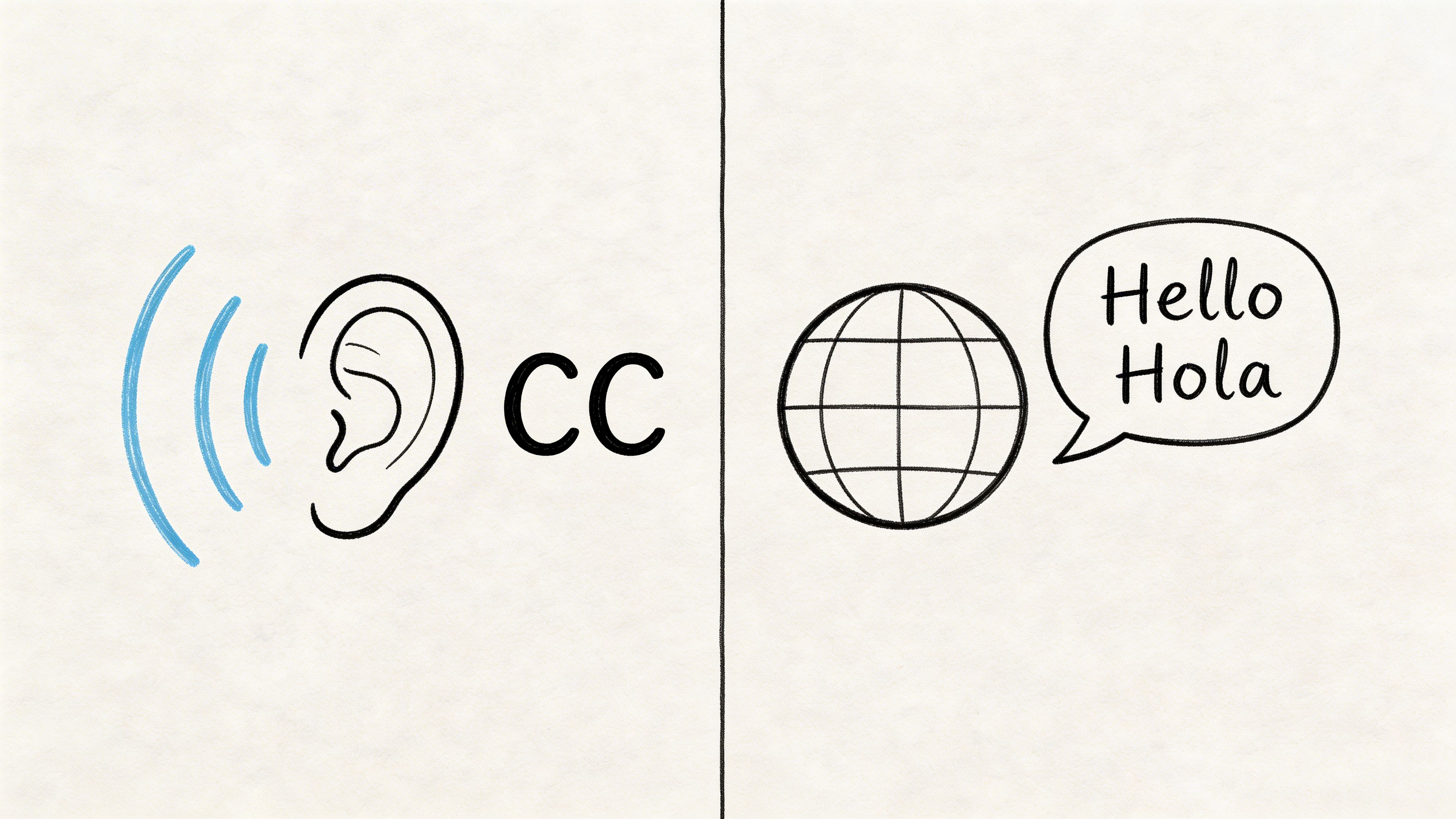
Closed captions are built for access
Closed captions are for viewers who need access to the full audio content of a video. That includes spoken words, but it also includes speaker identification and meaningful non-dialogue sounds such as music cues, applause, or laughter.
If a viewer can’t hear the soundtrack, captions are meant to carry the missing context.
Think of captions as a text version of the complete audio layer.
Practical rule: If removing sound would cause the viewer to miss important meaning, captions should carry that missing meaning.
Subtitles are built for language understanding
Subtitles are for viewers who can hear the audio but don’t understand the spoken language. Their primary job is to translate or transcribe dialogue, not describe the full sound environment.
Think of subtitles as a language bridge, not a full audio description.
That distinction matters because the viewing experience changes. Someone watching a Spanish interview with English subtitles still hears tone, pauses, laughter, and music. They mainly need the words translated.
Where SDH fits
There’s also a hybrid format, SDH, or subtitles for the deaf and hard of hearing.
SDH looks more like subtitles in some workflows, but it includes accessibility elements more commonly associated with captions. It sits between the two categories and often shows up on streaming platforms where the interface language says “subtitles,” even when the track includes speaker labels and sound cues.
Why this matters in practice
Teams default to subtitles because the term sounds broader and more familiar. But when the business need is accessibility, subtitles alone may leave out critical information.
That isn’t just a usability issue. It can also hurt completion and engagement. According to Verizon and Publicis Media, 80% of consumers are more likely to watch an entire video when captions are available, and on Facebook, 85% of videos are watched without sound (Captioning Star).
If you want a deeper primer on the accessibility side, this overview of closed captioning is a useful companion.
A Detailed Technical and Functional Comparison
The strategic difference becomes easier to apply once you look at the mechanics. In production, caption and subtitle choices affect what text gets written, how it appears, what file you export, and whether the viewer can control it.
A quick side-by-side view helps.
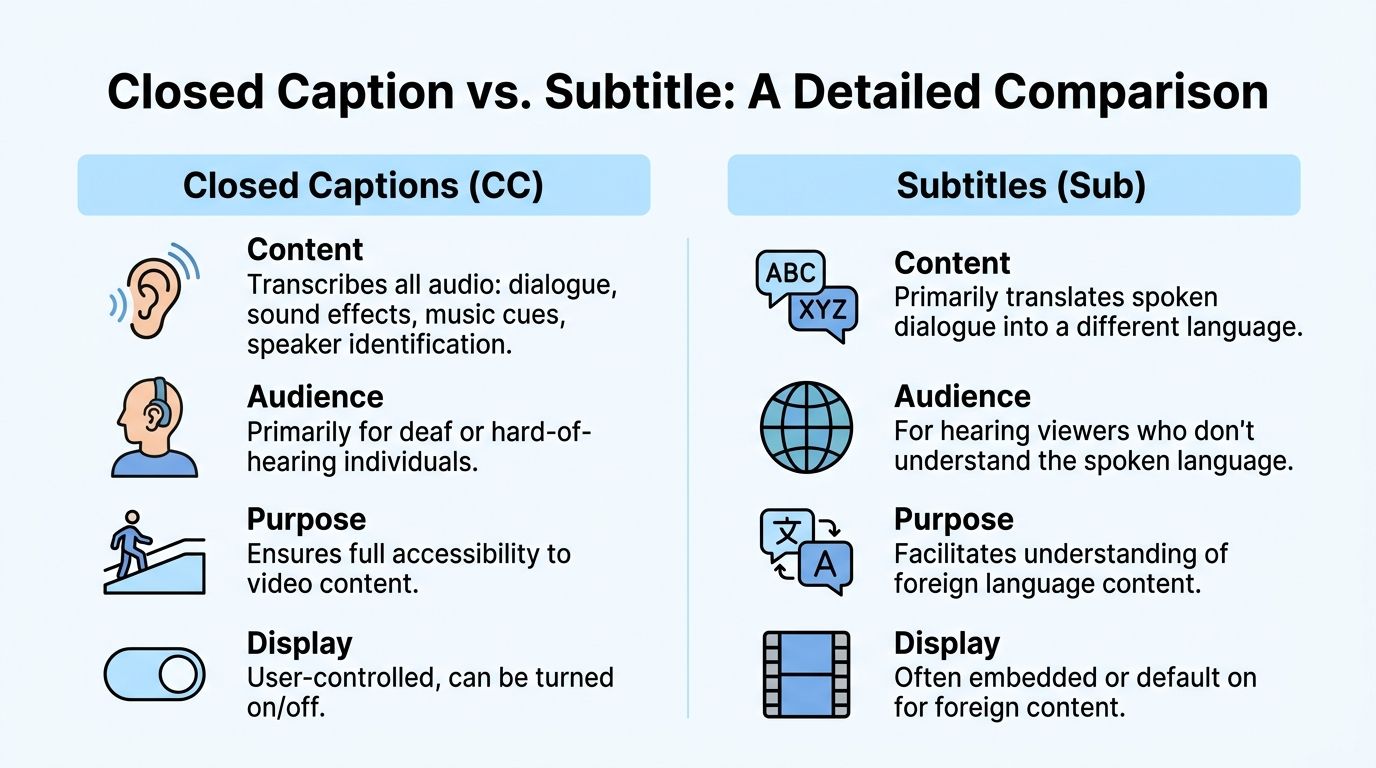
| Criteria | Closed captions | Subtitles |
|---|---|---|
| Primary purpose | Accessibility | Translation or dialogue support |
| Content included | Dialogue plus sound cues and speaker IDs | Usually dialogue only |
| Typical audience | Deaf and hard-of-hearing viewers, sound-off viewers who need more context | Hearing viewers who need language support |
| Styling norms | More constrained in legacy broadcast formats | More visual flexibility |
| Common use | TV, streaming, education, meetings, compliance-heavy content | Foreign-language films, multilingual marketing, social clips |
Content depth
This is the biggest separator.
Closed captions aim to represent all meaningful audio. That includes:
- Dialogue: What each speaker says
- Speaker identification: Useful when voices overlap or the speaker is off screen
- Sound effects: Cues like [door slams], [music], or [applause]
- Tone-setting audio: Anything that affects understanding
Subtitles usually focus on spoken dialogue. They assume the viewer can hear the rest.
The fastest test is this. If two viewers read the same text track, would one of them still miss key story or instructional context because they couldn’t hear the soundtrack? If yes, you needed captions.
Display and styling
A lot of confusion comes from the fact that the on-screen result can look almost identical.
Under the hood, though, the standards differ. For example, legacy closed captions in CEA-608 are limited to 32 characters per line in white text on a black box, while modern CEA-708 captions and subtitles allow more flexibility, often permitting up to 42 characters per line with more styling options (GetBlend).
That matters in editing situations.
Where captions feel rigid
Broadcast-style captions are built for reliability and readability first. They tend to be more constrained in placement and appearance.
Where subtitles feel flexible
Subtitles usually give editors more room with font choice, positioning, and visual treatment. That’s why stylized social text often behaves more like subtitle design than broadcast caption design.
File formats
Teams often talk about “adding subtitles” when what they really mean is “uploading an SRT.”
That’s not the whole picture.
Common formats include:
- SRT: Widely supported and simple. Good for basic timed text.
- VTT: Useful for web video and more styling control.
- SCC: Common in caption workflows that need stronger broadcast compatibility.
The file doesn’t decide the purpose. You can put caption-like content or subtitle-like content into some of the same file containers. What matters is the text inside and the delivery context.
If you need a glossary-level breakdown, this article on what is a subtitle helps clarify the terminology.
Delivery method
A second big misunderstanding is that “caption” and “closed caption” always mean the same delivery behavior.
They don’t.
- Closed text tracks can be turned on or off by the viewer.
- Open text is burned into the video and always visible.
Open captions are common on short-form social because they guarantee visibility in autoplay. Closed captions are better when accessibility and viewer control matter across platforms.
Production advice: Don’t decide formatting first. Decide whether the viewer needs control, whether the platform supports text tracks well, and whether the content may be repurposed later.
Why Your Choice Matters SEO Legal and Engagement
A common failure looks like this. A team publishes a webinar with dialogue-only subtitles, assumes the job is done, then finds the video is more difficult to search, weaker as a transcript asset, and exposed on accessibility requirements.
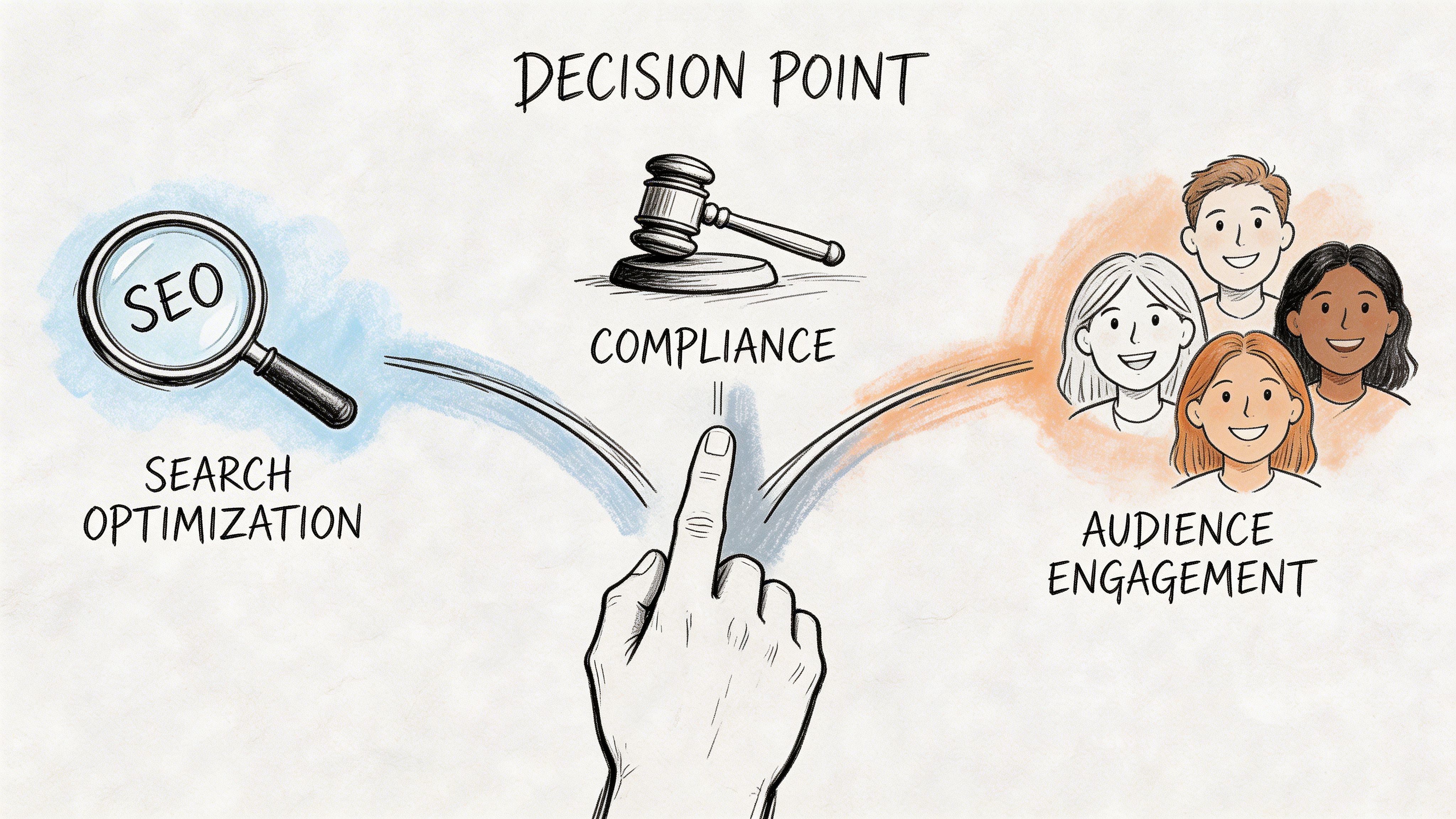
SEO and searchability
For search, the practical question is simple. How much usable text does the video produce?
Closed captions give you a stronger text layer because they reflect the spoken content more fully and can preserve context that gets lost in dialogue-only subtitles. That matters for YouTube indexing, on-site video libraries, and AI-driven retrieval. A better text layer also gives your team more to work with when turning one video into summaries, chapters, FAQs, article drafts, and internal knowledge assets. Workflow considerations become important here. If your process already runs through transcription and cleanup, caption-first output creates a better source file for repurposing. AI tools such as HypeScribe can help teams turn that transcript into structured content faster, but the output is only as useful as the text track you start with.
It also supports the broader shift toward machine-readable content. If your team is thinking about optimizing for AI search, richer caption data gives search systems more context about topic coverage, named entities, and speaker intent than a basic subtitle track.
Legal and compliance risk
This decision also affects legal exposure.
The W3C’s WCAG 2.1 Success Criterion 1.2.2 requires captions for prerecorded synchronized media. The FCC also requires captions in specific cases where television programming is later distributed online through IP, as outlined in the FCC’s closed captioning rules for internet video programming. If your team handles training, education, public information, or repurposed broadcast content, subtitles alone may not meet the requirement.
That is the operational risk. A subtitle track can help viewers understand translated dialogue, but it does not cover the non-speech information many audiences need, such as speaker identification or meaningful sound cues.
Where teams run into this
- L&D and HR teams need accessible training libraries for prerecorded content.
- Universities and course publishers need captioned lessons that hold up across audits and accommodations.
- Media teams need the right text asset when clips move from broadcast workflows to web distribution.
If your team is also deciding whether viewers should be able to toggle the text track, this guide to open vs closed captions covers the delivery trade-offs.
Engagement and completion
Engagement is where clients notice the difference first.
People watch in airports, open offices, trains, waiting rooms, and late at night next to someone asleep. In those situations, captions help viewers keep up with the full message when sound is off or unusable. Subtitles solve a different problem: they help when the viewer can hear the audio but does not understand the language being spoken.
That distinction affects performance. If a product demo depends on tone, pauses, speaker handoffs, or audible reactions, caption-style text supports comprehension better. If a brand interview is being localized for a new market, subtitles are the right tool because language access presents the primary barrier.
The text layer changes whether the video can be found, understood, reused, and defended. That makes it a publishing decision, not a formatting detail.
Practical Use Cases for Every Platform
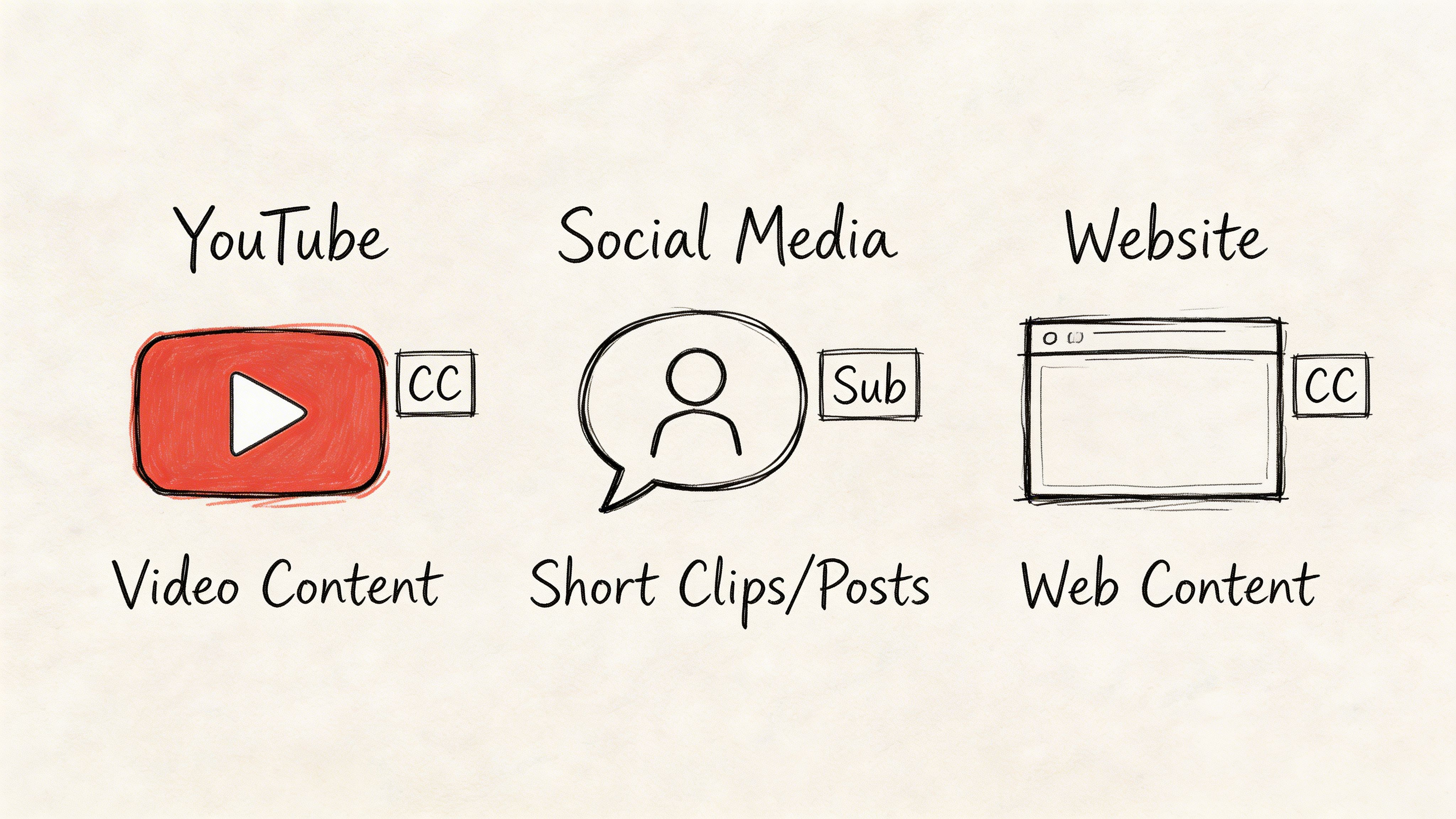
A product team publishes the same launch video to YouTube, LinkedIn, the company site, and an internal training hub. If they use one text asset, one of those channels often underperforms. The right format depends on what the viewer needs on that platform, and on what your team needs afterward for search, reuse, and automation.
YouTube and long-form video libraries
For YouTube, courses, recorded webinars, and interview archives, closed captions are usually the best starting point.
The reason is practical. Long-form content has a long shelf life, and the text layer does more than help someone watch with the sound off. It gives your team a usable transcript for chapters, summaries, blog support content, FAQ extraction, and internal search. If you use AI tools to turn video into articles, clips, or knowledge-base entries, caption-ready transcripts create a cleaner source file than subtitle-only dialogue.
Closed captions also hold up in educational and reference content because they preserve speaker changes and relevant audio context. That matters when a lesson, panel, or demo will be watched months later by someone who was not in the room.
If you publish in more than one language, keep the source-language captions and add subtitle tracks for translation. That setup supports accessibility first, then localization.
Zoom Teams and internal meetings
Meetings create a different kind of value. The recording is rarely just a replay asset. It becomes documentation.
For internal calls, town halls, candidate interviews, and training sessions, caption-style output usually works better because the transcript needs to survive interruptions, cross-talk, acronyms, and speaker handoffs. A clean text record also feeds other workflows. Teams use it to pull action items, build summaries, index recurring topics, and search past discussions without watching the full recording again.
A workable standard looks like this:
- Capture a clean transcript first
- Label speakers clearly
- Keep key sound context if it affects meaning
- Export into formats your team can search, edit, and archive
Raw auto-transcription is fine as a draft. It is a poor final asset for legal review, training records, or executive meetings where names and decisions have to be right.
Instagram Reels TikTok and short social clips
Short-form social has a different job. It needs to stop the scroll fast and deliver the point before the viewer leaves.
That is why many social teams use open captions styled like subtitles. They are burned in, edited for pace, and designed for small screens. In practice, those text overlays often prioritize punch and timing over full completeness, which is the right trade-off for hooks, reactions, and quick explainers.
But do not confuse a designed text layer with a reusable accessibility asset. If the clip may be republished on other platforms, added to a landing page, or reused in a paid campaign, keep the underlying transcript organized. The teams that do this separate visual text for performance from structured text for accessibility, metadata, and repurposing.
Localization also gets harder on social if your source text is messy. Even something as simple as names or accented characters can break consistency across versions, so editors should know how to add accents on any device before subtitle files go out.
Corporate websites and public resource hubs
Public website video needs stricter handling because the file often has to serve several goals at once. Accessibility, discoverability, and content reuse all sit on the same asset.
A common mistake is uploading a polished video with subtitles and assuming the requirement is covered. For prerecorded public-facing content, captions are the safer default because they support accessibility expectations. If the video also serves international audiences, add subtitle tracks by language instead of trying to force one file to do both jobs.
For website video, use a simple rule:
- Use captions when accessibility is part of the requirement
- Add subtitles when you need additional language versions
- Keep one well-edited master transcript so your team can generate both, feed AI workflows, and keep search-friendly text consistent across the site
That last point matters beyond what many teams expect. On a corporate site, the text asset is often what makes the video usable outside the player itself. It supports transcripts, resource pages, support articles, and any workflow that depends on structured language rather than just the media file.
Your Workflow for Creating Perfect Captions and Subtitles
A solid workflow starts before export. Most quality problems happen because teams decide the format too late and then try to force one text asset into every use case.
The better approach is to create one clean transcript, then shape it into caption or subtitle outputs based on audience need.
Step 1 starts with the source transcript
Upload the video or audio, or pull it in from the platform where it already lives. For meeting recordings, interviews, webinars, and social clips, the goal is the same: get a time-aligned transcript you can edit.
Tools vary in this regard. Some only generate raw text. Others support timing, speaker separation, and export formats needed for publishing workflows.
One option is HypeScribe, which can process uploaded audio or video, pasted links, and meeting recordings, then export transcripts in formats such as TXT, Markdown, Word, and Google Docs while also supporting meeting capture across Zoom, Google Meet, and Microsoft Teams.
Step 2 decide whether you’re making captions or subtitles
Don’t start editing until the purpose is clear.
Use captions if you need to include:
- speaker names
- sound cues
- meaningful non-speech audio
Use subtitles if you need to focus on:
- spoken dialogue
- translation
- cleaner on-screen reading for hearing viewers
That single decision changes what you edit in and what you leave out.
Step 3 edit for readability not just accuracy
Raw transcription is only the draft.
Check timing, line breaks, overlapping speech, names, and specialized terms. If your content includes multiple languages or names with diacritics, a quick reference for how to add accents on any device can save time during cleanup.
A few practical edits matter beyond what teams expect:
- Fix proper nouns: Product names and people’s names quickly erode trust when they’re wrong.
- Trim clutter in subtitles: Spoken language often needs light cleanup to read naturally.
- Add missing cues in captions: If laughter, music, or off-screen speech changes meaning, include it.
Step 4 export for the destination
Different platforms need different outputs. In most workflows, that means some mix of SRT or VTT for publishing, plus a readable transcript for documentation or repurposing.
Keep the master editable. Don’t treat the first exported file as the source of truth.
A reusable text layer saves significant time when one video later becomes a blog post, a training asset, a meeting record, and short social clips.
Best Practices and Common Pitfalls to Avoid
Most caption and subtitle failures don’t come from bad intentions. They come from using one workflow for all situations.
What good teams do consistently
They make the format choice based on audience and platform, not habit.
They also check the final output against a short list:
- Match the purpose first: Accessibility need means captions. Language support means subtitles.
- Review every auto-generated file: AI can speed up drafting, but names, jargon, and timing need human review.
- Keep timing clean: Text that appears late or disappears quickly makes even accurate wording hard to use.
- Preserve a master transcript: One clean source file makes translation, repurposing, and archive work easier.
- Test on the actual platform: A file that looks fine in one player may break line length, placement, or readability somewhere else.
Mistakes that cause real problems
The biggest one is treating subtitles as a universal substitute for captions.
That often fails accessibility because dialogue-only text doesn’t carry the full audio context. The second mistake is trusting auto-captions without checking them. The third is burning text into video too early, then discovering you need editable tracks for another platform, another language, or a compliance review.
The decision shortcut
If you need one rule to use with clients and internal teams, use this:
Working rule: Choose captions when access to the full audio matters. Choose subtitles when understanding the spoken language matters.
The closed caption vs subtitle question sounds small. In practice, it shapes how inclusive, discoverable, and usable your video becomes after publish.
If your team wants a faster way to turn meetings, interviews, lectures, or published videos into searchable text you can adapt into captions or subtitles, take a look at HypeScribe. It gives you an editable transcript foundation so you can build the right text layer for each platform instead of forcing one version everywhere.

































































































