The 10 Best AI Tools for Content Creators in 2026
You don't need another giant roundup that throws ChatGPT, Canva, and a few video apps into the same bucket and calls it strategy. Most creators already know the names. The main problem is figuring out where each tool fits once the work starts piling up. You're collecting ideas in voice notes, recording interviews, trimming clips, turning one long piece into five smaller ones, and trying to publish without your week disappearing into admin.
That's why the best ai tools for content creators aren't the ones with the longest feature pages. They're the ones that remove friction at a specific step in the workflow. If a tool helps you get from raw audio to usable transcript, or from rough draft to on-brand post, it earns a place. If it creates more cleanup than it saves, it doesn't.
Adoption has settled into something more practical too. In 2026, 85% of marketers globally use AI for content creation, with teams reporting 62% faster production and 3.8x higher output. That doesn't mean every tool is worth paying for. It means the right stack now has real operational value.
This guide is built around the actual content workflow. Start with capture and transcription. Move into drafting and editing. Then handle visuals, short-form repurposing, and publishing support. If you also create audio or music-adjacent content, Drumloop AI's guide to music production is a useful companion read.
1. HypeScribe
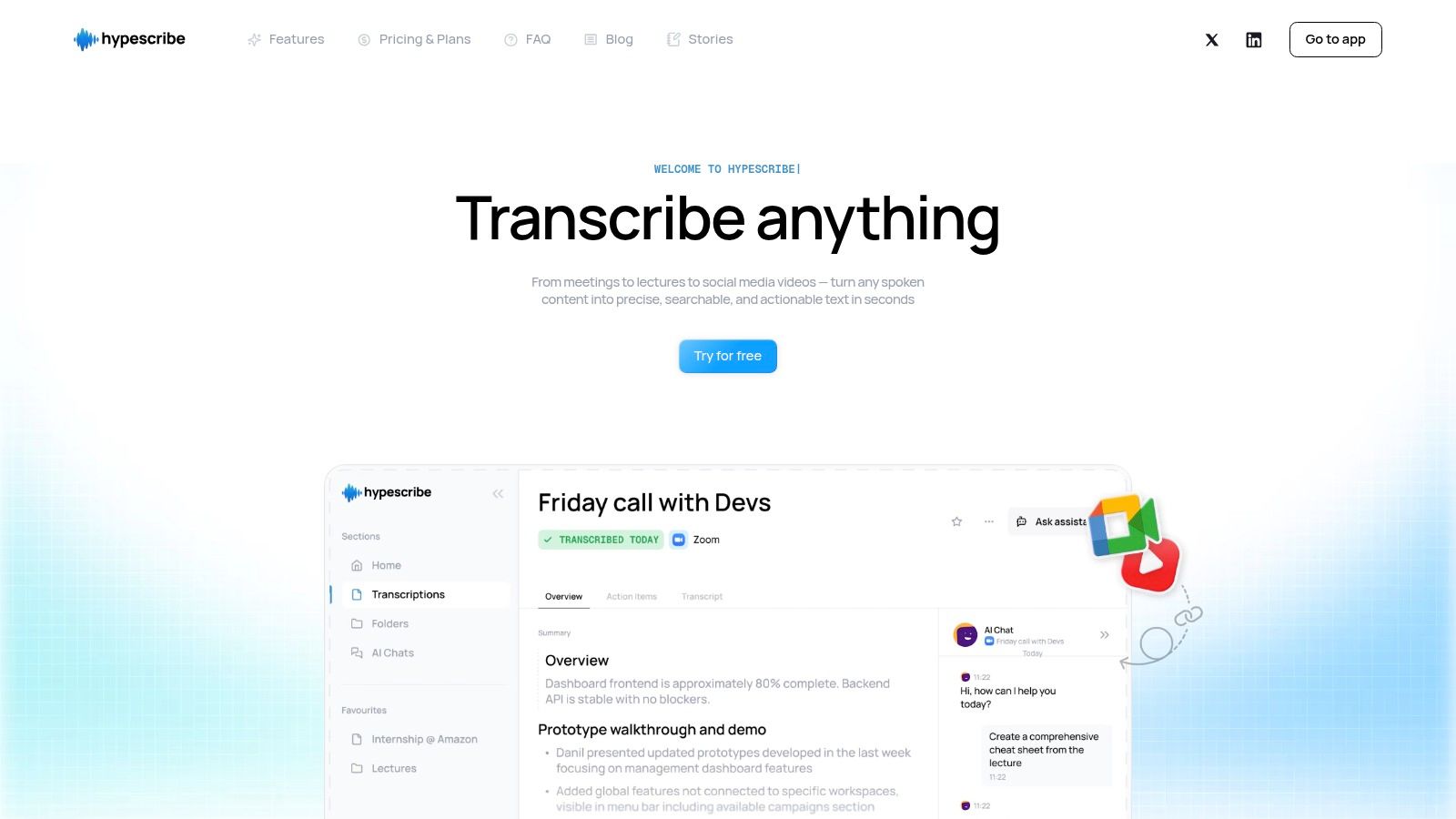
If your content starts as speech, HypeScribe solves the first problem faster than most creator stacks do. Instead of forcing you to download files, rename them, and push them through multiple tools, it lets you upload media, paste links from platforms like YouTube, Instagram, VK, Facebook, Rutube, Reddit, Twitter, Vimeo, and Google Drive, or record directly inside the app.
For creators, that matters more than another generic AI writer. Spoken content is where a lot of the useful raw material lives. Interviews, podcast episodes, lessons, client calls, livestreams, and rough voice notes all contain publishable material. HypeScribe turns that into text you can work with.
Where it fits best
The standout capability is speed and flexibility. HypeScribe can process up to 1 hour of audio in under 30 seconds, with up to 99% accuracy across 99+ languages. That makes it a strong fit for creators handling long interviews, multilingual recordings, or frequent meeting capture.
Its token system is also more creator-friendly than minute-based billing for long files. One token equals one file, unused tokens roll over month to month, and long recordings don't burn extra minutes. The plans are straightforward: free trial with 3 files per month up to 1 hour each, Starter at $6.99/month for 30 files, Pro at $7.99/month for 60 files plus NoteTaker for 10 meetings, and Ultra at $12.99/month for 300 files plus NoteTaker for 30 meetings.
Practical rule: If your content starts as conversation, transcription should be your first AI layer, not your last.
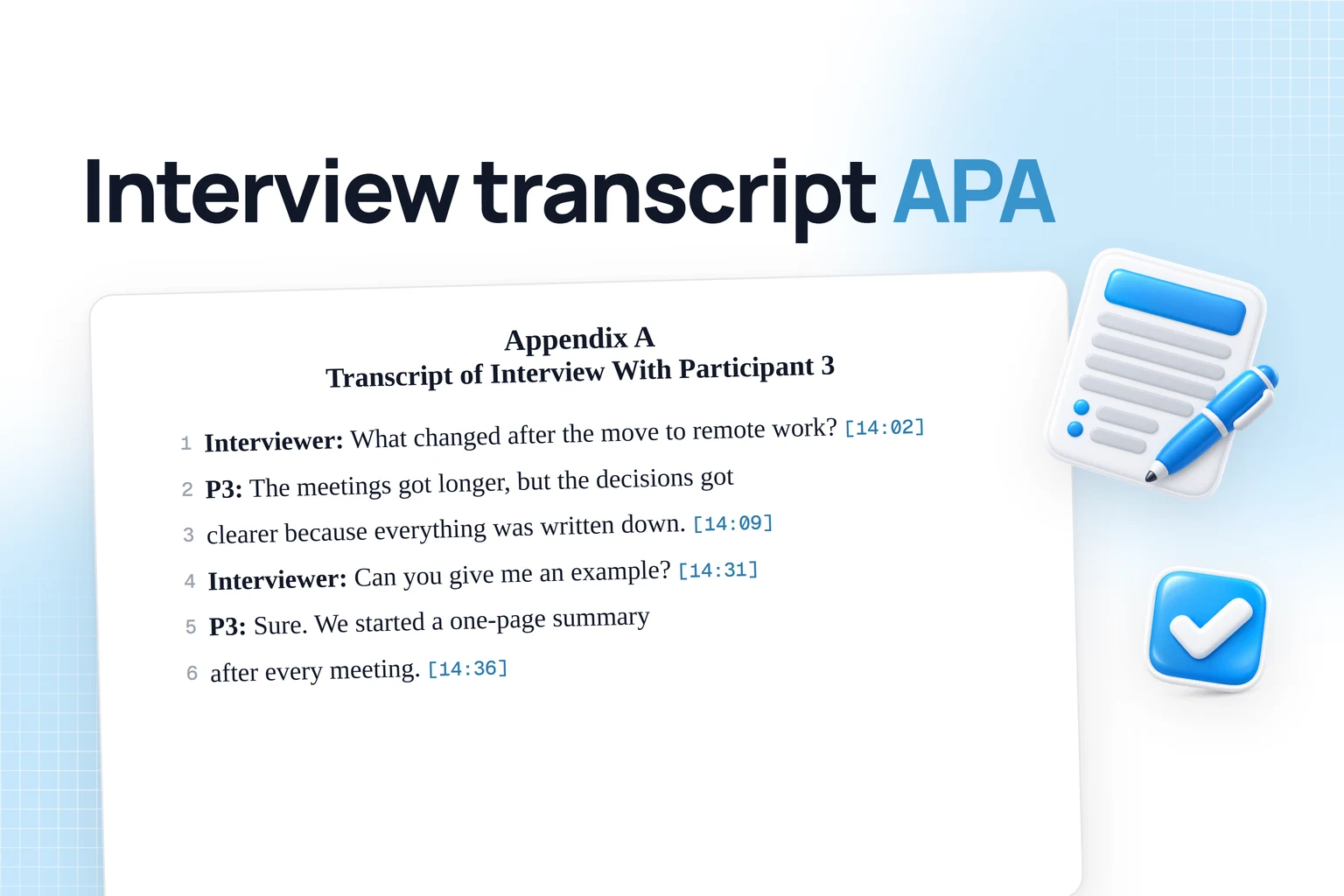
There's also a useful difference between getting a transcript and getting something actionable. HypeScribe doesn't stop at raw text. It produces summaries, key takeaways, and action items, and its note taker joins Zoom, Google Meet, and Microsoft Teams for live meeting transcription and recap generation.
What works and what doesn't
The file-aware chatbot is one of the more practical features here. Once a transcript exists, you can ask questions against the file instead of hunting through timestamps manually. For creators turning interviews into articles or social posts, that's faster than rereading everything.
Exports are broad enough for real workflows too. You can send material to Google Docs, Word, PDF, TXT, or Markdown. If you want more ideas on where transcription fits into a creator stack, HypeScribe's own guide to best tools for content creators is relevant.
A few trade-offs are worth noting:
- Best for long-form spoken content: Interviews, classes, meetings, and podcasts are where the token model shines.
- Less ideal for many tiny clips: If your workflow is dozens of short snippets, one-token-per-file can feel less efficient.
- Security is practical but verify for strict environments: Encryption in transit and at rest is built in, and you can delete source files and transcripts. Teams with stricter audit requirements should still confirm whether the listed controls match internal compliance needs.
For anyone repurposing audio or video regularly, HypeScribe earns the featured spot because it fixes the most overlooked bottleneck first.
2. Descript
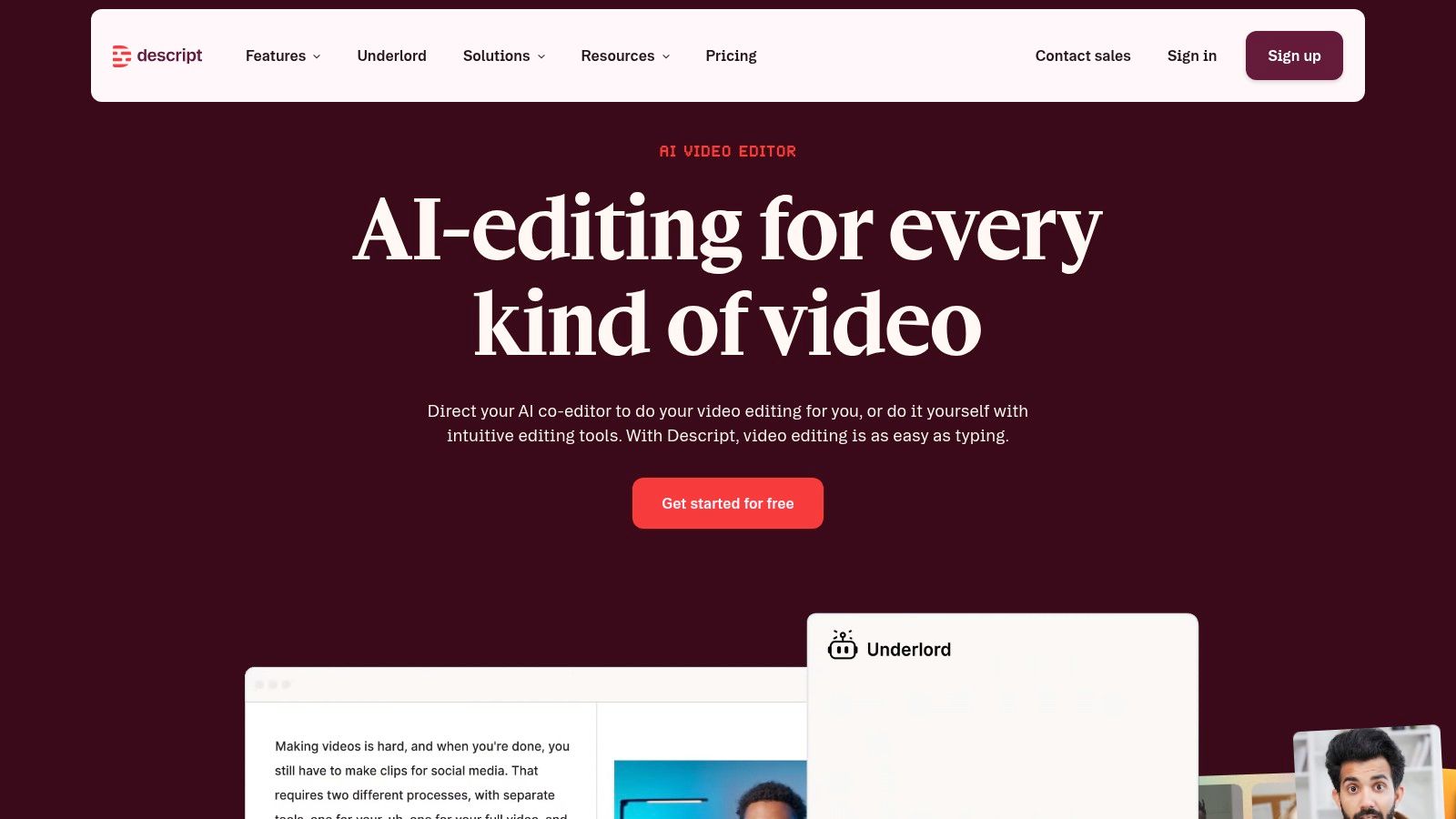
Descript is what I recommend when someone hates traditional timelines but still needs to edit audio or video every week. Its core strength is simple: you edit the transcript, and the media follows. That changes the feel of the work completely for podcasters, interview-based YouTubers, educators, and teams making talking-head content.
It's especially strong after transcription. If HypeScribe is where spoken material becomes usable text, Descript is where that text becomes a cleaner episode, clip, or tutorial.
Why creators stick with it
Text-based editing is the reason to use it. Cutting filler words, trimming rambling sections, fixing narration, and generating captions all happen in a workflow that feels closer to document editing than old-school post-production.
That makes it a good fit for creators working with interviews and dialogue-heavy videos. According to Statista's 2026 chart on AI use in content marketing, over 50% of 252 surveyed B2B content marketing professionals use AI for text, images, or video production, and Descript is one of the domain-specific tools highlighted for audio and video workflows.
Descript is best when the transcript is the edit. It isn't the best choice when visuals, color, and motion design carry the project.
Real trade-offs
Descript saves time on rough cuts, podcast cleanup, captions, and screen-recorded explainers. Overdub and stock voices are useful for pickup lines or patching small mistakes without setting up a mic again. Studio Sound is also practical when the recording is usable but not polished.
What it doesn't replace is a full finishing stack. If you're doing heavier color work, layered sound design, or complex motion graphics, you'll still end up in a dedicated editor or audio workstation. Some AI effects also depend on a web connection, and heavier use can eat into credits or included minutes.
Use Descript when speed matters more than granular post-production control. That's most creator work.
3. Runway
Runway is for creators who need visuals that don't exist yet. Not polished client-brand carousels. Not basic captioned clips. I mean concept visuals, stylized motion, generative shots, weird transitions, and social assets that start as prompts instead of footage.
That makes it different from the editing tools on this list. Runway isn't your center of gravity unless your work depends on synthetic visuals or fast visual experimentation.
Where it earns its place
Its appeal is iteration speed. Text-to-video, image-to-video, image generation, upscaling, and model variety all live in one interface. You can move from an idea to test footage fast, which is why it works well for intros, promo loops, visualizers, and concept-heavy social posts.
If you work in music content, trailers, mood pieces, or faceless video formats, Runway can generate visuals that would otherwise require a shoot or a motion designer. This Runway review for AI music creators gives a useful adjacent perspective on that use case.
The catch with Runway
The credit system is the thing you have to respect. Once you understand the per-model and per-second math, it becomes manageable. Until then, it's easy to burn through credits on experiments that never make the final cut.
- Best use case: Short concept visuals, stylized social video, animated assets, and rapid visual testing.
- Weak use case: High-volume production where every render needs to be predictable and cost-efficient.
- Important mindset: Treat it like a creative lab, not a replacement for your whole video pipeline.
Runway works best when you already know what role generated visuals play in your brand. If you're still trying to justify the effect after generating it, you'll waste time.
4. Canva
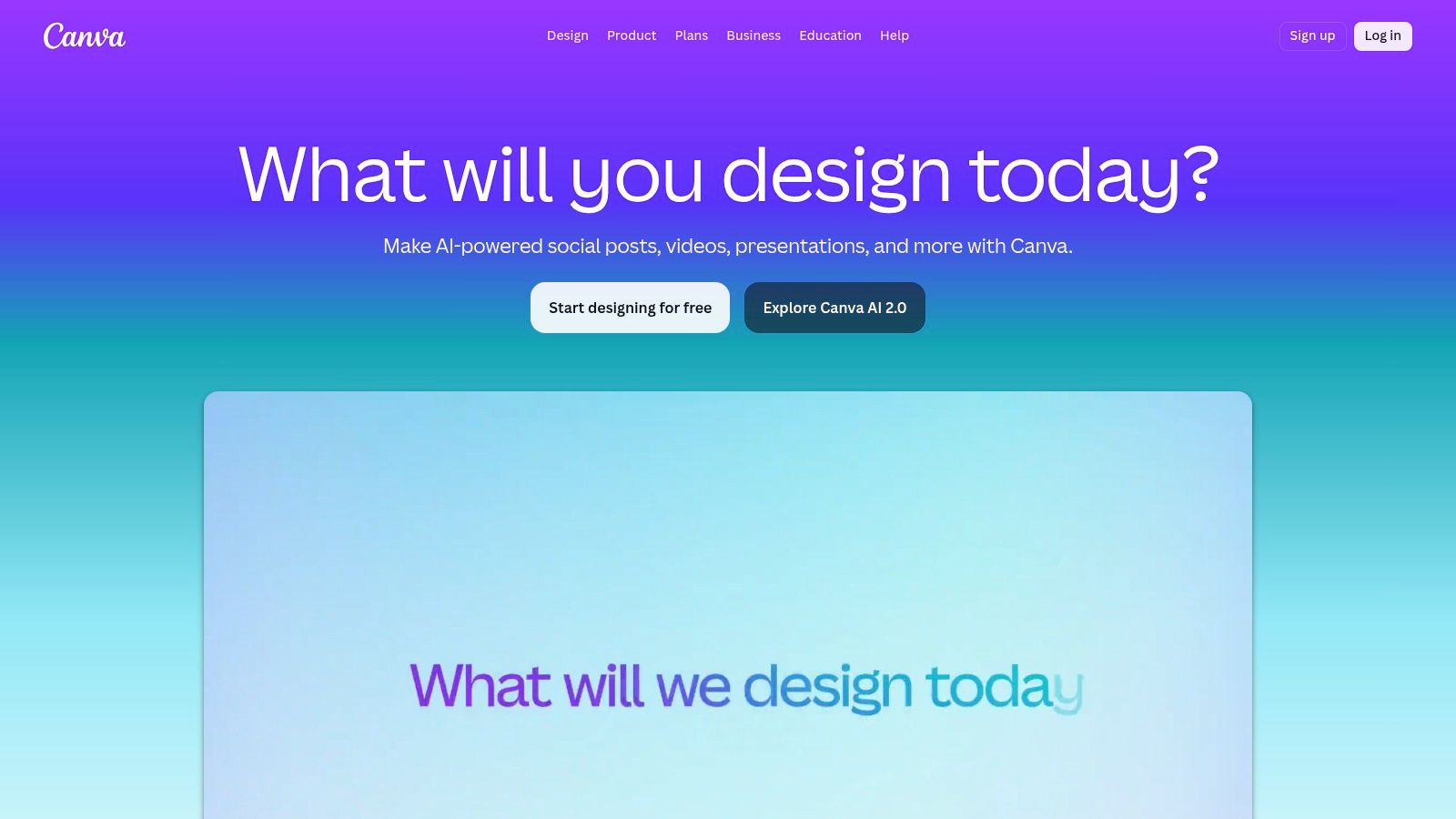
You’ve finished the hard part. The idea is clear, the script is done, the clip is edited, and now you need the packaging. Thumbnail, carousel, lead magnet, pitch deck, promo graphic. That last stretch can still eat an hour if your design process is clumsy.
Canva earns its place here because it speeds up packaging. In a real creator workflow, that matters. A lot of content does not fail because the core idea was weak. It stalls because turning one idea into publishable assets takes too many steps.
Where Canva fits best
Canva is strong at fast asset production. Templates, brand kits, Magic Studio tools, resize options, and basic video editing give creators one place to produce the surrounding content that helps the main piece travel. That includes thumbnails, quote cards, social posts, simple decks, PDFs, and short promo edits.
I use Canva for repeatable outputs, especially when the goal is consistency over originality. If you publish on a schedule, that trade-off often makes sense. A good-enough thumbnail this afternoon usually beats a custom design that misses the post window.
For creators building distribution around one core piece, Canva works well alongside transcript-first systems. HypeScribe’s guide to social media content creation tools is useful here because it connects repurposing and design packaging in the same workflow.
Workflow note: Canva is usually the packaging layer. It is rarely the place where the core creative decisions happen.
The trade-offs
Canva gets weaker as soon as the work needs precision. Detailed timeline editing, nuanced audio work, custom motion, and highly original visual systems are all better handled elsewhere. Its video tools are fine for simple promos and social clips, but they are still utility tools.
The other risk is sameness. Canva makes it easy to ship, and it also makes it easy to look like everyone else using the same template pack. The fix is straightforward. Start with the template, then change the layout, typography, spacing, and visual hierarchy enough that the asset reflects your brand.
Canva is a practical choice for creators who need volume, consistency, and speed. If your bottleneck is turning finished ideas into polished publishable assets, it saves real time. If your bottleneck is high-end editing or distinctive visual direction, it will feel limiting fast.
5. Adobe Express with Firefly
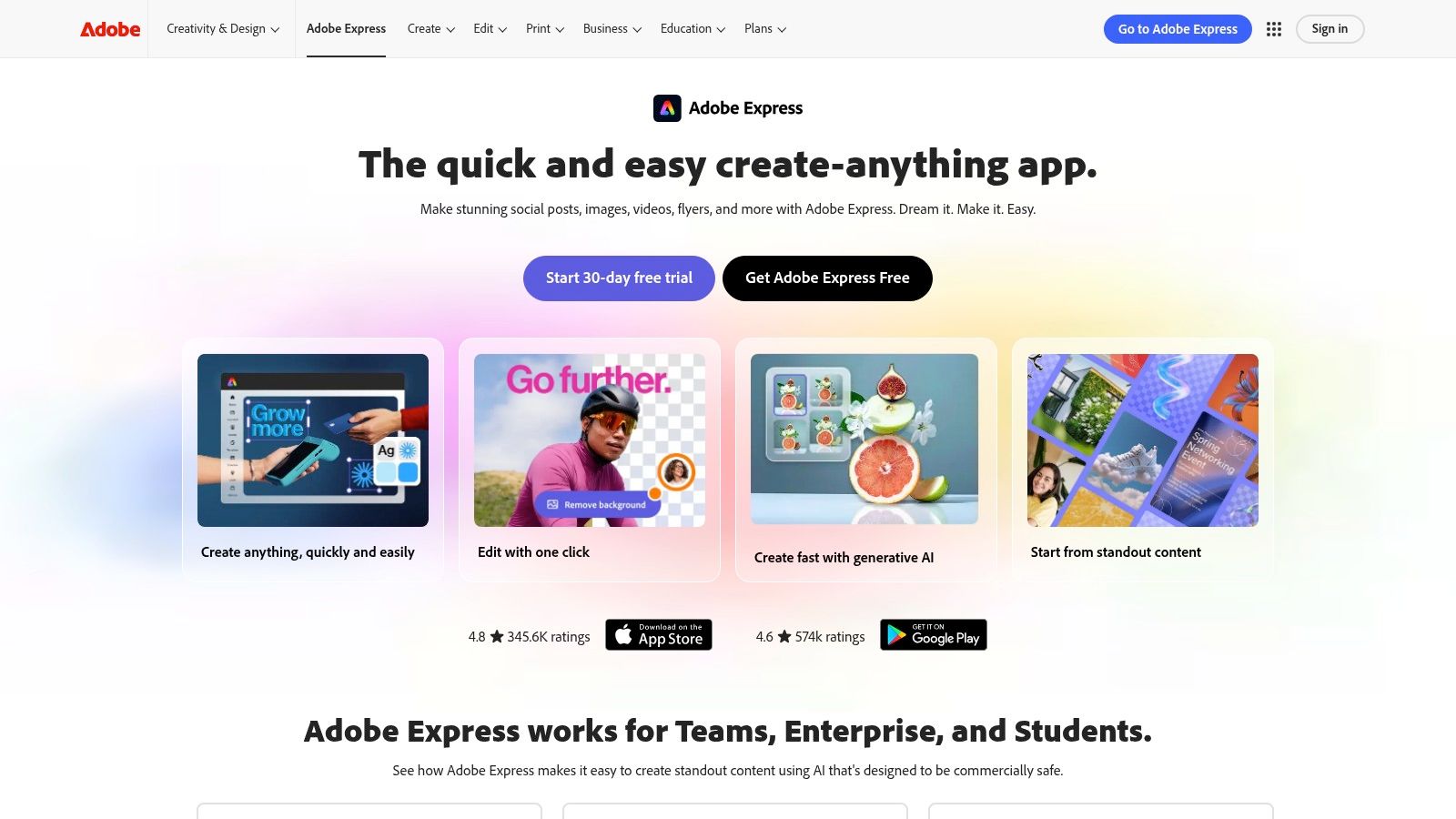
Adobe Express sits in an interesting middle ground. It's simpler than Adobe's pro apps, but it still benefits from the broader Adobe ecosystem. If you want easy social graphics, quick video assembly, templates, and generative image support without leaving Adobe entirely, this is the tool.
I usually point creators here when they want Canva-like speed but prefer Adobe's asset environment and Firefly tooling.
Best fit
Adobe Express works well for branded social posts, promo graphics, one-page assets, lightweight marketing videos, and teams that already keep files inside Adobe. Firefly adds text-to-image and text effects without forcing you into a separate platform, and Adobe Stock integration helps when you need licensed assets quickly.
The practical advantage is less about novelty and more about familiarity. If your team already uses Photoshop, Premiere Pro, or Creative Cloud libraries, Express feels easier to adopt than a disconnected tool would.
What to watch
Express still isn't your finishing suite. Advanced compositing, serious editing, and detailed motion work belong in Premiere Pro or After Effects. The same goes for heavy generative use. Firefly credits and plan limitations matter if AI generation becomes a daily habit rather than an occasional assist.
- Use it for: Fast branded assets, simple promotional video, and Adobe-friendly team workflows.
- Skip it as a primary editor if: You need deep video post-production or complex animation.
- Worth noting: The rights posture and stock integration are part of the appeal for commercial teams.
Adobe Express is less exciting than some creator tools. That's often a good sign. It means it behaves more like infrastructure than hype.
6. CapCut
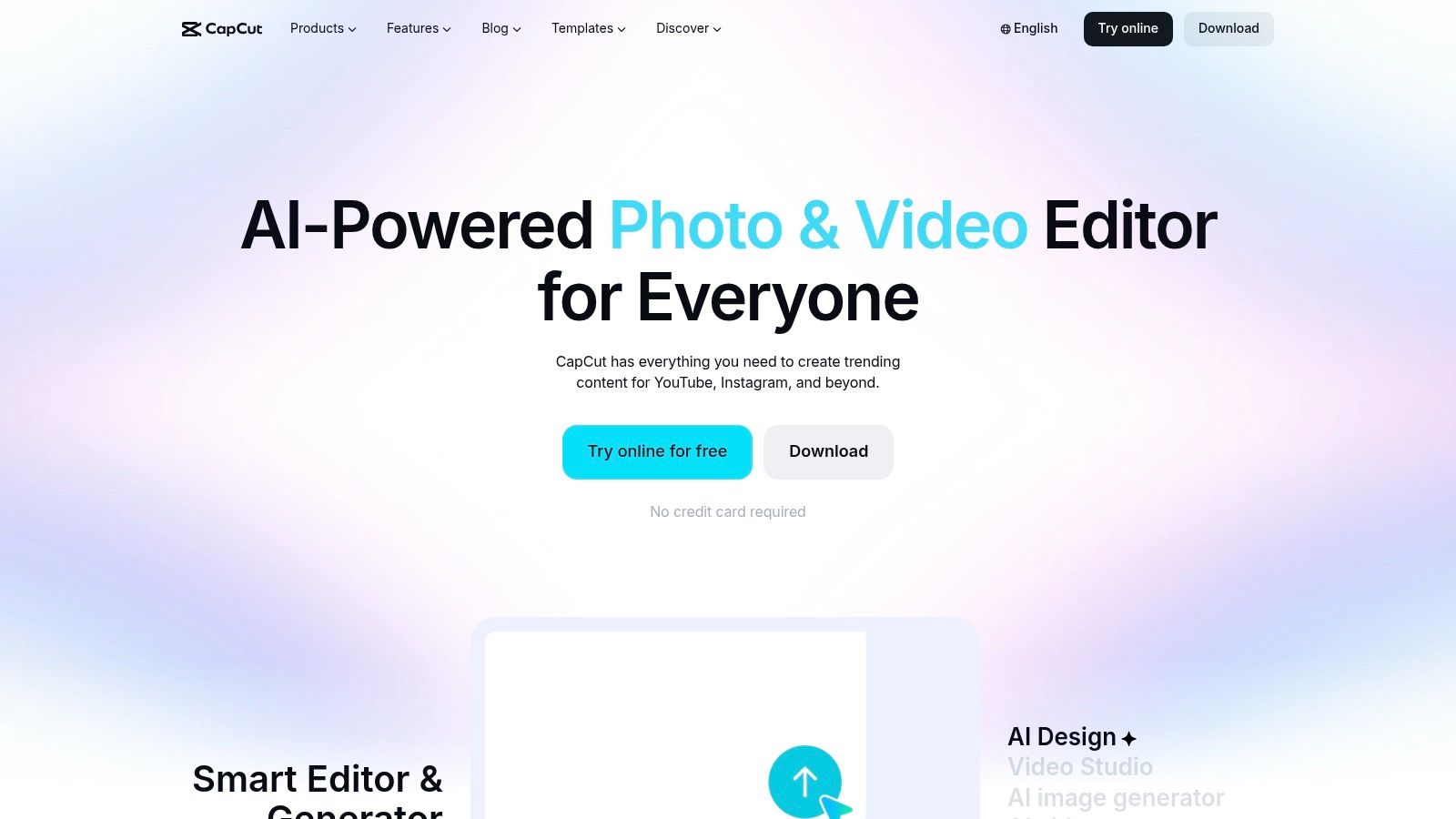
You recorded a solid talking-head video, but now it needs captions, dead air trimmed, a cleaner background, and three versions for different platforms before the day ends. CapCut is built for that kind of workload.
It earns its place in the workflow at the editing and repurposing stage. Short-form creators use it because the app is optimized for social-native output: fast captioning, quick cleanup, mobile editing, template-driven formatting, and exports that do not require a full post-production setup.
The bigger advantage is editorial speed. CapCut helps turn rough footage into publishable clips without pushing you into a heavy timeline or a slower desktop-first process. For creators posting Reels, Shorts, TikToks, or clipped commentary, that usually matters more than having every advanced control.
Its AI features are practical, not flashy. Auto captions save time. Background removal helps with simple punch-ins and explainers. Basic cleanup tools handle common fixes well enough for social. If the job is "cut this down, subtitle it, and ship it," CapCut is often faster than more traditional editors.
There are trade-offs.
CapCut starts to feel tight once an edit gets layered, brand-sensitive, or long-form. Fine motion control, detailed audio work, version management for larger teams, and polished finishing still work better in more advanced editors. Feature access can also change by device, plan, or region, so it is smart to confirm your setup before making it part of a repeatable workflow.
- Use it for: Short-form editing, subtitles, quick repurposing, creator-led social content, and fast turnaround clips.
- Skip it as your main editor if: You produce long-form videos, need detailed finishing control, or manage complex post-production across a team.
- Best place in the workflow: After recording, when the bottleneck is turning raw footage into multiple publishable social assets quickly.
CapCut is one of the easiest ways to keep volume high without making every video feel overbuilt. For many creators, that is exactly the point.
7. Notion
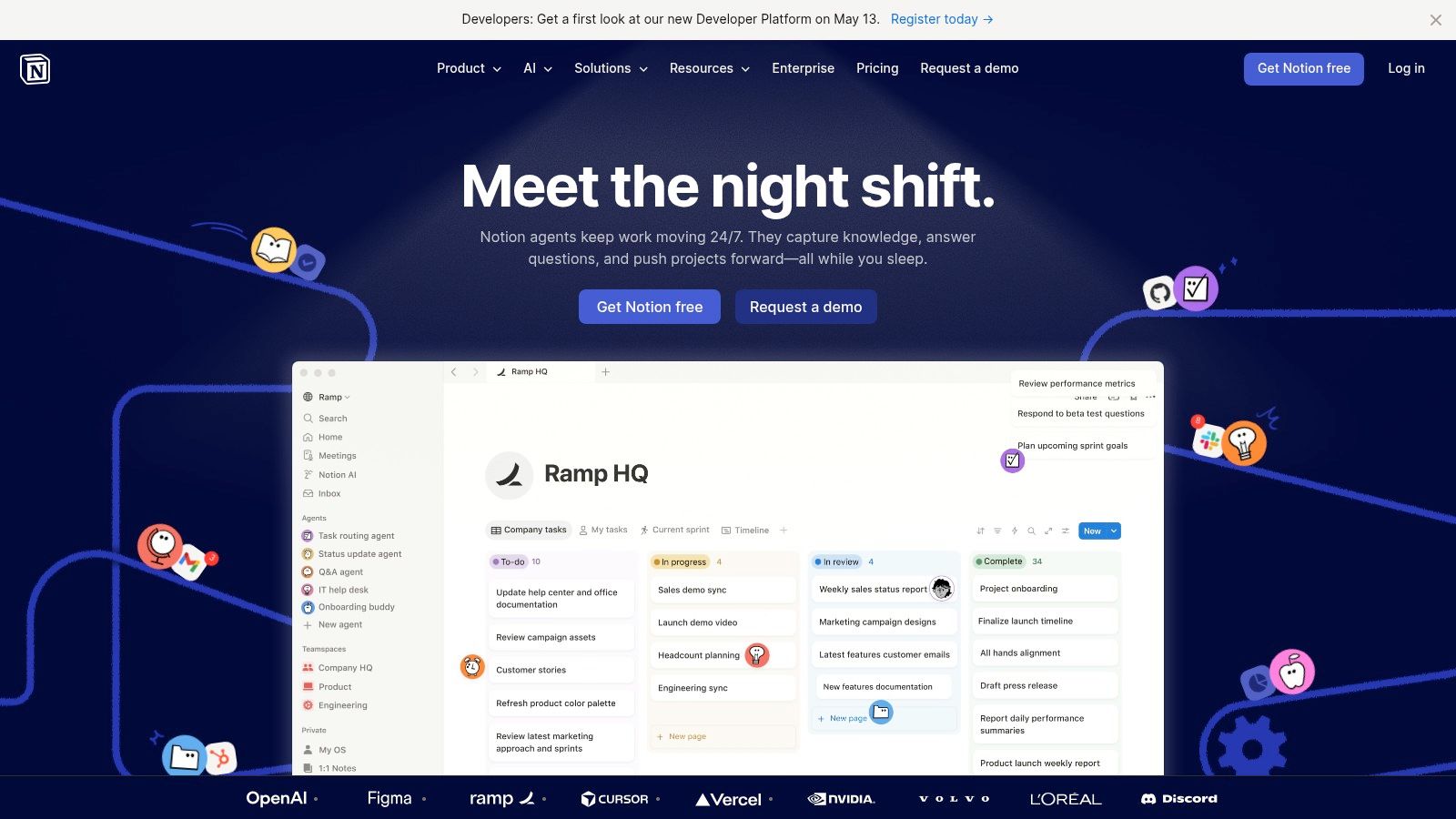
A common content bottleneck shows up before editing starts. Ideas are scattered across voice notes, research docs, transcripts, Slack threads, and half-finished briefs. Notion earns its place in the workflow by pulling that sprawl into one operating system.
For creators, Notion works best in the middle of the process. It is where ideas get captured, raw research gets organized, transcripts get stored, outlines get approved, and production status gets tracked. Notion AI adds speed inside that system with summaries, first-pass drafts, autofilled database fields, and cleanup help on messy notes.
That matters more than another standalone writing tool if the actual problem is coordination.
The real value of Notion AI
Notion is an operations layer first, not a creative finishing tool. I would use it to turn a pile of inputs into a usable pipeline: content briefs, episode notes, swipe files, repurposing checklists, publishing calendars, and internal SOPs in one place. Once a team starts publishing across multiple formats, that structure saves more time than squeezing a slightly better paragraph out of a chatbot.
The trade-off is straightforward. Notion can hold the system, but it does not replace the tools that handle the actual media work. You still need your editor, design app, and recording stack. If your workflow is simple and mostly solo, setting up databases and templates can also feel like overhead at first.
Who should use it
Notion fits creators who produce on a repeatable schedule, manage approvals, or repurpose the same source material into blogs, newsletters, clips, and social posts.
- Strong use case: Editorial calendars, content databases, transcript libraries, briefing systems, idea capture, and team knowledge hubs.
- Weak use case: Final production work. Notion is not where you do polished video editing, design finishing, or detailed copy QA.
- Operational upside: Workspace permissions, documentation, and AI settings make it a practical choice for teams that care about process control. Notion says AI features do not train on your business data by default. You can review that in Notion's AI security and privacy documentation.
If your content machine keeps stalling between idea and execution, Notion is often the fix. It gives every other tool in the stack a clear place to plug in.
8. Jasper

A content team usually feels the need for Jasper at the same point in the workflow. Drafts are getting produced fast enough, but everything after the first draft is messy. Blog posts drift off-brand, email copy sounds different from landing pages, and editors spend too much time fixing tone instead of sharpening the message.
Jasper fits that stage well. It is less about raw idea generation and more about turning approved messaging into repeatable output across channels. Brand Voice, campaign context, and shared knowledge make it useful when several people are writing from the same source material and need the final copy to sound aligned.
That makes Jasper a workflow tool, not just a writing tool.
Where Jasper earns its spot
Jasper works best after strategy is already set. If the topic, offer, audience, and voice are still fuzzy, a general assistant can handle early exploration just fine. Once the brief is clear, Jasper becomes more valuable because it helps teams produce blog drafts, ad variations, emails, and landing page copy without re-explaining the brand on every prompt.
I have found it strongest in environments where content gets reused across formats. A webinar can become a blog post, follow-up email, paid social copy, and nurture sequence, and Jasper helps keep those assets consistent. If that is part of your process, it pairs naturally with a content repurposing workflow for creators.
The trade-off
Jasper is usually more tool than a solo creator needs. If one person is writing for a personal brand and already knows how to edit AI drafts hard, the extra structure can feel expensive and a little rigid.
For teams, that structure is often the point:
- Best use case: Brand-sensitive marketing copy across blogs, email, ads, landing pages, and campaign assets.
- Why teams choose it: Shared voice controls, reusable context, and a cleaner review process than passing rough prompts around in a general chat app.
- Where it falls short: It does not handle visual production, final design, or video editing. You still need separate tools for those parts of the stack.
Jasper is a strong choice when the bottleneck is not writing speed. It is rewriting the same draft five times so it finally sounds like the company.
9. OpusClip
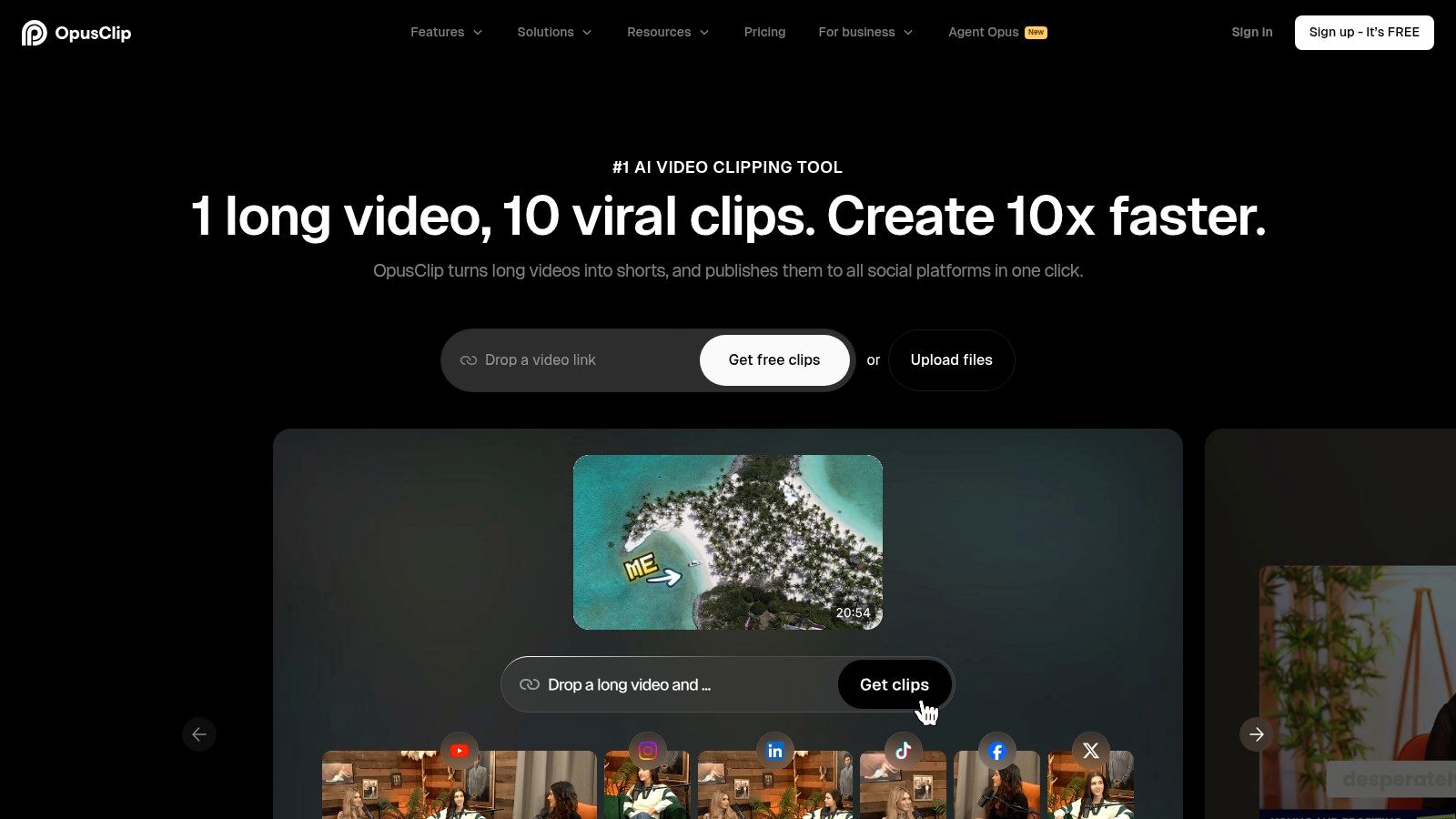
If you publish long-form video and still hand-cut every short clip, OpusClip can save you a lot of repetitive work. Its whole purpose is repurposing. Upload a webinar, podcast, interview, or livestream, and it pulls out multiple short clips with captions, reframing, and social-ready formatting.
That makes it one of the more specialized tools on this list. You don't use OpusClip for original editing. You use it after the main content exists.
Why it's useful in a modern stack
Repurposing is where a lot of creator output is won or lost. A strong one-hour conversation can turn into a newsletter quote, a blog post, several social videos, and a handful of hooks if the extraction process is fast enough.
That need is still underserved in many roundup lists. Impact Plus's overview of AI tools for content creation notes that AI transcription and repurposing workflows for spoken content are often undercovered, even though creators regularly need to turn podcasts and interviews into written and social assets.
If you want a practical framework for doing that beyond clipping alone, HypeScribe's guide to content repurposing strategies is worth pairing with OpusClip.
What it does well and where it stops
Auto clip detection, captions, reframing, and team workspaces are the reasons to use it. The scheduler and exports into pro editors are helpful too if your workflow starts automated and ends manual.
Repurposing principle: Let AI find candidate clips. Let a human choose the ones that match your voice and audience.
OpusClip isn't a replacement for editing the original episode. It also isn't magic. Some clips still need trimming, context repair, or a stronger opening line. But it removes the slowest part, which is searching long footage for reusable moments.
10. Kapwing
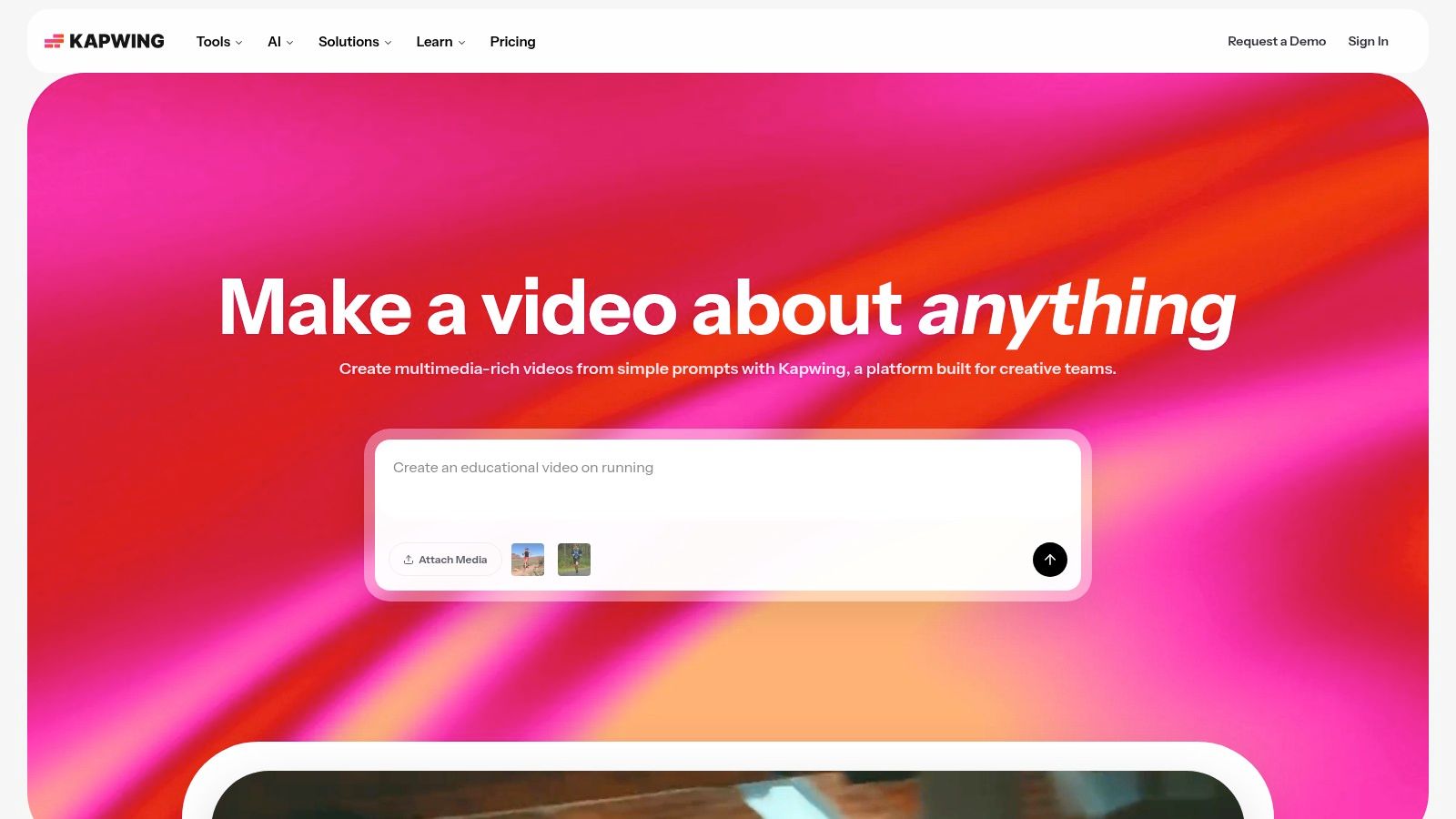
Kapwing is the browser-based editor I usually suggest to teams that want speed, collaboration, subtitles, and basic AI video utilities without asking everyone to install a full desktop setup. It runs well enough for common social workflows and stays approachable for non-editors.
That ease matters. Not every creator stack needs another heavyweight app. Sometimes a browser tool with smart cuts, translation, dubbing, script help, and clean audio is the better choice.
Best use cases for Kapwing
Kapwing is strongest when the job is quick assembly and collaboration. Social clips, translated videos, subtitled explainers, and team-reviewed drafts all fit well. It also helps if your hardware is modest or your team works across devices.
There's an international angle here too. One of the more overlooked needs in creator tooling is support for multilingual workflows in emerging markets. The Influencer Marketing Factory's roundup notes the gap in evaluating tools for creators working across 100+ languages and localization-heavy workflows. Kapwing's subtitle, translation, and dubbing features make it relevant in that context, even if it isn't the only answer.
Limits to keep in mind
Kapwing is not where I'd finish a demanding long-form project. Browser performance can dip on big timelines or asset-heavy sessions, and advanced finishing still belongs in a pro editor.
Still, for collaborative web-based editing, it does a lot right:
- Fast team access: No heavy install barrier.
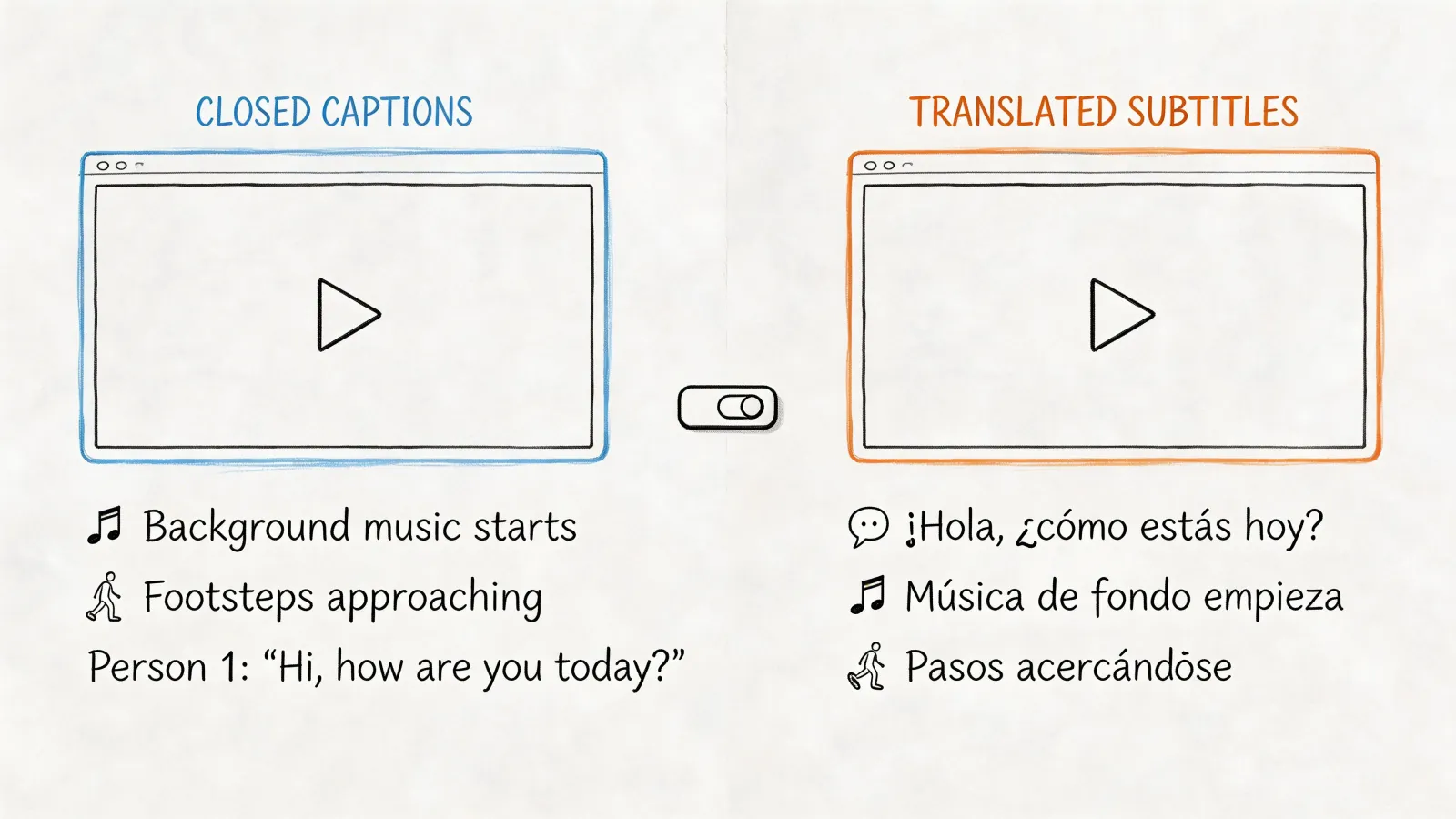
- Strong accessibility support: Subtitles, translation, and dubbing are practical, not decorative.
- Good fit for distributed teams: Cloud projects and shared review make feedback easier.
For quick multilingual social production, Kapwing is one of the most usable options.
Top 10 AI Tools for Content Creators
Your Next Move Start With Your Biggest Bottleneck
You finish recording a strong interview, then lose an hour finding the transcript, another hour pulling usable quotes, and another stitching clips for three channels. That is usually the core problem. The bottleneck is not "AI" in general. It is the slowest step in your workflow.
Creators waste money when they buy by category instead of by friction. A writing tool, a design tool, a video tool, and a planning tool can still leave the process messy if none of them fixes the part that keeps work stuck. Start with the step that burns the most time every week or causes the most rework. Fix that first, then add the next layer only if it removes a clear constraint.
For some creators, the blocker is ideation. If the work keeps stalling at the blank page, a drafting tool helps because it shortens the distance between rough thought and usable outline. For others, the blocker shows up much earlier. Raw material sits in interviews, meetings, podcasts, classes, and voice notes, but nothing turns that spoken input into organized source material.
That is where the workflow view matters. HypeScribe fits at the capture stage. Notion handles organization and handoffs. Descript helps shape long recordings into something watchable. OpusClip helps cut that material into channel-specific outputs. Used together, those tools solve a production chain. Used randomly, they become overlapping subscriptions.
Visual work has its own bottlenecks. Canva is the quickest option for branded graphics, thumbnails, and simple promos. Adobe Express makes more sense if your assets, fonts, and approval flow already live inside Adobe. CapCut is built for speed on short-form social video, especially if you publish often and need templates, captions, and quick turnaround. Runway is better for shots, effects, or experiments that templates and stock assets cannot cover, but it also asks for more judgment and more iteration.
The right stack changes with the creator.
A solo consultant turning client calls into LinkedIn posts needs capture, summarization, and light design. A podcaster needs transcription, editing, clipping, and repackaging. A tutorial creator publishing in multiple formats may care more about subtitles, translation, and fast visual resizing than pure ideation. Broad "best ai tools for content creators" lists usually flatten those differences, which is why they often feel less useful than they should.
A practical setup usually looks like this:
- Capture and extract: Start with transcription or meeting capture if your best material begins as speech.
- Organize and shape: Add a workspace tool if drafts, notes, approvals, and research are scattered across apps.
- Edit for the channel: Choose design or video tools based on what you publish, not what looks impressive in a demo.
- Repurpose from source material: Turn one strong recording, interview, or article into multiple assets before creating from zero again.
Keep the stack tighter than you think you need. One strong tool at each major stage usually beats five tools that all do 60 percent of the same job.
Start with the bottleneck that costs the most time. If that bottleneck is spoken content, transcription is the first upgrade. If it is short-form output volume, use a clipping or social editor first. If packaging is the weak point, start with Canva or Adobe Express and get your publishing layer under control before you add anything else.
That is how these tools become useful in real work. They stop being a pile of demos and start acting like a workflow.
If your content starts with podcasts, interviews, meetings, classes, or voice notes, HypeScribe is a smart first tool to add. It turns spoken content into searchable transcripts, summaries, and action items quickly, which makes the next steps easier, including writing, editing, clipping, and publishing.