10 Ways for Video to Text Transcription Free in 2026

You just finished a webinar, interview, lecture, or product demo, and now the actual work starts. You need quotes, takeaways, captions, maybe a summary for a blog post or client report. Replaying the whole thing and typing it out by hand is the kind of task that eats an afternoon and still leaves you with messy notes.
That's why video to text transcription free tools are so useful. The right one can turn spoken content into searchable text fast enough that transcription stops feeling like a separate project. Once you have the words, it's easier to edit, repurpose, caption, and share. If you need cleaner audio before transcribing, this guide on how to extract sound from video can help.
There's one catch. “Free” rarely means unlimited. One roundup of free tools notes a free tier with only two transcripts per day and a 20-minute upload cap, and a separate review says budget and free tools often land around 80-88% accuracy on clear audio while professional AI tools tend to reach 90-96% on the same kind of input, according to this analysis of free video transcription limits and accuracy trade-offs. That's why the best choice depends less on price alone and more on your use case.
1. HypeScribe

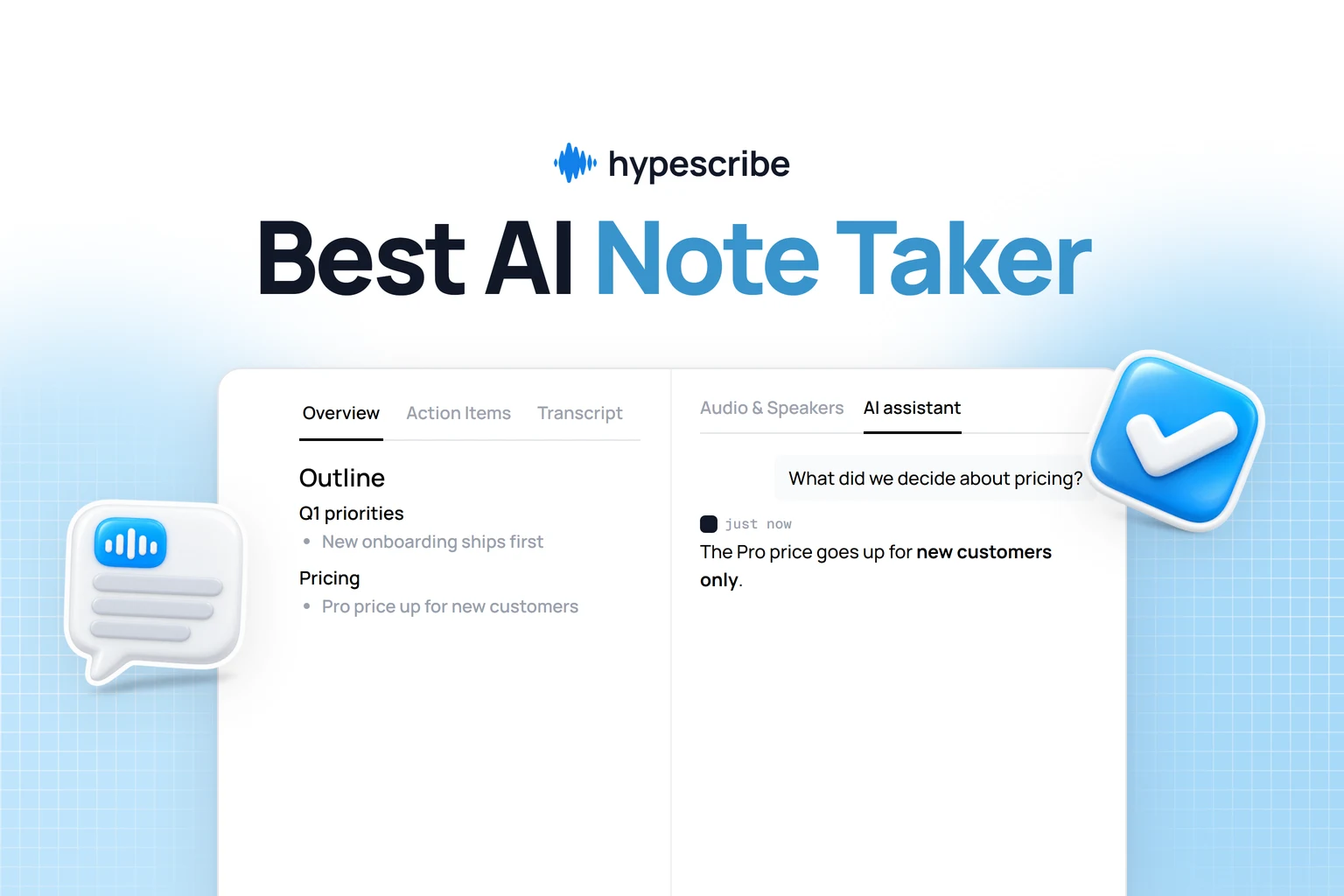
A common transcription bottleneck shows up after the audio is already converted. The words are there, but they still need to become notes, highlights, captions, or follow-up tasks. HypeScribe is more useful than a basic transcript tool if that post-transcription work matters as much as the transcript itself.
It supports uploaded files, video links, voice recording, and live meeting capture, so it fits mixed workflows better than tools built for a single channel. That matters for anyone switching between webinars, interviews, Zoom calls, and short-form clips during the same week.
What stands out in practice is the output. Instead of leaving you with a long block of text, it also creates summaries, key takeaways, and action items. For researchers, marketers, recruiters, and distributed teams, that often decides whether the transcript is immediately useful or still needs another editing pass.
Where It Fits Best
HypeScribe makes the most sense in the "freemium AI app" category of this list. It sits between simple platform-native tools and privacy-first offline options. You get more automation and better working outputs than a built-in caption system, but without the control and local processing you would get from open-source software.
It supports direct uploads plus links from YouTube, Instagram, Facebook, Vimeo, Google Drive, and other sources. It also includes a note-taker that can join Zoom, Google Meet, and Microsoft Teams for live transcription and meeting summaries.
A few details make the tool easier to work into real production workflows:
- Flexible input options: It can handle uploaded media, hosted video links, recorded audio, and live meetings.
- Long-form support: It uses a token model instead of a simple short-duration cap, which is more practical for longer sessions.
- Common export formats: You can send transcripts to Google Docs, Word, PDF, TXT, and Markdown.
- Post-processing that saves time: Summaries and action items help when the primary output is a report, article draft, or meeting follow-up.
- Privacy features: It includes encryption in transit and at rest, plus deletion options for source files and transcripts.
Practical rule: Choose this kind of tool when you need outputs you can work with right away, not just text to clean up later.
Analysts at Sonix note in their roundup of meeting transcription adoption and accuracy benchmarks that usage is rising because teams save time, but accuracy still drops in noisy, messy recording conditions. That lines up with hands-on use. Good software helps, but weak audio still creates avoidable cleanup work.
Trade-offs That Matter
HypeScribe is not the simplest option for occasional one-off transcription. If the job is a short clip and nothing else, a platform-native tool can be faster because there is less setup and fewer decisions to make.
The pricing model also matters. Once you move beyond the free trial, token-based usage rewards teams that need richer outputs from fewer files, but heavy-volume users should watch costs closely. For creators and researchers who regularly turn spoken content into summaries, notes, and publishable text, that trade-off can be worth it.
2. YouTube Studio Automatic Captions and Transcript

If your video is already on YouTube, start with YouTube captioning support. It's built in, it's fast, and you don't have to move files between platforms. For a lot of creators, that convenience beats a more advanced tool.
YouTube auto-generates captions for supported languages, and the transcript panel is good enough for pulling quotes, timestamps, and rough notes. I wouldn't treat it as final text for a polished article without editing, but for first-pass extraction it does the job.
Best for Existing YouTube Workflows
This works especially well for public, unlisted, and private uploads when you mainly need a transcript you can scan and copy. It also fits creators who already publish to YouTube and don't want another subscription or app.
What works well:
- No setup overhead: Upload the video and let YouTube generate captions.
- Transcript access: The “Show transcript” view is handy for quick copy-paste work.
- Basic edits in platform: You can clean captions without leaving Studio.
What doesn't work as well is exporting neat transcript files. You can get the text, but it's not the smoothest route if you need structured TXT, SRT, or a polished document.
The simplest transcription workflow is often the one built into the platform where your video already lives.
The catch is accuracy. Accents, poor mic quality, crosstalk, and niche terminology can all throw it off. Use it when convenience matters more than transcript polish.
3. Otter.ai

Otter.ai has been a default choice for meeting notes for a reason. It's easy to open, easy to share, and the searchable transcript view is still one of the more practical ways to review conversations without scrubbing through video.
Otter makes the most sense for recurring conversations rather than one-off media production. If you're transcribing calls, interviews, brainstorms, and internal meetings every week, its structure feels familiar fast.
Where the Free Plan Helps and Where It Doesn't
Otter's free tier is useful for testing and light personal use, but this is also a good example of why “free” needs closer reading. Otter says there's “no strict time limit,” but use still depends on available minutes, as noted in this guide to hidden trade-offs in free transcription plans. That distinction matters because “no strict limit” sounds open-ended until you hit your monthly cap.
A few reasons people stick with it:
- Searchable transcripts: Good for finding a name, quote, or decision later.
- Speaker labeling: Helpful when conversations have multiple participants.
- Reliable apps: Web and mobile access make it easy to capture or review on the go.
The limitations show up once you need more collaboration controls, longer recurring sessions, or heavier file import use. That's when the free plan starts feeling more like a sampler than a durable workflow.
For meetings and recurring note capture, it's still a solid free option. For creators who need cleaner exports and more flexible media handling, other tools on this list fit better.
4. Descript
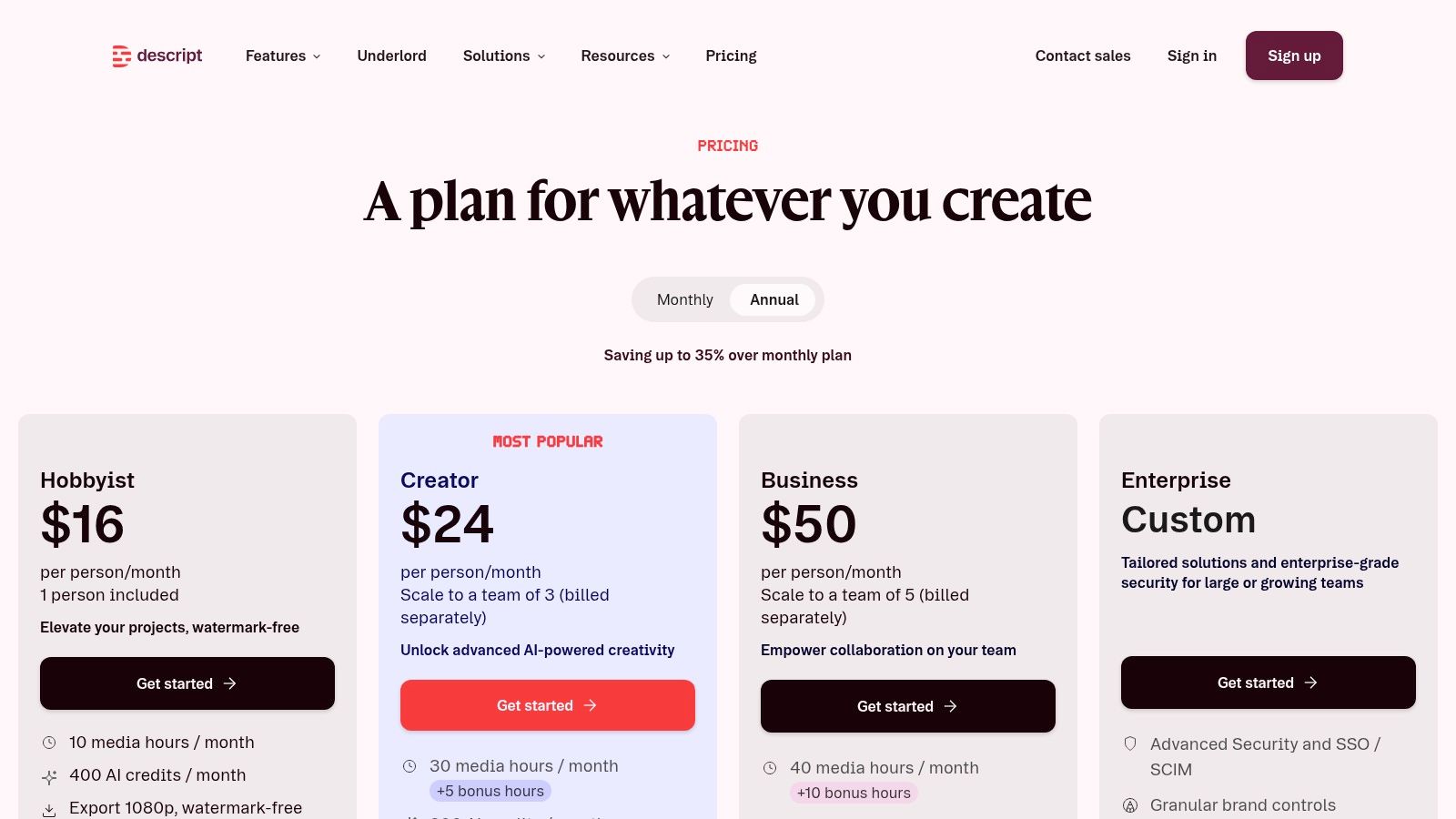
Descript pricing and plans appeal most to creators who don't think of transcription as a standalone task. In Descript, the transcript is the editing interface. Delete a sentence in text, and you've effectively edited the media.
That makes it one of the best picks here for podcasts, talking-head videos, interviews, and course content. If your transcript is also your edit decision list, Descript saves friction.
Best for Transcript-Led Editing
Descript shines when the end goal is publication, not just documentation. You upload media, get an automatic transcript, then cut clips, build captions, and export subtitle files from the same place.
Its strongest use cases usually look like this:
- Creator workflow: Edit the spoken content by editing words.
- Caption workflow: Build subtitles while trimming the video.
- Repurposing workflow: Pull clips and transcript snippets from one source file.
The free plan is enough to test the workflow and see whether text-based editing clicks for you. If it does, it's hard to go back to a timeline-only editor for dialogue-heavy content.
The downside is that basic transcription can feel wrapped inside a larger editing suite. If all you need is plain video to text transcription free, Descript may feel heavier than necessary. It's best when transcription and editing are part of the same job.
5. Microsoft Clipchamp
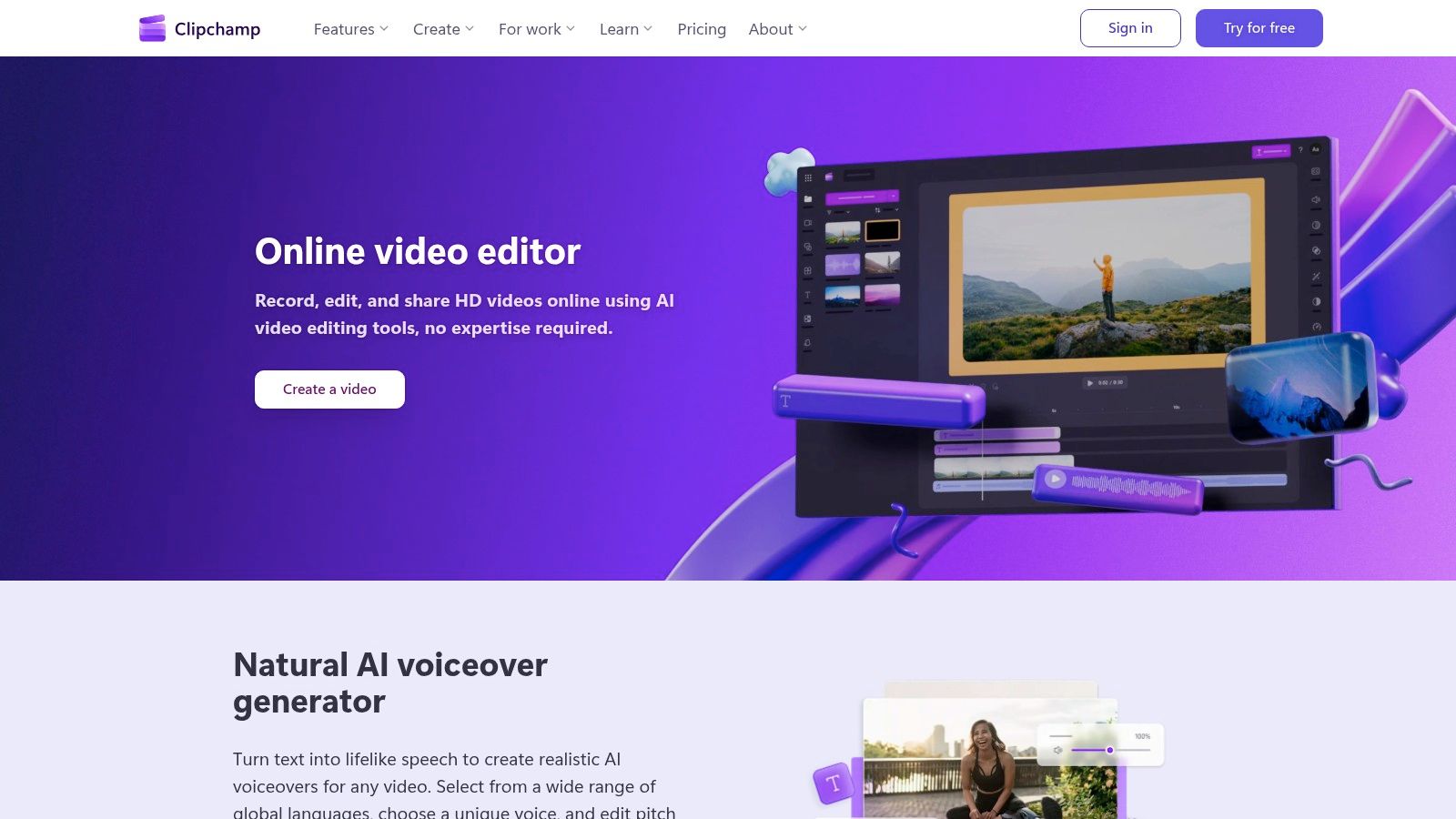
Microsoft Clipchamp is a practical middle ground. It's a browser editor, it's easy to get into, and its free auto-captions are useful even if you never touch the rest of the editing features.
What I like about Clipchamp is that it doesn't overcomplicate the caption step. If you need a quick subtitle pass and want an SRT file you can reuse elsewhere, it gets out of the way.
Why It's Handy for Simple SRT Work
Some free tools are okay at generating captions but awkward at exporting them. Clipchamp is more straightforward. You can create auto-captions, edit them in the browser, and download an SRT file without turning the process into a scavenger hunt.
That's useful for:
- Editors who already have a final cut: Generate captions after the main edit.
- Teams reusing subtitles elsewhere: SRT export makes handoff easier.
- Fast turnaround jobs: Good for webinars, explainers, and social clips.
The limits are mostly about depth. It doesn't offer the same level of AI post-processing, meeting intelligence, or transcript analysis you get from more specialized tools. You may also run into small editor quirks when revising captions live.
Still, for uncomplicated caption generation and subtitle export, it's one of the cleaner free choices.
6. Kapwing
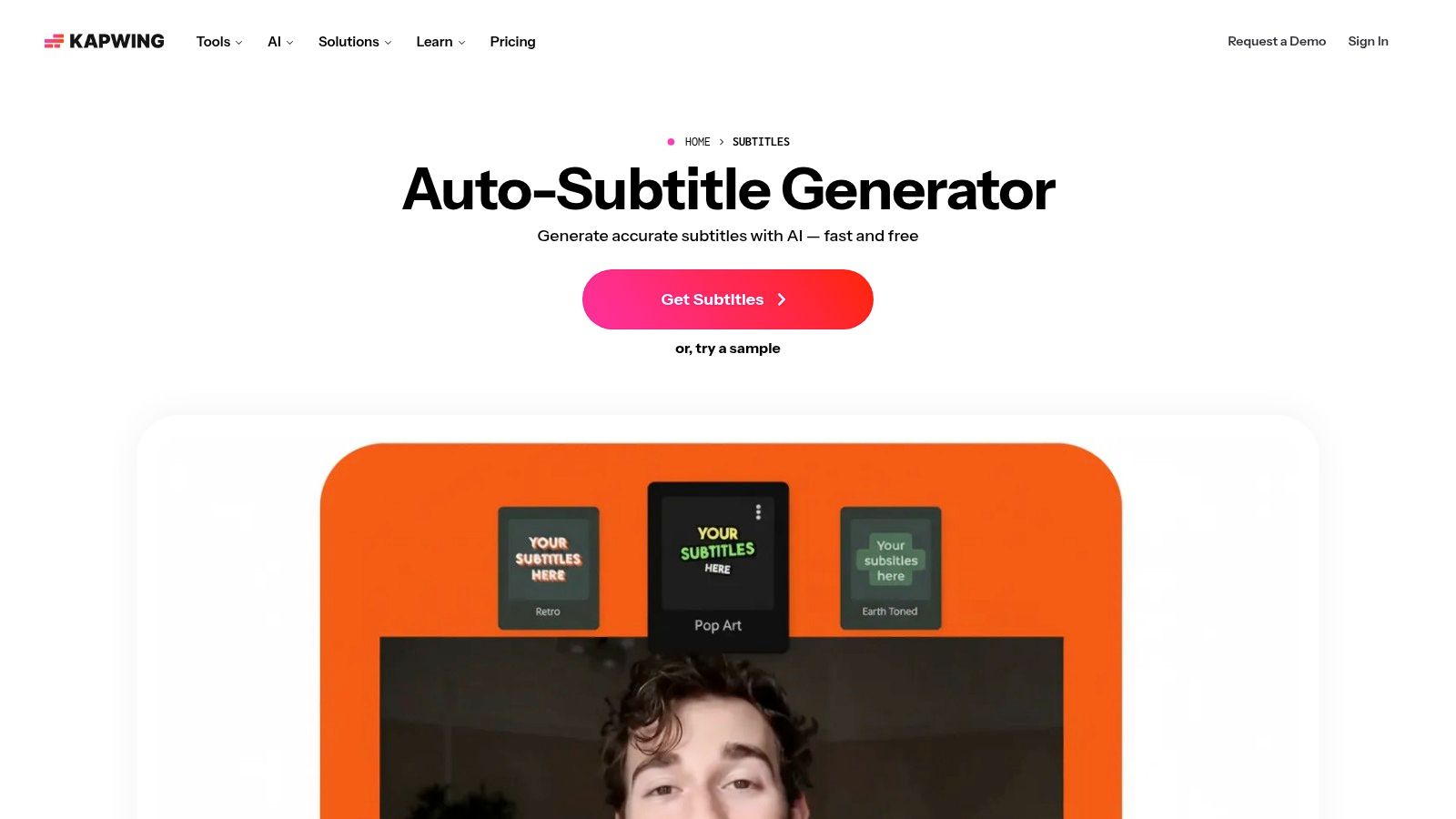
Kapwing subtitle tools are built for speed. Open the browser editor, upload the clip, generate subtitles, clean the text, and download what you need. If you make social content often, that speed matters more than having a deep editing environment.
Kapwing also works well for people who want both the transcript and the subtitle file, not just one or the other. That makes it more flexible than tools that lock you into caption overlays only.
Best for Social Video Repurposing
Kapwing is strong when your source material is a short interview, promo, reaction clip, or webinar cutdown. The transcript editor is visible and editable, and you can export in TXT, SRT, or VTT formats.
That combination helps in a few common scenarios:
- Clip-first publishing: Add subtitles for social, then reuse the transcript for post copy.
- Fast team review: Share a browser project instead of passing files around.
- Multi-format output: Keep plain text and subtitle versions from one edit.
Kapwing's free plan has the usual compromise. Free exports include a watermark, and support for very long videos has limits. A useful fine-print detail is that Kapwing supports videos up to two hours long, which is called out in the same free-plan trade-off guide that compares hidden restrictions. For short and medium social content, that's usually enough. For long lecture libraries or heavy weekly use, it's less comfortable.
7. VEED.IO
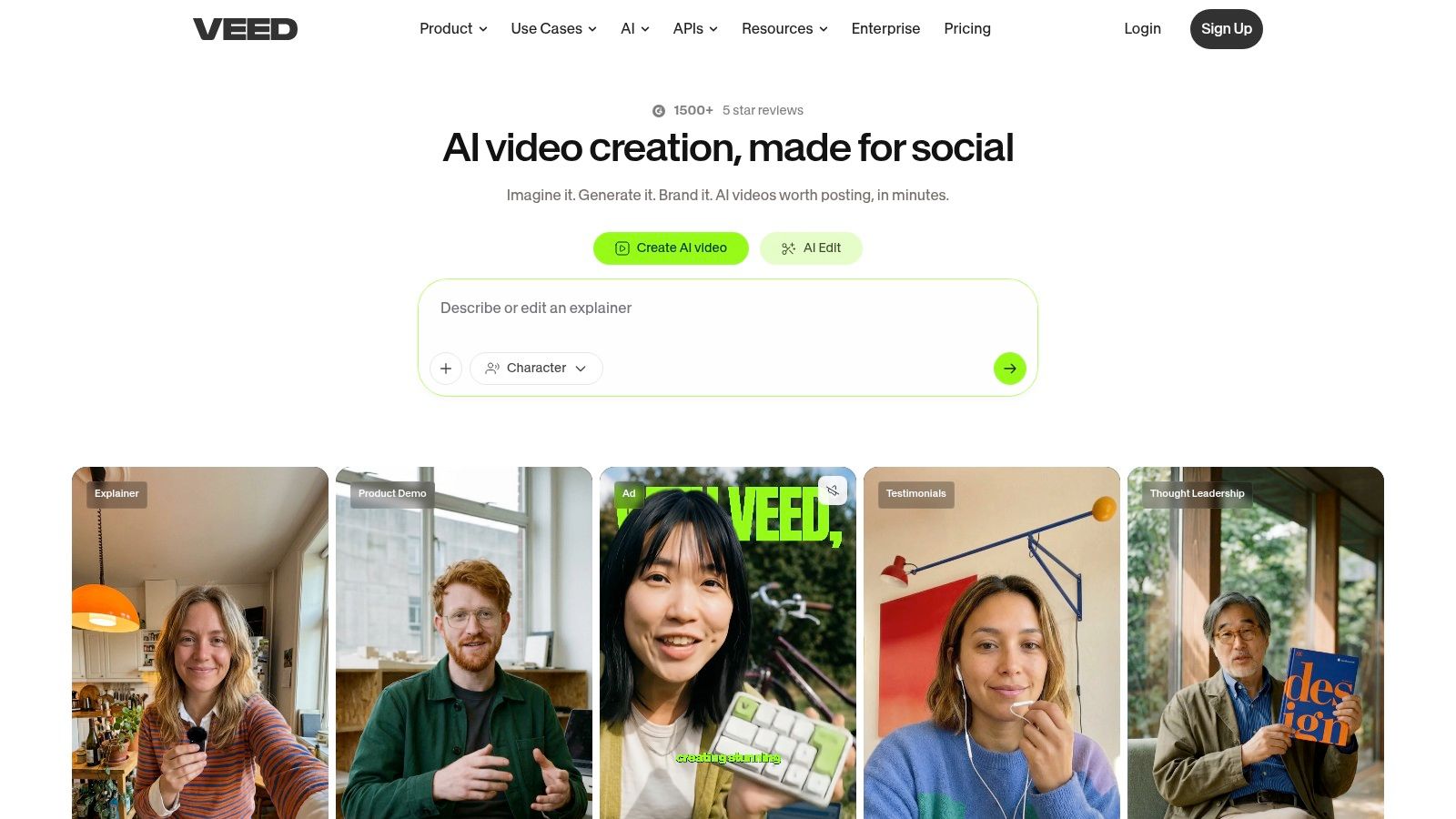
VEED.IO is one of the easier tools to recommend to non-editors. The interface is approachable, subtitle generation is quick, and styling captions doesn't require much digging.
If you regularly make short clips for LinkedIn, Instagram, or internal training, VEED keeps the process simple enough that you can finish the task before it becomes a project.
Where VEED Works Best
VEED is strongest on short-form video with visible captions. You upload a clip, generate subtitles, edit the transcript, then style the on-screen text in a way that feels made for social platforms.
That's useful when you need:
- Readable subtitles fast: The editor is clean and easy to follow.
- Basic translation support: Helpful for lightweight localization work.
- Cloud-based sharing: Easier than passing large video files around.
VEED's free version does come with a visible watermark on exported video, and transcript-file access may require upgrading in some cases. That distinction is one of the reasons free plans deserve scrutiny. A lot of pages promise instant conversion, but the export rules matter more than the initial demo.
If your final deliverable is the subtitled video itself, VEED is stronger than if your main deliverable is a clean standalone transcript.
Use it for captioned clips. Look elsewhere if your main output is document-ready text.
8. Notta
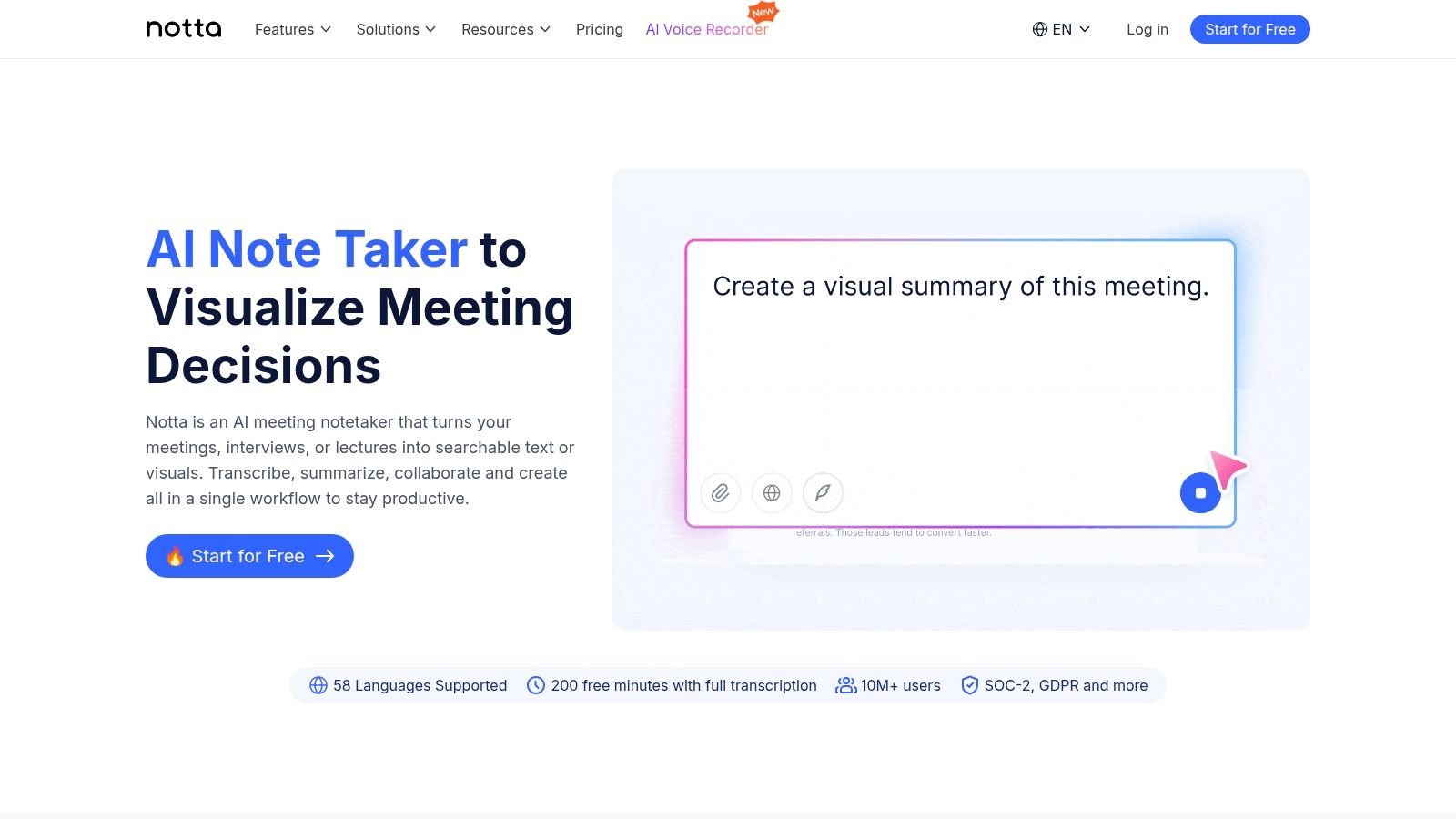
Notta sits in the same broad category as Otter, but it feels a bit lighter and more straightforward for simple upload-to-text jobs. If you want a web and mobile app that can handle meetings and files without much setup, it's easy to get started.
It's a good fit for students, solo consultants, and anyone who needs occasional transcripts from lectures, interviews, or calls. The interface doesn't ask much from you.
Good for Basic Capture and Review
Notta gives you real-time and file-based transcription, plus basic tools to search, edit, and share transcripts. That's enough for a lot of everyday use.
Where it helps most:
- Simple upload workflow: Drop in audio or video and get text back.
- Mobile access: Handy when the transcript starts on a phone and finishes on a desktop.
- Light editing needs: Clean up names, phrasing, and obvious misses without learning a full editor.
The free plan is modest compared with paid tiers, so it's not the best long-term choice for heavy users. But for low-volume transcription, it does the practical part well. Upload, transcribe, review, export.
If you don't need caption styling, video editing, or advanced meeting automation, Notta stays refreshingly focused.
9. Subtitle Edit
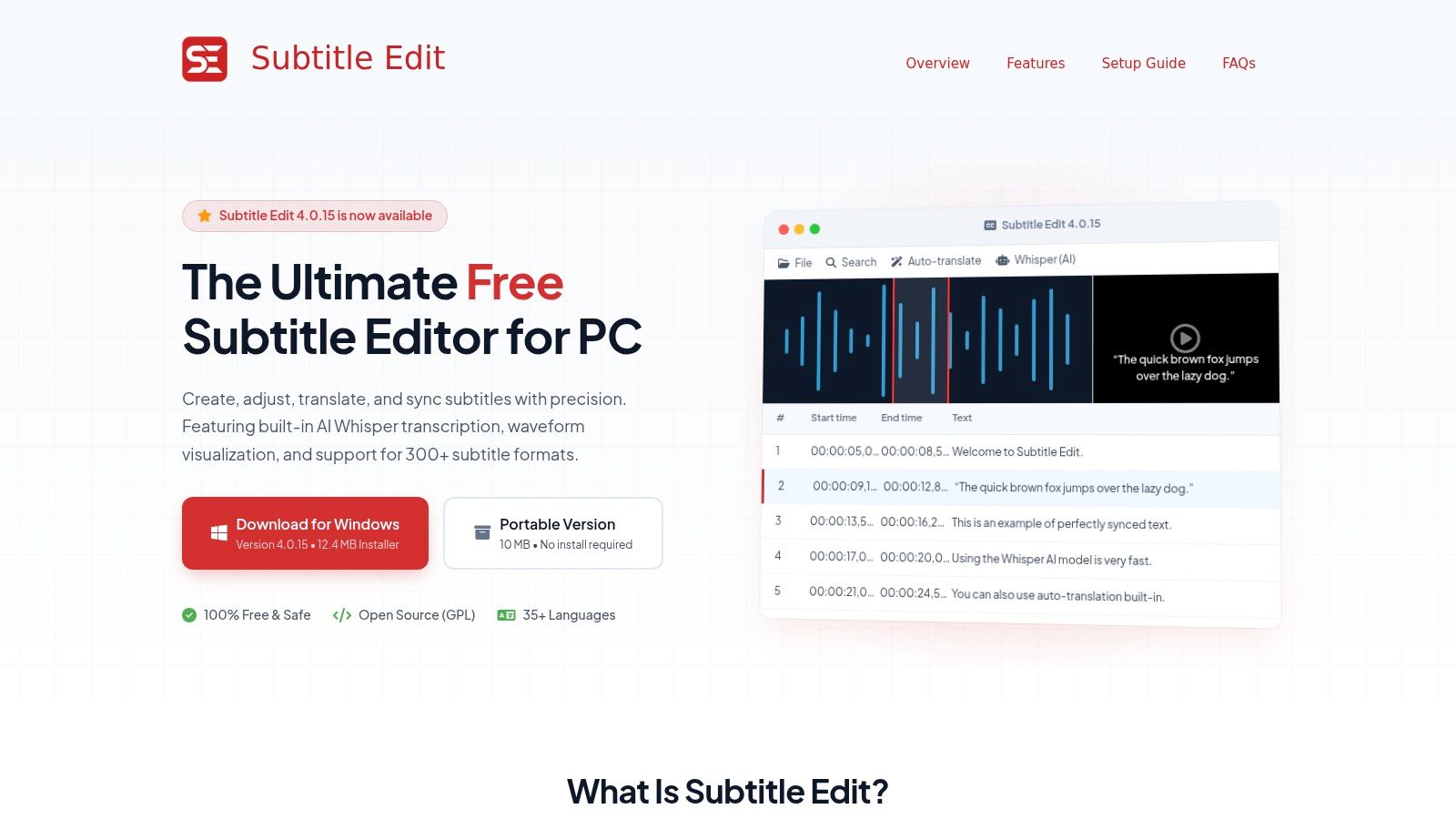
Subtitle Edit is where this list turns from convenient browser tools into serious offline control. It's free, open source, and especially useful if you care about subtitle timing, quality control, and local processing.
This is not the tool I'd hand to someone who wants the fastest possible first transcript with no setup. It is the tool I'd reach for when transcript quality and caption precision matter enough to justify a desktop workflow.
Why Power Users Keep It Around
Subtitle Edit can use local Whisper-based audio-to-text, which means you can transcribe without uploading private recordings to a cloud service. For journalists, researchers, legal teams, and anyone handling sensitive media, that's a big advantage.
It also gives you far more timing and cleanup control than browser-first tools:
- Offline-capable transcription: Good for privacy-sensitive projects.
- Fine timing tools: Waveform and spectrogram views help fix alignment issues.
- Broad subtitle format support: Useful when delivery specs matter.
If you work with subtitle files regularly, this developer's guide to subtitle files is a helpful companion for understanding what different formats are doing and when to use them.
Field note: Subtitle Edit is less about instant gratification and more about control. That's why experienced captioners and archivists like it.
The trade-off is a steeper learning curve. You'll need local compute resources, and the interface is more utility-focused than polished. But if privacy and timing precision are top priorities, few free tools match it.
10. Aiko
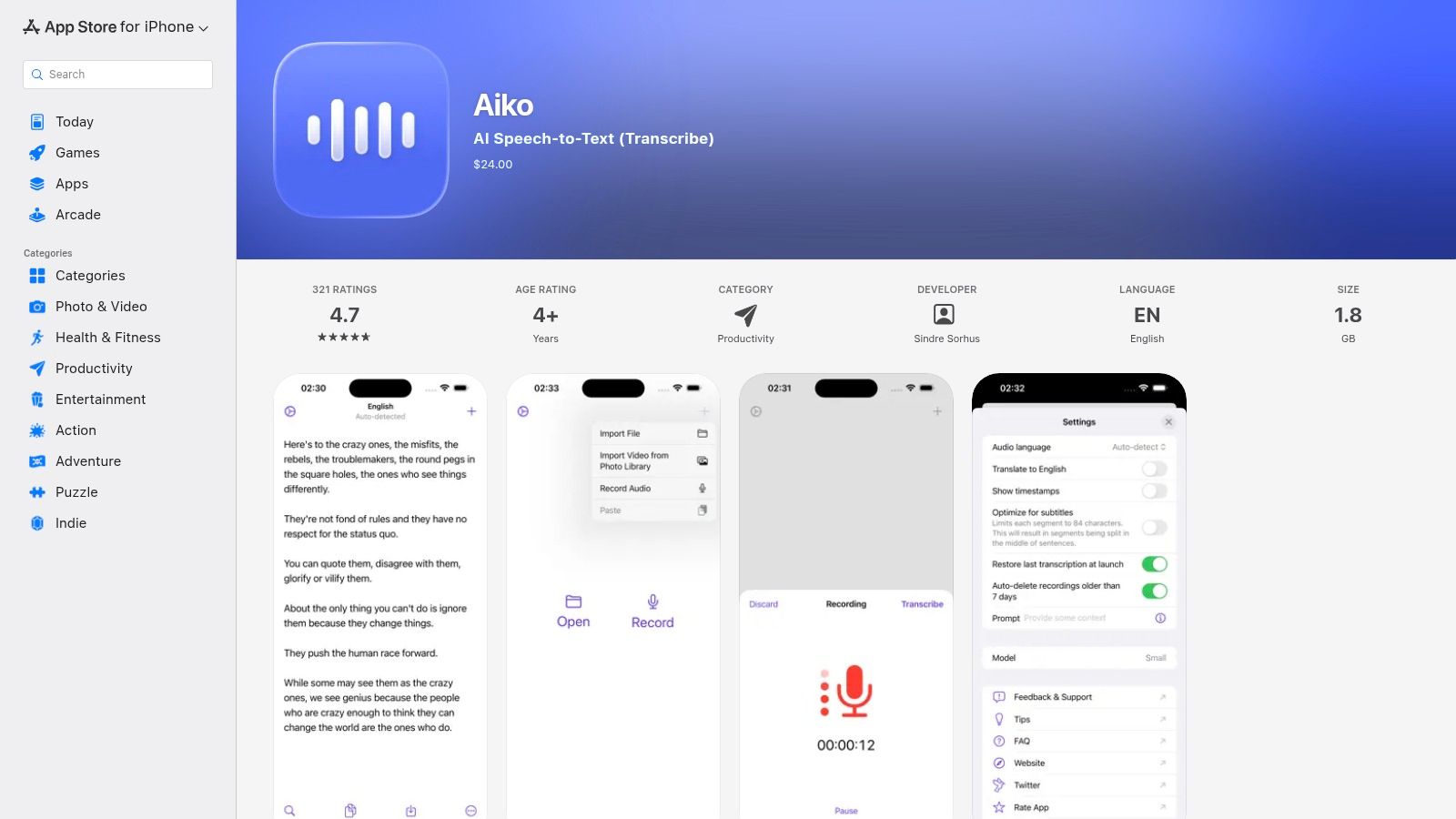
Aiko on the App Store is the easiest way on this list to get private, on-device transcription if you live in the Apple ecosystem. It runs on iPhone, iPad, and Mac, and it's designed around local processing rather than cloud upload.
That makes it a strong pick for interviews, voice memos, lectures, and field recordings you don't want to send to an external service. Drag in the file, let the device process it, export the text.
Best for Privacy on Apple Devices
Aiko's appeal is simple. No account friction, no browser upload, no waiting on a remote queue if you'd rather keep everything local.
Why people choose it:
- On-device processing: Better for privacy-sensitive recordings.
- Apple-first convenience: Works naturally on iPhone, iPad, and Mac.
- Straightforward export: Good when you just need transcript text without a bigger media workflow.
The trade-offs are also simple. It's Apple-only, and performance depends on your device hardware. Older devices won't feel as comfortable with heavier models or larger files.
For private personal transcription, though, it's one of the cleanest free options available. If your biggest concern is keeping recordings off third-party servers, Aiko deserves a spot near the top of your shortlist.
Top 10 Free Video-to-Text Transcription Tools Comparison
| Product | Core features ✨ | Quality & UX ★ | Price & value 💰 | Target audience 👥 | Standout / USP 🏆 |
|---|---|---|---|---|---|
| HypeScribe 🏆 | Uploads/links/recorder; live meeting note‑taker; file‑aware chatbot; auto summaries & action items | ★★★★★ up to ~99% accuracy; ultra‑fast (≤30s/hr) | 💰 Free trial → Starter/Pro/Ultra; token model for long files | 👥 Remote & hybrid teams, students, journalists, creators, support | ✨ No length limits (token system); real‑time integrations; actionable outputs |
| YouTube Studio Auto Captions | Auto captions; "Show transcript" panel; in‑studio edits | ★★★ variable by audio/accents | 💰 Free | 👥 YouTube creators & viewers | ✨ Built into YouTube; instant for uploaded videos |
| Otter.ai (Basic) | Real‑time & file transcription; speaker labels; searchable transcripts | ★★★★ reliable apps; good for meetings | 💰 Free monthly minutes; paid tiers for more | 👥 Professionals, meeting note takers, teams | ✨ Mature collaboration + mobile apps |
| Descript (Free) | Auto transcription + text‑based audio/video editing; captions & clips | ★★★★ polished editor & workflows | 💰 Free limited minutes; paid for advanced features | 👥 Podcasters, creators, video editors | ✨ Edit media by editing text; strong caption workflow |
| Microsoft Clipchamp | Auto‑captions; caption editor; download .srt | ★★★ good for quick captions | 💰 Free captions/editor (no watermark for captions) | 👥 Windows/Edge users, casual creators | ✨ Simple SRT export; browser editor |
| Kapwing | AI subtitle generator; editable transcript; download TXT/SRT/VTT | ★★★ fast browser workflow | 💰 Free with watermark & limits; paid removes watermark | 👥 Social video creators & marketers | ✨ Social presets; quick subtitle + transcript export |
| VEED.IO | Auto‑subtitles & translation; caption styling; SRT export | ★★★ approachable UI for non‑editors | 💰 Free tier with watermark & limits | 👥 Creators of short social clips | ✨ Built‑in translation + styling tools |
| Notta (Free) | Uploads/meetings; real‑time & file transcription; search & share | ★★★ straightforward; mobile support | 💰 Free modest minutes; Pro for larger quotas | 👥 On‑the‑go users, meeting attendees | ✨ Simple mobile‑friendly capture & sync |
| Subtitle Edit (OSS) | Offline Whisper support; waveform/timing tools; 300+ formats | ★★★★ precise timing & QA (desktop) | 💰 Free & open‑source | 👥 Subtitlers, pros, privacy‑focused users | ✨ Offline Whisper; pro timing/format tooling |
| Aiko (Apple; on‑device) | On‑device Whisper models; drag‑drop import; transcript export | ★★★★ private/offline accuracy (device‑dependent) | 💰 App Store pricing (one‑time / varies) | 👥 Apple users prioritizing privacy/offline | ✨ Fully on‑device transcription; no uploads/account needed |
Choosing the Right Free Transcription Tool for You
The hardest part of picking a video to text transcription free tool isn't finding one that works. It's finding one that matches the way you work. Some tools are built for platform convenience. Some are built for creators editing social clips. Others are closer to research or production software, where privacy, export control, and cleanup tools matter more than a slick browser interface.
A broader market view helps explain why. The global AI transcription market is projected to grow from USD 4.5 billion in 2024 to about USD 19.2 billion by 2034, with software holding 74.6% of market share and North America accounting for more than 35.2%, according to AI transcription market projections and segment data. In practice, that means the strongest tools are increasingly software-first products designed to fit into larger workflows, not just one-click transcription widgets.
If you want the path of least resistance, start with the platform-native option. YouTube Studio is the easiest choice for videos that already live on YouTube. It's free, immediate, and good enough for rough extraction and basic caption editing.
If your work revolves around social content and browser editing, Kapwing, VEED, and Clipchamp all make sense. They're best when the transcript is part of a captioning workflow, not the final deliverable by itself. Descript is the stronger choice when text-based editing is the core of your publishing process.
For meetings and recurring note capture, Otter and Notta are practical. They keep transcripts searchable and shareable, which matters more than fancy editing if you're mostly reviewing conversations. Just pay attention to what free means in the details. Limits on minutes, exports, watermarks, and file handling usually matter more than the homepage promise.
For privacy and control, Subtitle Edit and Aiko stand out. They're especially useful when you don't want to upload sensitive recordings or when you need local processing and better handling of subtitle files.
For higher-volume work, HypeScribe is the strongest starting point in this list if you need more than just text. It's built for turning spoken content into something you can search, summarize, share, and act on. That's the difference between a transcript that sits in a folder and one that moves work forward.
If you want a free starting point that already feels like a professional workflow, try HypeScribe. It handles video files, video links, live meetings, summaries, action items, and flexible exports in one place, which makes it a strong next step when basic free tools start feeling too limited.