
Free Conversion from YouTube to MP3: A 2026 Safety Guide
You've probably done this before. You find a lecture you want for a commute, a long interview you'd rather hear without staring at a screen, or a music set you want offline. Then you search for a free conversion from YouTube to MP3, land on a converter site, and hope the giant “Download” button is the actual one.
That still works sometimes. It also gets people into trouble because most guides obsess over speed and ignore risk. If you're going to convert YouTube audio anyway, it's worth knowing which methods are convenient, which ones are safer, and when an MP3 file is the wrong output for the job.
Why You Might Want a YouTube to MP3 Conversion
The appeal is obvious. Audio files are lighter, easier to move around, and more practical when you only care about what you can hear. A full YouTube video is overkill if all you want is a lecture in your headphones, a podcast episode for a flight, or background audio for a workout.

This habit has been around for a long time. The practice became especially visible in the late 2000s and 2010s as web tools made the process as simple as copying a video URL, pasting it into a converter, and downloading the audio. By the 2020s, mainstream roundups were already naming common options like Y2Mate, YTMP3, Online Video Converter, FLVTO, and MP3FY, which shows how standardized this category had become according to this overview of common free YouTube to MP3 converters.
Common situations where MP3 makes sense
Some use cases are straightforward:
- Offline listening: A saved MP3 is easier on data and battery than keeping a video stream open.
- Speech-first content: Interviews, talks, and panel discussions often don't need visuals once you've watched them once.
- Simple playback on older devices: MP3 still works almost everywhere.
- Background listening: Ambient mixes, long-form discussions, and audio essays fit naturally into an audio-only format.
The reason people keep searching for free conversion from YouTube to MP3 isn't complicated. It solves a practical problem fast.
Practical rule: If your goal is only to listen, an MP3 can be enough. If your goal is to study, quote, summarize, or search, audio alone may slow you down later.
The part most guides skip
Most pages about this topic stop at “paste link, click convert.” That's the easiest part. The harder questions are the ones that matter more in real use:
| Question | Why it matters |
|---|---|
| Is the tool safe? | Some sites are built to monetize confusion, not help you convert files. |
| Do you need a browser tool at all? | Local conversion can be more predictable and less risky. |
| Is MP3 the right output? | For lectures and interviews, text may be more useful than audio. |
That's where the trade-offs start. Convenience is real, but so are privacy concerns, fake buttons, messy downloads, and low-control output.
Web Converters vs Desktop Software vs Mobile Apps
A common approach involves choosing a method based on whatever appears first in search. That's usually the wrong way to pick a tool. The better question is what level of risk, control, and friction you're willing to accept.
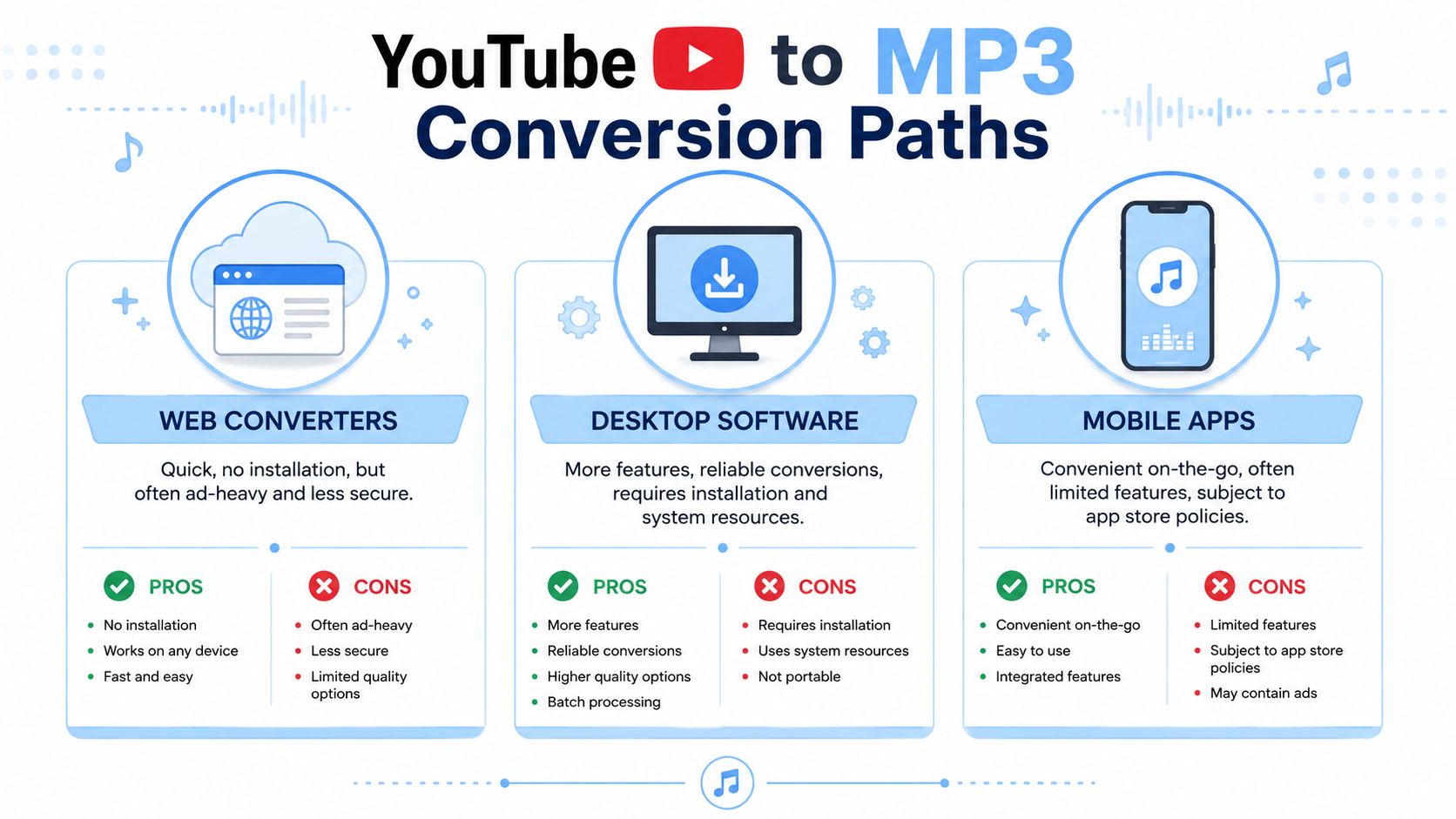
A lot of browser-based services still follow the same familiar pattern. Paste a YouTube link, choose MP3, convert, download. Some also advertise output up to 320 kbps, which is the highest bitrate commonly associated with standard MP3 encoding, as noted in this discussion of converter quality claims and workflow patterns. That sounds great on a landing page, but bitrate claims don't tell you whether the site is safe, stable, or worth trusting.
The practical differences
Here's the actual comparison.
| Method | What it does well | What usually goes wrong | Best fit |
|---|---|---|---|
| Web converters | Fast, no install, works on shared devices | Aggressive ads, fake buttons, poor trust signals | One-off personal use with caution |
| Desktop software | More control, cleaner workflow, local processing | Setup takes longer, you have to trust the app you install | Repeat use and safer handling |
| Mobile apps | Convenient on the go | Limited file management, store restrictions, inconsistent quality | Casual use when desktop isn't available |
Which one works best in practice
Web converters win on friction. You can get from link to file in a minute if the site behaves. The problem is that many don't behave. They're cluttered, deceptive, or too eager to push extra downloads.
Desktop software is less flashy but usually more dependable. You install once, learn the workflow once, and avoid a lot of browser mess after that. If you convert often, that trade makes sense quickly.
Mobile apps sit in the middle. They're convenient, but not elegant. File handling on phones is still clumsier than it should be, and some apps disappear or lose functionality with policy changes.
If you only need one throwaway MP3, a web converter might be enough. If you care where the file came from, what got installed, or how repeatable the process is, desktop tools usually make more sense.
A simple decision filter
Use this when you're choosing:
- Need speed: Web converter.
- Need consistency: Desktop software.
- Need convenience away from your laptop: Mobile app.
- Need control over the result: Avoid the browser-first route.
That last point matters more than people think. The fastest path often creates the messiest output.
Using VLC Media Player for a Secure Conversion
If you want a safer route without gambling on random converter pages, VLC is the practical default. It's a known media player, it runs locally, and it gives you more predictable control over the output file.
The cleaner workflow is not to make VLC parse a live YouTube page in your browser session. The safer approach is to get the source video onto your machine first, then convert it locally. Independent guidance describes this as a technically safer path than browser-based converters because it avoids live URL parsing and gives you more predictable codec control in this VLC conversion walkthrough.
The VLC method that keeps things local
Once the source video is on your computer, the steps are simple:
- Open VLC Media Player.
- Go to Media > Convert/Save.
- Add the video file you downloaded.
- Choose the Audio - MP3 profile.
- Pick an output filename that ends in .mp3.
- Start the conversion.
That's it. No ad-heavy conversion page. No mystery pop-up. No weird “helper app.”
Why this method is worth the extra minute
Local conversion is less convenient than pasting a URL into a browser box. It's also less likely to trick you.
Here's what improves when you use VLC this way:
- Cleaner output control: You know what format you selected.
- Less exposure to junk UI: There's no fake “Download Now” button competing for your click.
- Better repeatability: Once you've done it once, the workflow stays the same.
- Safer file handling: You're converting a file you already have, not interacting with a live parsing service.
For broader audio cleanup work after conversion, this guide on how to convert a FLAC to MP3 is useful if you deal with different source formats.
When to skip VLC and use the command line
If you're comfortable in Terminal or Command Prompt, command-line extraction is stronger for repeat jobs. A common expert method is yt-dlp -x --audio-format mp3 --audio-quality 0 [YOUTUBE_URL], which targets best-quality MP3 output. Vendor guidance also notes that VLC can achieve about a 95% success rate on standard videos for network-stream extraction, while warning that higher-quality output means larger files and more processing time in this guide to YouTube link to MP3 workflows.
That doesn't mean everyone should switch to the command line. It means there's a ladder here. Browser tools are easiest. VLC is safer. yt-dlp is for people who want precision and don't mind setup.
How to Spot and Avoid Online Converter Scams
The biggest risk with online converters usually isn't the actual media conversion. It's the interface wrapped around it. Plenty of these sites make money by getting you to click the wrong thing, install something extra, or hand over permissions you never needed to give.
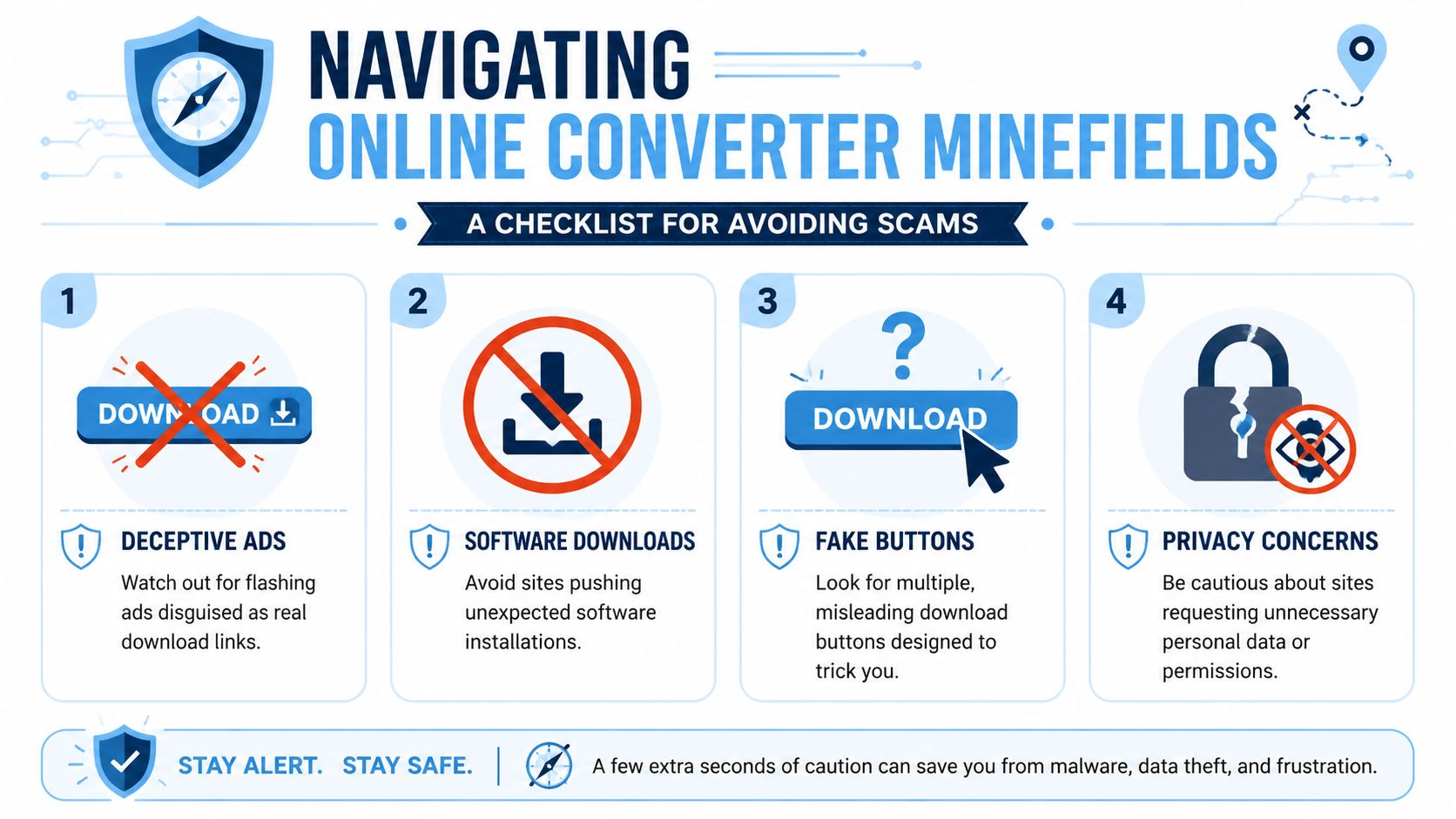
That safety gap is still underexplained. Many free YouTube to MP3 pages focus on speed, quality, and no-sign-up messaging, but they often skip the practical questions users care about, such as risk, data collection, adware, and deceptive buttons, as described in this analysis of reliability and safety gaps in converter content.
The red flags that should stop you
A few warning signs show up again and again:
- Multiple download buttons: If a page has several bright buttons, assume most of them are ads.
- Unexpected software prompts: A converter site shouldn't need a browser extension or separate installer just to save audio.
- Notification requests: “Allow notifications” is not part of MP3 conversion.
- Wrong file extension: If you expected
.mp3and got.exeor a strange archive file, delete it. - Pop-ups that multiply: One conversion should not trigger a chain of new tabs.
The real product on many free converter pages isn't the MP3. It's your click.
A safer browser-based routine
Sometimes you still need a quick web conversion. If that's the case, keep the session narrow and skeptical.
- Use one job per visit: Convert the file you need, then leave.
- Refuse extra installs: No helper apps, no toolbar, no browser add-ons.
- Check the file name first: Make sure it ends in
.mp3before opening it. - Avoid sharing data: If the page asks for personal information, it's already asking too much.
If you want a broader look at safer options and workflows, this article on YouTube free converter video workflows is worth reading.
What works and what doesn't
What works is boring. That's usually a good sign. A clean interface, one conversion box, one output choice, one actual download.
What doesn't work is “free” wrapped in urgency. Flashing buttons, fake virus alerts, aggressive redirects, and surprise installers are all signals that the site's incentives are not aligned with yours.
Is It Legal to Convert YouTube Videos to MP3
People want a yes-or-no answer, but usually don't get one. The legal side depends on the content, your rights to it, your location, and what you plan to do with the result.
There are two separate issues. The first is YouTube's own rules. The second is copyright law.
YouTube's rules and copyright are not the same thing
YouTube generally limits downloading unless the platform itself provides a download option or the creator has made that permission clear. That's a platform rule.
Copyright is a different layer. If the source is copyrighted music, a movie clip, or any protected work that you don't have permission to copy, converting it to MP3 can create legal risk. That risk goes up if you redistribute it, use it commercially, or incorporate it into another project.
Cases that are less risky
Some content is on firmer ground than others:
- Your own uploads: If you own the material, you're in a much safer position.
- Public domain works: These are generally safer to reuse.
- Creative Commons material with the right permissions: The exact license matters.
- Creator-approved downloads: Permission changes the analysis.
- Internal company or team content: If your organization owns it, that's a different scenario from ripping public content you don't control.
Check the rights before you check the bitrate.
A practical way to think about it
Ask three questions before you convert:
- Who owns the content?
- Did they permit downloading or reuse?
- Am I keeping this for personal access, or using it in a way that affects others?
If you can't answer those clearly, treat the file as legally sensitive. This isn't legal advice, and it shouldn't replace local counsel for business or newsroom use. But as a working rule, permission matters more than the converter you pick.
From Audio File to Actionable Text with HypeScribe
A lot of people search for free conversion from YouTube to MP3 when what they really want is access to the information inside a video. That difference matters. A song is something you play. A lecture, interview, or meeting is something you usually need to review, quote, search, and organize.
That gap is under-served in most converter content. Existing pages rarely help people think through legitimate spoken-word use cases like lectures, interviews, podcasts, and offline learning, even though recent pages point toward stronger demand for longer educational content and a need to compare conversion against transcription workflows in this discussion of long-form and study-oriented use cases.
When MP3 is the wrong output
If you're dealing with spoken content, an MP3 often creates extra work.
An audio file is fine for passive listening. It's bad for finding one quote in a long interview, reviewing a lecture before an exam, or sharing specific takeaways with coworkers. You can't skim it. You can't search it. You have to scrub and listen.
That's where a text-first workflow becomes more useful. Instead of converting the video just to create something you'll later need to replay and annotate, you can transcribe it directly. HypeScribe's audio-to-text workflow is one example of that approach. It lets users work from spoken content as searchable text rather than a flat MP3 file.
Better fits for study and professional work
For spoken-word material, text gives you options that audio alone doesn't:
- Searchability: Find names, terms, and quotes quickly.
- Review speed: Skim key moments instead of replaying everything.
- Collaboration: Share excerpts and notes without sending a long file.
- Organization: Turn raw media into material you can file, tag, and reference later.
This is especially useful for:
| Content type | Better default |
|---|---|
| Music or ambient audio | MP3 |
| Lecture or webinar | Transcript |
| Interview for research | Transcript with timestamps |
| Podcast clip hunting | Transcript first, audio second |
An MP3 is still a valid output. It's just not always the useful one.
If the goal is to turn YouTube speech into something searchable, editable, and easier to use, HypeScribe is worth considering. Paste a link, get structured text, and work from the content instead of scrubbing through a long audio file.


































































































