Facebook Video Transcription: Master Every Method

You've got a Facebook Live, interview, webinar replay, or short video that's worth more than a single post. The problem is that video is trapped in video form. You can't scan it fast, quote it easily, turn it into an article, or hand it to someone who needs text instead of audio.
That's where Facebook video transcription stops being a nice extra and starts becoming part of the workflow. A transcript gives you raw material you can edit, search, archive, repurpose, and clean up for captions or publication. If you've done this more than a few times, you also learn quickly that not every method works equally well. Public links are easy. Private group videos are not. Native captions are useful, but only up to a point. Noisy livestreams need a different approach than a polished studio clip.
What follows is the method that holds up in real use, from quick captioning to file-based transcription and final cleanup.
Why Transcribe Your Facebook Videos Anyway
A lot of creators start transcribing only after they've already posted something that performs well. A Facebook Live gets good comments, a customer Q&A sparks useful discussion, or a recorded tutorial keeps getting shared. At that point, rewatching the whole thing to pull quotes or rewrite it into a blog post feels slow and annoying.
A transcript fixes that immediately.
Instead of scrubbing a timeline over and over, you can search for the exact answer, story, or phrase you need. That turns one Facebook video into several usable assets. A livestream becomes a blog draft. An interview becomes quote cards and email copy. A product explainer becomes support documentation or FAQ content.
What the transcript actually unlocks
The biggest benefit isn't “having text.” It's having editable source material.
- Repurposing: Pull sections into blog posts, newsletter segments, social captions, and short-form scripts.
- Accessibility: Give viewers a text version when they can't hear the audio clearly or prefer reading.
- Searchability: Make spoken ideas easier to index and easier for your own team to find later.
- Archiving: Keep a record of what was said in webinars, internal updates, interviews, or customer sessions.
Practical rule: If a Facebook video contains ideas you might reuse later, transcribe it before you need it.
That's especially true for longer content. A short Reel may only need basic captions. A panel discussion, church stream, coaching session, or training replay usually needs a full transcript with usable structure.
The real payoff is speed later
The first time you transcribe a Facebook video, it feels like an extra step. After a few rounds, you realize it saves time everywhere else. Editing gets faster because you can work in text first. SEO work gets easier because you can identify the phrases people use. Team handoffs improve because nobody has to “watch the whole thing” just to pull one insight.
That's why Facebook video transcription works best as a habit, not a rescue task. Once the transcript exists, the video stops being a one-time post and starts acting like a reusable content library.
The Native Route with Facebooks Auto-Generated Captions
If you want the fastest possible starting point, Facebook's own auto-generated captions are the obvious first stop. They're built for convenience, and for some videos that's enough.
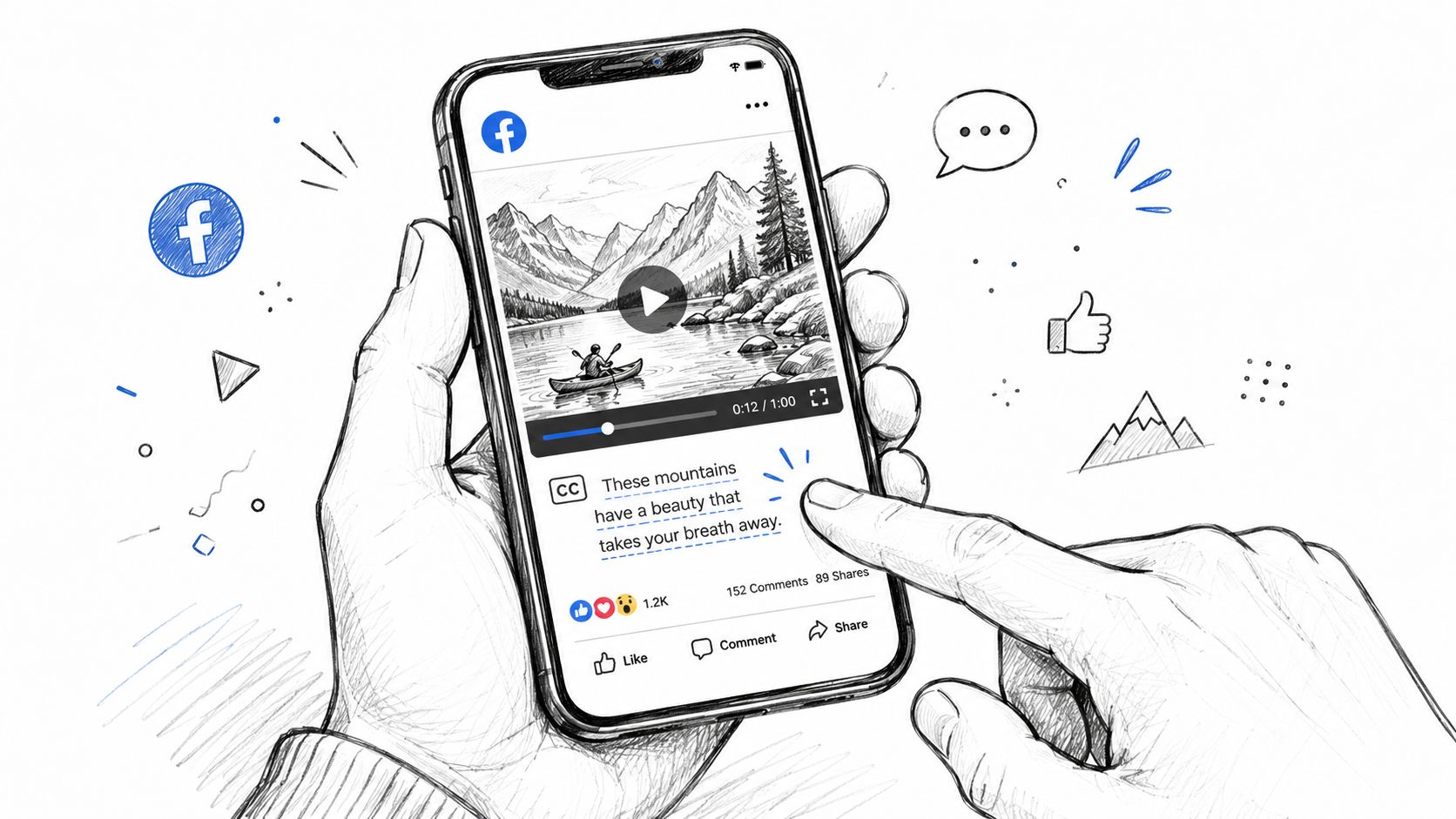
Facebook didn't arrive at this by accident. In 2019, Facebook AI Research reported a system that could transcribe speech in a single pass with lower latency than older multi-pass methods, which helped push video workflows from manual subtitle creation toward automated speech-to-text for social video and live content, as described in this overview of Facebook transcription workflows.
How to use Facebook's built-in captions
The exact interface shifts over time, but the workflow is usually simple:
- Open the video you uploaded or manage through your Page tools.
- Look for caption or subtitle settings.
- Turn on auto-generated captions if available.
- Review the text line by line before publishing.
For a creator who mainly wants on-screen readability, this is the quickest route. It's also useful if your priority is basic accessibility inside Facebook itself.
Where the native method works
Facebook's built-in captions are fine when:
- You need on-platform captions: The viewer is watching directly on Facebook.
- The audio is clean: One speaker, clear mic, little background noise.
- You don't need much editing control: You just want readable text over the video.
If your main question is whether closed captions and subtitles serve different purposes, that distinction matters here. Native captions help with viewing. They're not the same thing as a polished transcript you can repurpose elsewhere.
Native captions are for watching. Transcripts are for working.
Where it starts to break down
The limitations show up fast if you're doing content production instead of basic posting.
You'll often want speaker labels, clean paragraphs, exportable text, and a transcript you can copy into Google Docs or a CMS. Facebook's auto-generated captions usually aren't built for that level of reuse. If the clip includes multiple speakers, names, jargon, or uneven audio, cleanup can also become tedious.
That's why I treat Facebook's native route as the quick-and-dirty option. It's useful. It's immediate. But if the goal is to turn a Facebook video into publishable text, research notes, or structured content, you'll usually want a dedicated transcription workflow instead.
The AI-Powered Shortcut Using HypeScribe
You post a Facebook Live, the comments are good, and now the actual work starts. You need a transcript you can clean up, pull quotes from, hand to an editor, or turn into a post. That is where Facebook's built-in captions stop being enough.

A dedicated tool gives you editable text instead of captions trapped inside the player. HypeScribe's Facebook video transcription workflow supports both common paths: paste a public URL when speed matters, or upload the file when you need more control.
When the URL method is enough
For public Facebook videos, URL paste is usually the fastest route:
- Copy the public video URL.
- Paste it into the transcription tool.
- Generate the draft transcript.
- Review, correct, and export the text.
I use this for public interviews, webinars, page videos, and published Lives that do not need forensic-level accuracy. It saves time, especially when the goal is to get a workable first draft into docs or a CMS.
The trade-off is source control. If Facebook has compressed the stream hard, or the post settings change later, the transcript quality can drop or the fetch can fail. For lower-risk public content, that is often a fair compromise.
When file upload is the better move
File upload is the safer production workflow. Download the video first, then transcribe the file you control. That usually gives better results on videos with uneven audio, long pauses, multiple speakers, or noisy live-stream artifacts.
File upload is usually the better choice when:
- The transcript needs to hold up under editing: Training sessions, interviews, testimonials, and internal recordings.
- The Facebook stream sounds rough: Compression, clipping, background noise, or sync issues.
- You want a stable archive: The media file and transcript stay together.
- Access might change later: A public post can become limited, deleted, or harder to retrieve.
Facebook Video Transcription Method Comparison
| Feature | Facebook Native Captions | HypeScribe (URL Paste) | HypeScribe (File Upload) |
|---|---|---|---|
| Setup speed | Fast inside Facebook | Fast for public videos | Slightly slower because you download first |
| Best for | On-platform viewing | Public Facebook videos you want in text form | Private, important, or quality-sensitive videos |
| Exportable transcript | Limited for repurposing | Yes, easier to work with | Yes, with the most control over source input |
| Speaker handling | Basic | Better suited to transcript workflows | Best option when you need cleanup and editing |
| Reliability on restricted videos | Poor | Limited by access permissions | Strong, because you control the file |
| Repurposing use | Low to moderate | High | High |
| Quality control | Low | Moderate | Highest of the three methods |
What works in practice
The method depends on what happens after transcription.
If the transcript is just a draft for light repurposing, URL paste is usually enough. If the video is valuable, noisy, or likely to be reused across blog content, show notes, training docs, or legal review, file upload gives fewer surprises and less cleanup later.
I treat URL paste as a speed play. I treat file upload as the method for anything I may need to trust.
That difference matters. A transcript that looks fine at first glance can still be full of speaker swaps, broken punctuation, mangled names, and missing phrases around crosstalk. The faster workflow gets text on the page. The better workflow gives you text you can work with.
Transcribing Private Group and Restricted Videos
At this point, most basic guides stop being useful. They assume the Facebook video is public and that pasting a link solves everything. In real workflows, that's often false.
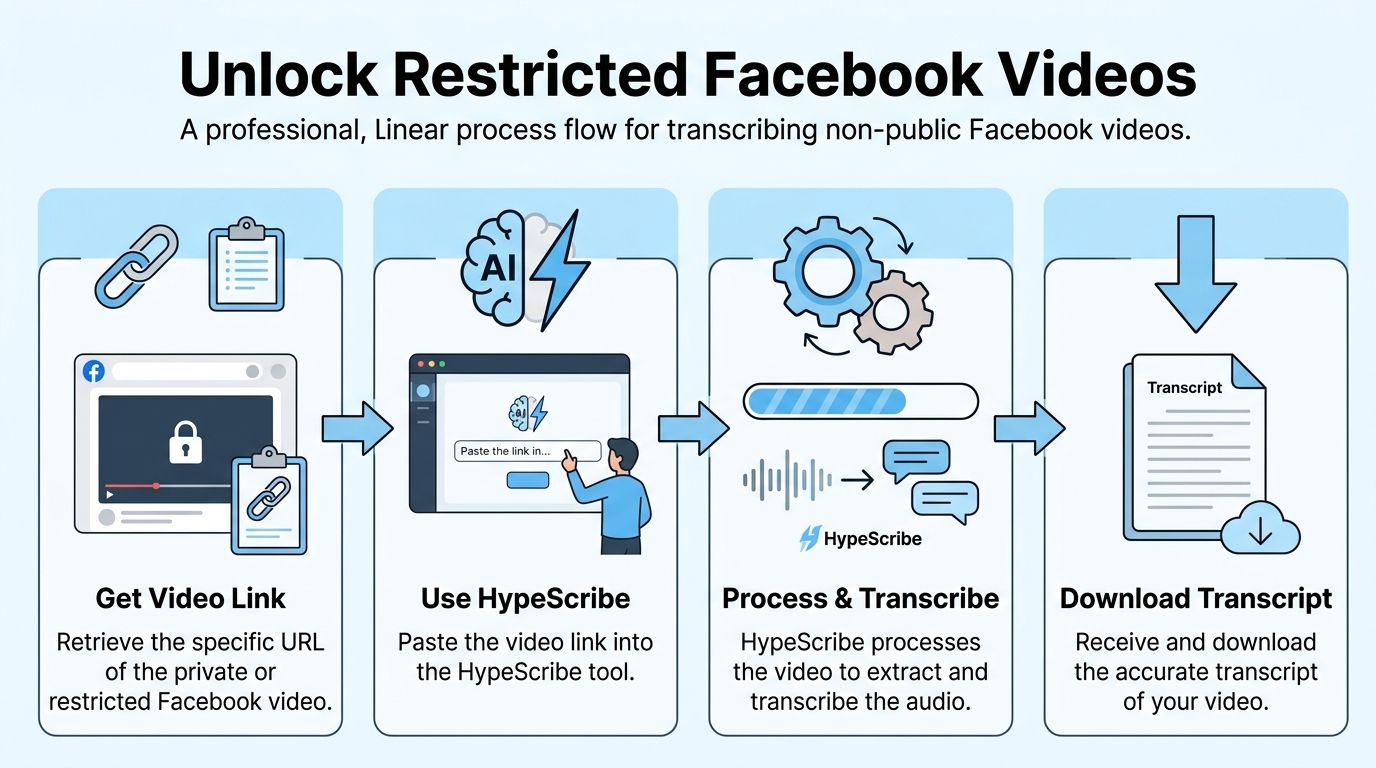
Private posts, group-only recordings, internal training videos, and region-restricted content regularly break URL-based transcription. A practical guide from TicNote points out that these cases usually require downloading or screen-recording the video first, then transcribing the file or extracted audio instead of relying on the link alone, as noted in their write-up on transcribing Facebook videos to text.
Why link pasting fails on restricted content
A transcription tool can only fetch what it can access. If the video sits behind a login, group membership, account permissions, or regional restrictions, the tool often can't retrieve the media directly even if you personally can watch it in your browser.
That's why people get stuck. They assume “I can see it, so the tool should too.” Facebook permissions don't work that way.
The file-based workaround that actually holds up
Use this process instead:
- Download the video if Facebook allows it. If it's your own content, use Facebook's official options when available.
- If download isn't available, capture it locally. Screen recording is the fallback when access exists but direct download doesn't.
- Extract or keep the best audio version you can. Don't intentionally downscale if you don't have to.
- Upload the file for transcription. Once the media is local, platform restrictions stop being the main problem.
- Review the transcript for names, speaker changes, and odd phrases.
If you need help grabbing a local copy first, this guide on how to capture streaming video is the kind of workaround people usually need for restricted media.
A few practical cautions
- Don't rely on live playback quality: Browser playback can hide audio issues that show up in the transcript later.
- Avoid unnecessary re-encoding: Every extra conversion can make speech slightly harder to parse.
- Keep the original context: Group videos often include multiple speakers, interruptions, and references that need manual clarification.
Restricted Facebook videos are rarely a transcription problem first. They're an access and source-file problem first.
Once you switch to that mindset, the workflow gets much simpler. Stop fighting the link. Get the file. Then transcribe from a version you control.
How to Refine and Perfect Your Transcript
You open a Facebook Live transcript and the first line misspells the guest's name, merges two speakers into one paragraph, and turns a product term into nonsense. That is normal. The transcript is still useful, but only after a cleanup pass that matches the kind of video you recorded.
Audio quality drives most of the difference between a transcript that needs light editing and one that needs a full rewrite. Clean single-speaker audio usually comes through well. Noisy livestreams, cross-talk, room echo, and heavy platform compression create the mistakes I see most often.
Where Facebook video transcripts usually break
The failure points are predictable once you have edited enough of these:
- Names and branded terms get mangled: People names, company names, tools, and niche terminology are the first things I check.
- Speaker changes disappear: Group discussions often come back as one block of text.
- Punctuation follows speech rhythm poorly: Run-on sentences, random periods, and broken questions are common.
- Fillers crowd the page: Spoken language includes restarts, false starts, and repeated phrases that read badly in text.
- Context gets lost: A phrase that made sense in the video can look vague or incorrect without a quick edit for clarity.
A phone-shot event recap and a quiet tutorial recorded with an external mic should not be edited the same way.
The editing order that saves time
The fastest approach is to fix what changes meaning first, then polish readability.
- Correct proper nouns and key terms. This protects the parts readers notice first and the parts search engines rely on later.
- Mark speaker changes. Even simple labels make interviews, panels, and group videos much easier to reuse.
- Clean up obvious mishears. Focus on sentences that change the point, not every stray filler word.
- Fix punctuation and paragraph breaks. The transcript begins to feel publishable.
- Add timestamps only where you need them. Clip selection, approvals, legal review, and training material benefit from precise timing. A basic blog embed often does not.
Wrong names and wrong terms do more damage than rough punctuation.
If I am transcribing a messy Facebook Live, I also keep the video open while editing. Tone, pauses, and who interrupted whom are easier to judge from playback than from text alone.
When to retranscribe instead of editing harder
Some transcripts are bad because the source is bad. In those cases, another 20 minutes of text editing is wasted effort.
Retranscribe when the draft has repeated phonetic mistakes, missing chunks, or constant speaker confusion. That usually points to noise, echo, or channel bleed. Start with the best source file you have, do light audio cleanup if needed, and run it again. Small improvements to the source often cut editing time more than aggressive manual correction.
For difficult Facebook videos, especially private group recordings and long livestreams, I use a simple rule. If the transcript is fighting me line by line, I stop editing and improve the audio first.
Practical fixes for common AI errors
A few problems come up over and over:
- Industry jargon is wrong: Build a custom term list before the final pass, or run search-and-replace after review.
- Two speakers are merged: Split the paragraph manually and label each voice before fixing sentence-level errors.
- Short filler words are over-transcribed: Remove repeated "um," "you know," and restarts unless you need verbatim accuracy.
- Quotes read awkwardly on the page: Rewrite lightly for readability if the transcript is for content repurposing, not formal records.
- References are too vague: Add a bracketed clarification when someone says "that post," "this launch," or "what happened last week."
That last step matters more than many guides admit. A transcript is not only about word accuracy. It also has to make sense to someone who was not in the Facebook group, did not watch live, and is seeing the material later in a blog post, case study, or content library.
If you repurpose transcripts into search-focused pages, the editing discipline overlaps with content structuring work. The same principle shows up in these photographer SEO insights from SendPhoto. Clean language, clear headings, and preserved intent make the content more useful and easier to find.
The goal is a transcript you can trust, not one that looks untouched by human hands.
Using Your Transcript for SEO and Legal Needs
A Facebook Live ends, the replay gets a few comments, and then the useful part risks disappearing into the feed. A cleaned transcript keeps that material usable. It gives you text you can publish, search, quote, archive, and review later without scrubbing through the video again.
Using transcripts for search and repurposing
For SEO, the transcript does more than add extra words to the page. It surfaces the exact phrases people use out loud, which are often more specific and more useful than the short caption or post copy attached to the video. Those spoken phrases can become subheads, FAQ sections, pull quotes, product explanations, or supporting copy around the embed.
This works especially well for tutorial clips, live Q and A sessions, founder updates, and client education videos. In those formats, the best search terms are usually buried in the answers.
If you work in a visual service business, the same content logic shows up in these photographer SEO insights from SendPhoto. Real client-facing language, once cleaned up and structured well, can become pages that are easier to index and more useful to readers.
Where legal and professional use changes the workflow
SEO transcripts and record-quality transcripts are not the same deliverable.
For marketing, a well-reviewed transcript is usually enough if the meaning is intact and the wording reads cleanly on the page. For legal, compliance, HR, research, or formal documentation, the review standard gets tighter. Names, dates, speaker labels, interruptions, and disputed wording all need a manual check. In practice, AI gets you to a draft quickly, then an editor closes the gap.
That changes the workflow:
- For marketing use: Clean up grammar, remove obvious recognition errors, and format the strongest sections for publishing.
- For legal or compliance use: Check speaker attribution, quoted wording, timestamps if needed, and any section where poor audio could change meaning.
- For archival use: Save the original video, the raw transcript, and the corrected final version together.
I treat these as separate outputs because they fail in different ways. A transcript that is perfectly fine for a blog post can still be too loose for an internal record or a legal review.
If you are already using HypeScribe earlier in the workflow, keep this final step in mind. The transcript is only as useful as the review standard you apply before publishing or filing it.