How to Send Large Video Files by Email in 2026

You export the final cut, attach it to an email, hit send, and get stopped cold. The file is too large. If the message goes out at all, the recipient replies that they can't open it, the attachment got stripped, or the inbox rejected it.
That's the moment the default reaction is to try suboptimal methods. These include trying a different email client, zipping the file, lowering the quality until the video looks muddy, or splitting the clip into multiple messages. None of that feels professional, especially when you're sending a client draft, interview footage, a training recording, or a handoff to a teammate.
The good news is that learning how to send large video files by email usually means changing the delivery method, not fighting the file. In practice, the fastest route is often a shared link, not an attachment. The better choice depends on three things: convenience, security, and recipient experience.
Hitting Send and Getting the File Too Large Error
This problem usually shows up at the worst time. A marketer is sending a client review cut before a meeting. A recruiter needs to forward an interview recording. A project manager is trying to share a walkthrough with a remote team before end of day. The email is written, the attachment is added, and then the send fails.
What makes this frustrating is that the file may not even feel that large. It's just one video. Maybe it came off a phone, a screen recorder, or a quick export from Premiere Pro, Final Cut, or CapCut. But video files get big fast, and email hasn't really kept up with that reality.
The mistake is assuming email should carry the video itself. For text documents, PDFs, and a few images, that works fine. For video, it often doesn't.
Practical rule: If the file matters enough that quality matters, don't force it through as a normal attachment.
I've seen teams waste more time trying to shrink a video for email than it would've taken to upload it once and send a clean link. That's why the reliable methods are usually simple: put the file somewhere built for large media, control access, and let the email do what it's good at, which is delivering the message around the file.
If your goal is to send something quickly without creating extra confusion for the recipient, there are a few methods that consistently work better than direct attachments.
Why Your Video Is Too Big for Email
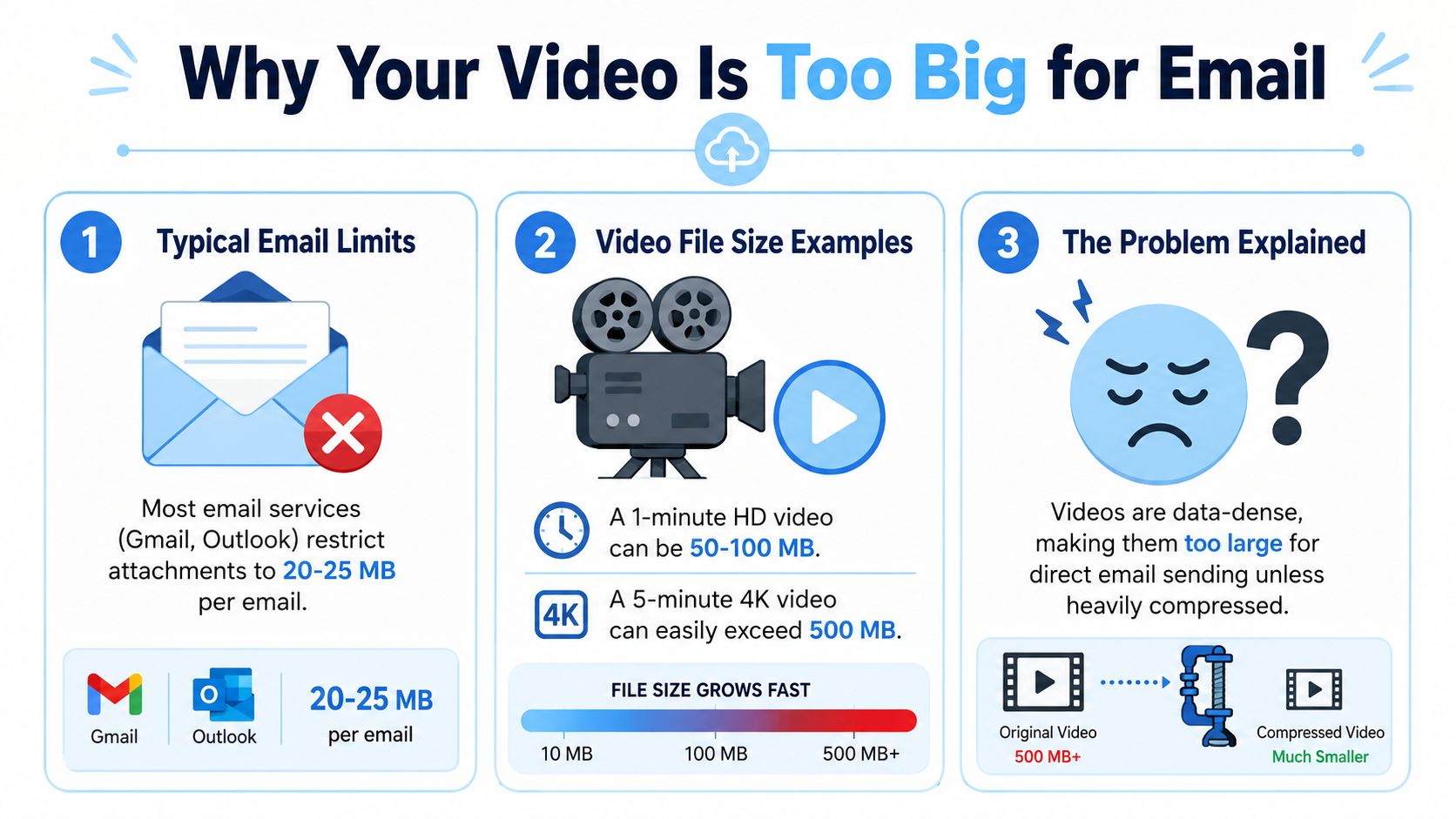
Email has a built-in ceiling, and video hits that ceiling fast. Gmail and Yahoo Mail allow 25 MB attachments, while Outlook allows 20 MB according to BIGVU's guide to sending large videos through email. That same guide notes that “most professional videos exceed those limits within the first 30 seconds”.
The real problem is structural
This isn't happening because you exported the file incorrectly. It happens because email was designed around text and small attachments, while modern video keeps getting heavier with better resolution and cleaner quality.
That's why a lot of people get tripped up by the phrase “send by email.” In professional workflows, that often means emailing access to the file, not emailing the file itself.
A few things make videos swell quickly:
- Higher resolution: Cleaner footage creates larger files.
- Longer runtime: Even a short meeting clip or demo adds up fast.
- Better export settings: Professional-quality output usually isn't attachment-friendly.
- Modern recording habits: Phones, webcams, and screen capture tools produce files that email wasn't built to carry.
Why format helps, but not enough
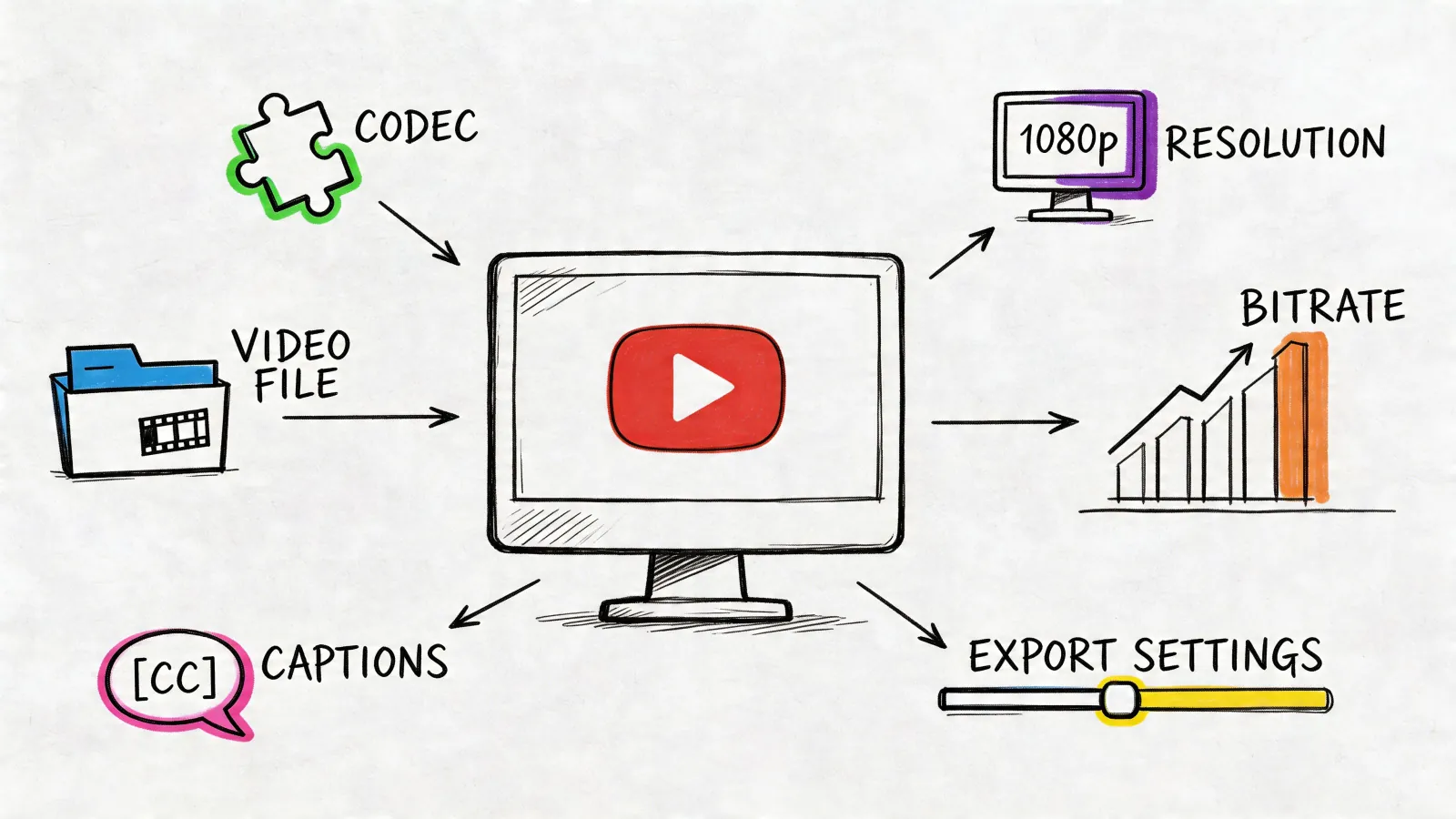
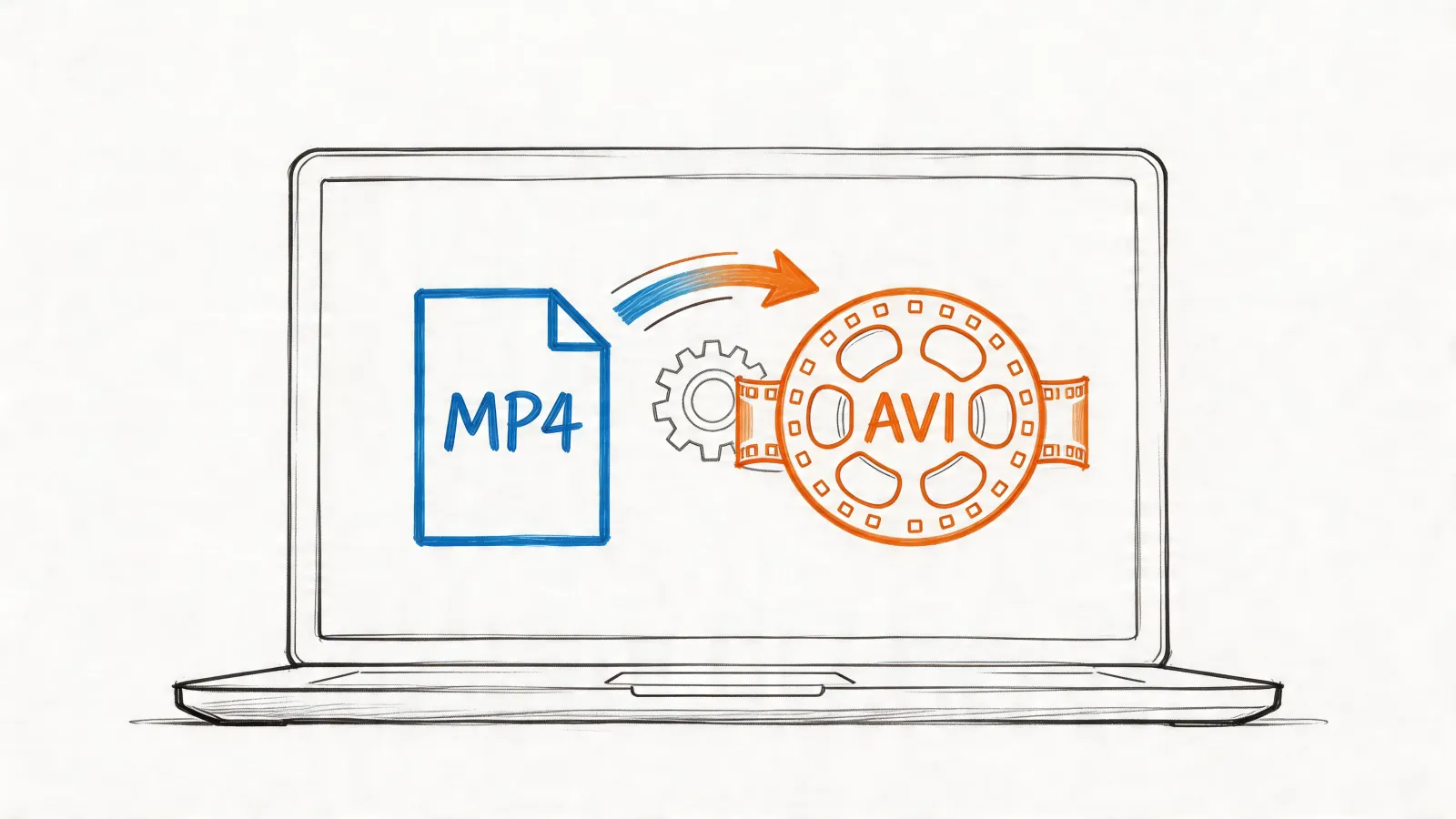
The right file format can improve compatibility and reduce unnecessary bloat, which is why it's worth understanding video format basics for sharing and playback. But format choice doesn't remove the hard ceiling imposed by inbox providers.
If you keep trying to make a professional video behave like a PDF attachment, the inbox wins.
Once you accept that, the workflow gets easier. Stop treating email as the container. Use it as the delivery note, then choose the right method underneath.
Send a Link with Google Drive Dropbox or OneDrive
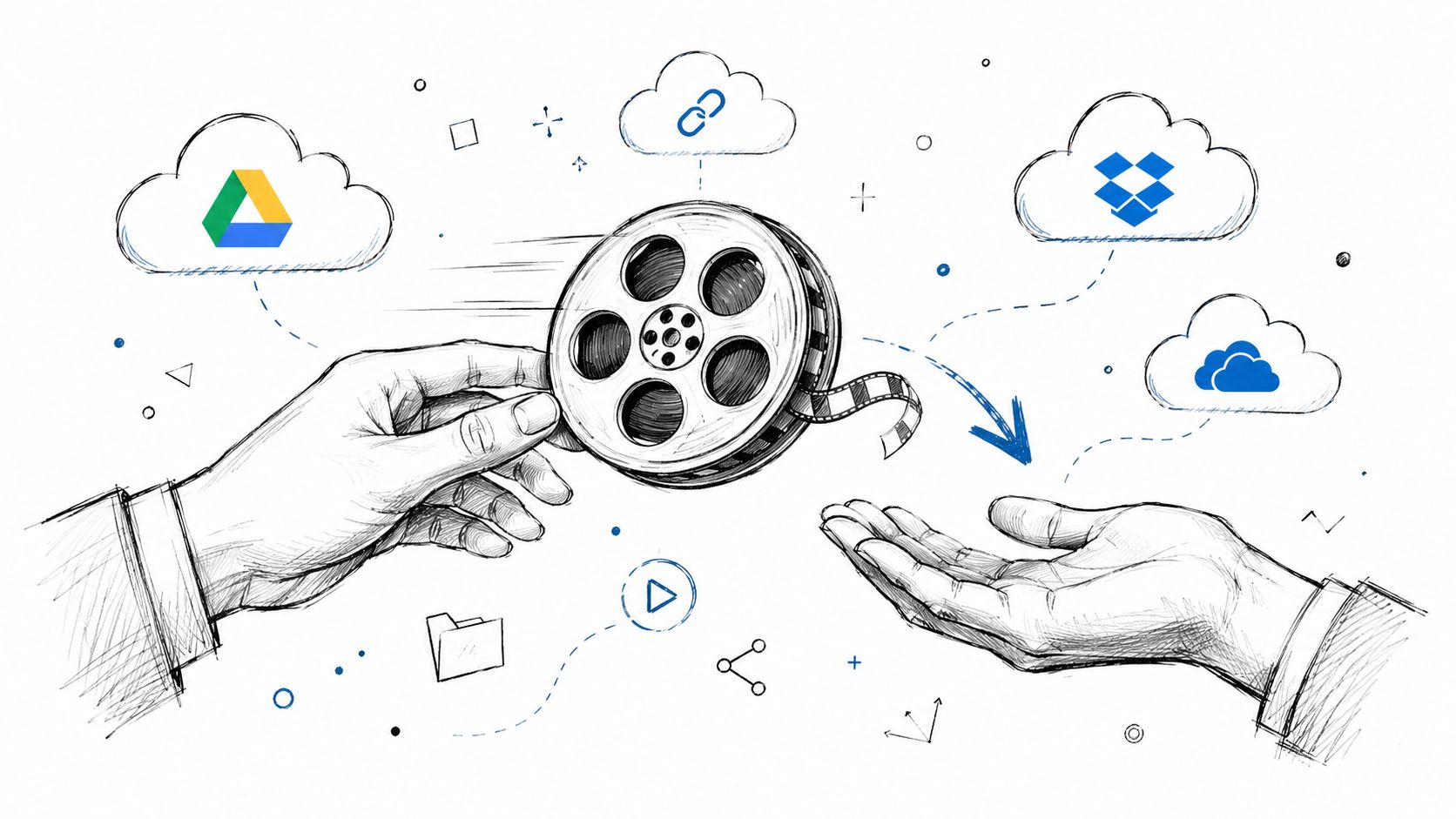
For most professional use cases, this is the default method. Upload the video to Google Drive, Dropbox, or OneDrive, then paste the share link into your email. The recipient clicks, views, or downloads the file without wrestling with attachment limits.
Why cloud links work so well
Cloud storage is useful when the video may need to be reviewed more than once, replaced with an updated version, or shared with more than one person. It also keeps your sent email lightweight and avoids filling up someone else's inbox with a file they'll just have to download anyway.
This method is especially practical when you already work inside Google Workspace or Microsoft 365. Gmail and Outlook often nudge you toward cloud sharing when an attachment is too large, which saves a step.
Here's the usual workflow:
- Upload the video to Google Drive, Dropbox, or OneDrive.
- Open the sharing menu.
- Choose who can access it.
- Copy the link.
- Send an email that explains what the file is, what version it is, and what you want the recipient to do next.
What to check before you send
The upload is the easy part. Permissions are where people make mistakes.
- Viewer access: Best for client review copies, internal announcements, or approvals.
- Download permissions: Useful when someone needs the original file for editing or archiving.
- Editing access: Rarely needed for video delivery. Give it only when people need to replace or manage the file.
- Link visibility: Decide whether anyone with the link can open it, or only named recipients.
If storage cost is part of your decision, this roundup of cheapest cloud storage solutions is helpful when you're comparing where large media should live long term.
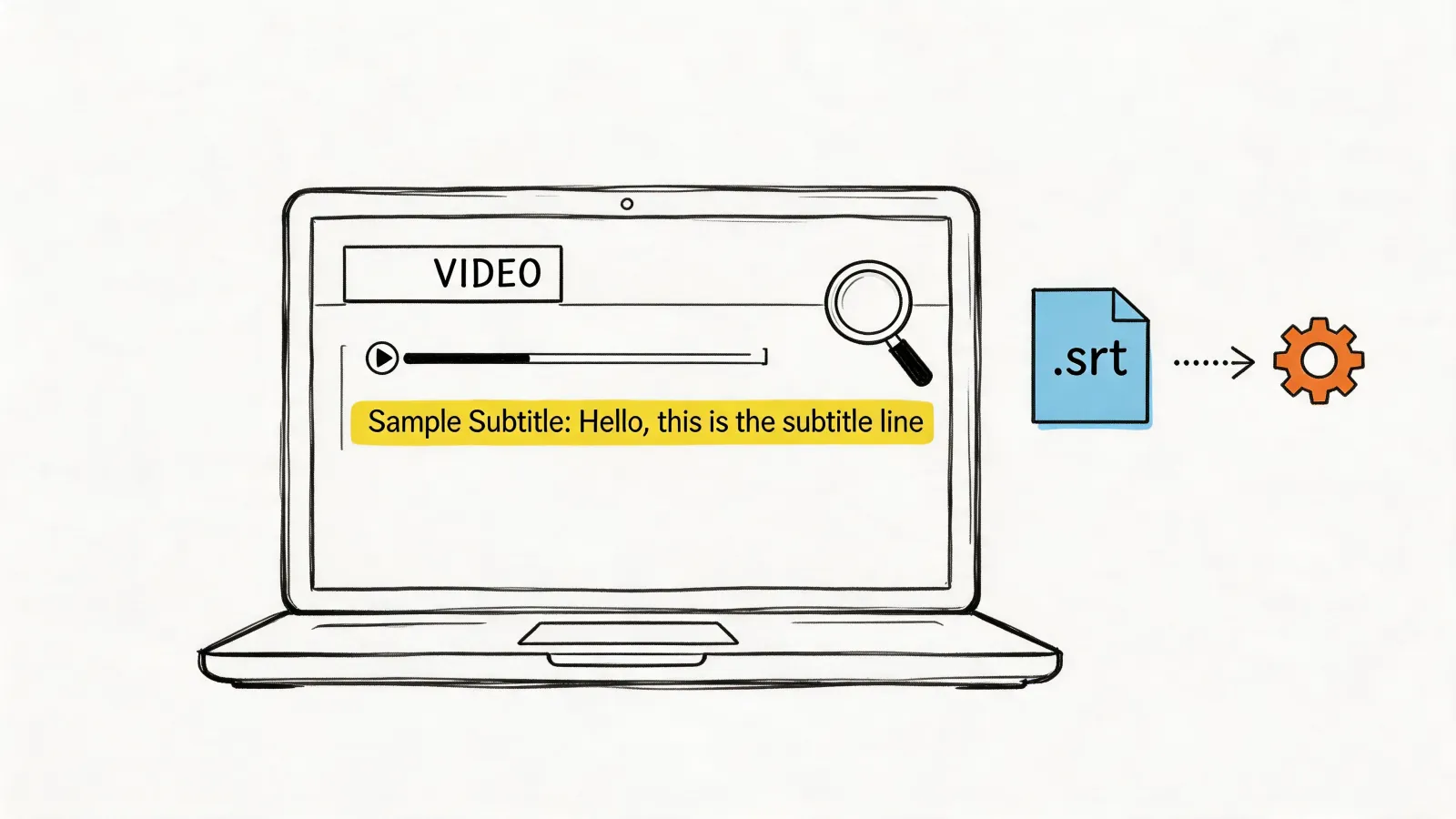
For teams that need to process media before sharing it, some tools sit upstream of this workflow. For example, HypeScribe lets users upload video files directly for transcription or work from shared media links, which fits well when the goal is to send a review link after extracting notes or summaries.
A quick visual walkthrough helps if you're setting this up for the first time.
Best use cases for cloud links
Cloud links are usually the right pick when the file has an ongoing life after the email.
| Situation | Why cloud storage fits |
|---|---|
| Client draft review | You can replace versions without sending a new file each time |
| Team collaboration | Multiple people can access the same source |
| Training library | Files stay organized in folders instead of disappearing into inboxes |
| Interview footage | Access can be controlled by person or team |
This option isn't always the simplest for one-off sends to external recipients. If you don't want your folder structure involved, a transfer tool is often cleaner.
When to Use WeTransfer and Other Transfer Tools
Transfer tools make sense when you want to send a large file once, cleanly, and move on. You upload the video, get a link, email it to the recipient, and they download it. No shared folder. No long-term collaboration setup. No need to invite someone into your cloud workspace.
That's what makes services like WeTransfer, Filemail, and Dropbox Transfer useful. They're designed for delivery, not ongoing storage.
The difference from cloud storage
Cloud storage is better when the file stays active. Transfer tools are better when the file is basically a package in transit.
That distinction matters in professional workflows. If you're sending a final project export to a client, a transfer link often feels cleaner than dropping them into a shared Drive folder full of old versions, notes, and unrelated assets.
According to Dropbox's guide to sending large videos over email, Dropbox Transfer supports uploads up to 250 GB in a single transfer, and Filemail advertises free transfers up to 5 GB without registration. Those numbers show how far these tools go beyond what normal email attachments can handle.
When transfer tools are the better choice
Use them when the handoff is straightforward:
- Final client delivery: The recipient needs the file, not your workspace.
- Freelancer handoff: You want a simple download link without folder management.
- Vendor exchange: External collaborators don't need ongoing access.
- Event videos or greetings: One polished file sent to a group can be easier through a transfer service. If you're organizing something more personal, this guide for team celebrations shows a different approach for collecting and presenting group video messages.
A transfer link says, “Here's your file.” A cloud link often says, “Here's the place where the file lives.”
The trade-off to watch
Transfer tools are great for one-time delivery, but they're not ideal for active review cycles. If the recipient asks for a small revision tomorrow, you'll usually need to upload again and send a fresh link.
They can also introduce a little more friction for the recipient. Depending on the tool, they may land on a download page instead of an in-browser preview. That's fine for editors, producers, and operations teams. It's less ideal when you want a fast look from a busy client on a phone.
So the choice is less about which tool is “best” and more about intent. If this is a delivery, use a delivery tool. If this is a shared working file, use cloud storage.
Reduce Your Video File Size Before Sending
Sometimes shrinking the file is the right move. Usually it isn't the first one.
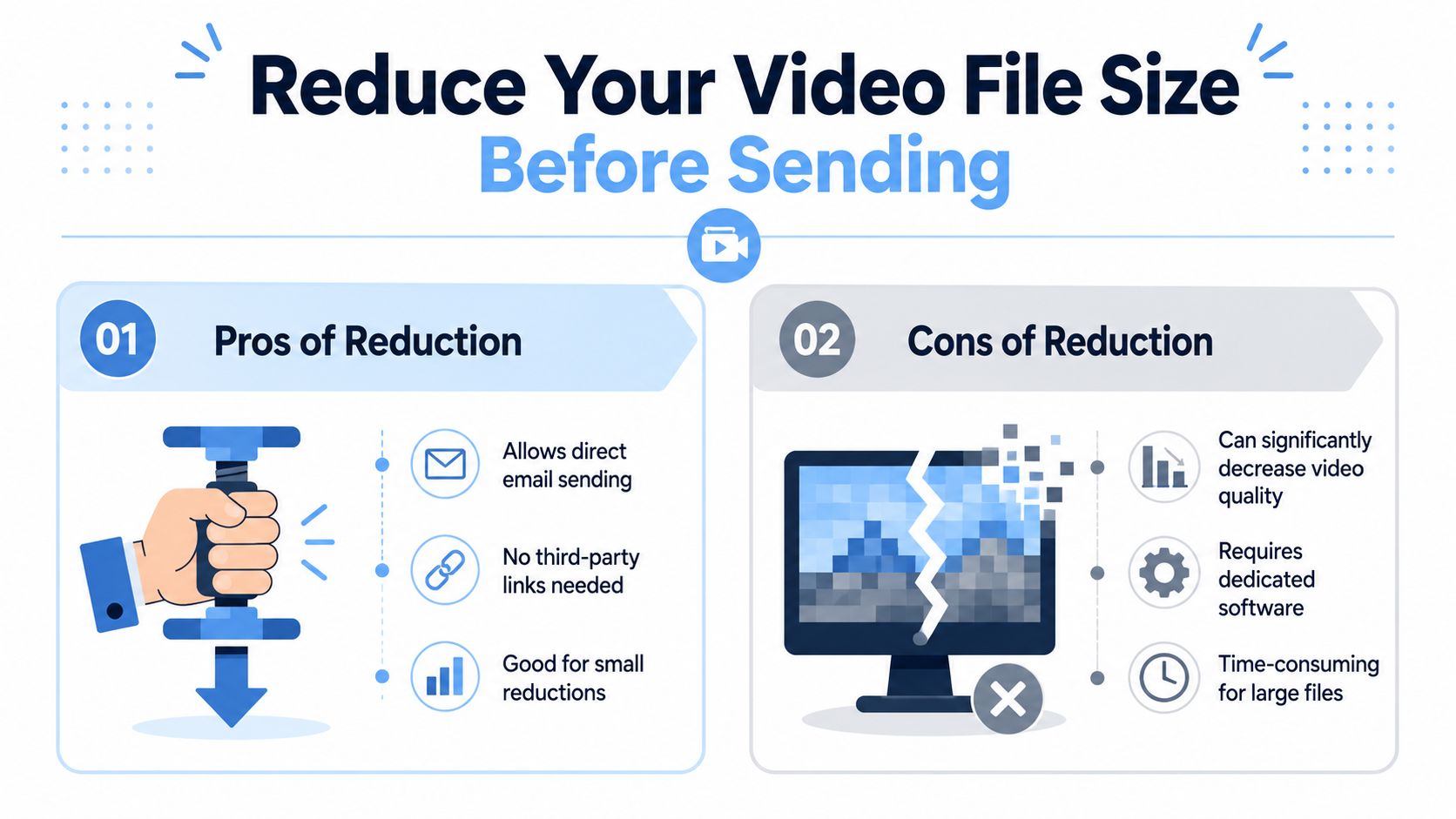
If the video is only slightly over the limit, or if you're sending a rough preview where perfect quality doesn't matter, reducing file size can work. But there's a reason professionals usually prefer link-based sharing. Compression solves one problem by creating another.
Three ways to make a video smaller
The methods aren't equal.
- Trim it: Cut dead space at the beginning or end. This is the least destructive option.
- Lower the export quality: Reduce resolution or bitrate. This can help, but the visual drop may be obvious.
- Compress the file: Useful for modest reductions. For bigger reductions, quality loss becomes hard to ignore.
If you're dealing with a MOV file, this practical guide on how to reduce MOV file size is a good starting point.
When this method makes sense
Compression is reasonable for:
- informal previews
- quick approvals where content matters more than polish
- internal reference clips
- short excerpts pulled from a longer file
It's a poor choice for final deliverables, portfolio work, branded client assets, or anything where image quality affects trust.
Keep the original file untouched. Export a smaller copy for email if you need one.
That one habit prevents a lot of avoidable damage. Too many people overwrite the good version while trying to make an email-friendly version.
How to Choose the Best Method and Protect Your Files
The smartest way to send a video isn't just about getting it delivered. It's about sending it in a way that matches the job. Convenience matters. So does security. So does the experience on the receiving end.
According to LucidLink's guide to sending large video files, a missed point in most advice is that “sending by email” often really means sending an access link rather than the file itself, and that shifts the workflow from transfer to permissions management. That matters for interview footage, internal training clips, and client deliverables where access control, expiration, and download permissions carry real weight.
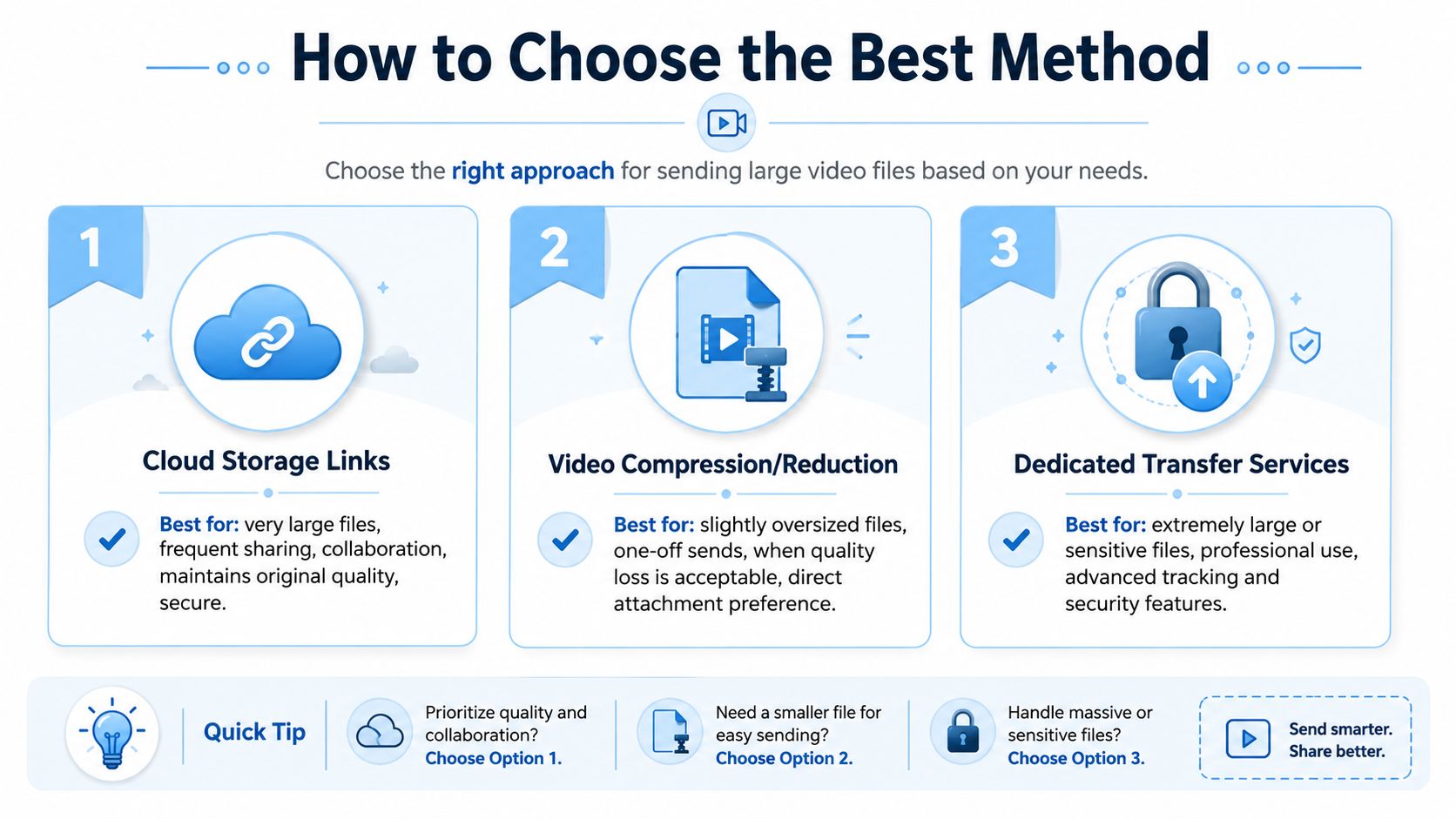
A simple way to decide
Use this rule of thumb:
| If you need to | Use this |
|---|---|
| Share a working file with ongoing access | Cloud storage |
| Deliver a large file once | Transfer tool |
| Squeeze through a casual preview | Reduced-size export |
That gets you most of the way there. The next step is protecting access.
The security checks that matter
When you send a link instead of an attachment, you're managing a door rather than mailing a box.
- Set the narrowest permission level: Viewer is safer than editor.
- Think about download rights: Not everyone who can watch needs the original file.
- Use expiration when appropriate: Temporary access is cleaner for time-sensitive files.
- Double-check the recipient view: Open the link in a private browser before sending.
- Avoid forwarding confusion: If a file is sensitive, don't rely on a fully open public link.
If you send the same protected video to many people, such as a course lesson or a client preview, a video platform such as Kinescope builds these checks into the player: playback links that expire, access limited to viewers you approve, and a watermark with each viewer's ID, so a leaked copy can be traced back.
For more detail on handling protected delivery, HypeScribe's guide on how to send a secure email is worth reviewing.
A professional email for a large video is usually short. Name the file, explain what it is, set expectations, and make access easy. That's what recipients care about. They don't need a giant attachment. They need a clear path to the right file, with the right permissions, at the right moment.
If your workflow includes interviews, meeting recordings, training videos, or client calls, HypeScribe can help before and after you send the file. You can upload video for transcription, turn recordings into searchable notes and summaries, and share the right output with teammates without forcing everyone to dig through raw footage.