How to Convert Video to Text (and How It Actually Works)

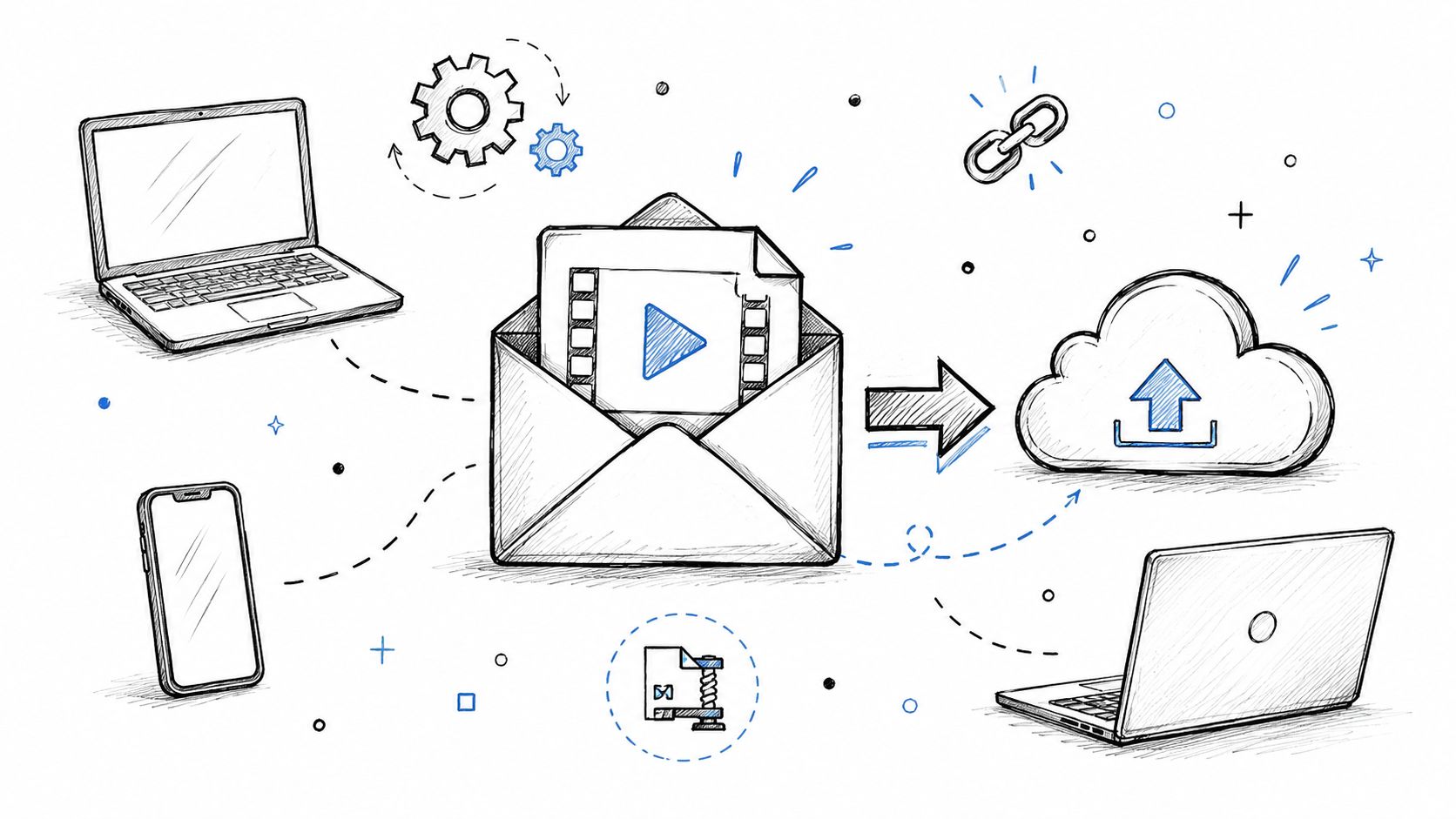
To convert video to text, upload the video or paste its link into a transcription service, check the transcript against the video, and download it as a document. In HypeScribe you add an MP4, MOV or other video of any length, or paste a link from YouTube, Zoom, Google Drive, Loom, TikTok or Instagram, and get the transcript with speakers and timestamps in 99+ languages. You can try it for a week before you pick a plan.
- A video file or a link: upload it to HypeScribe or paste the link, then download the transcript as a Word document or PDF.
- Long videos: there's no length limit, so an hour-long training video goes in as one file.
- Only the sound is transcribed: a clear voice matters more than the picture, and text shown on screen won't appear.
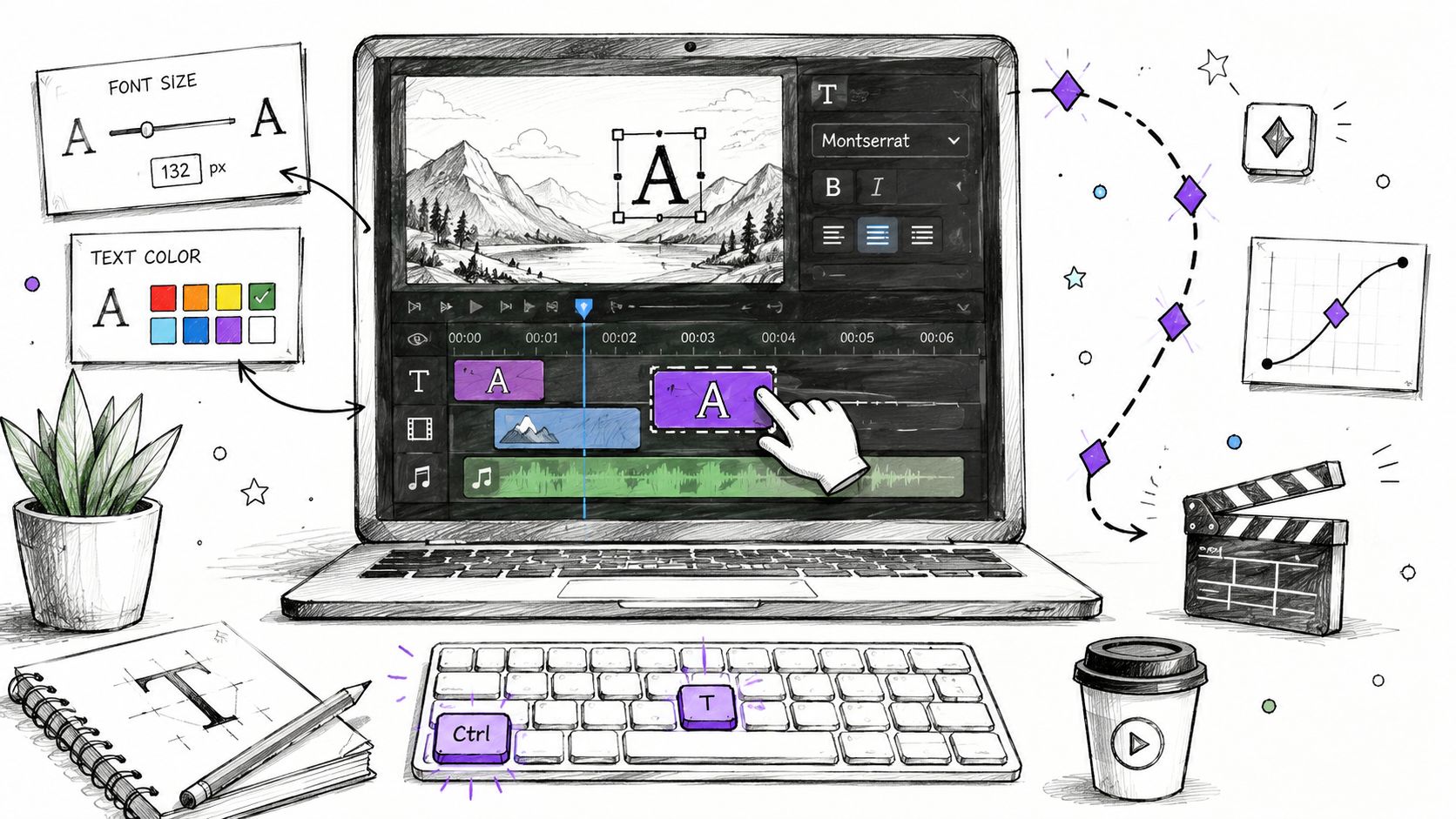
- Captions on the video itself: make them in your video editor, such as Premiere Pro, DaVinci Resolve Studio or CapCut.
- Already on YouTube or in Microsoft 365: YouTube's Show transcript and Word for the web can do it too, with limits.
How to convert video to text in HypeScribe

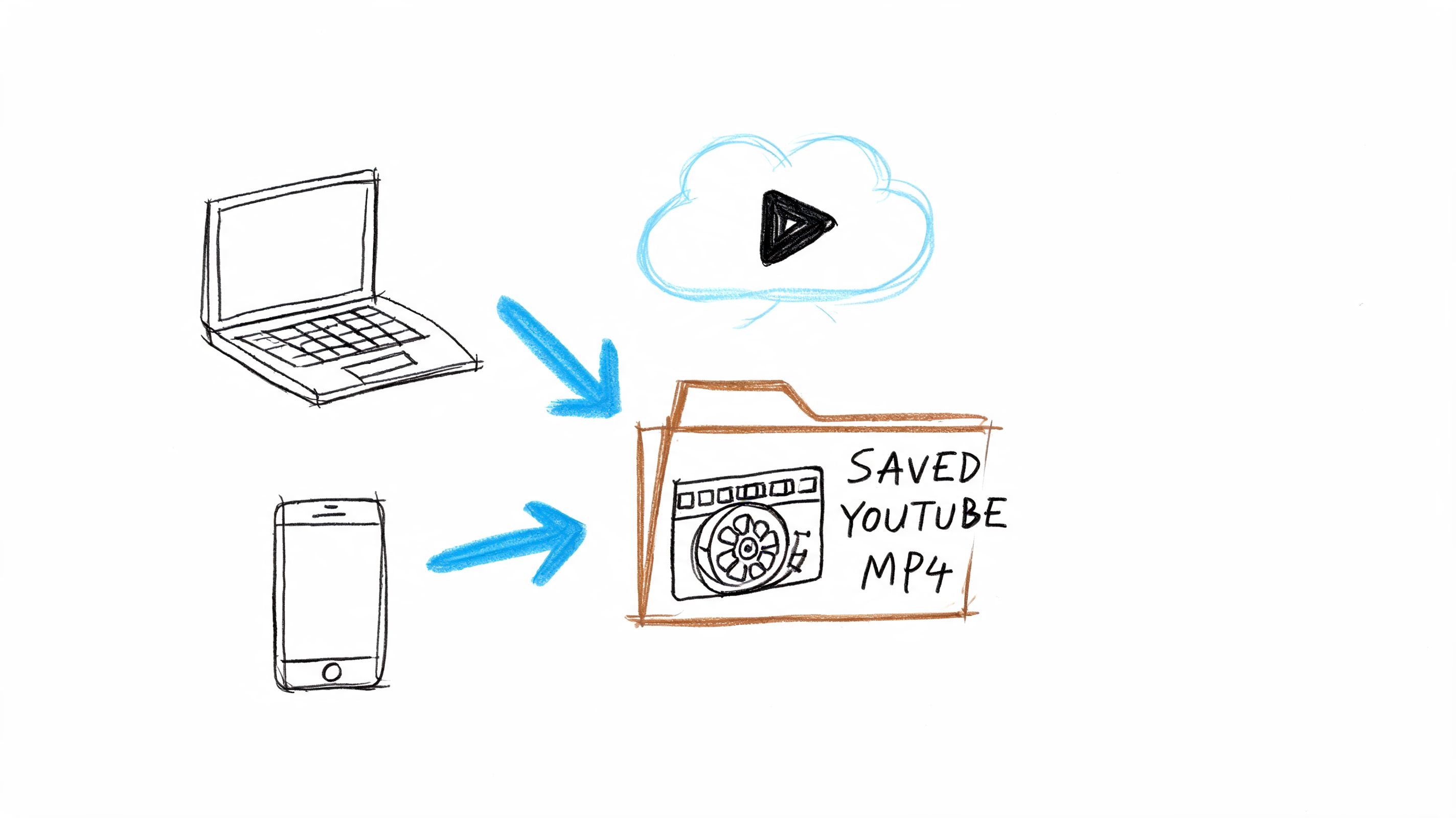
- Add the video. On the dashboard, choose Transcribe file and pick an MP4, MOV, MKV, WEBM or other video, or choose Transcribe by URL and paste a link from YouTube, Zoom, Google Drive, Loom, TikTok or Instagram. On an iPhone you can pick a video straight from Photos or Files.
- Let it transcribe. HypeScribe takes the sound from the video and detects the language for you, so there's nothing to set up.
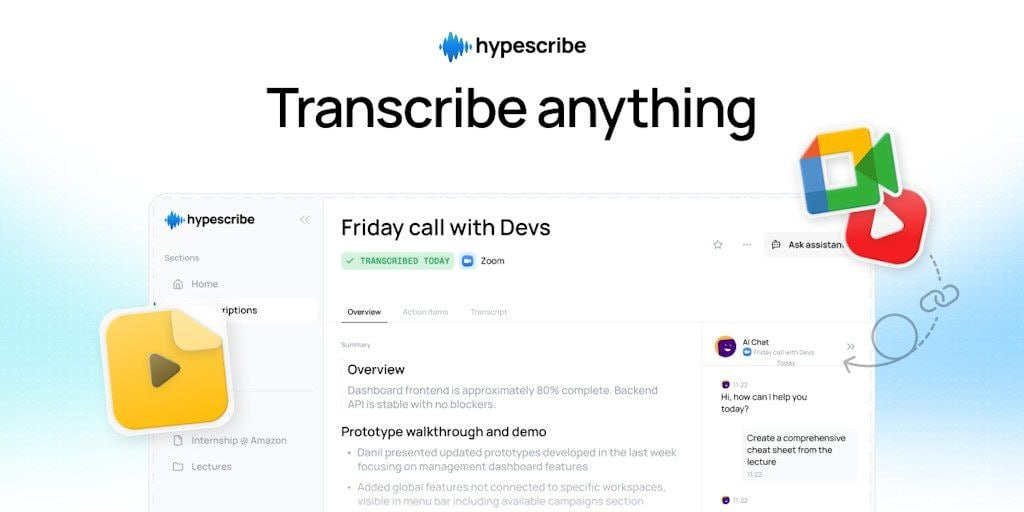
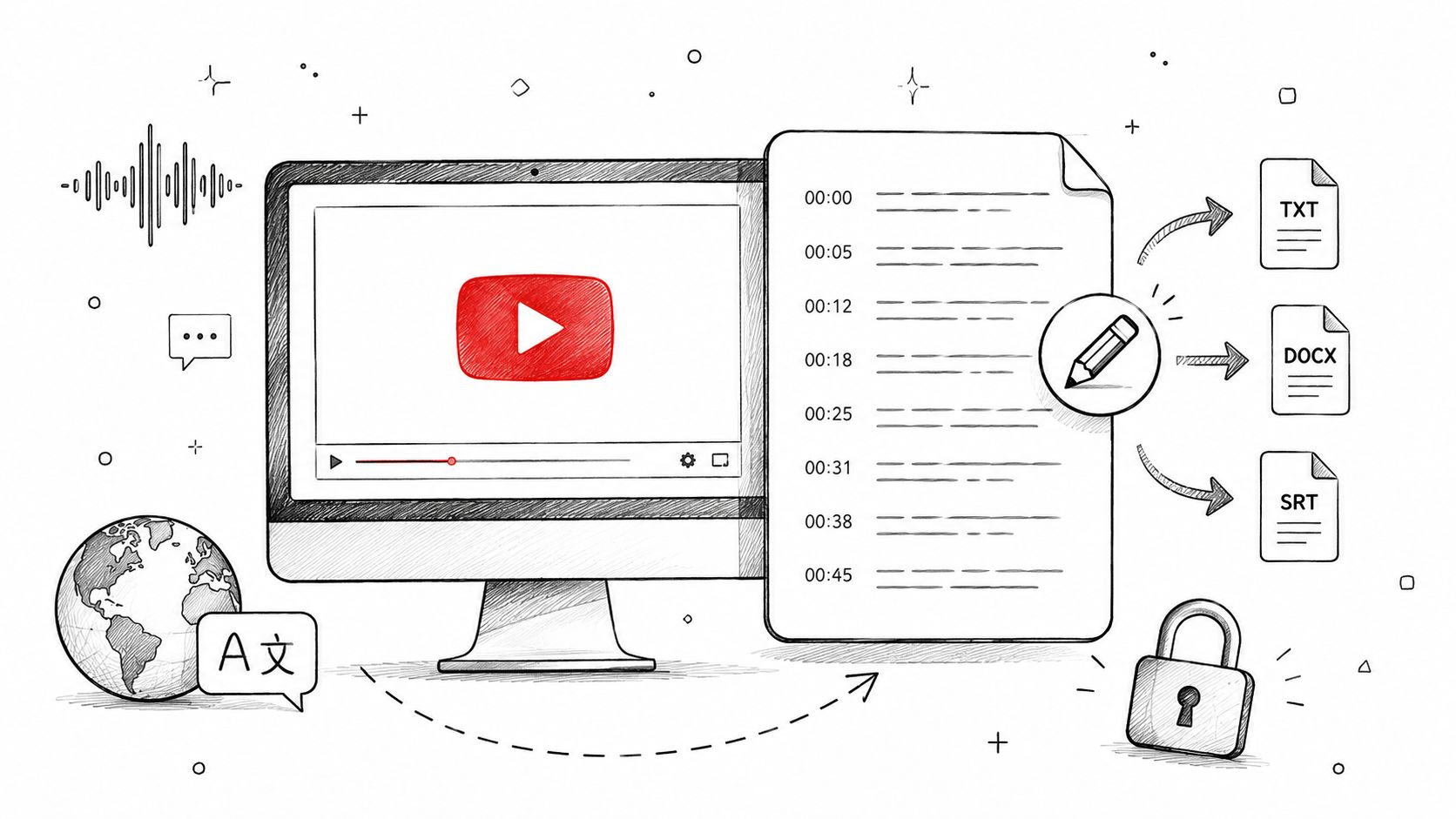
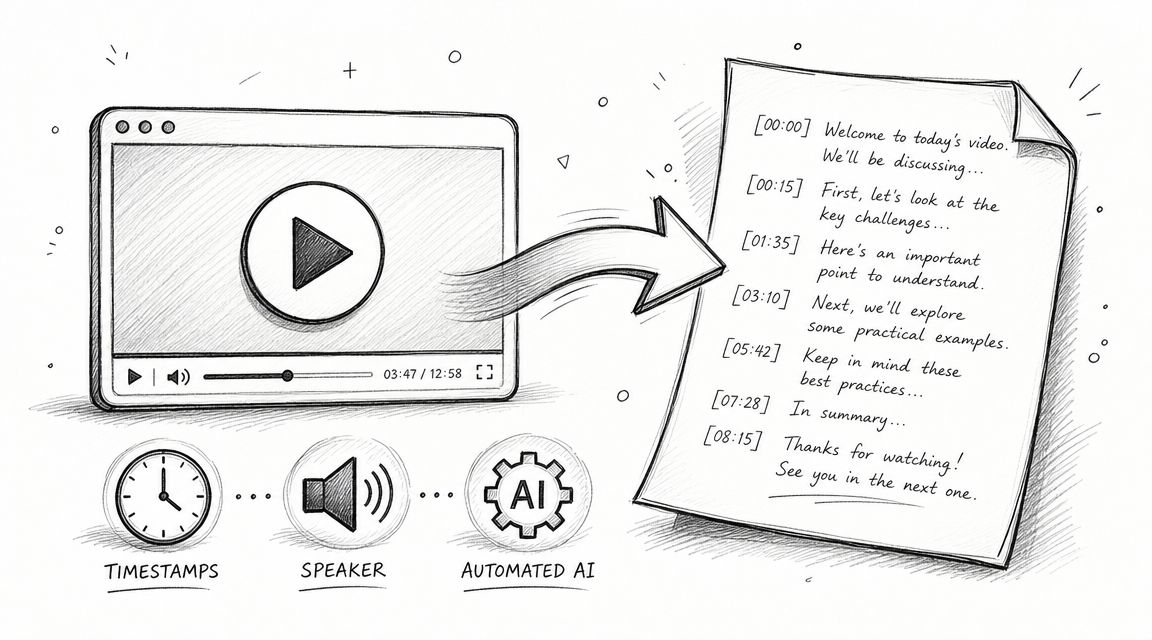
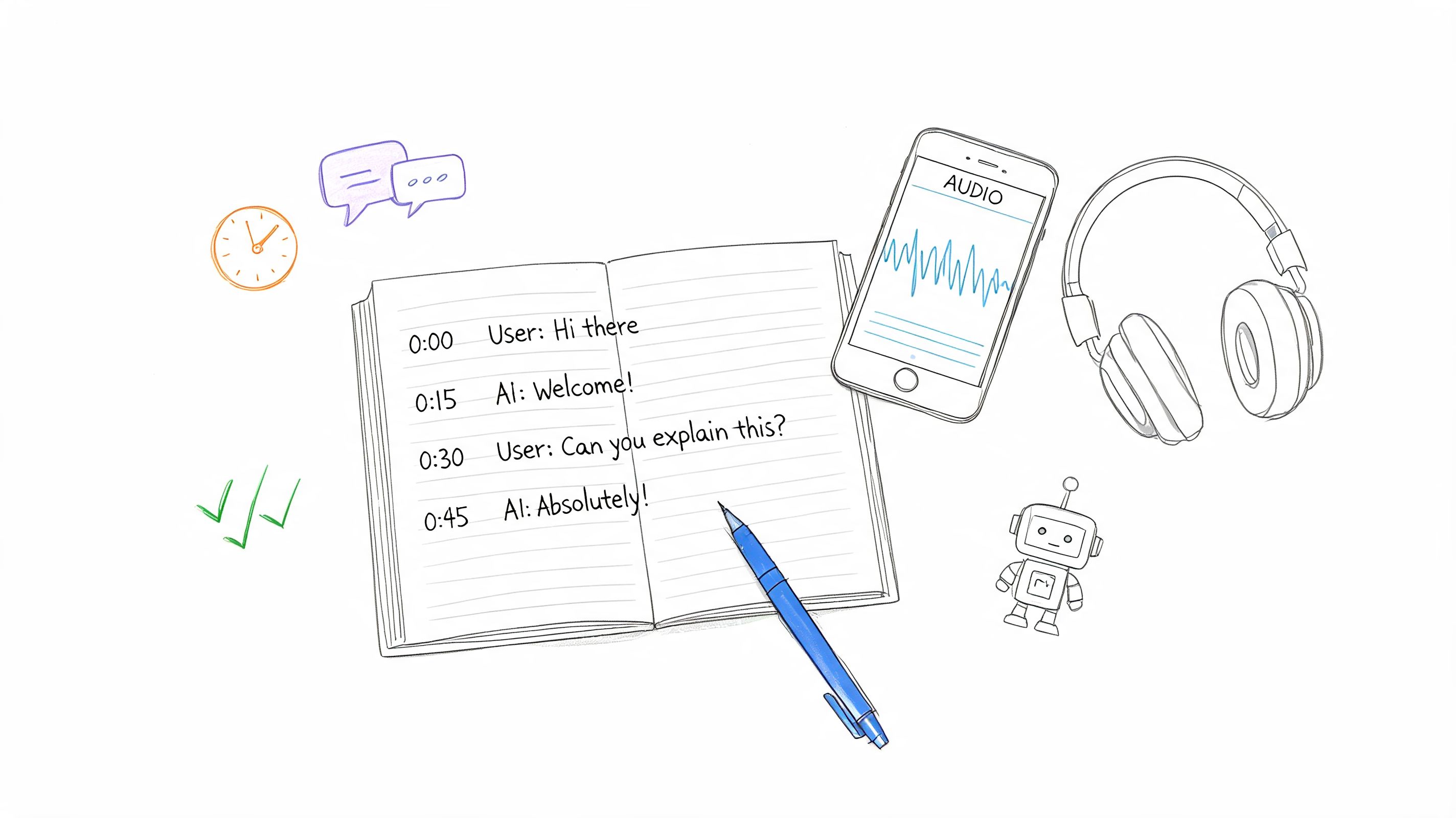
- Check the transcript. Each block shows who spoke and when; click a timestamp to hear that moment. Rename a speaker once and every block and export uses the new name. Fix a word right in the text, or select a sentence and press Play from here to check it.
- Export it. Open the Transcript tab and choose Download: PDF, DOCX, TXT, SRT or MD, or save it to Google Docs. You can also copy the text or share it by link.
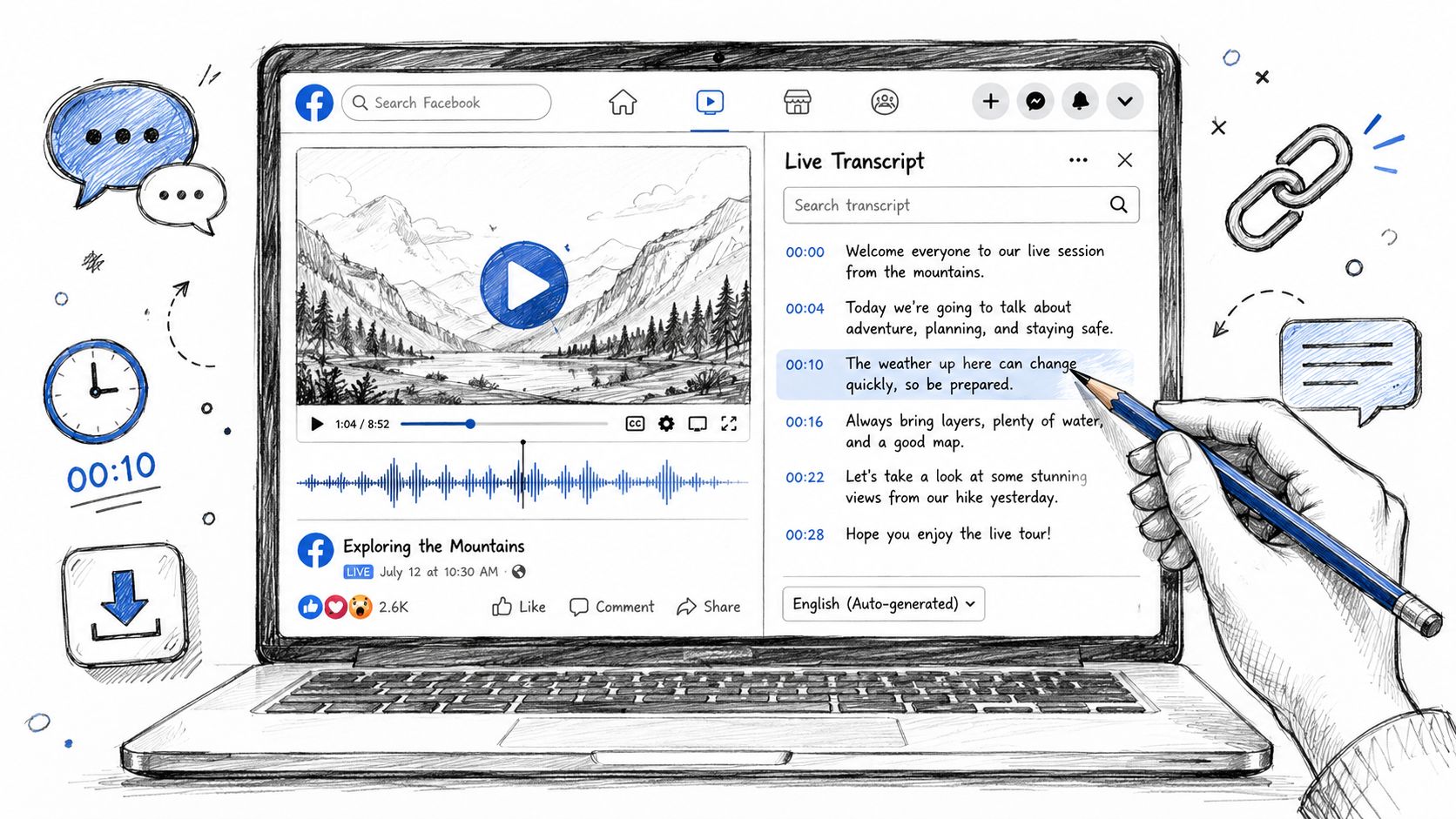
For a YouTube link, the video plays right next to the transcript, and the word being spoken is highlighted as it plays. To transcribe a Zoom, Google Meet or Microsoft Teams call while it happens, send the notetaker to it instead of uploading the recording later.

How video-to-text works
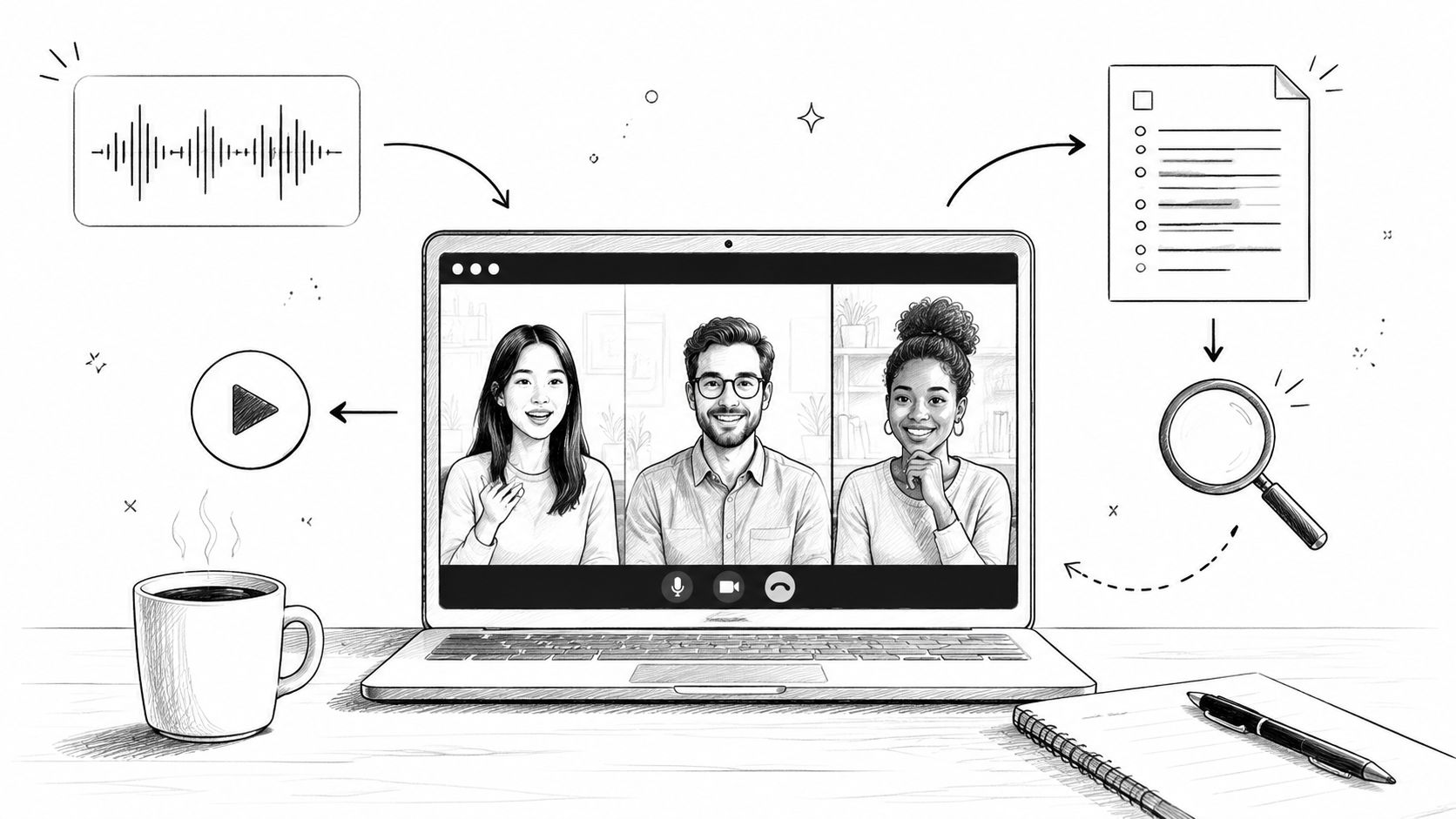
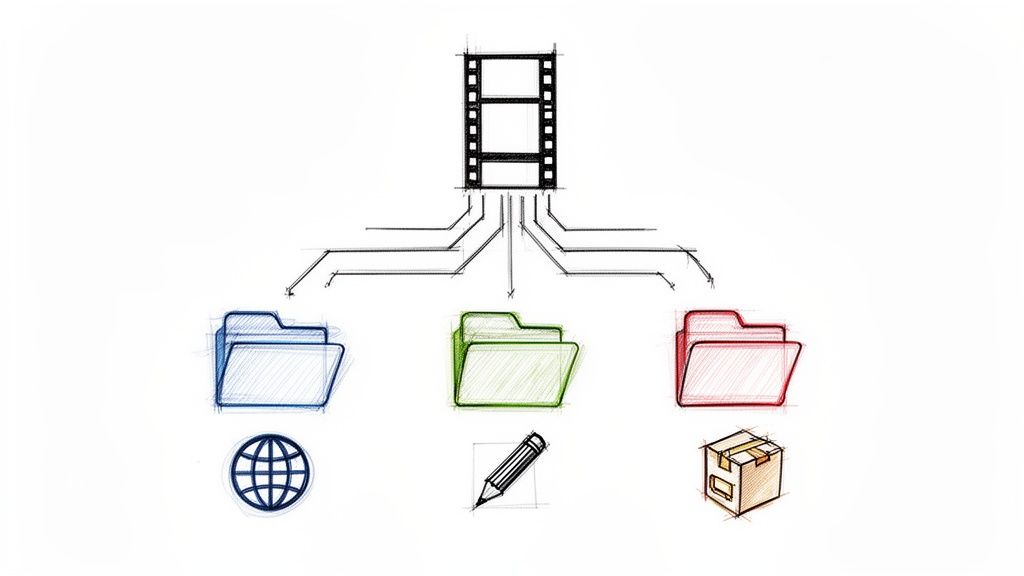
A video file holds two things: the picture and the sound. Transcription only uses the sound. Here's what happens to your file, simplified:
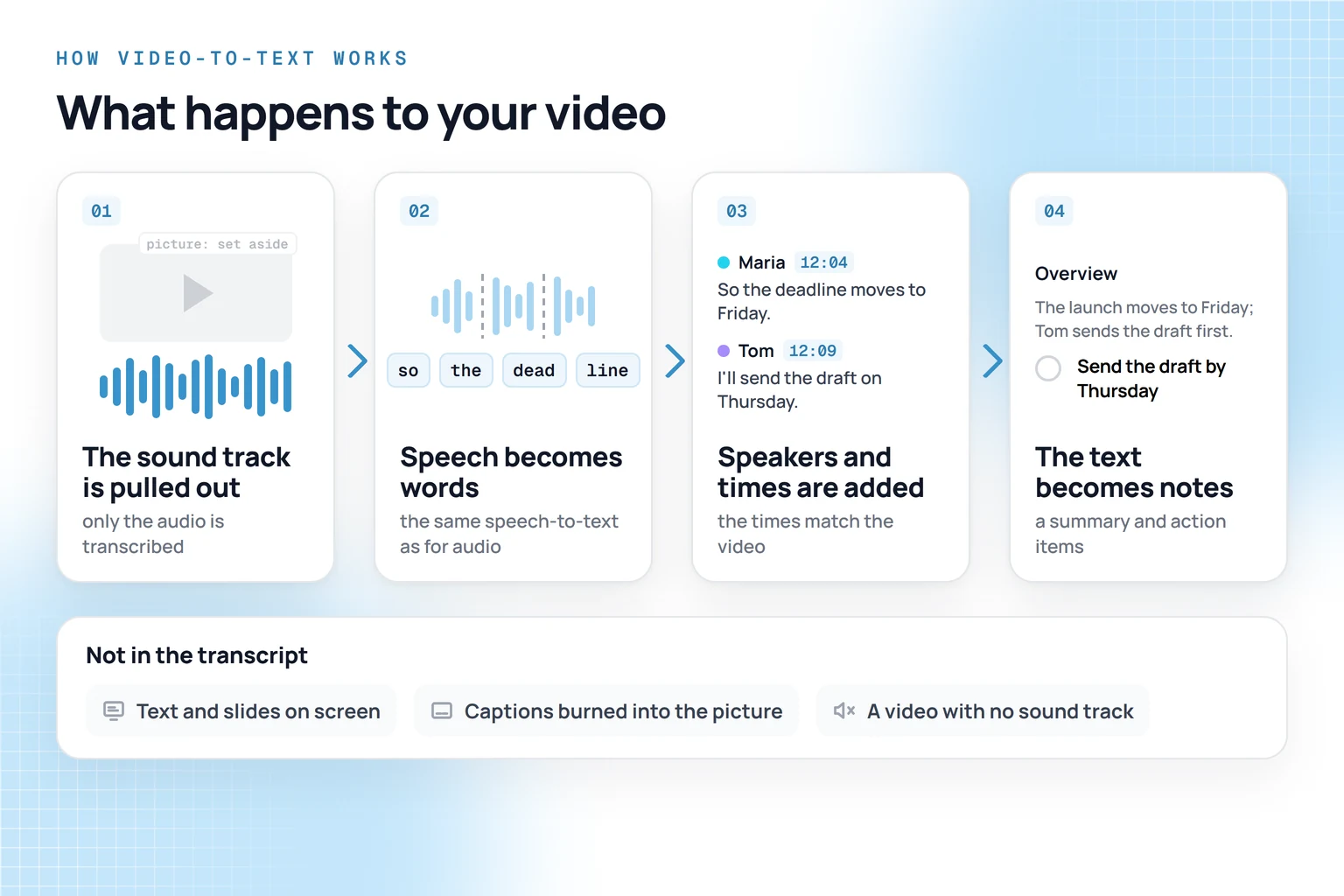
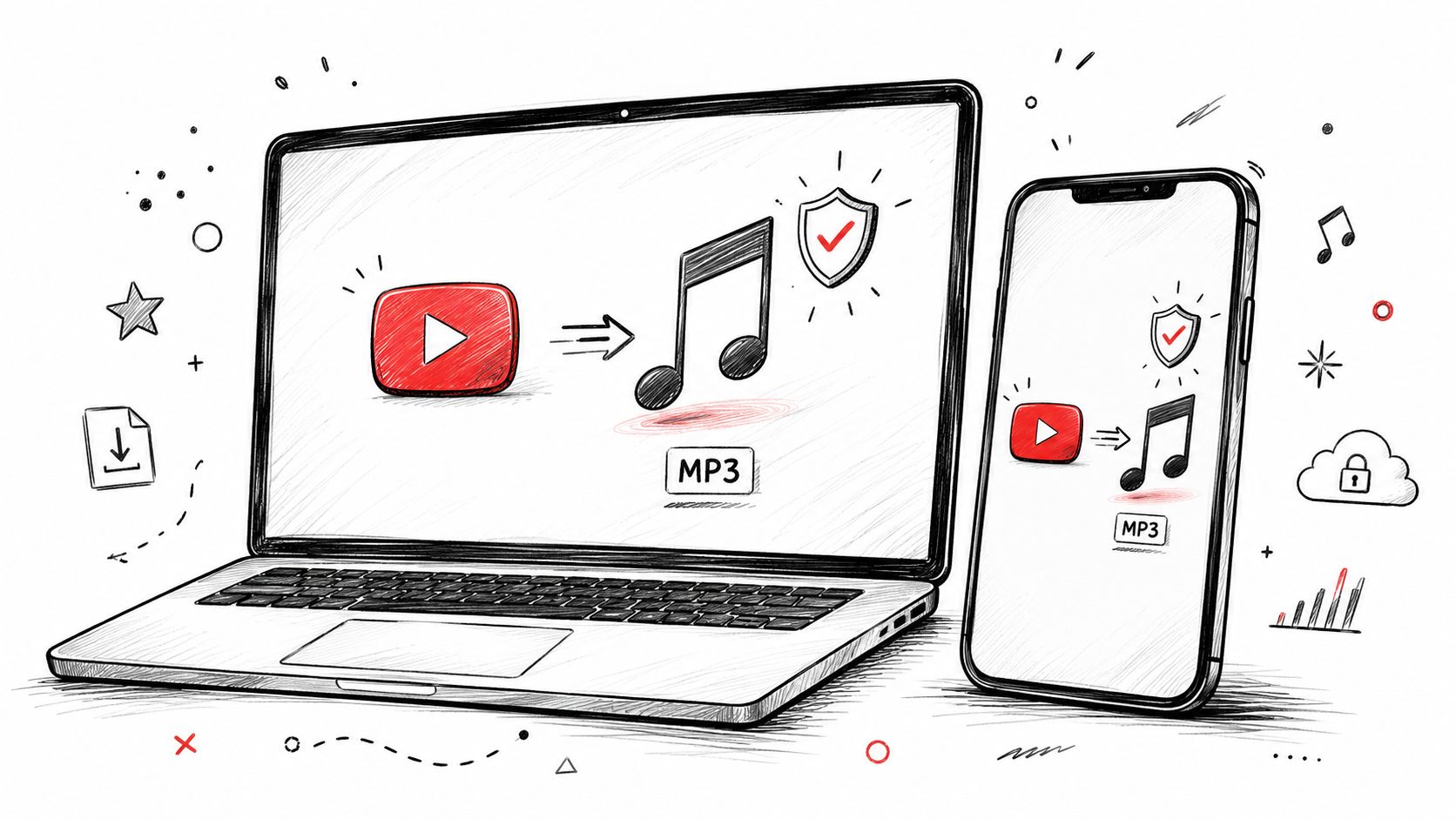
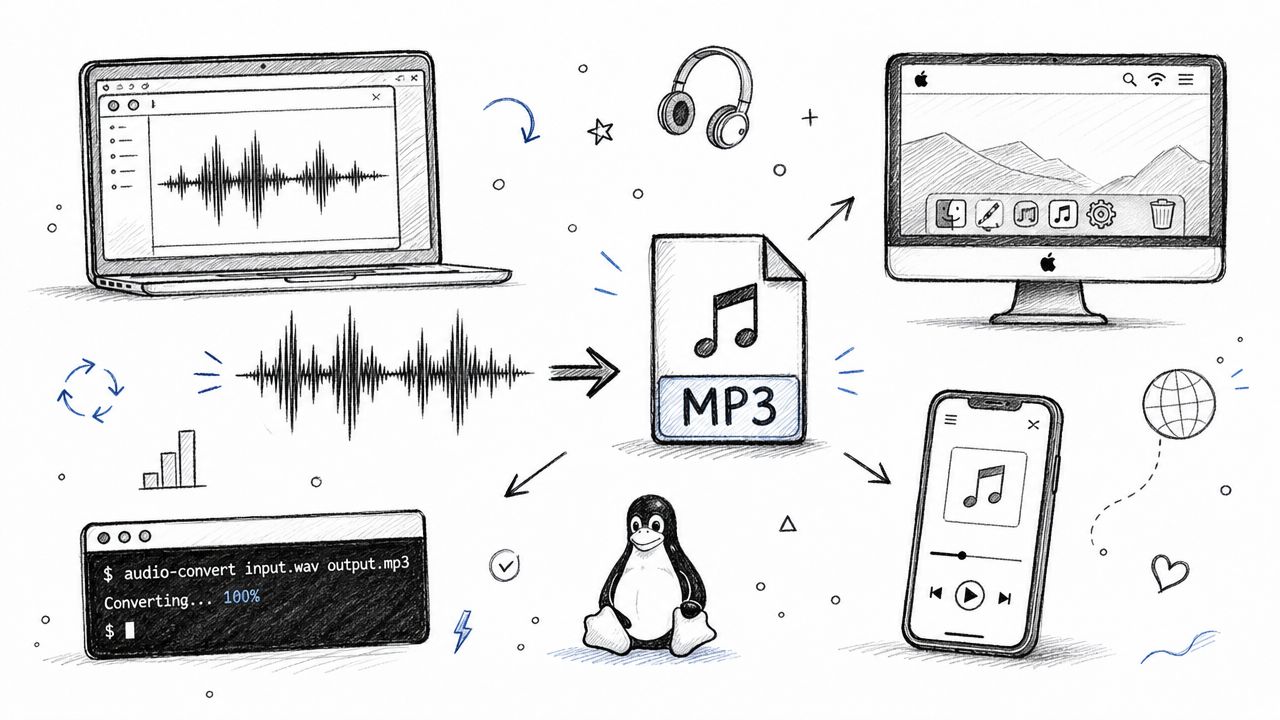
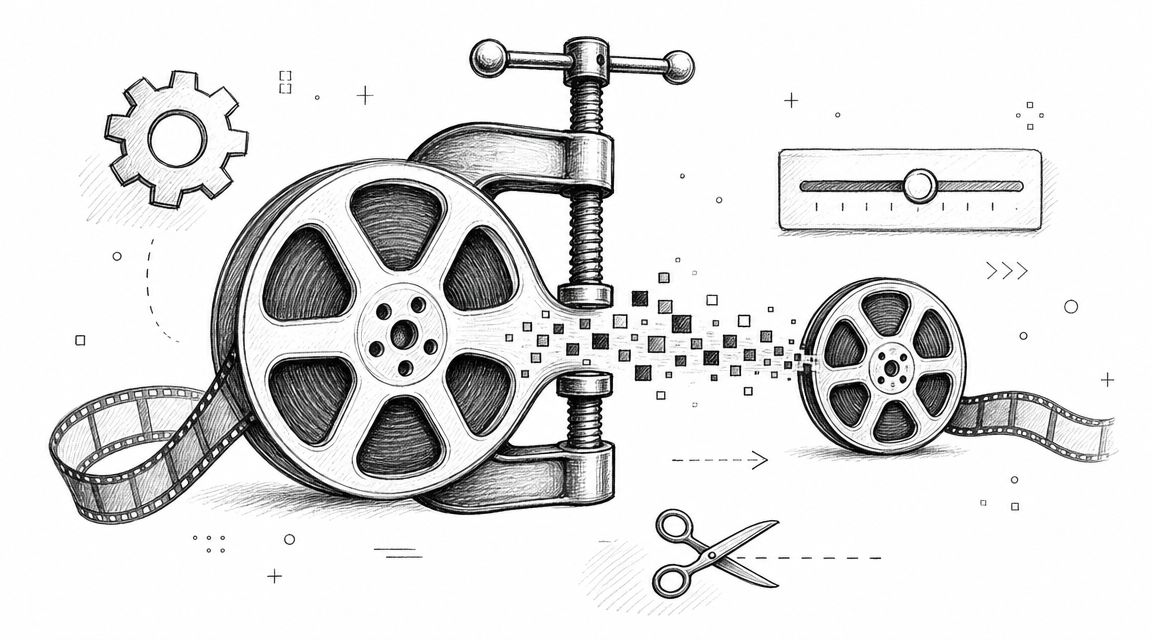
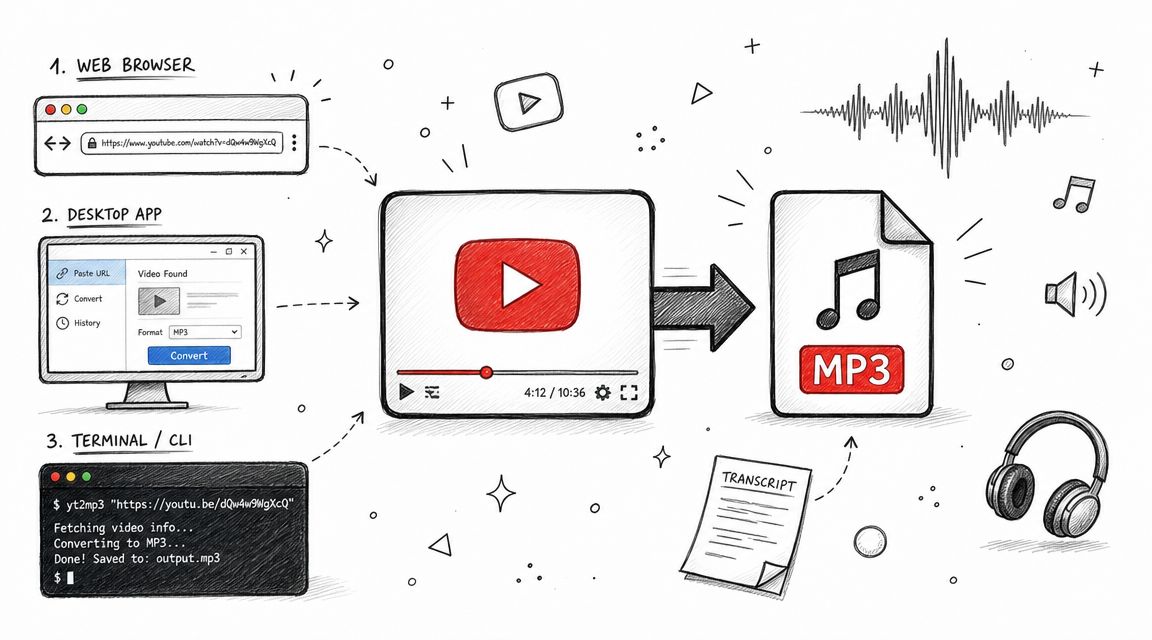
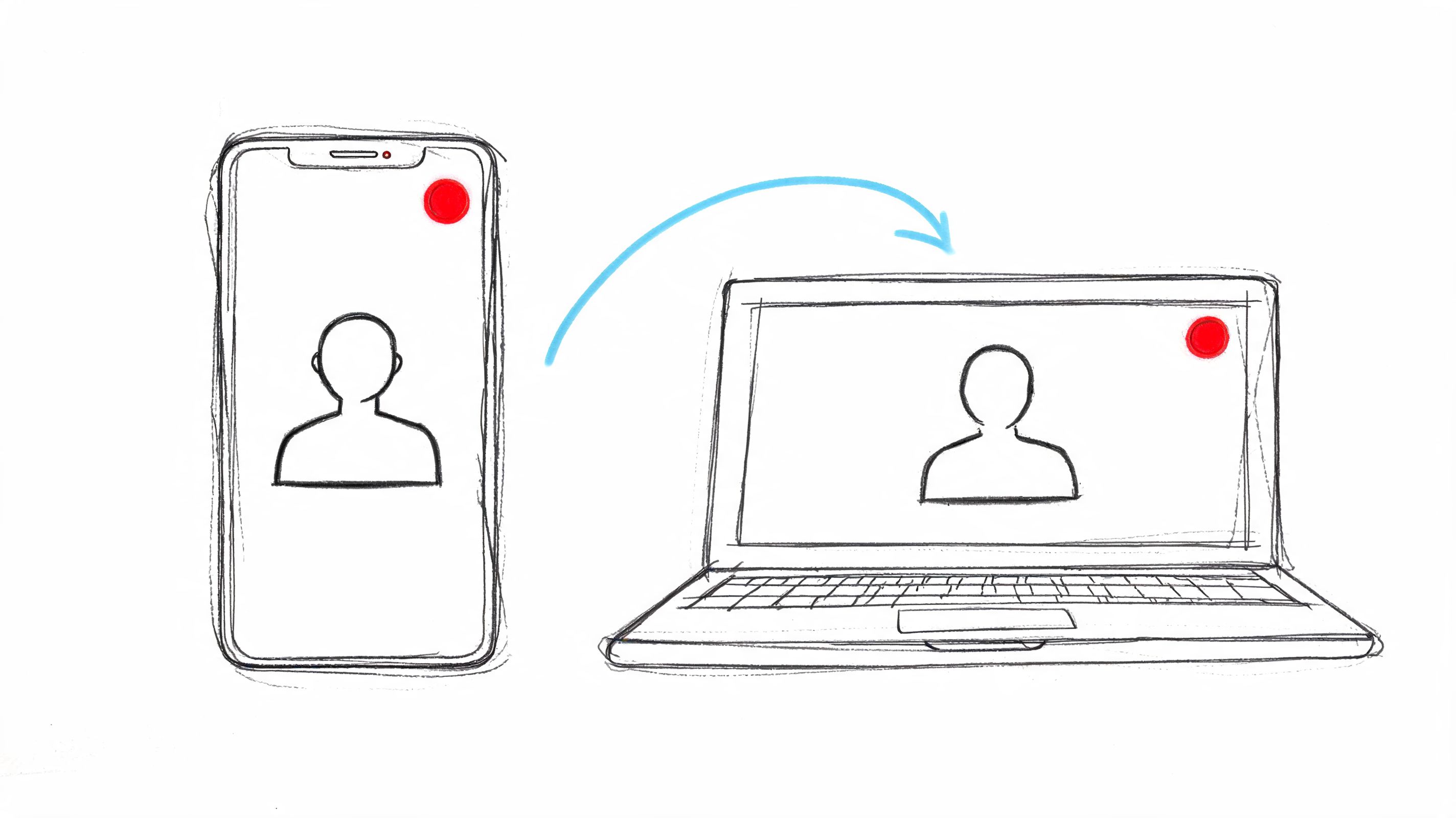
- The sound track is pulled out. The service separates the audio from the video and sets the picture aside. HypeScribe turns the sound into an MP3 first, so the picture doesn't change the text, though a big file still takes longer to upload. A file with no sound track, such as a screen recording made with the sound off, can't be transcribed, and HypeScribe marks it "No audio".
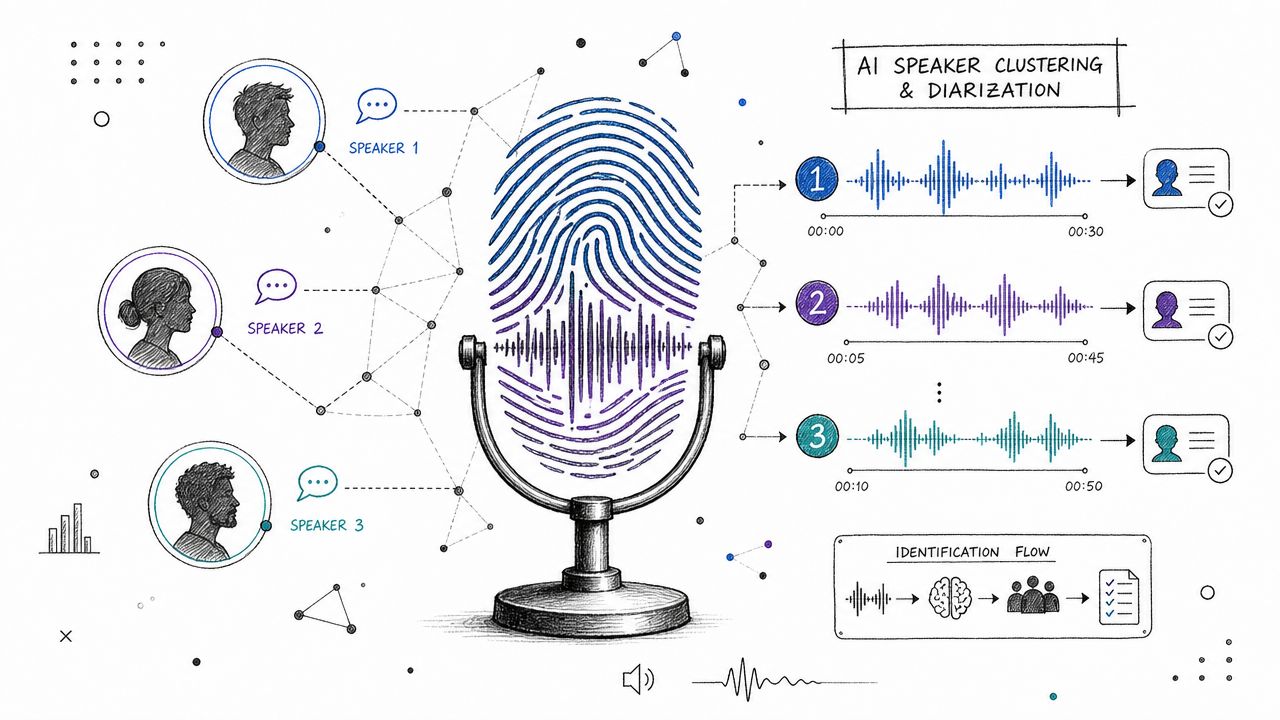
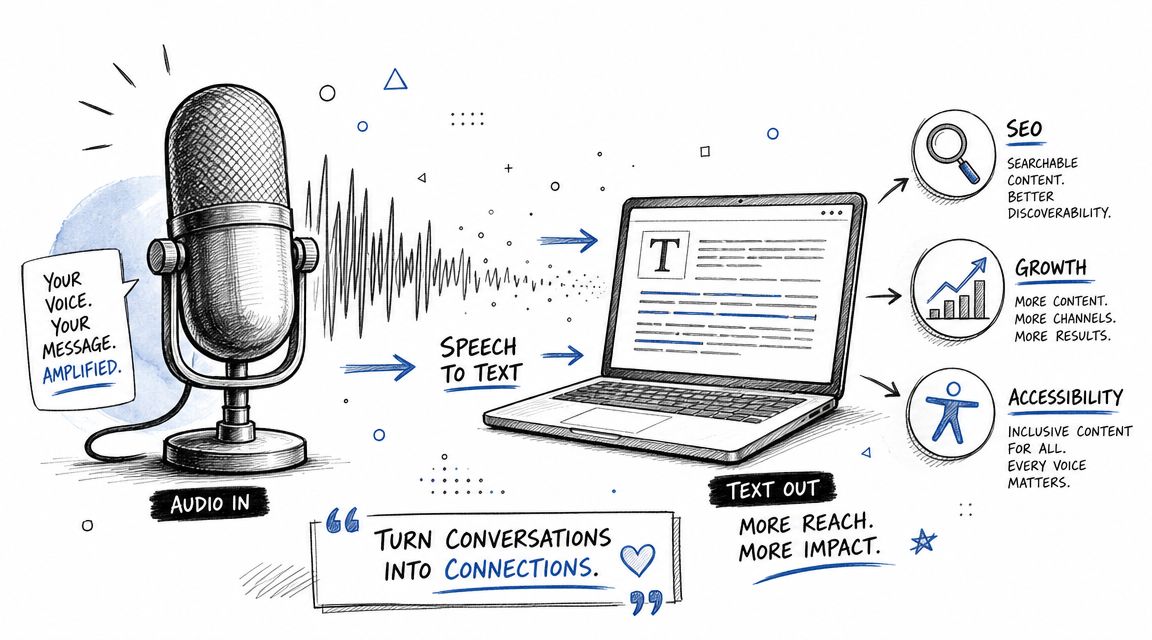
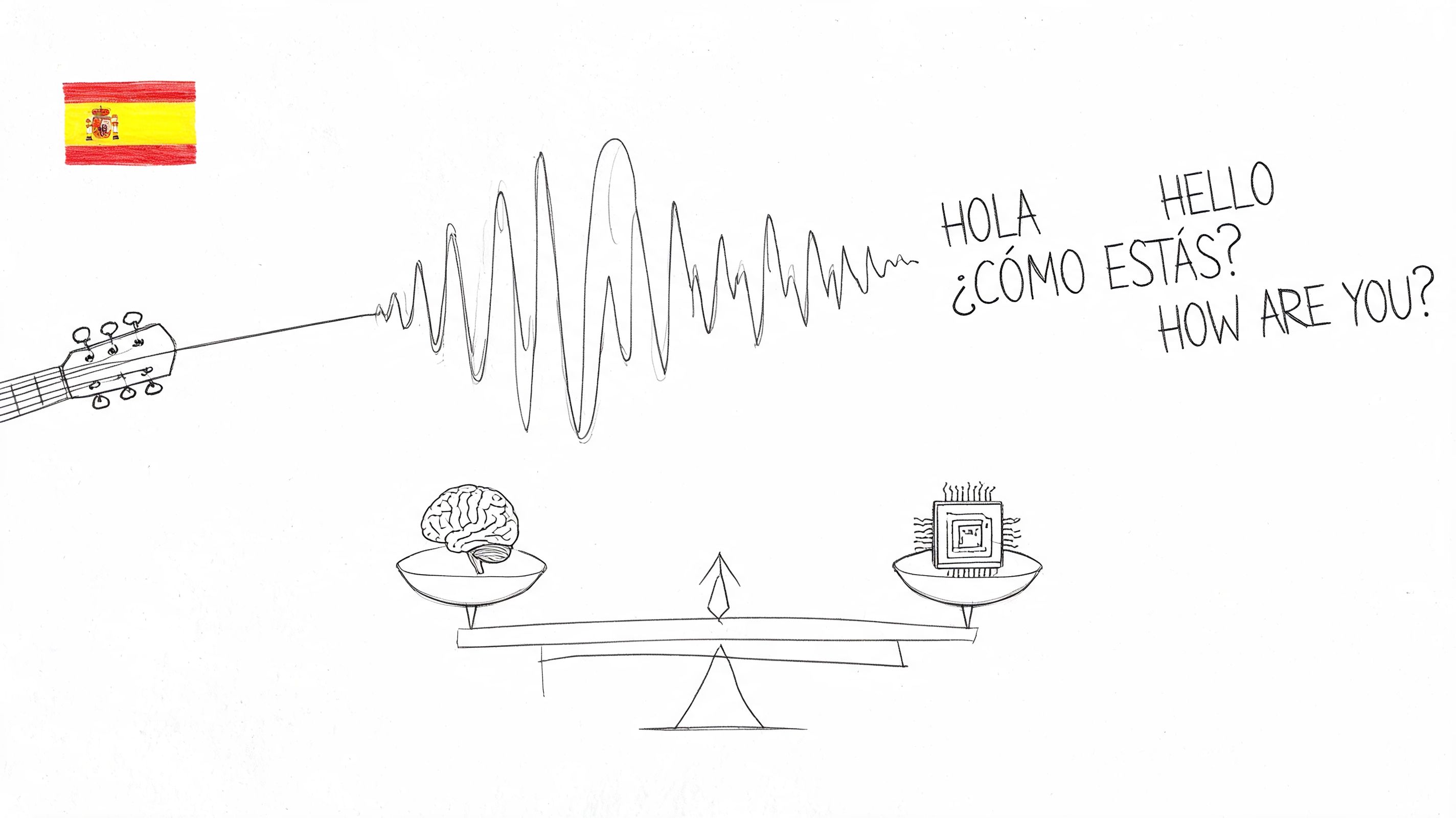
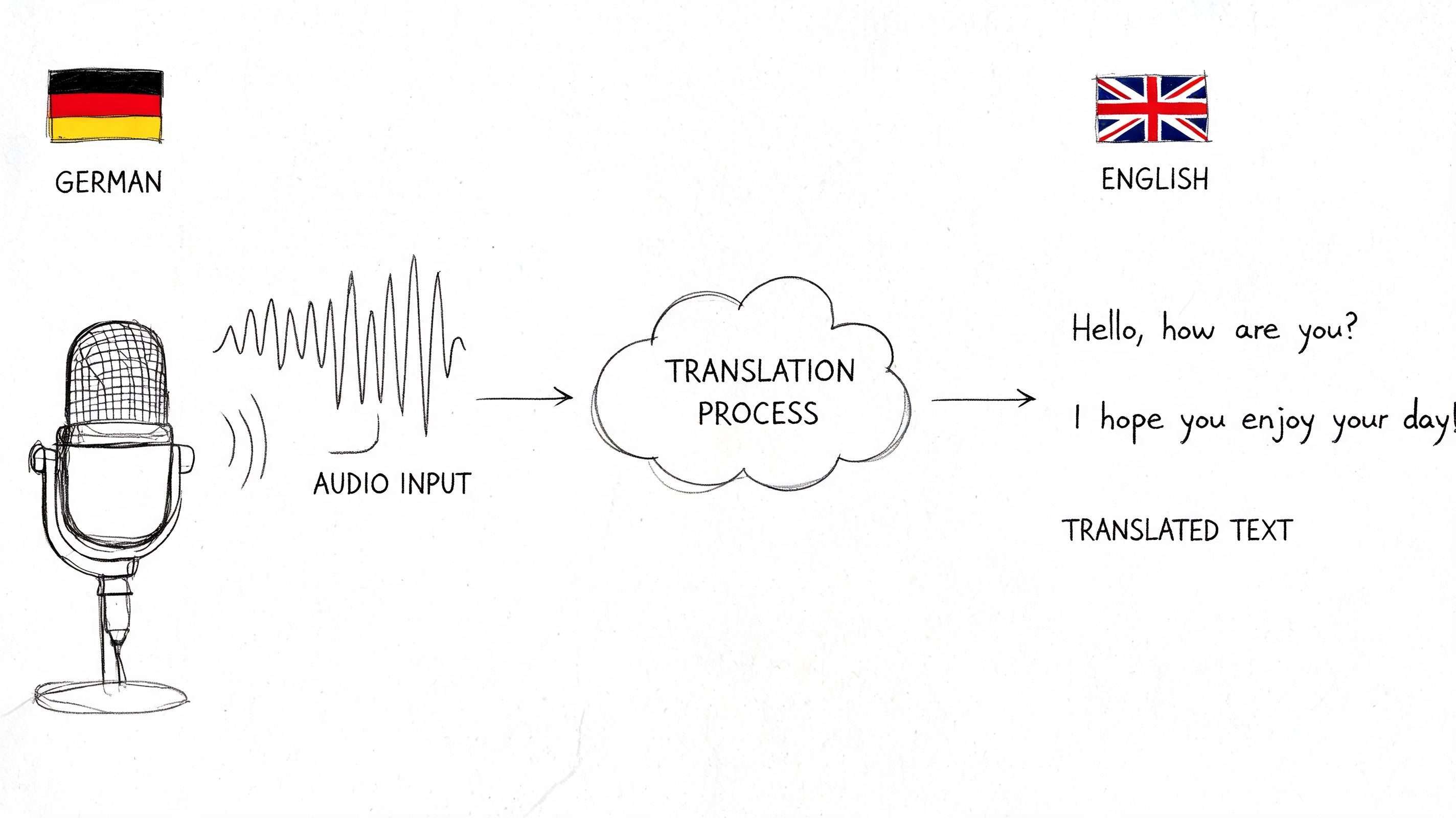
- Speech becomes words. From here it works exactly like audio: the sound is cut into short pieces, a model picks the most likely words, adds punctuation and tells the voices apart. We explain each step in our guide to converting audio to text.
- Speakers and times are added. Every block gets a time from the video's own timeline, so 12:04 in the transcript is 12:04 in the video. That's what lets you jump to a moment, and what subtitle files are built from.
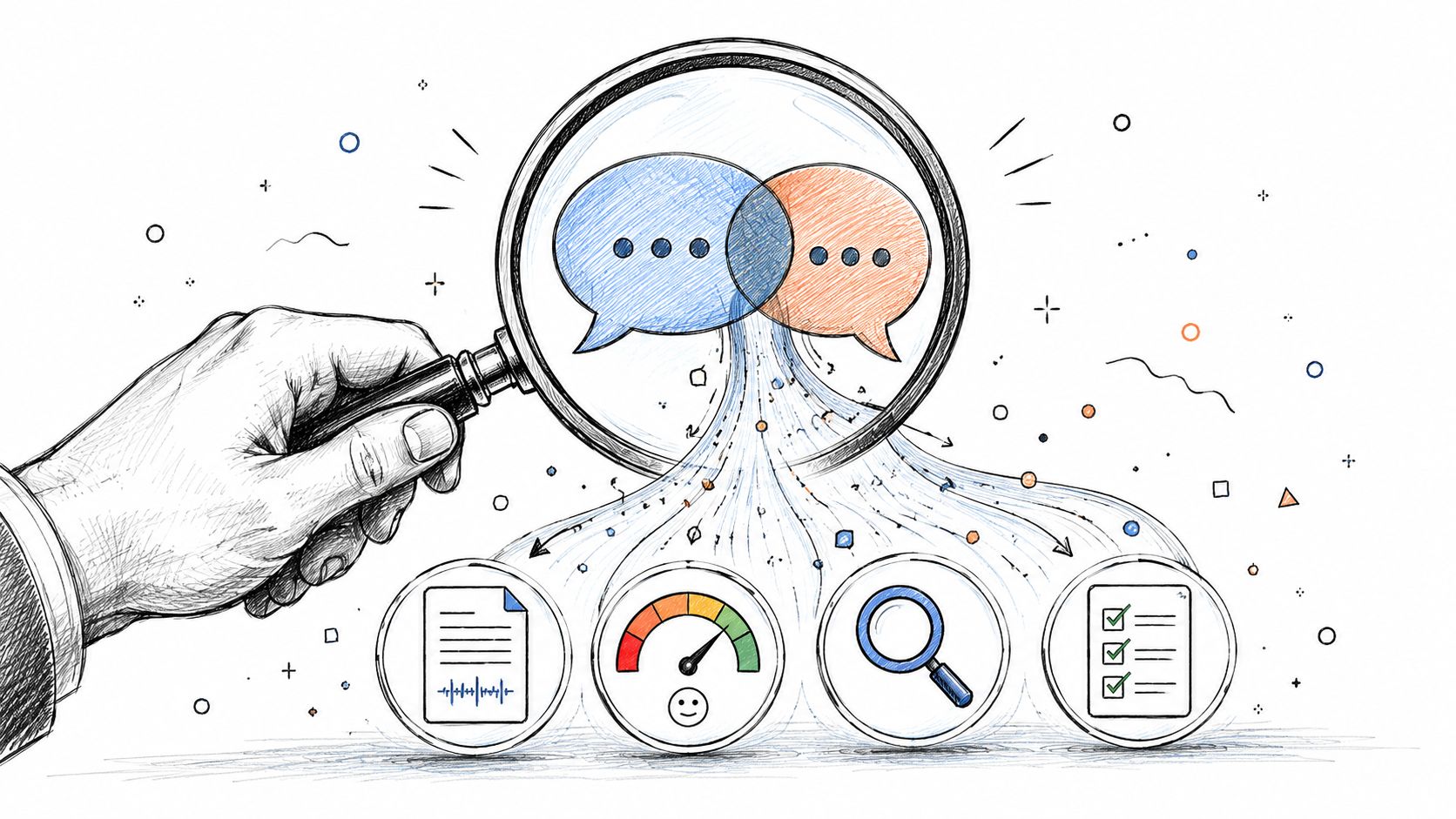
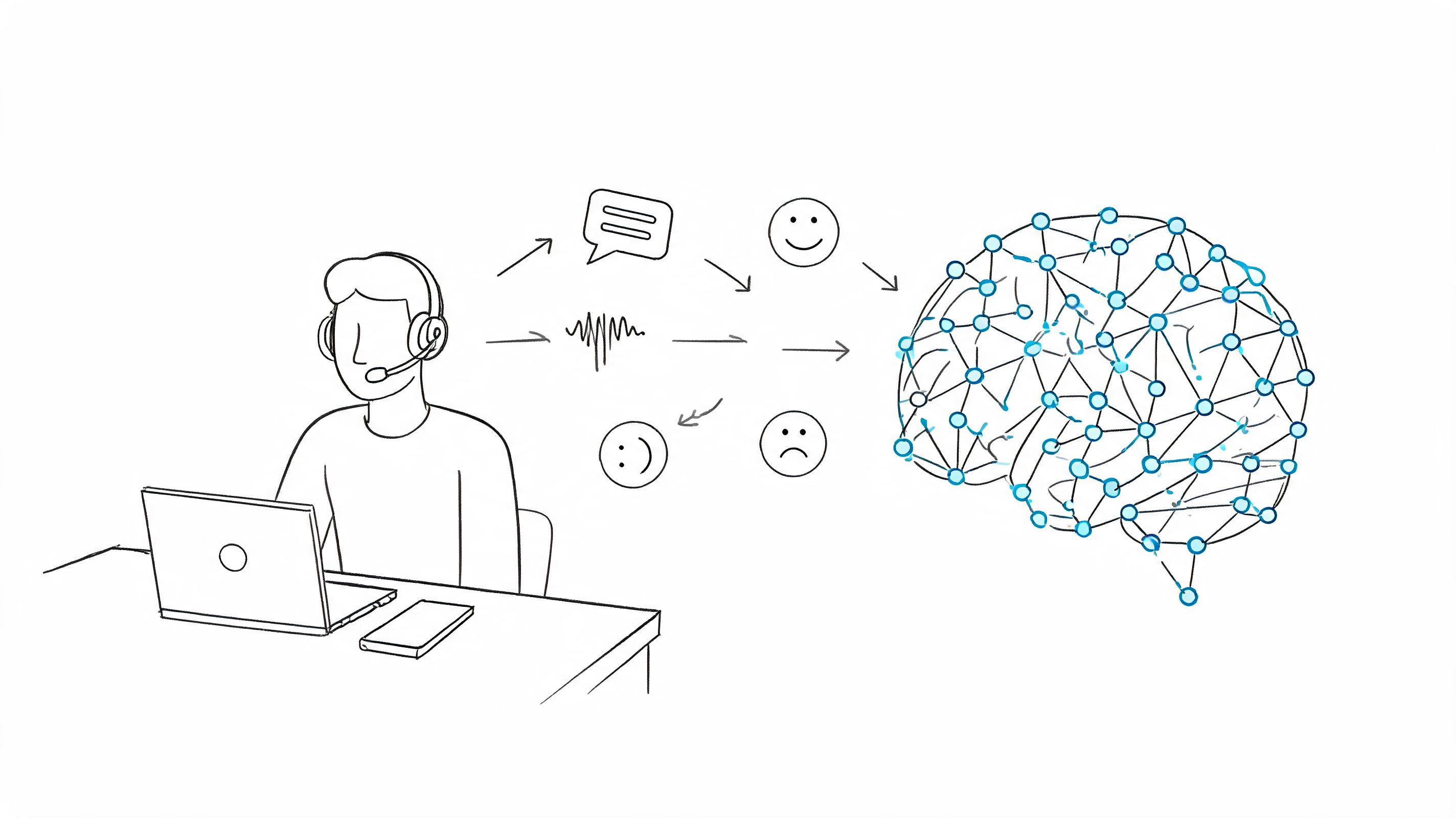
- The text becomes notes. A language model reads the finished transcript and writes the summary and action items.
Anything that's only in the picture stays out of the transcript: text and slides on screen, captions burned into the video, a name shown under a speaker. If you need the words from the slides, take them from the slide deck.
Transcript or subtitles: which do you need?
Both come from the same speech recognition, but they're made for different jobs:
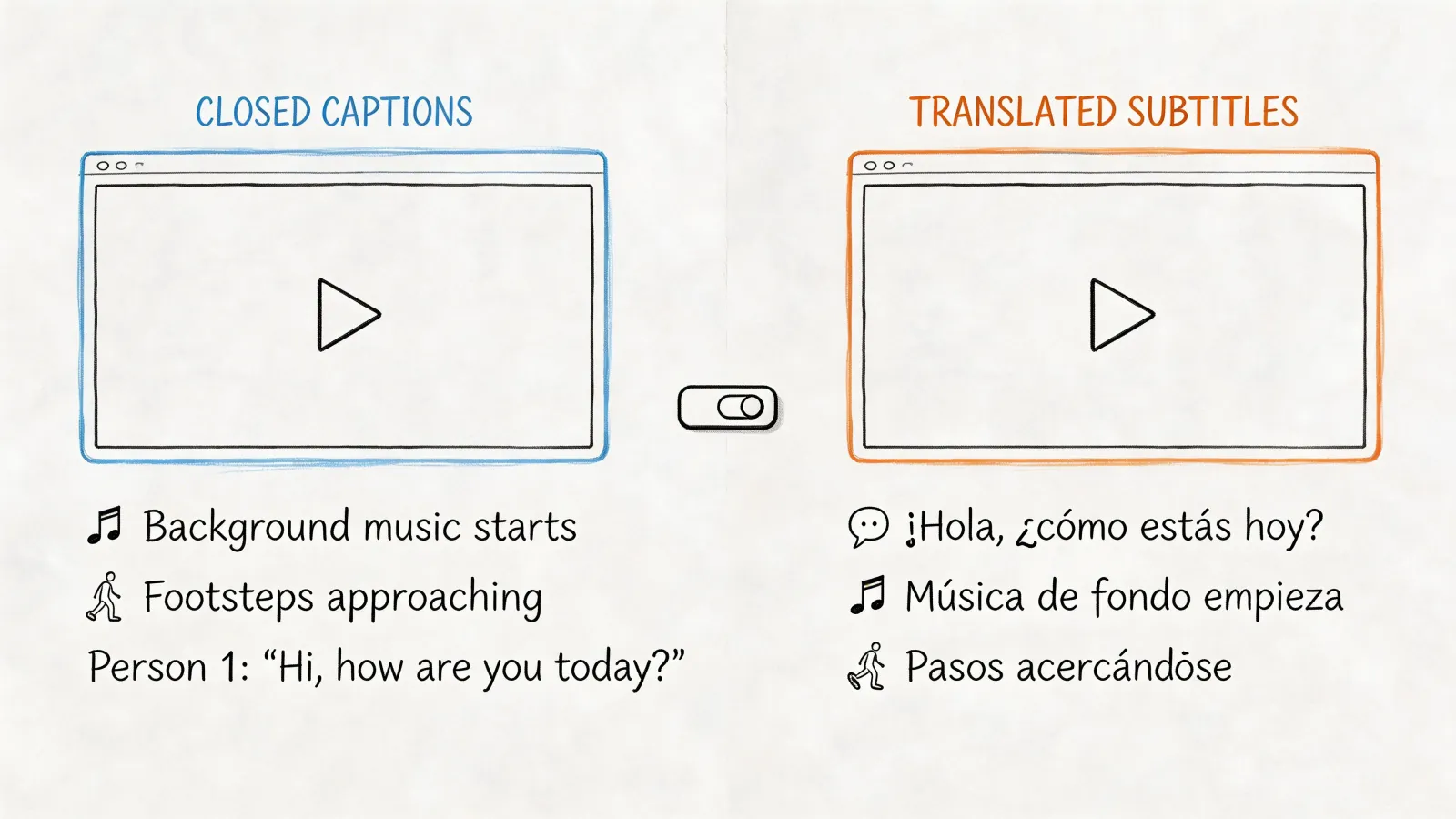
- A transcript is the text of the video in paragraphs, with who spoke and when. You read it, search it, quote from it and turn it into notes. More on what a video transcript is.
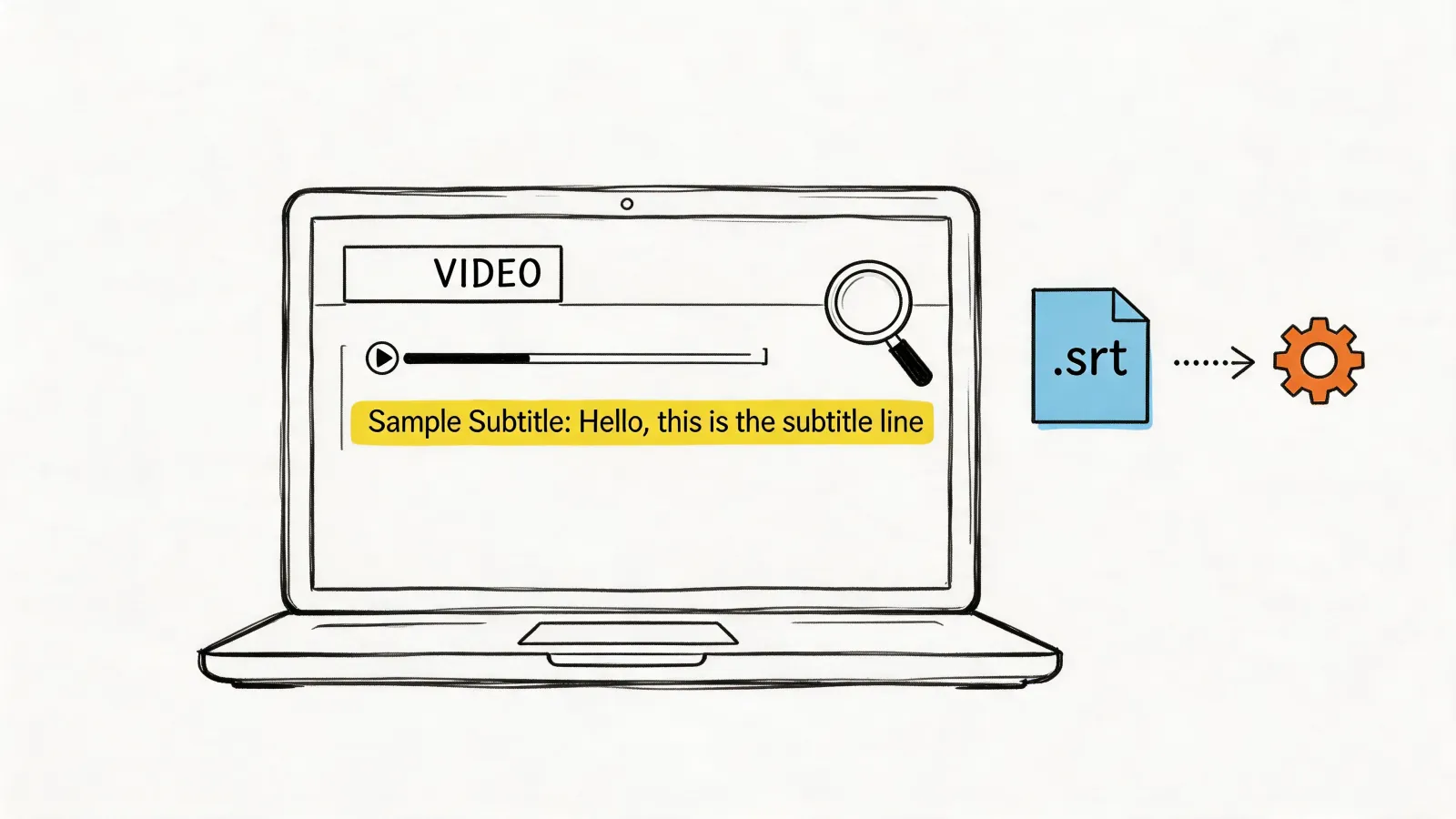
- Subtitles are short lines timed to appear on screen, saved as an SRT or VTT file next to the video. More on what SRT stands for.
HypeScribe makes transcripts. Its SRT export has one entry per speaker turn, which works for reading along with the video but is too long to put on screen. For captions on the video, use your video editor: Premiere Pro, DaVinci Resolve Studio, CapCut and Descript split the text into short lines for you. We compare them in our guide to video transcription software.
How accurate is video transcription, and how to improve it
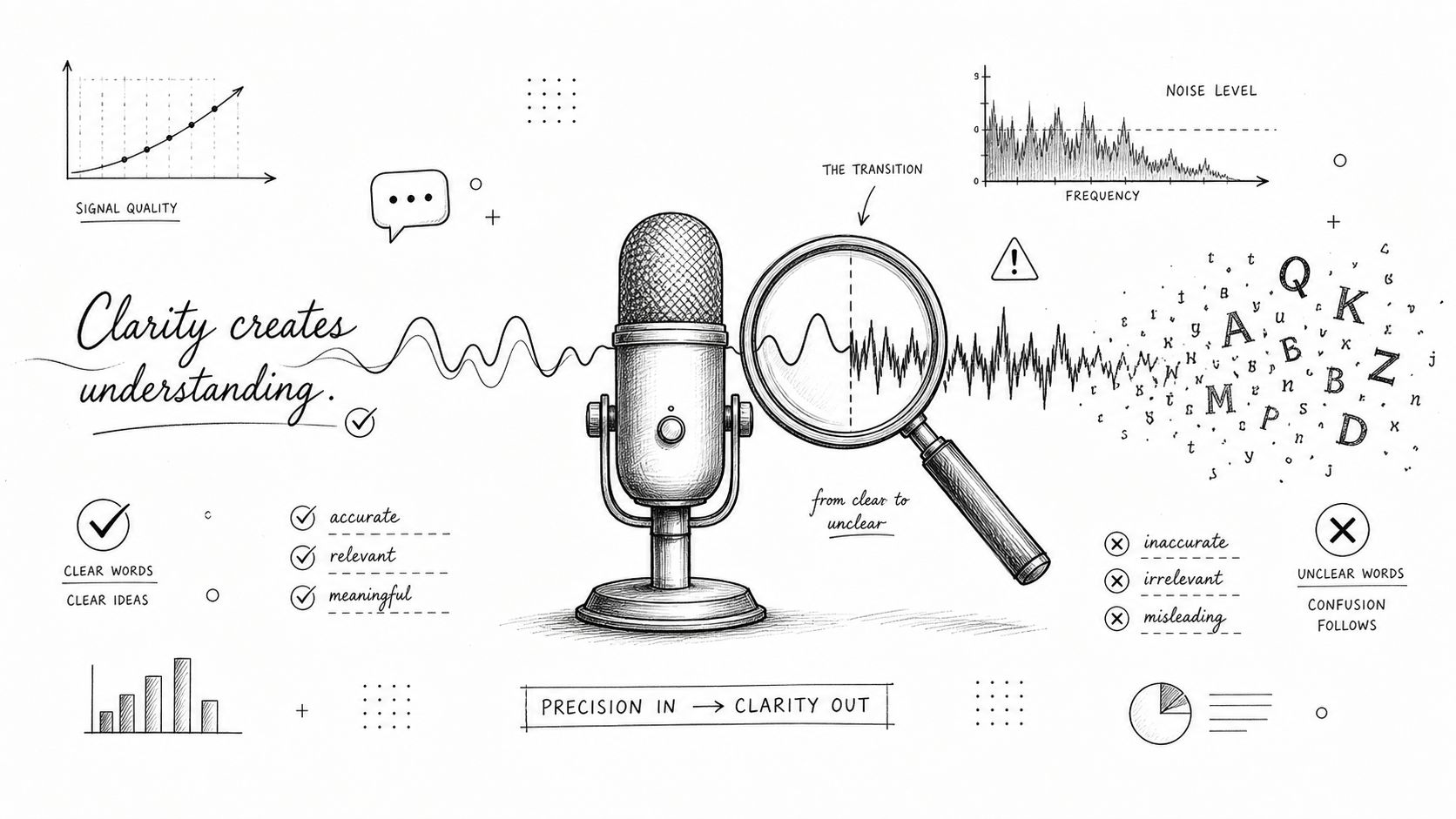
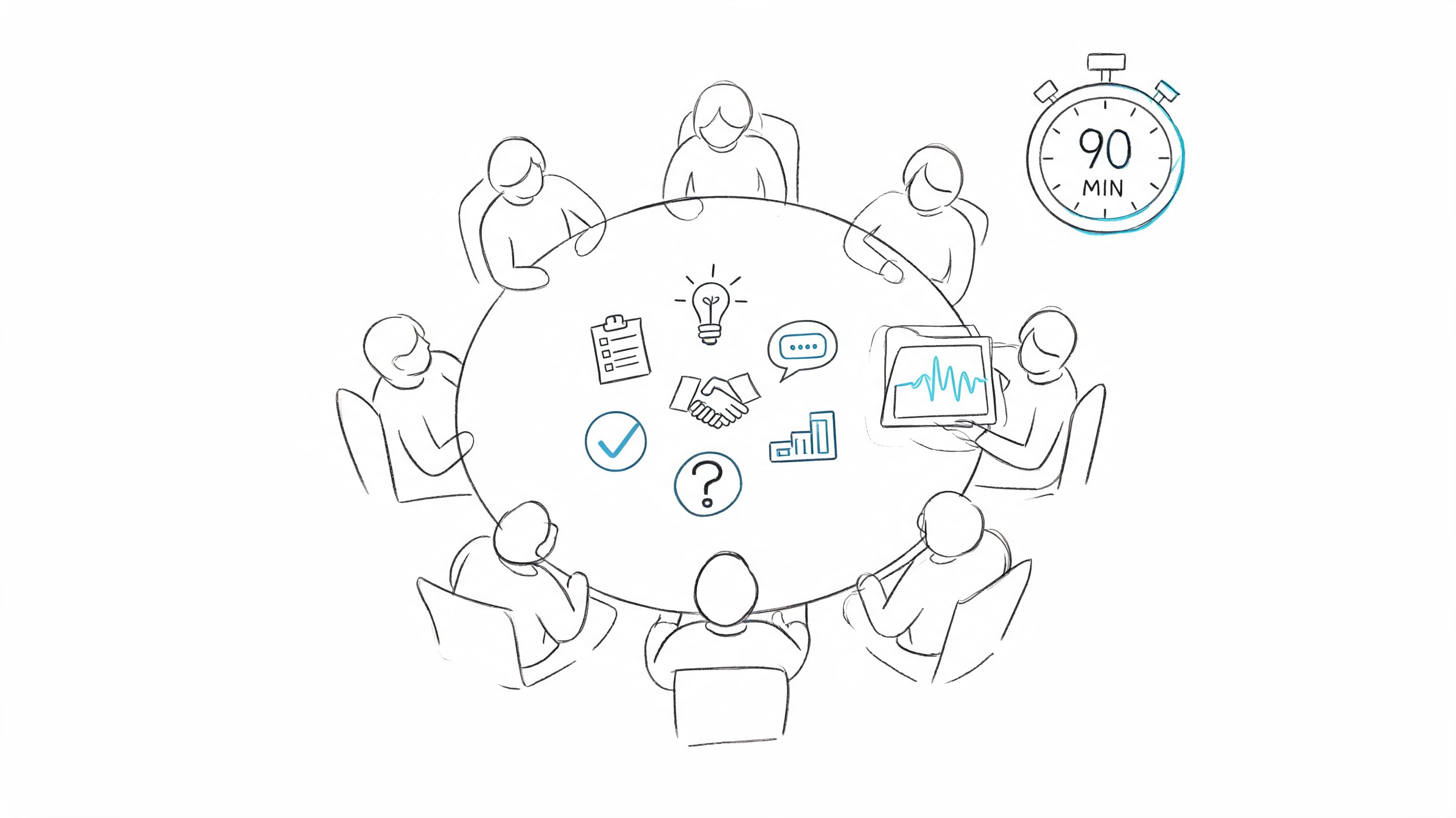
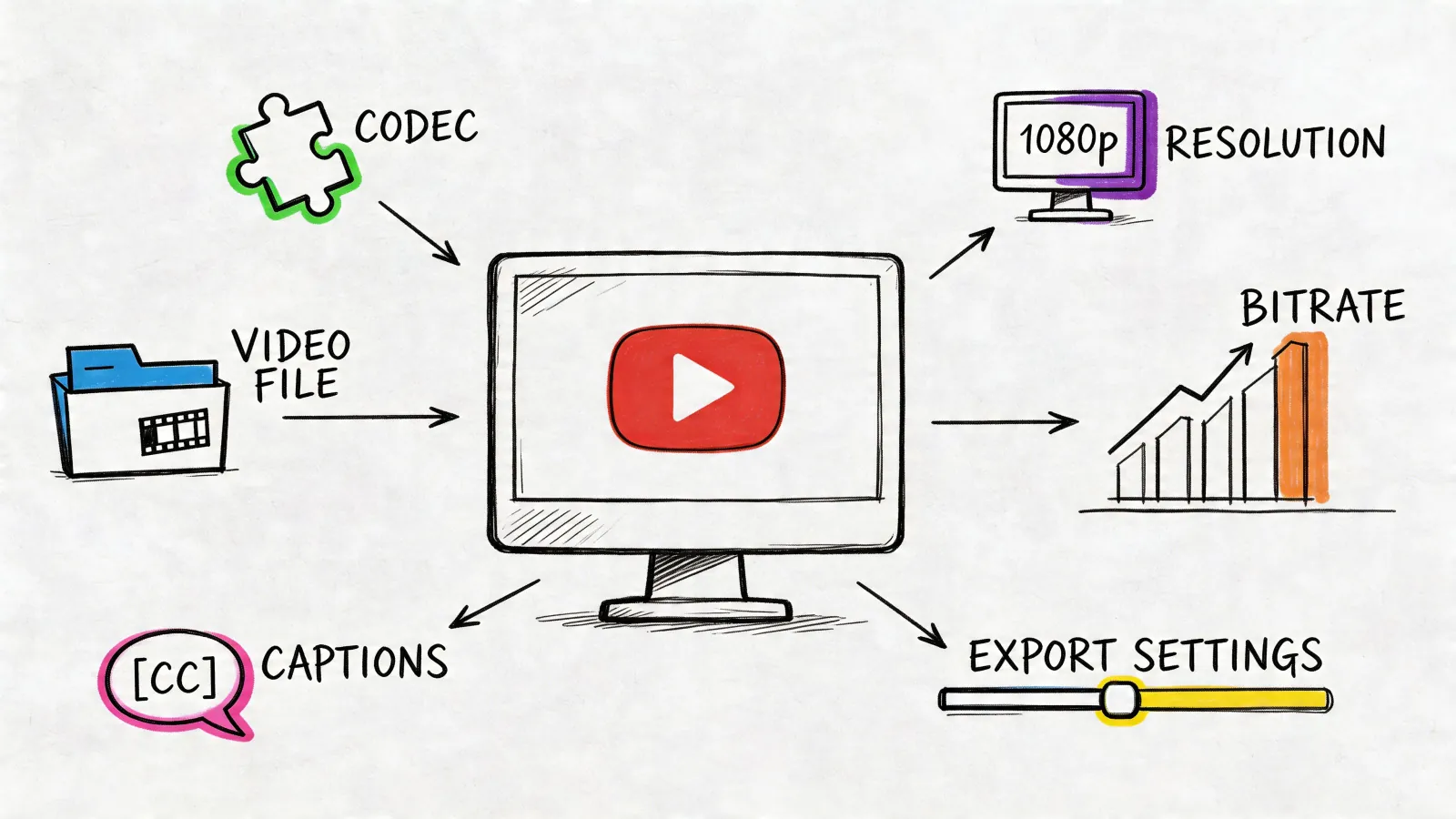
How well a video transcribes depends on its sound. Microsoft's speech guide expects fewer than 10% of words wrong in dictation, where one person speaks into a close microphone, while for video it only says "depends on video type". The usual trouble: the camera's microphone is far from the speaker, edited videos have music and sound effects under the voice, and in webinars people talk over each other.

- Put the mic on the speaker. A clip-on mic or a phone close by beats the one built into the camera.
- Keep music under the voice. If you edit the video, export the dialogue on its own for transcription.
- One person at a time. When voices overlap, the quieter one can get lost.
- Upload the original. The file or its link, not a screen recording of the video playing. And skip noise reduction: Google says it usually lowers accuracy.
If the video is already made, upload it as it is and spend your checking time where a mistake costs the most:
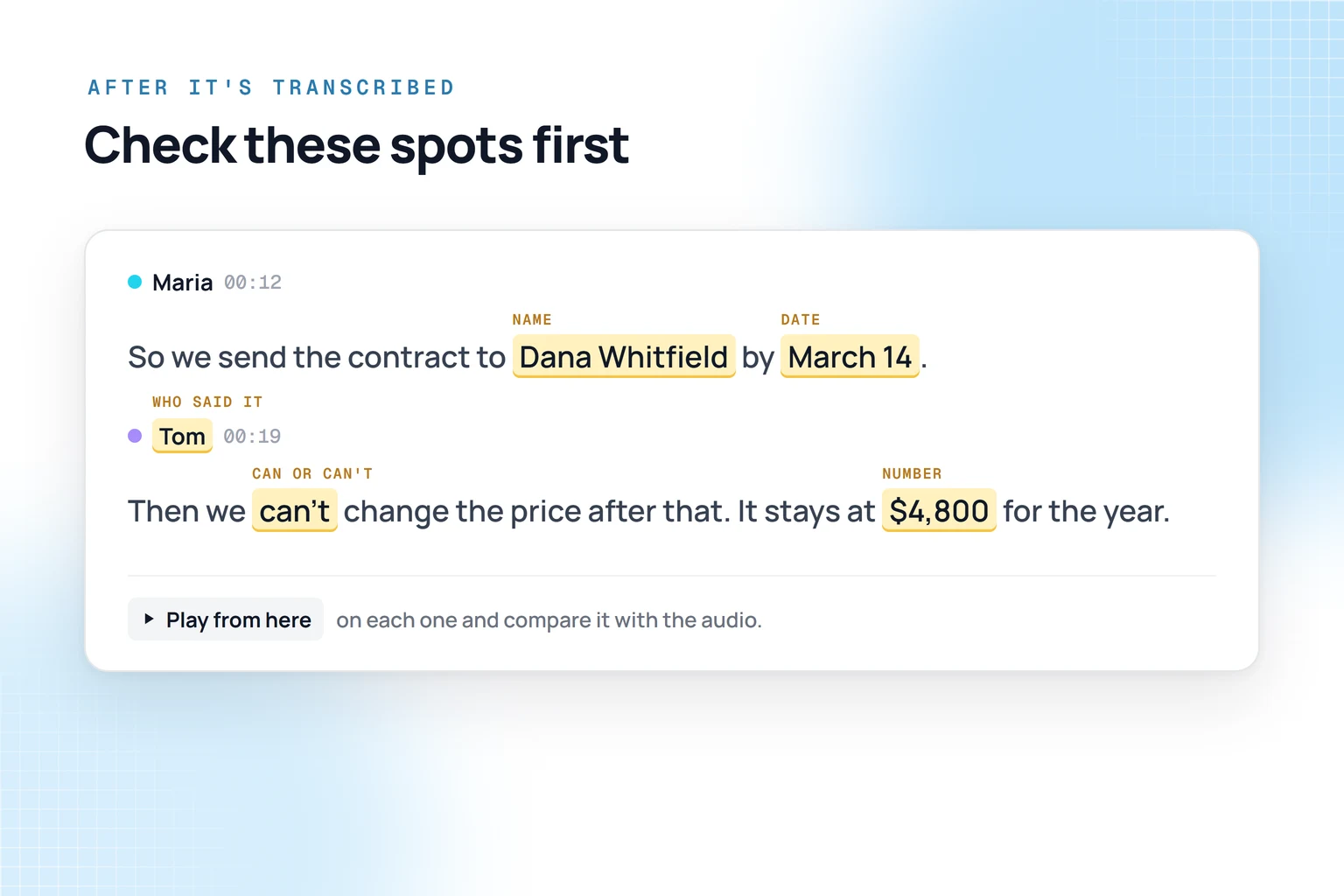
Names and jargon, numbers and dates, small words like "can" and "can't", and who said what. Search for them, press Play from here and compare with the video. More in our guide to speech-to-text accuracy.
Is it safe to upload videos for transcription?
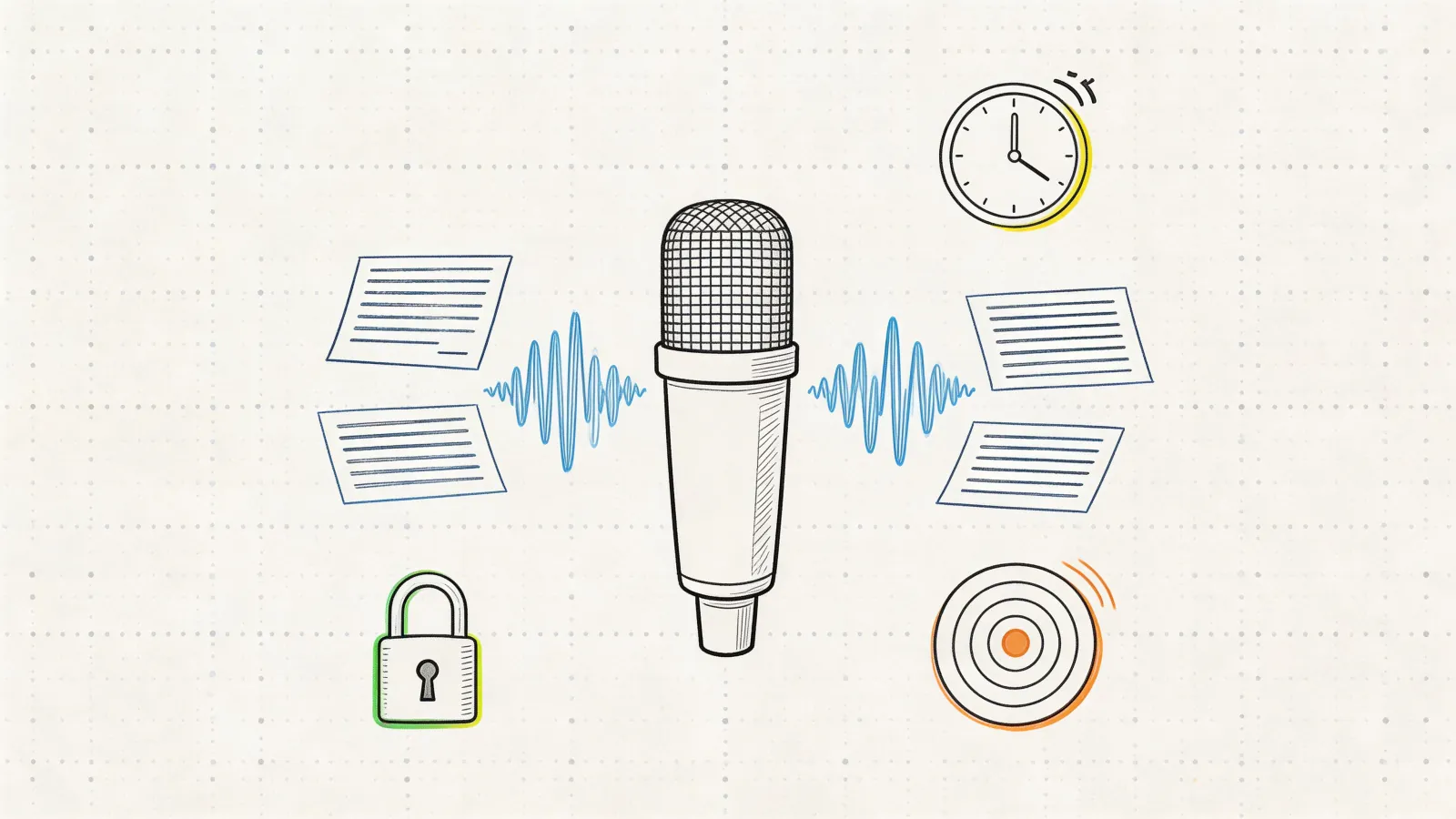
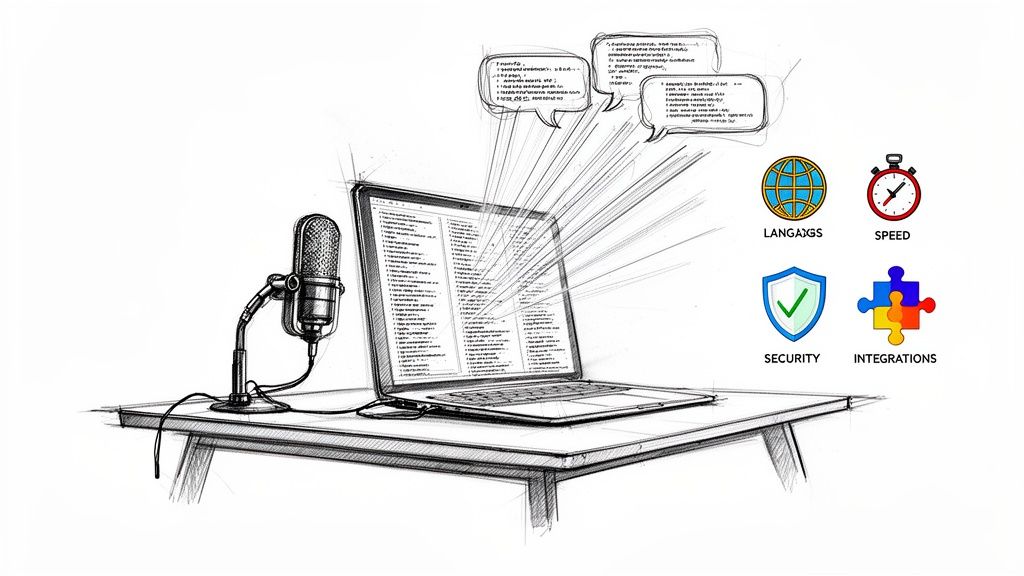
Before you upload a client call, a recorded lesson or a research interview, check four things with any service: whether files are encrypted on the way, whether the company trains AI on them, who can open a shared transcript, and whether people in a recorded meeting know it's being recorded. Here's how it works in HypeScribe:
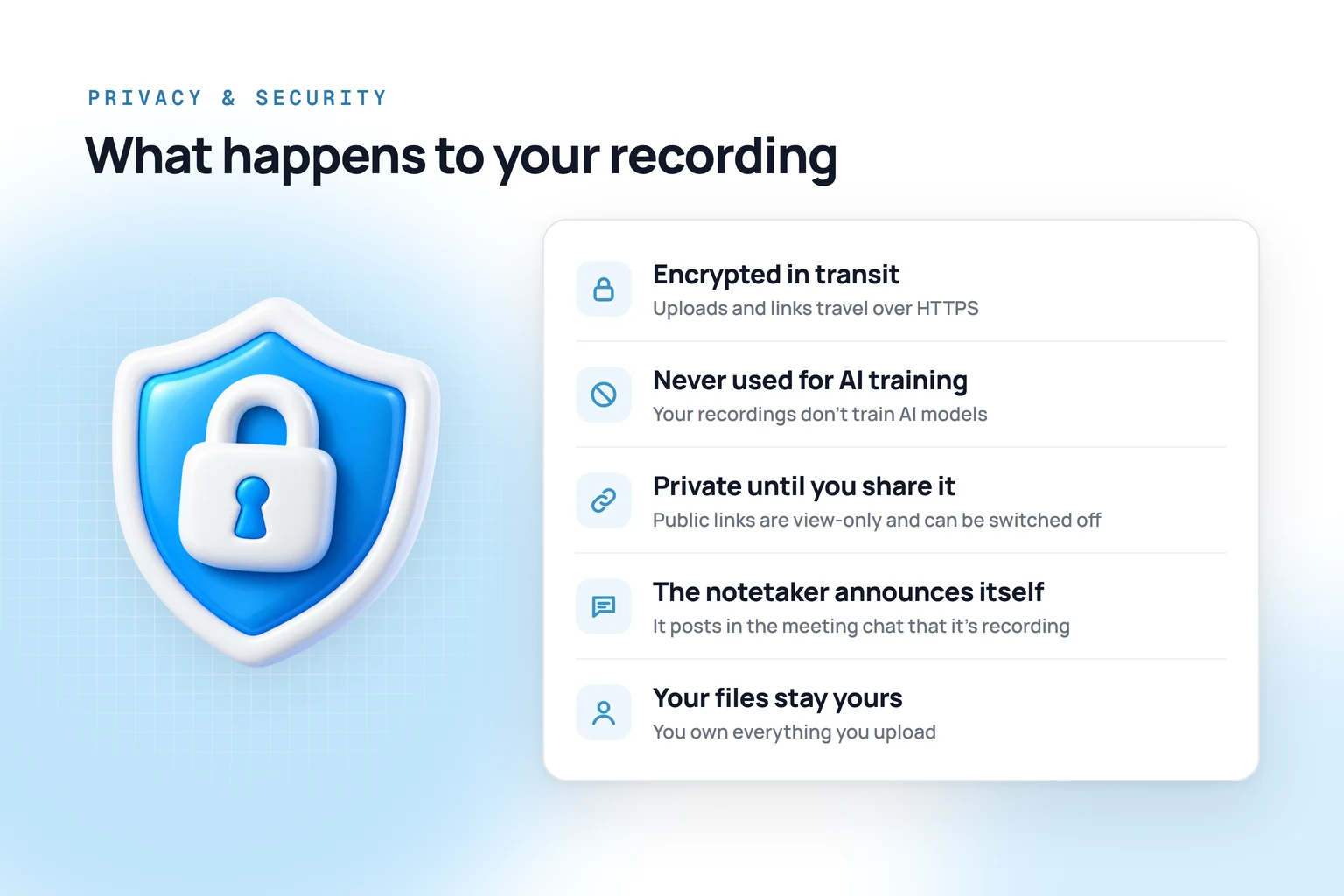
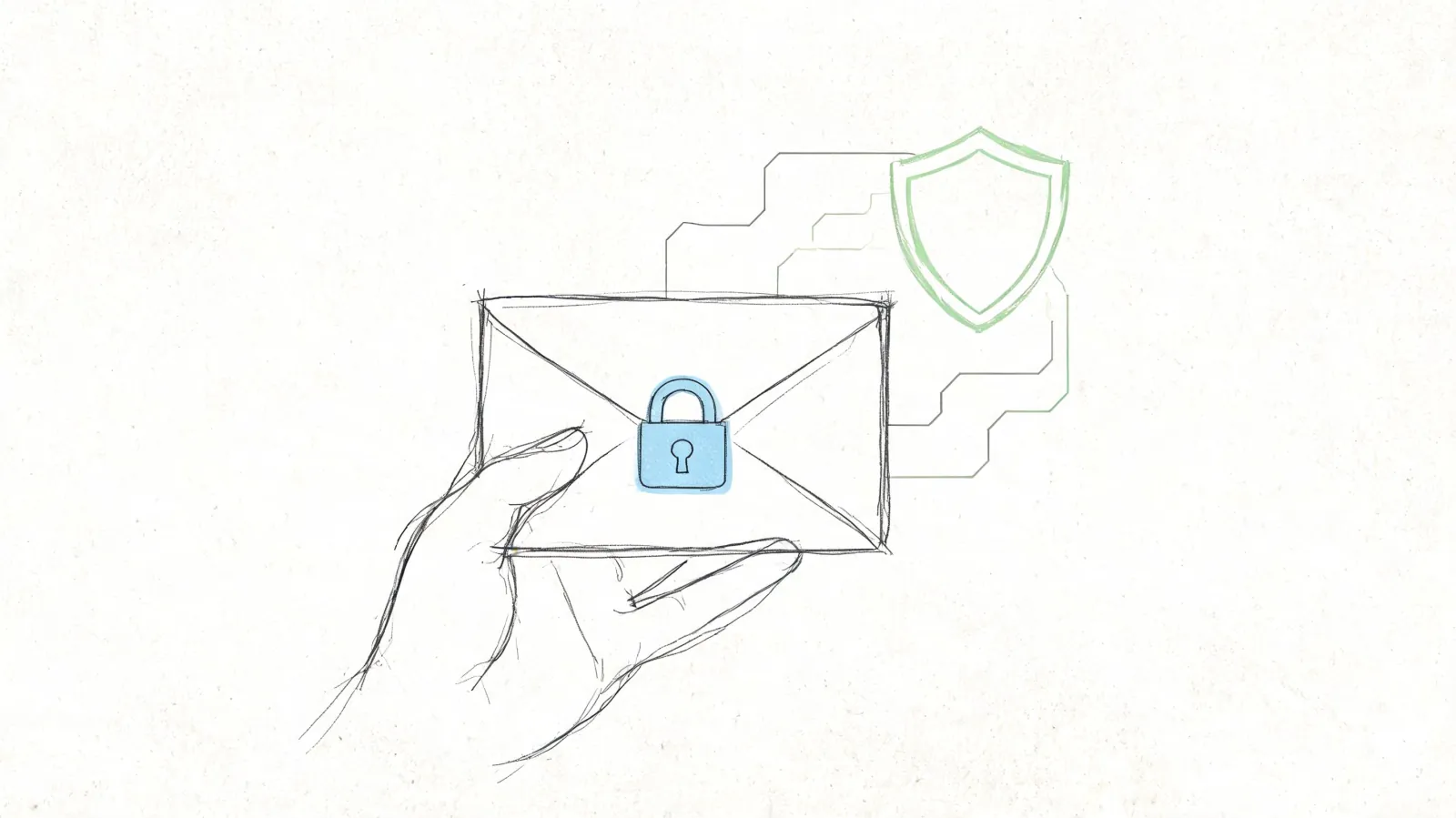
- Encrypted in transit. Uploads and links go over HTTPS.
- Not used to train AI. The upload window says it plainly: "Your files are encrypted in transit and never stored for AI training."
- Private until you share. A transcript has no public link until you turn one on. The link is view-only, and anyone who has it can read the transcript and play the recording, so switch it off when you no longer need it. To work on a transcript together, invite specific people by email with View or Edit access.
- The notetaker says it's recording. Soon after it joins a call, it posts in the meeting chat that you're using HypeScribe to record the meeting and take notes. Recording laws differ by state and country; see when it's legal to record a conversation.
- You own what you upload. Videos and transcripts stay your content, and files are stored on AWS servers in the US.
Only the sound is transcribed, but the whole video file is uploaded. If the picture itself is sensitive, such as faces or a shared screen, extract the audio and upload only that: the transcript doesn't need the picture. If a video must never leave your computer, transcribe it offline with MacWhisper or Buzz, covered below.
Other ways to convert video to text
YouTube, Microsoft 365, Zoom, Clipchamp and offline Whisper apps can turn speech into text too. Here's what each one takes and gives back:
- YouTube Studio: for your own videos, upload one, wait for the automatic captions, then download them from the Subtitles page.
- Word for the web is enough if you already pay for Microsoft 365 and have a few short videos a month.
- Microsoft Stream transcribes company videos stored in OneDrive or SharePoint, such as recorded trainings.
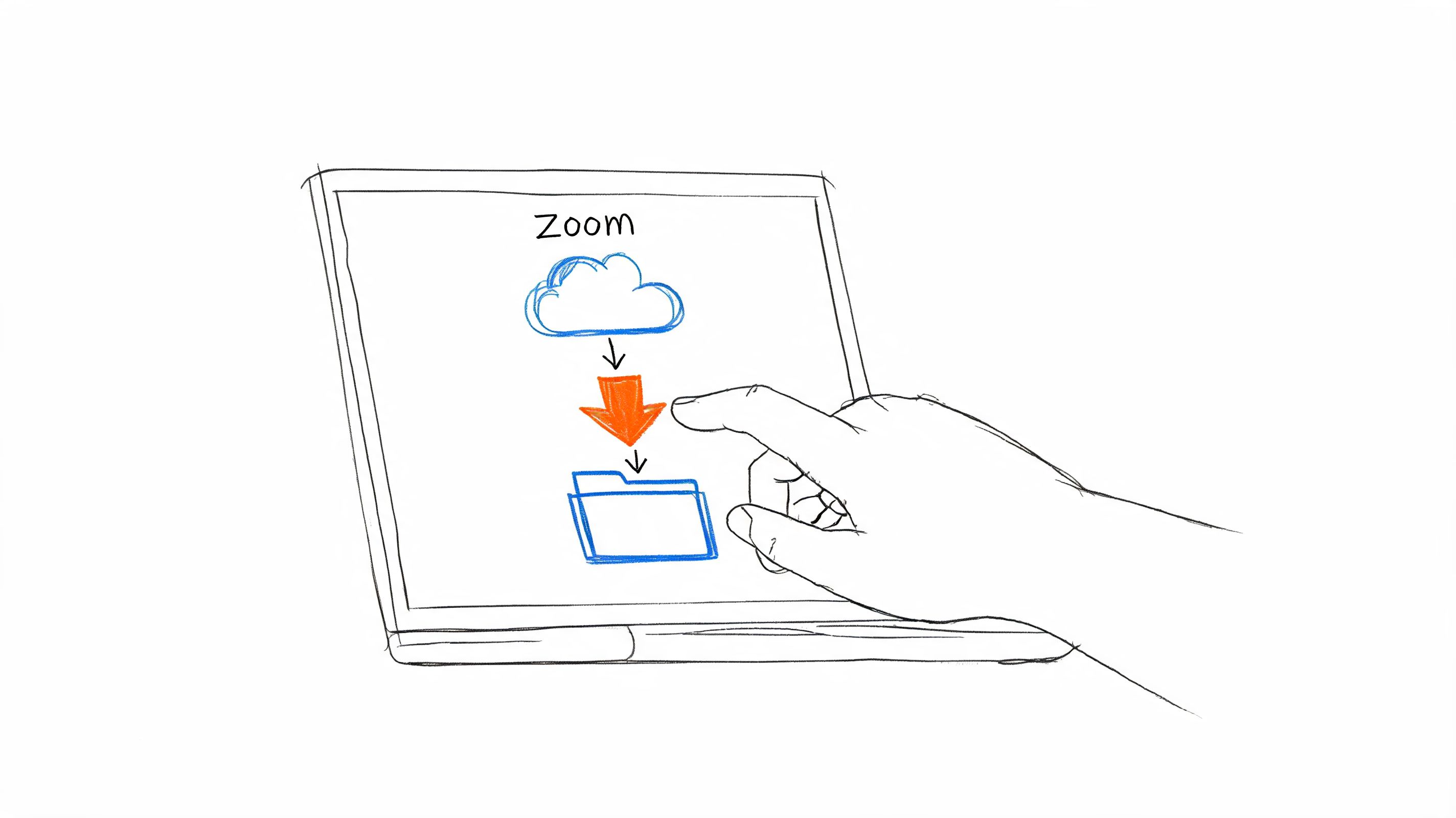
- Zoom covers calls you recorded to its cloud on a paid plan; you add punctuation and capitals yourself.
- Clipchamp makes sense for captions on a short video you're editing, since it exports only SRT.
- MacWhisper and Buzz keep videos on your computer when you use their local models; we compare them in our guide to free transcription software.
Limits are from each vendor's help pages in October 2026. "Not listed" means the vendor's pages don't mention it, not that the feature is missing.
What you can do with the text in HypeScribe
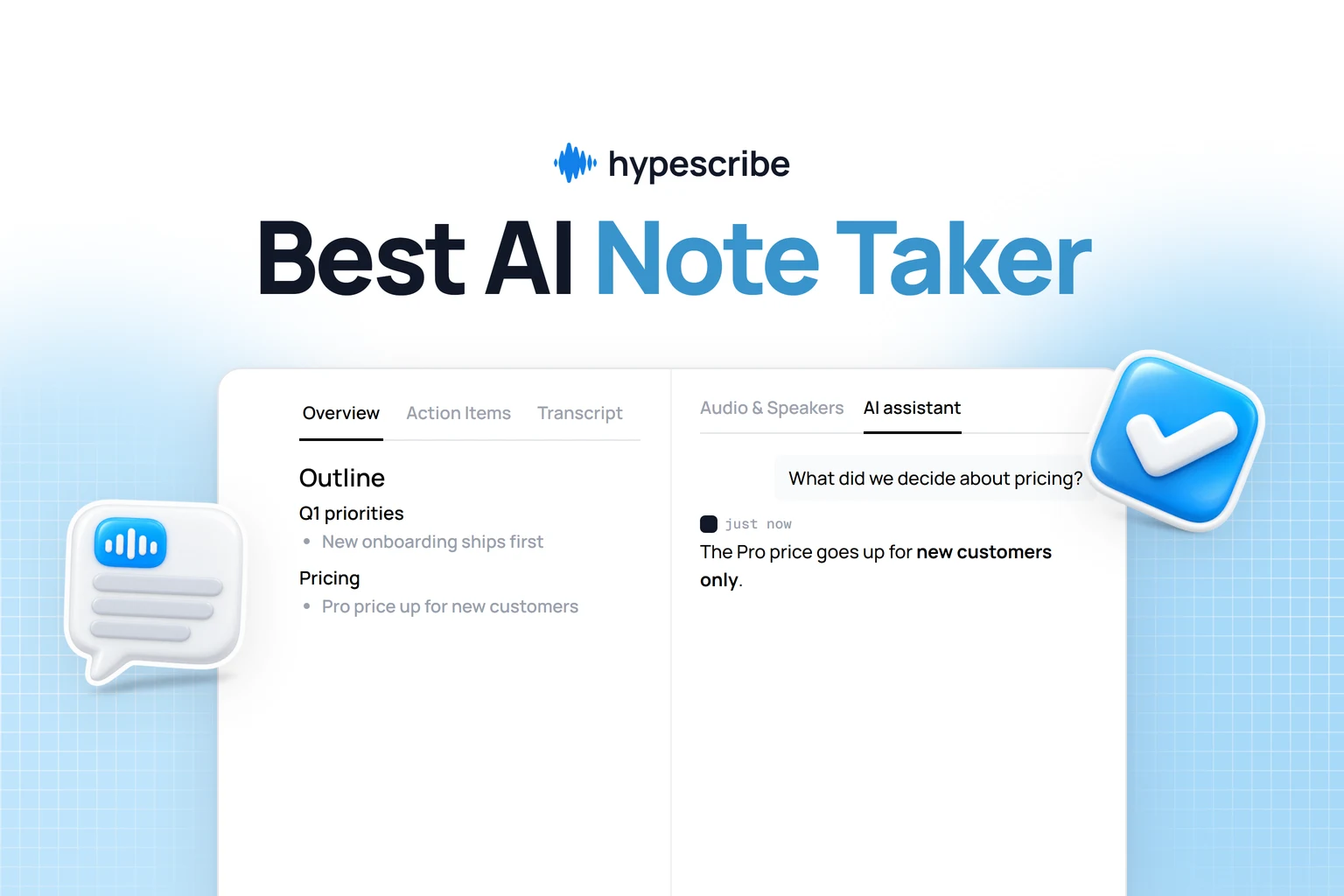
After a two-hour webinar, you can ask what the speaker said about pricing, jump to that moment, and send the action items to Linear, all from the same transcript.
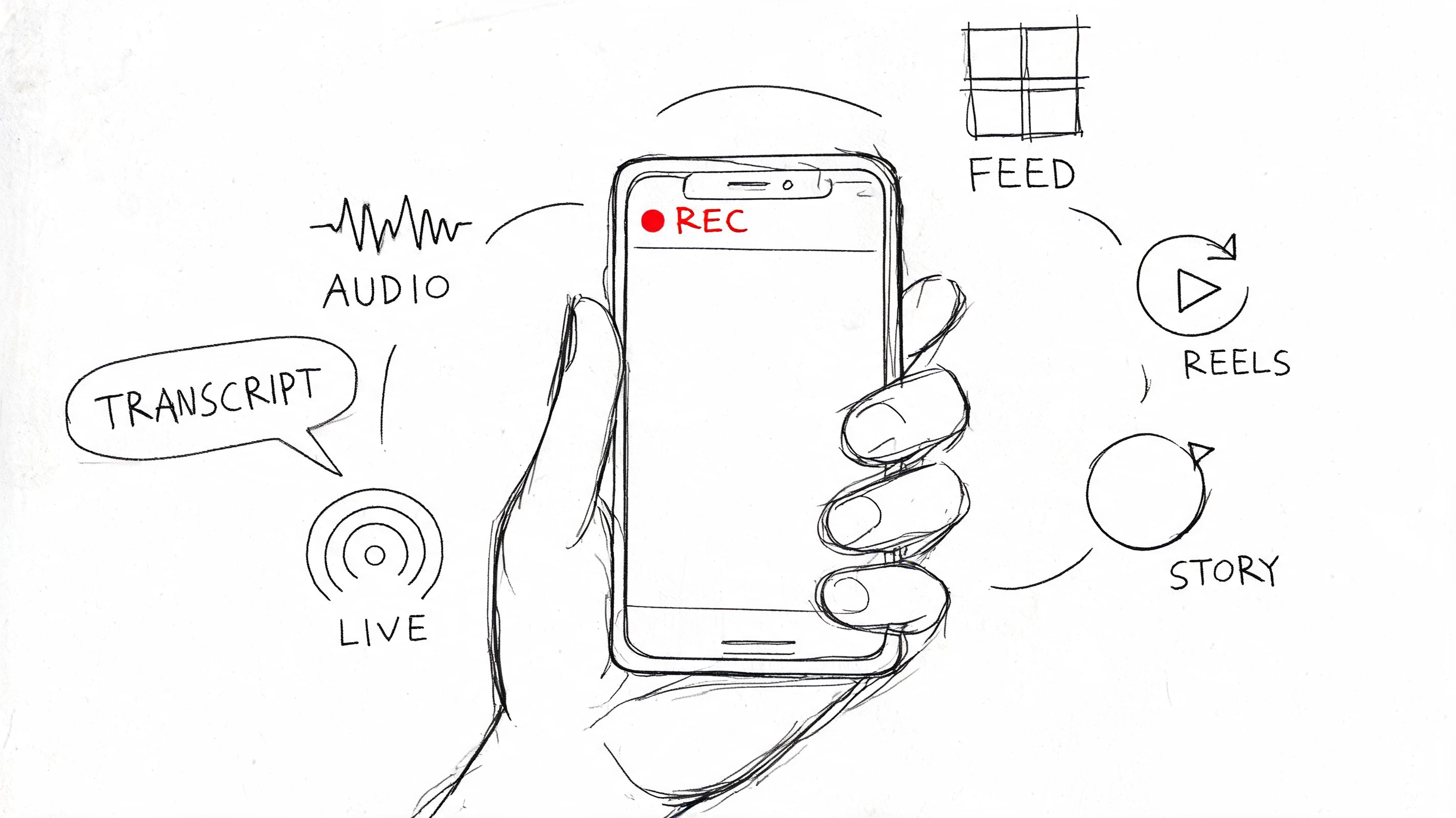
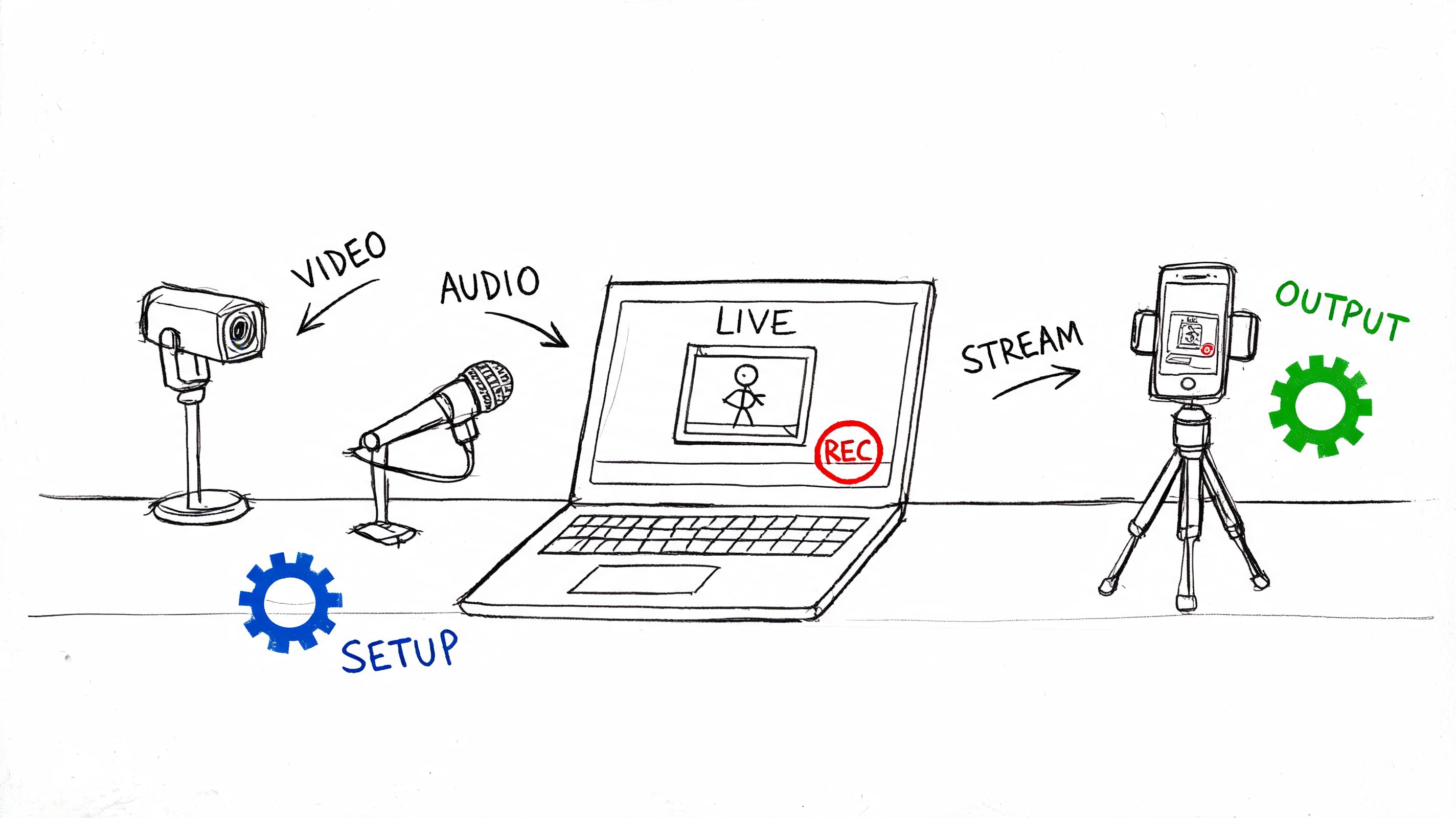
- Ways in: a video file of any length, a link, a forwarded email, the notetaker for Zoom, Google Meet or Microsoft Teams, or live recording in the browser.
- Notes: an overview and outline, action items as a checklist, and how long each person spoke. If the summary comes out in another language, one click translates it.
- AI assistant: ask what was decided, who owns a task or what a speaker said about a topic, on the model you choose: GPT, Claude, Grok or DeepSeek.
- Editing: search, fix and format the text. Select a passage and use Refine with AI to fix grammar and remove filler words.
- Export and sharing: download TXT, DOCX, PDF, SRT or Markdown, or a report with the overview, action items and transcript. Share by link or invite people by email, and keep videos in projects.
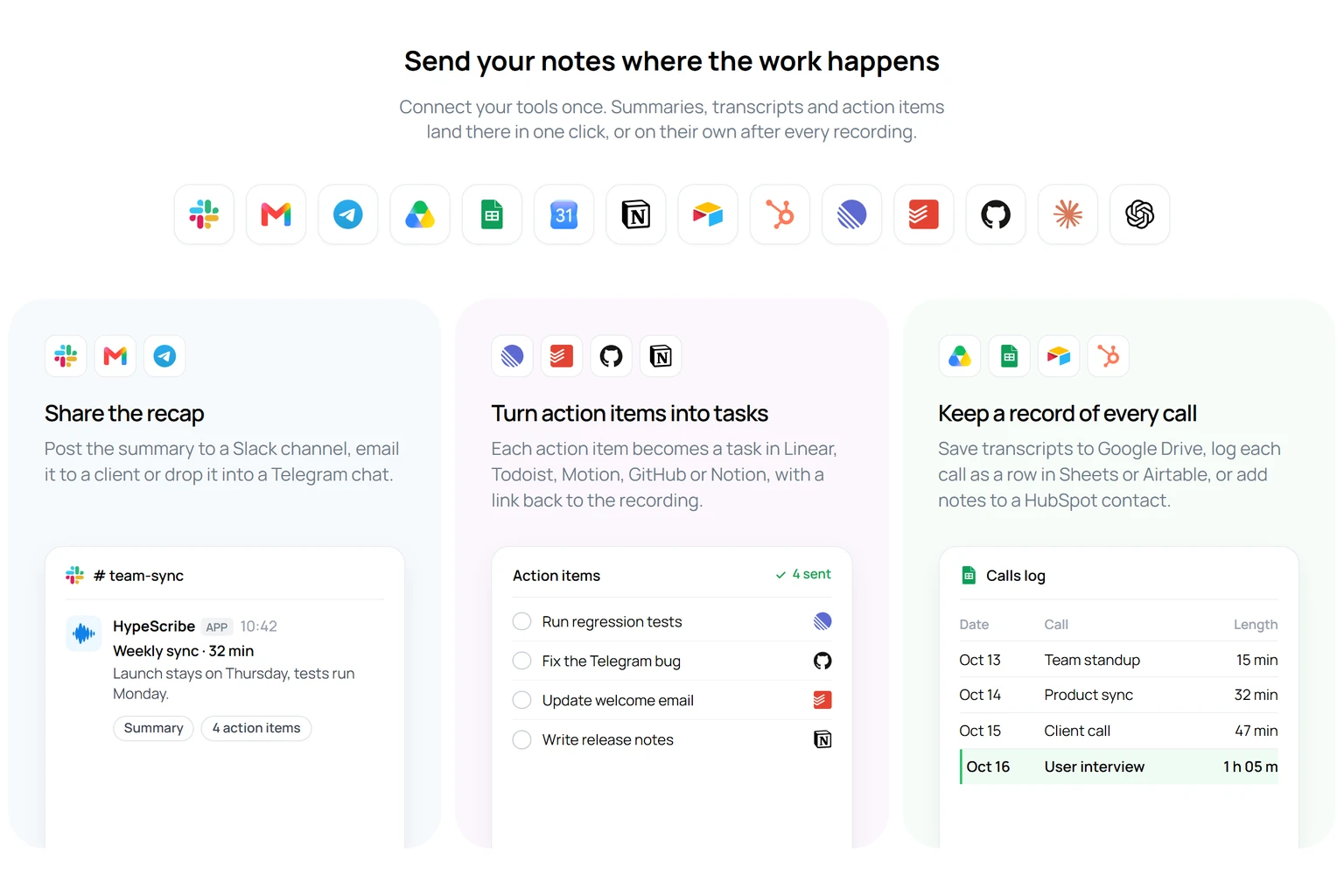
- 18 integrations: the recap goes to Slack, Telegram or Gmail. Action items become tasks in Linear, Jira, GitHub, Asana, Trello, Todoist, Monday.com, Motion or Notion. Transcripts go to Google Drive as Google Docs, to Notion, Google Sheets, Airtable or HubSpot, or into Google Slides. Press Send, ask the AI chat to send it (nothing goes out until you confirm), or let new transcripts go out automatically.
- MCP and API: search, read and transcribe your recordings from Claude, ChatGPT, Claude Code, Codex or Cursor through the MCP server, and use API keys in your own scripts.
It works in the browser on a computer or a phone, with nothing to install, and needs an internet connection.
Webinars, lectures, calls
Get a transcript and notes from your video
Paste a YouTube, Zoom or Google Drive link or upload the file, find the part you need with search or the AI assistant, and send the notes to Notion or Slack. Try HypeScribe for a week before you pick a plan.

FAQ
How do I transcribe a video to text?
Upload the video or paste its link into a transcription service such as HypeScribe, check names and numbers against the video, and download the transcript.
Can I convert a YouTube video to text?
Yes. In HypeScribe, choose Transcribe by URL and paste the YouTube link; the video then plays next to the transcript. If the video already has captions, you can also read them in Show transcript under its description. More in our YouTube video to text converter guide.
Can I convert video to text for free?
For your own videos, YouTube Studio makes automatic captions you can download, and Clipchamp exports its auto captions as SRT at no cost. Offline, Buzz and MacWhisper's free version run on your computer, and Word's Transcribe costs nothing extra if you already pay for Microsoft 365. HypeScribe is a paid service with a 7-day trial.
How do I transcribe a long video without hitting file size limits?
HypeScribe has no length limit, but each upload has a size cap that depends on your plan. If a video is over it, extract the audio first: an hour of speech saved as MP3 at a typical bitrate takes about 30 to 60 MB, and speech recognition doesn't need the picture.
Can I transcribe an Instagram or TikTok video?
Yes: paste the link into HypeScribe's Transcribe by URL, the same way as a YouTube link. See also how to transcribe an Instagram video.
Does video transcription pick up text shown on screen?
No. Transcription works from the sound track, so slides, on-screen text and burned-in captions don't appear in the transcript. In live calls, HypeScribe's notetaker does use a shared screen as extra context for the notes, but the transcript is still only what was said.