10 Best Voice to Text Apps for iPhone in 2026 (7 Free)

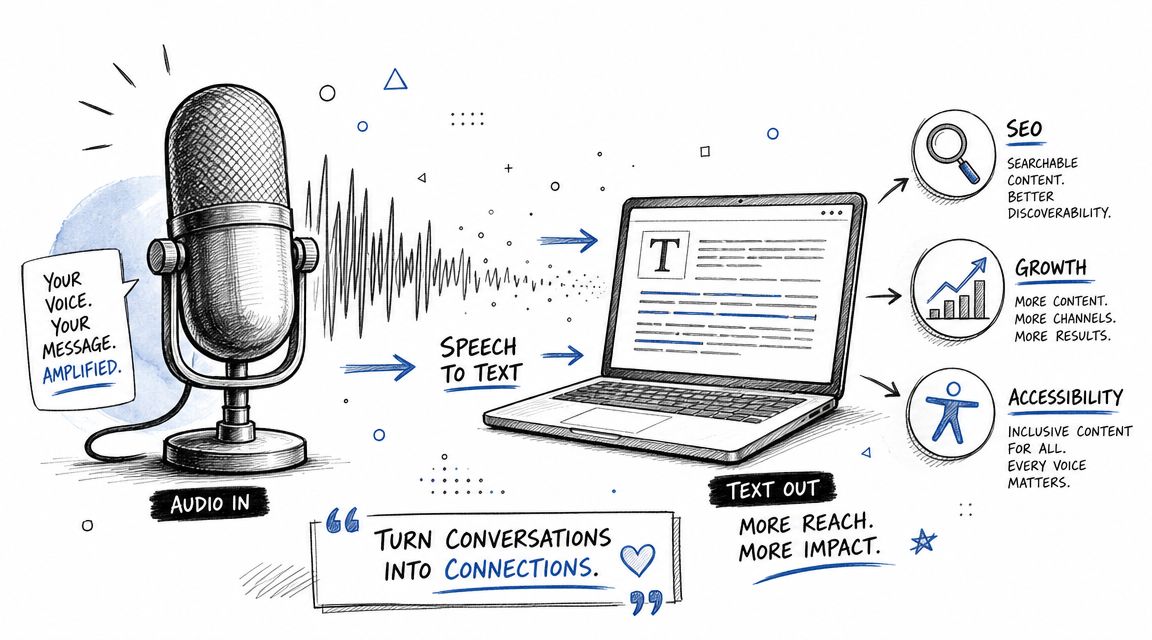
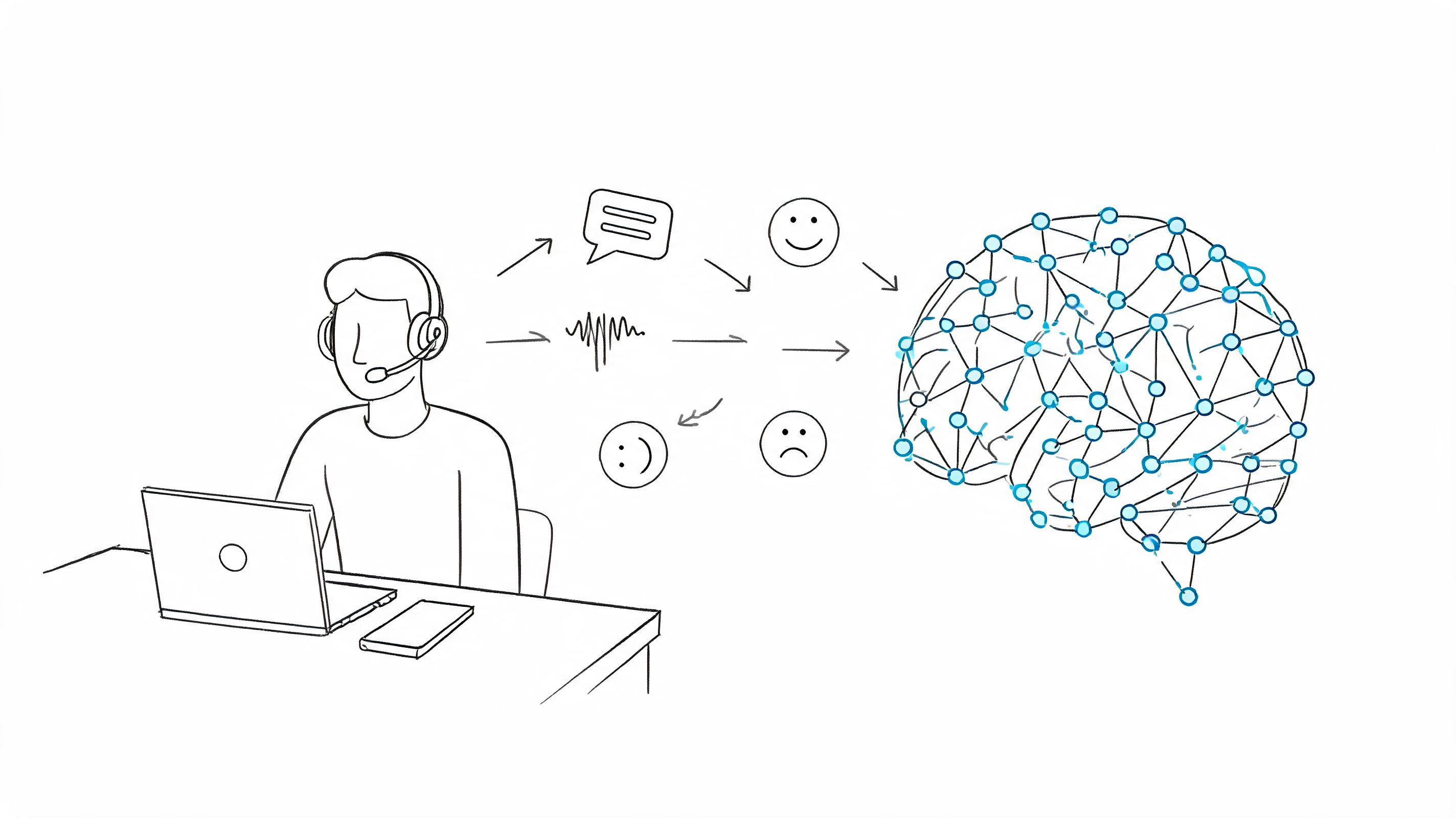
The best free voice to text app for iPhone is the one it already has: tap the microphone on the keyboard and Apple's Dictation types what you say anywhere you can type, in many languages without an internet connection. Add an app when you want cleaner text, dictation that never leaves the phone, or a long recording turned into notes.
- Built in and free: Apple Dictation. Turn it on in Settings, General, Keyboard.
- Recording a class or an idea: Voice Memos shows a transcript as you record, on iPhone 12 or later.
- Long messages and AI prompts: Wispr Flow, an AI keyboard that works inside Slack, Messages, WhatsApp and ChatGPT.
- Private and offline: Superwhisper with its on-device models.
- A file from elsewhere, a Zoom call or a long lecture split by speaker: HypeScribe, in Safari.
Speech to text apps for iPhone compared
The list covers what turns speech into text on an iPhone today, built in or from the App Store. We compared the options from Apple's iPhone User Guide for iOS 27, the App Store and each developer's own pages, in October 2026. Using Android? See our voice to text apps for Android.
How do you use voice to text on iPhone?
- Open Settings, then General, then Keyboard, and turn on Enable Dictation.
- In any text field, tap the microphone on the keyboard.
- Talk. The keyboard stays open, so you can fix a word by typing without stopping.
In supported languages Dictation adds commas, periods and question marks on its own, and you can say "new line," "new paragraph" or an emoji name such as "heart emoji." It stops when you tap the microphone, say "Stop dictation," or stay silent for 30 seconds. Apple supports 63 language variants, and in most of them Dictation runs on the iPhone itself, with no internet needed. On iPhone 17 Pro, iPhone Air and later, Apple Intelligence also fixes spelling, punctuation and capitalization as you dictate in English.
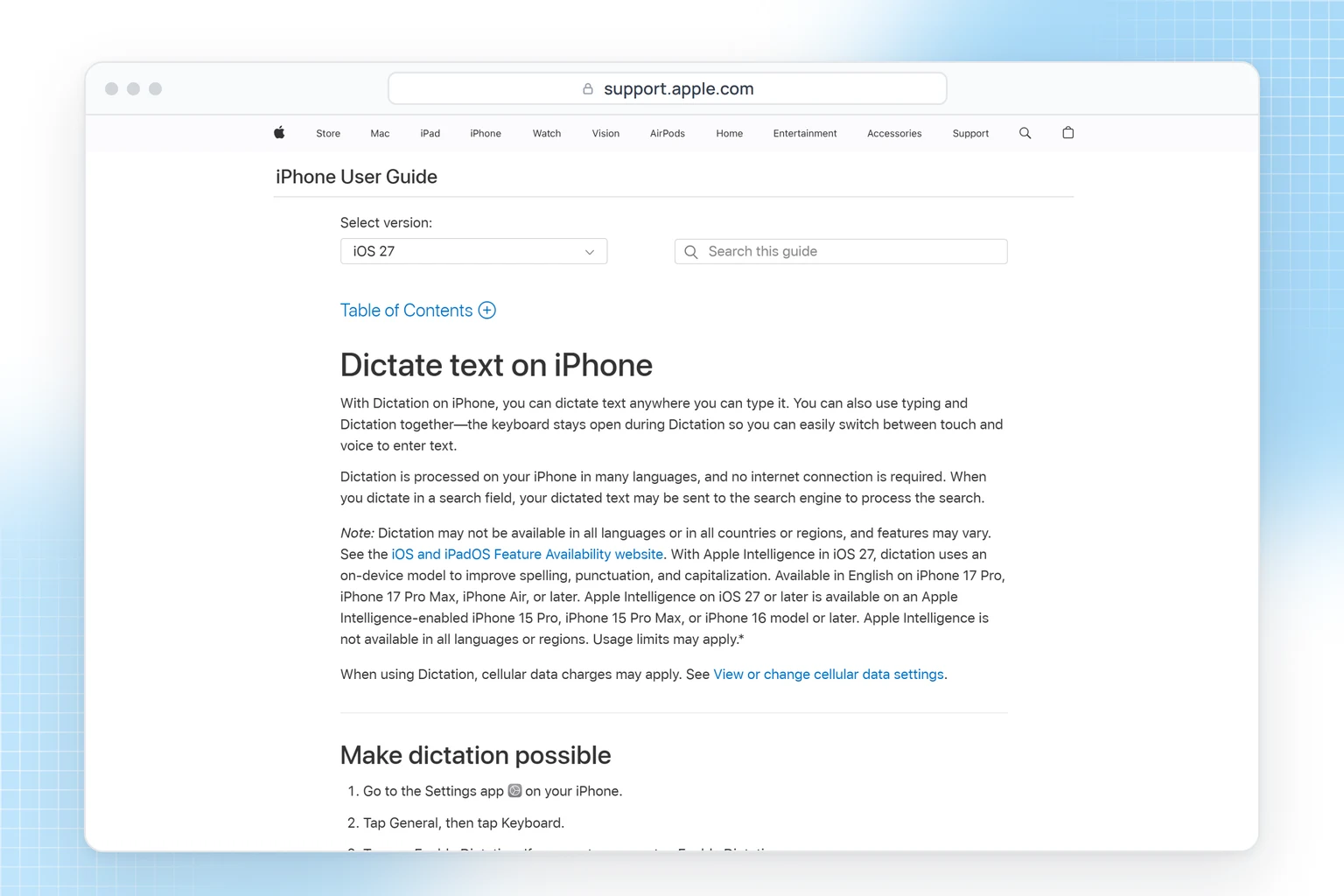
Dictation types what you say live; it doesn't transcribe audio files. For recordings you make on the iPhone, Voice Memos and Notes do that. Our guide to dictation on iPhone covers more voice commands.
Built into iOS: Voice Memos, Notes, call recording and Live Captions
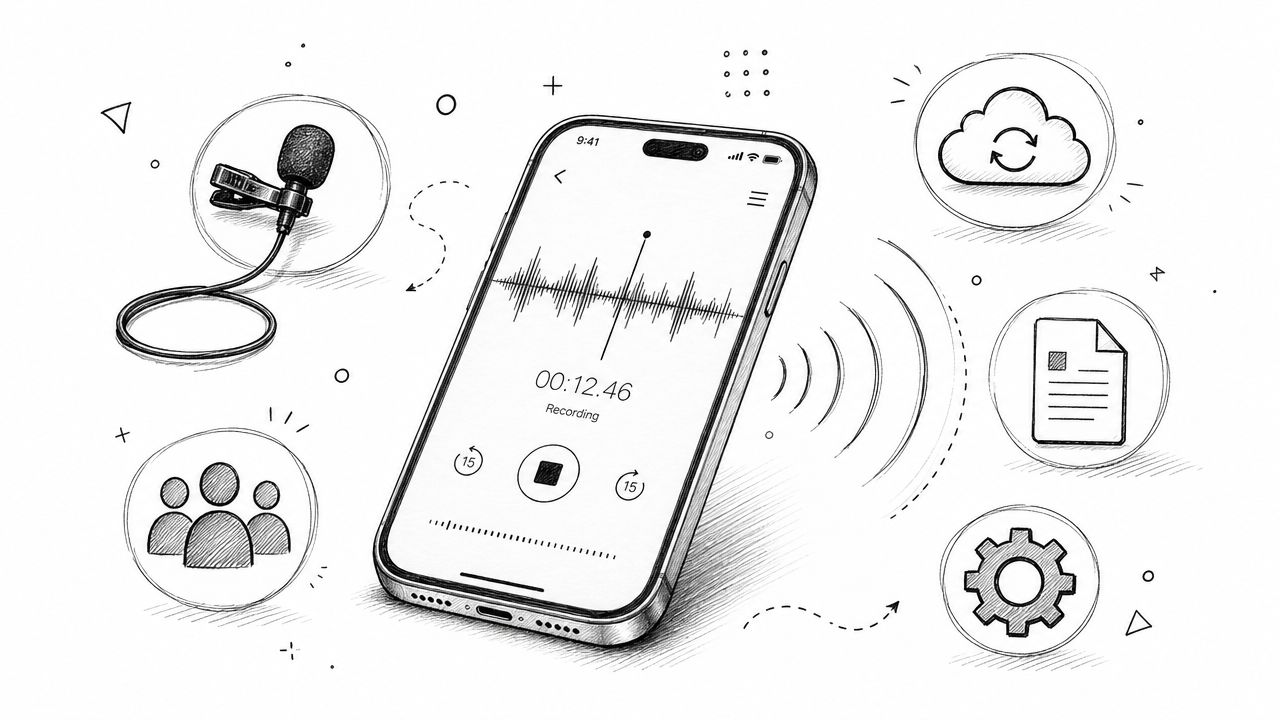
Voice Memos
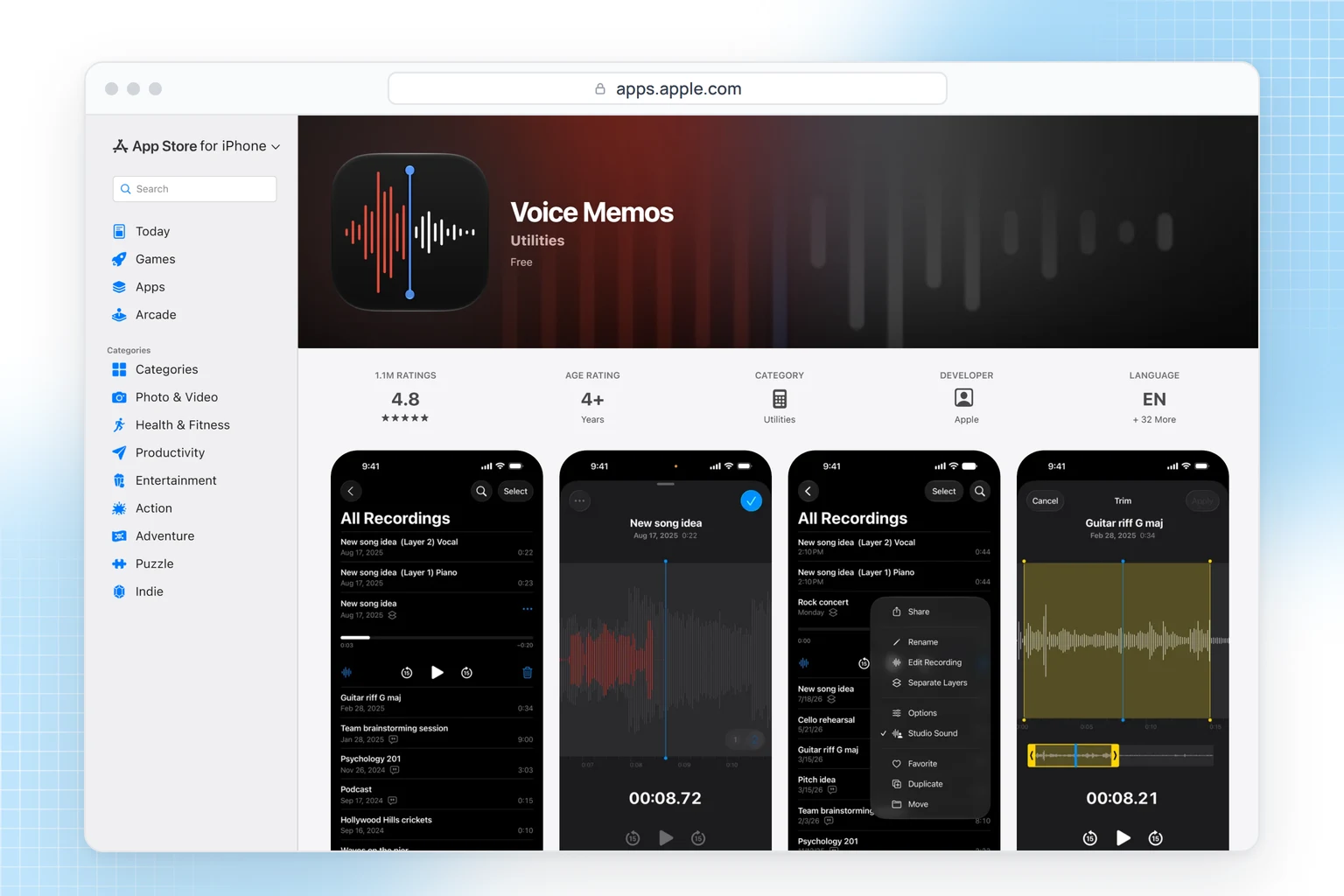
Voice Memos shows a transcript while you record and afterwards, and you can search it or copy it out. It needs an iPhone 12 or later and covers 10 languages, including English, Spanish, French, German and Japanese. Recordings made on iOS 17 or earlier get transcribed when you open them, and on iPhone 15 Pro, 15 Pro Max or any iPhone 16 or later, Apple Intelligence can summarize the transcript. If you want to type your own notes next to the recording, use Notes instead.
Notes
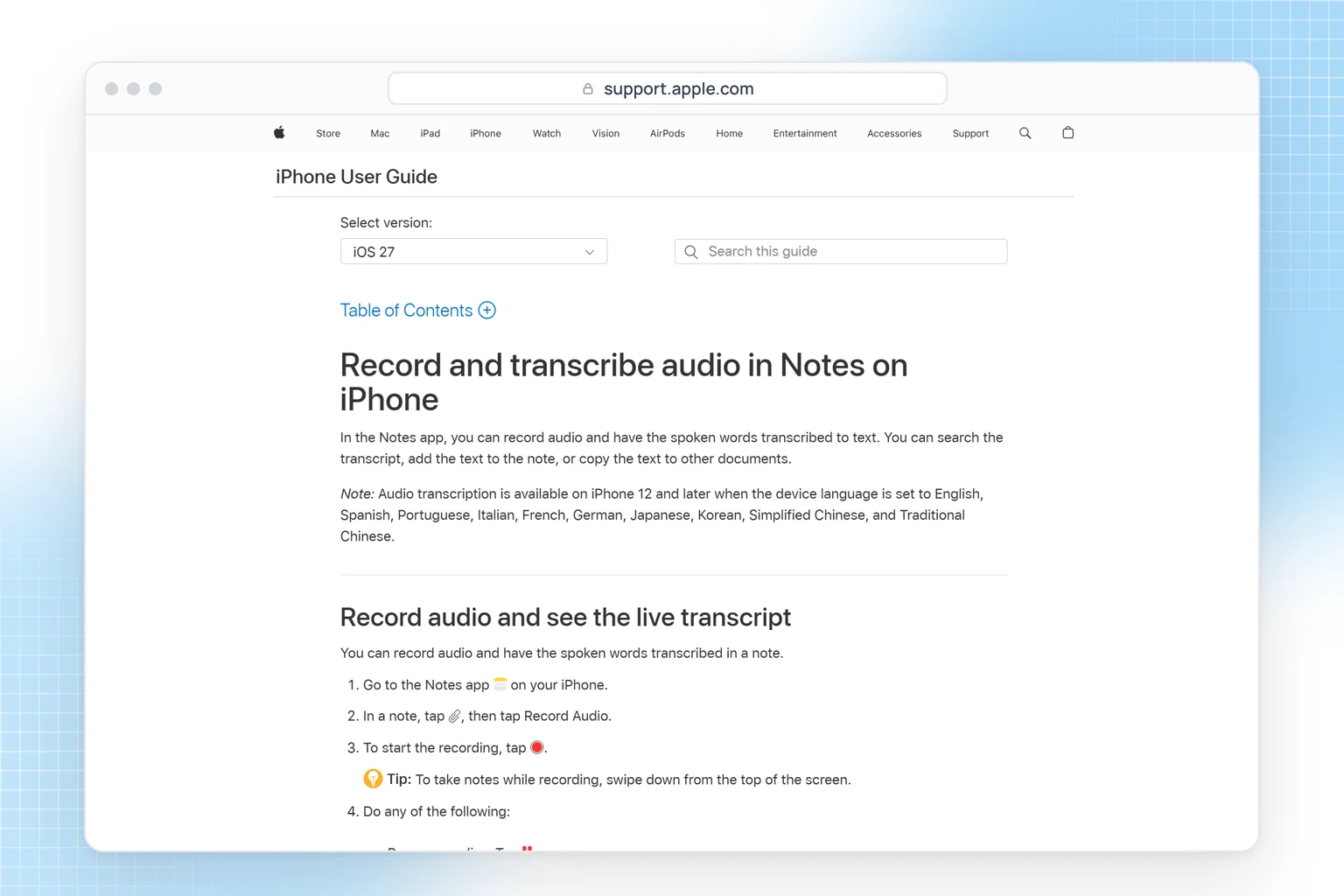
In a note, tap the attachment button and choose Record Audio. The recording, a live transcript and anything you type end up in the same note, which works well for a class: swipe down from the top of the screen to keep typing while it records. If you only need the recording, Voice Memos is simpler. Audio transcription in Notes needs an iPhone 12 or later with the device language set to one of the 10 supported languages, such as English, Spanish or German; summaries need an Apple Intelligence iPhone.
Phone call recording
During a call, tap the more button, then Call Recording. Both people hear a notice that the call is being recorded, the recording goes to a Call Recordings folder in Notes, and the transcript marks who said what. It works for calls with one other person, transcripts cover 7 languages, and the feature isn't available in the European Union, Russia, Turkey, Saudi Arabia, the UAE and several other countries.
Live Captions
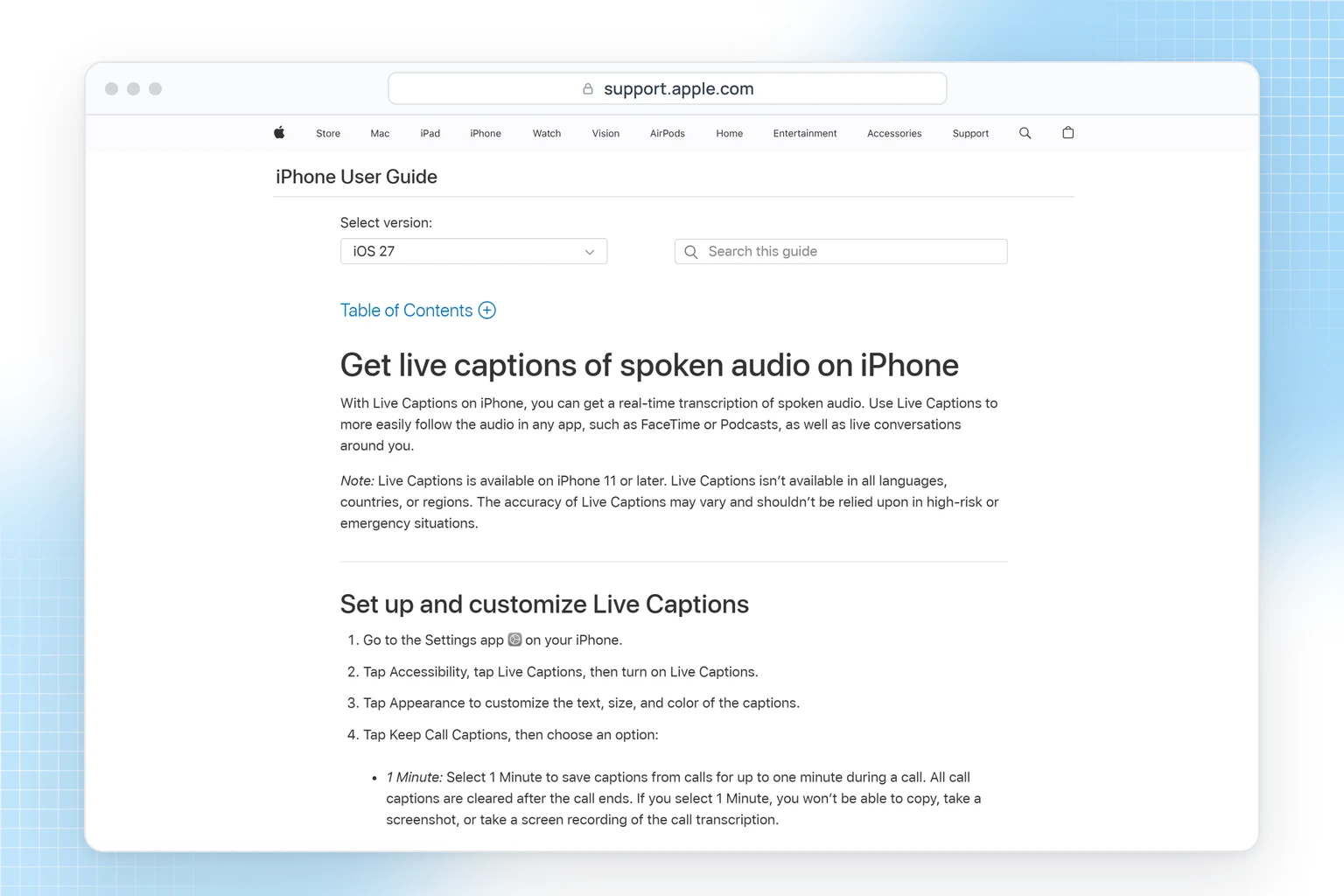
Live Captions (Settings, Accessibility, Live Captions) puts a real-time transcript on screen for any audio on the iPhone, such as FaceTime or a podcast, or for a conversation through the microphone. It runs on the device, on iPhone 11 or later, in 18 language variants. It's for following along rather than keeping: you can copy captions, but nothing is saved as a file. On calls, the 1 Minute setting clears captions when the call ends and blocks copying; with 1 Hour you can copy them, and everyone on the call hears that it's being transcribed.
Dictation apps for iPhone that go beyond the built-in mic
Third-party dictation on iPhone is a keyboard you add in Settings, General, Keyboard, Keyboards. Most of them ask for Full Access, which lets the keyboard send what you say to its server for transcription. Wispr Flow's setup guide also notes that some apps with custom text fields, such as certain banking apps, don't accept third-party keyboards at all.
Wispr Flow
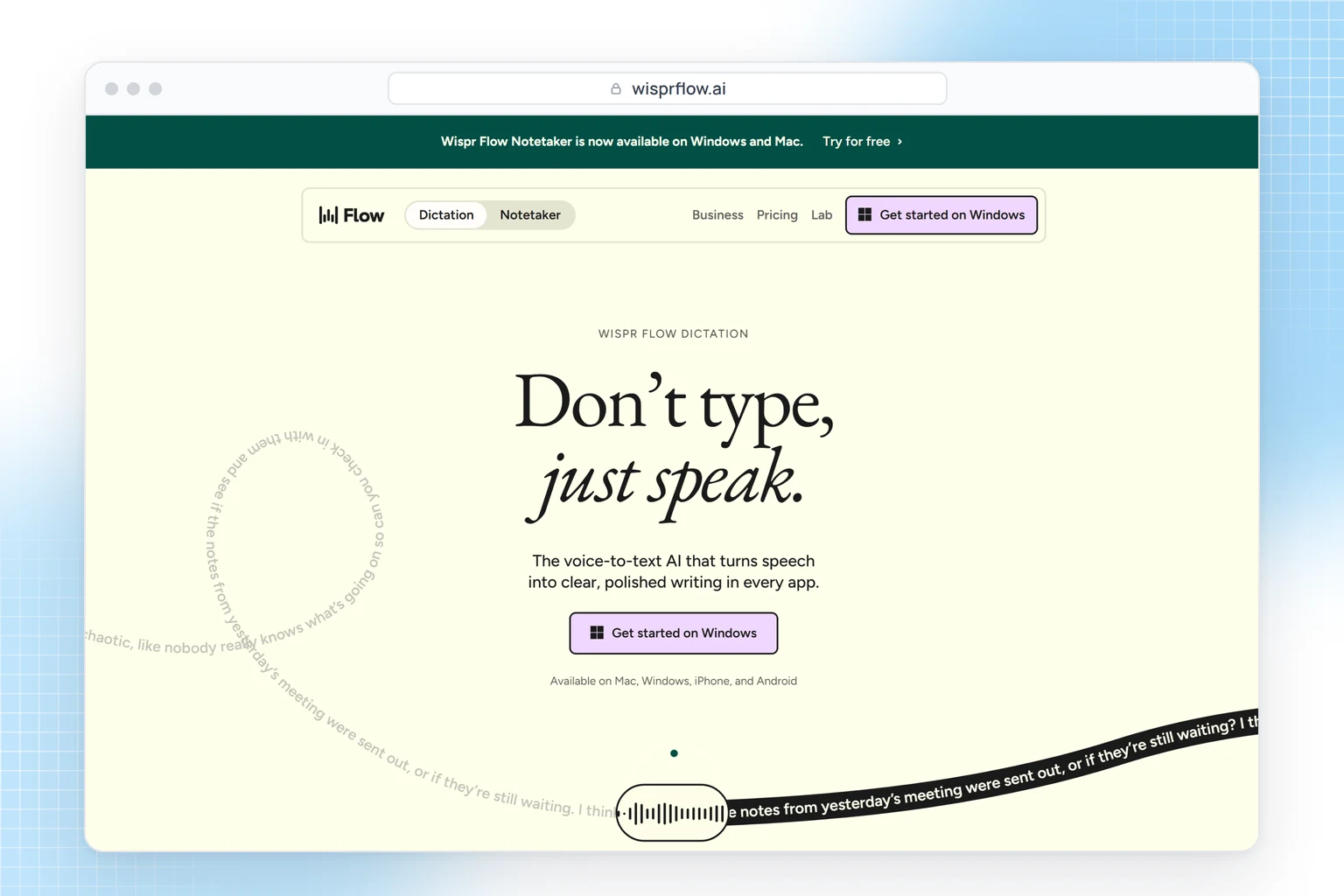
Wispr Flow is for people who write long messages and AI prompts by voice. You switch to its keyboard with the globe key, tap the mic, and the text lands in Slack, Messages, WhatsApp, ChatGPT or Docs. In other apps the keyboard opens the Flow app to record, then hands the text back. It needs an internet connection and runs on iPhone only, with iOS 18.3 or later.
Free use has a weekly word limit: the help center puts it at 550 words a week on iPhone and says yours can differ. Pro is $15 a month or $143.99 a year in the App Store.
Superwhisper
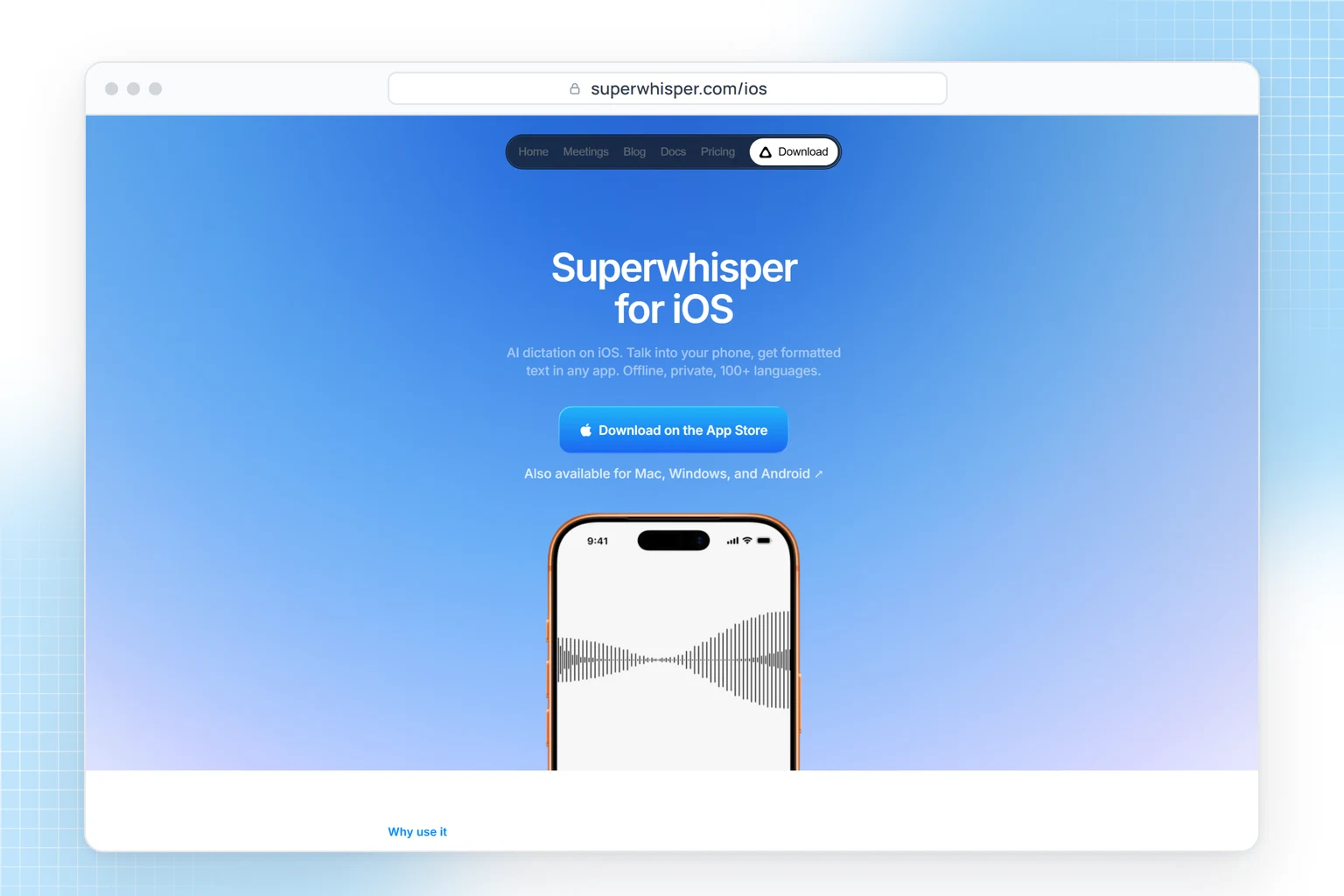
Superwhisper suits people who want dictation that stays on the phone. Its on-device models work without Wi-Fi or cell service, and the company says your audio stays on your iPhone; those models work best on iPhone 15 and newer, while cloud models run on any supported device. You hold to record and release to paste into the app you're using, in 100+ languages, with optional translation to English.
The free tier includes unlimited use of its Whisper models; Pro is $8.49 a month or $84.99 a year. The catch is the system: the App Store listing requires iOS 26 or later, so an iPhone that can't update is out.
SwiftKey and Gboard
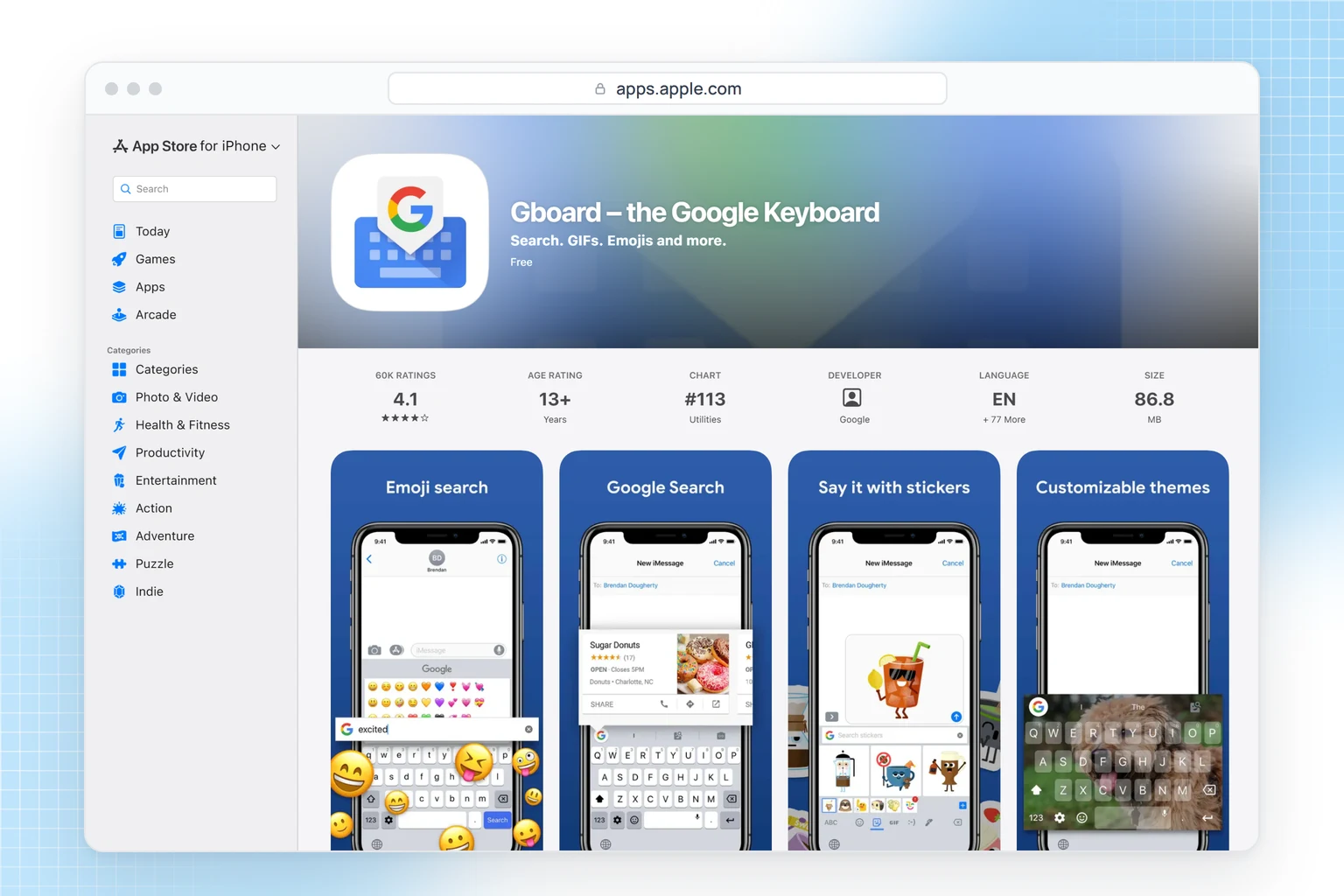
If you already type with Microsoft SwiftKey, tap the mic on its keyboard. Voice typing sends your audio to Microsoft's speech services and works in English only. Gboard for iPhone has a mic too, but voice input goes to Google, and the app hasn't been updated since May 2022. For most people Apple's own Dictation does more than either.
If you write a lot by voice, see our list of dictation software for writers.
Which iPhone dictation works offline?
Apple Dictation does, in most of its languages: 48 of its 63 language variants run on the device. Superwhisper does with its on-device models, and Live Captions generates captions on the iPhone. Wispr Flow, Gboard and SwiftKey all send your voice to a server, so they need a connection.
Which transcription app works for a lecture or a meeting?
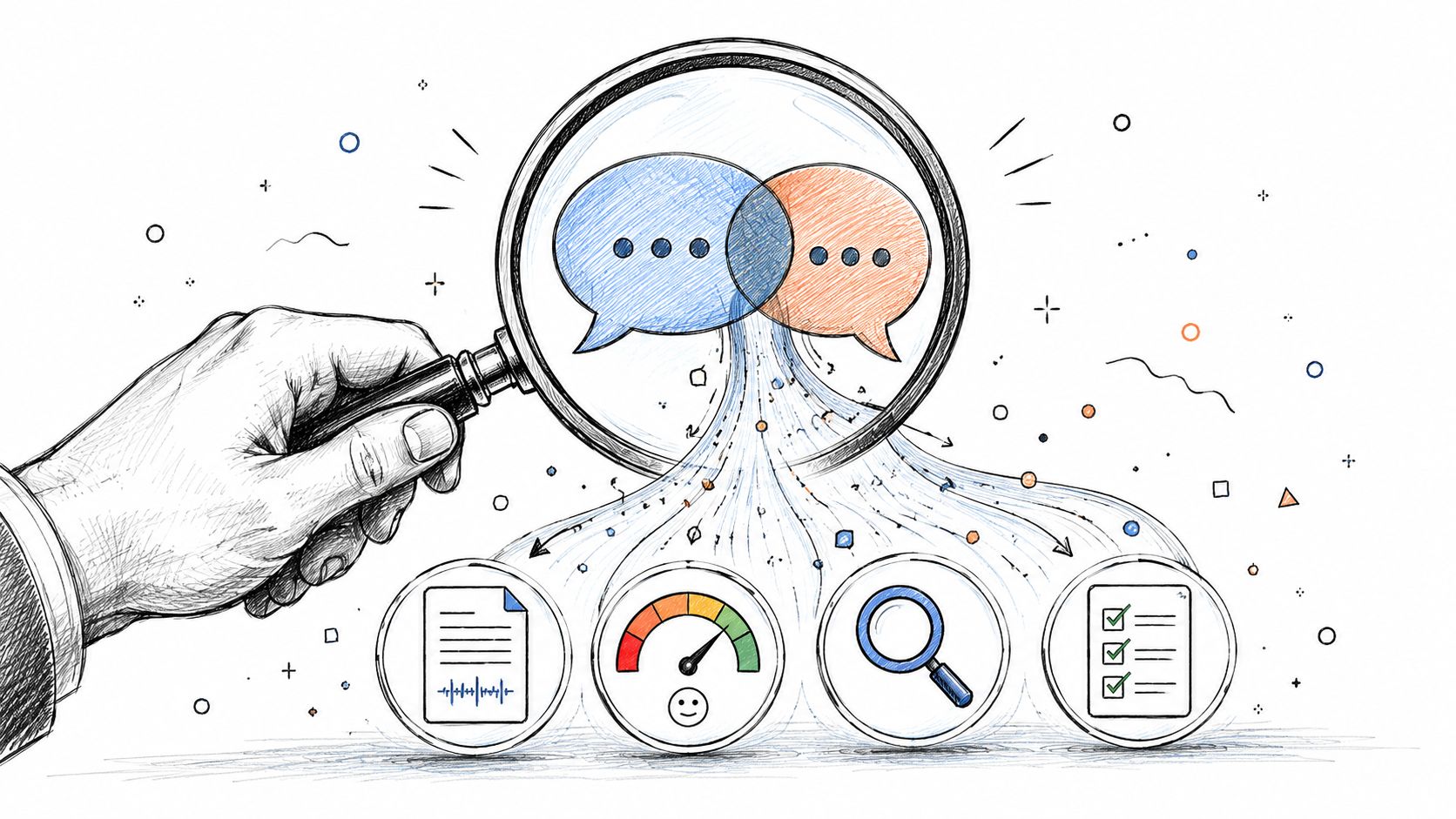
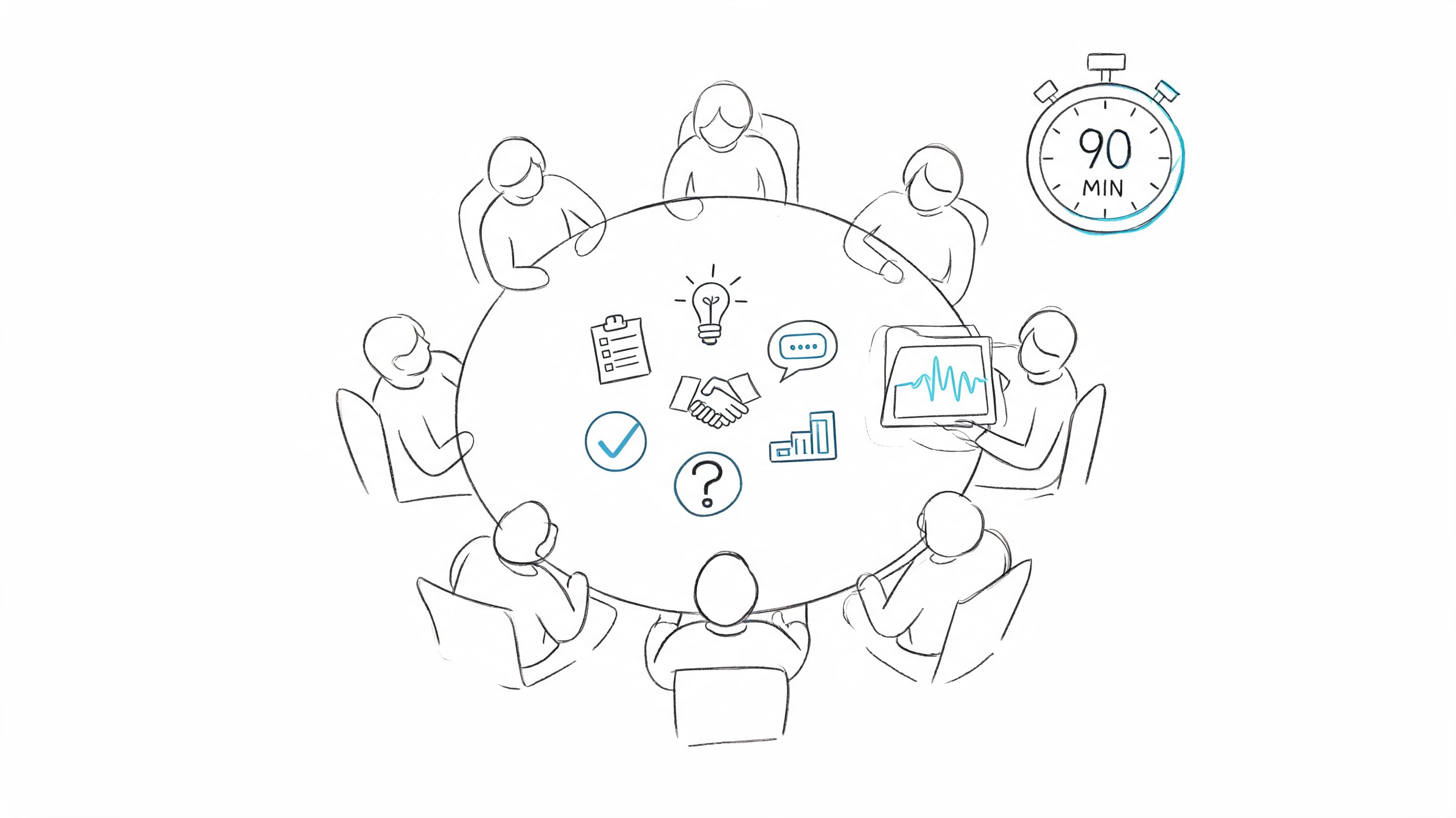
Voice Memos and Notes give you the words of a lecture on a recent iPhone. For a meeting with several people, or a class you need to pull decisions and tasks from, a transcription service adds who said what, a summary and the action items. It also takes a Zoom recording someone sent you, or joins the meeting itself.
HypeScribe
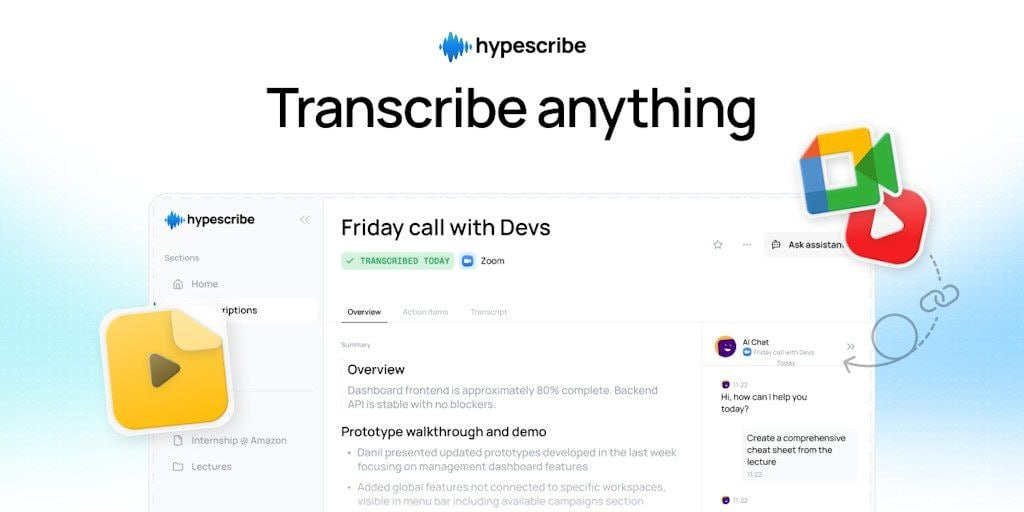
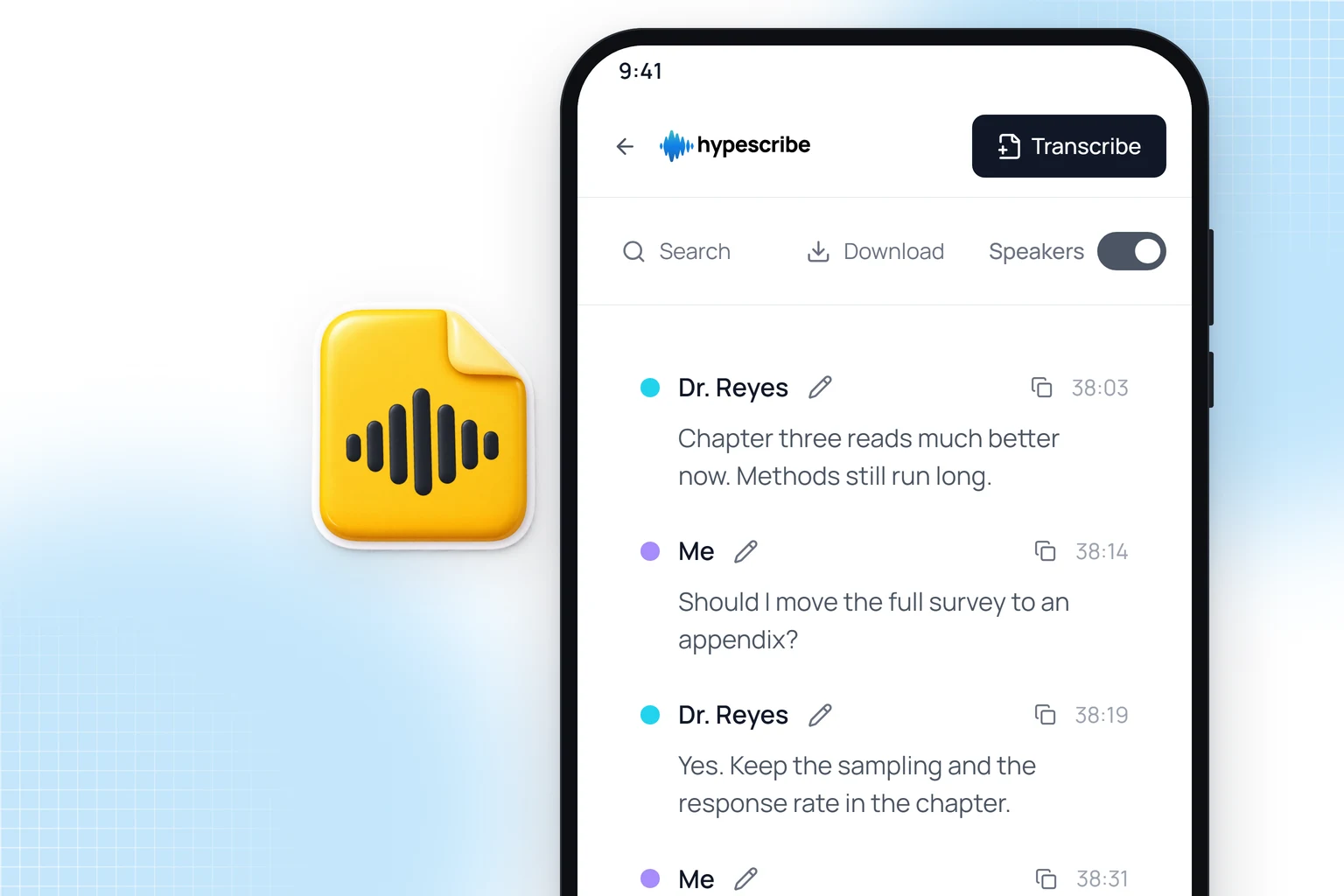
HypeScribe transcribes long recordings in Safari on your iPhone. There's no App Store app; the mobile site has the same features as the desktop version and needs an internet connection.
- Record with the iPhone's microphone. Keep the tab open: the audio is saved as you go, and if the tab closes, HypeScribe offers to recover the unfinished recording.
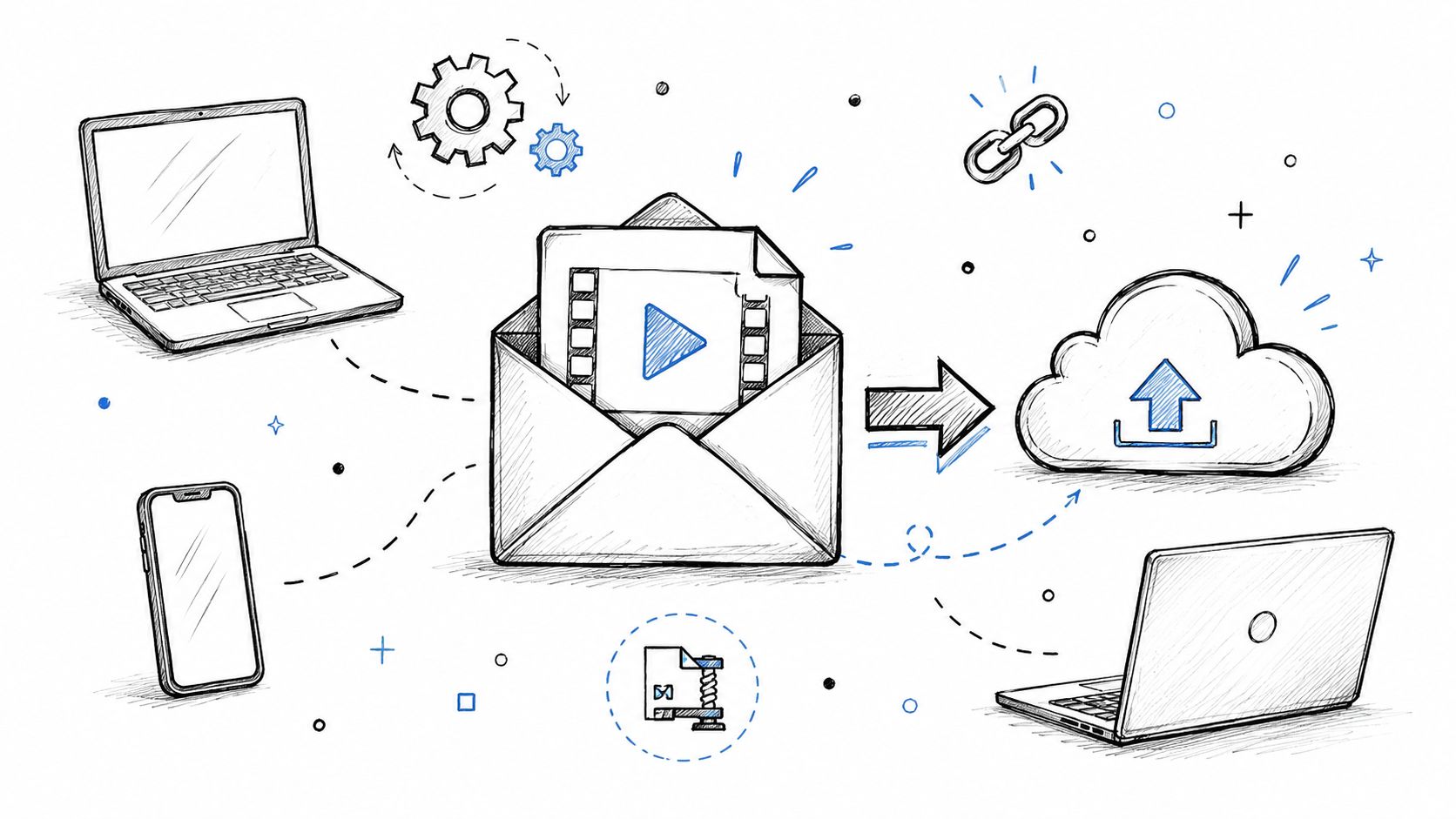
- Upload a file from Files or straight from your Photos library (for a Voice Memos recording, tap Share, then Save to Files): MP3, M4A, WAV, MP4, MOV and other common formats, up to 2 GB per file (5 GB on Ultra), with no limit on length.
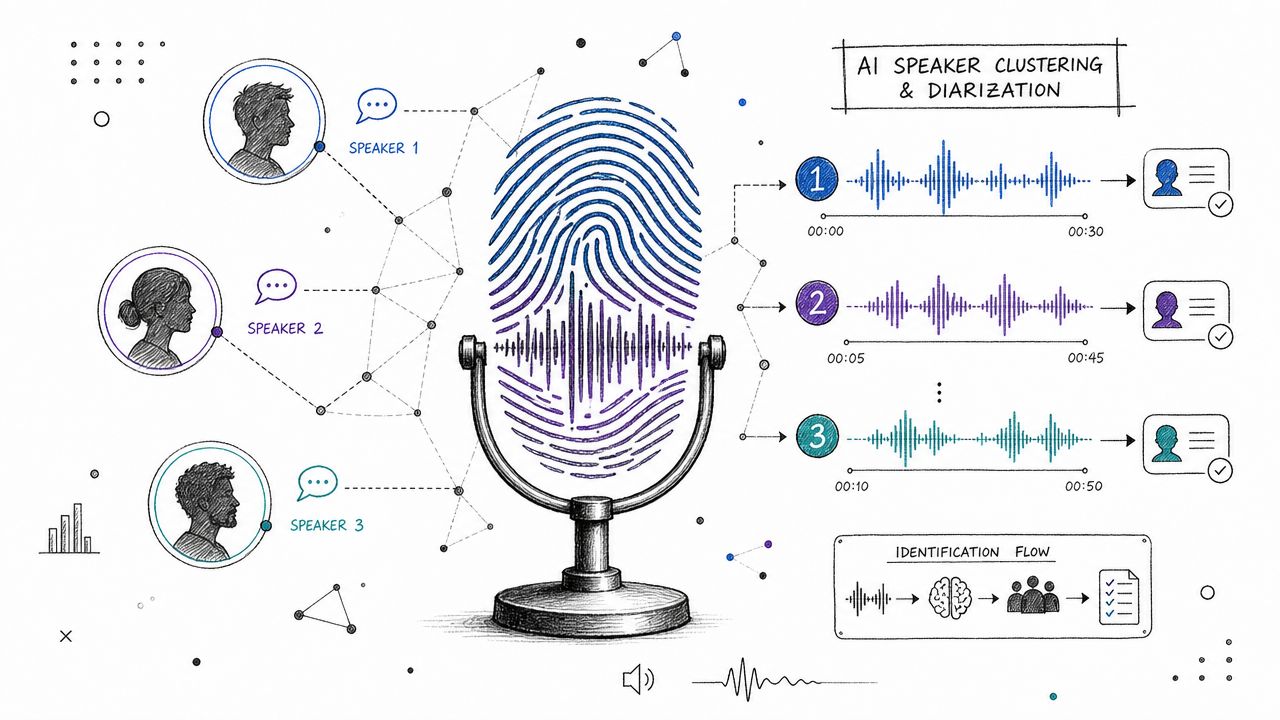
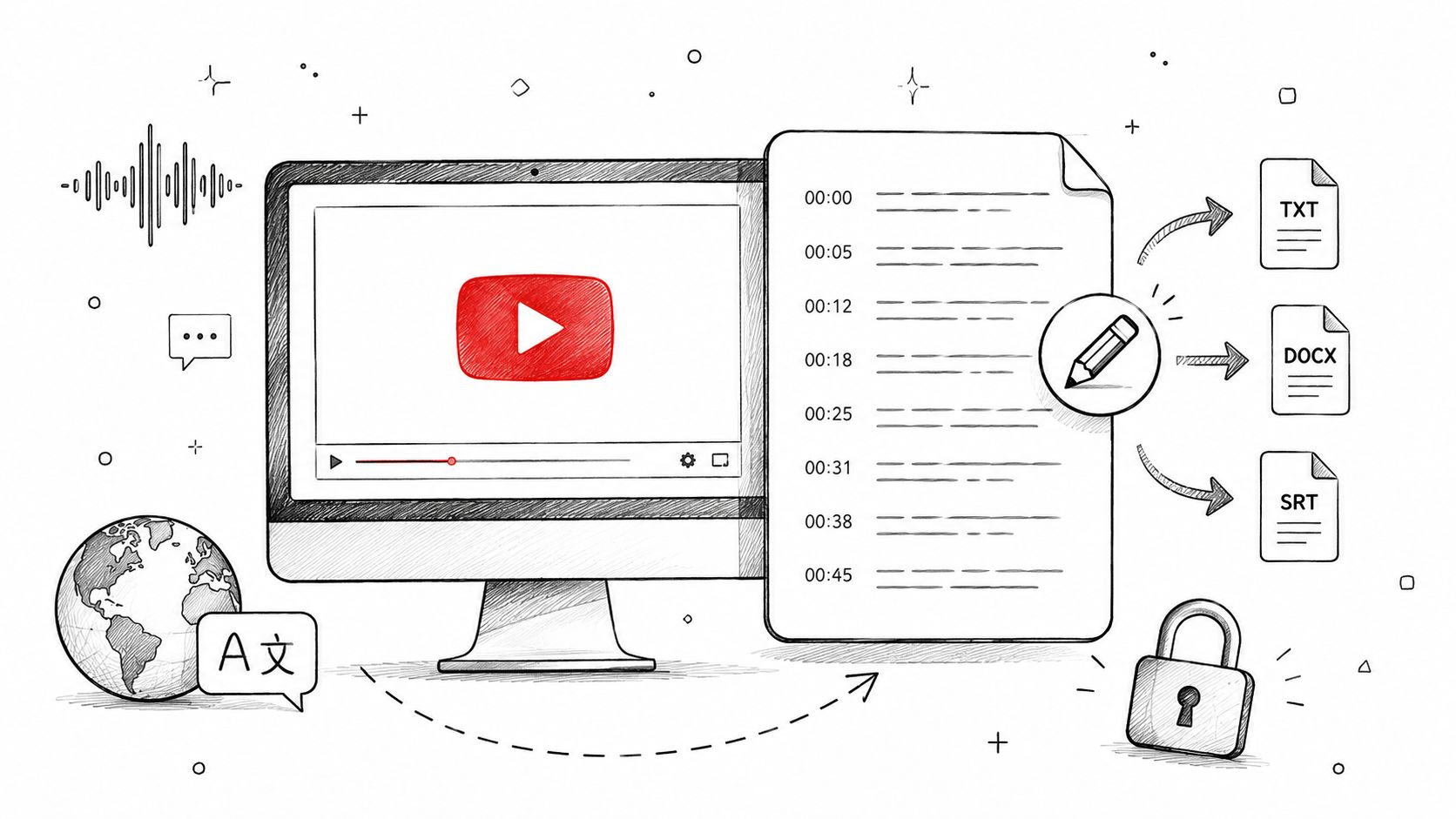
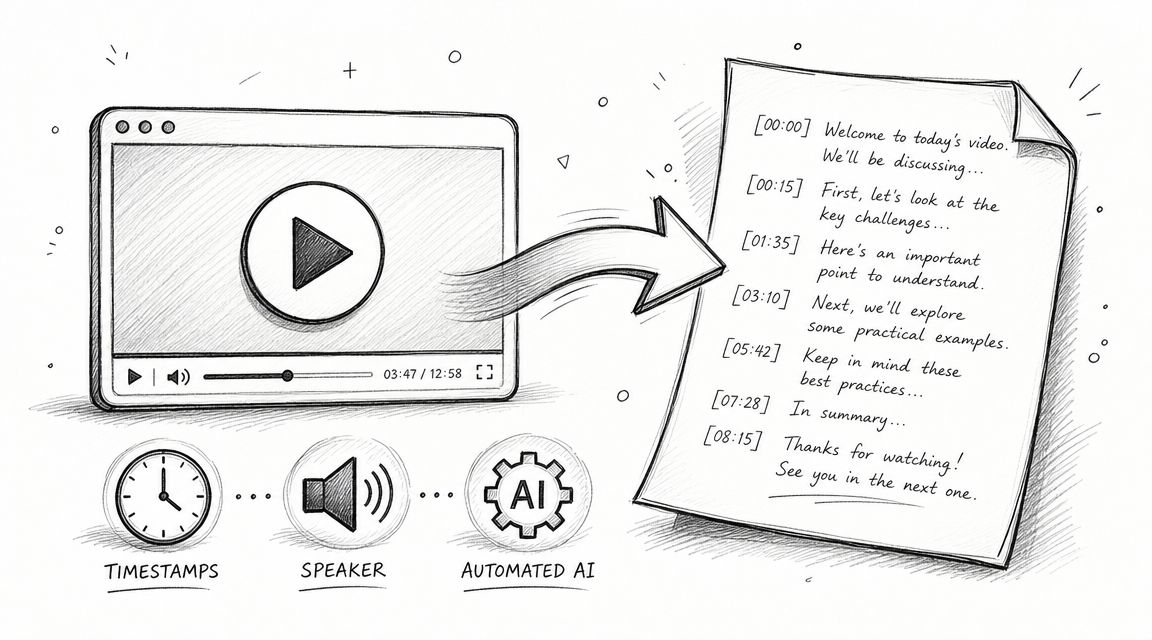
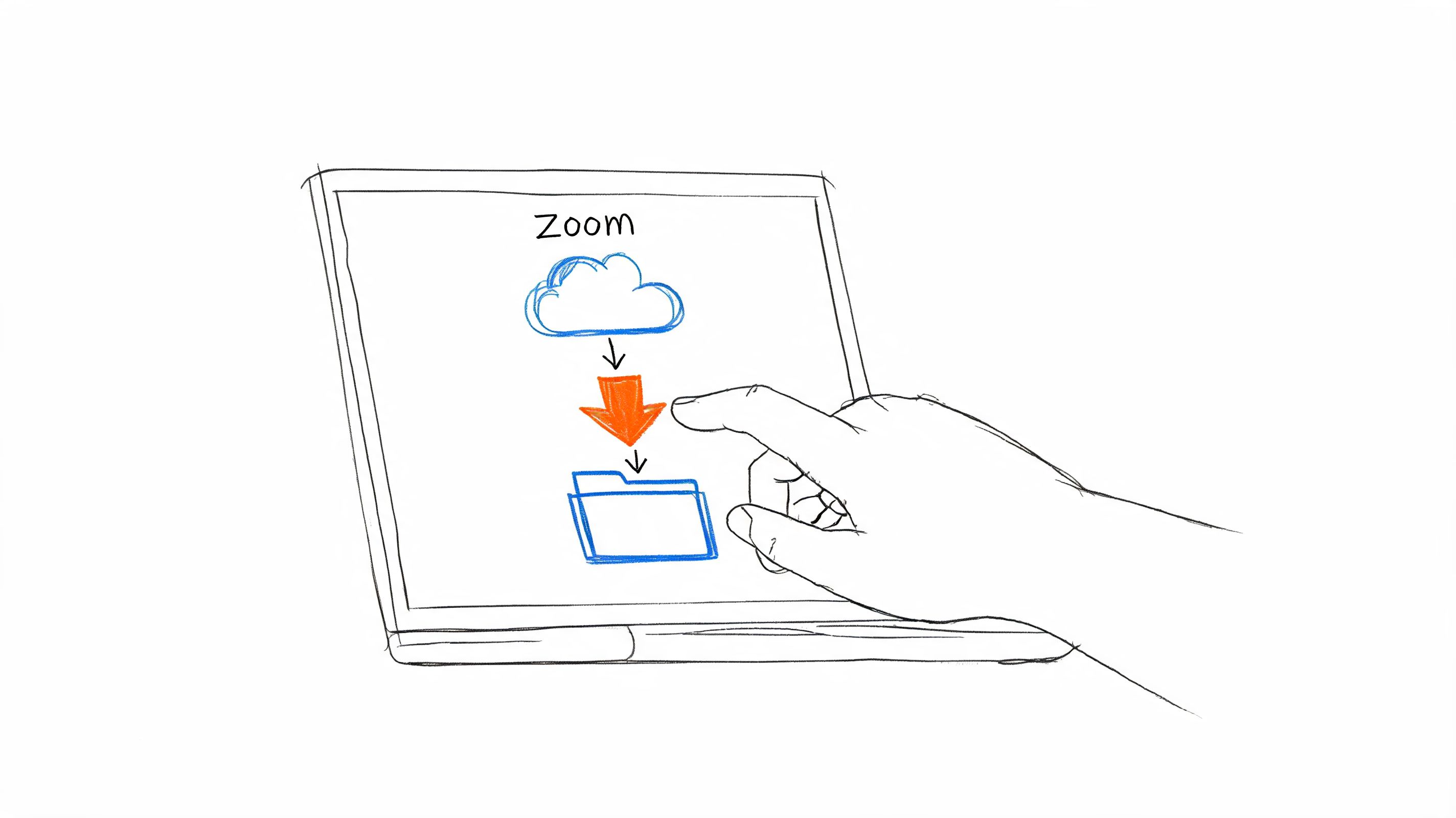
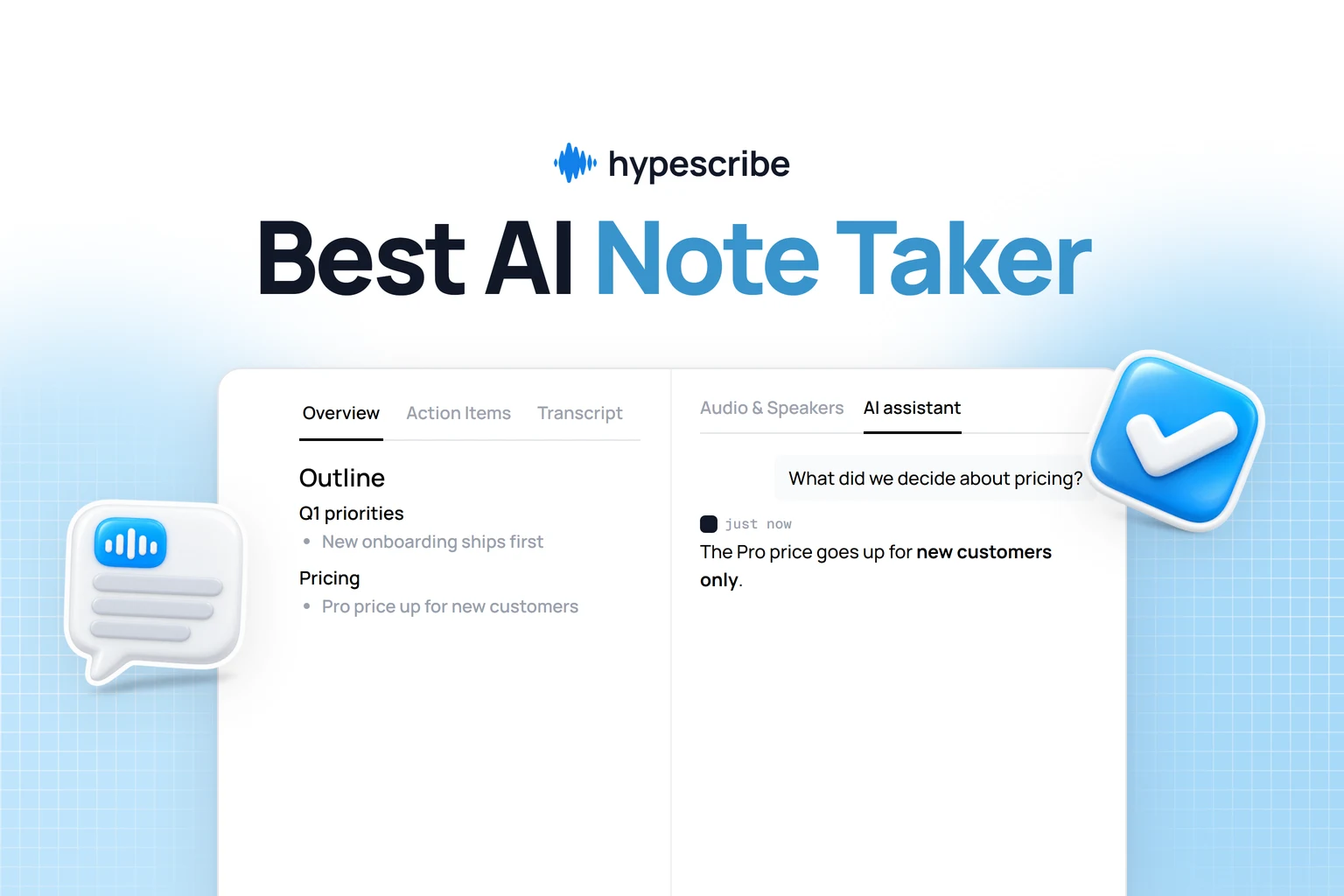
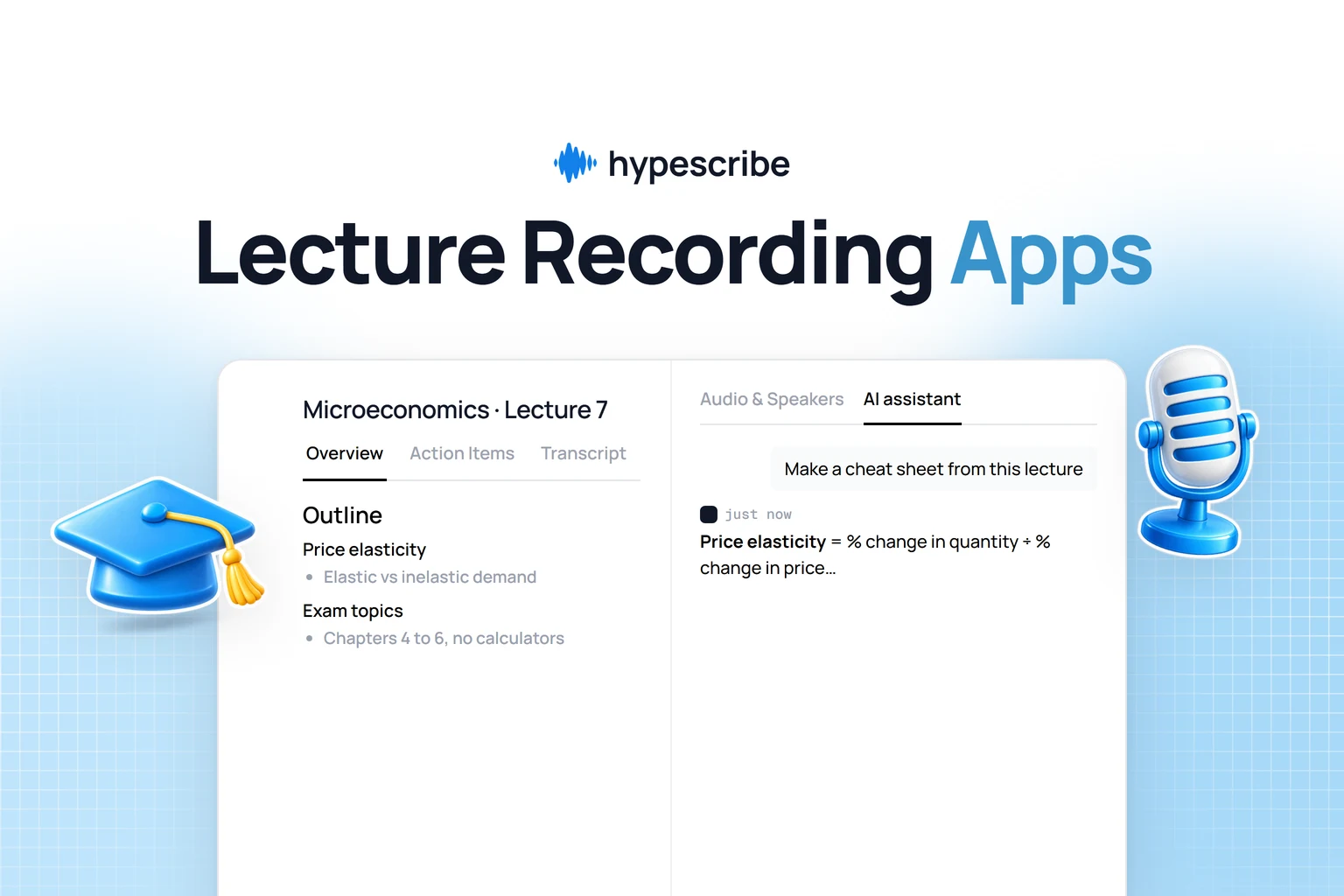
You can also paste a link from YouTube, Zoom or Google Drive, or, on the Pro and Ultra plans, send the notetaker to a Zoom, Meet or Teams call. You get the transcript with speakers and timestamps in 99+ languages, an overview, action items and an AI assistant you can ask about the recording, with export to DOCX, PDF, SRT and more.
Plans are monthly and count files, not minutes: Starter is $6.99 a month for 30 recordings of any length, so a three-hour lecture uses the same one credit as a short memo. Pro is $7.99 and Ultra $12.99.
When not to use it: for a quick text message, Apple's Dictation is faster, and HypeScribe doesn't type into other apps. For more on recording classes, see our guide to apps for recording lectures, and for calls, the one on recording meetings.
Dictating on a Mac too?
On a Mac or a Windows PC, look at Voice OS. It types into whatever app your cursor is in, in over 100 languages. Its iPhone app isn't out yet: the site lists mobile as coming soon, with a waitlist.
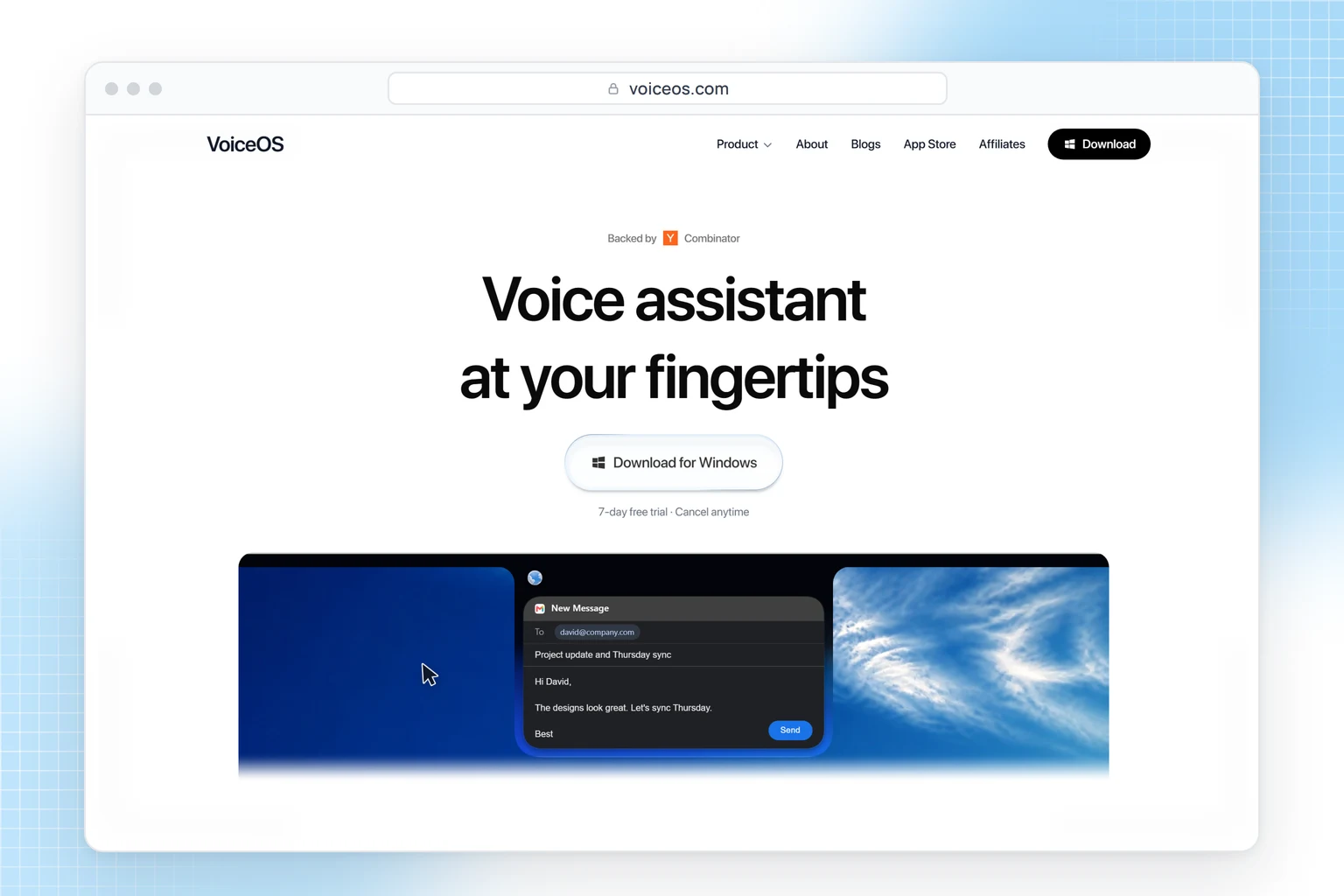
Superwhisper's license covers all your devices, and Wispr Flow also runs on Mac and Windows, if you'd rather use one app everywhere. For what's built into macOS, see our guide to dictation on a Mac.
FAQ
Is there a free speech to text app for iPhone?
Yes. Dictation is built into the iPhone keyboard and costs nothing, and so do Voice Memos and Notes transcripts, call recording and Live Captions, depending on your iPhone model, language and region. Wispr Flow and Superwhisper have free tiers.
Can an iPhone transcribe a voice memo?
On iPhone 12 or later, Voice Memos transcribes new and old recordings in 10 languages; see our guide to transcribing Voice Memos. For an older iPhone, another language or a file you got elsewhere, upload it to a transcription service such as HypeScribe in Safari.
Does iPhone dictation work without internet?
In most of its languages, yes: Apple processes Dictation on the iPhone. When you dictate into a search field, the text may still be sent to the search engine.
Can I record a phone call on iPhone?
In many countries, yes, from the more button during a call, and the other person hears a notice. It isn't available in the European Union and several other regions.
Long recordings
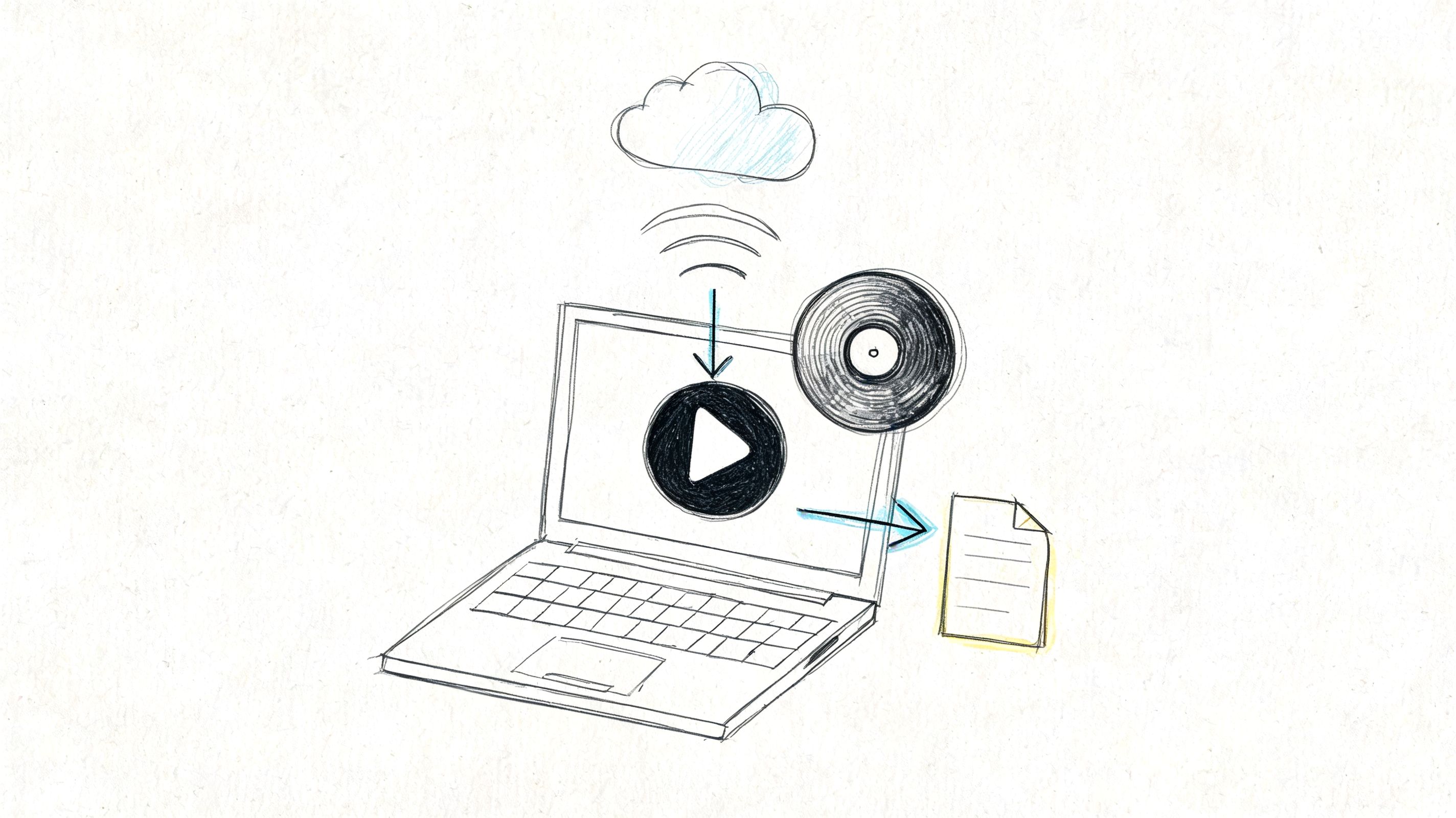
Turn a lecture on your iPhone into notes
Record it in Safari or upload the file from Photos or Files, then read the summary and jump to the exact moment in the transcript.